Watch Quick Video
POS Internal Stock Transfer
Enhance Your Odoo Internal Transfer with Our
All-In-One Date & Time Feature
The POS Internal Stock Transfer lets you create internal stock transfers directly from the Point of Sale screen without having to switch to the Inventory backend. Cashiers and store managers can quickly start a stock movement while staying in the POS session by simply clicking the Internal Transfer button in the Actions menu.
From there, users can choose the operation type, pick the source and destination locations, and set the transfer state to Draft, Ready, or Done. The module automatically fills in the default source and destination locations based on the selected operation type, so users spend less time setting things up and can get transfers done faster.
Once a transfer is created, a confirmation popup appears showing the transfer reference as a clickable link. Clicking it takes the user straight to the stock picking record in the Inventory backend for further review or validation.
The Internal Transfer button can be turned on or off from the POS Configuration settings with a single toggle, giving administrators full control over which POS sessions have access to this feature. No additional setup is needed after installing the module.
POS Internal Stock Transfer
- Flexible POS Settings – Administrators can enable or disable internal transfers for each POS configuration based on business requirements.
- Smart Location Selection – Source and destination locations are automatically selected based on the chosen operation type to simplify transfer creation.
- Instant Transfer Creation – Users can create internal stock transfers instantly without leaving the active POS session.
- One-Click Transfer Access – Users can quickly access the internal transfer feature directly from the POS Actions menu with a single click.
- Transfer Success Notification – Displays the transfer reference with a direct link immediately after successful transfer creation.
- Backend Navigation Support – Users can click the transfer reference to directly open the related picking record in the Inventory module.
Complete Workflow for POS Internal Stock Transfer
Install the POS Internal Stock Transfer module and enable the feature from POS Configuration Settings using the Internal Transfer toggle. Once enabled, an Internal Transfer button appears in the POS Actions menu during an active session. Cashiers or store managers can click this button to open the Internal Transfer popup, where they can select the operation type, source location, and destination location — with default locations auto-filled based on the selected operation type. Users then set the transfer state to Draft, Ready, or Done and click Create Transfer. A confirmation popup displays the stock transfer reference as a clickable link, allowing users to jump directly to the Inventory backend to review or validate the picking record — all without leaving the POS session.
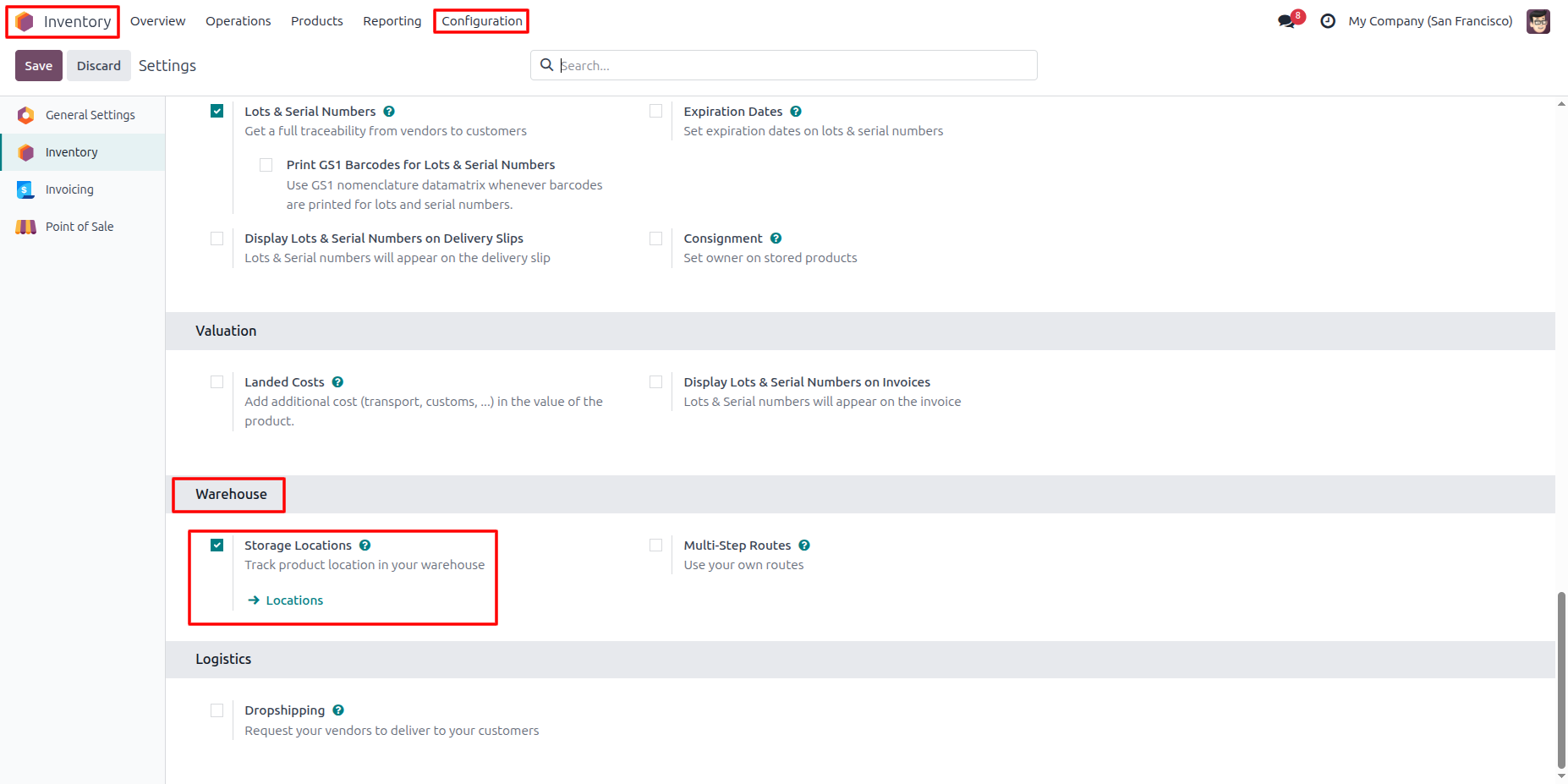
1. Go to Inventory → Configuration → Settings, and enable the Storage Locations option under the Warehouse section
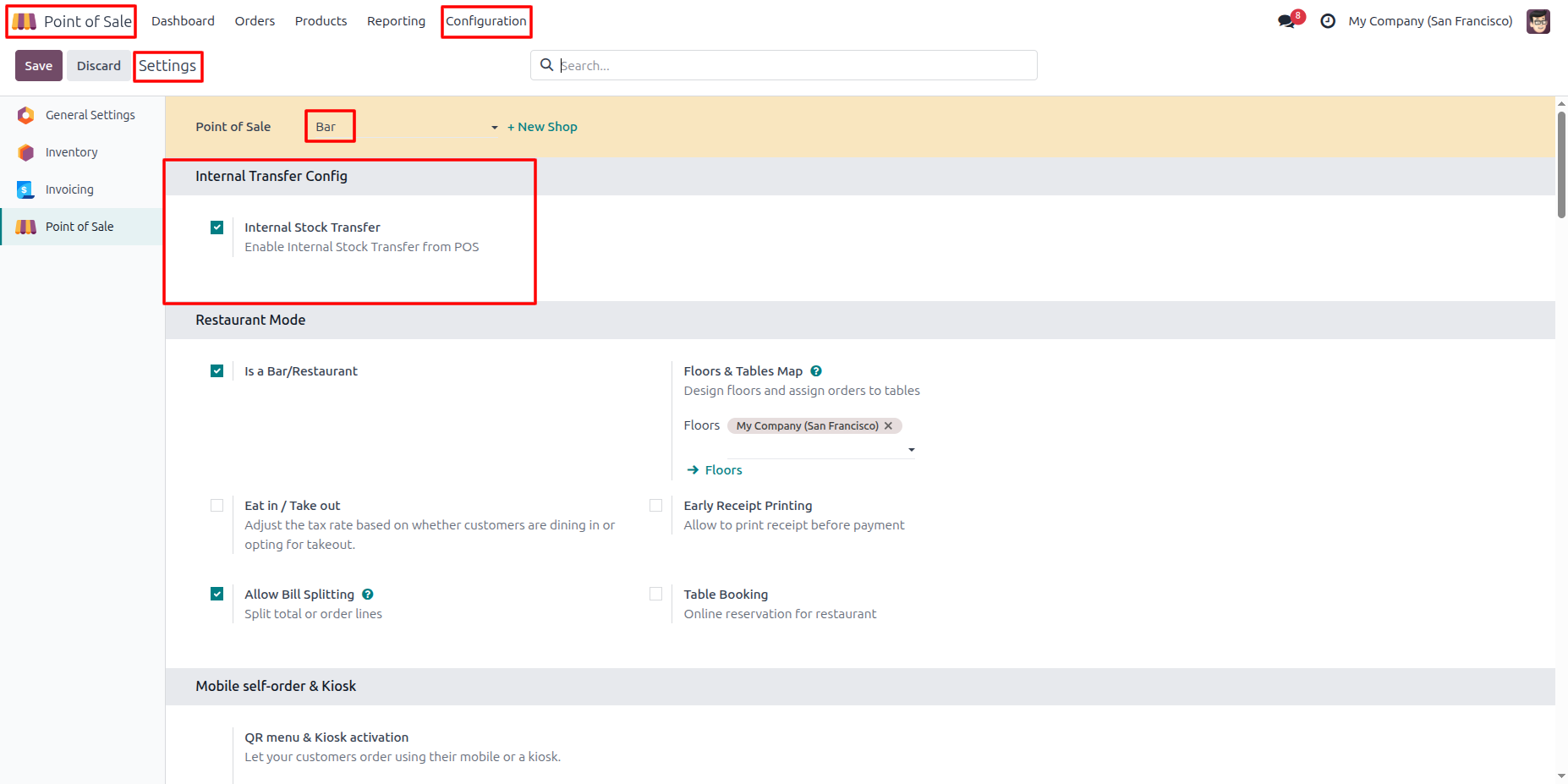
2. Go to Point of Sale → Configuration → Settings, select the desired POS configuration, and enable the Internal Stock Transfer option under the Internal Transfer Config section to allow stock transfers directly from the POS session.
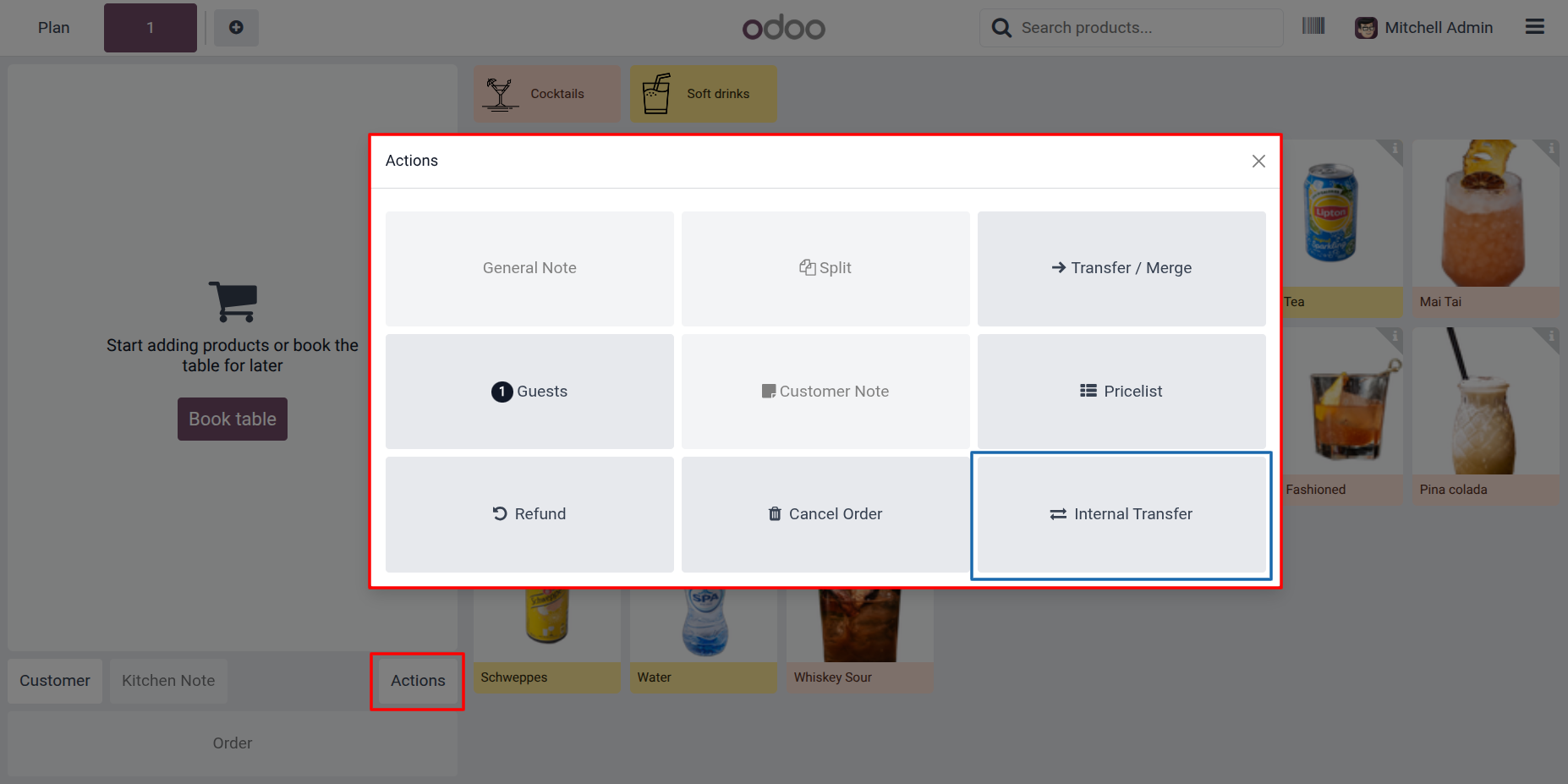
3. Open a POS session, click the Actions button you can see the Internal Transfer button.
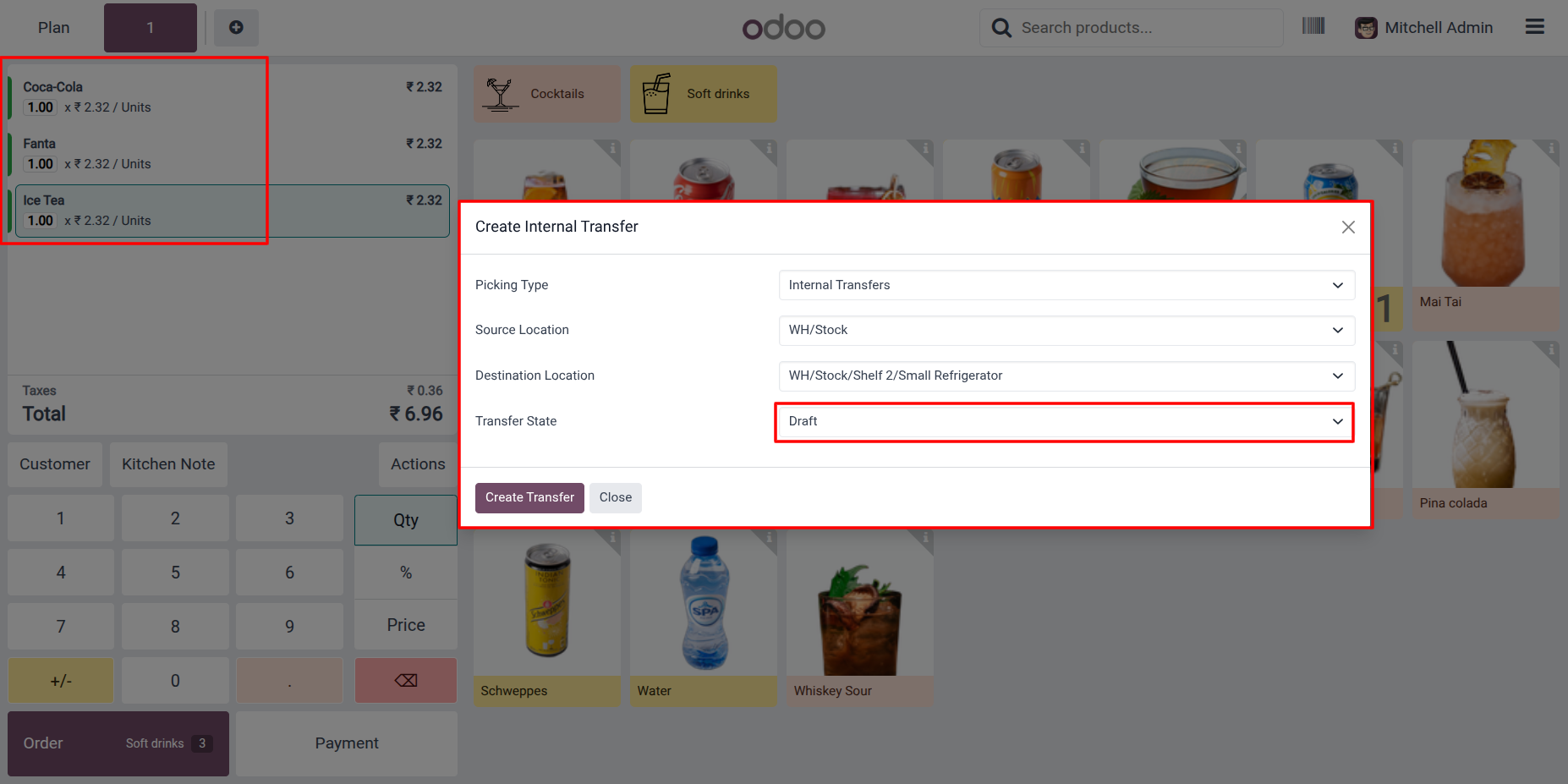
4. Create an internal transfer picking for the selected products by choosing the source and destination locations, and set the desired transfer state before creating the transfer.
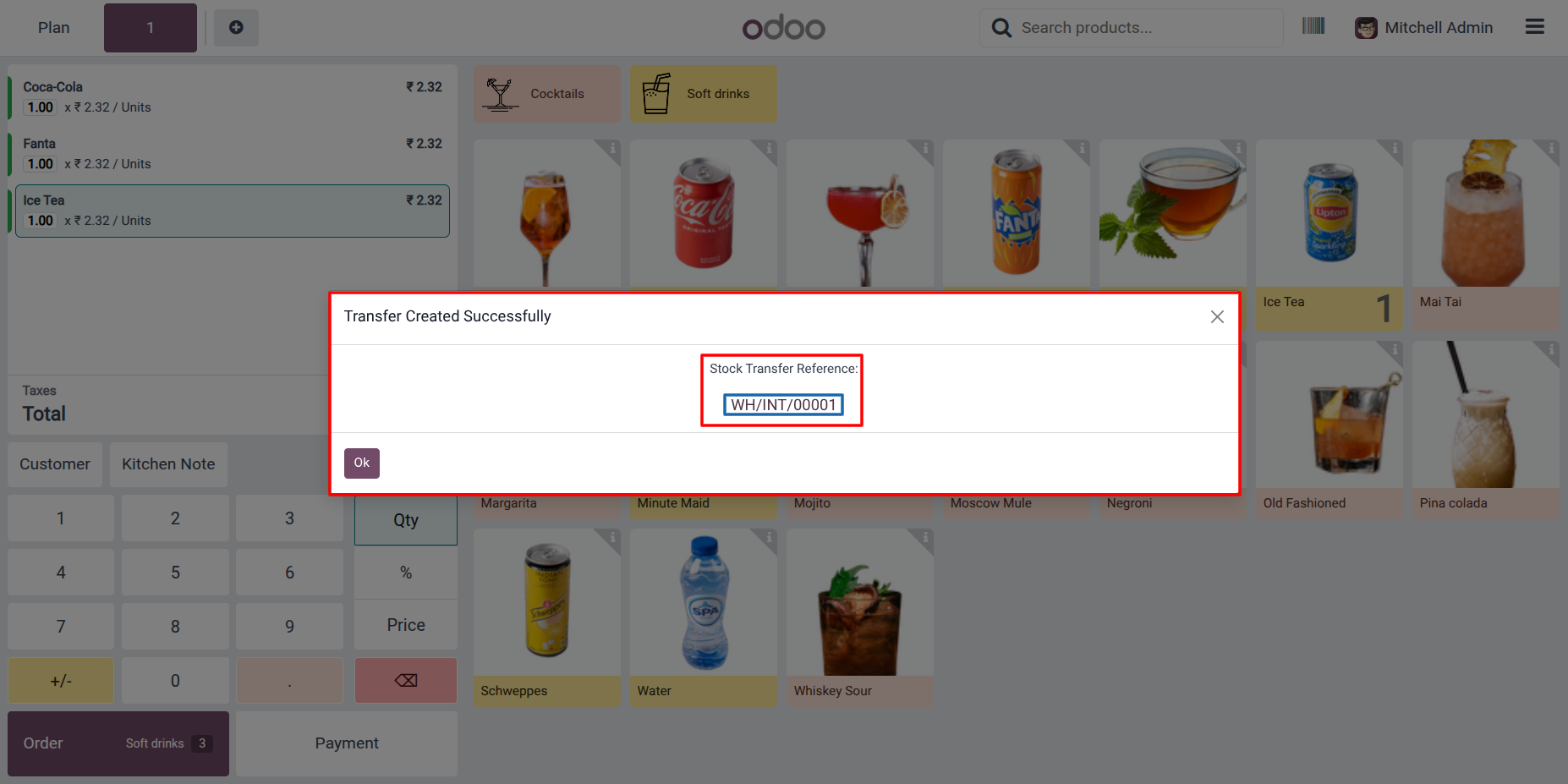
5. After the transfer is created successfully, a confirmation message is displayed along with the generated Stock Transfer Reference, which acts as a clickable link to directly access the related transfer record in the Backend Inventory module.
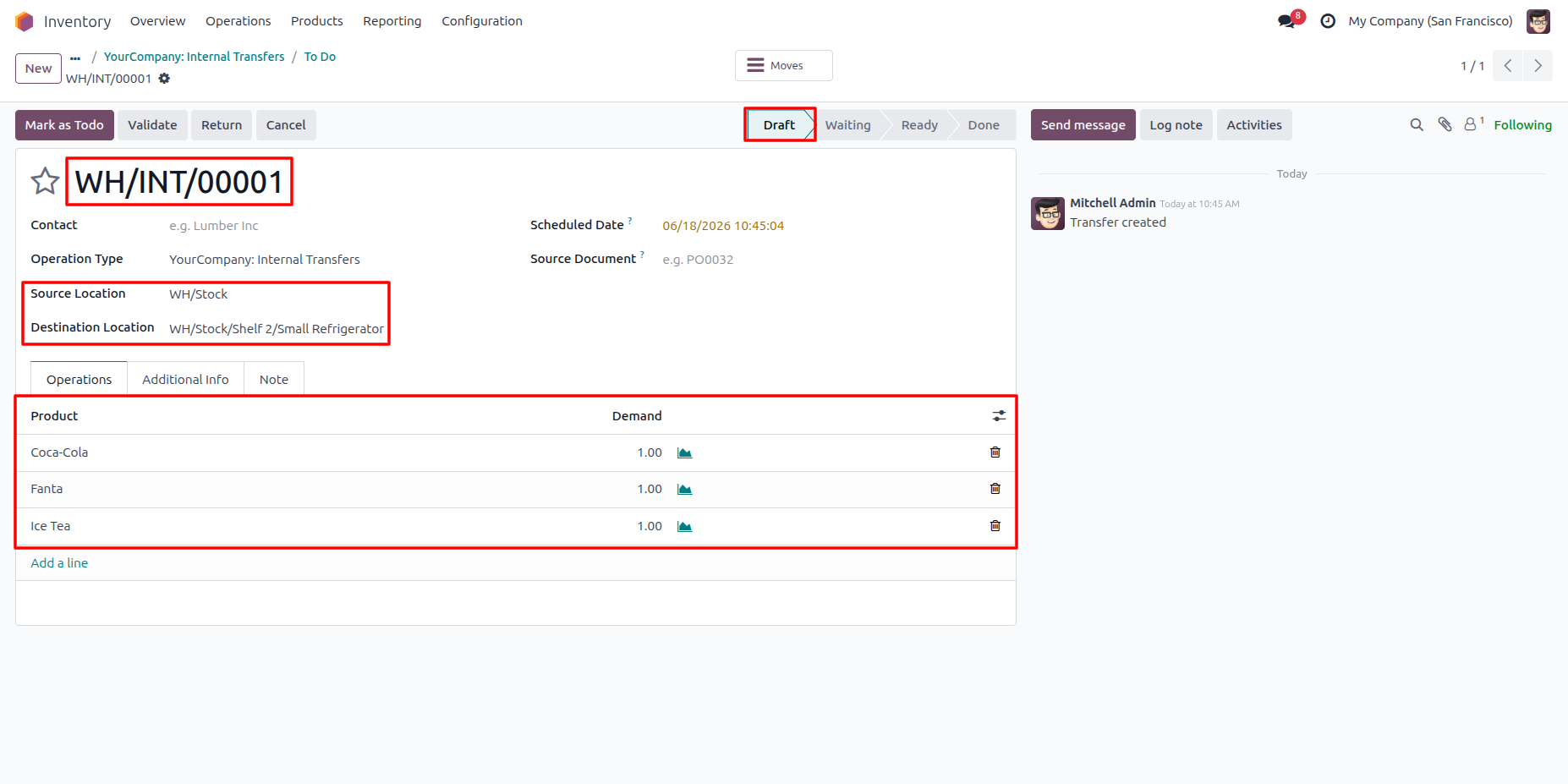
6. After clicking the Stock Transfer Reference, the related internal transfer record opens in the Inventory module, where users can review the transfer details, source and destination locations, transferred products, and the selected Draft state.
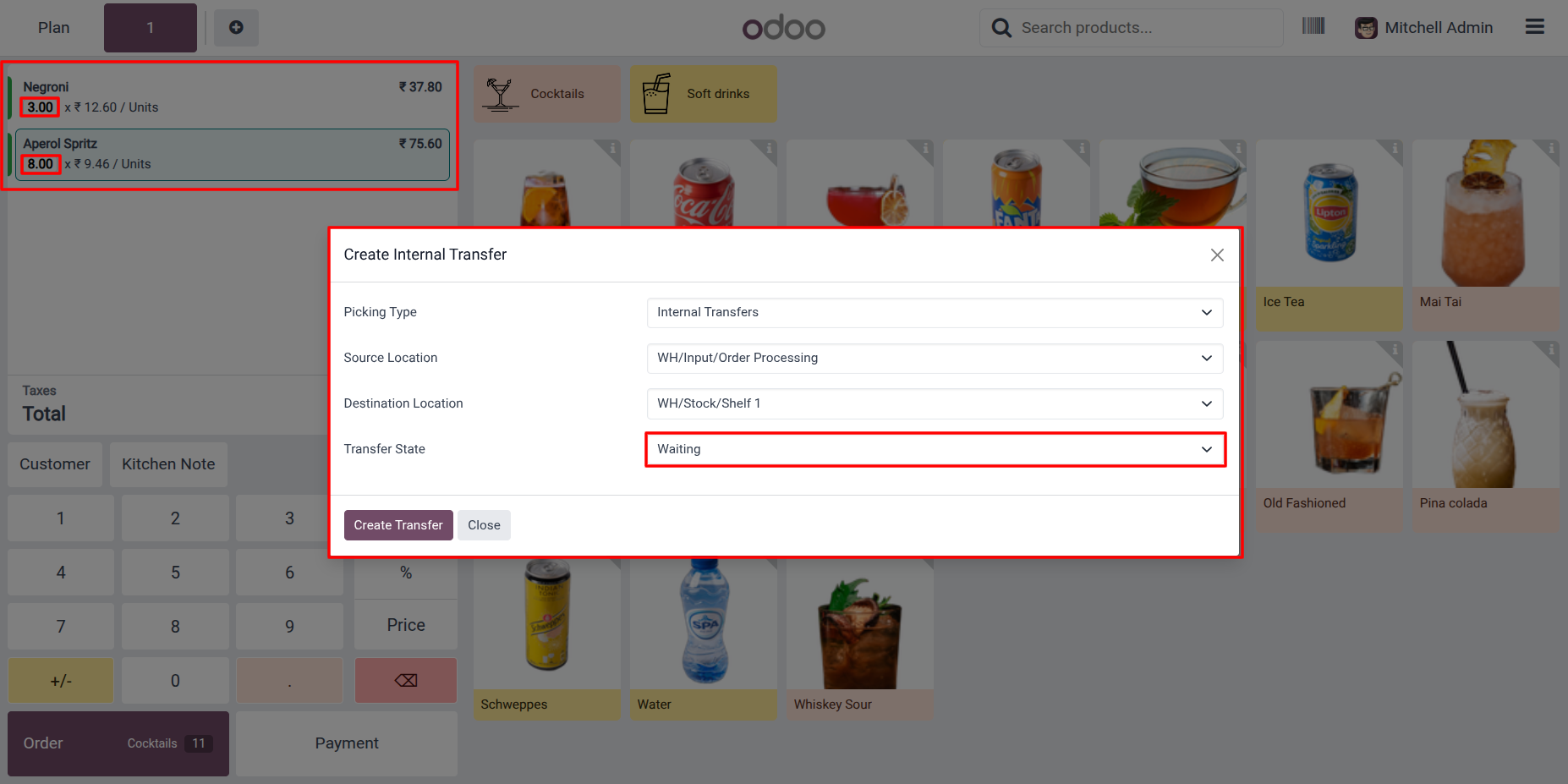
7. Create an internal transfer for the selected products with the required quantities, choose the source and destination locations, and set the transfer state to "Waiting" to create a transfer awaiting further processing.
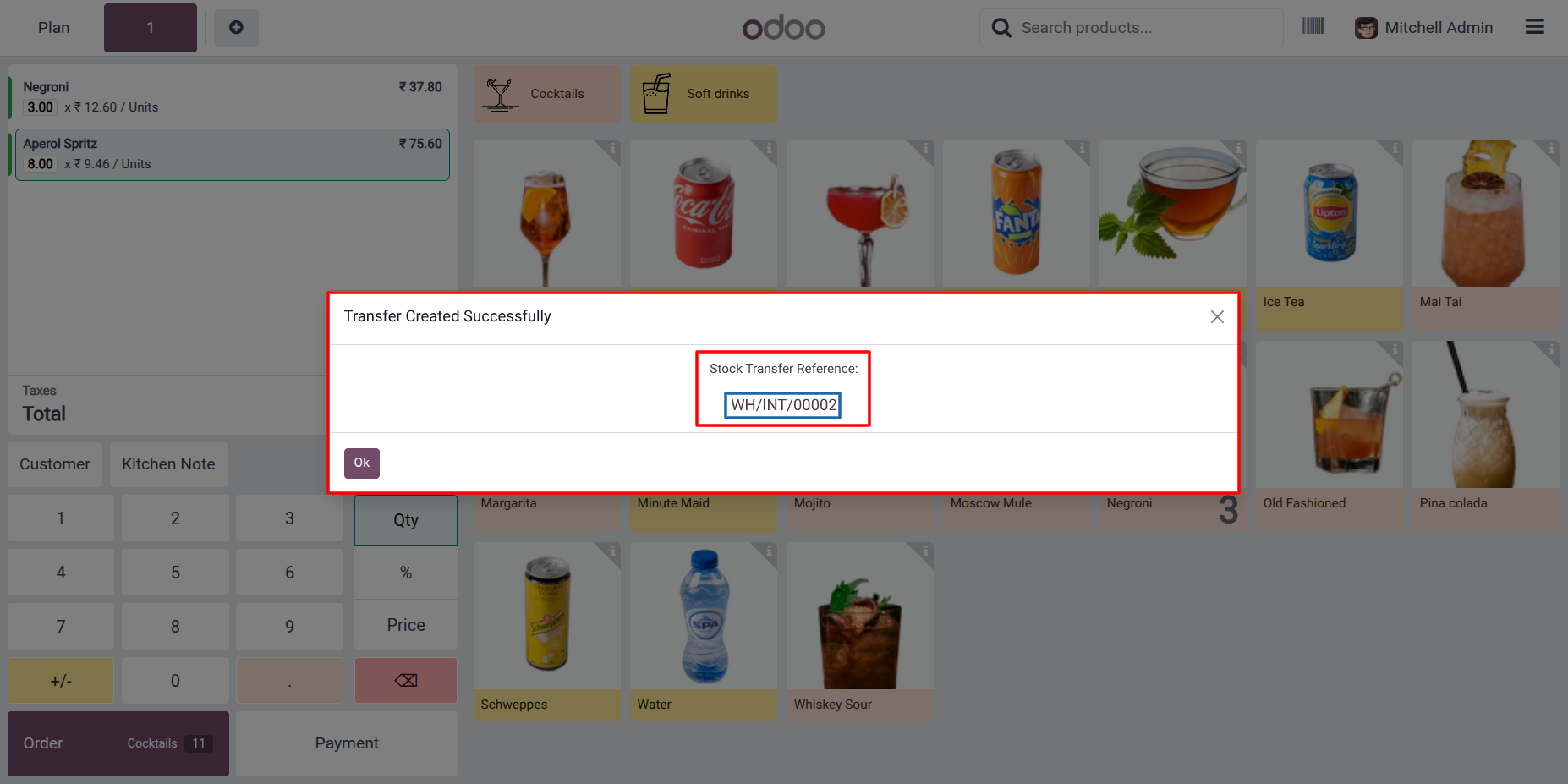
8. After the transfer is created successfully, a confirmation message is displayed along with the generated Stock Transfer Reference. Click the reference to open and review the transfer record created in the "Waiting/Ready" state.
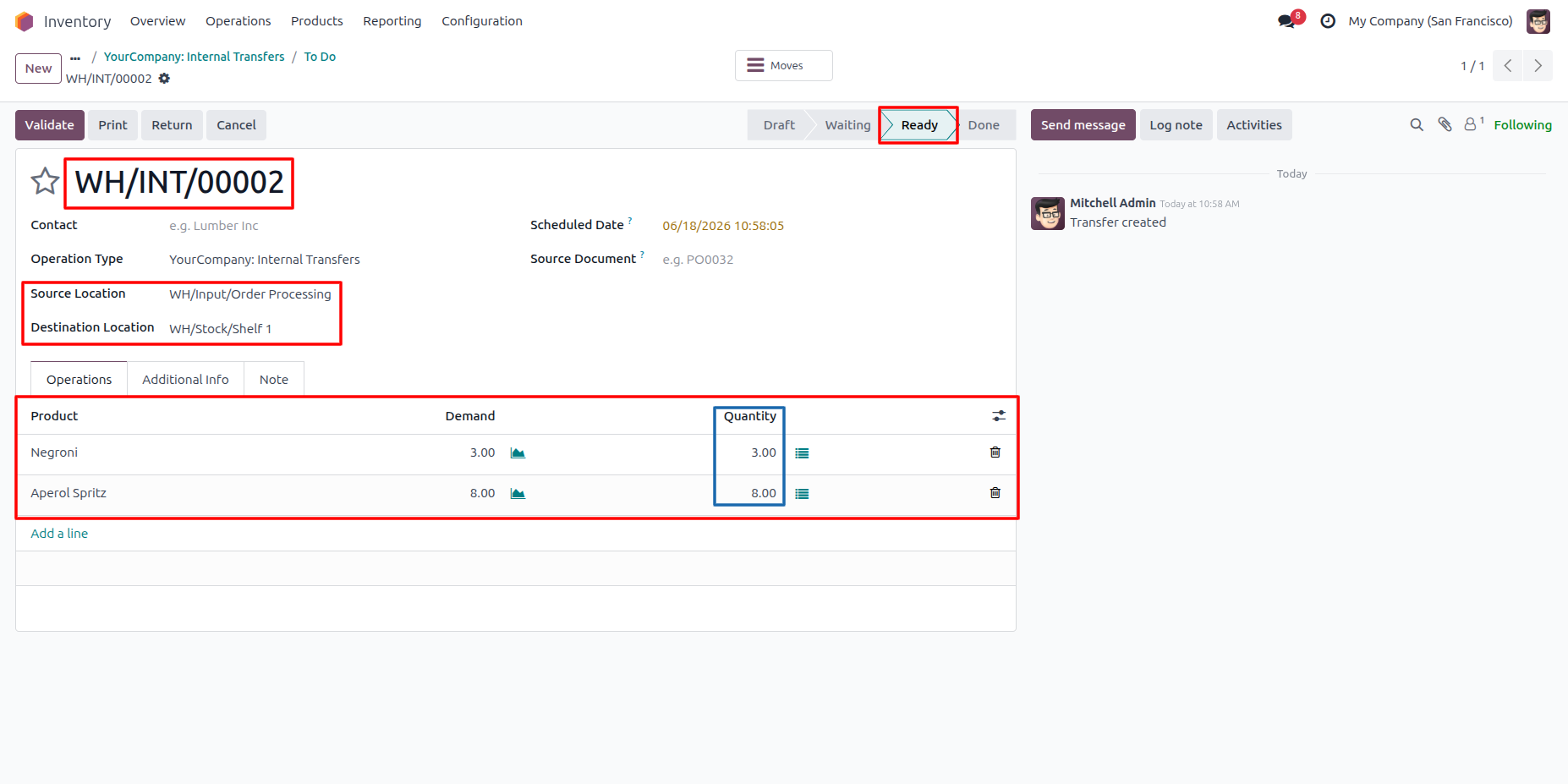
9. The internal transfer record is created in the Inventory module with the selected "Waiting/Ready" state, displaying the source and destination locations, transferred products, and the quantities automatically set from the POS order.
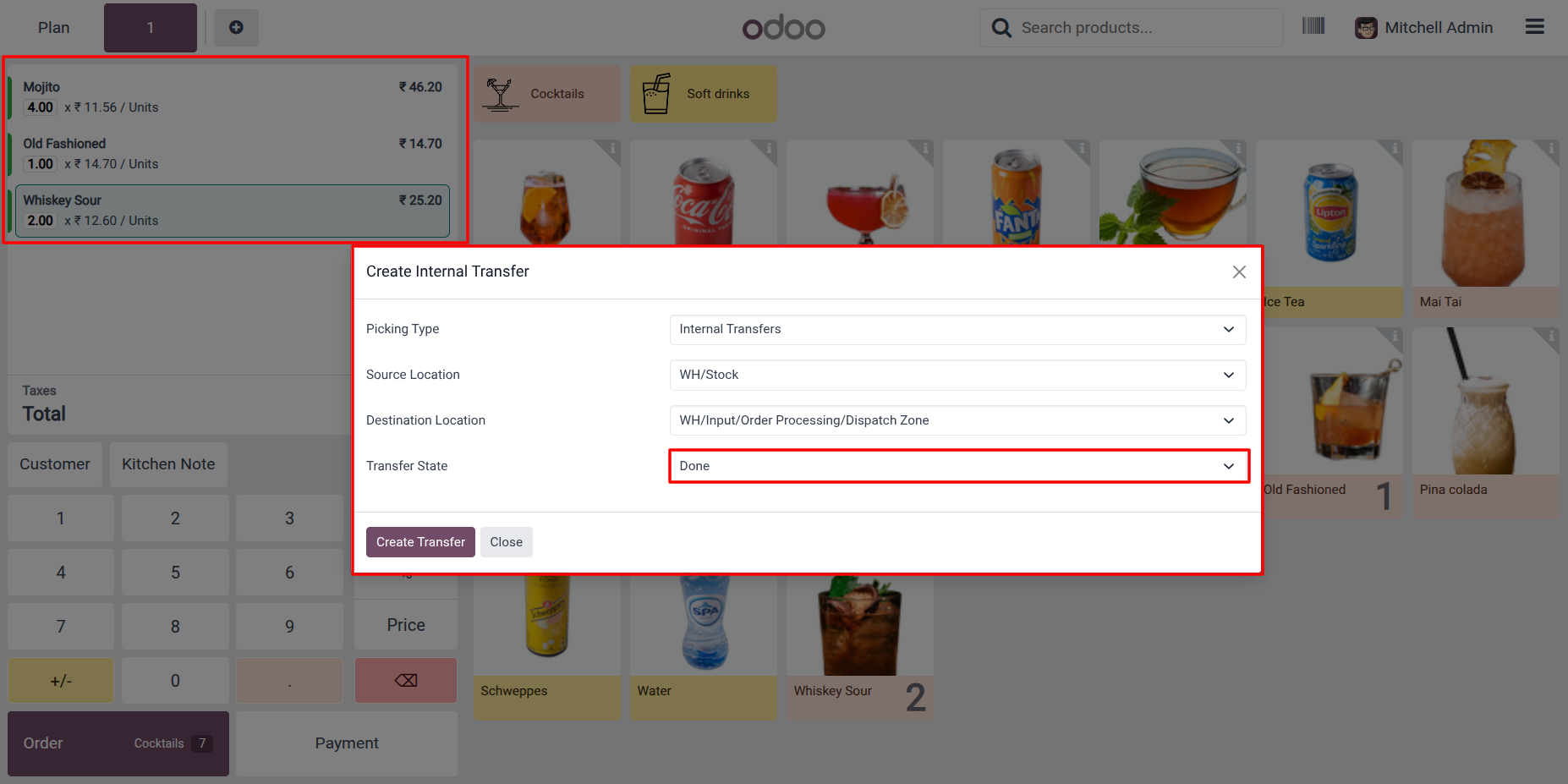
10. Create an internal transfer for the selected products by choosing the required source and destination locations and setting the transfer state to "Done". The transfer will be automatically validated and completed upon creation.
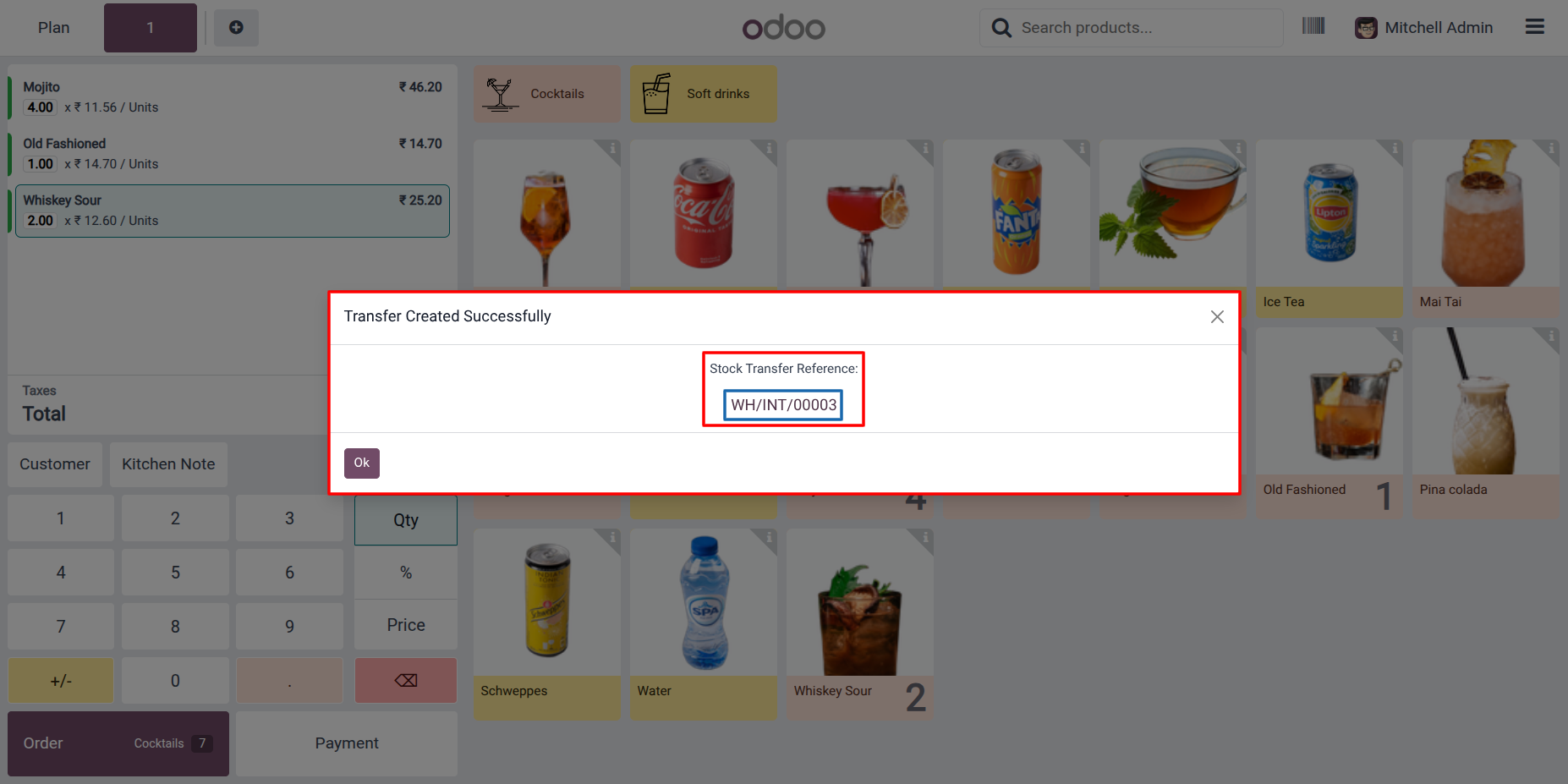
11. After the transfer is created successfully, a confirmation message is displayed along with the generated Stock Transfer Reference. Click the reference to directly open the completed transfer record in the Inventory module.
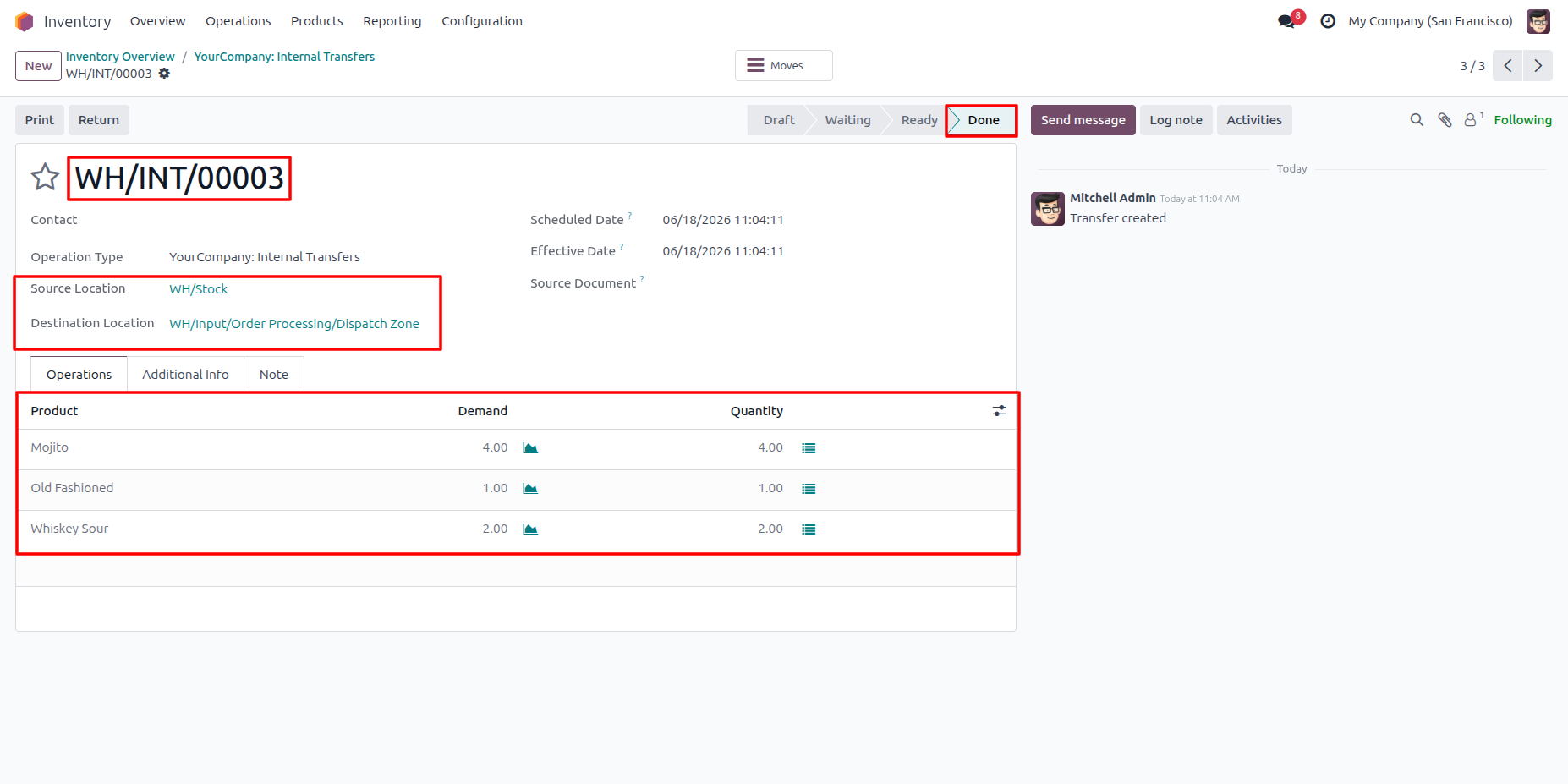
12. The internal transfer record is successfully completed in the Inventory module with the "Done" state, displaying the selected source and destination locations, transferred products, and validated quantities moved through the transfer.
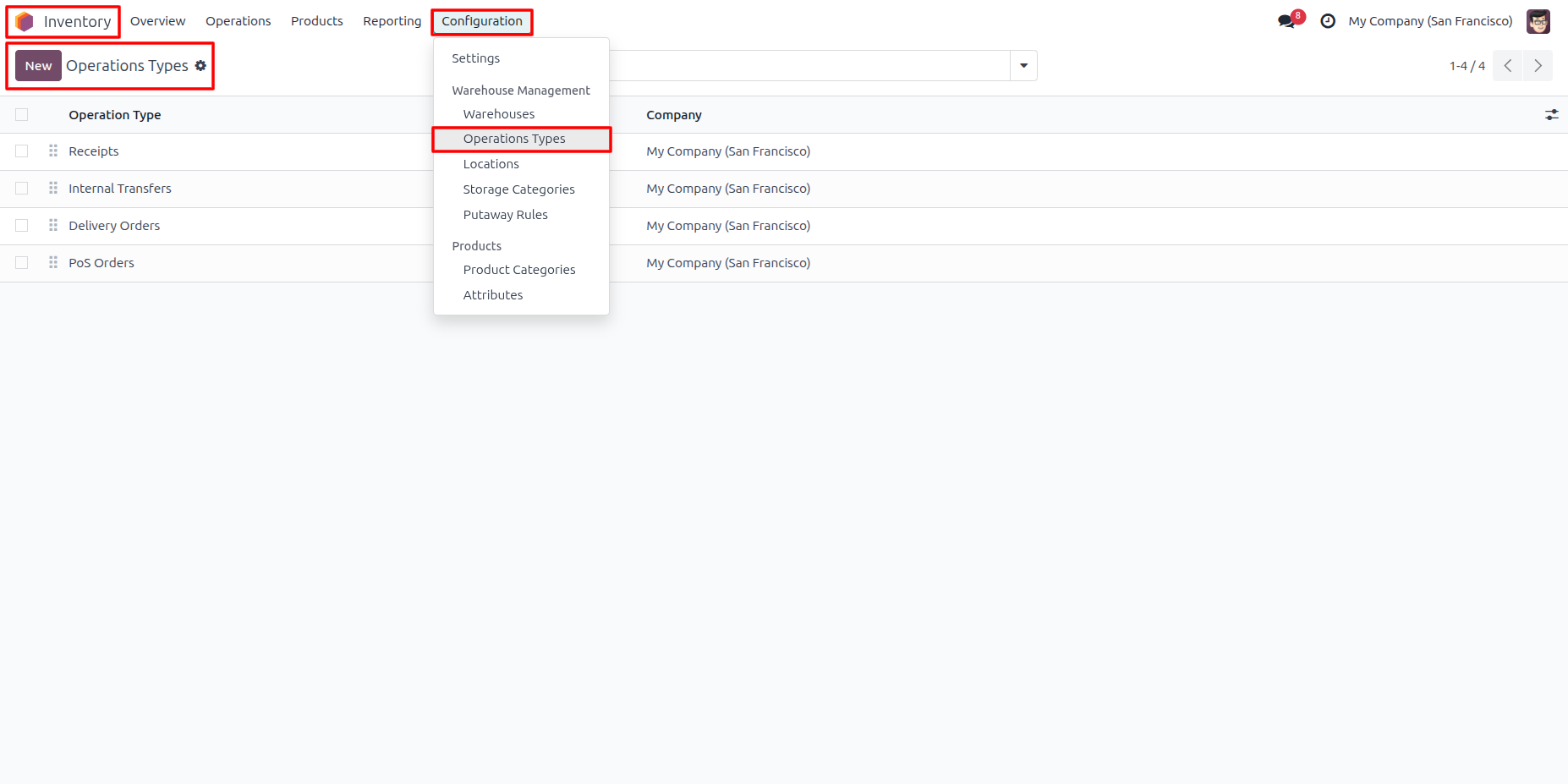
13. Go to Inventory → Configuration → Operation Types
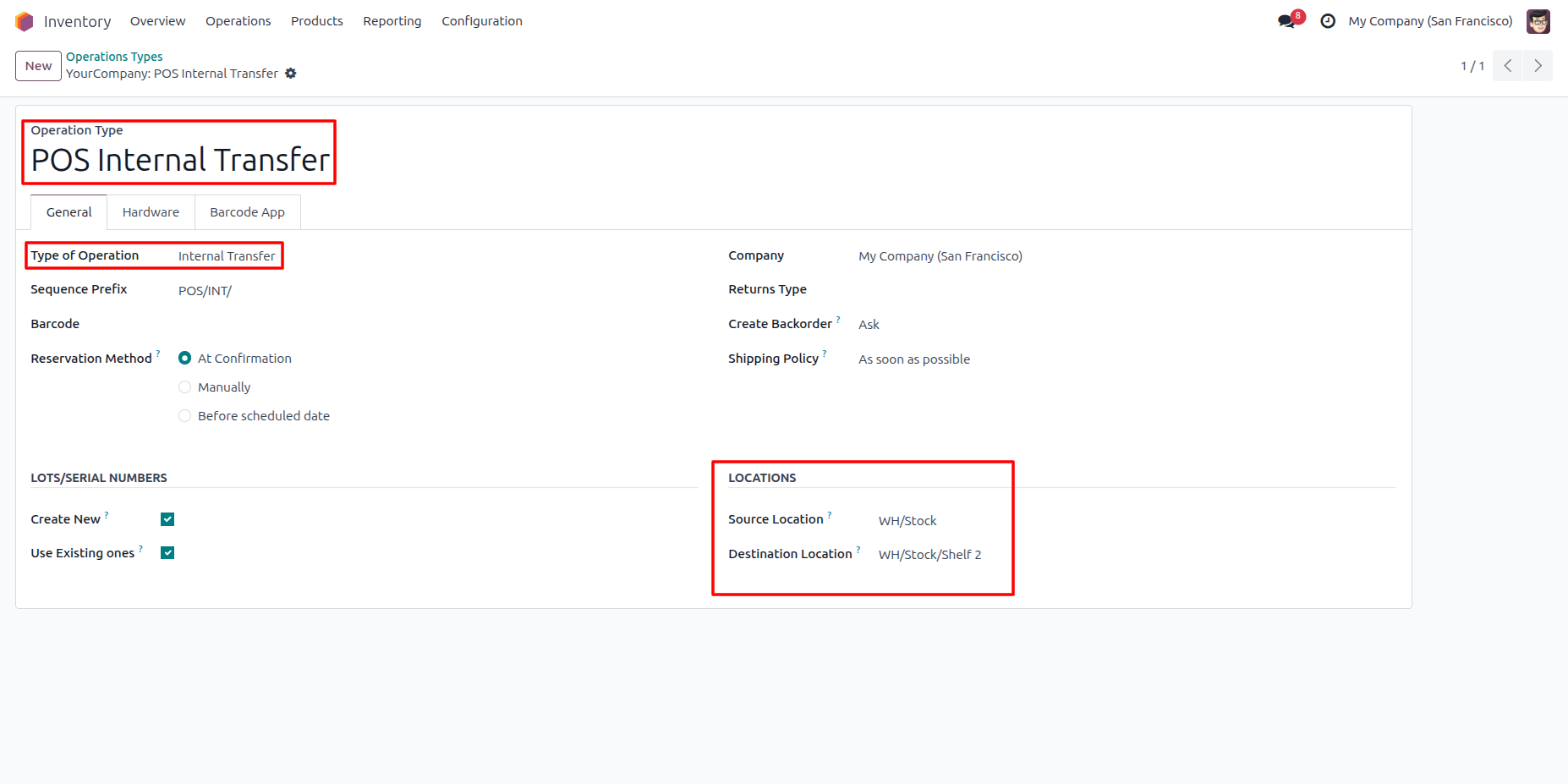
14. Create an Operation Type for POS Internal Stock Transfer based on your business requirements. Ensure that the "Type of Operation" is set to "Internal Transfer" and configure the appropriate source and destination locations that will be used when creating transfers from the POS.
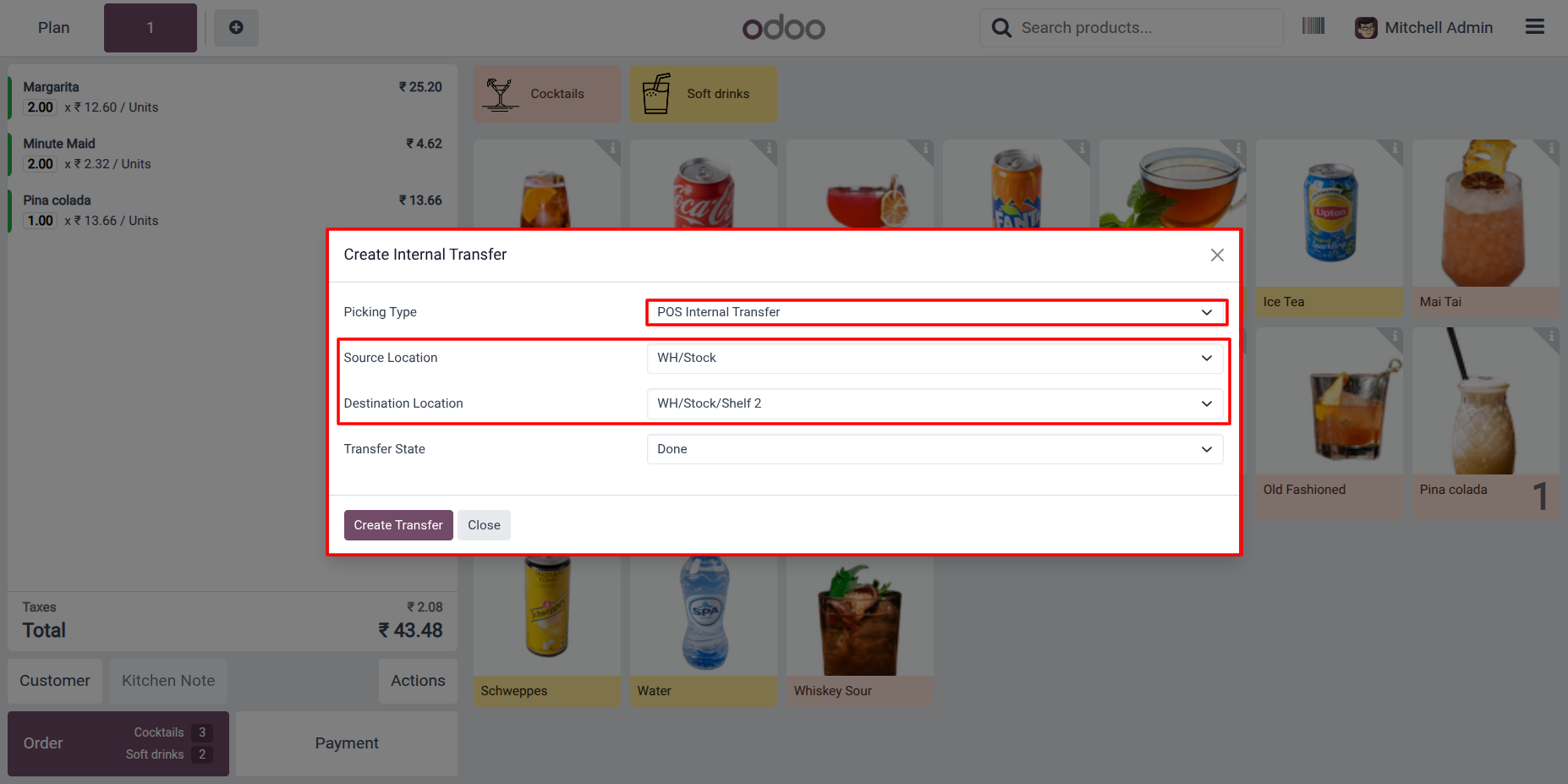
15. Select the custom POS Internal Stock Transfer Transfer operation type that you created. The source and destination locations are automatically populated based on the locations configured in the selected operation type, reducing manual input and ensuring accurate stock transfers.
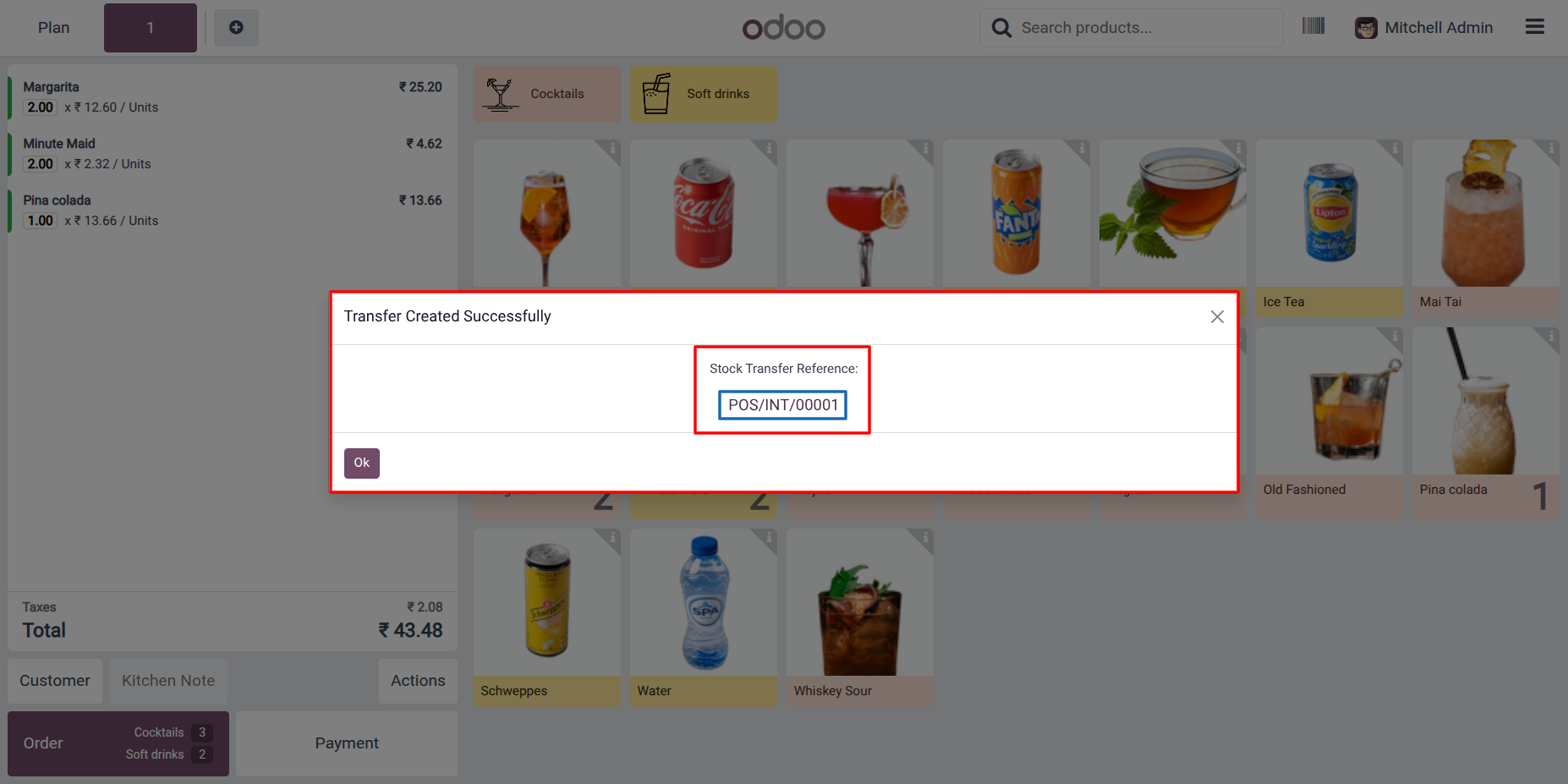
16. After the transfer is created successfully, the generated Stock Transfer Reference follows the sequence prefix configured in the selected operation type. Click the reference to directly access the corresponding transfer record in the Inventory module.
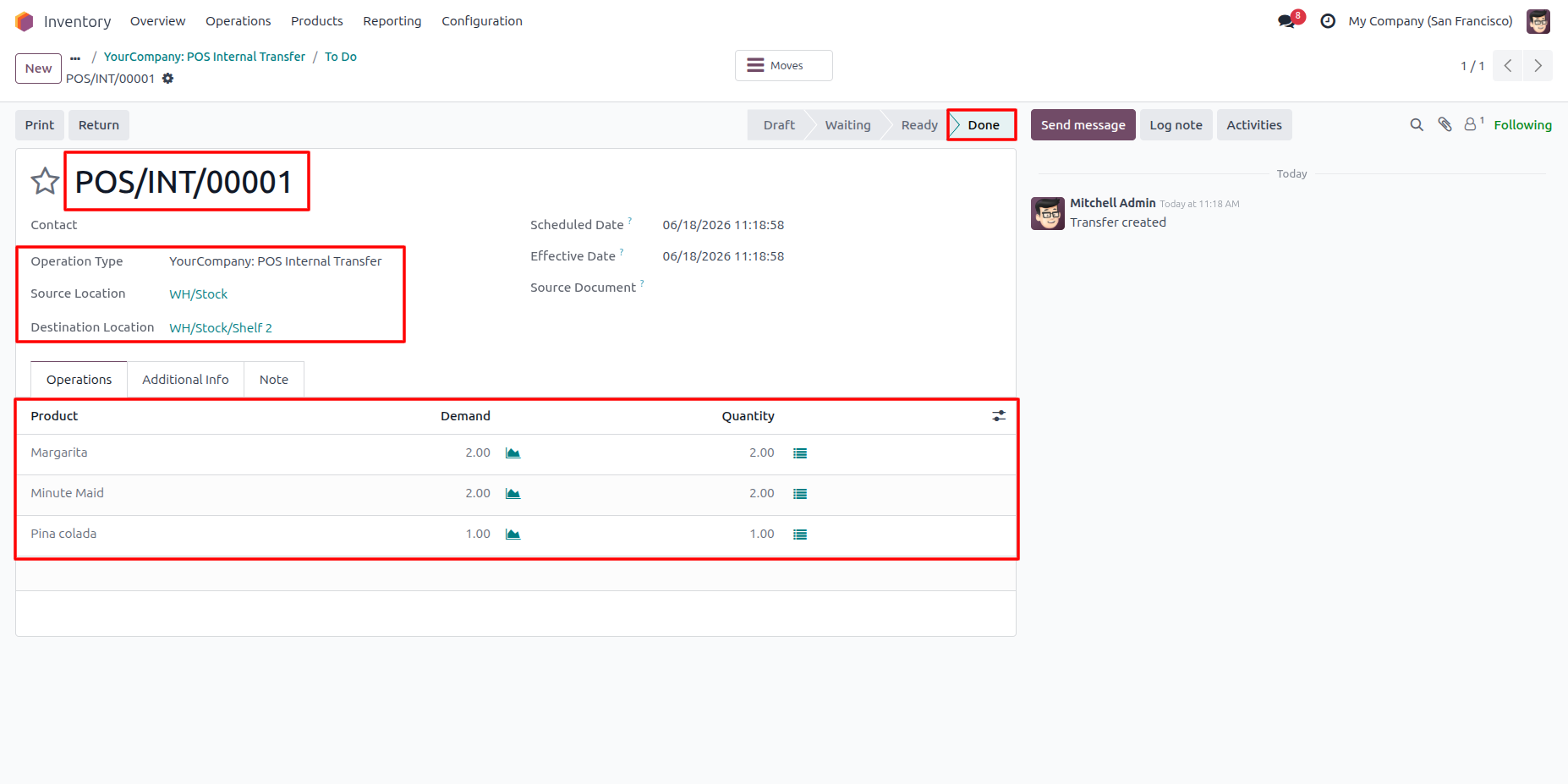
17. The internal transfer record is created using the custom POS Internal Stock Transfer Transfer operation type, applying the configured sequence prefix, source and destination locations, selected transfer state, and product quantities as defined during transfer creation.
Our solutions focus on your problems
- Odoo Implementation
- Odoo Customization
- ERP Development and Implementation
- Odoo Ipass Cloud
- AI for Odoo
- Odoo Apps
- Aws Marketplace Products
- Business Engines
Our Pricing includes User Manual, 90 Days Support (Monday-Friday 10am to 7pm IST) and One time Setup
• Works & tested on standard installations of Odoo with no third party apps,
• Free support only for odoo installations with no third party apps,
• Paid support available for Odoo installations with third party apps.

Prefortune is a Odoo Official Partner, Odoo Development company. Our philosophy is to use Open Source tools and technologies to provide cost effective and green solutions for our customers.
Prefortune Technologies LLP is working on web development, Mobile development, and Odoo ERP.
If you need any help or want more additional features, you may contact us through:
Alternative Products
These other products might interest you
Specifications
| Version | 19.0, 18.0, 17.0, 16.0, 15.0, 14.0 |