
Watch Quick Video

Quick Product Search & Selection In Sale & Invoice
Our all-inclusive
Odoo – Quick Product Search & Selection In Sale & Invoice module, This robust extension transforms how users handle product selection within the Sales and Invoicing applications by providing an advanced, criteria-based search interface. First, administrators set up item fields and variants—such as sales price, categories, or physical attributes—that will be searched for in the system. Once it is set up, sales reps and auditors can run the advanced search wizard from any draft proposal, Customer Invoice or the Vendor Bill. The wizard features dynamic comparing operators, allowing the user to accurately filter huge catalogues to get exactly what he/she needs for a transaction. Users can select either a general product list or particular variants, and add desired quantities to a staging area before verifying the choice. Once you have verified, the selected products will be automatically linked to the invoice or order lines of the file with the relevant prices and taxes. And it is not only sales, but also Customer Credit Notes, and Vendor Refunds that are built into this all-in-one solution, providing a very efficient and unified way to enter all financial records.
Quick Product Search & Selection In Sale & Invoice
- Administrators can selectively configure which product fields (e.g., Barcode) and attributes (e.g., Color) are available to users in the search wizard.
- A dedicated pop-up interface allows users to search inventory using specific comparison operators and multi-conditional logic.
- Users can search, queue, and adjust quantities for multiple different products at once before adding them to the final document.
- The advanced search functionality is seamlessly accessible across multiple document types, including Quotations, Invoices, Vendor Bills, and Credit Notes.
- Selected items smoothly transfer from the search wizard directly into the document's order or invoice lines with accurate pricing and descriptions
Complete Workflow for Manage Quick Product Search & Selection In Sale & Invoice
Enable the Quick Product Search & Selection In Sale & Invoice The workflow begins in the configuration settings, where administrators define the specific product fields and attributes available for filtering. Once the user opens a sales or invoicing document, they click the "Select Products Advance" button to open a search wizard, use custom filters to find the items and add them to the queue. Lastly, when an item is picked, those chosen items and amounts are directly added into the active lines of the standard doc, which improves the efficiency of the whole order generation process.
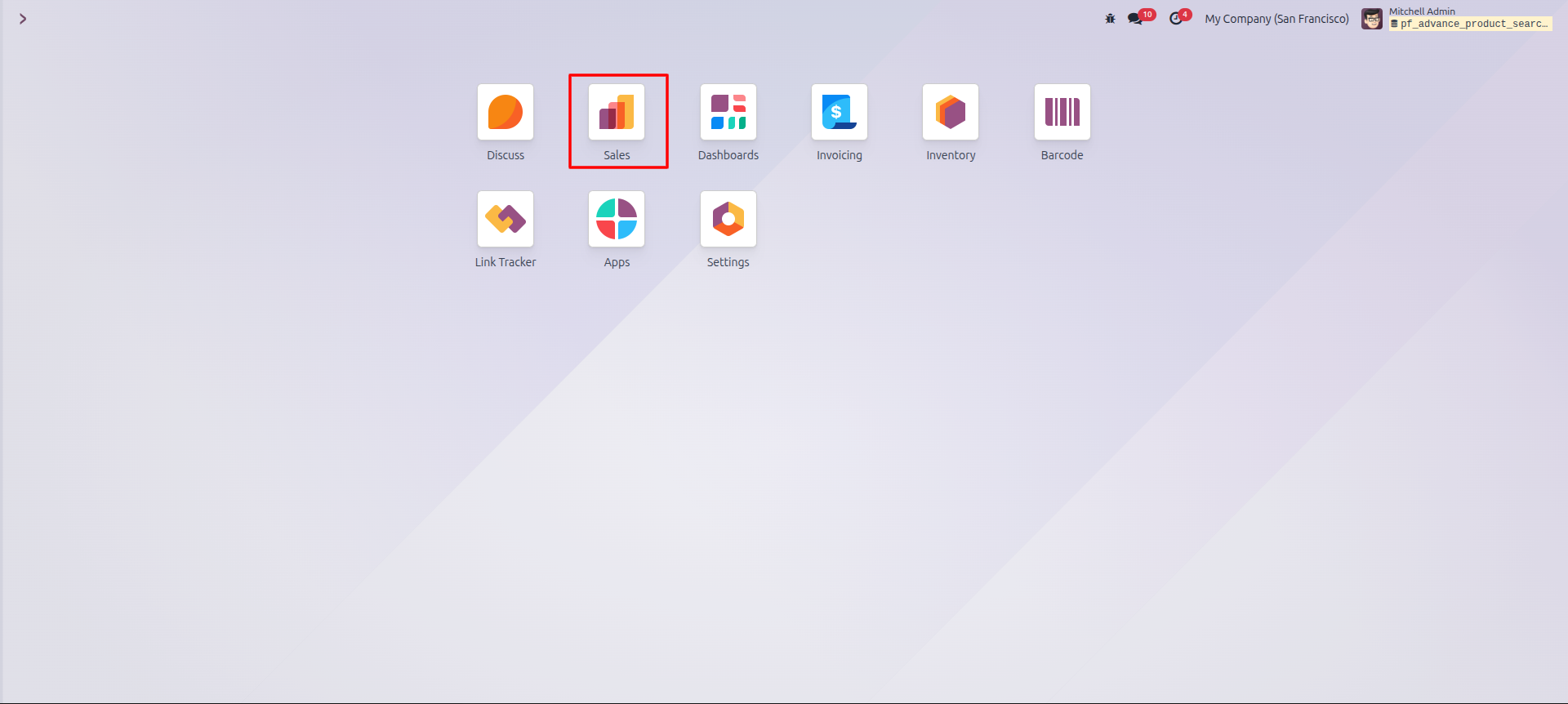
1.From your main Odoo dashboard, locate and click on the Sales application icon.
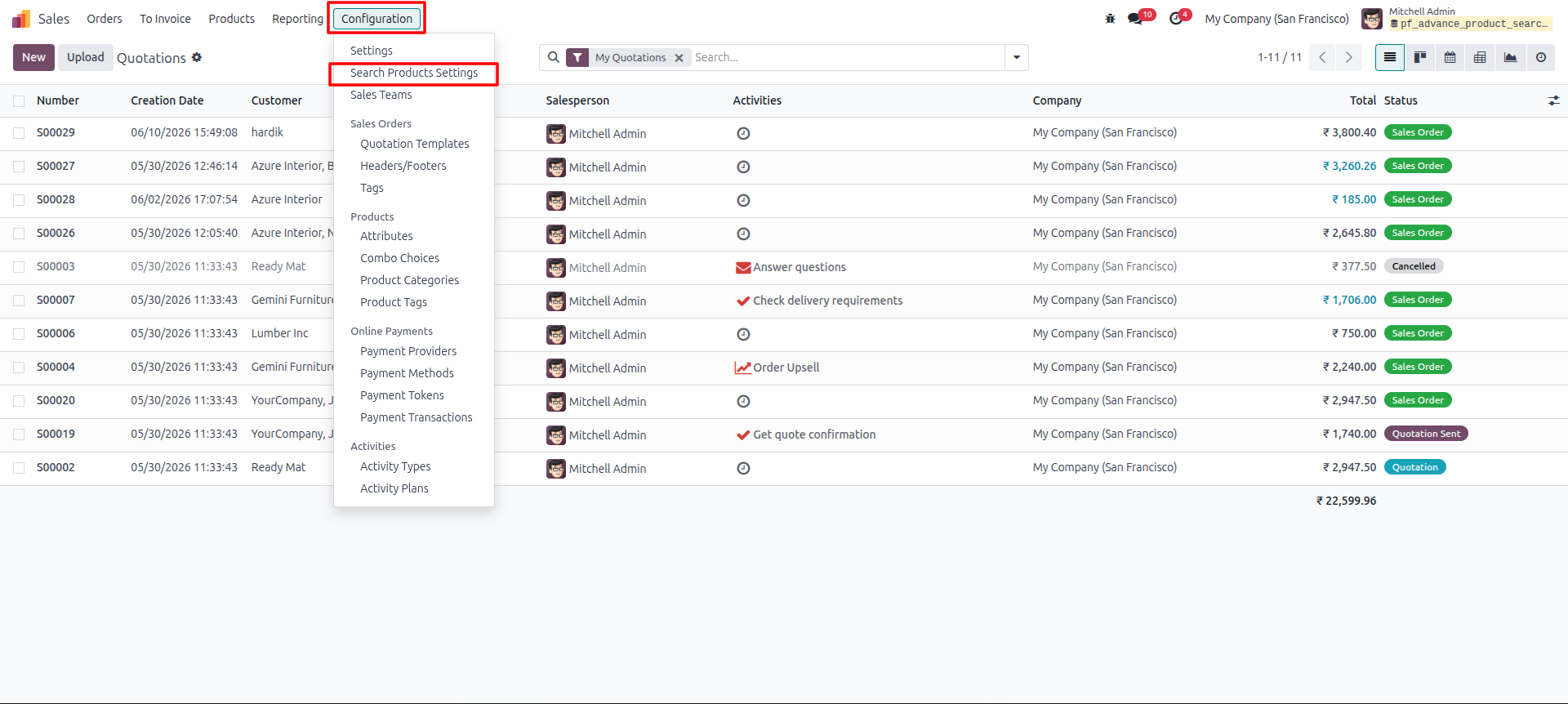
2.In the top navigation bar of the Sales module, click on Configuration and select Search Products Settings from the dropdown menu.
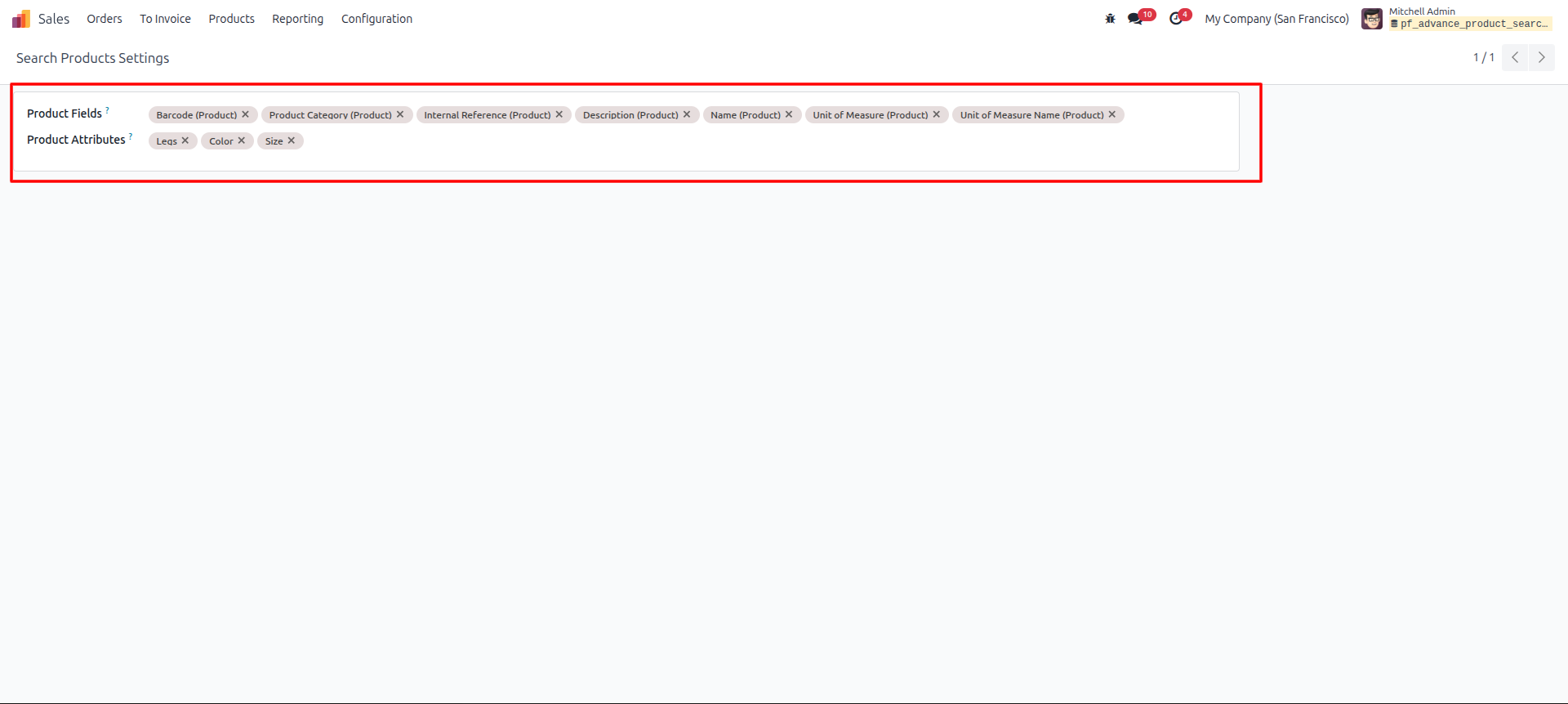
3.On the settings page, define the Product Fields (like Barcode, Category, Internal Reference) and Product Attributes (like Legs, Color, Size) that you want to be available as filters when searching for products.
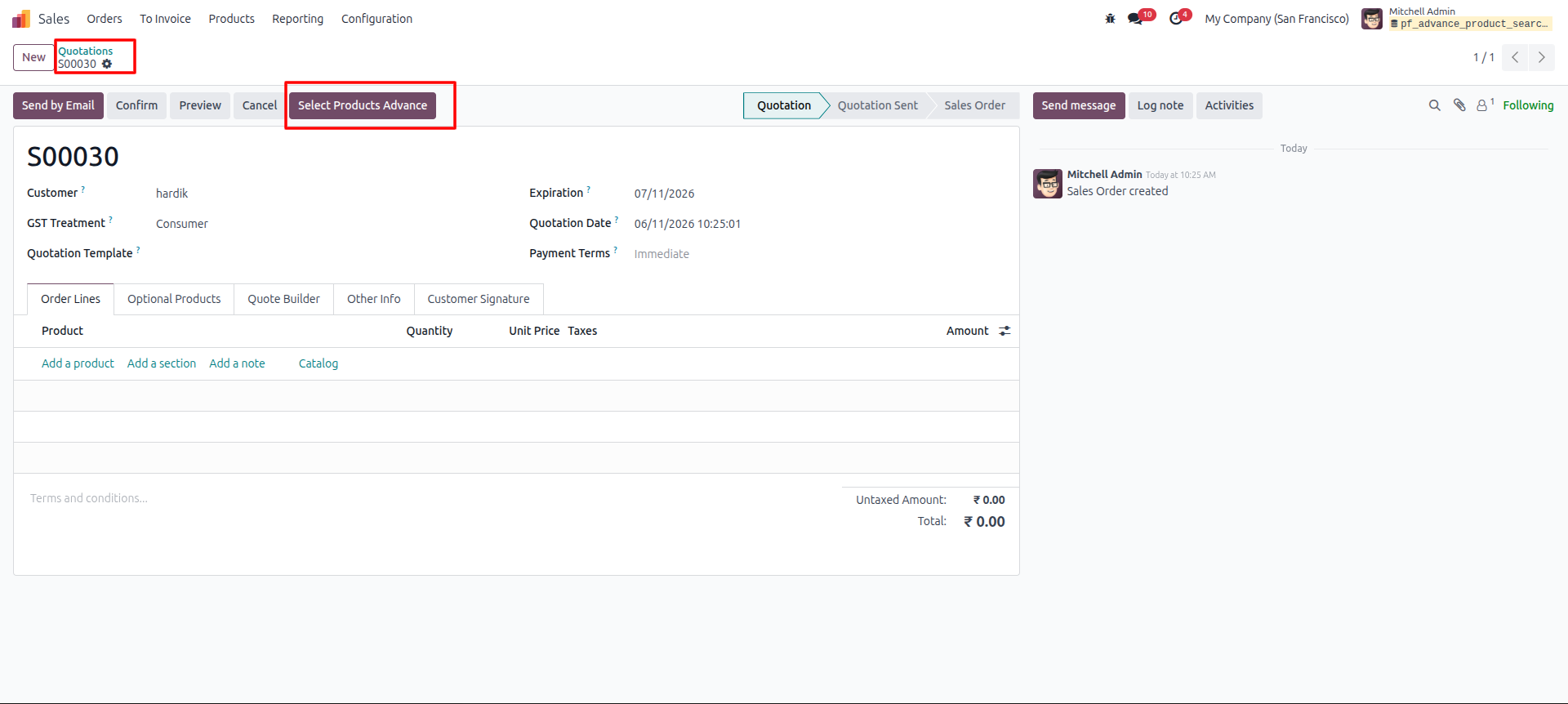
4.Create a new Quotation or open an existing draft. Click the Select Products Advance button located in the top menu area of the form.
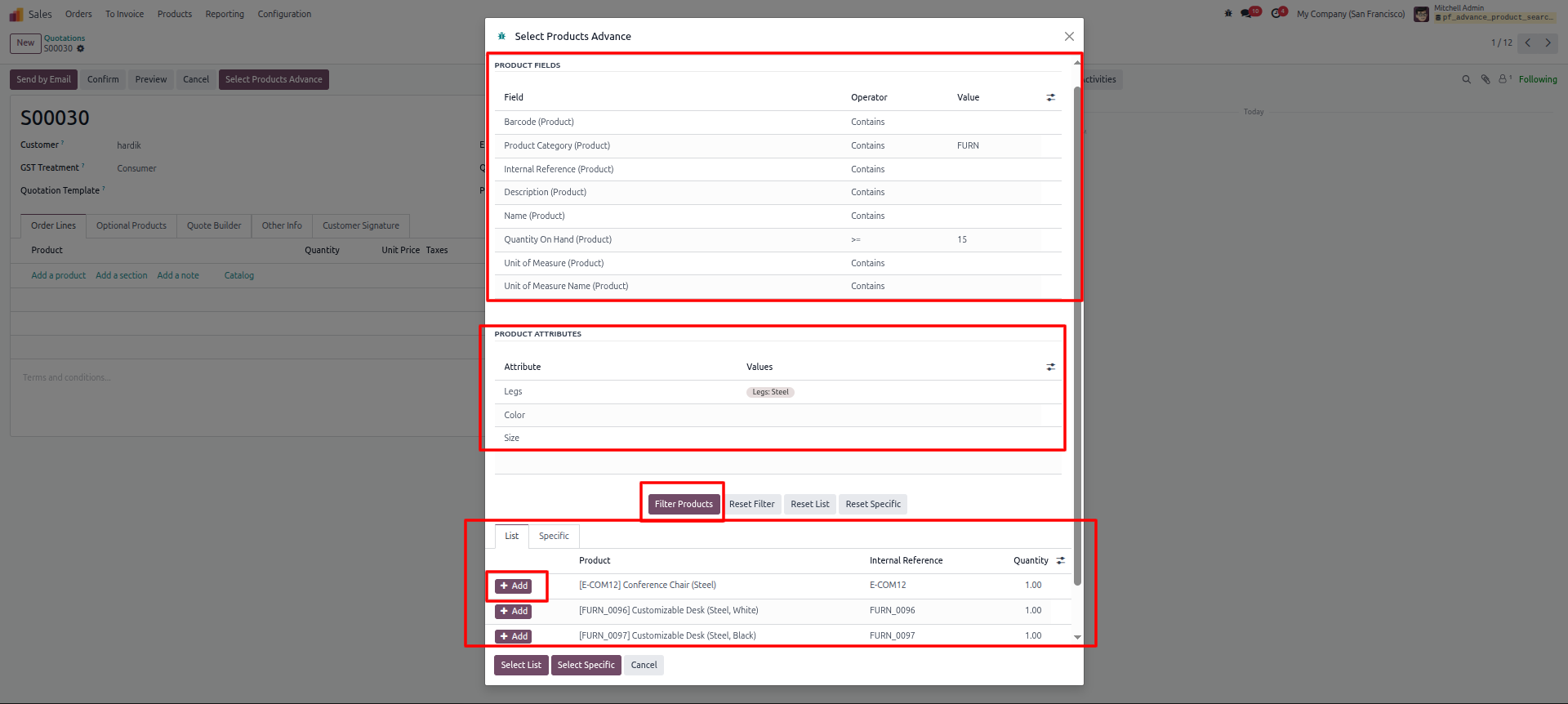
5.A modal window will open. Use the defined Product Fields and Product Attributes to filter your inventory. In the bottom section under the "List" tab, click the + Add button next to the specific products you want to include.
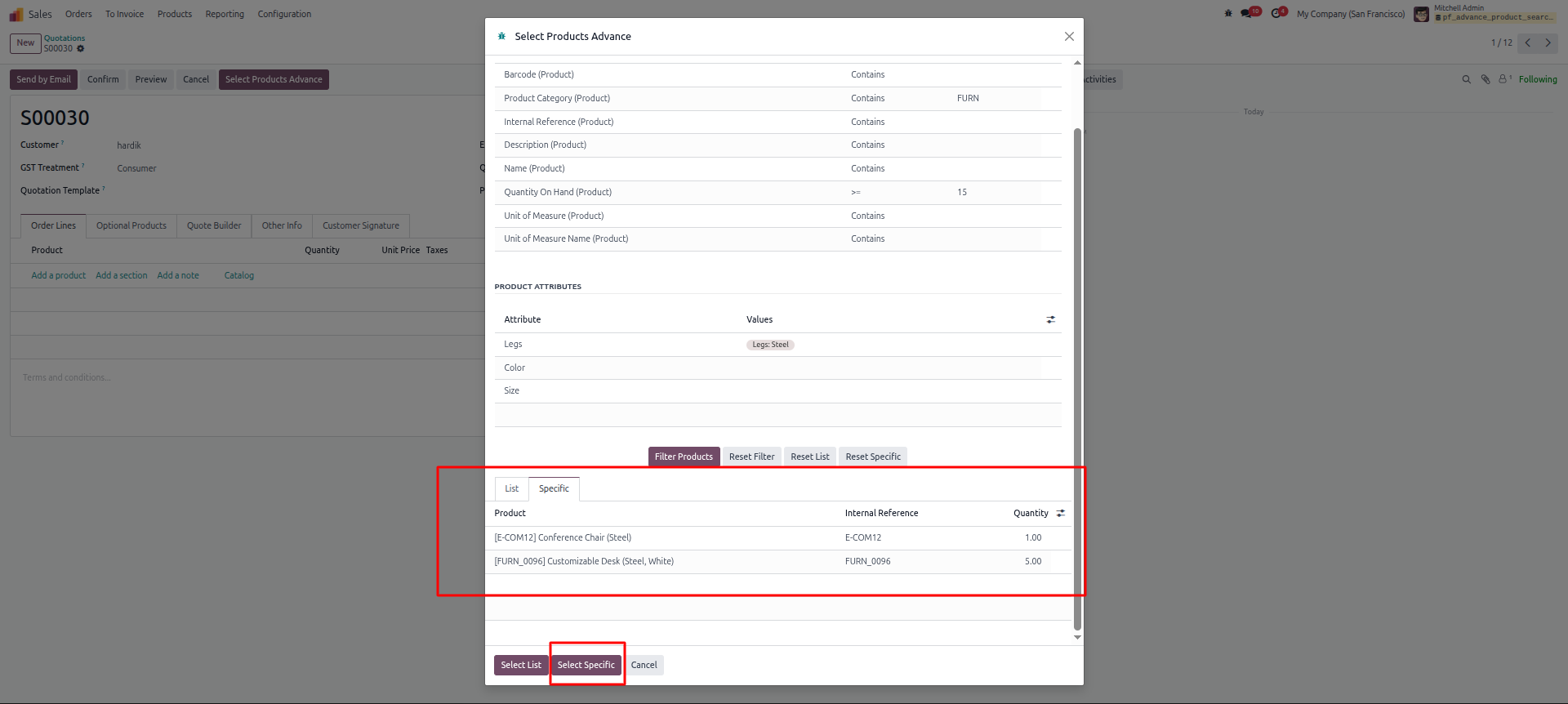
6.Once you have queued your desired items, click the Select Specific (or Select List) button at the bottom of the modal to finalize your choices and close the window.
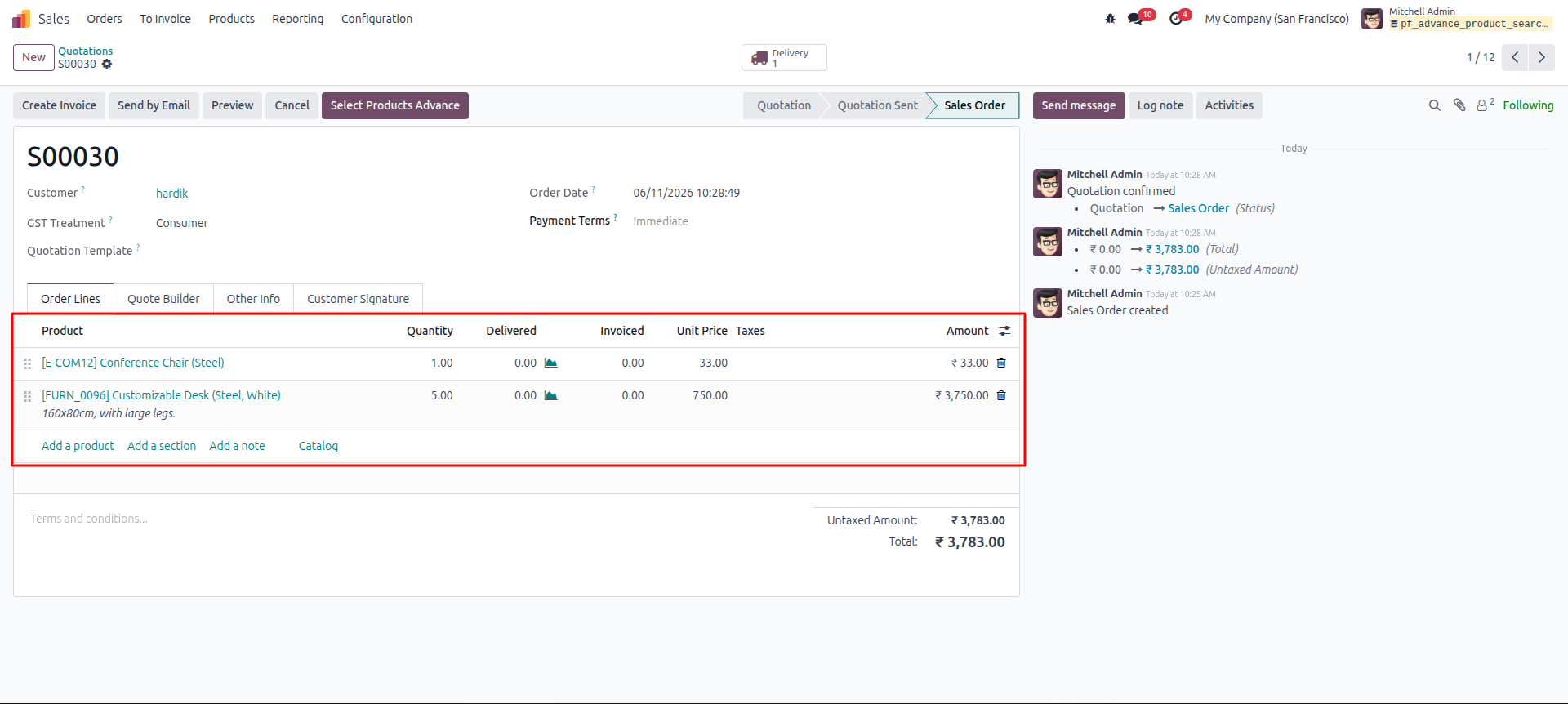
7.The products you selected will now automatically populate in the Order Lines tab of your Quotation, complete with their respective quantities and prices.
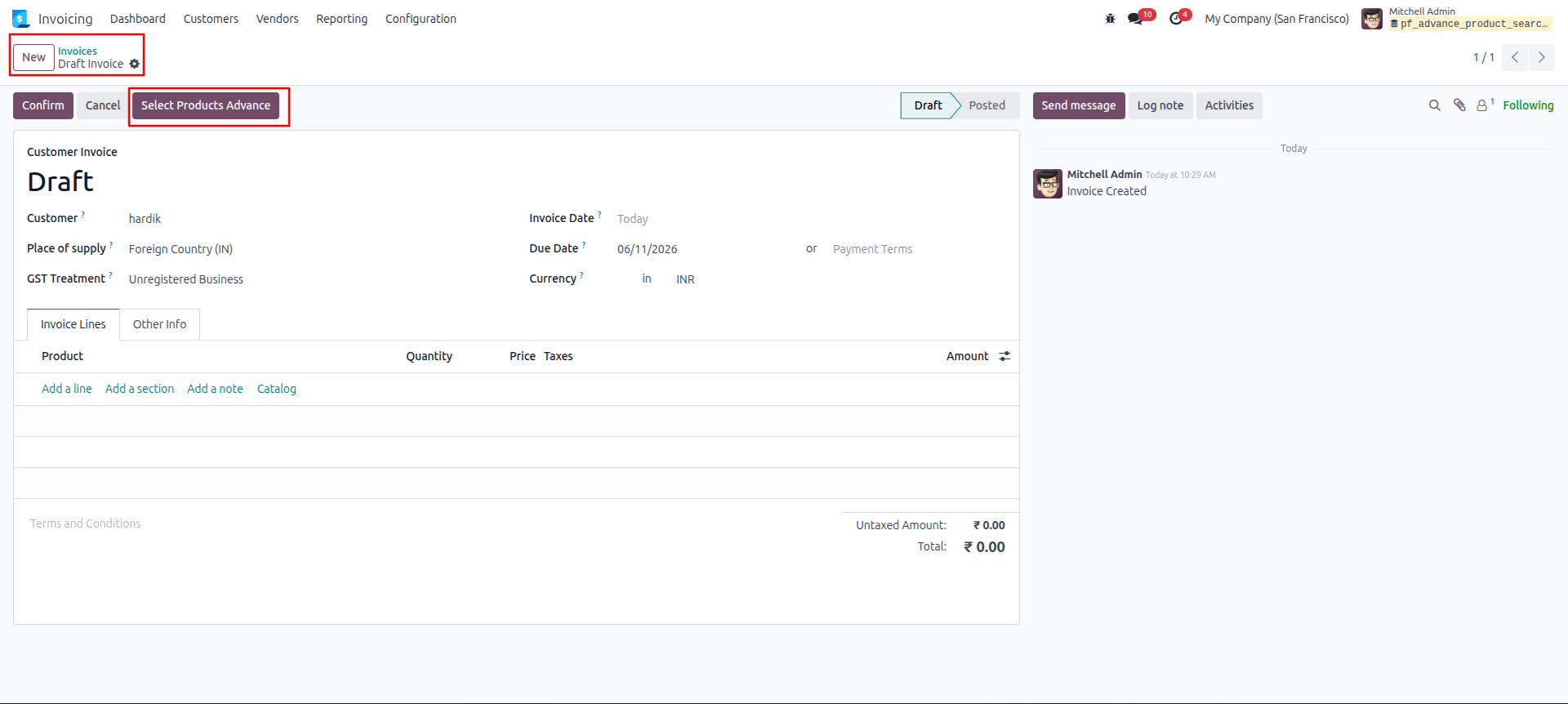
8.This feature is also available for billing. When creating a new Draft Invoice in the Invoicing module, click the Select Products Advance button at the top of the form.
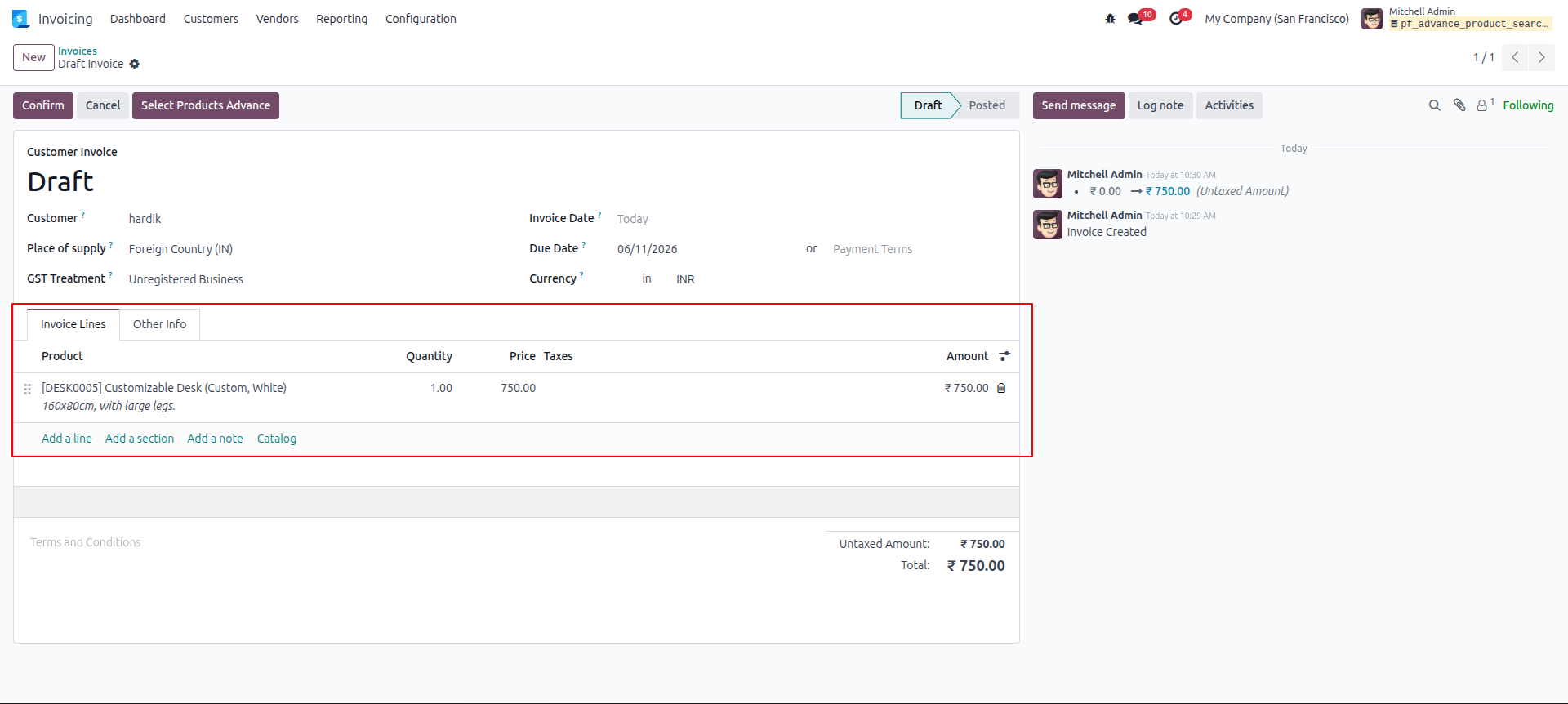
9.Just like with quotations, the products you select via the advanced search modal will automatically populate in the Invoice Lines tab of your draft invoice.
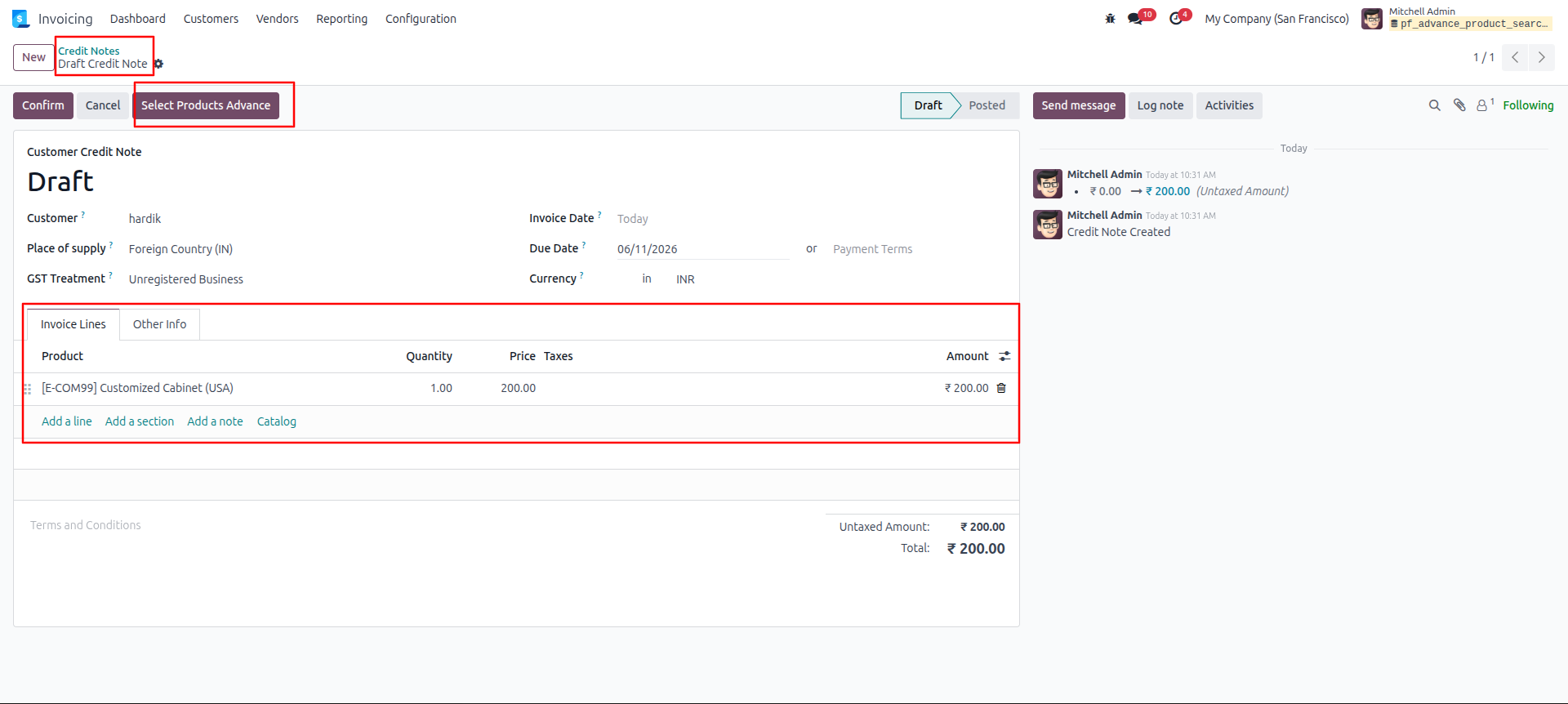
10.If you need to issue a refund or adjustment, open a new Draft Credit Note. Just like with invoices, you can click the Select Products Advance button at the top to quickly search for and add the specific products to the credit note's invoice lines.
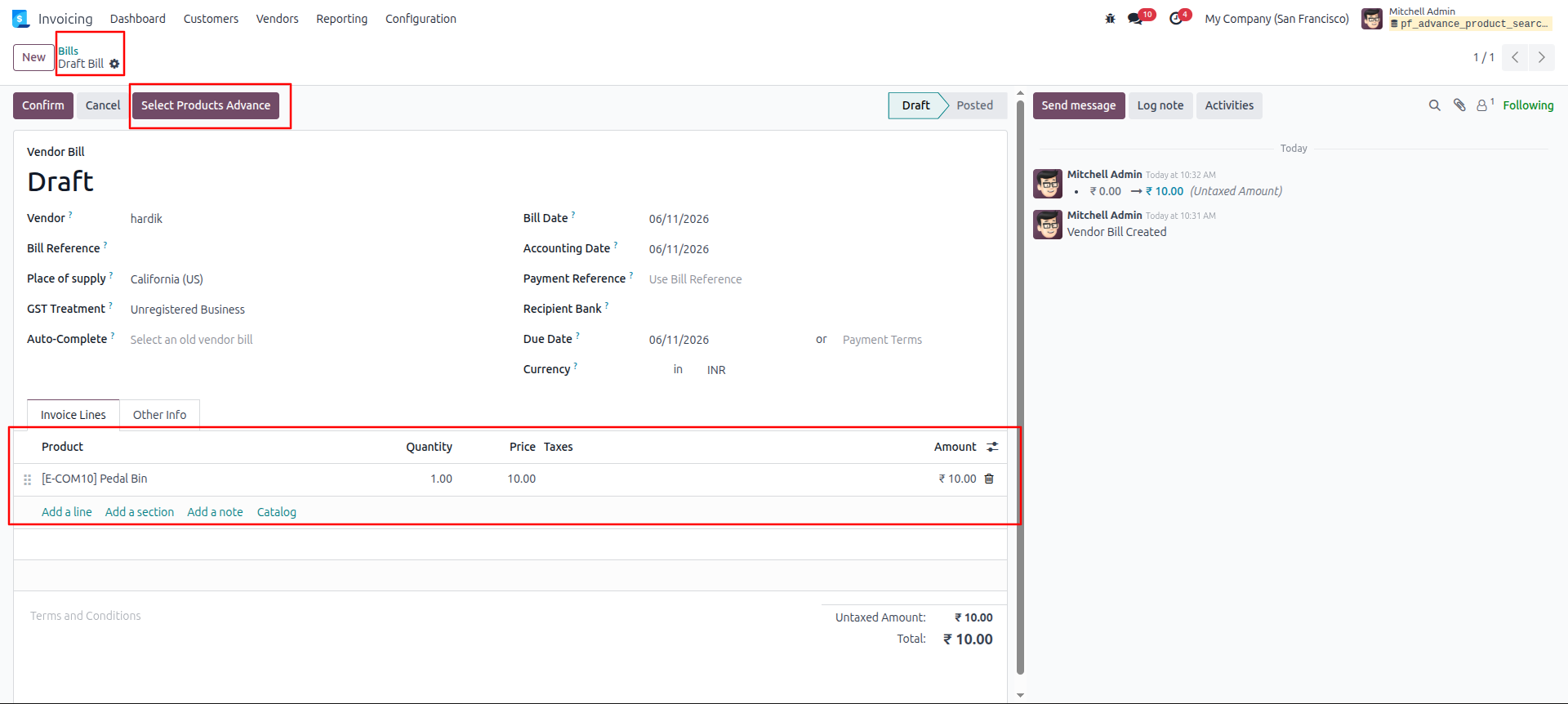
11.The advanced search functionality also extends to your purchasing workflows. When creating a new Draft Vendor Bill, click the Select Products Advance button to efficiently find and populate the necessary items into the product lines.
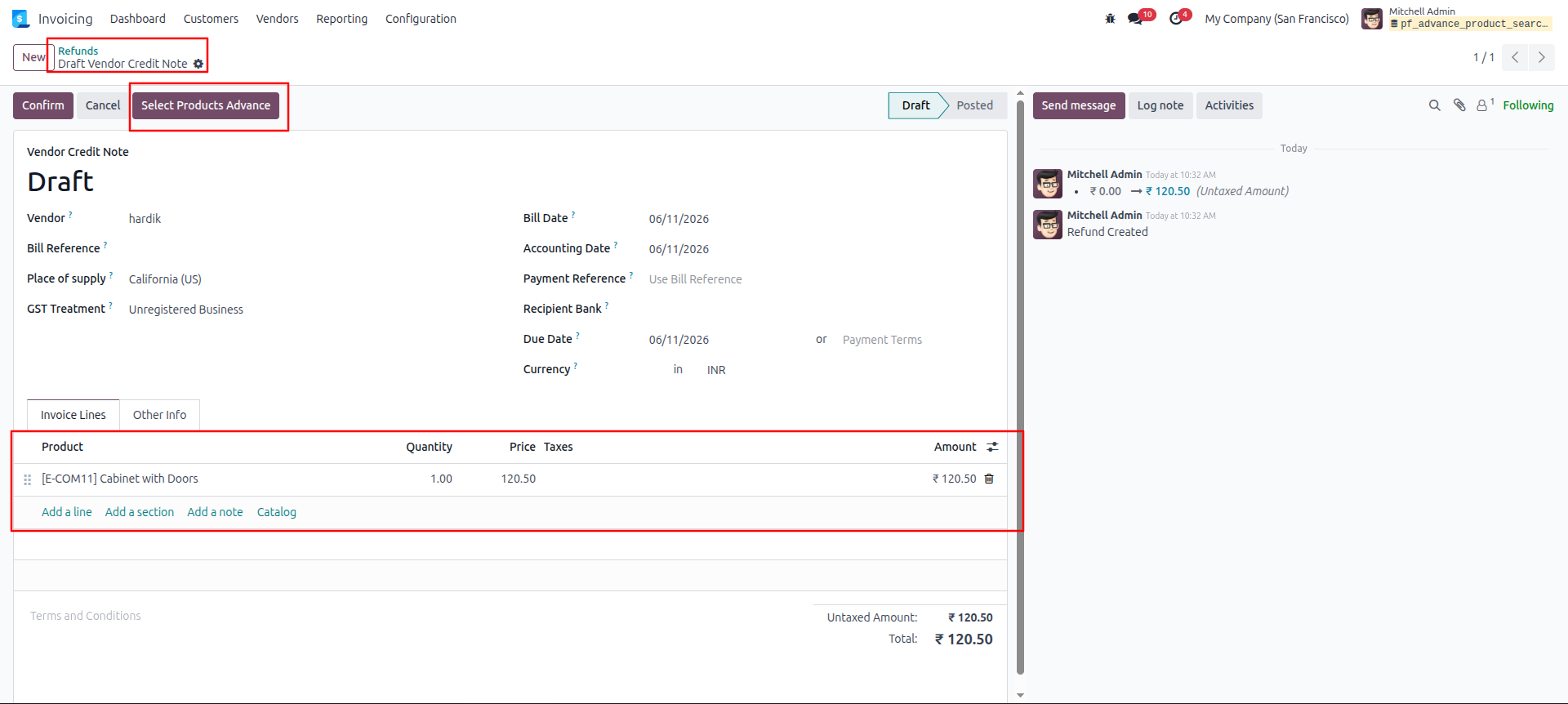
12.Finally, when you are processing a return to a supplier via a Draft Vendor Credit Note (Refund), you can utilize the Select Products Advance button to accurately search for and select the specific items you are returning.
Our solutions focus on your problems
- Odoo Implementation
- Odoo Customization
- ERP Development and Implementation
- Odoo Ipass Cloud
- AI for Odoo
- Odoo Apps
- Aws Marketplace Products
- Business Engines
Our Pricing includes User Manual, 90 Days Support (Monday-Friday 10am to 7pm IST) and One time Setup
• Works & tested on standard installations of Odoo with no third party apps,
• Free support only for odoo installations with no third party apps,
• Paid support available for Odoo installations with third party apps.

Prefortune is a Odoo Official Partner, Odoo Development company. Our philosophy is to use Open Source tools and technologies to provide cost effective and green solutions for our customers.
Prefortune Technologies LLP is working on web development, Mobile development, and Odoo ERP.
If you need any help or want more additional features, you may contact us through:
Alternative Products
These other products might interest you
Specifications
| Version | 19.0, 18.0, 17.0, 16.0, 15.0, 14.0 |