
Watch Quick Video

All in One Merge Orders-Sale,Purchase,Invoice Odoo App
Our all-inclusive Odoo – All in One Merge Orders-Sale,Purchase,Invoice Odoo App When there are large number of orders whether its Sales, Purchase, Delivery Order and Incoming Shipment/Receipt and Invoices, its hard to manage them. Users need to open each orders than process them one by one. Here we provide option to reduce your work, after installing our Odoo apps you can easily merge sales, purchase, delivery , Receipt and invoice in one click for same customers/suppliers. Just need to select them from tree view (you can use group by partner for easily filter) and merge them. Most important things you can still see different lines for different order on merged orders and then if you want, you can proceed it. After merge picking you can partially delivered or received it. Once picking has been merge it will create new picking and rest of other pickings get cancelled and source documents of new picking will have reference of cancelled picking, so user can easily get idea from where this new picking get created. When you merge sales, purchase order or invoice you will have multiple option to generate new orders, cancelled others and merge on existing orders, plus merge order will have reference of orders, so user can easily get idea from where this new orders get created.
All in One Merge Orders-Sale,Purchase,Invoice Odoo App
- Only merge orders belonging to the same customer or vendor.
- No data loss or confusion — clear tracking of all merged items.
- Merge into a new document.
- Merge into an existing order.
- Maintains separate lines for each original order in the merged document.
Complete Workflow for Manage All in One Merge Orders-Sale,Purchase,Invoice Odoo App
First we need to activate User : Merge Records group from user profile so that user can see Merge sale order,Merge purchase order,Merge invoices action inside sale,purchase,invoice module after that we can merge order on specific customer or vendor
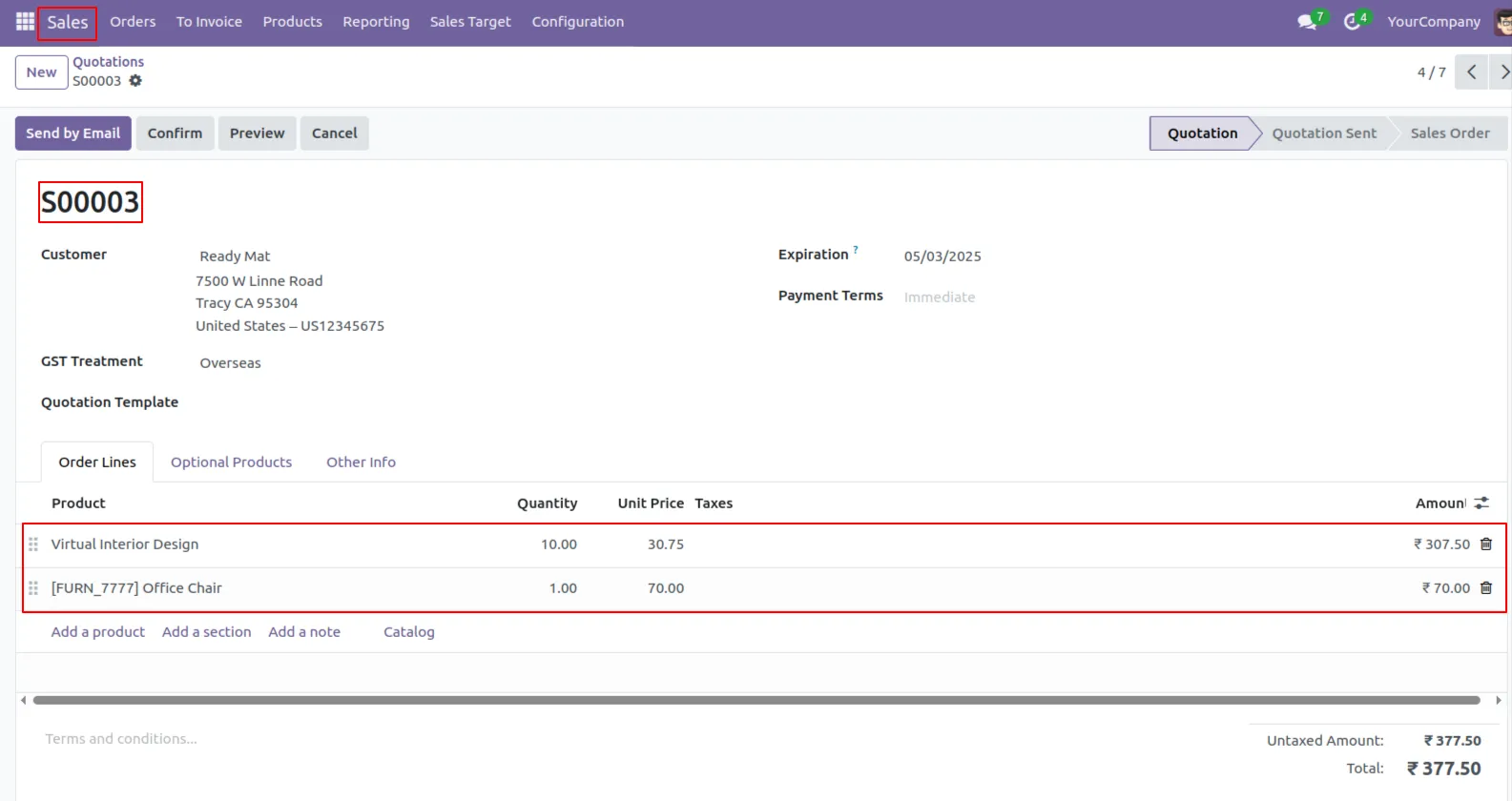
1.User can see created sales orders wirh order lines.
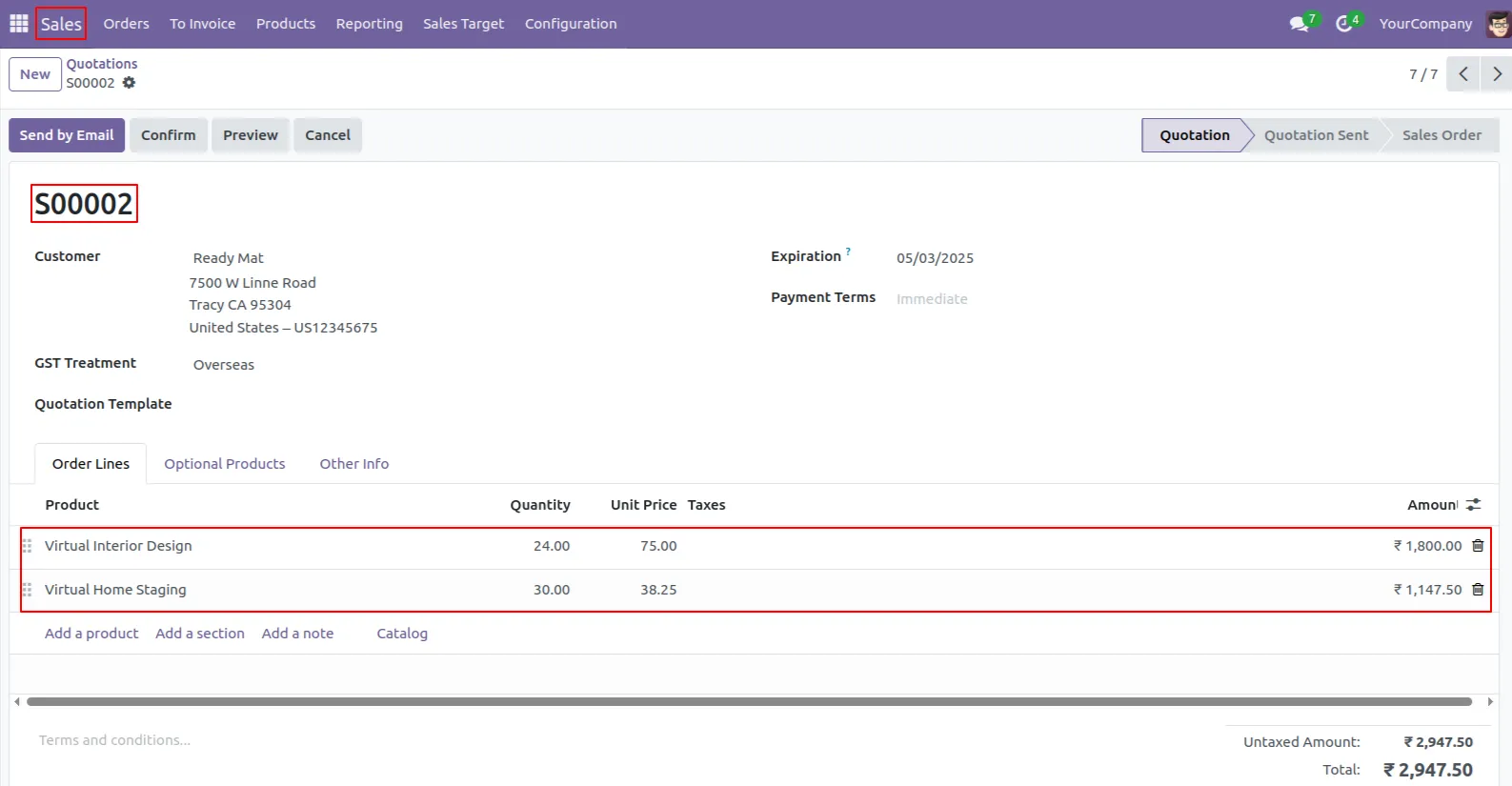
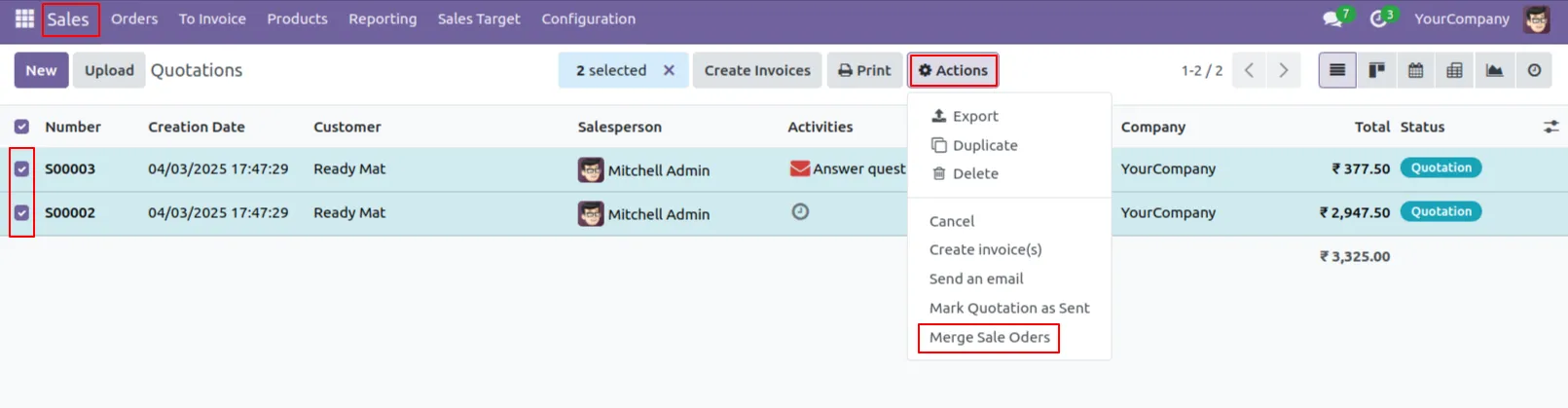
2.Sales Order Merge Menu
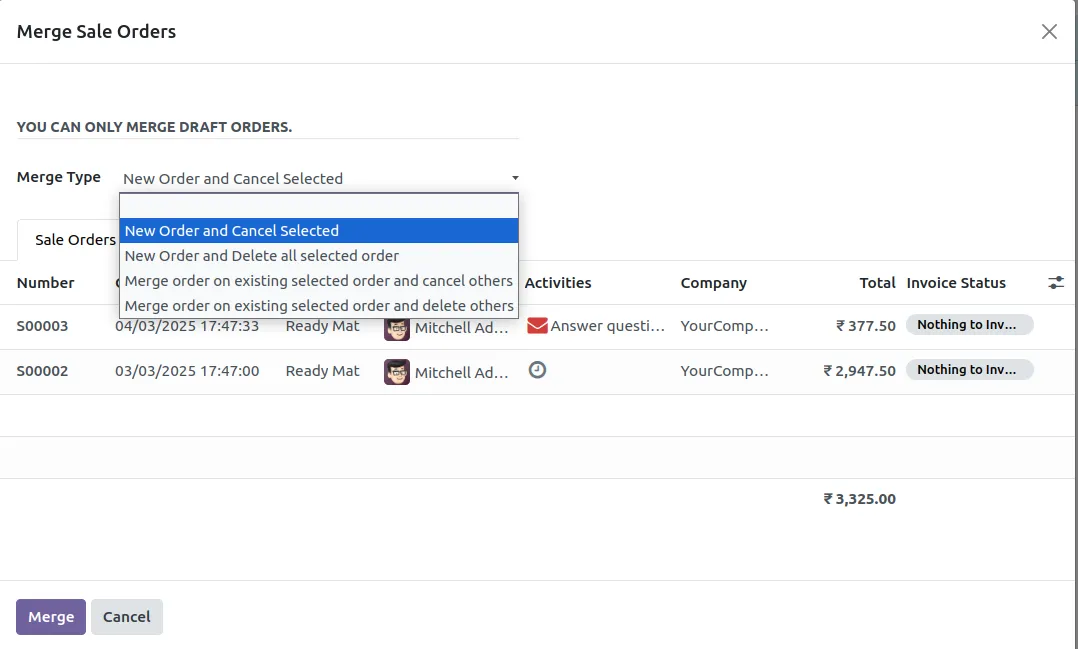
3.Sales Orders Merge Options
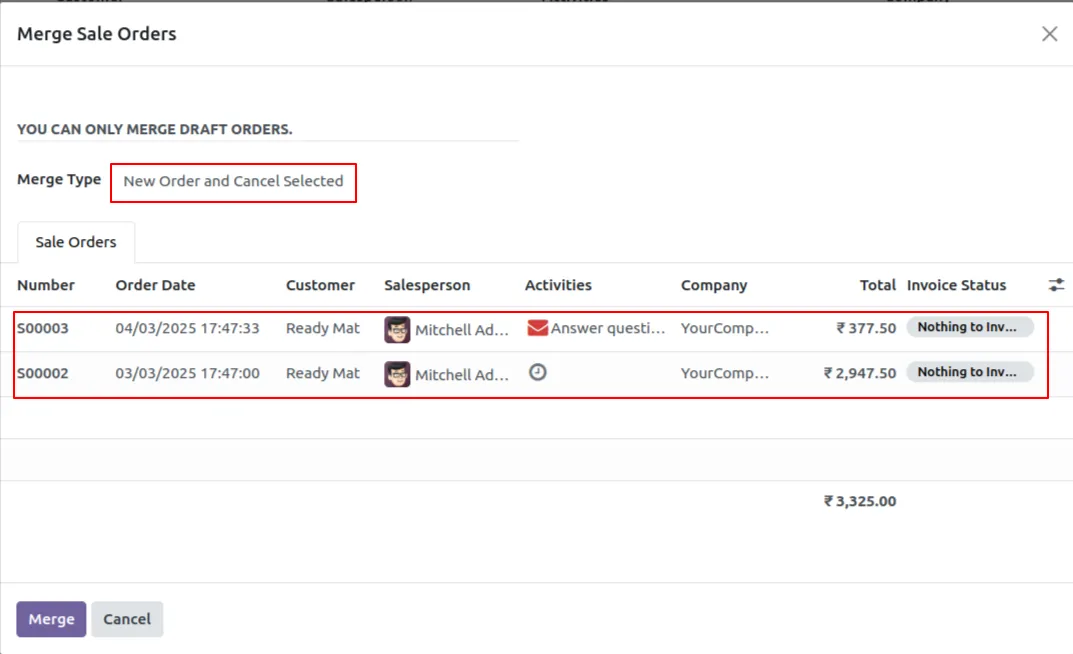
4.Option 1 : New Order and Cancel Selected
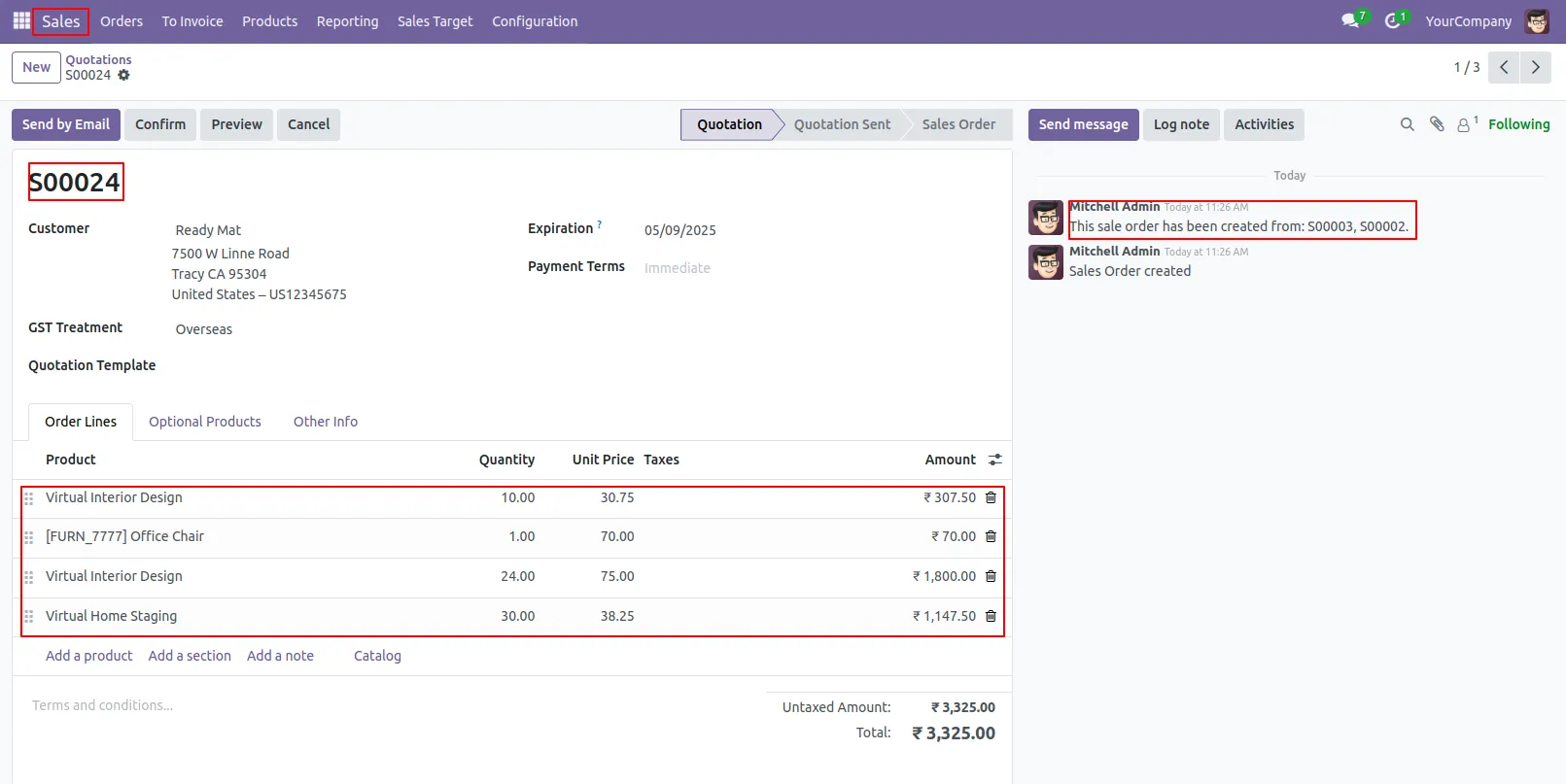
6.User can also see that sales order line products quantity also merged.

7 Option 2 : New order and Delete all selected order ,User can see selected orders in tree view.
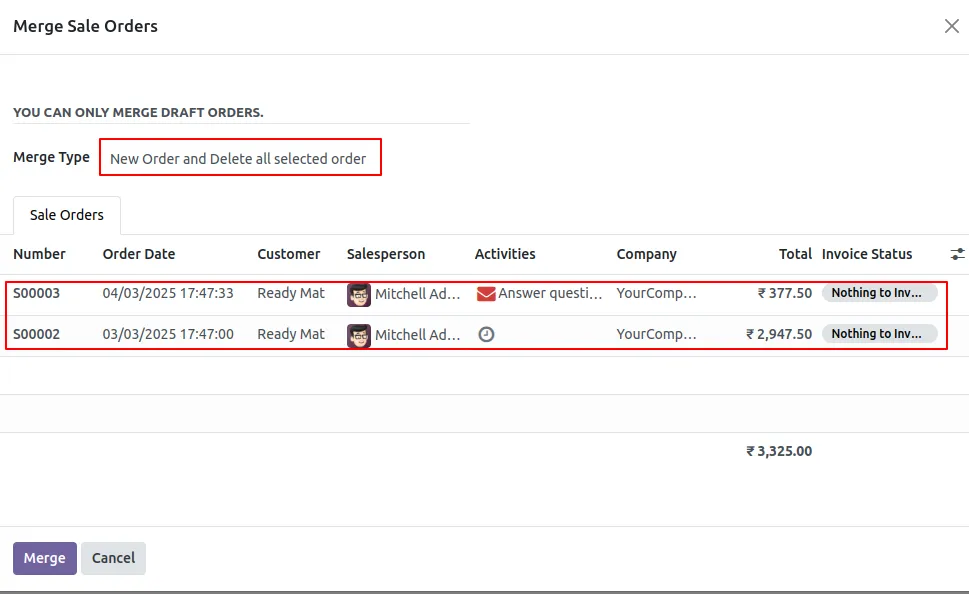
8.On merge sales order wizard user have to select "New order and Delete all selected order" option and click on "Merge" button.

9. On tree view user can see selected order are deleted and created new sales order.
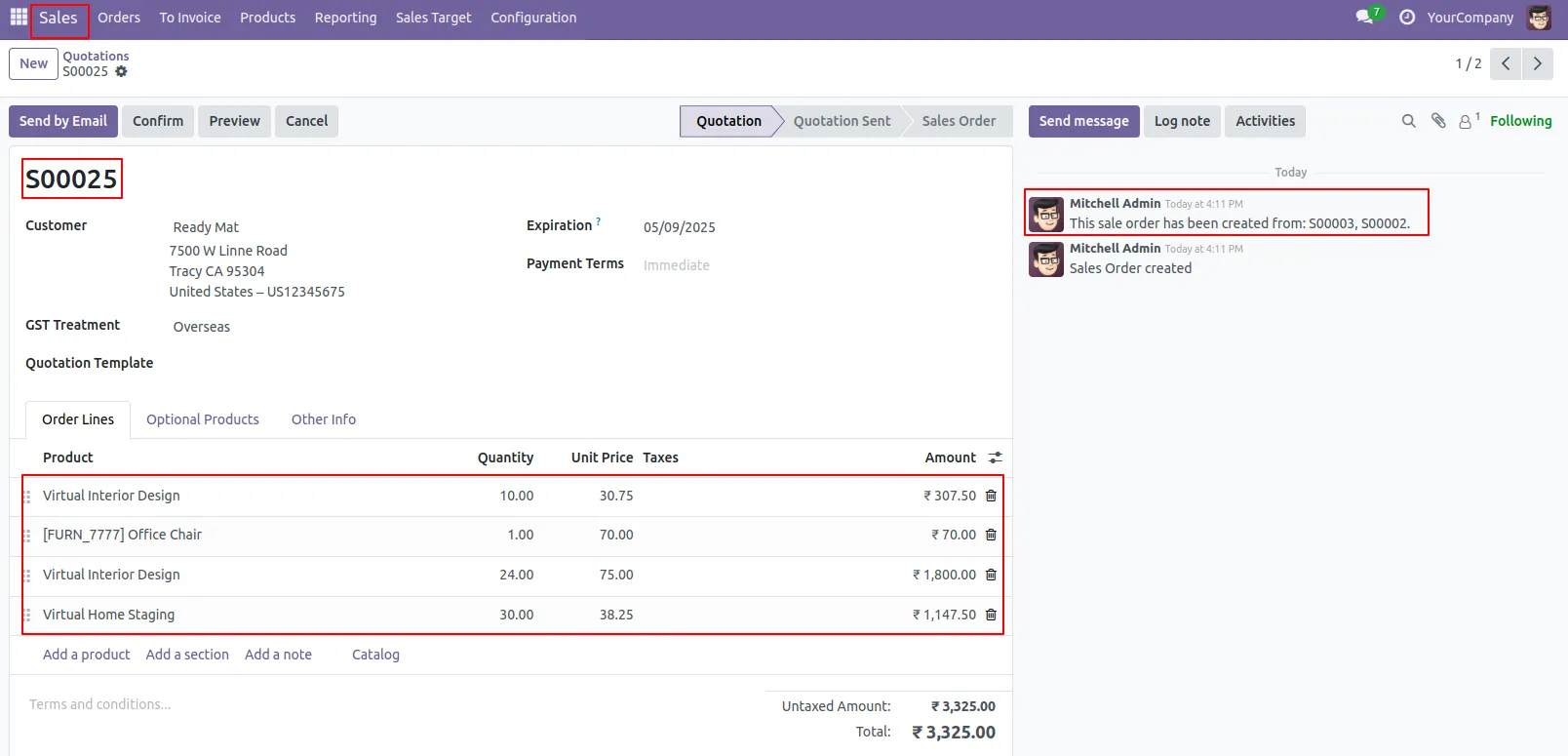
10. User can see new created sale order.

11.Option 3 : Merge order on existing selected order and cancel others
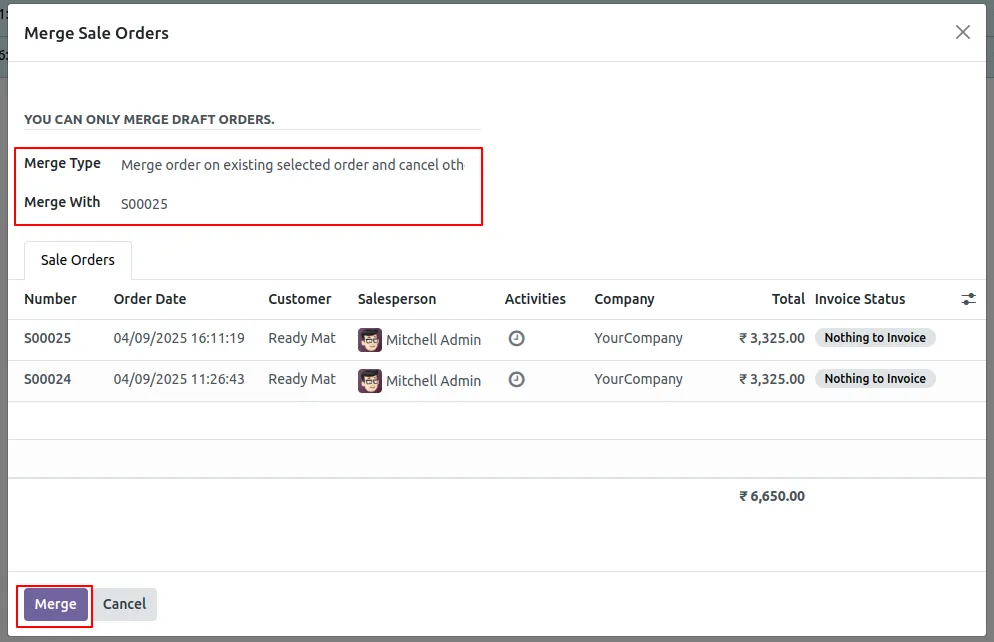
12.On merge wizard user have to select "Merge order on existing selected order and cancel others" option, also select "Merge with" order so sales order will merged into selected orders.

13. User can see other orders are canceled and merged with selected orders
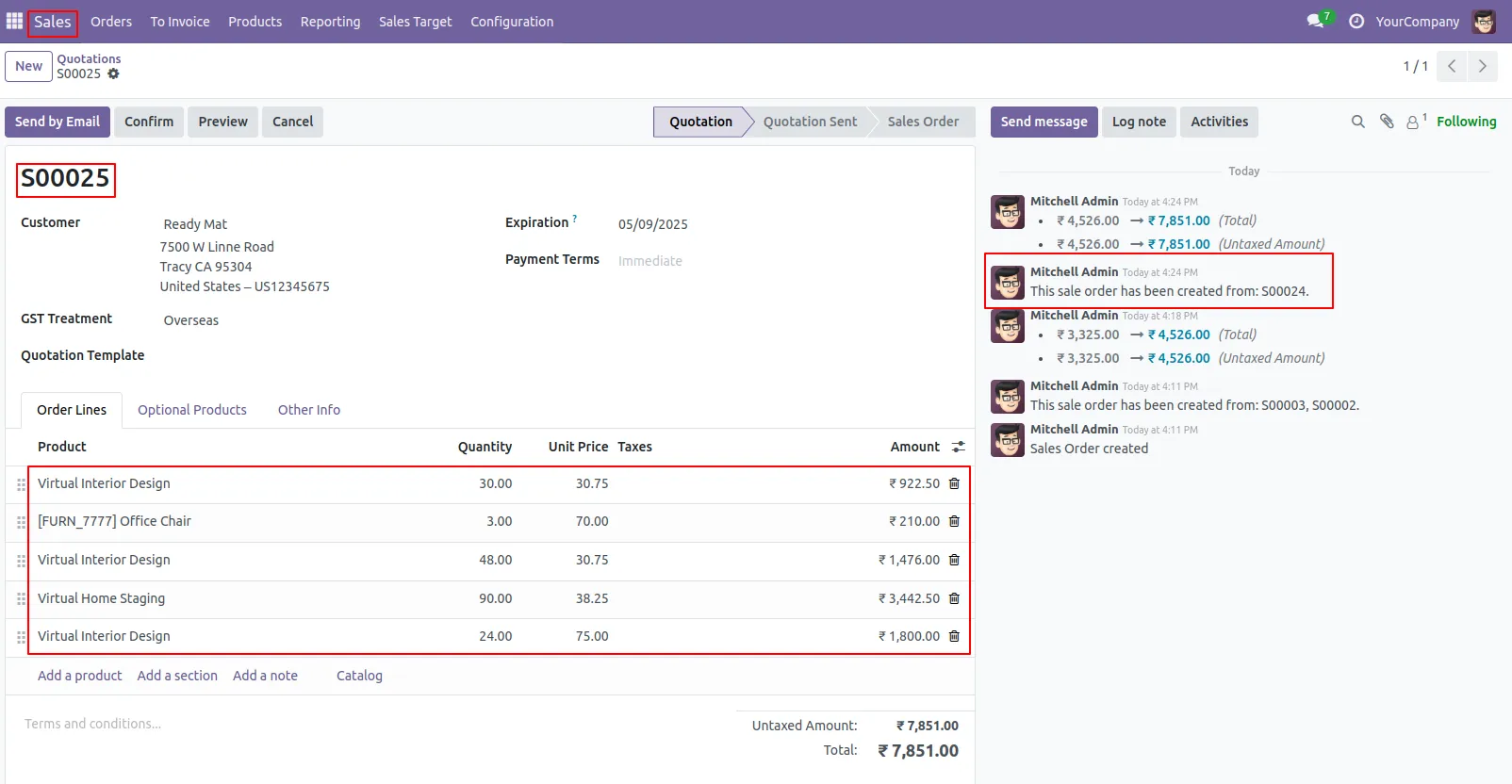
14. User can see merged orders.

15. Option 4 : Merge order on existing selected order and delete other
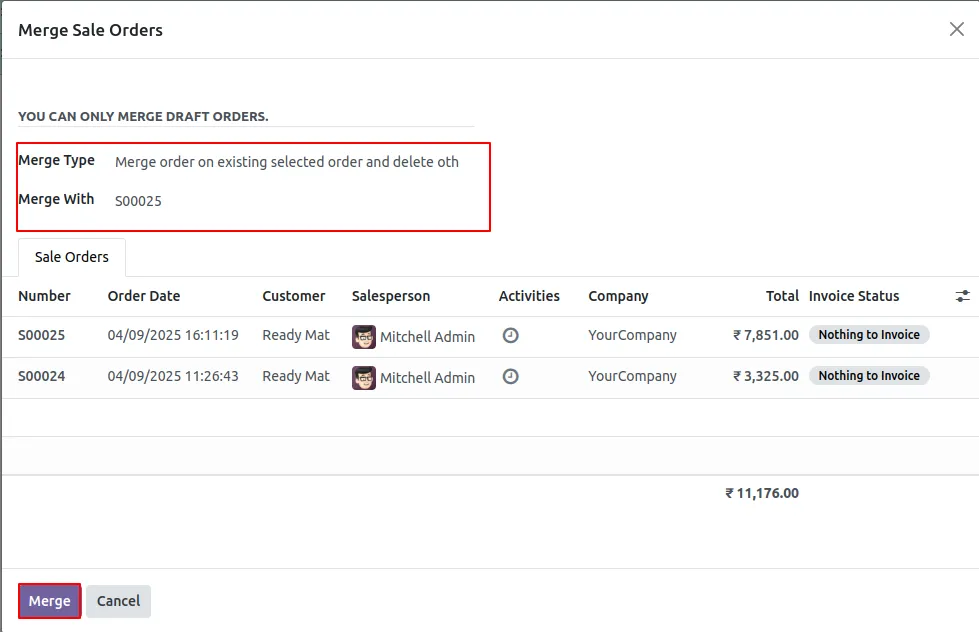
16. On sale order merge wizard user have to select "Merge order on existing selected order and delete others" options and aslo select "Merge with" orders.

17. User can see other order are deleted and merged with selected order.
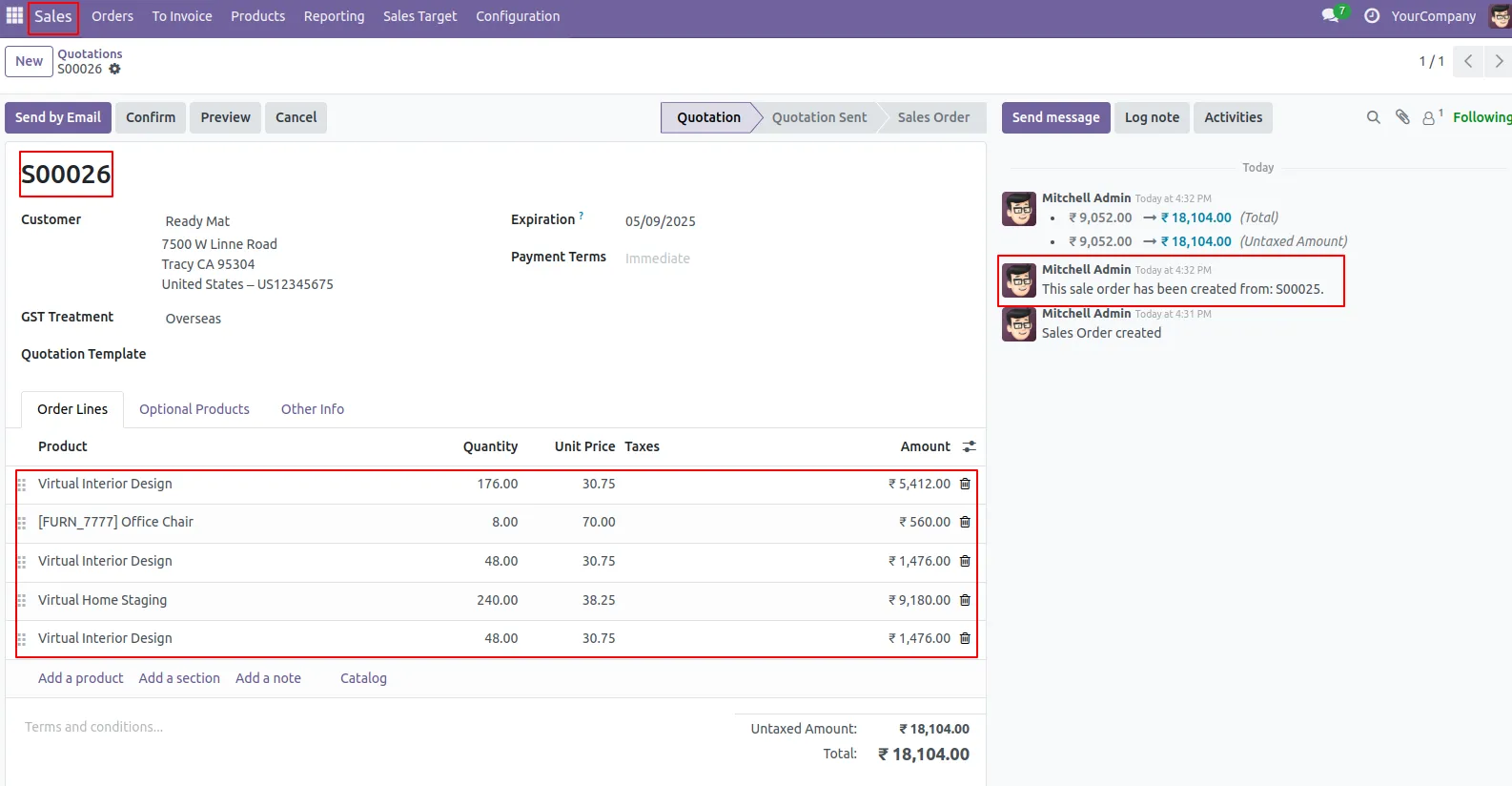
18. User can see merged order from other orders.
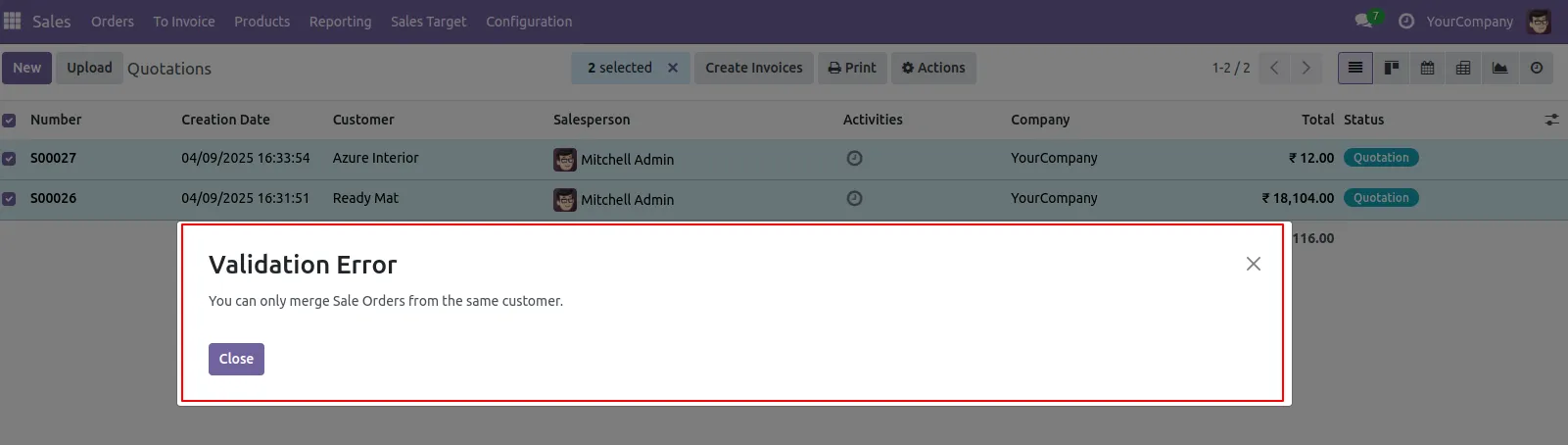
19. Warnings: If selected orders partners are not same it will raise warning.
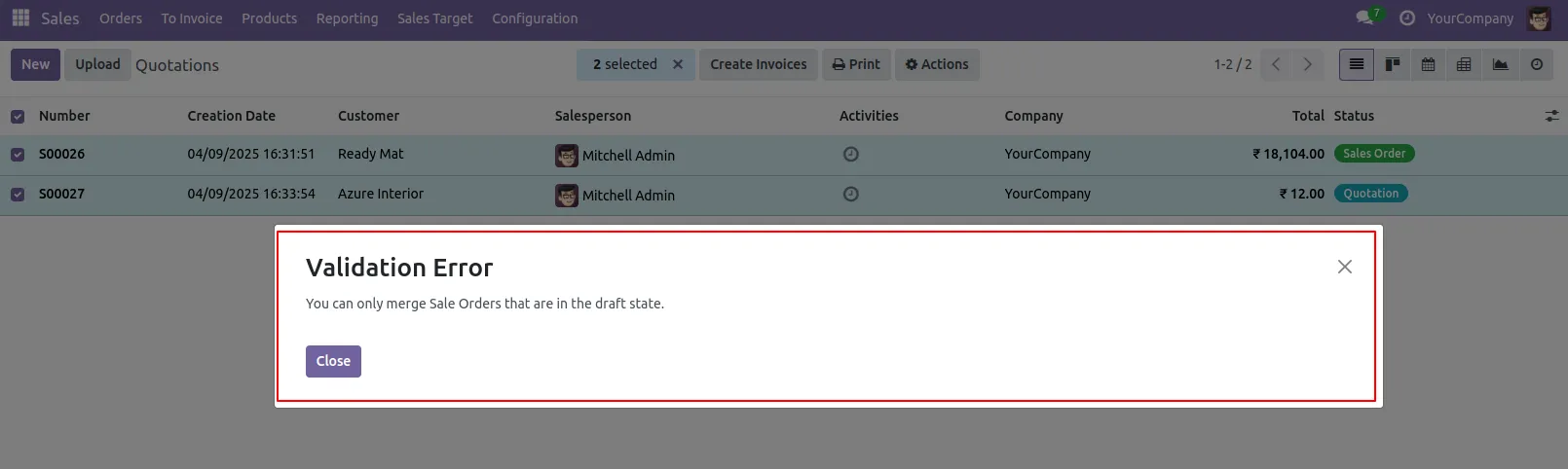
20. If selected orders state is not same it will raise warning.
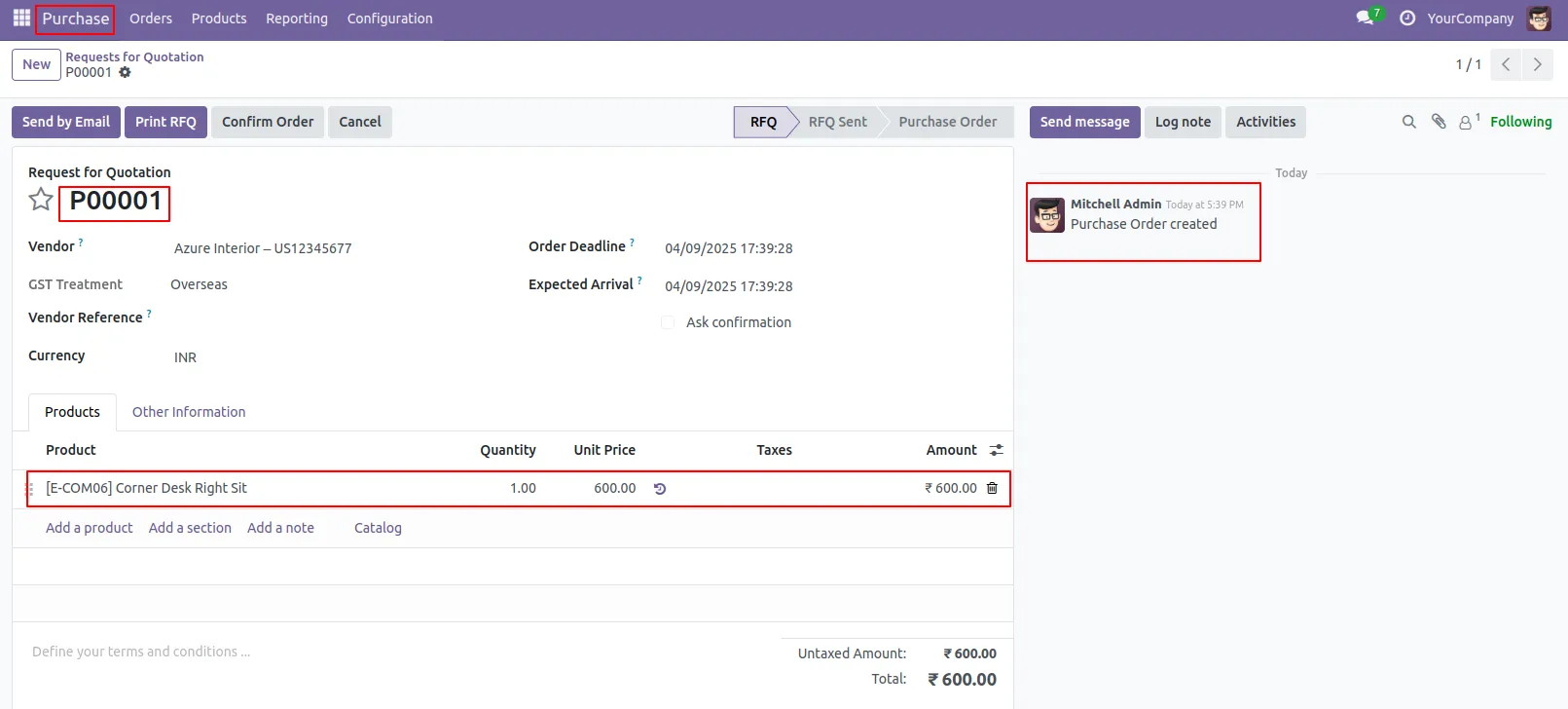
21.Merge Purchase Orders,User can see created purchase orders with order lines.
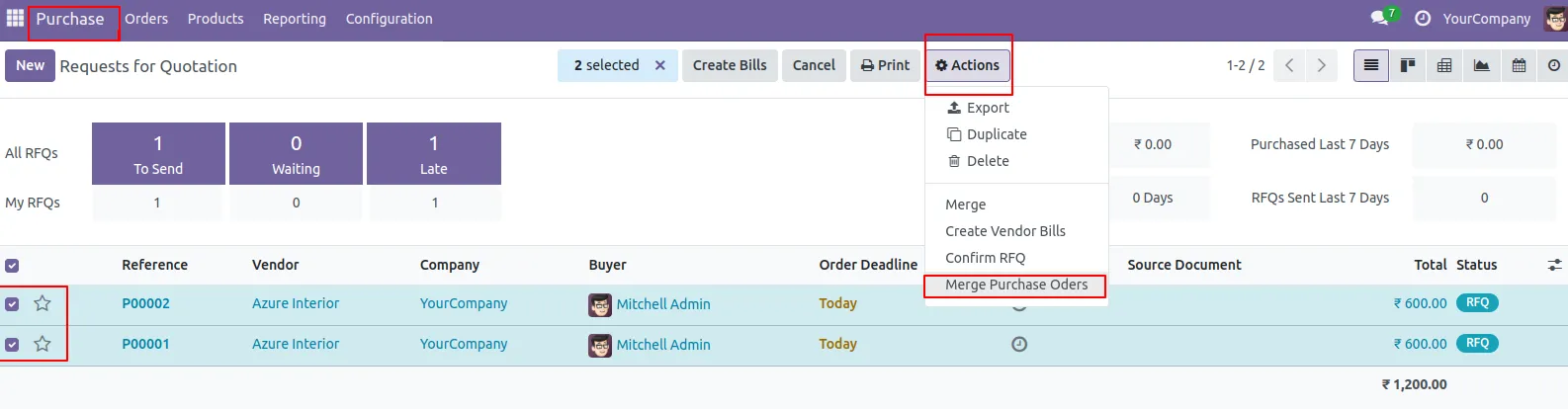
22.On purchase order tree view user have to select purchase orders and under "Action" menu user can see "Merge Purchase Orders" menu.
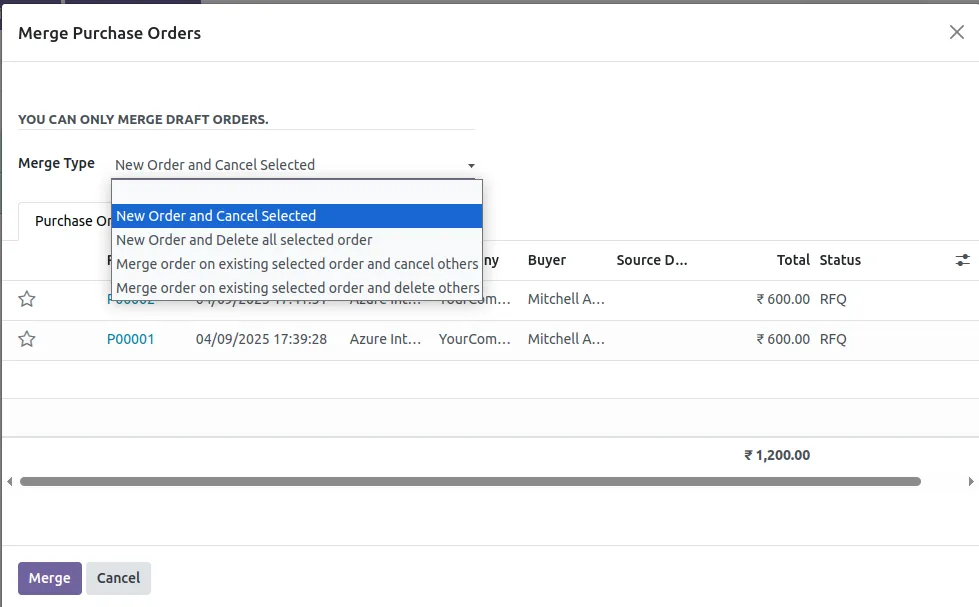
23.User have four options to merge purchase orders as displayed in image bellow.
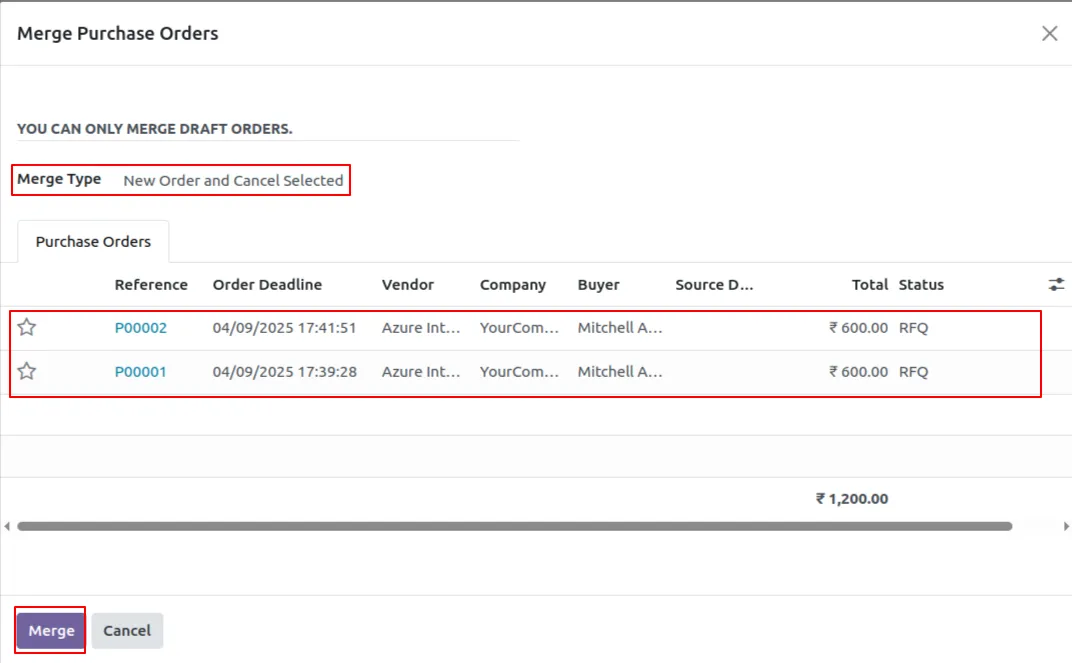
24.In merge purchase orders wizard user have to select "New Order and Cancel Selected" options and click on "Merge" button.
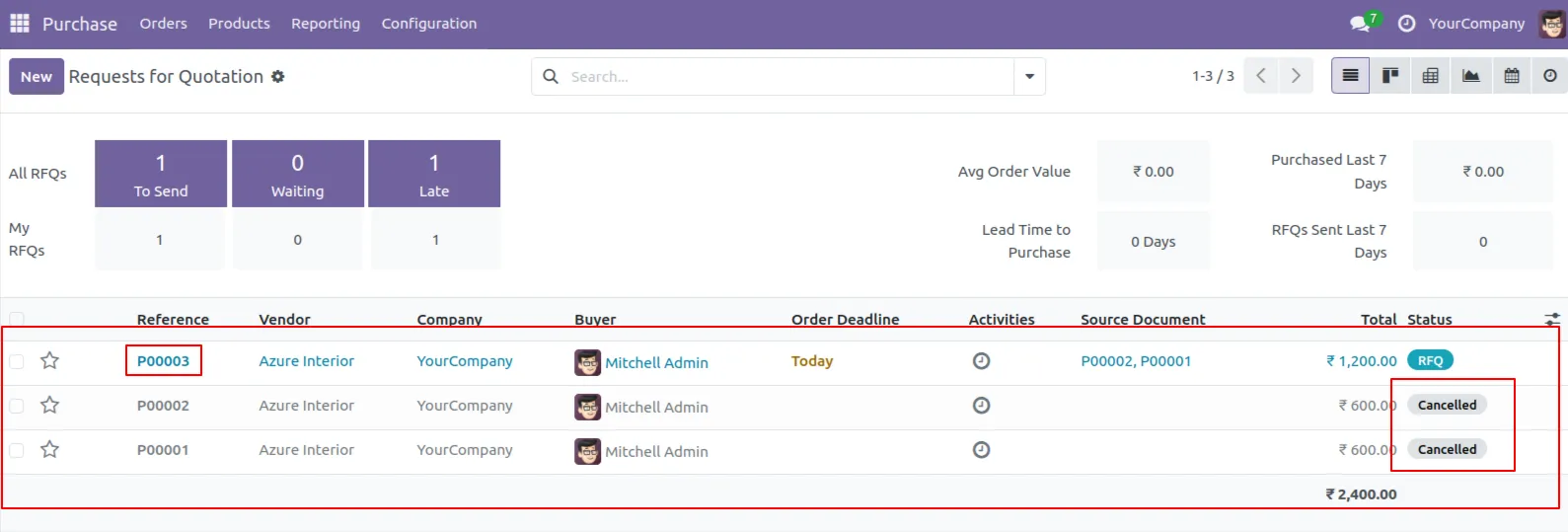
25. User can see selected orders are canceled and created new order.
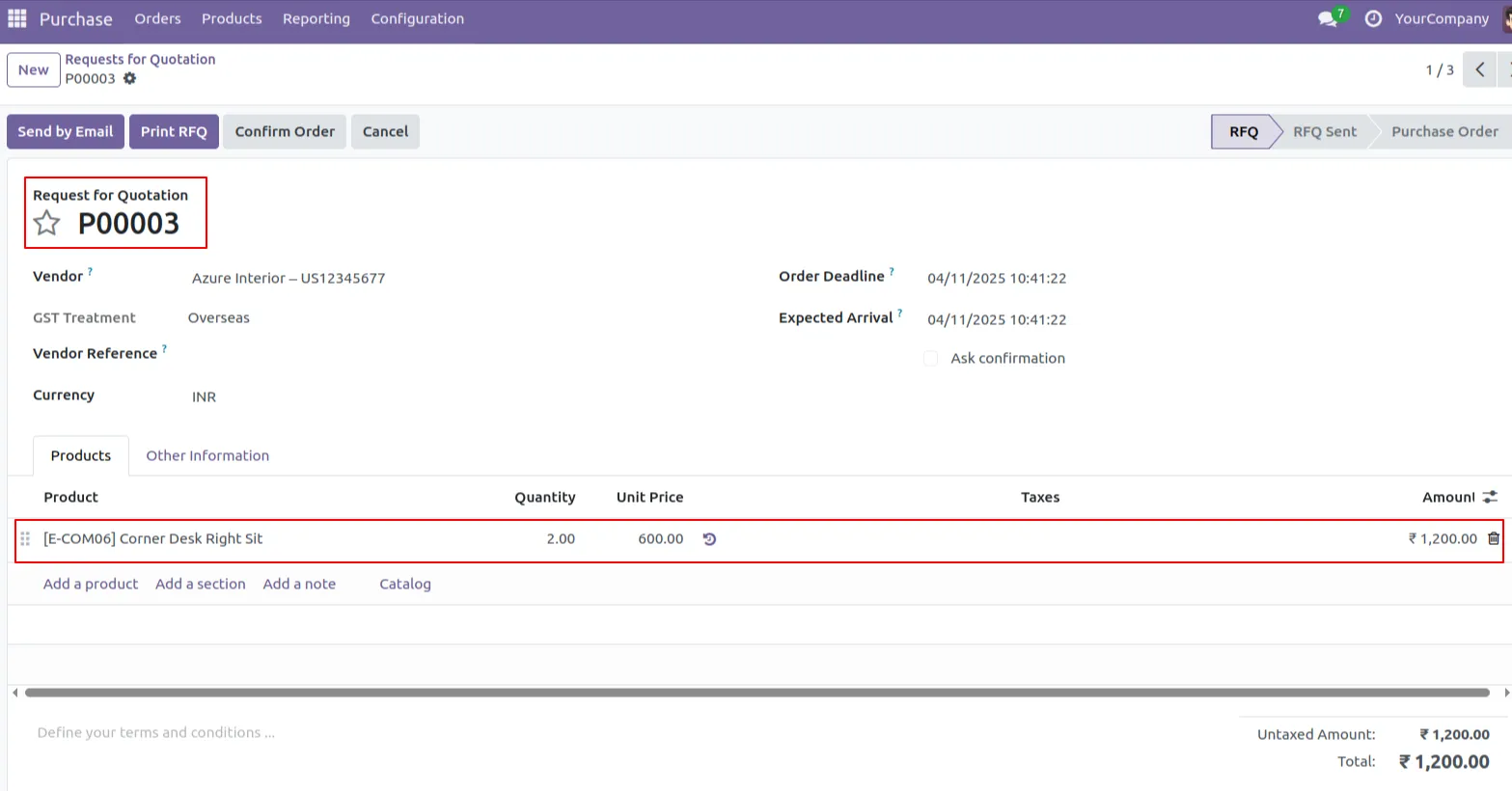
26.User can also see that sales order line products quantity also merged.
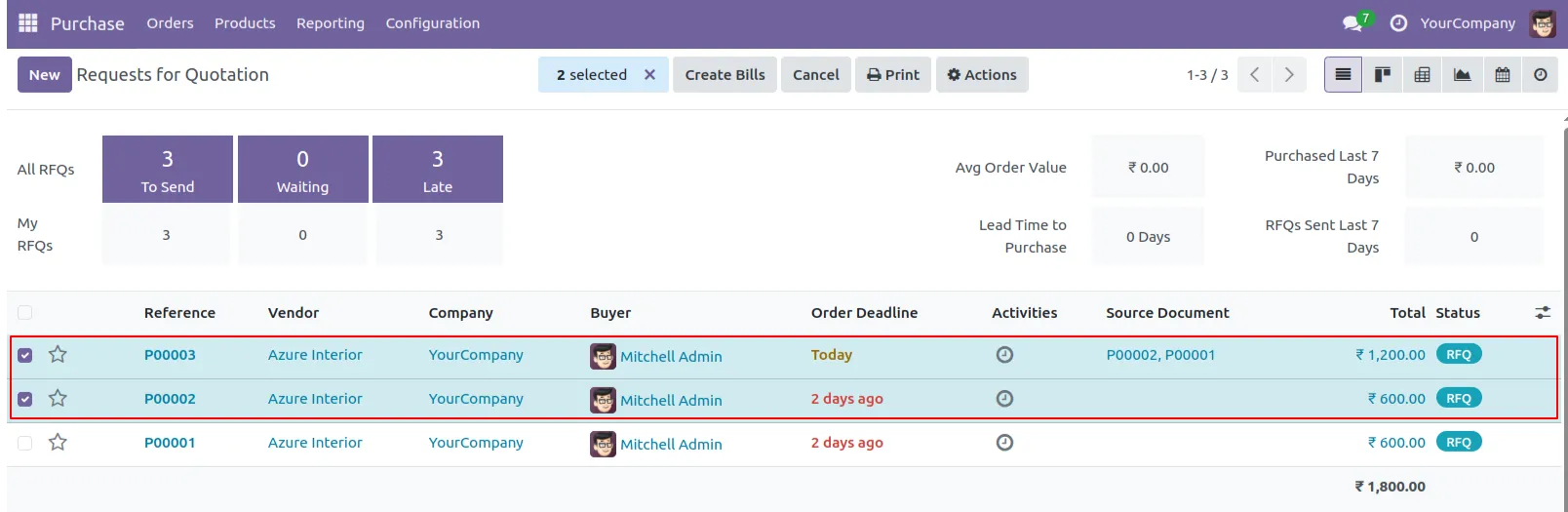
27.Option 2 : New order and Delete all selected order
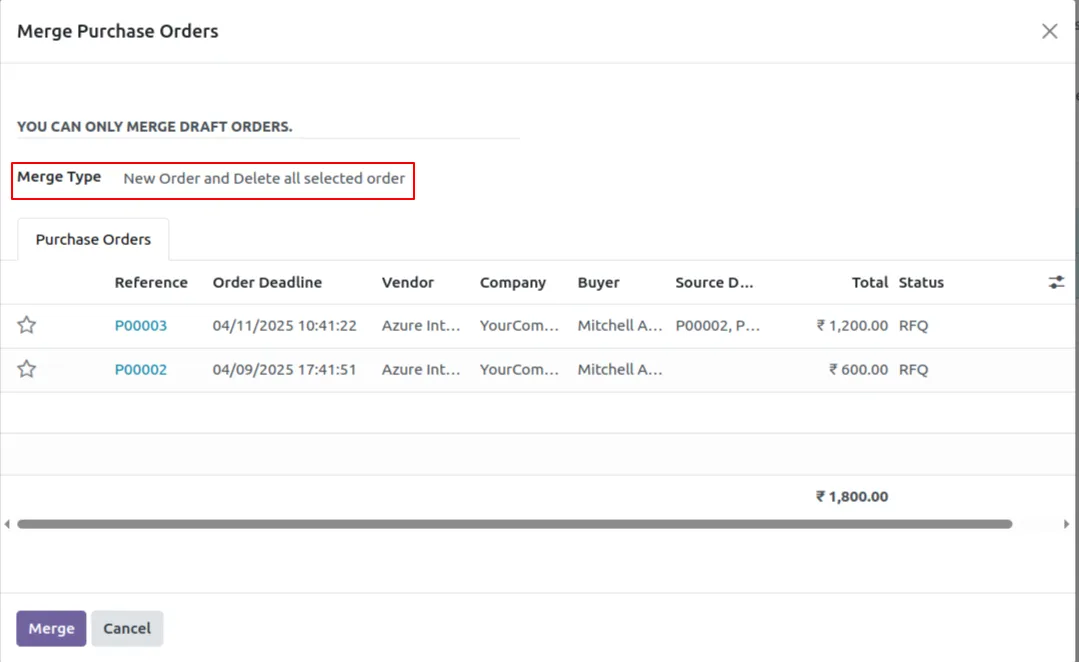
28.On merge purchase order wizard user have to select "New order and Delete all selected order" option and click on "Merge" button.
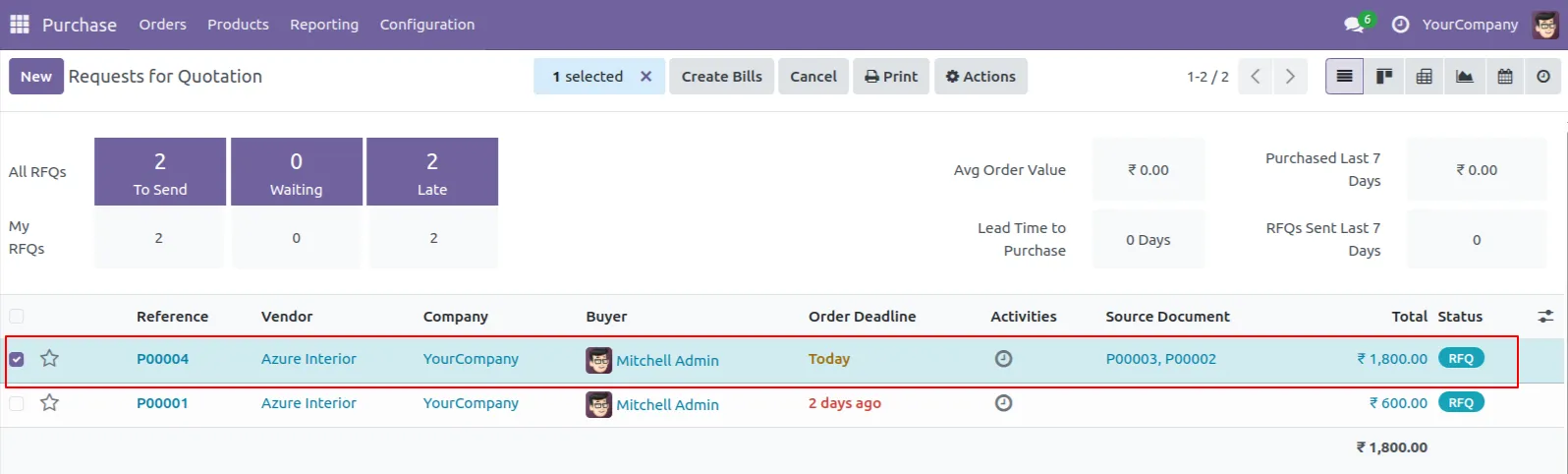
29.On tree view user can see selected order are deleted and created new purchase order.
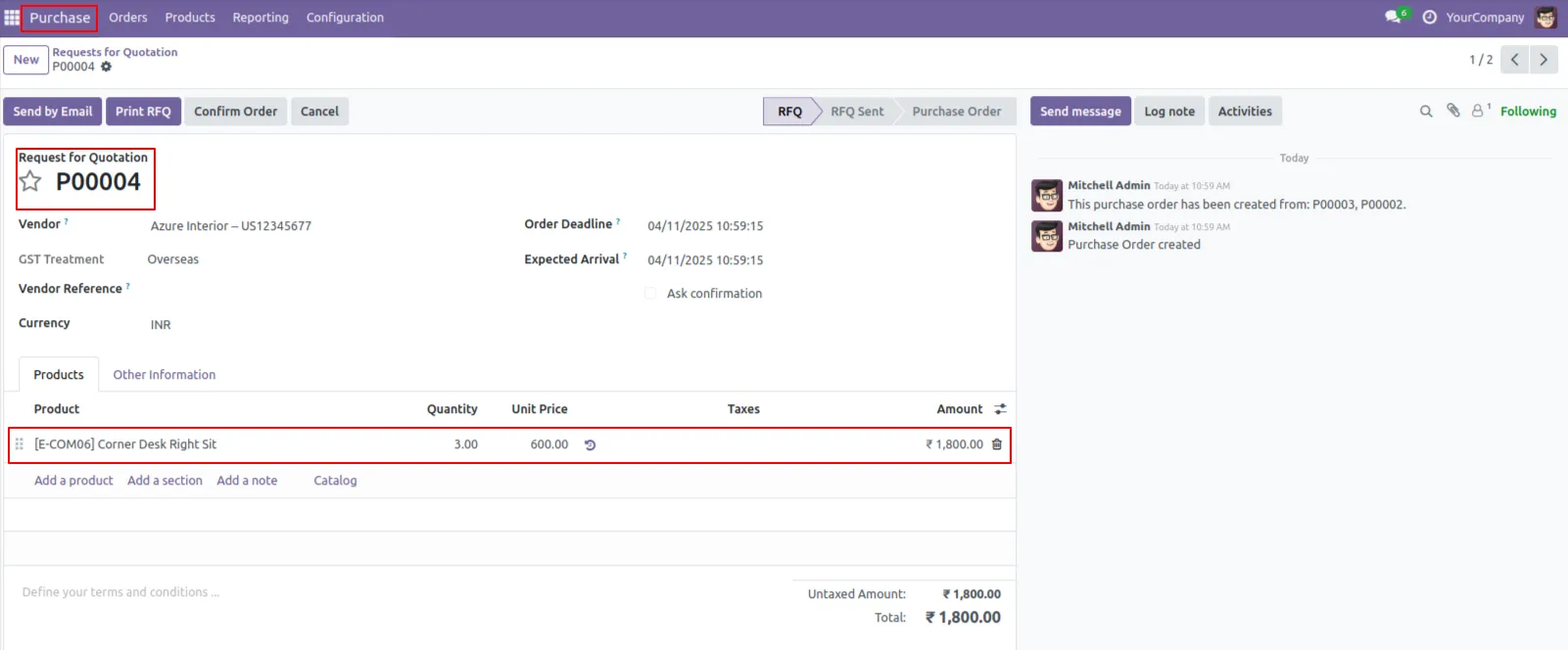
30.User can see new created purchase order.
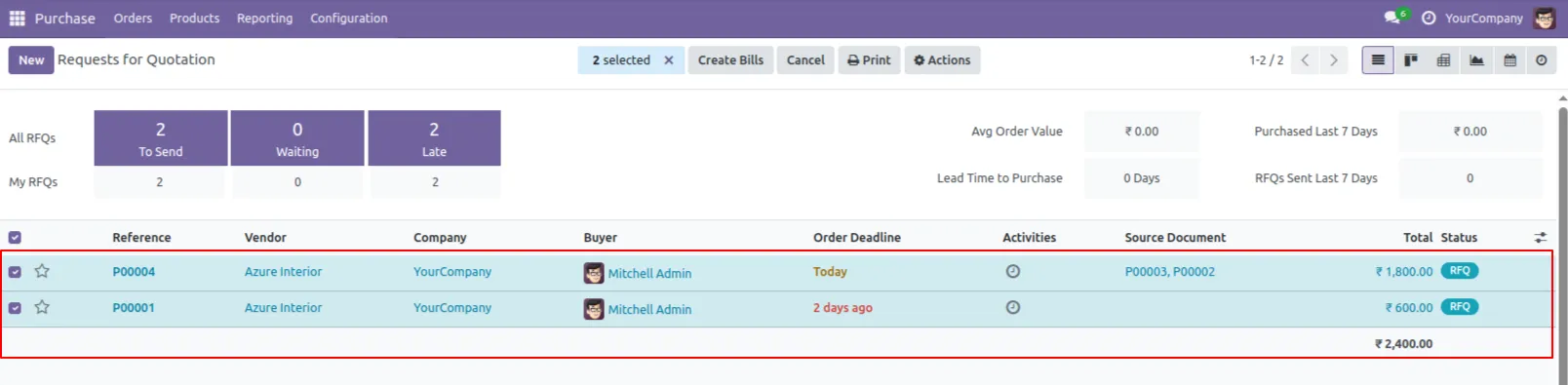
31.Option 3 : Merge order on existing selected order and cancel others
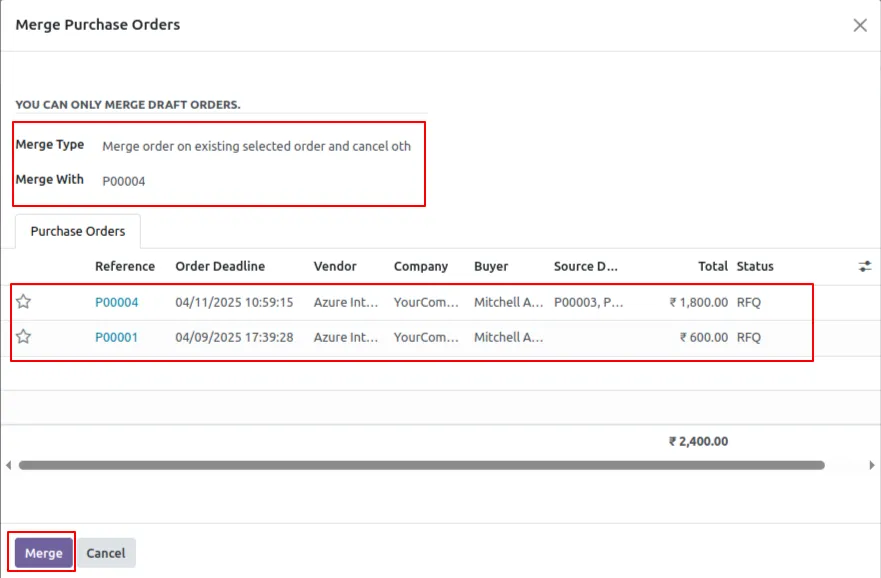
32.On merge wizard user have to select "Merge order on existing selected order and cancel others" option, also select "Merge with" order so purchase order will merged into selected orders.
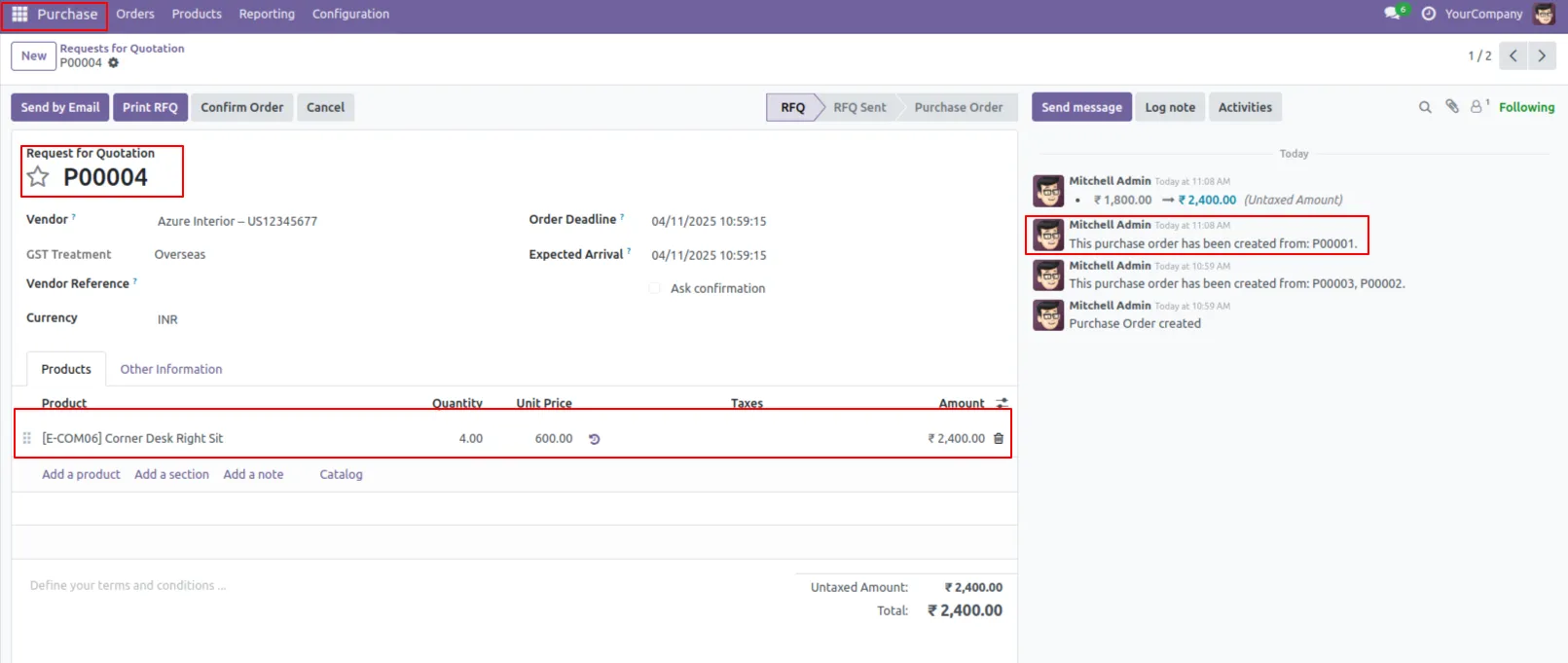
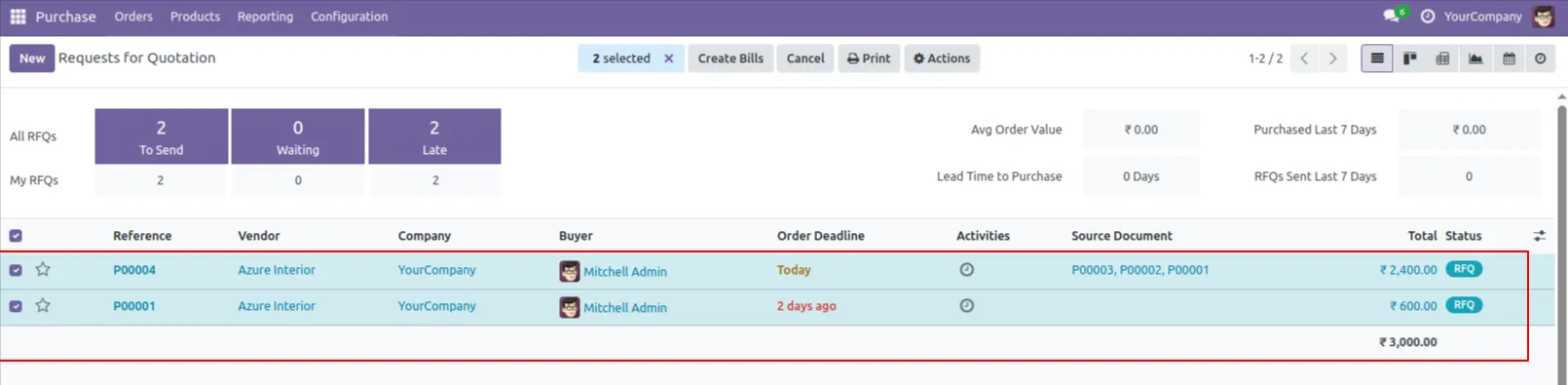
34. User can see purchase order merged from other orders.
35. Option 4 : Merge order on existing selected order and delete others
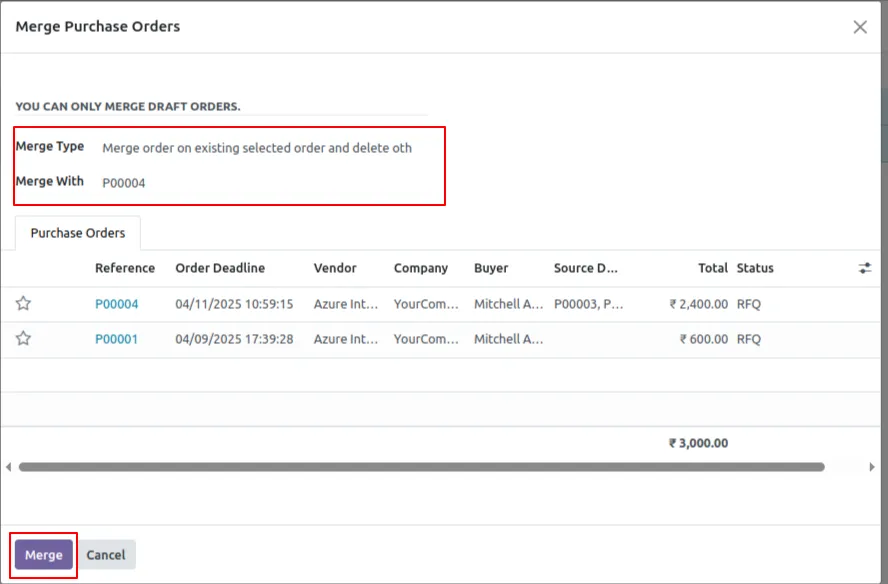
36. On sale order merge wizard user have to select "Merge order on existing selected order and delete others" options and also select "Merge with" orders.
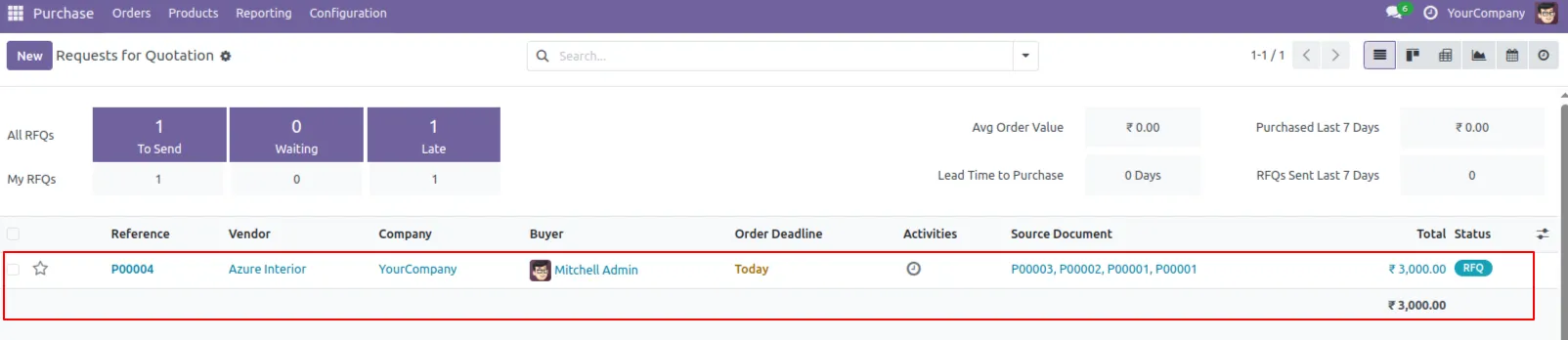
37. User can see other order are deleted and merged with selected order.
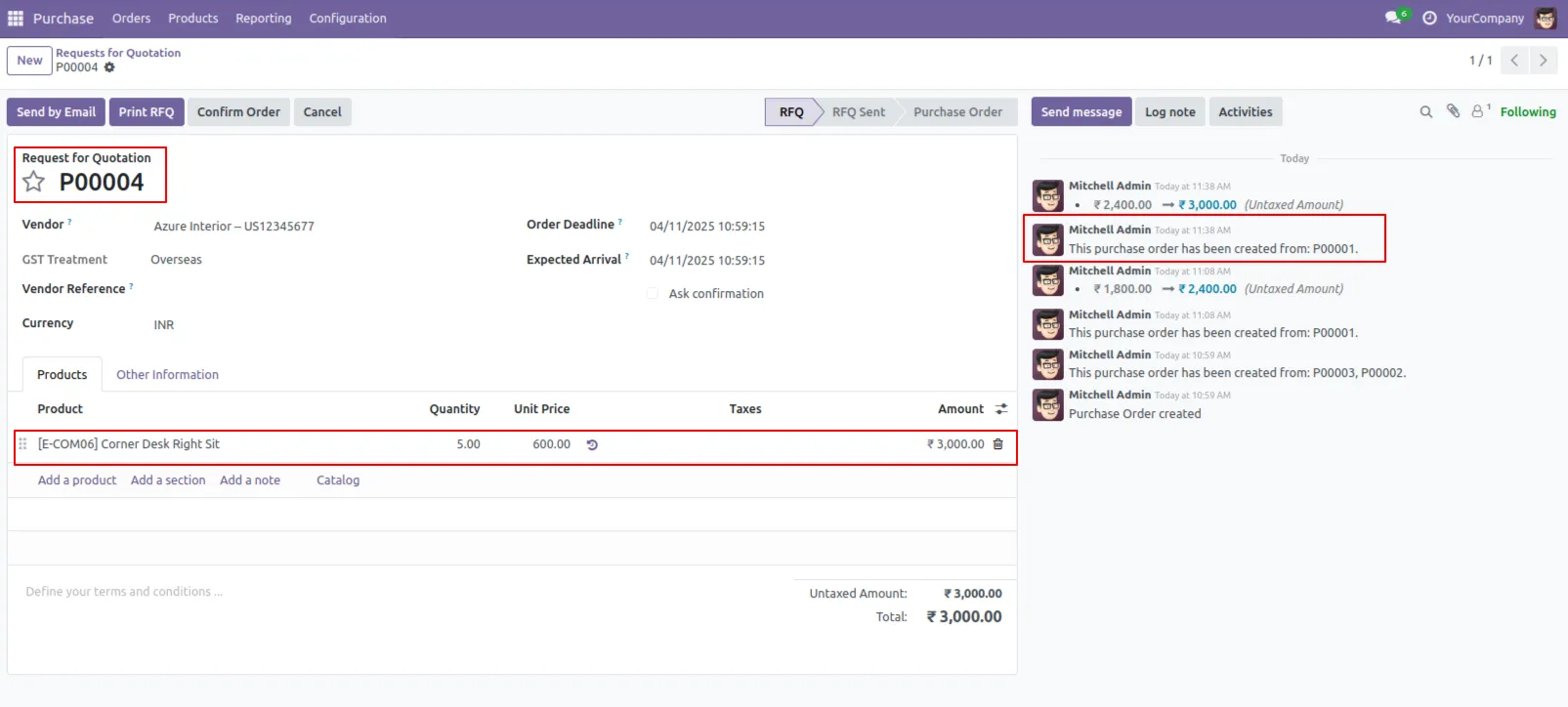
38. User can see merged order from other orders.
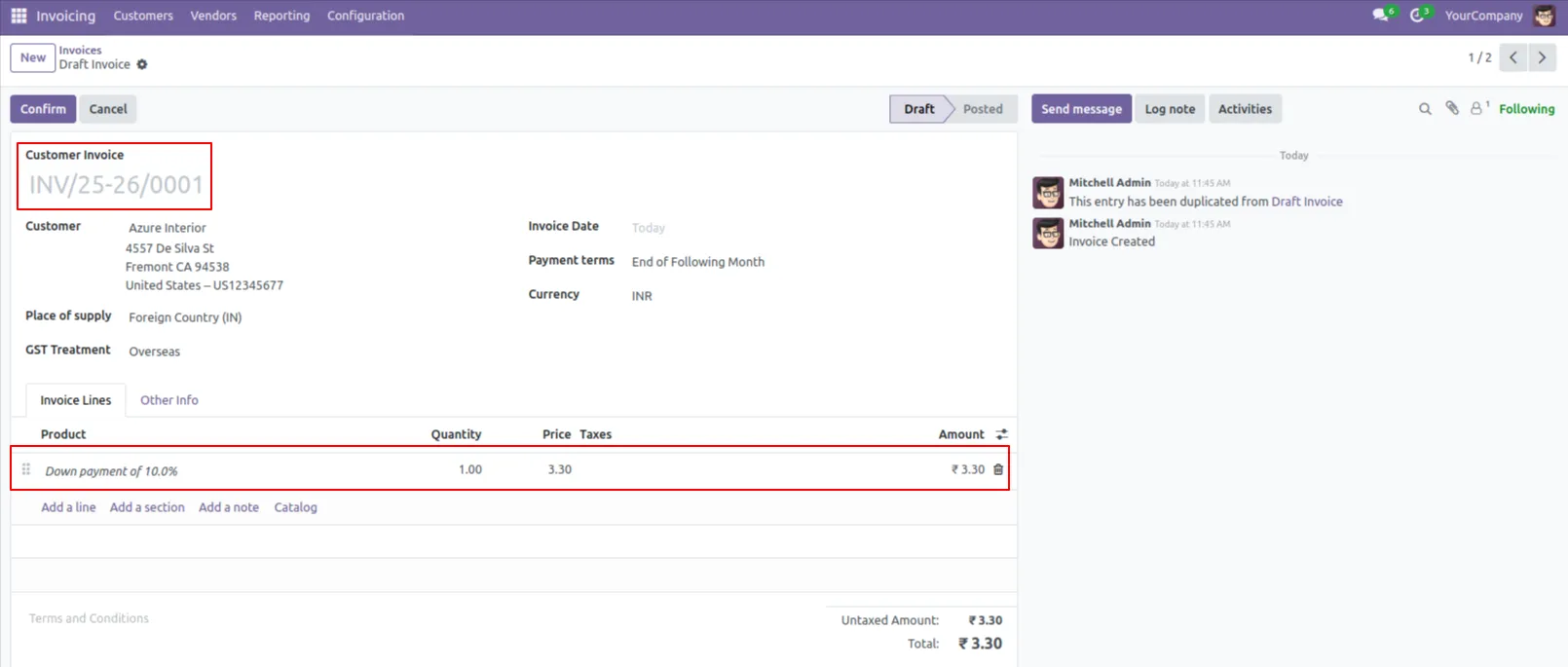
39. Merge Customer Invoices & Vendor Bills, User can see created customer invoice with order lines.
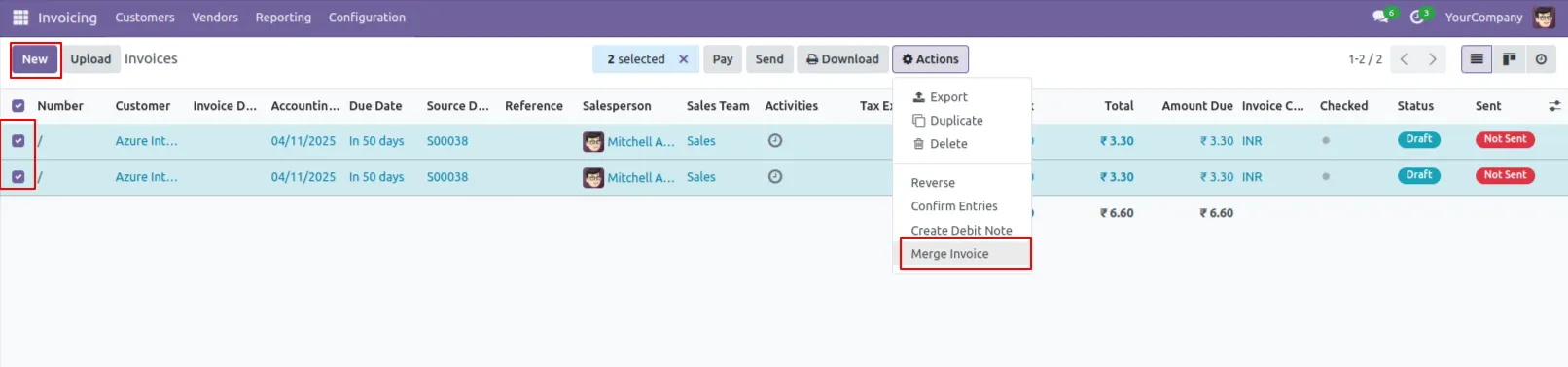
40. User have to select customer invoice/vendor bill in tree view, Under "Action" menu user can see "Merge Invoice" menu.
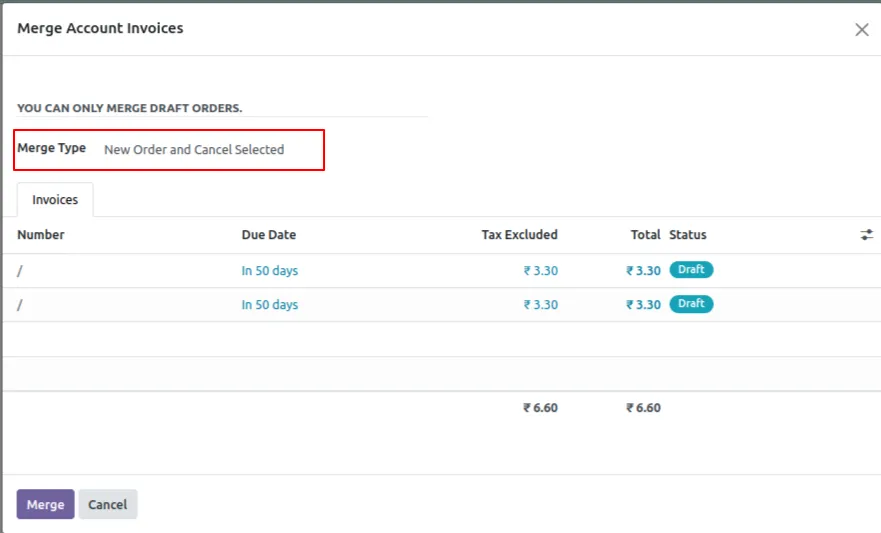
41.Option 1 : New Order and Cancel Selected

42.User can see created new invoice and all other are cancelled.
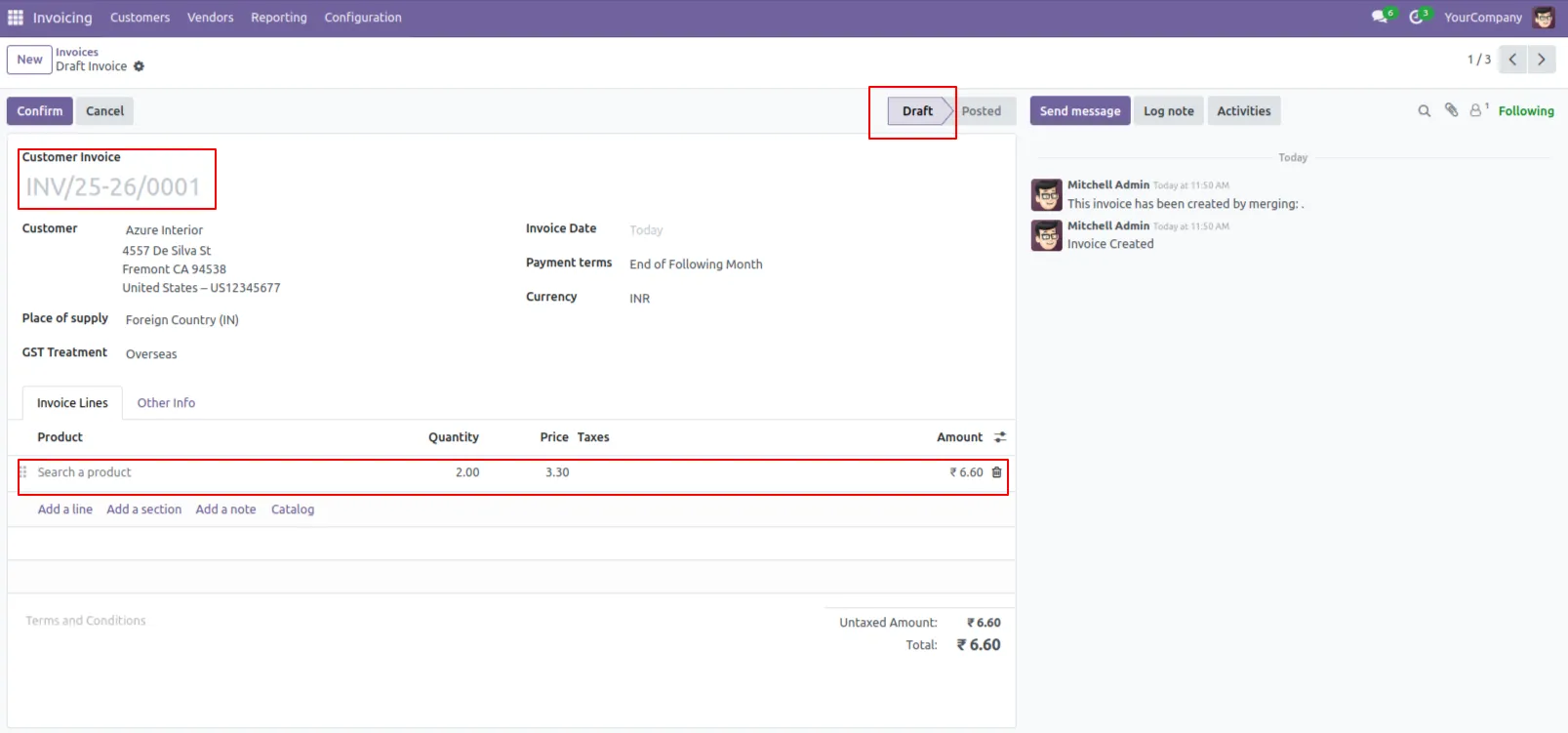
43. User can see new created invoice.

44.Option 2 : New order and Delete all selected order
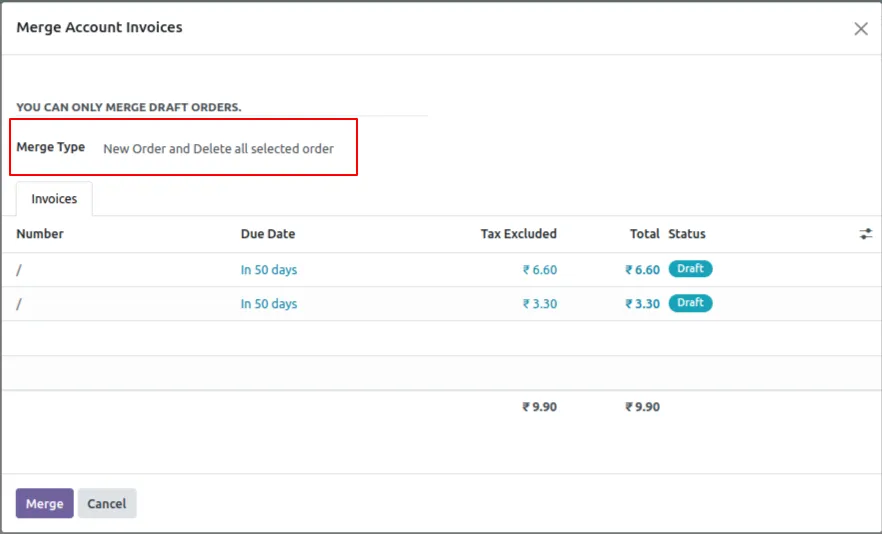
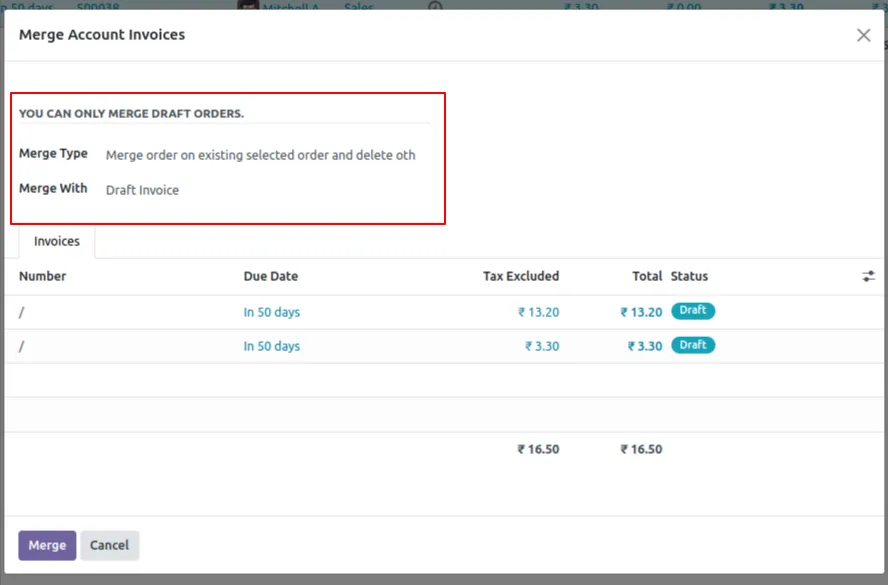
45. On merge invoice wizard user have to select "New order and Delete all selected order" options.
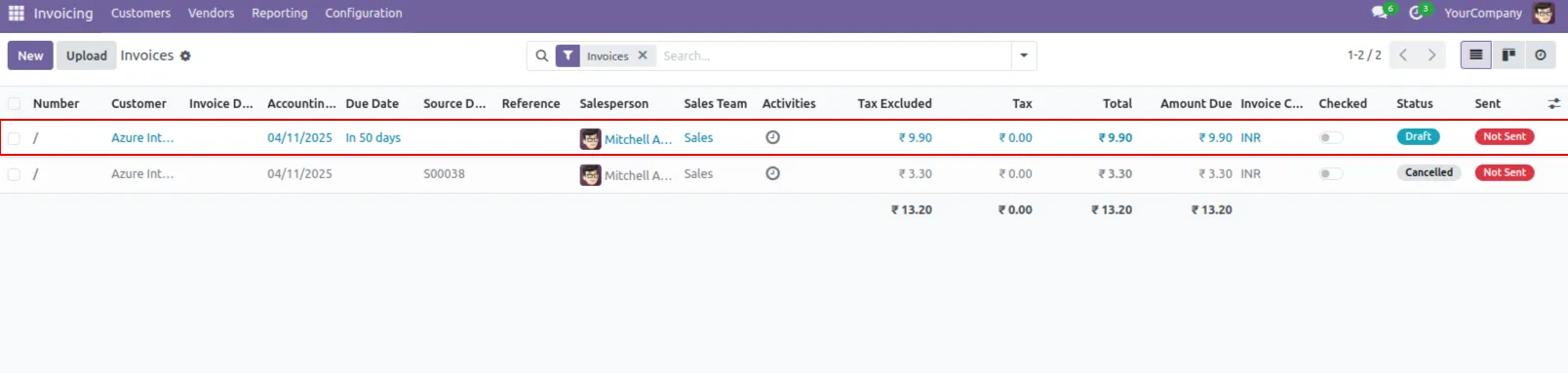
46. On invoice tree view user can see created new invoice and all other invoices are deleted.
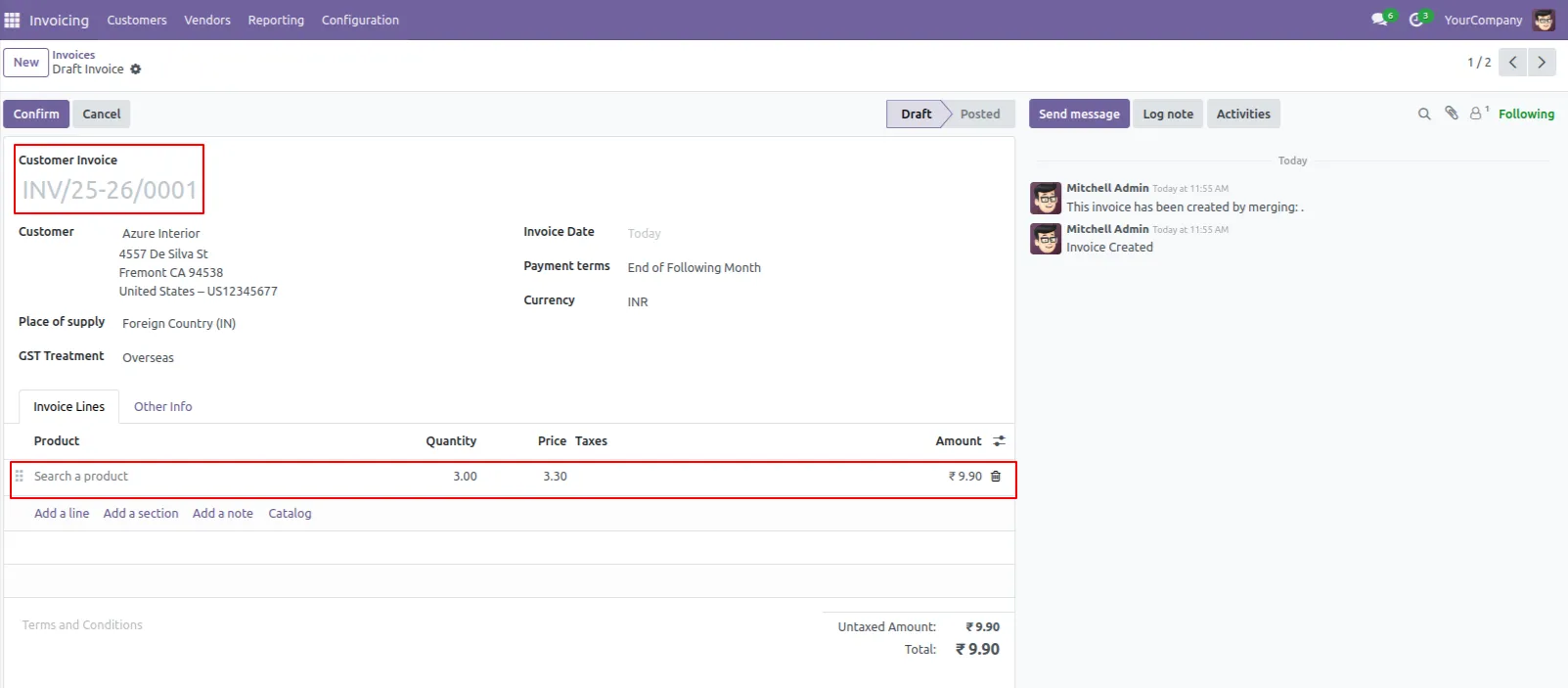
47.User can see new created invoice.

48.Option 3 : Merge order on existing selected order and cancel others
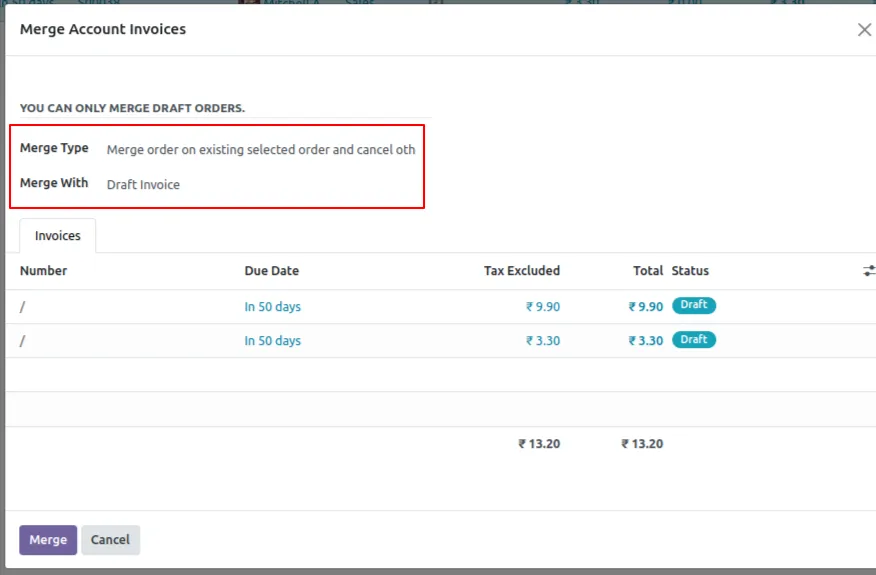
49.On merge invoice wizard user have to select "Merge order on existing selected order and cancel others" option, Also select "Merge with" invoice.

50.User can see all other invoices are canceled and merged into selected invoice.
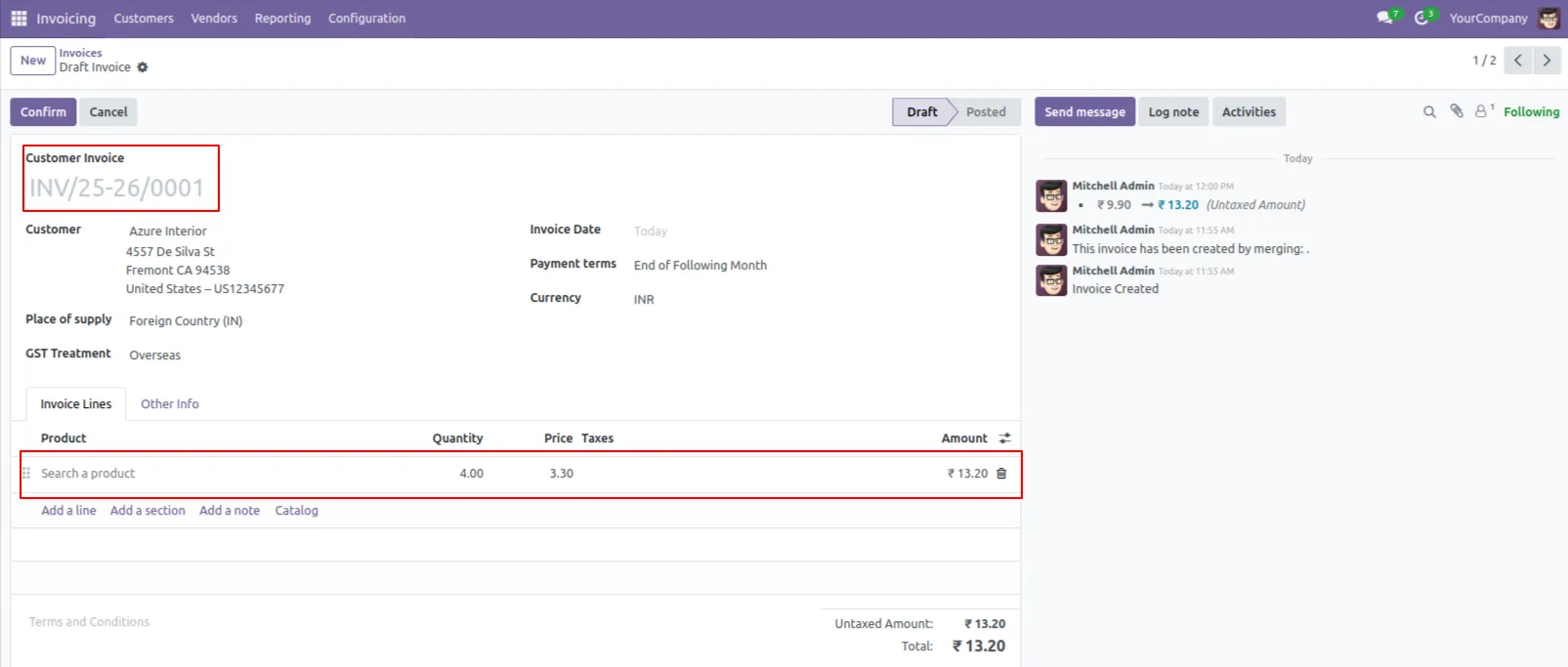
51.User can see merged invoice.

52.Option 4 : Merge order on existing selected order and delete others
53.On Mmerge invoice wizard user have to select "Merge order on existing selected order and delete others" option, Also select "Merge with" invoice.

54.User can see all other invoices are deleted and merge into selected invoice.
Our solutions focus on your problems
- Odoo Implementation
- Odoo Customization
- ERP Development and Implementation
- Odoo Ipass Cloud
- AI for Odoo
- Odoo Apps
- Aws Marketplace Products
- Business Engines
Our Pricing includes User Manual, 90 Days Support (Monday-Friday 10am to 7pm IST) and One time Setup
• Works & tested on standard installations of Odoo with no third party apps,
• Free support only for odoo installations with no third party apps,
• Paid support available for Odoo installations with third party apps.

Prefortune is a Odoo Official Partner, Odoo Development company. Our philosophy is to use Open Source tools and technologies to provide cost effective and green solutions for our customers.
Prefortune Technologies LLP is working on web development, Mobile development, and Odoo ERP.
If you need any help or want more additional features, you may contact us through:
Alternative Products
These other products might interest you
Specifications
| Version | 18.0, 17.0, 16.0, 15.0, 14.0, 13.0 |