Watch Quick Video
Document Management System for Portal Users
The Document Management System for Portal Users converts the basic Documents portal of Odoo into a complete self-service file manager for your customers. Admins can limit the number of folders, file size and total storage — globally, by company or by user — to keep storage consumption predictable as more portal users are added. A dedicated trash bin adds an extra layer of safety: users can restore their own deleted files or delete permanently, while admins can decide who is allowed to delete at all.
Portal users have everyday file tools built in—copy, move, download, rename and delete files right from their portal view, plus a “Shared With Me” section for files others have shared with them. They can make their own folders, upload files and create links to documents without any admin intervention. They can quickly find files with search and filter tools, and have the option of list view or grid view depending on their browsing preferences.
Document Management System for Portal Users Features
- Set max folder count, max file size and total storage cap per user, applied globally, per company or overridden per user. Preserves predictable disk usage and server load as your portal user-base grows.
- Copy, move, download, rename and delete files directly from the portal document view. It has the basic file management actions that users expect without having to go to the back end.
- Users can create their own folders, upload files and create links directly from the portal. No admin step required to organize your everyday documents.
- Deleted files don’t vanish, they go into a special trash bin. Users fix their own errors or delete permanently when they want; Admins decide if deletion is permitted, denied, or uses the company default per user.
- A dedicated view lets users see the documents that other people have shared with them. Keeps received files separate from own uploads, easy to find.
- Users can quickly find files using the built-in search and filter tools. They can also choose the list or grid view with a toggle.
Complete Workflow for Document Management System for Portal Users
Go to Settings → General Settings (or Users form), configure folder limit, file size limit, storage limit — set globally per company, or override per user via Users → Portal Document Limits tab. Portal user's personal folder auto-creates on account creation, named "UserName-ID," and stays synced if user renames. Deletion allowed/denied per global setting or per-user override (Allow / Deny / Use Global). Users manage own files from portal Documents page — trash bin holds deleted items for restore or permanent removal.
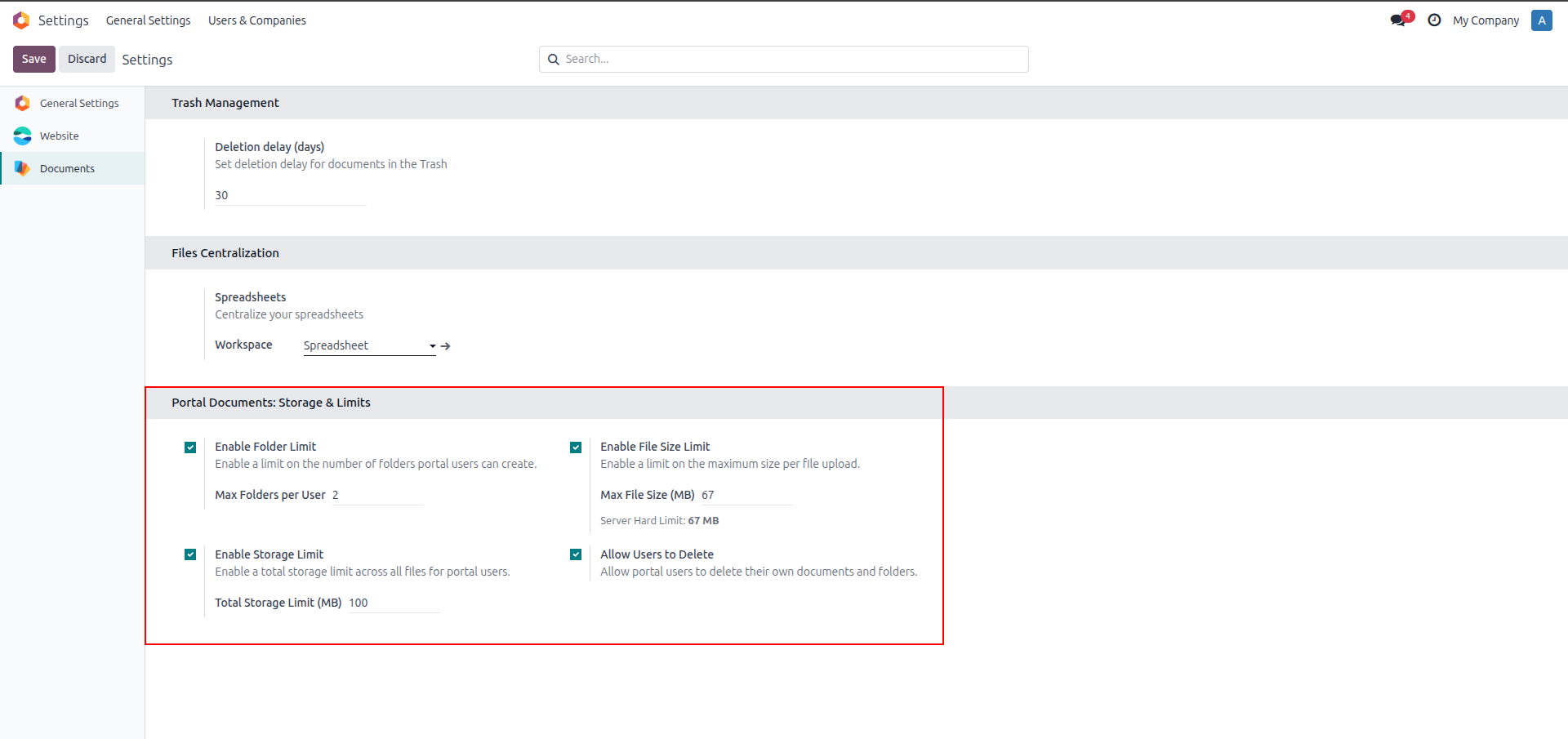
1. Go to Settings → Documents. Enable Folder Limit, File Size Limit, Storage Limit, and Allow Users to Delete as needed.
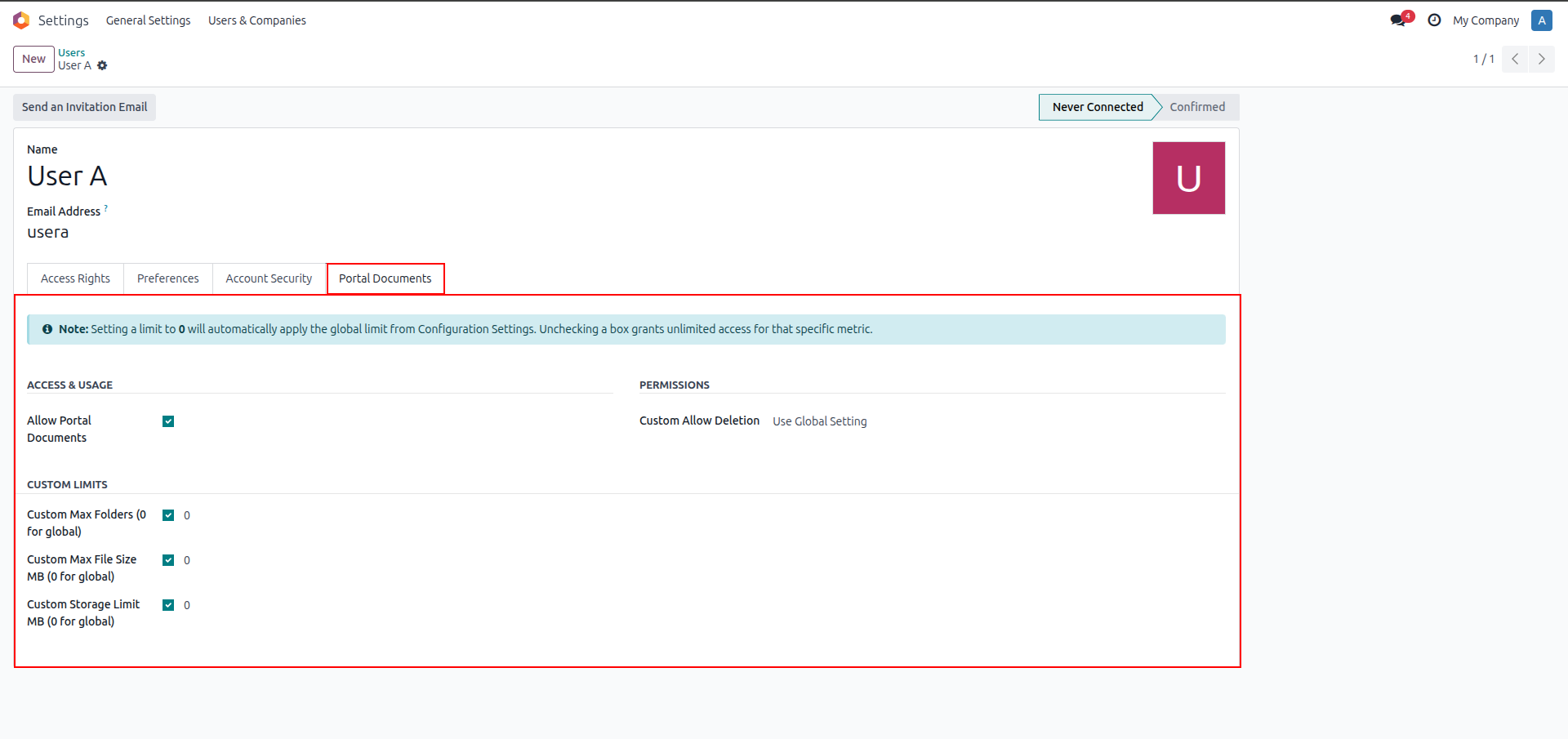
2. Open a user's profile → Portal Documents tab. Set custom limits or leave at 0 to use the global setting.
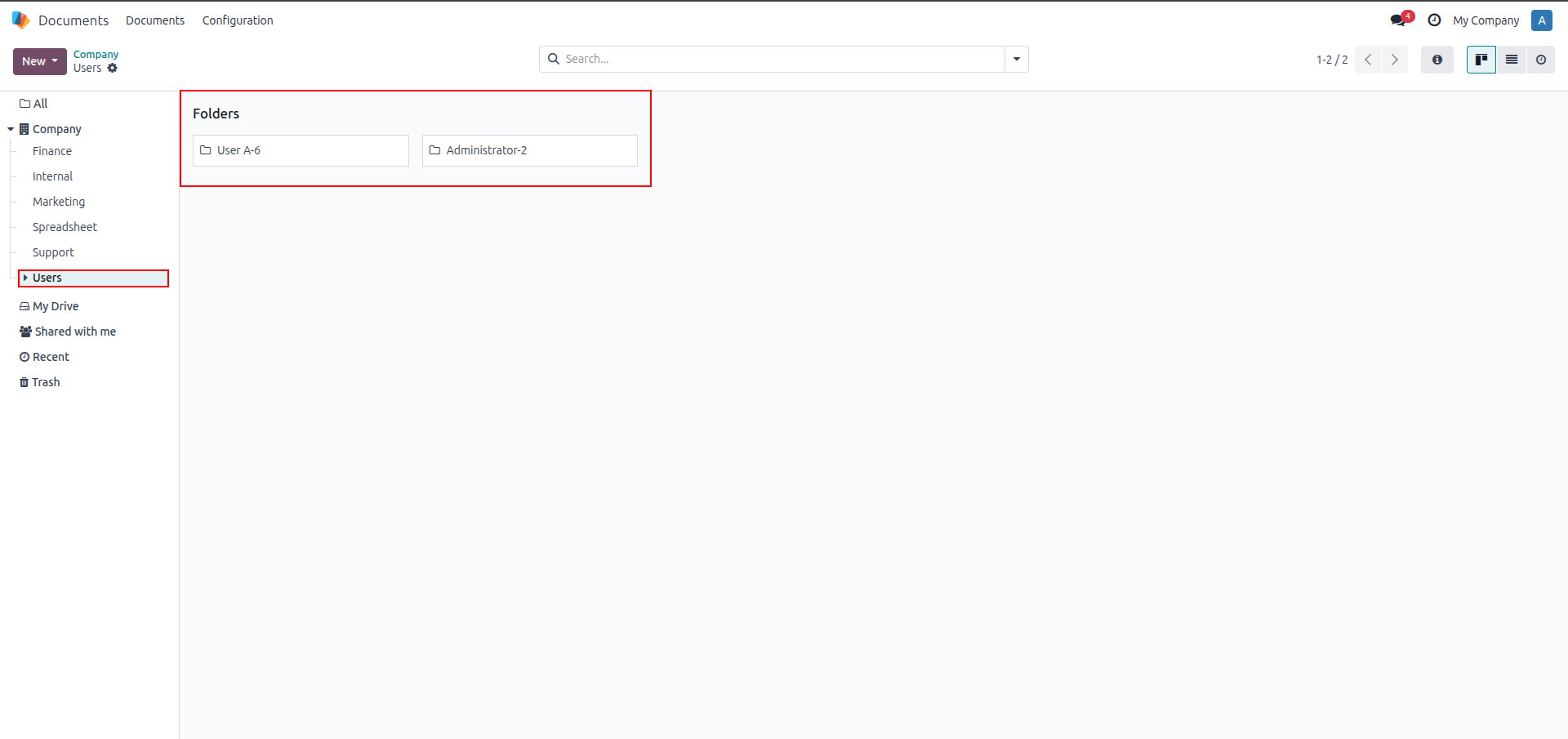
3. Backend Documents app auto-creates a "Users" folder containing one subfolder per user.
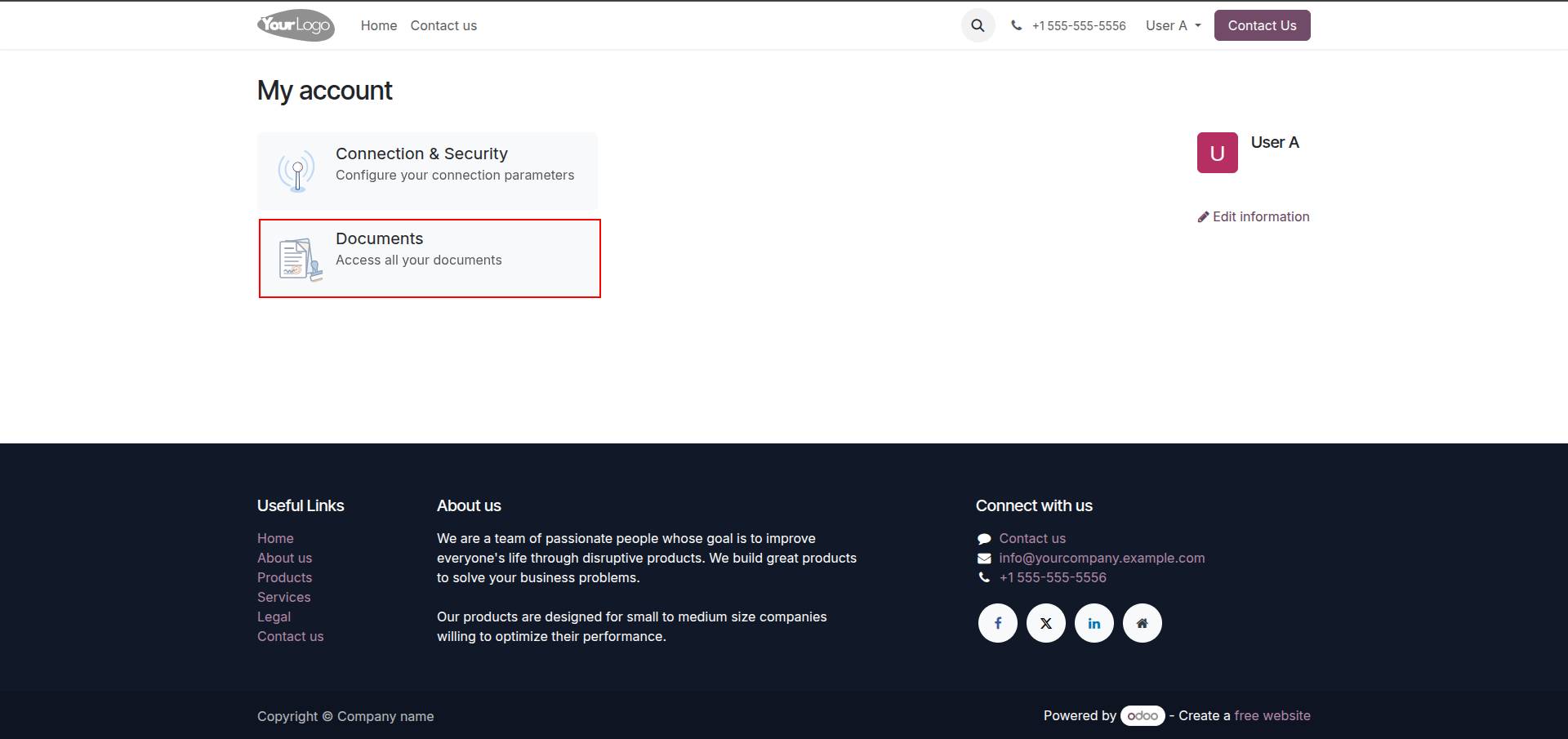
4. From the portal, click "Documents" under My Account to enter the document space.
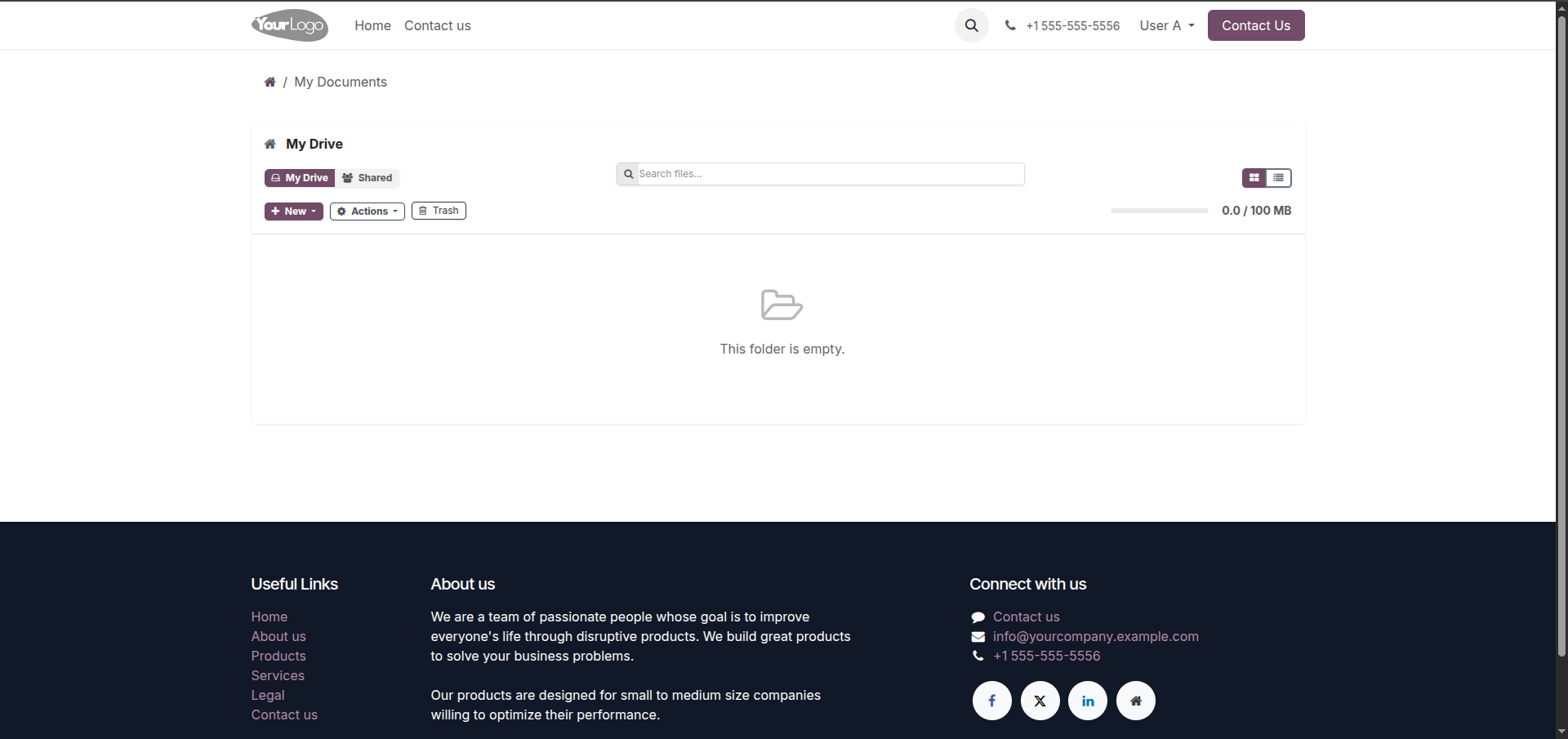
5. On first visit, My Drive is empty. Storage usage shows at 0.0 / 100 MB.
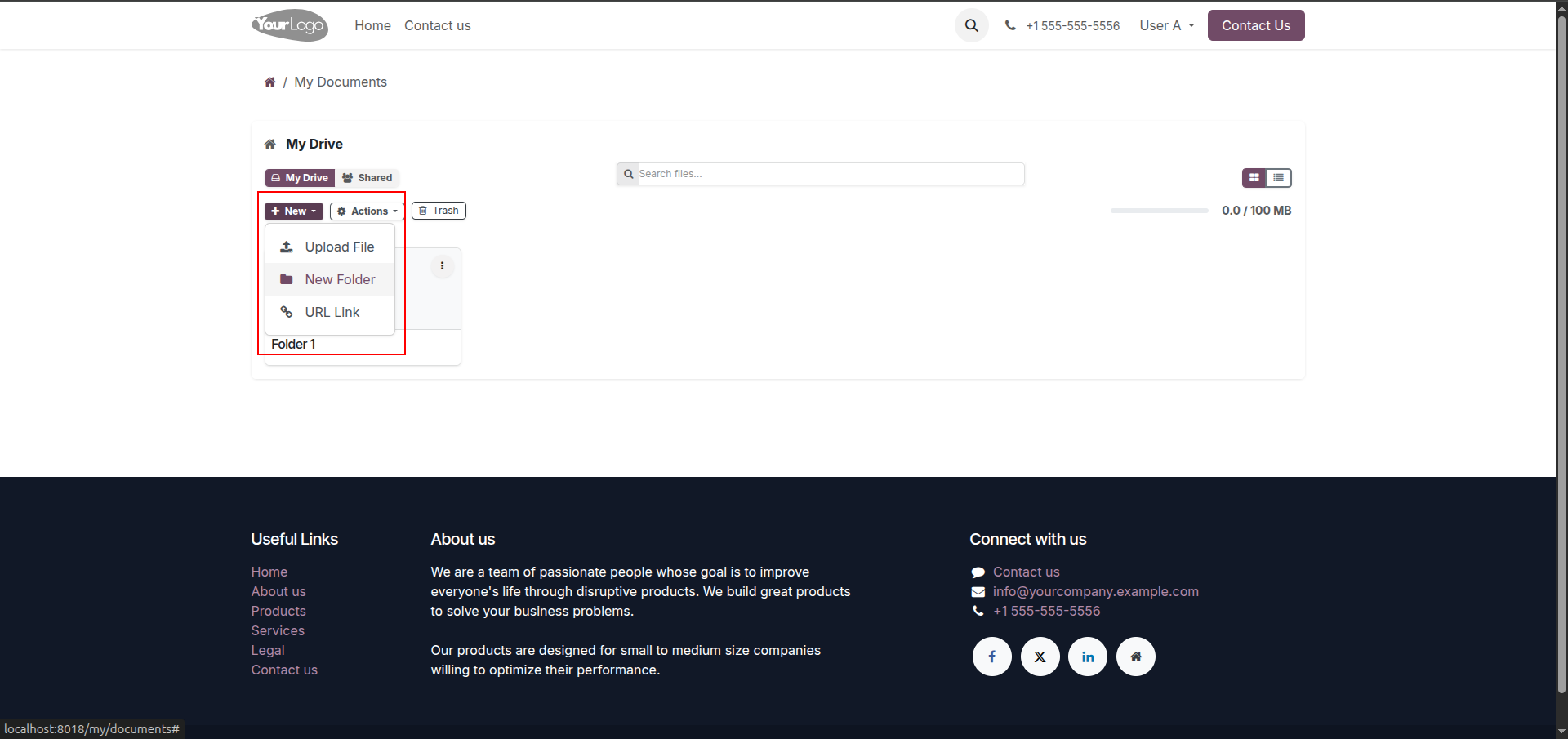
6. Click "New" to choose Upload File, New Folder, or URL Link.
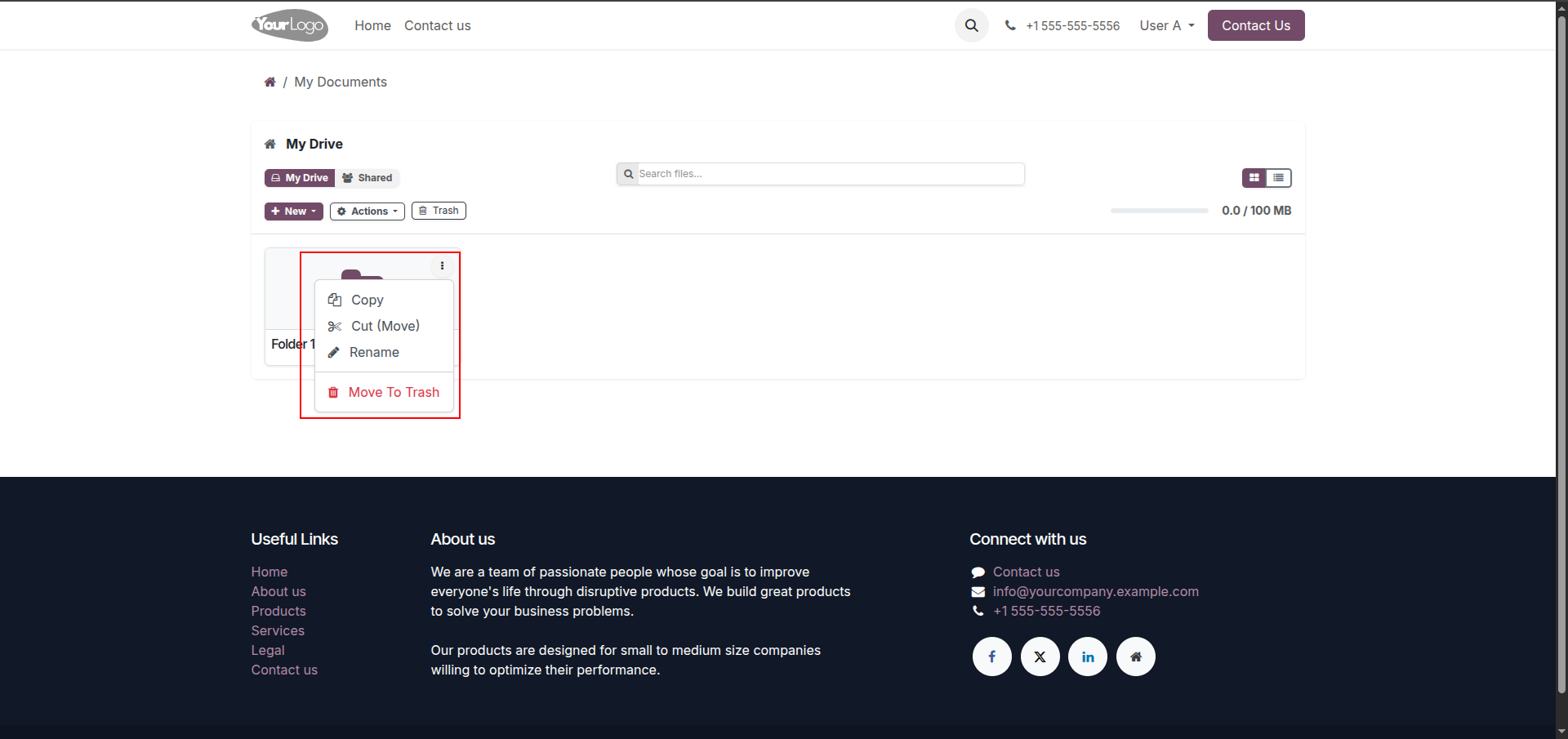
7. Click the three-dot menu on any item to Copy, Cut (Move), Rename, or Move To Trash.
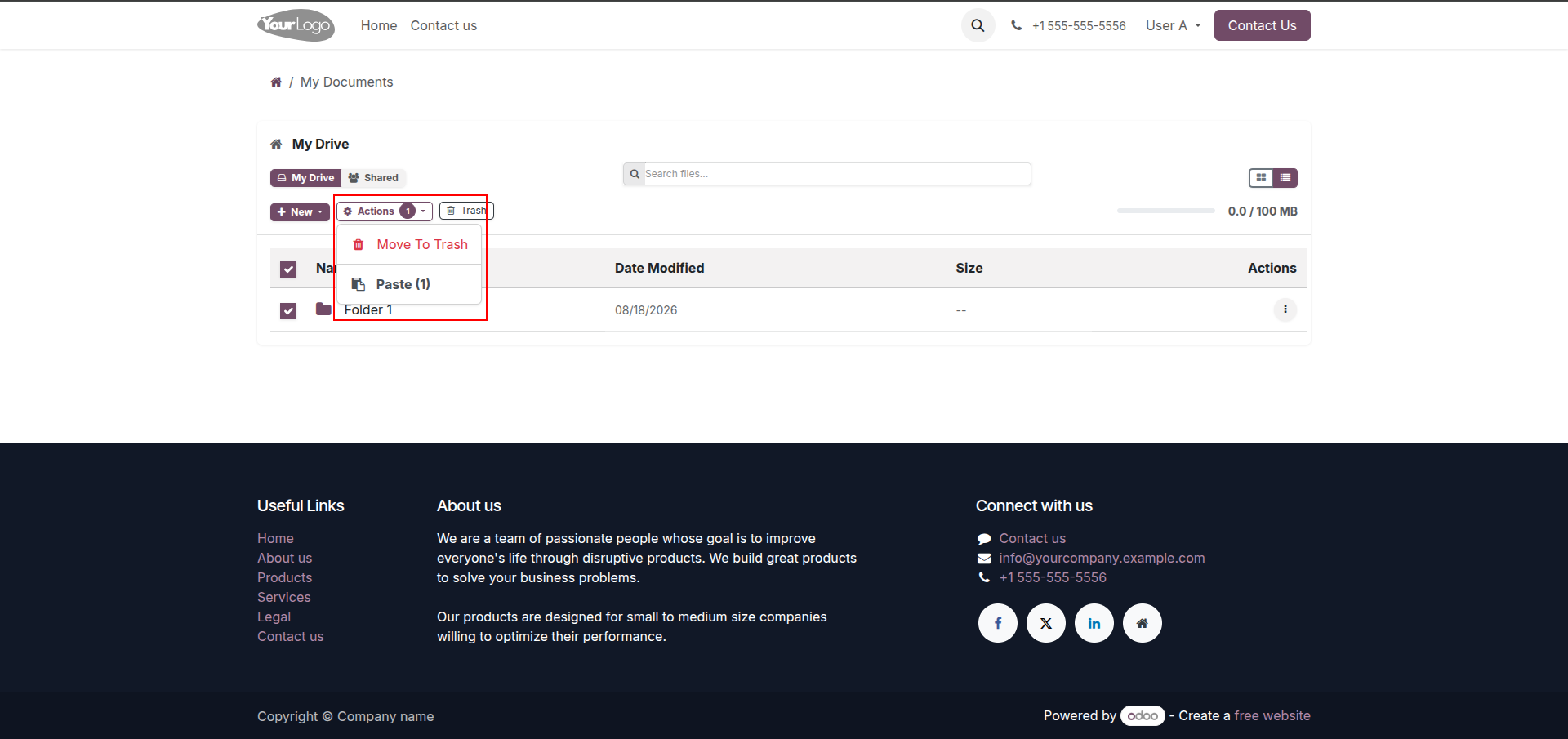
8. Select multiple items, then use the Actions menu to Move To Trash.
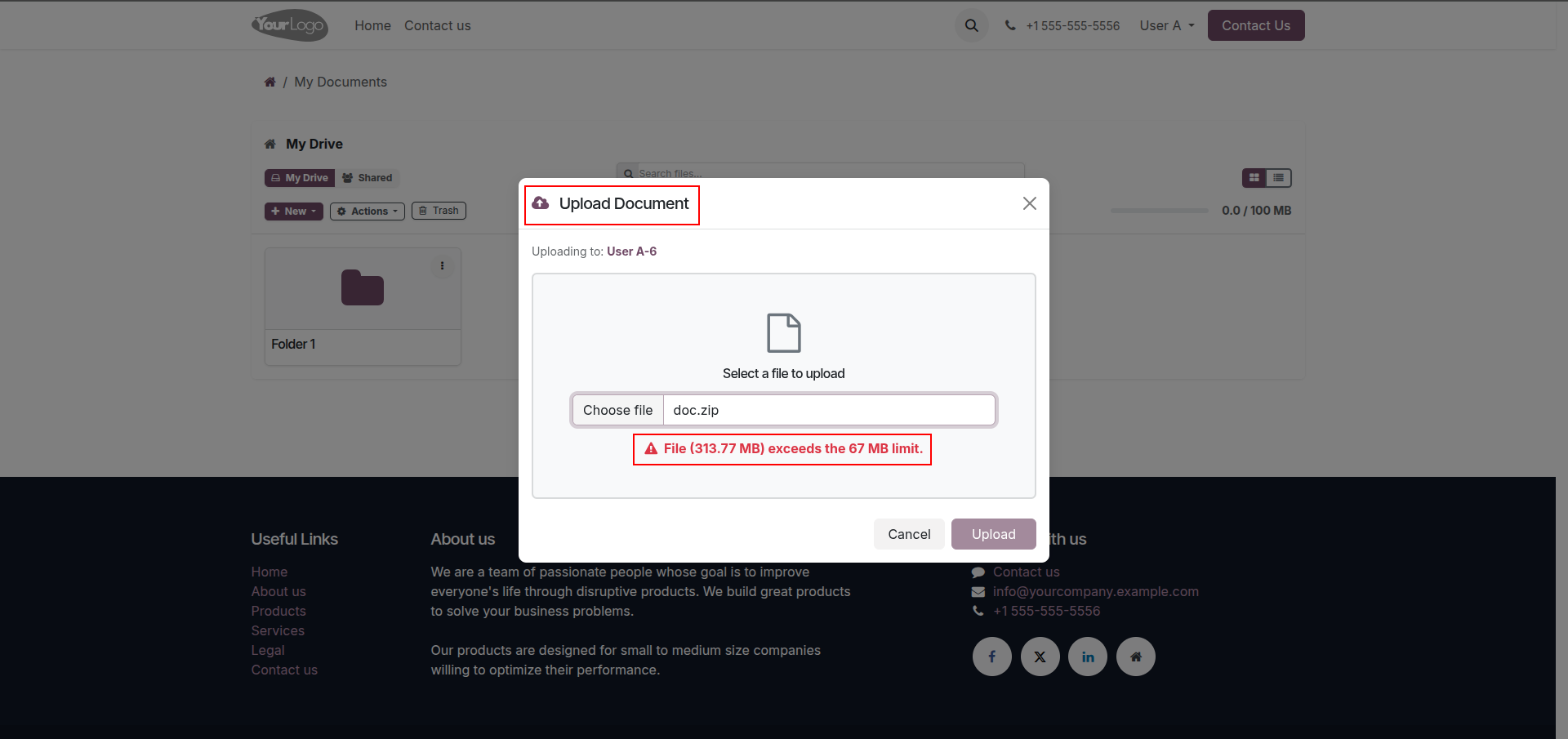
9. If a file exceeds the configured size limit, the upload is blocked with an error message.
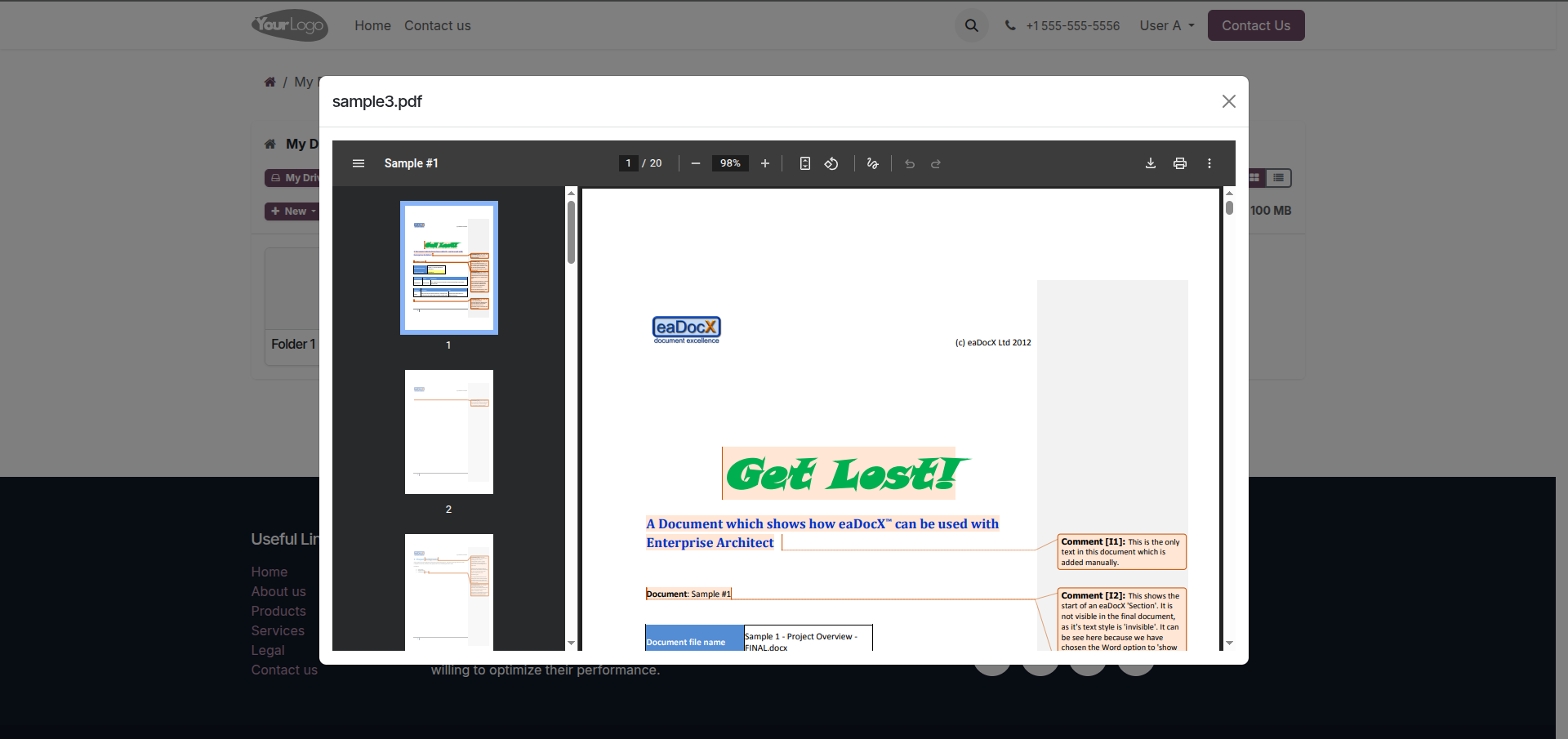
10. Click a file to preview it.
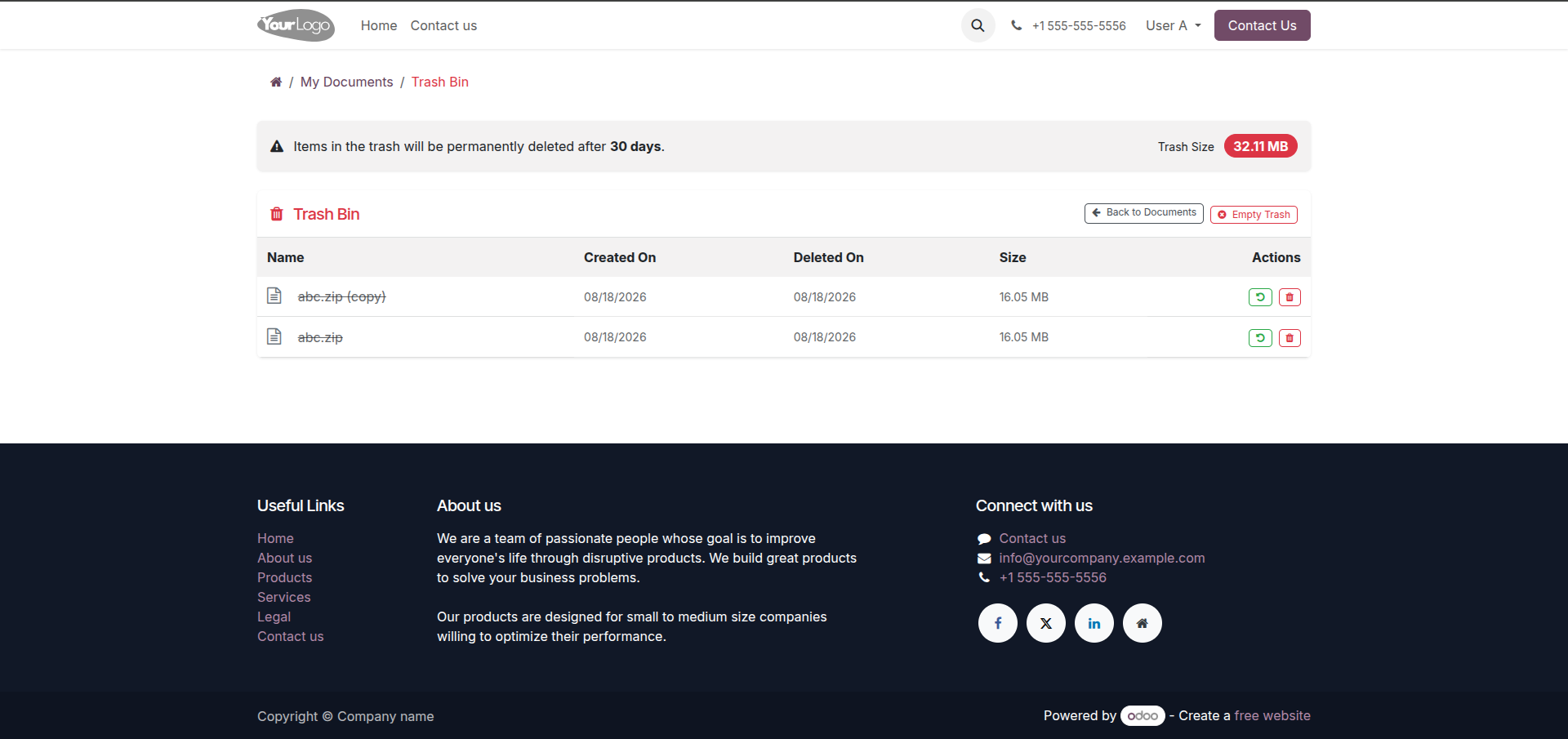
11. Open Trash Bin to view deleted items, restore them, or delete permanently. Items auto-clear after 30 days.
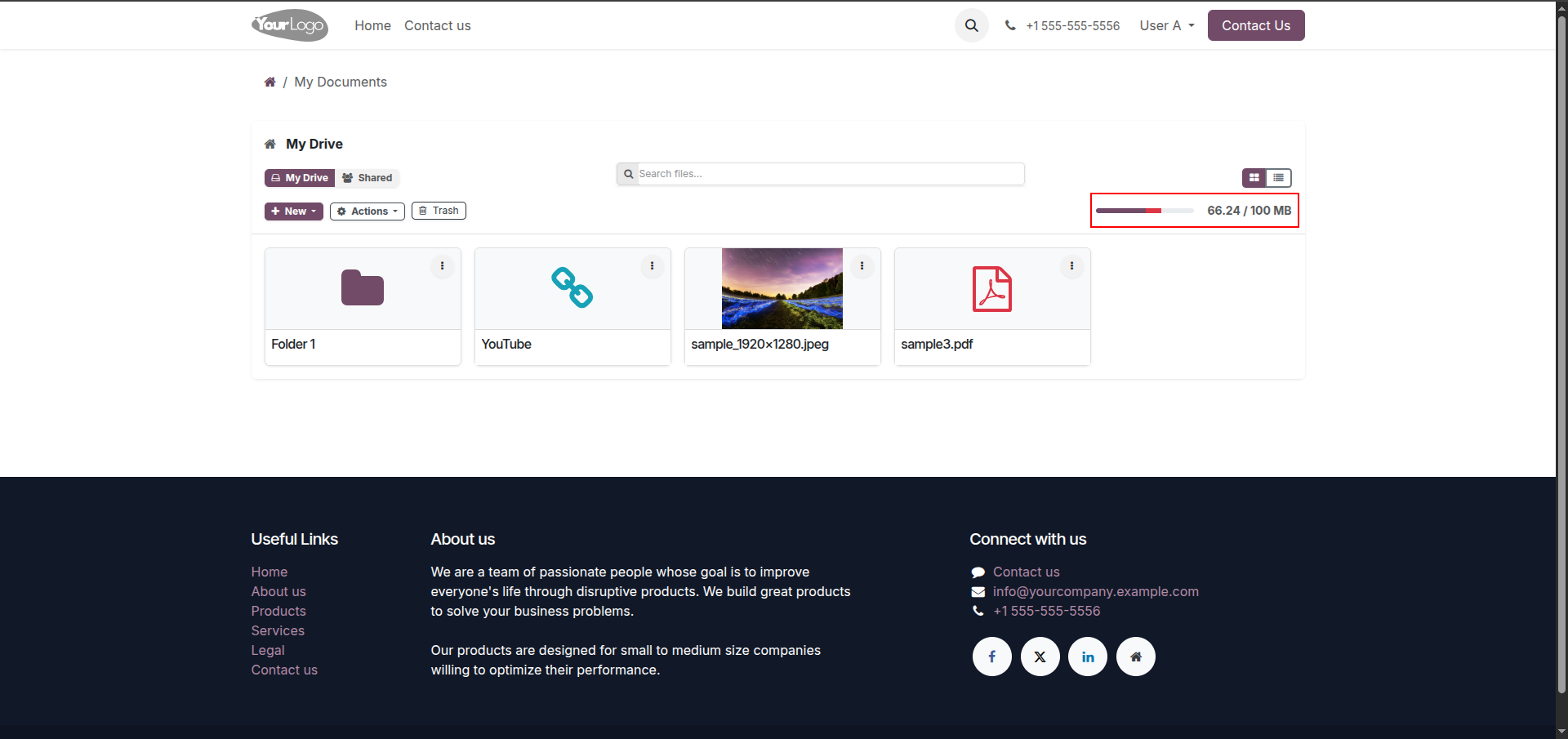
12. My Drive displays all folders, links, and files together, with live storage usage shown top-right.
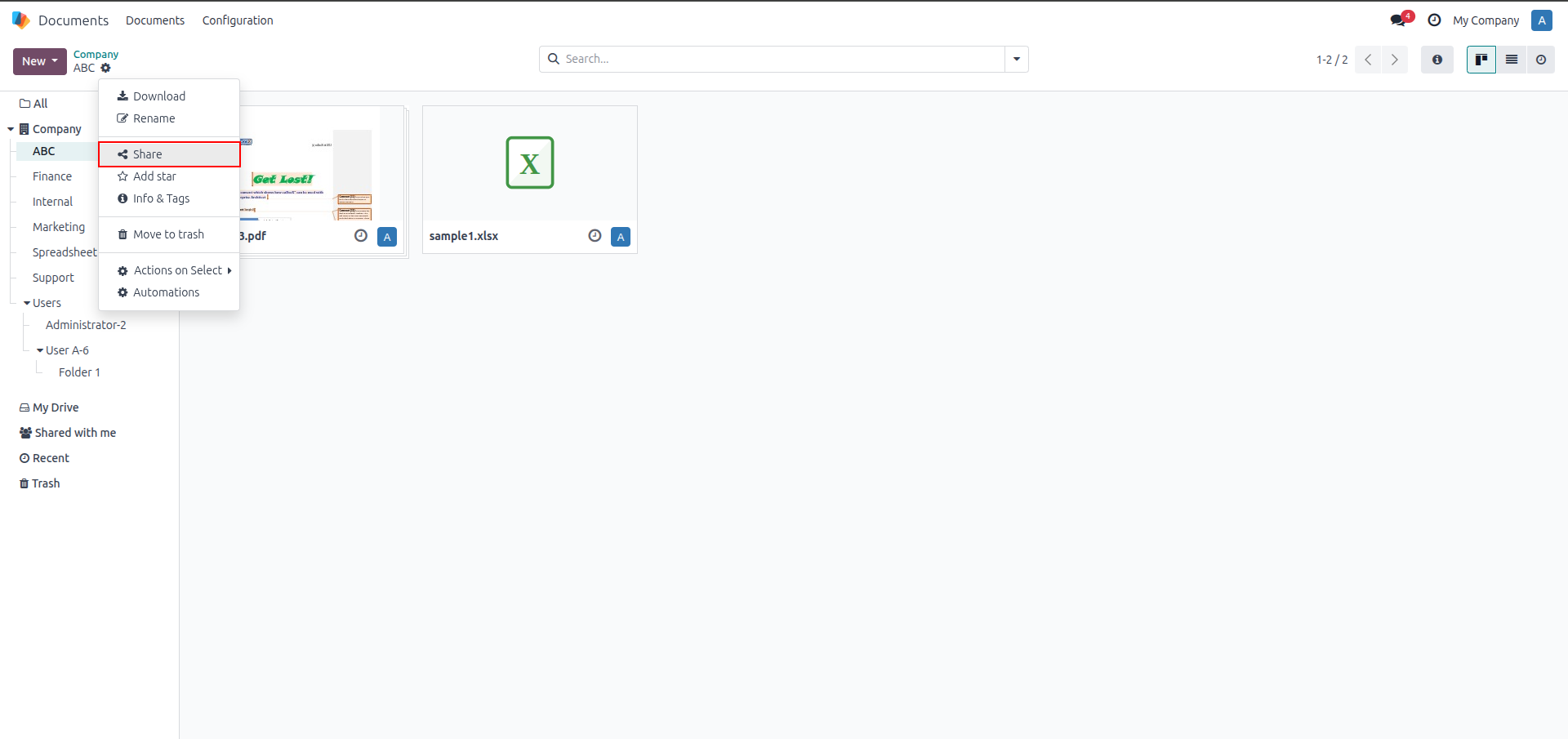
13. In the backend, right-click a file or folder and select "Share" to manage access.
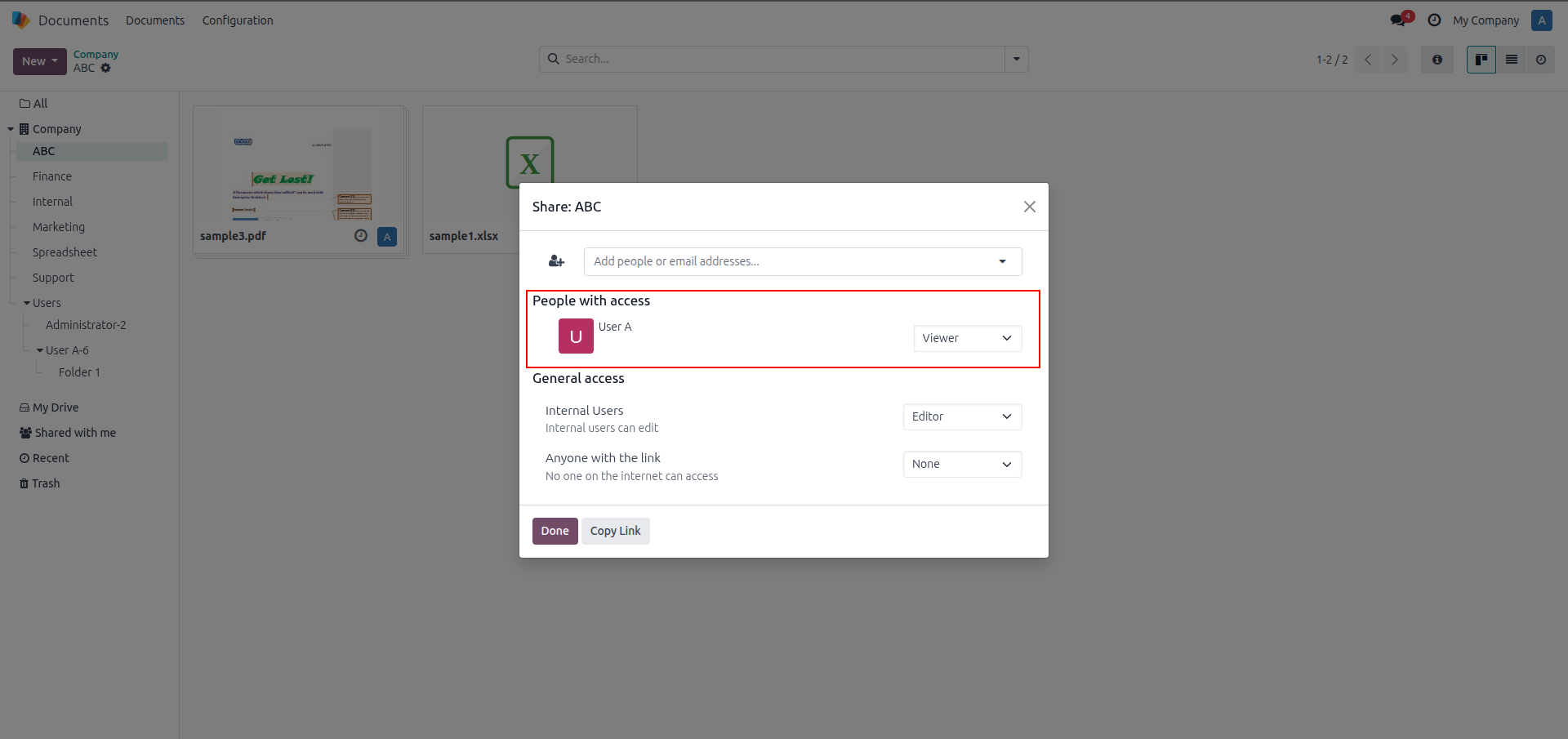
14. In the Share dialog, add people and set their role, or adjust general access for internal users and link sharing.
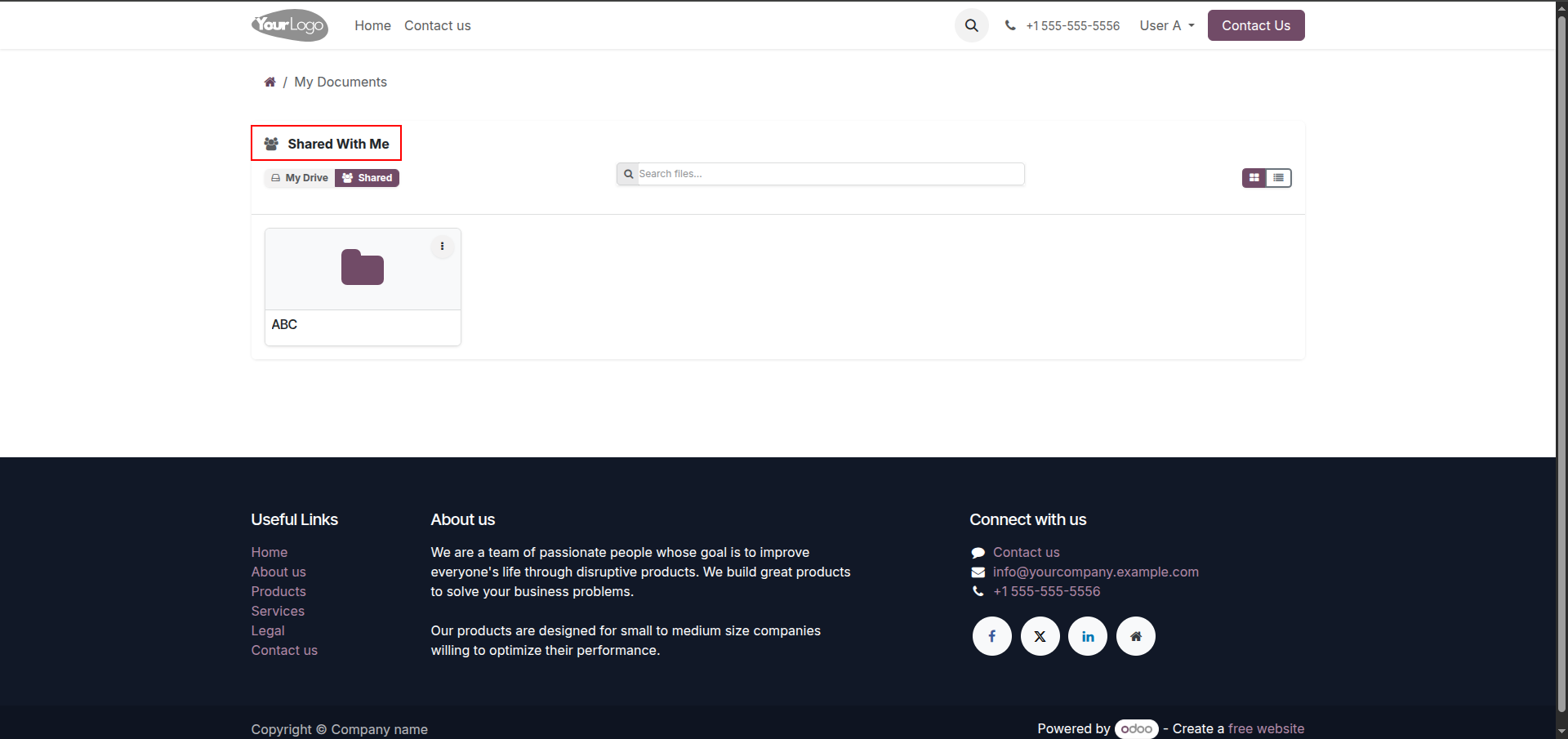
15. Click "Shared With Me" in the portal to view folders and files other users have shared with you.
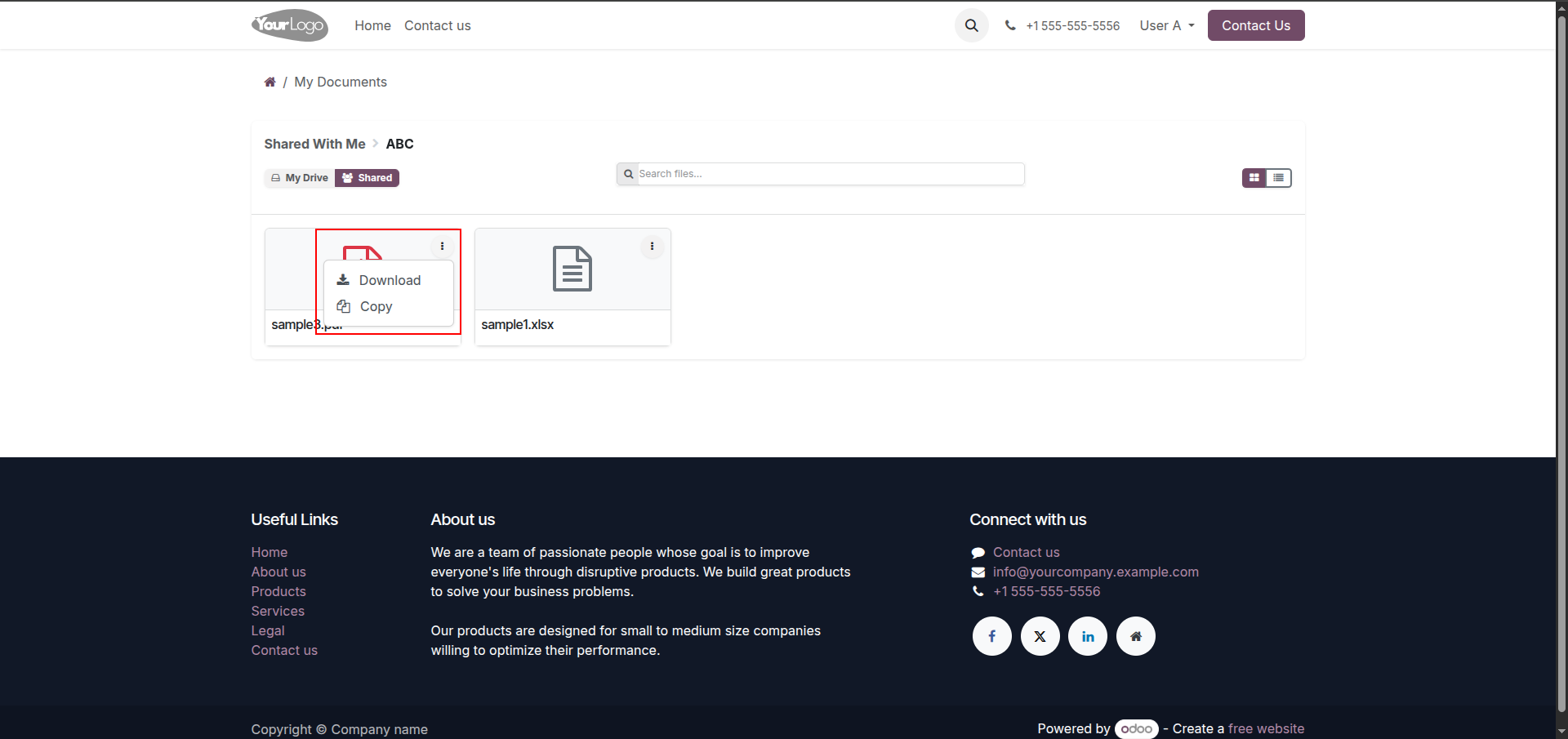
16. Inside a shared folder, use the three-dot menu to Download or Copy — other actions are restricted.
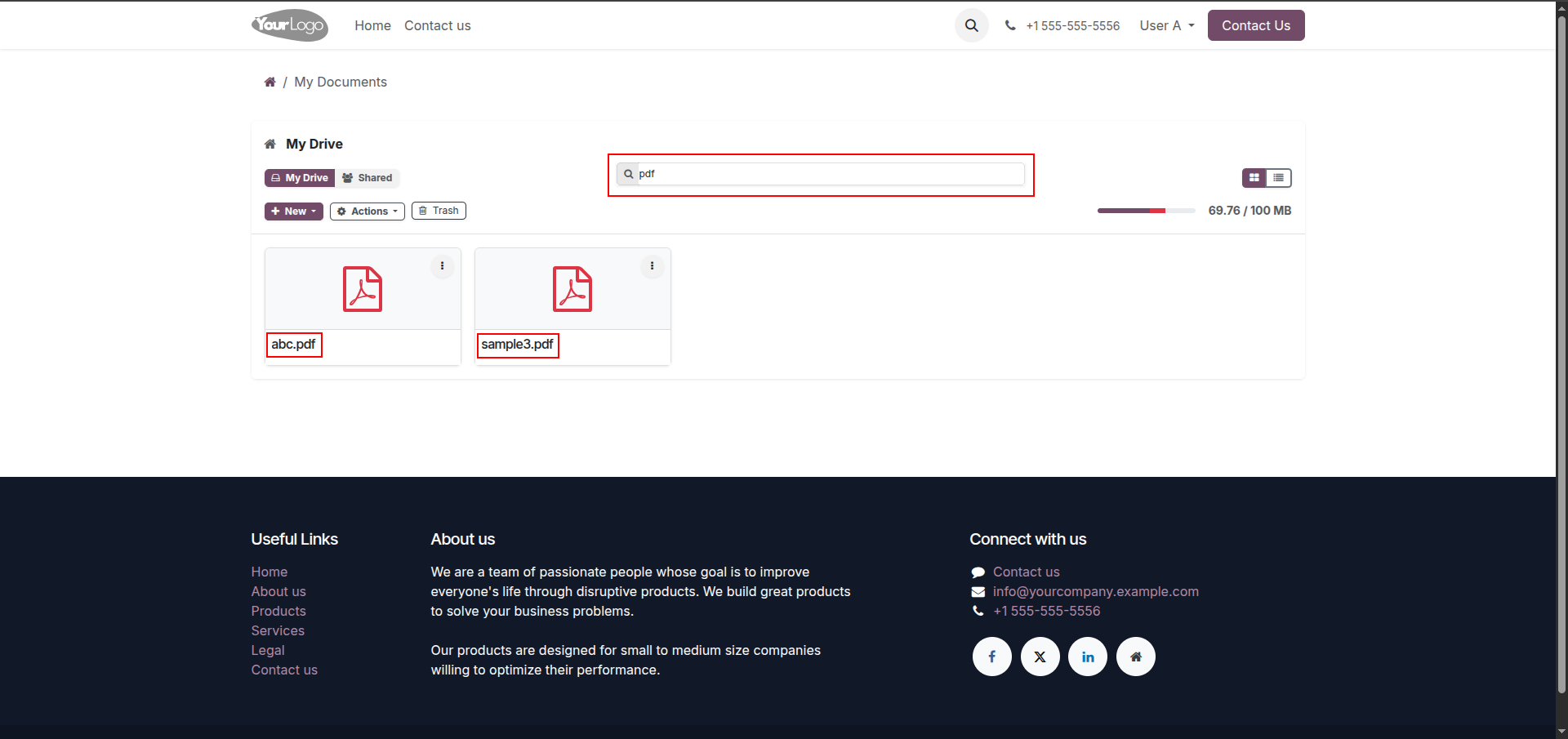
17. Type in the search bar to filter files by name or type instantly.
Our solutions focus on your problems
- Odoo Implementation
- Odoo Customization
- ERP Development and Implementation
- Odoo Ipass Cloud
- AI for Odoo
- Odoo Apps
- Aws Marketplace Products
- Business Engines
Our Pricing includes User Manual, 90 Days Support (Monday-Friday 10am to 7pm IST) and One time Setup
• Works & tested on standard installations of Odoo with no third party apps,
• Free support only for odoo installations with no third party apps,
• Paid support available for Odoo installations with third party apps.

Prefortune is a Odoo Official Partner, Odoo Development company. Our philosophy is to use Open Source tools and technologies to provide cost effective and green solutions for our customers.
Prefortune Technologies LLP is working on web development, Mobile development, and Odoo ERP.
If you need any help or want more additional features, you may contact us through:
Alternative Products
These other products might interest you
Specifications
| Version | 19.0, 18.0, 17.0, 16.0 |