
Watch Quick Video

Google Sheets Odoo Integration in Odoo
all-inclusive Google Sheets Odoo Integration is a powerful tool that enables a direct, smooth, and real-time data connection between Odoo and Google Sheets. It is designed for businesses that want to analyze, report, and share data quickly without the need for manual exports or complex processes.With this connector, Odoo records are mapped to Google Sheets. Users can choose to sync data automatically at intervals or manually when needed,speeding up reporting tasks.
Google Sheets Odoo Integration in Odoo
- Automatic or manual updates.
- Selective record syncing.
- Real-time analysis.
- Secure authentication.
Complete Workflow for Google Sheets Odoo Integration in odoo
Note:
To integrate Google Sheets with your Odoo environment, you must first install the required Python packages: oauth2client – Handles OAuth 2.0 authentication. gspread – Used to interact with Google Sheets API. google-api-python-client – Enables the use of various Google APIs, including the Sheets API.
Installation Command:
pip install oauth2client gspread google-api-python-client
To configure the Google Sheets Odoo Integration in Odoo, Got to Setting / Technical / Google Servcie Account Key in Odoo, upload the JSON key file you created earlier, and click "Validate The Key". Once validated, the status will change to "Success". Next, open the JSON file and copy the client_email. Create a new Google Sheet, click Share, and share it with the copied client_email, giving it Editor access. Finally, copy the Sheet ID from the URL (the part between /d/ and /edit) to use in the integration.
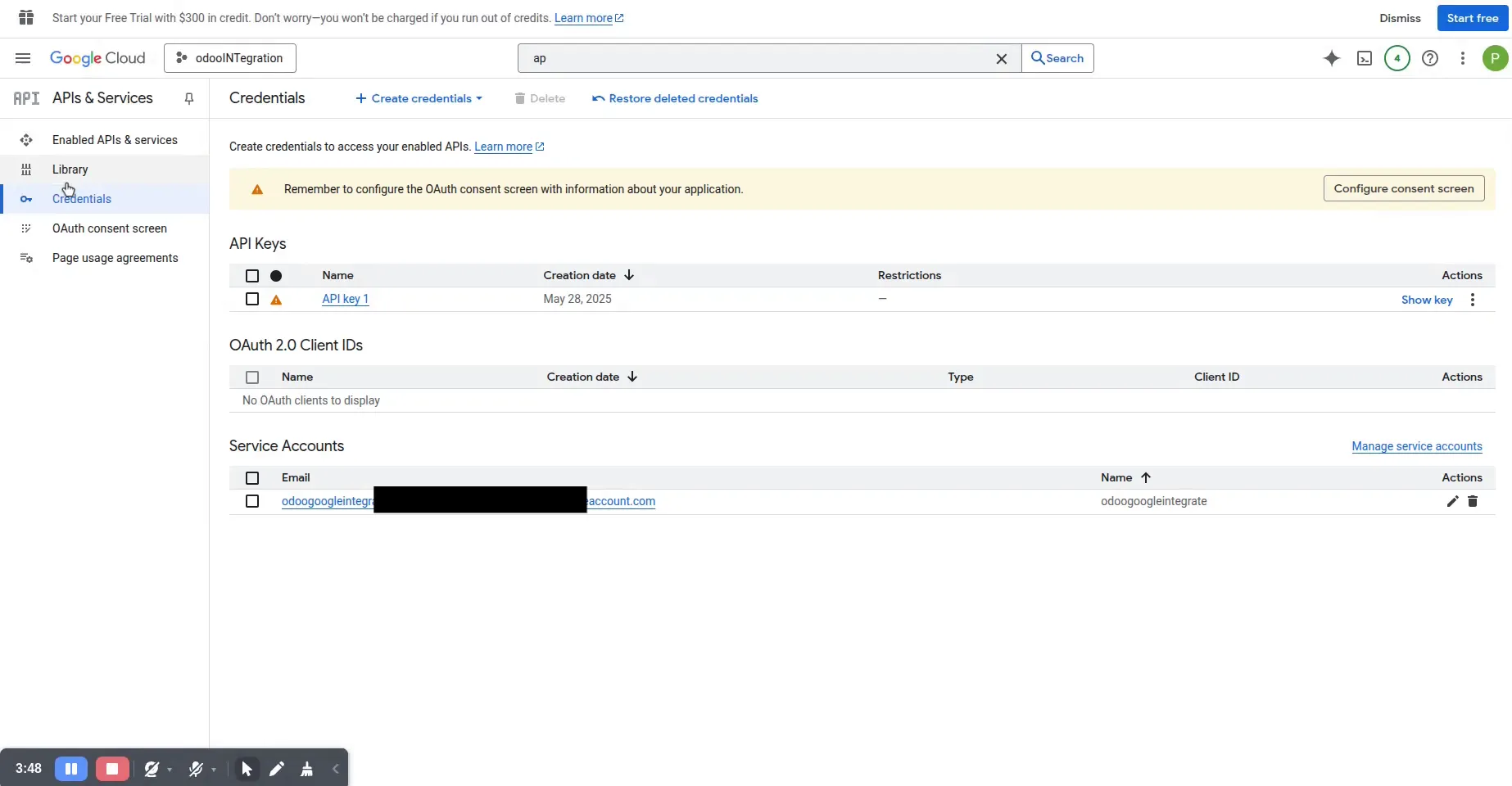
1. Create a Service Account Email in Google Cloud to obtain the JSON file.
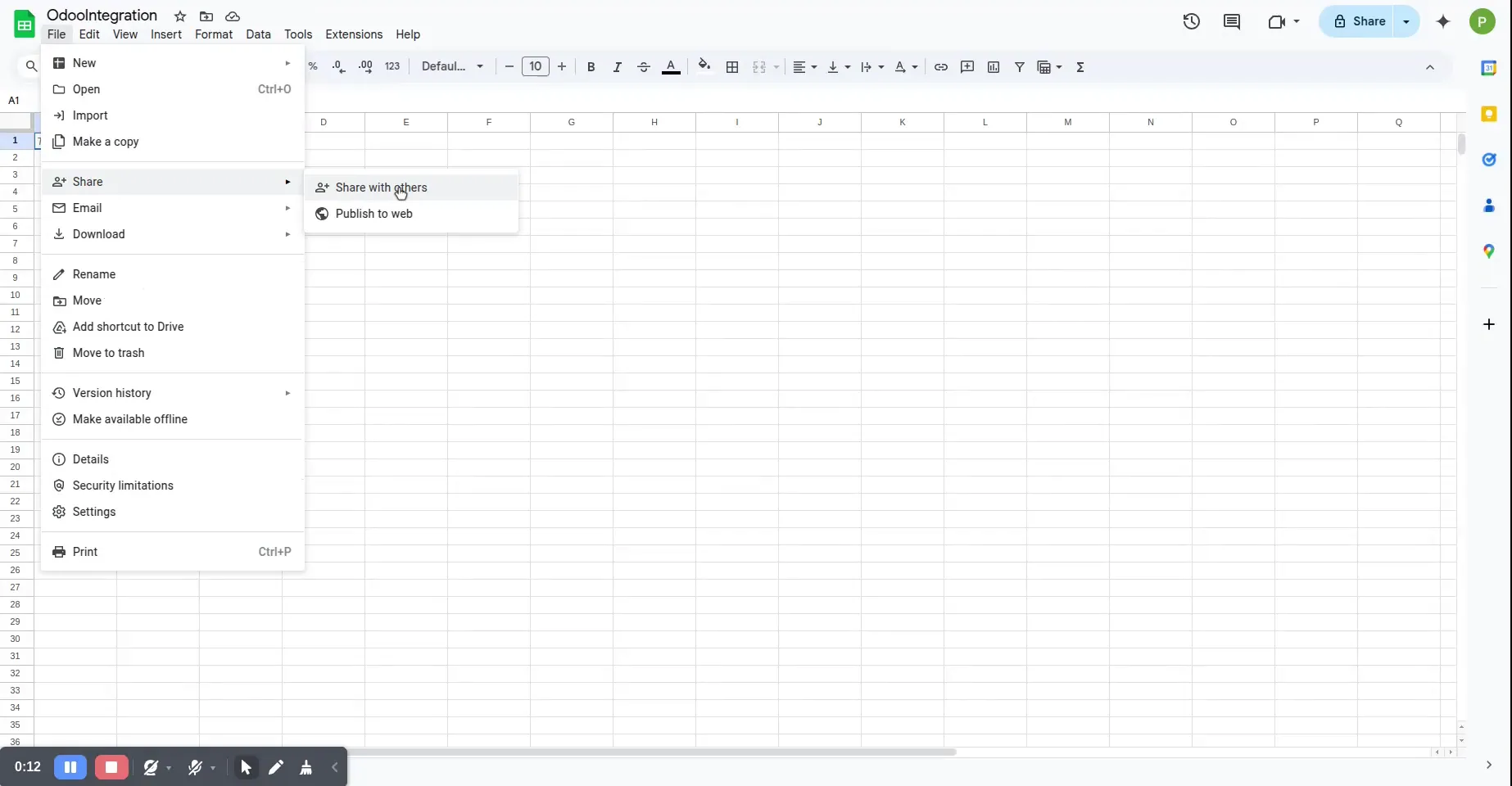
2. Select the Service Account email.
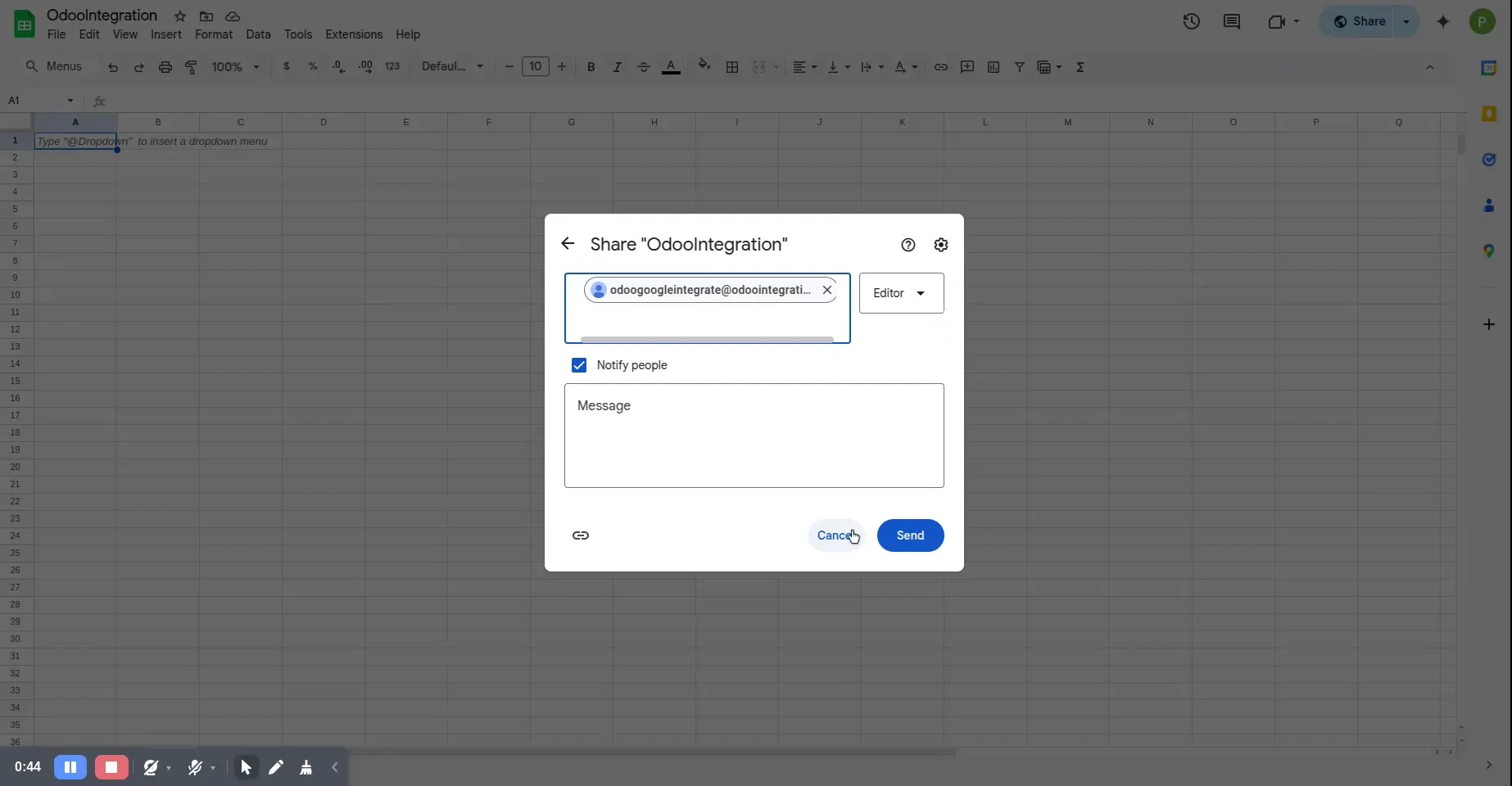
3. Grant access rights to the Google Sheets.
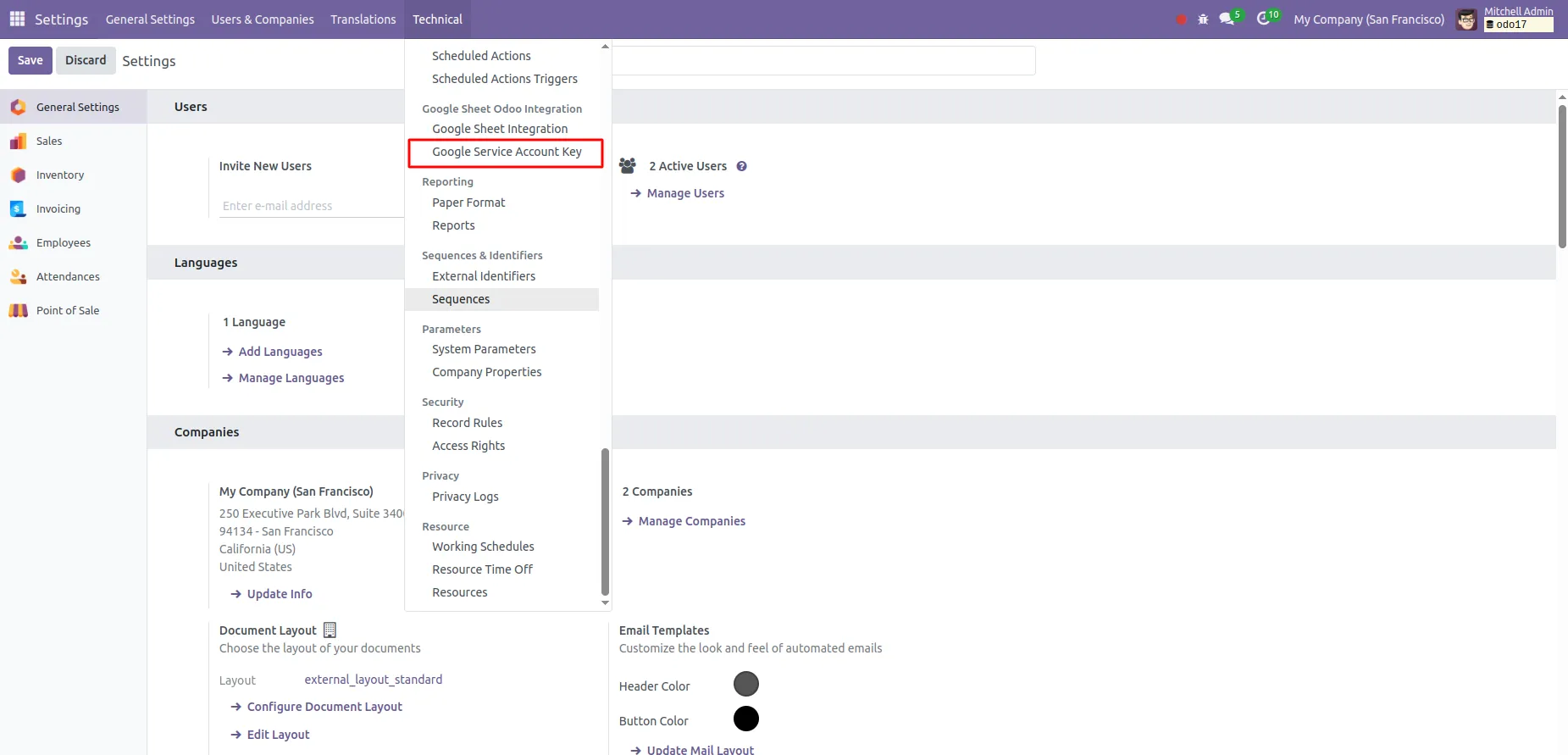
4. Go to: Settings > Technical > Google Service Account Key.
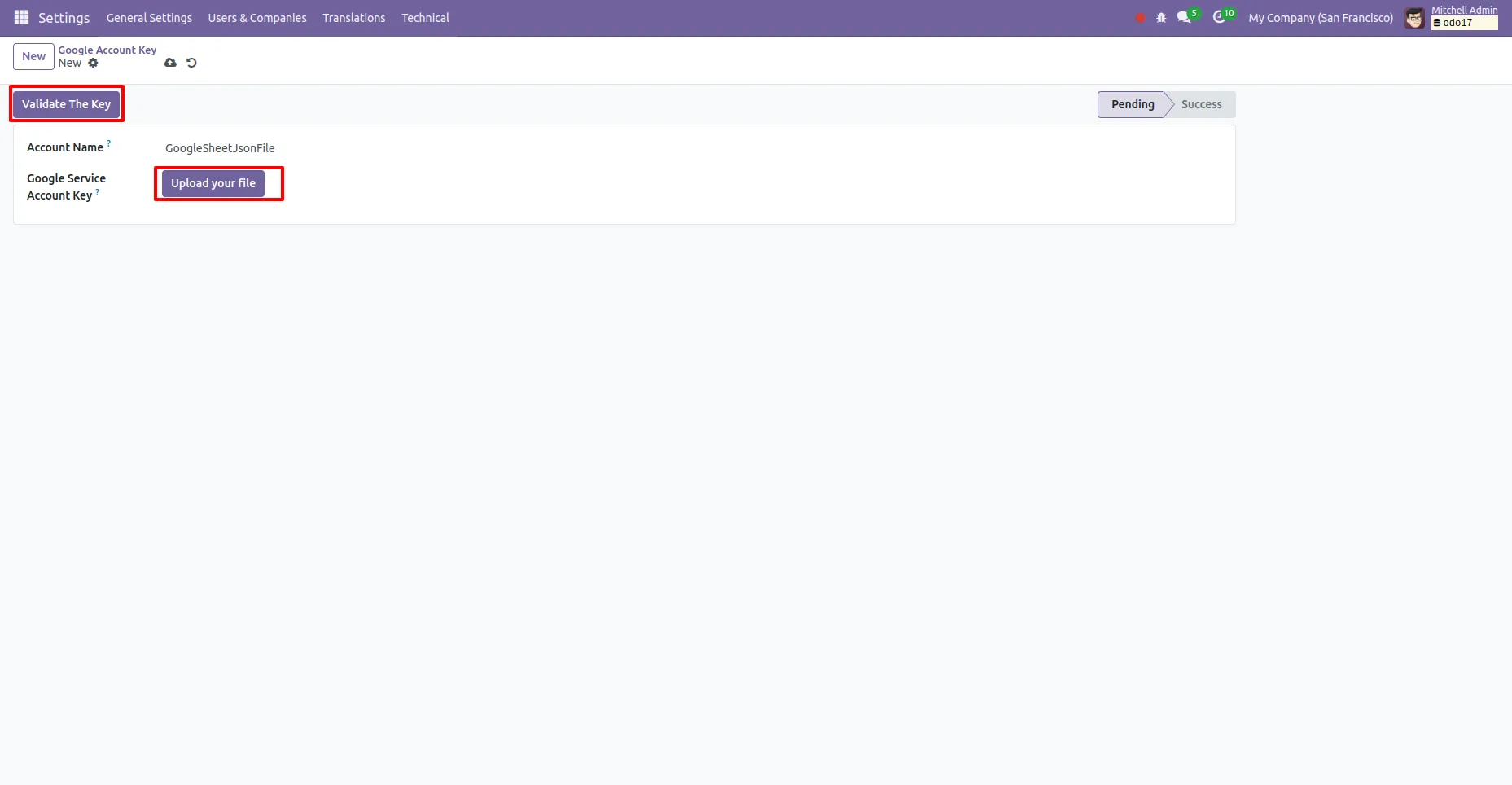
5. Upload your JSON file and click on "Validate Key".
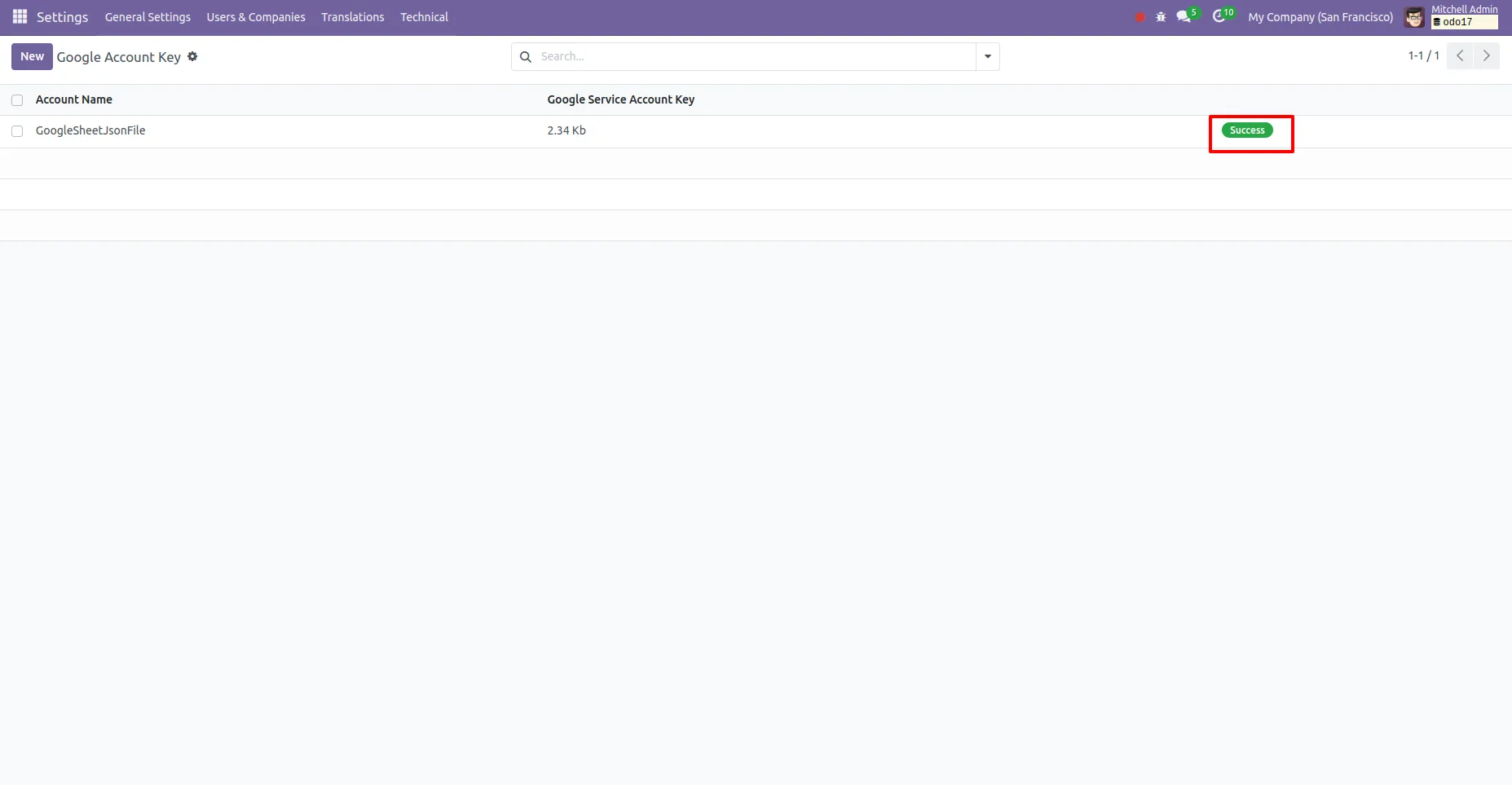
6. If the key is valid, the state will change to "Success".
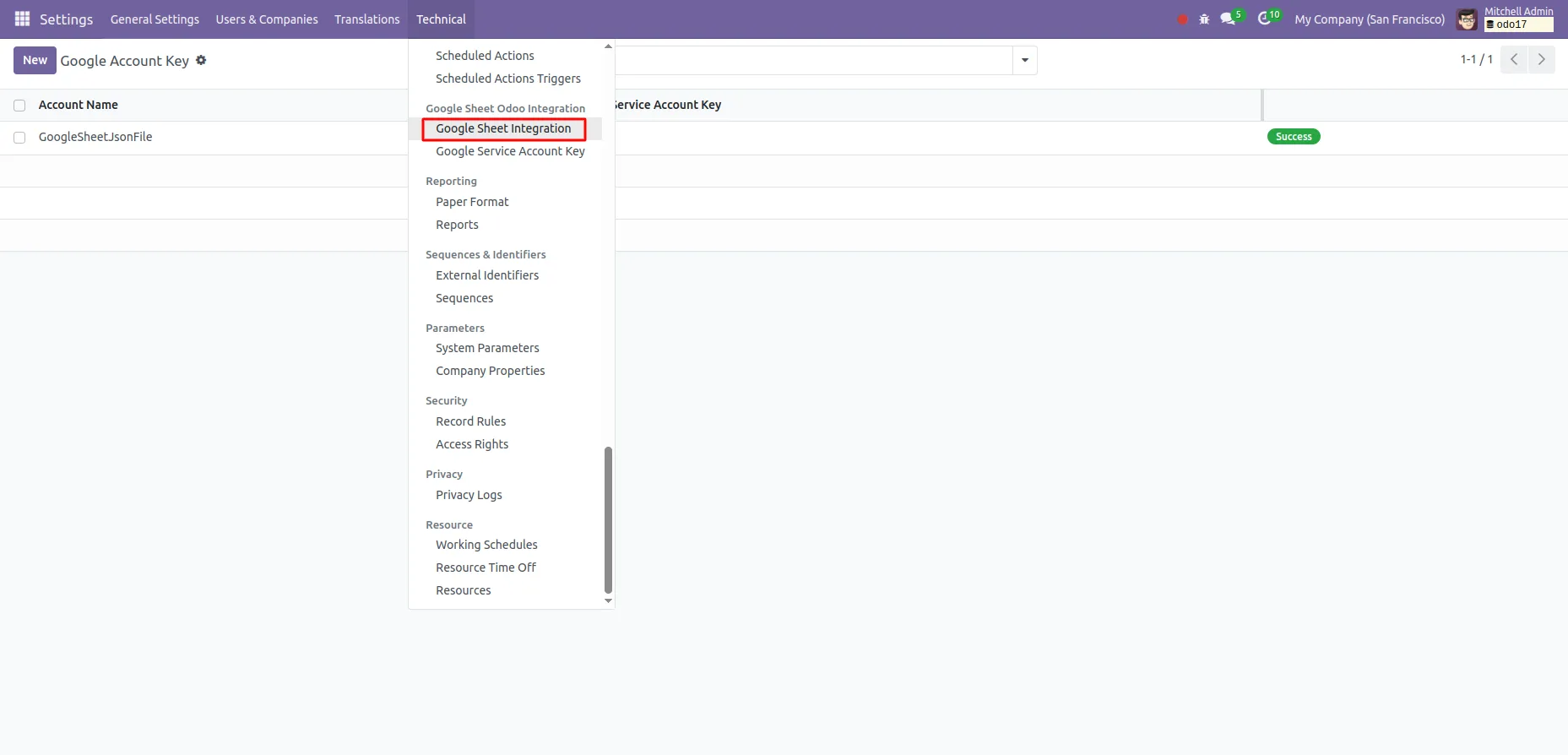
7. Go to: Settings > Technical > Google Sheet Integration.
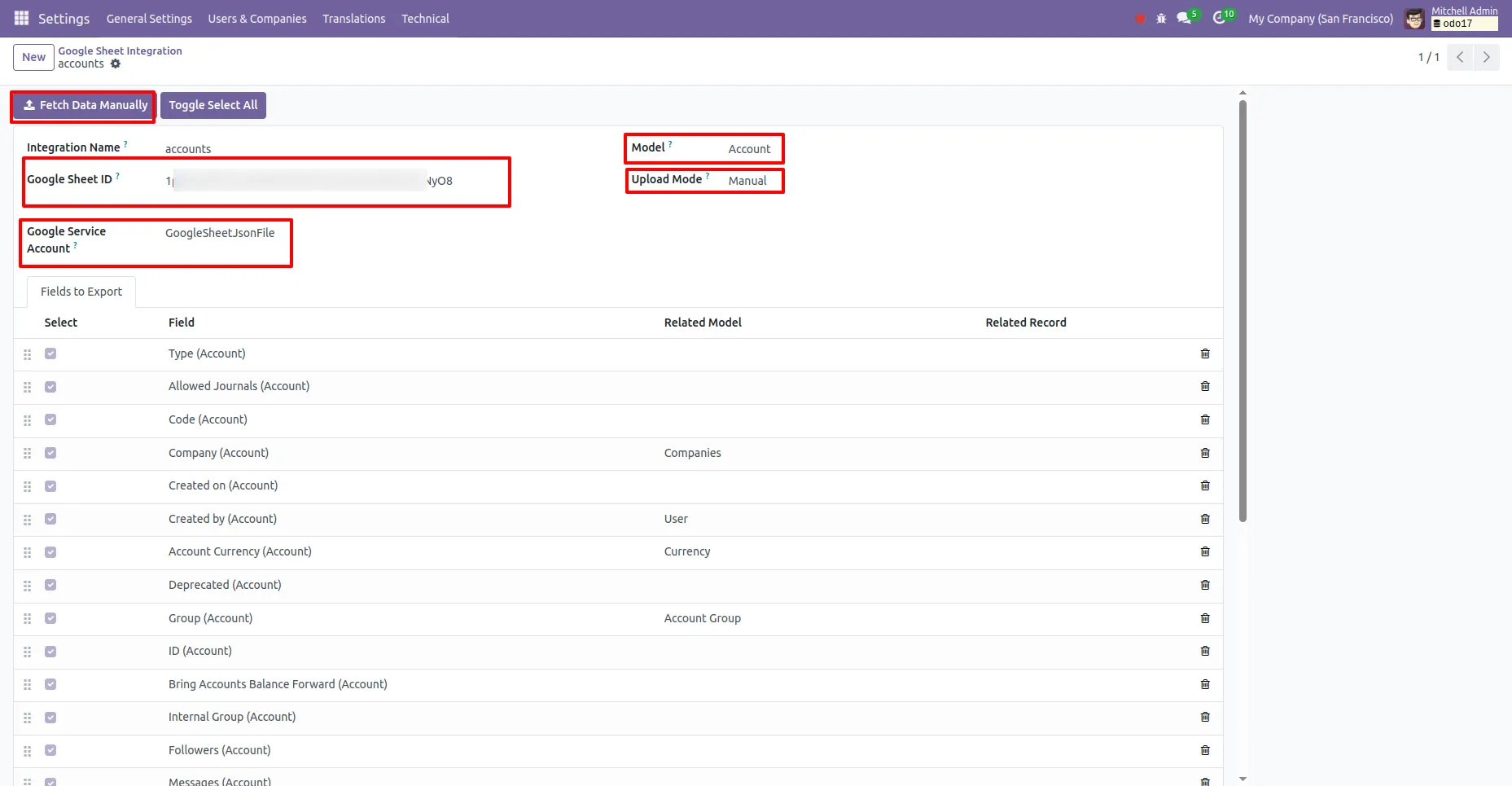
8. Enter the field values and click on "Fetch Data Manually" to upload the data to Google Sheets.
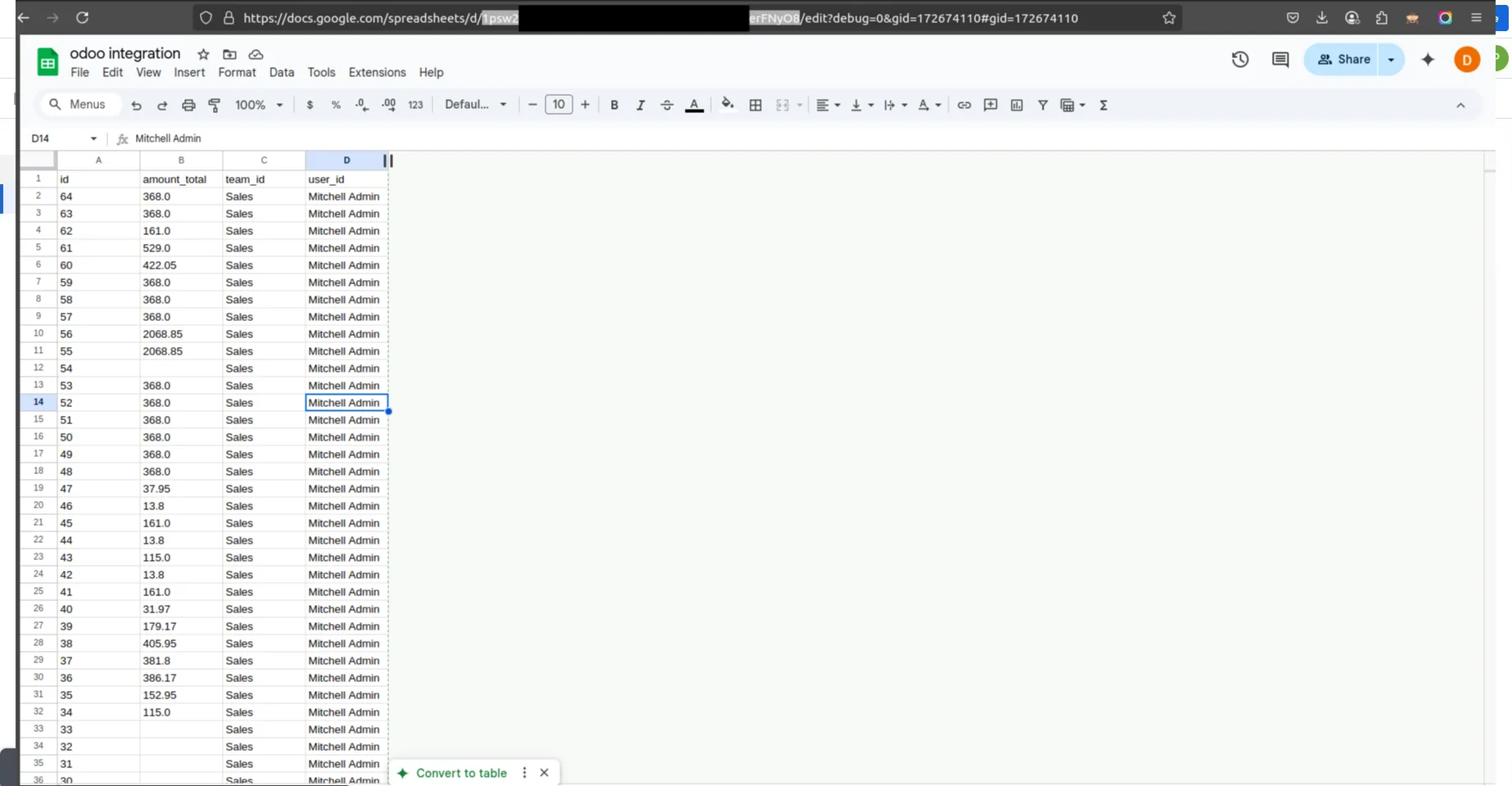
9. The Google Sheet ID can be found in the URL of the Google Sheet.
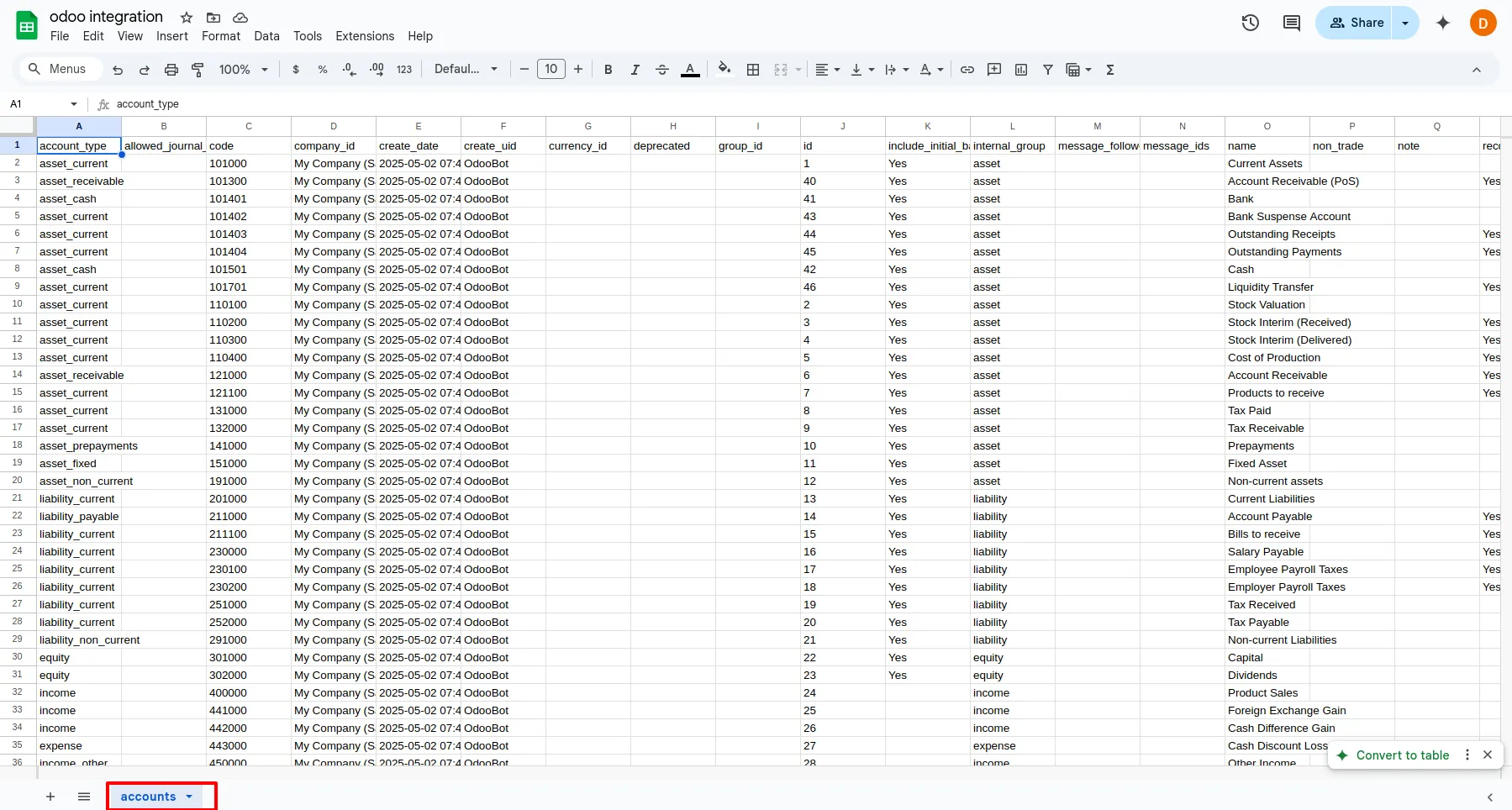
10. The data was successfully uploaded to the Google Sheet.
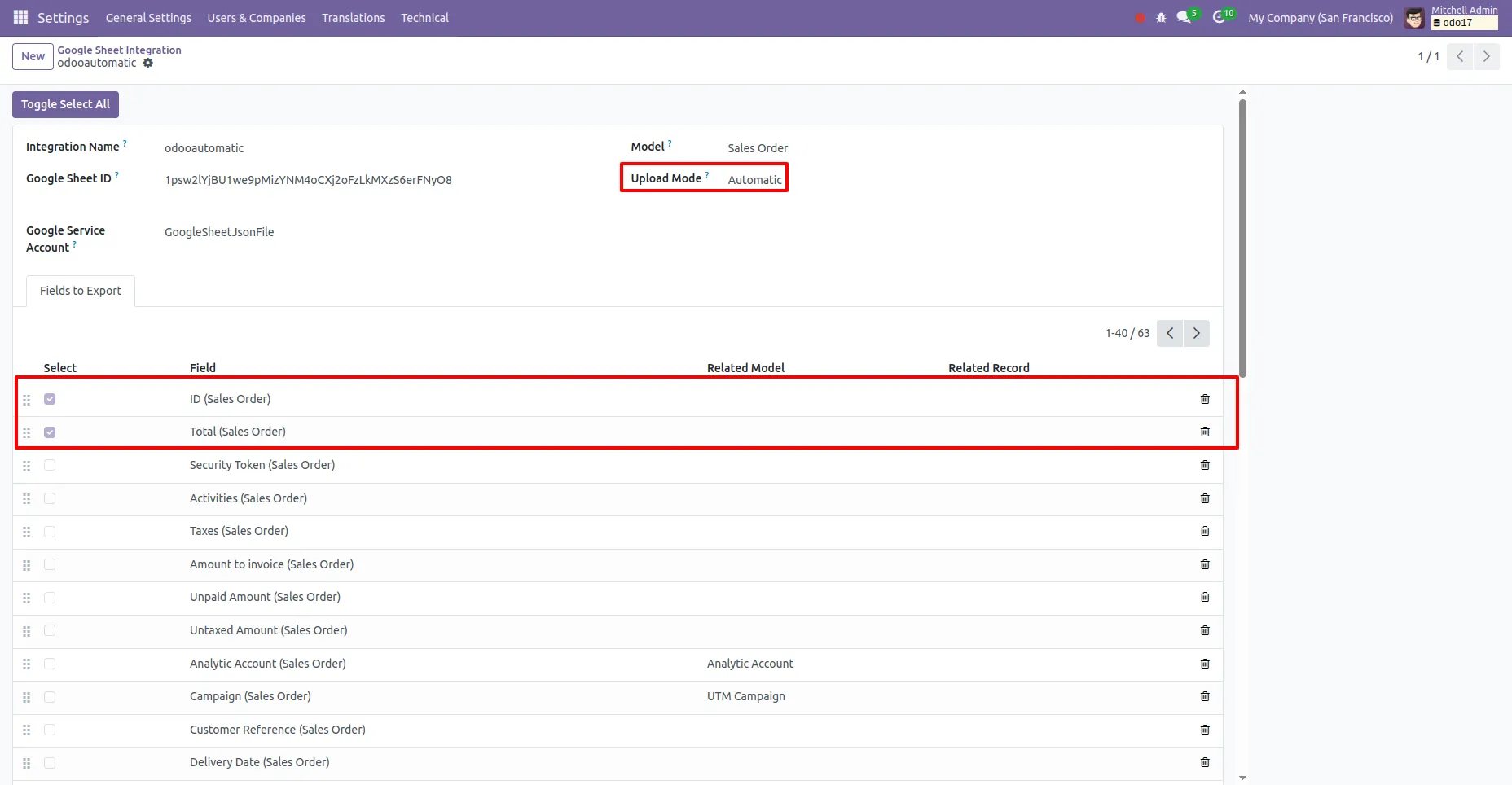
11. Similarly, data can be uploaded automatically to Google Sheets.
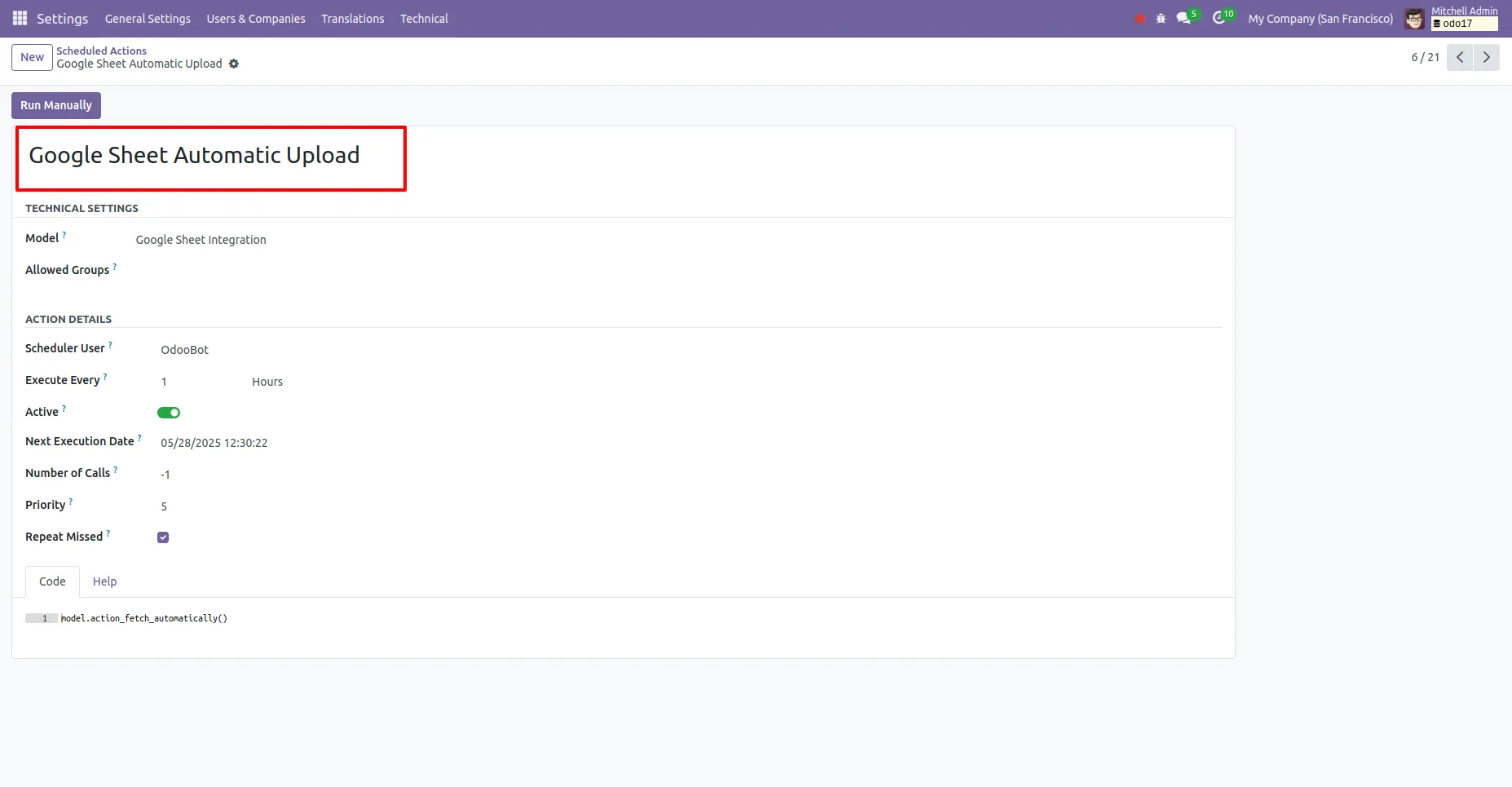
12. A cron job is scheduled to fetch the data automatically.
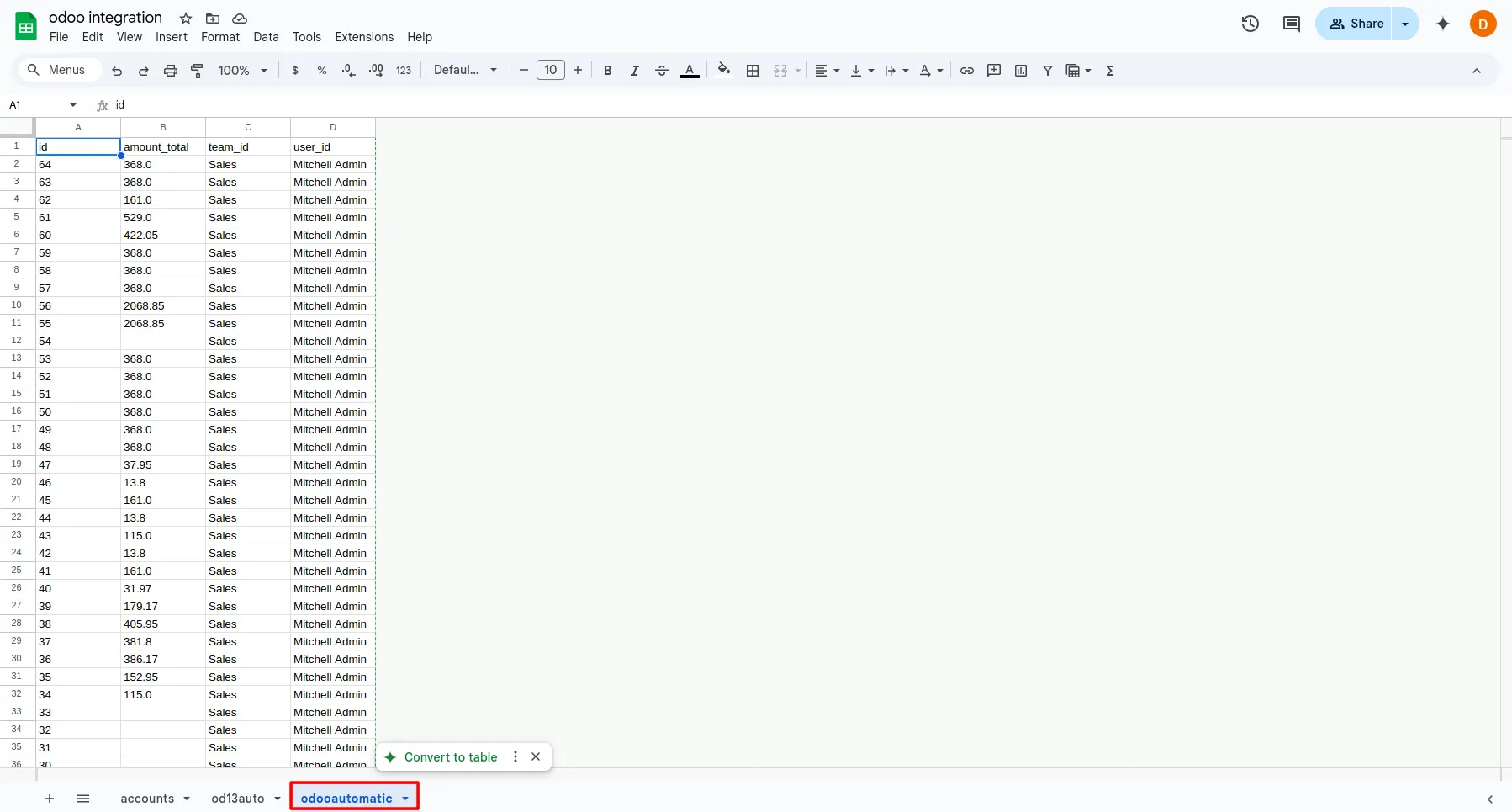
13. The data was successfully uploaded automatically to the Google Sheet.
Ans : This is a one-time payment.
Ans: Yes, the module works with both the Community & enterprise version of apps.
Ans: You can install the application directly from the Odoo Apps store or upload the application file to your Odoo instance. Once installed, you can configure the application to suit your organization's needs and begin creating branches or units.
Ans: yes, support is available for the Google Sheets Odoo Integration in Odoo. You can access documentation, forums, and community resources for assistance with installation, configuration, and troubleshooting. Additionally, paid support plans may be available for more personalized assistance.
Our solutions focus on your problems
- Odoo Implementation
- Odoo Customization
- ERP Development and Implementation
- Odoo Ipass Cloud
- AI for Odoo
- Odoo Apps
- Aws Marketplace Products
- Business Engines
Our Pricing includes User Manual, 90 Days Support (Monday-Friday 10am to 7pm IST) and One time Setup
• Works & tested on standard installations of Odoo with no third party apps,
• Free support only for odoo installations with no third party apps,
• Paid support available for Odoo installations with third party apps.

Prefortune is a Odoo Official Partner, Odoo Development company. Our philosophy is to use Open Source tools and technologies to provide cost effective and green solutions for our customers.
Prefortune Technologies LLP is working on web development, Mobile development, and Odoo ERP.
If you need any help or want more additional features, you may contact us through:
Alternative Products
These other products might interest you
Specifications
| Version | 18.0, 17.0, 16.0, 15.0, 14.0, 13.0 |