7 Odoo Apps for Aerospace Component Traceability
Track aerospace components from sourcing to delivery with lot and serial number management, country-of-origin tracking, barcode and QR labeling, and advanced inventory reporting.
Our powerful Product Label Generator Pro enables companies to create tailor-made barcodes and labels directly within Odoo, without the need to program complex QWeb reports. With our visual tool you can easily design layouts for different paper formats, including critical product data, dynamic lot numbers or custom branding images.
The module adds flexibility by reducing time in changing the backend reporting templates and putting the label design directly in the hands of the end user.

Go to Inventory → Configuration → Label Builder Pro and
create a new Label Template. Define your paper format, height, and width. Then, add Label Blocks to the
template for Text, Images, Database Fields, or Barcodes. Review the Live HTML Preview to ensure your
layout is perfect.
Once designed, navigate to Inventory → Products → Product
Variants or Lots/Serial Numbers. Select
your records, click "Print → Print Pro Labels", choose your new template and quantity, and download your
finalized PDF!
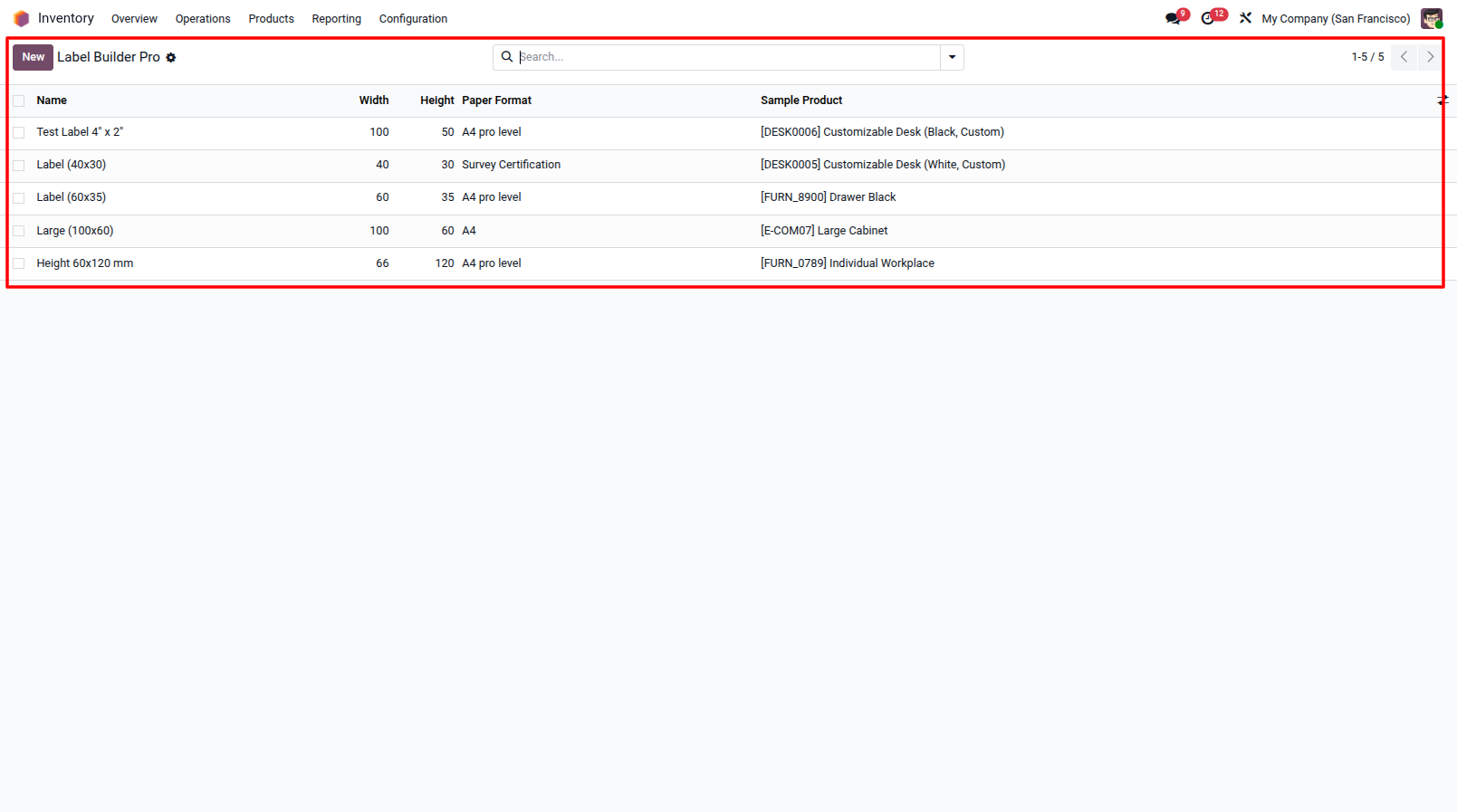
Step 1: Create New Label Template Navigate to Settings or Inventory > Label Builder Pro to create a new Label Template. The 'A4 pro level' paper format is assigned by default.
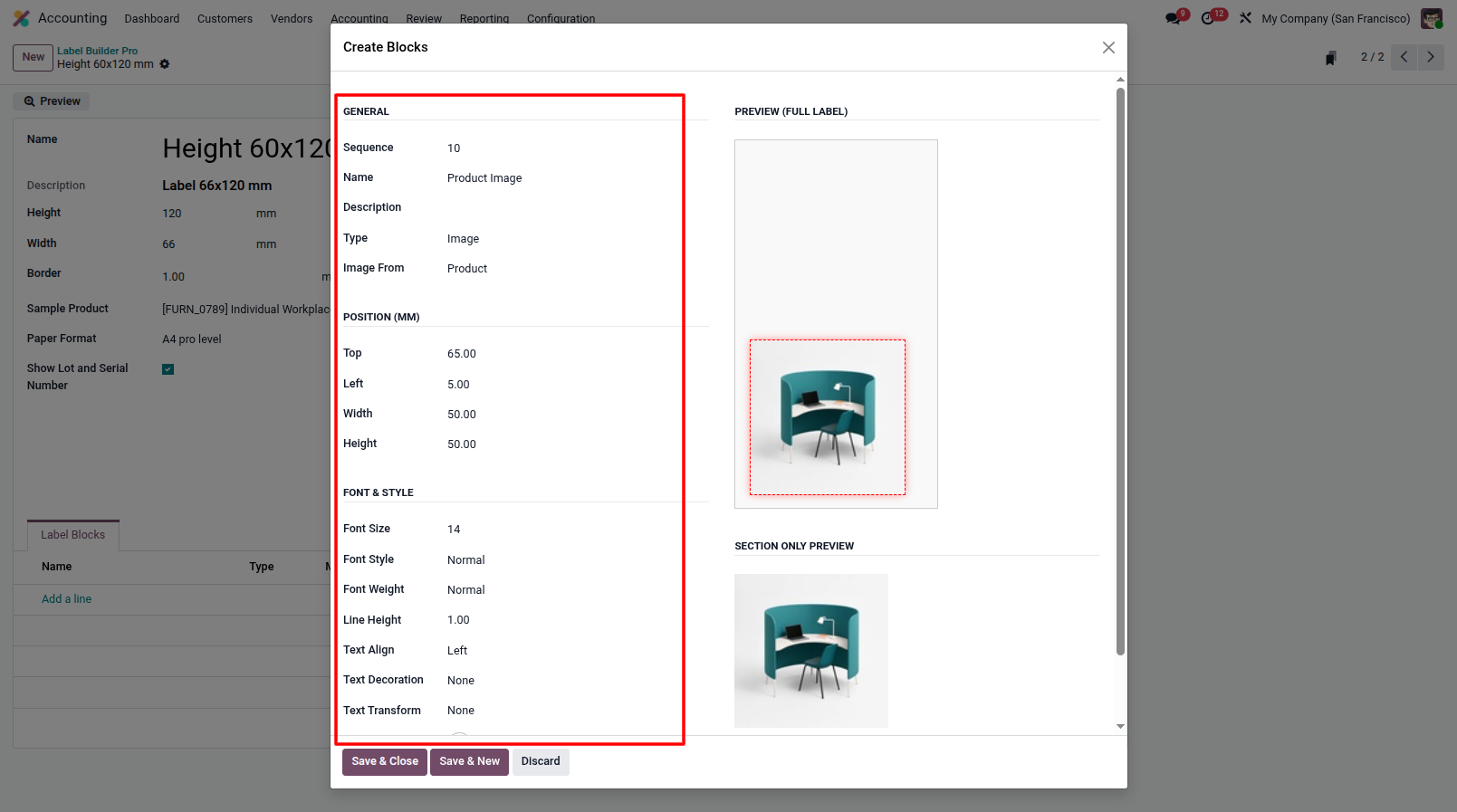
Step 2: Add & Configure Label Blocks Create child blocks for Text, Database Fields, Barcodes, or Images. You can fully customize each block by configuring its General details (like Type and Name), setting precise Position (MM) for Top/Left coordinates and Width/Height, and adjusting the Font & Style (Size, Weight, Alignment, etc.) to perfectly match your desired layout.
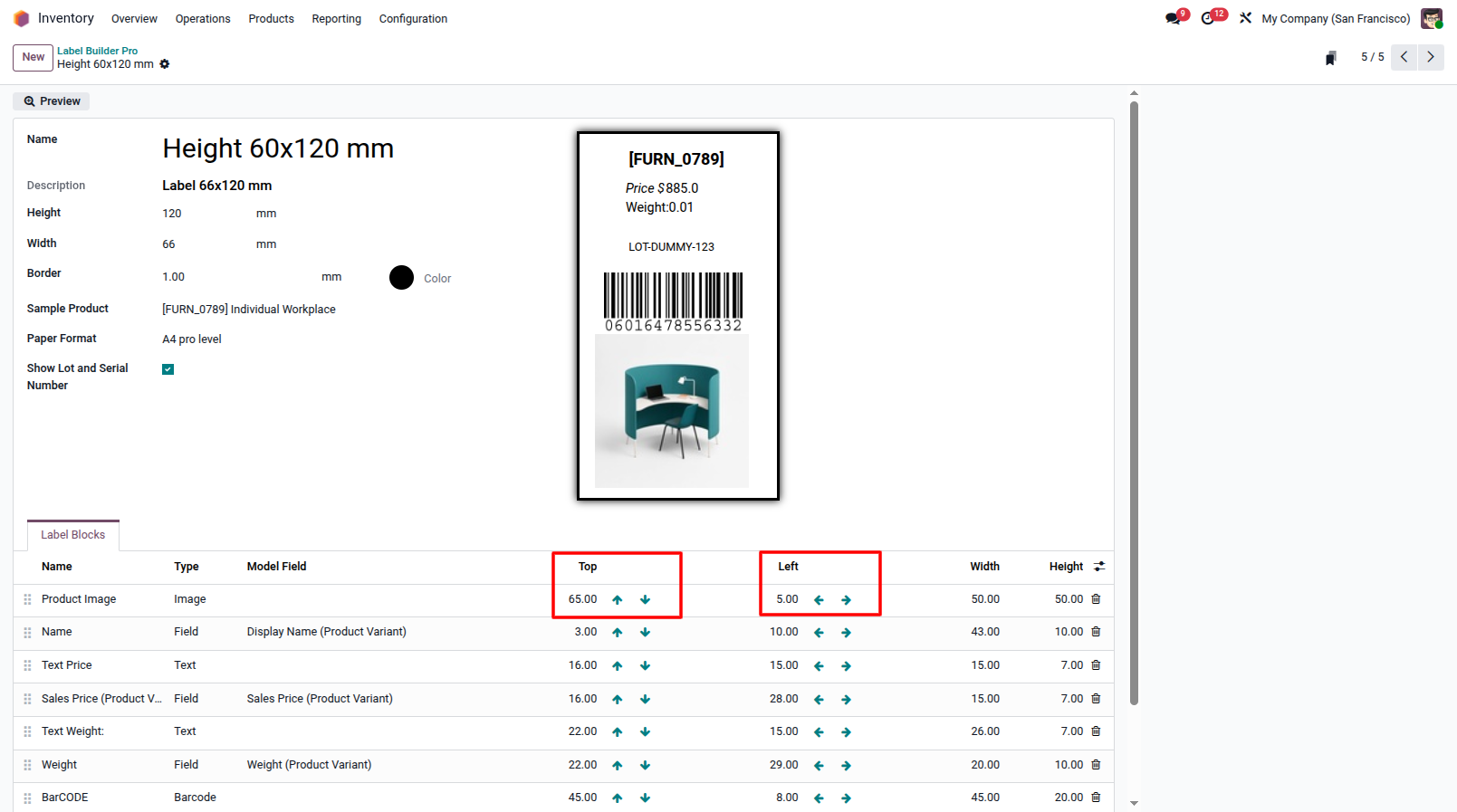
Step 5: Configure Block Positions Use the interactive arrow buttons or input exact X/Y coordinates in millimeters to position each block perfectly.
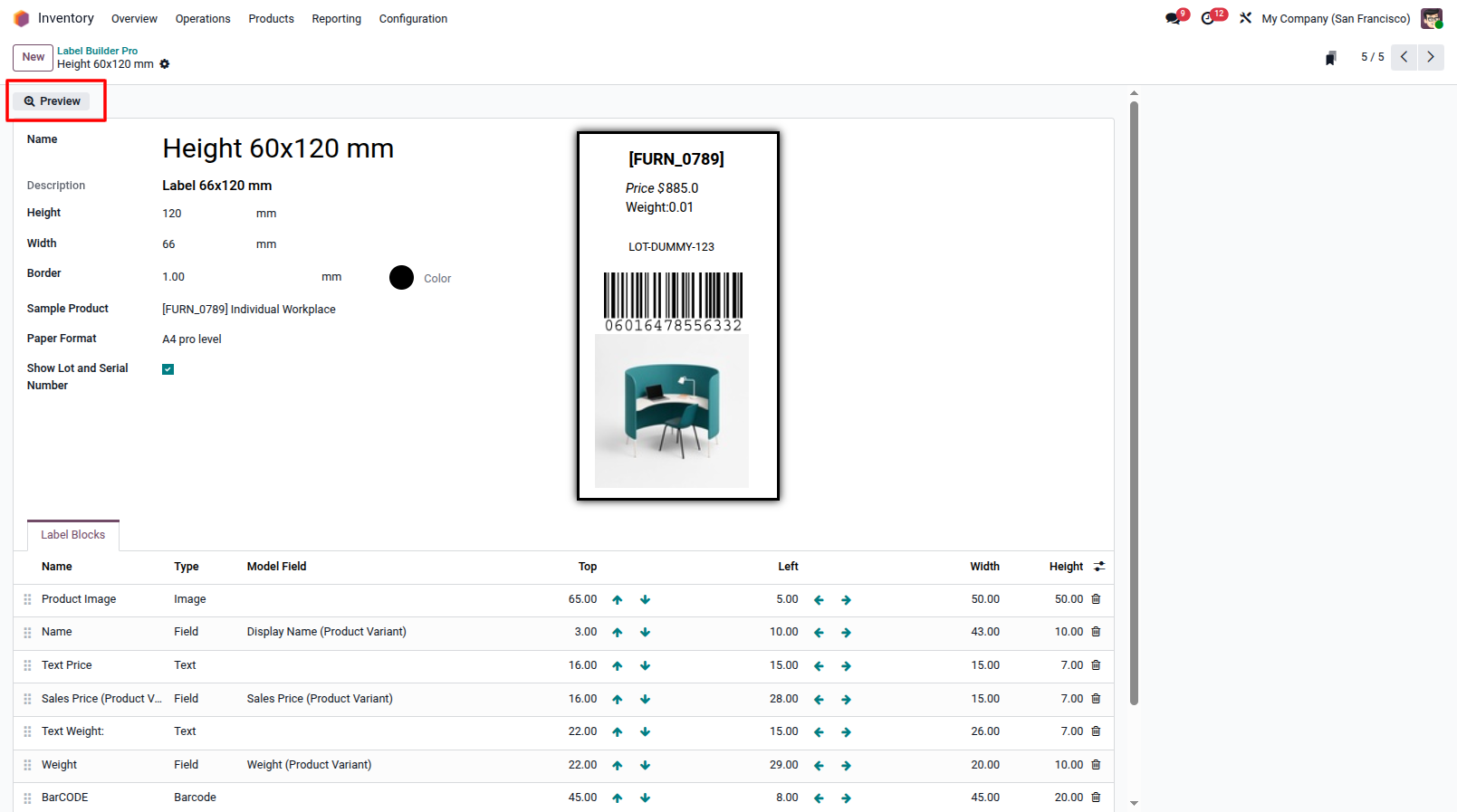
Step 6: Live HTML Preview Check the dynamic Live HTML Preview tab to instantly see how your label design looks without wasting any paper.
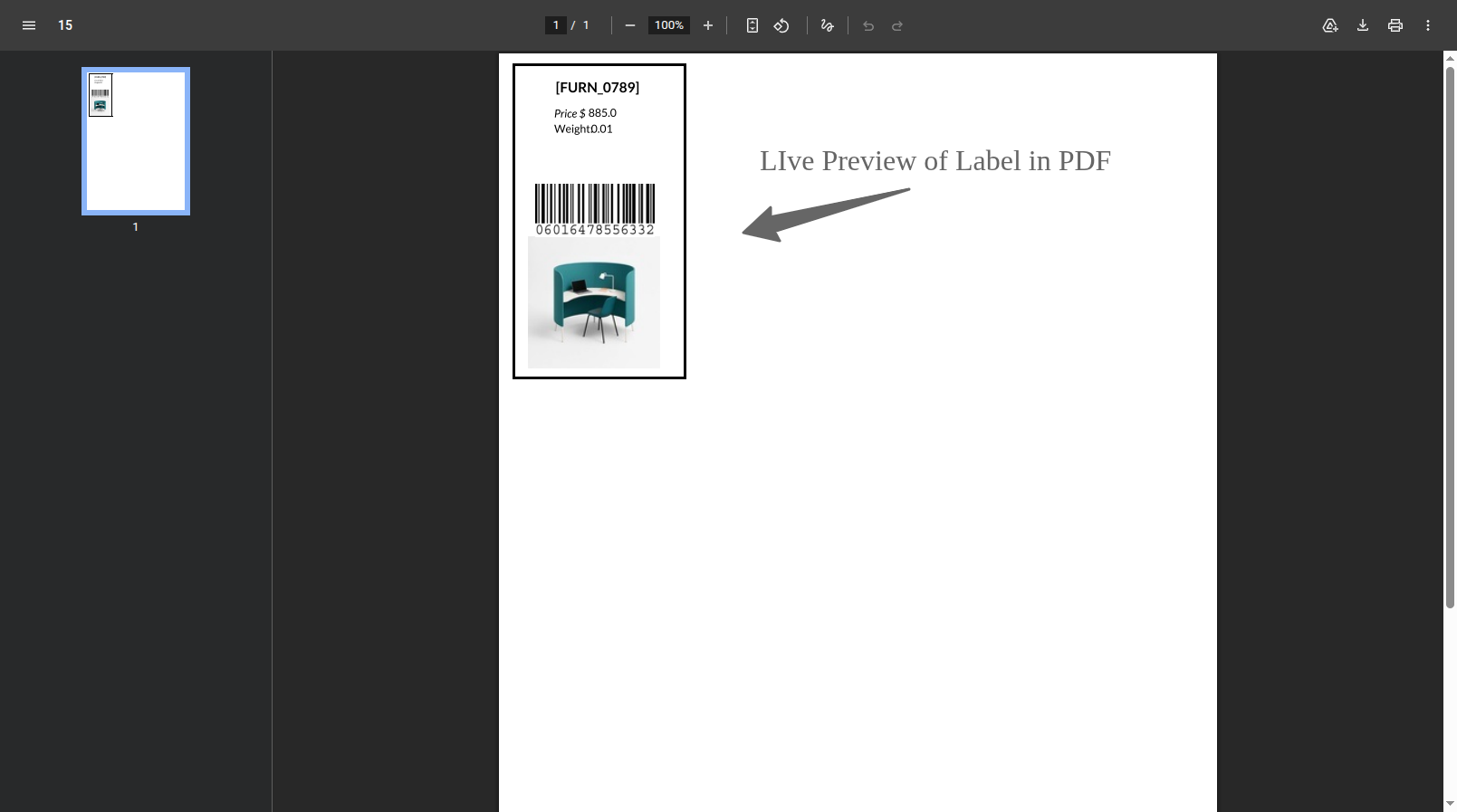
Review the label preview below to ensure all fields, images, and barcodes are positioned correctly before generating the PDF.
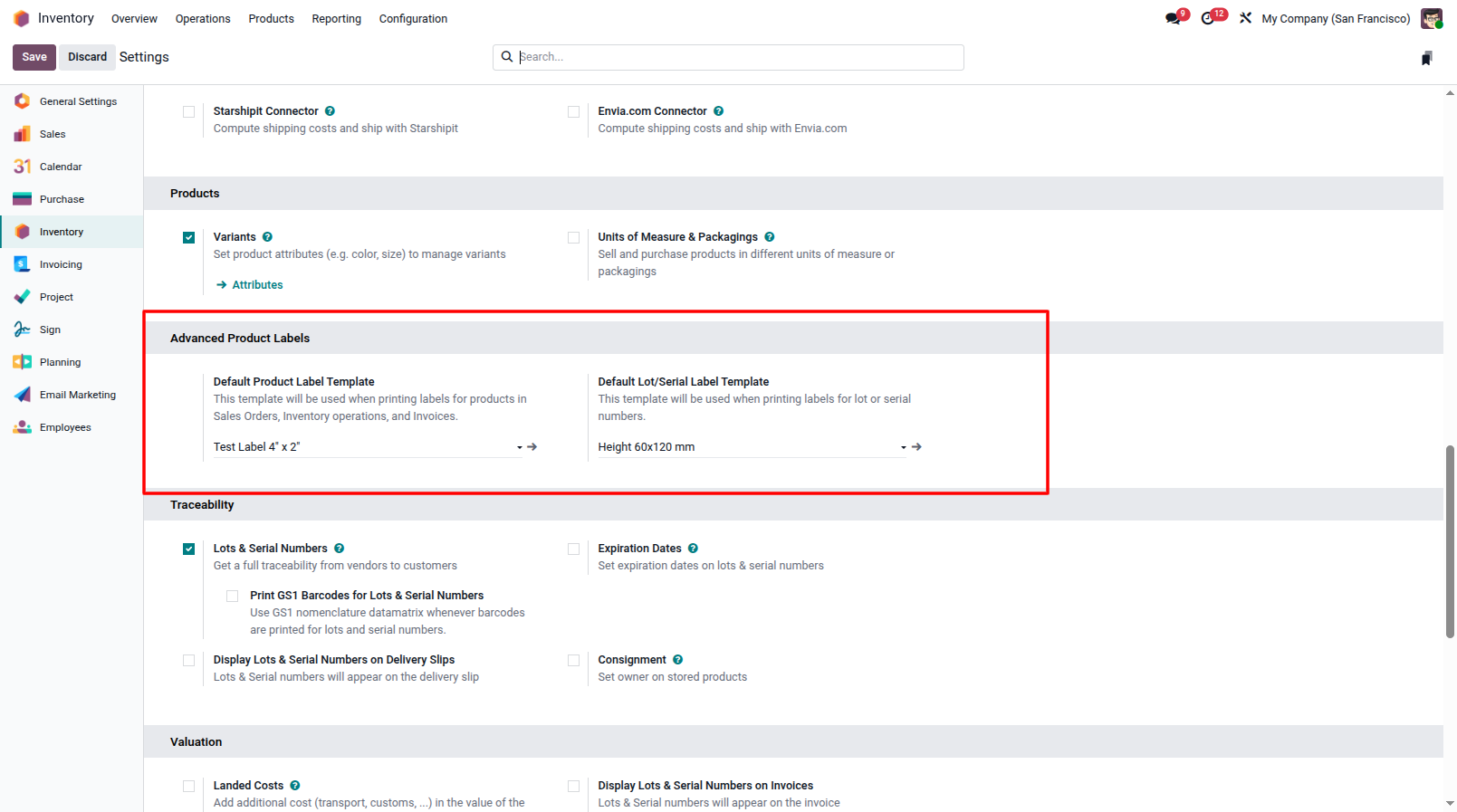
Step 7: Set Default Settings (Optional) Assign your created template as the default for Products or Lots under General Settings to enable instant direct downloads.
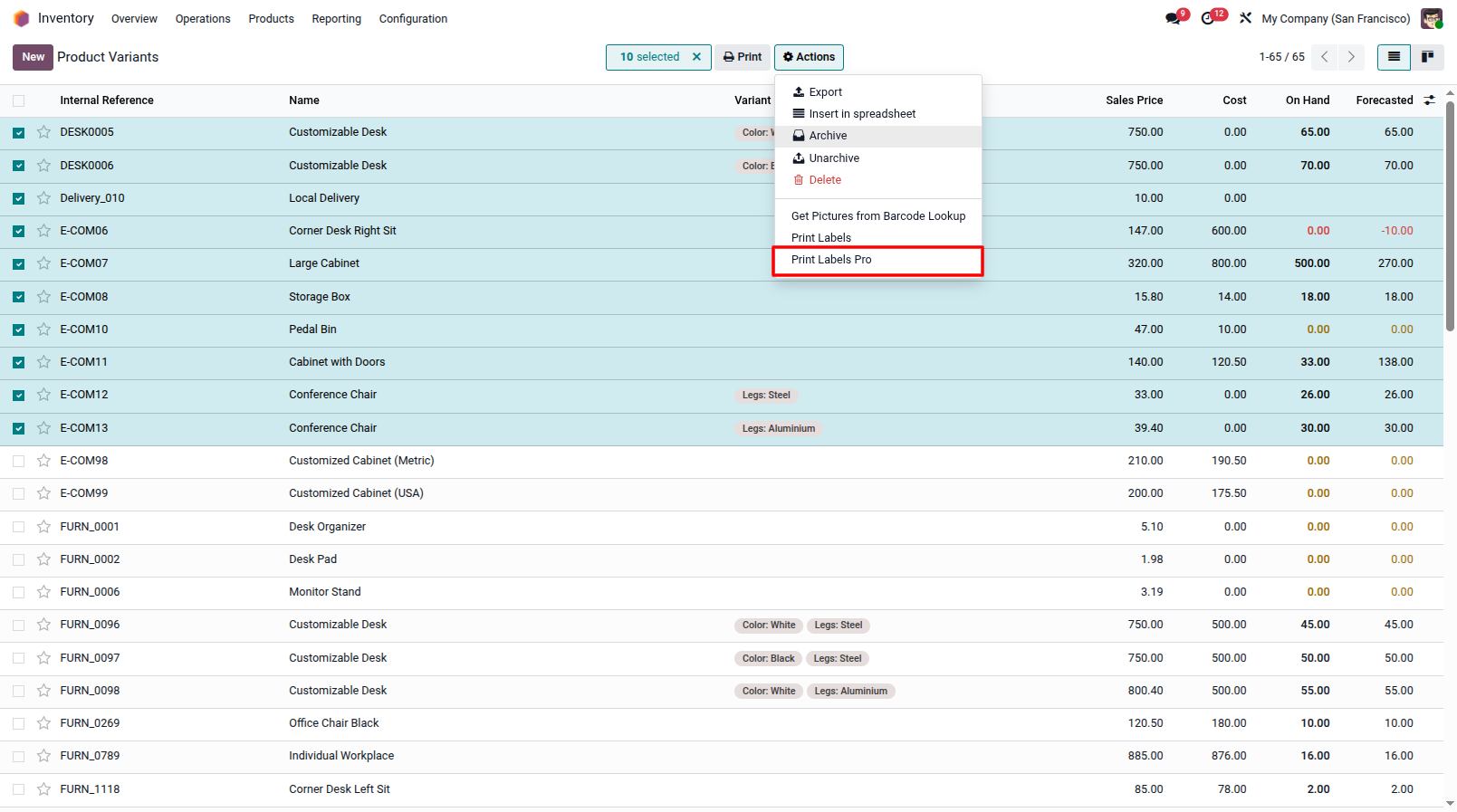
Step 8: Select Records to Print Generate labels directly from Sales, Purchase, Inventory, and Delivery orders. When printing from Deliveries, the system intelligently processes and downloads all labels, including those for specific lot and serial numbers.
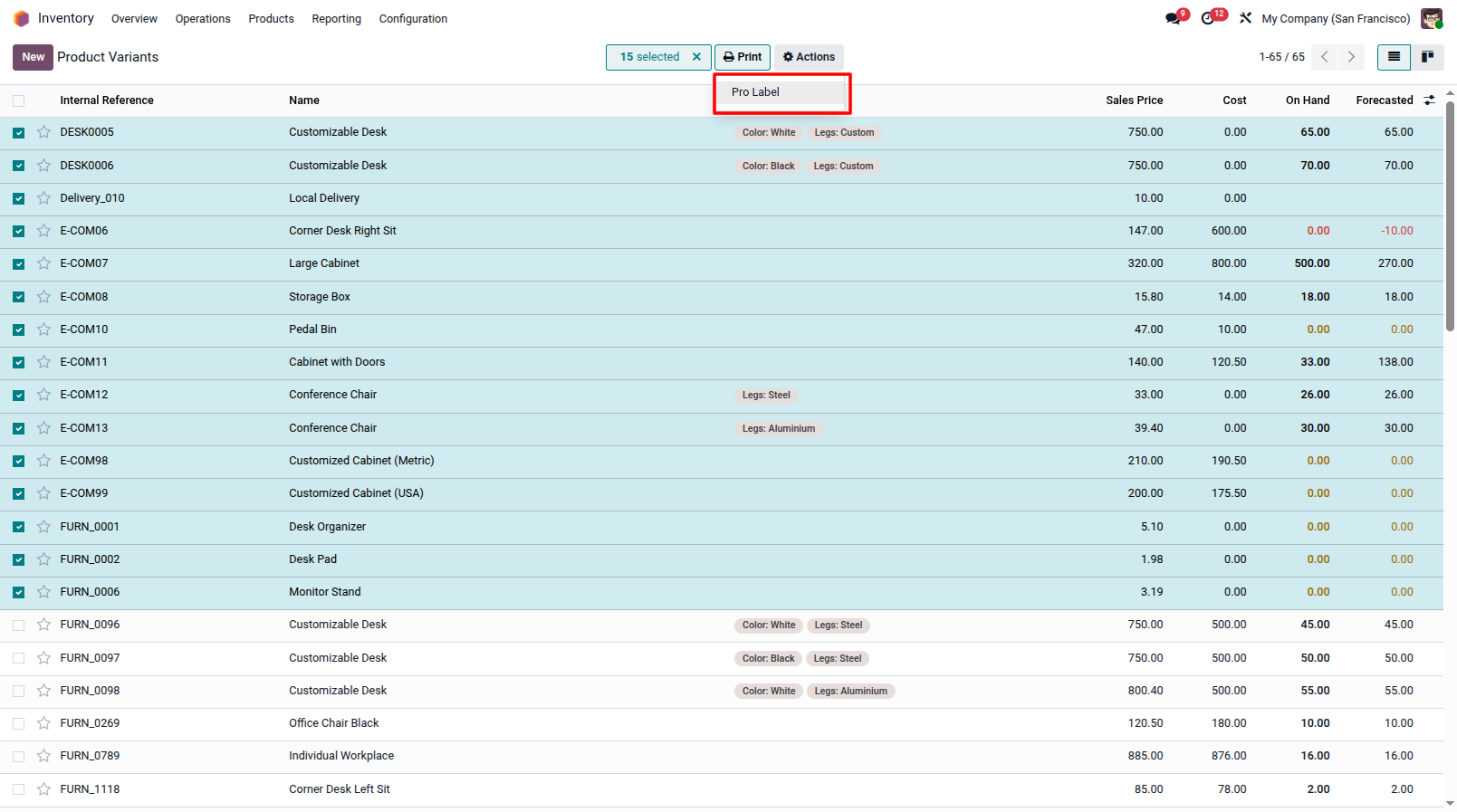
Step 10: Direct Print Bypass Click the "Print > Pro Label" menu. If a default template is set, the wizard is completely bypassed, saving you clicks!
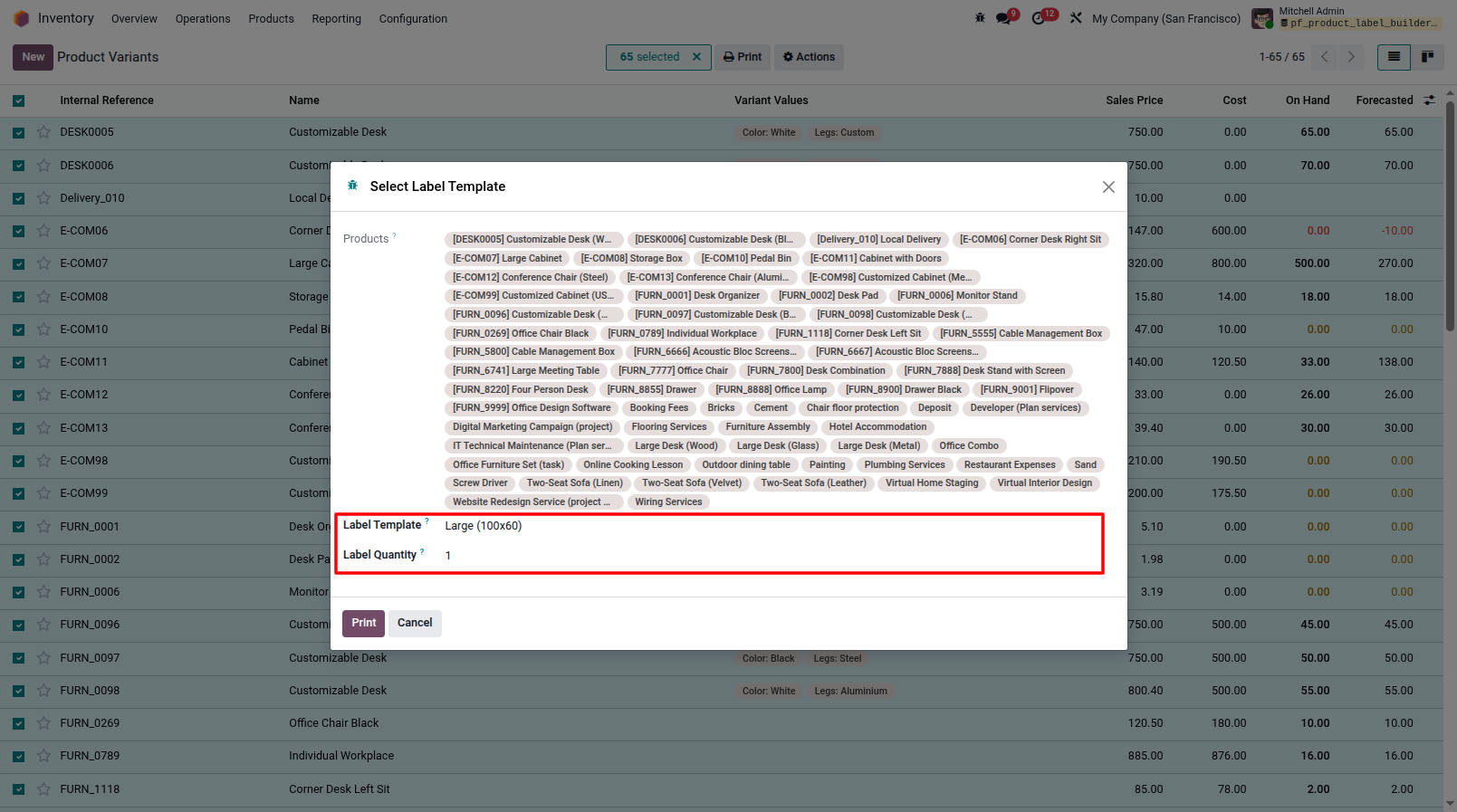
Step 9: Action Menu Wizard Use the "Action > Print Labels Pro" menu to open the configuration wizard. This gives you full manual control to choose any label template and specify exact print quantities for your selected records.
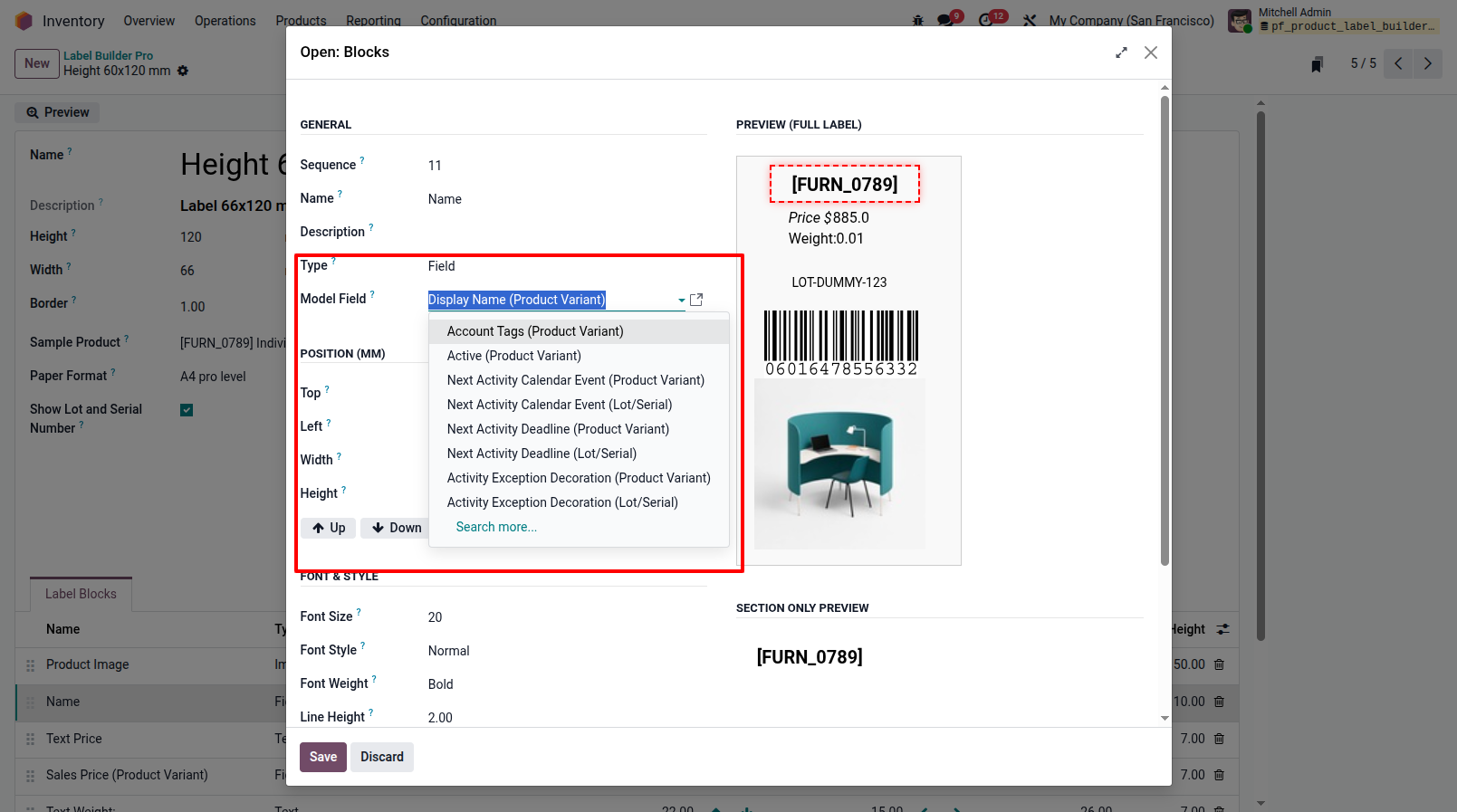
Step 3: Configure Database Fields When selecting a 'Database Field' block, you have complete flexibility to pull dynamic data. Simply choose the relevant Odoo Model (e.g., Product, Lot/Serial Number) and then select the specific Field (like Name, Price, or Weight) you want to display. This ensures your labels always reflect real-time database values.
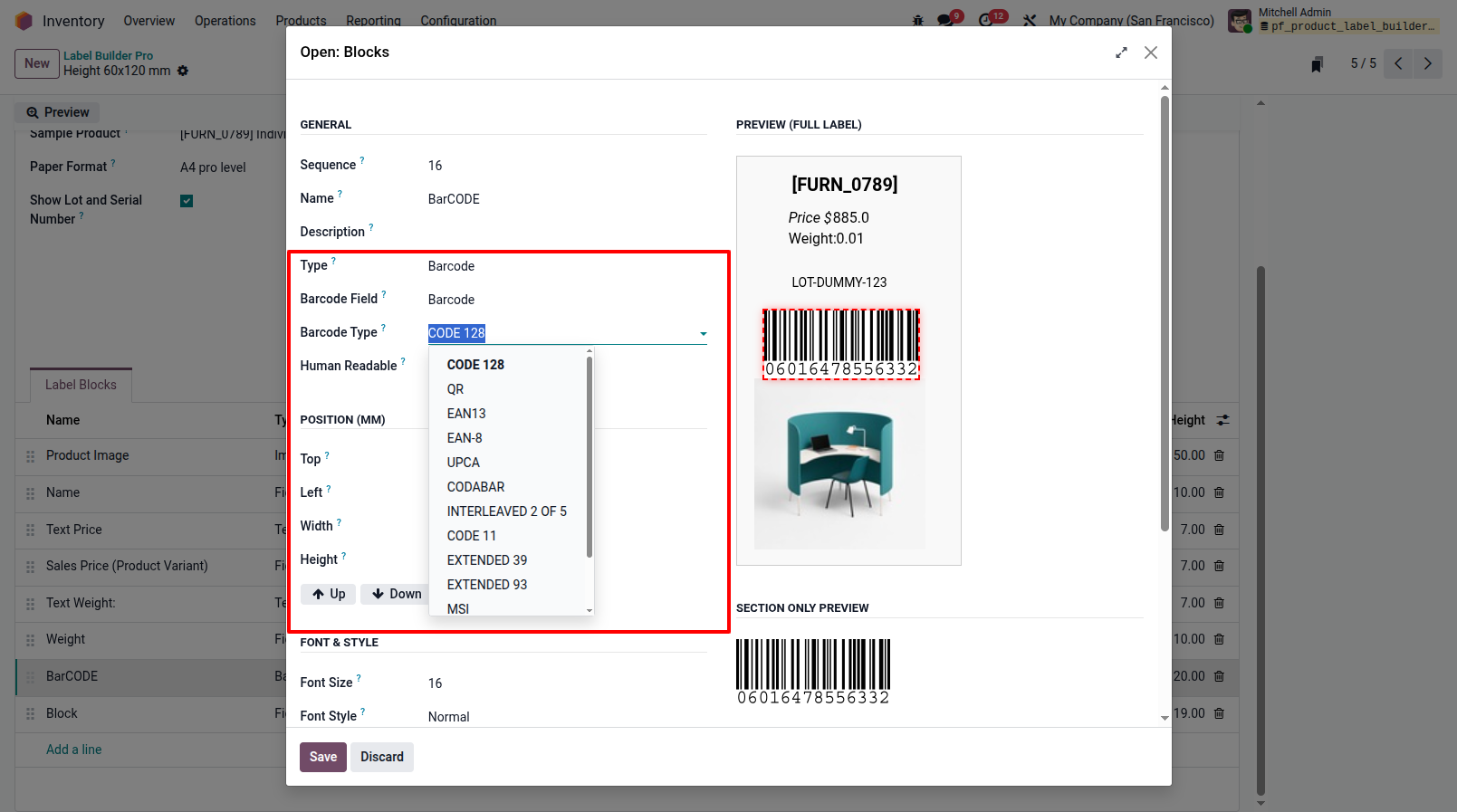
Step 4: Select Barcode Formats For 'Barcode' blocks, the module provides multiple standard formats to choose from. You can easily select your preferred type—such as EAN13, Code128, QR Code, or others—ensuring full compatibility with your existing scanners and operational requirements.
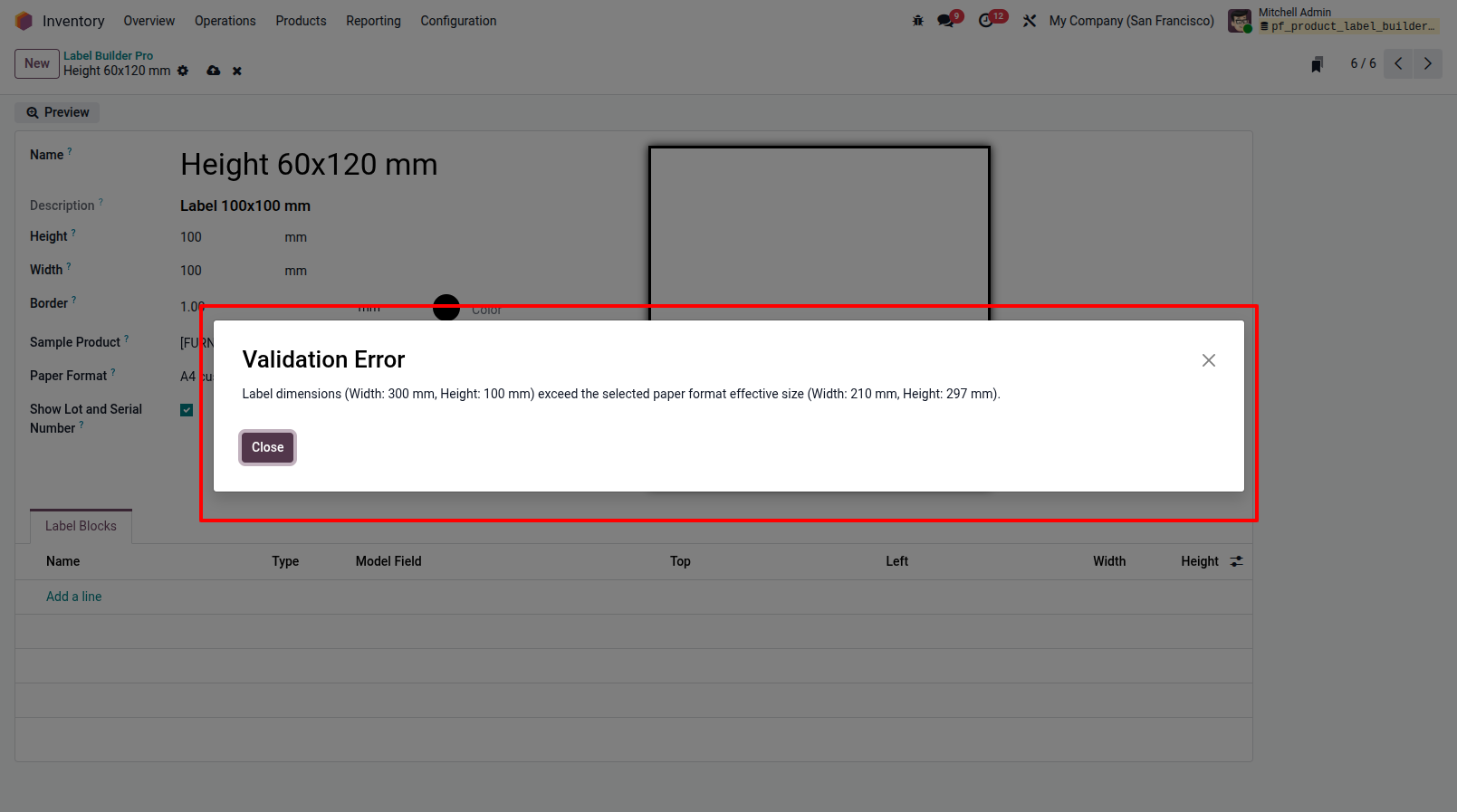
Validation 1: Paper Format Dimension Check When using a 'Custom' Paper Format, the system strictly validates and prevents you from setting a label width or height that exceeds the actual dimensions of the selected Paper Format, thereby avoiding layout truncation and printing errors.
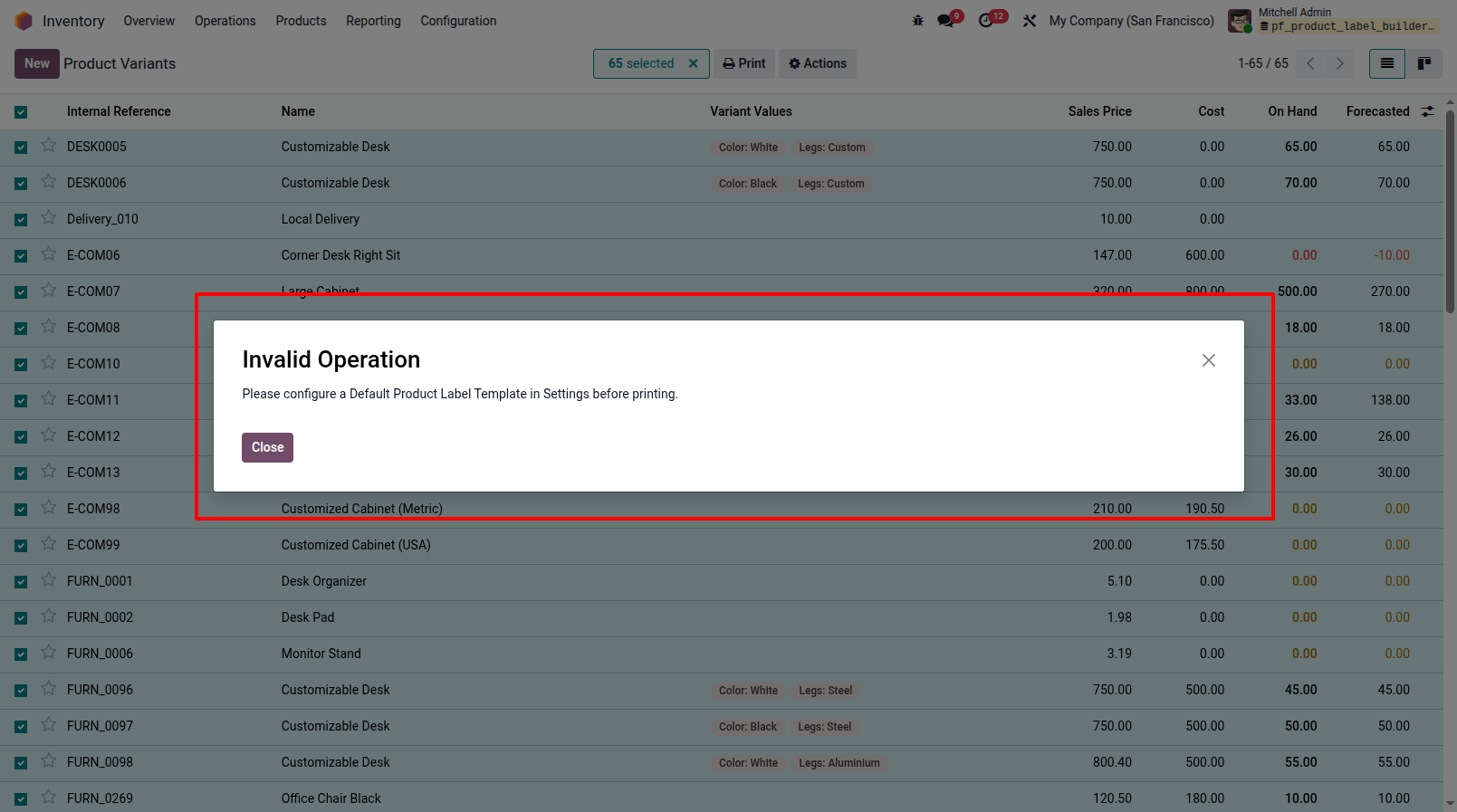
Validation 2: Default Template Check If you try to use the direct print bypass without a default template configured for Products or Lots, the system will prompt you to configure one in the settings first.
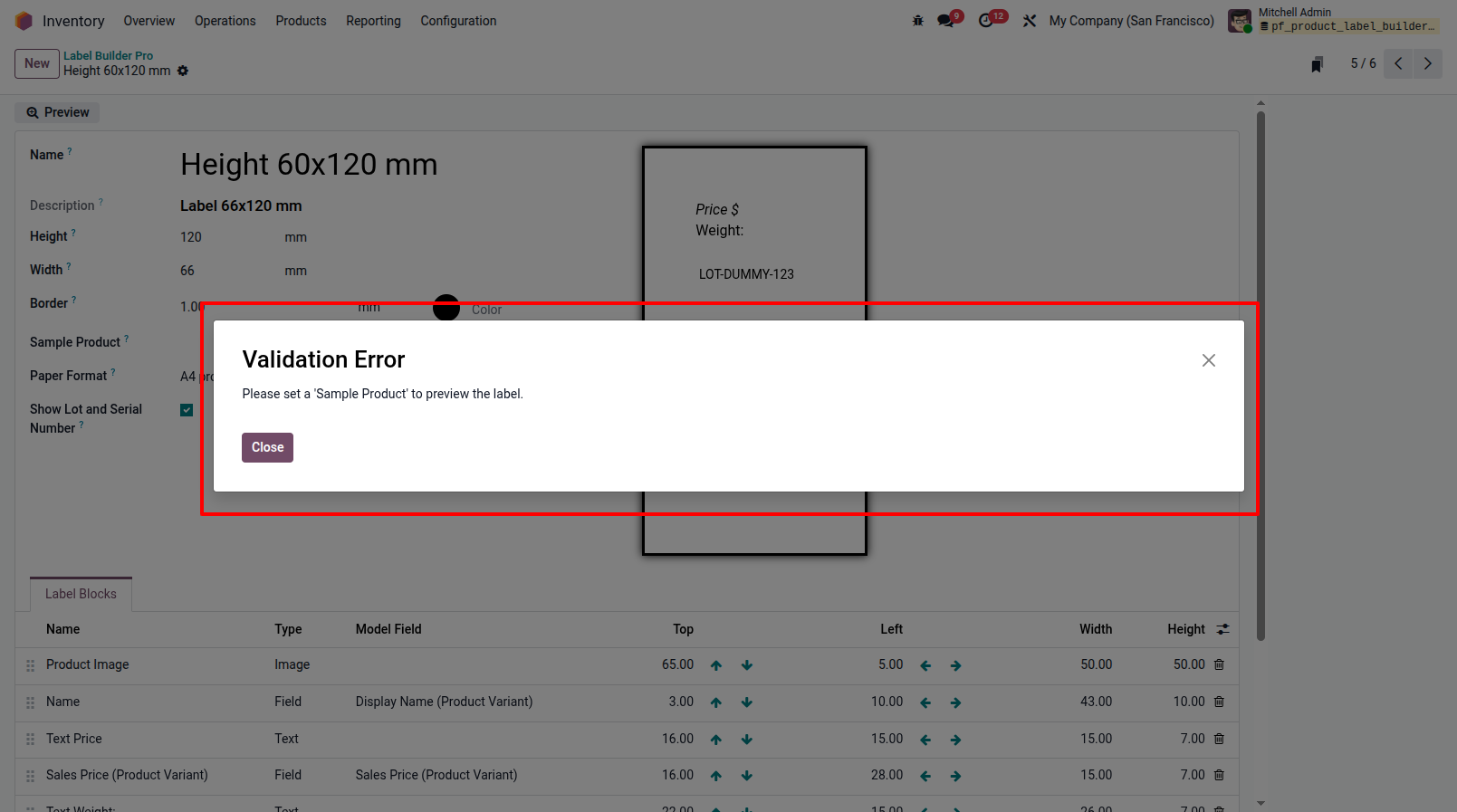
Validation 3: Missing Sample Product Before you can view the Live HTML Preview or generate a test PDF, the module ensures you have set a 'Sample Product' to render the dynamic data.
Our Pricing includes User Manual, 90 Days Support (Monday-Friday 10am to 7pm IST) and One time Setup
• Works & tested on standard installations of Odoo with no third party apps,
• Free support only for odoo installations with no third party apps,
• Paid support available for Odoo installations with third party apps.

Prefortune is a Odoo Official Partner, Odoo Development company. Our philosophy is to use Open Source tools and technologies to provide cost effective and green solutions for our customers.
Prefortune Technologies LLP is working on web development, Mobile development, and Odoo ERP.
If you need any help or want more additional features, you may contact us through:
These other products might interest you
| Version | 19.0, 18.0, 17.0, 16.0, 15.0, 14.0 |