
Watch Quick Video

Pos Employee Commission in Odoo App
Our all-inclusive Odoo – Pos Employee Commission in Odoo App is a powerful solution crafted to streamline commission management directly within the Odoo Point of Sale system, supporting both Community and Enterprise Editions. It empowers businesses to configure flexible commission rules based on products, categories, or customers, automatically tracking and calculating commissions in real time as sales occur. Employees can easily monitor their earnings, request payouts, and view detailed transaction histories right from the POS interface, while managers retain full control with backend approval workflows and payout management. This app not only ensures transparency and timely payouts but also enhances employee motivation and operational efficiency, making it an indispensable tool for retail, hospitality, and service industries where commission-driven sales are essential.
Pos Employee Commission in Odoo App
- Supports both Community and Enterprise Editions.
- Automatic ledger of credited & debited commissions.
- Admin reviews & approves payout requests in backend.
- Employees can request payouts directly from POS.
- Flexible rules for products, customers & order amounts.
Complete Workflow for Manage Pos Employee Commission in Odoo App
First we need to activate the "Pos Employee Commission in Odoo App" module. Once activated, go to the Settings menu and open the Point Of sale section. Here, you can select the desired commission rules directly inside the POS configuration. These rules will then automatically apply in your Point of Sale, ensuring commissions are calculated and tracked according to your setup.
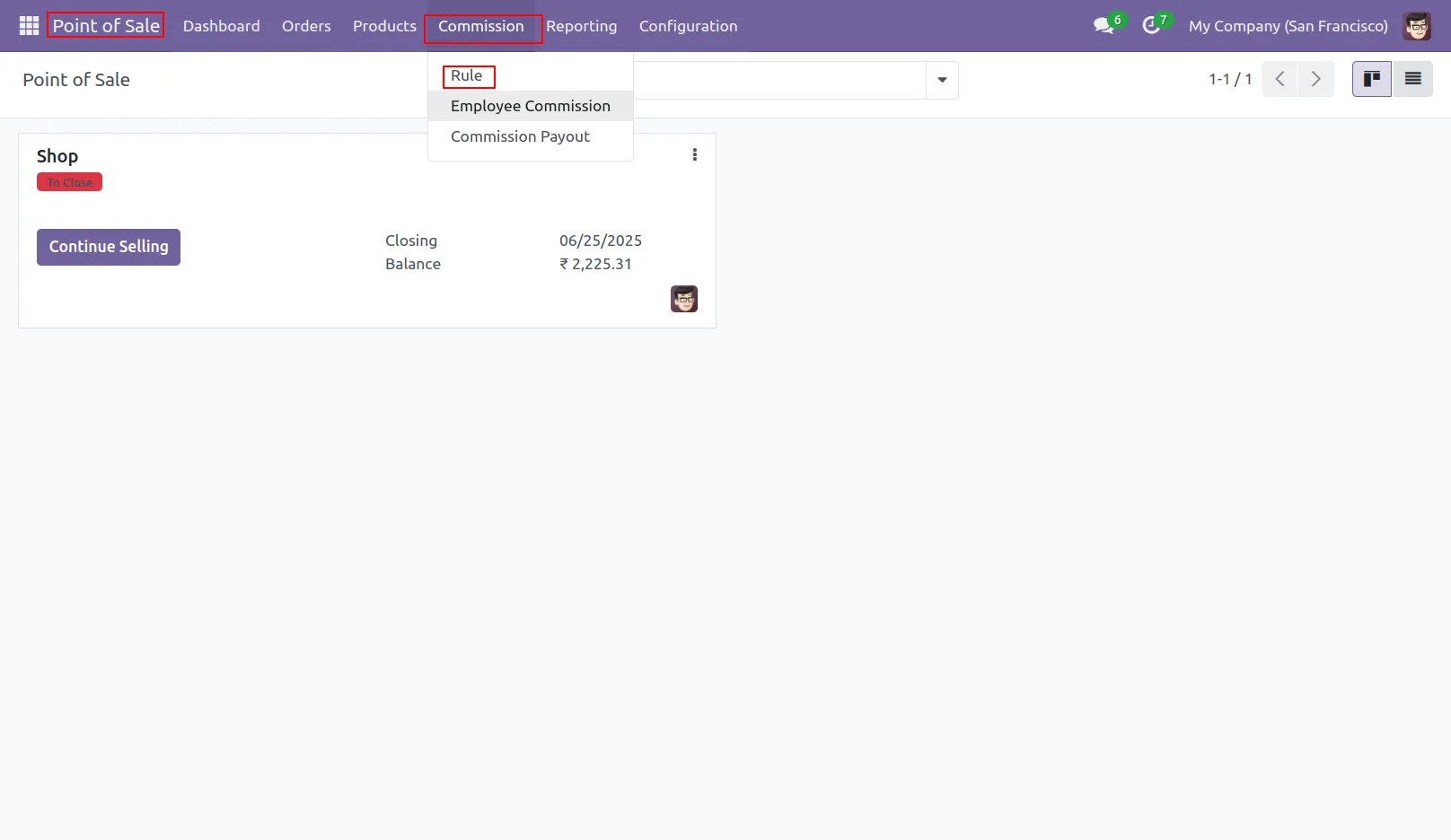
1.Go to POS > Commission > Rules, then click on Rules to create or edit rules.
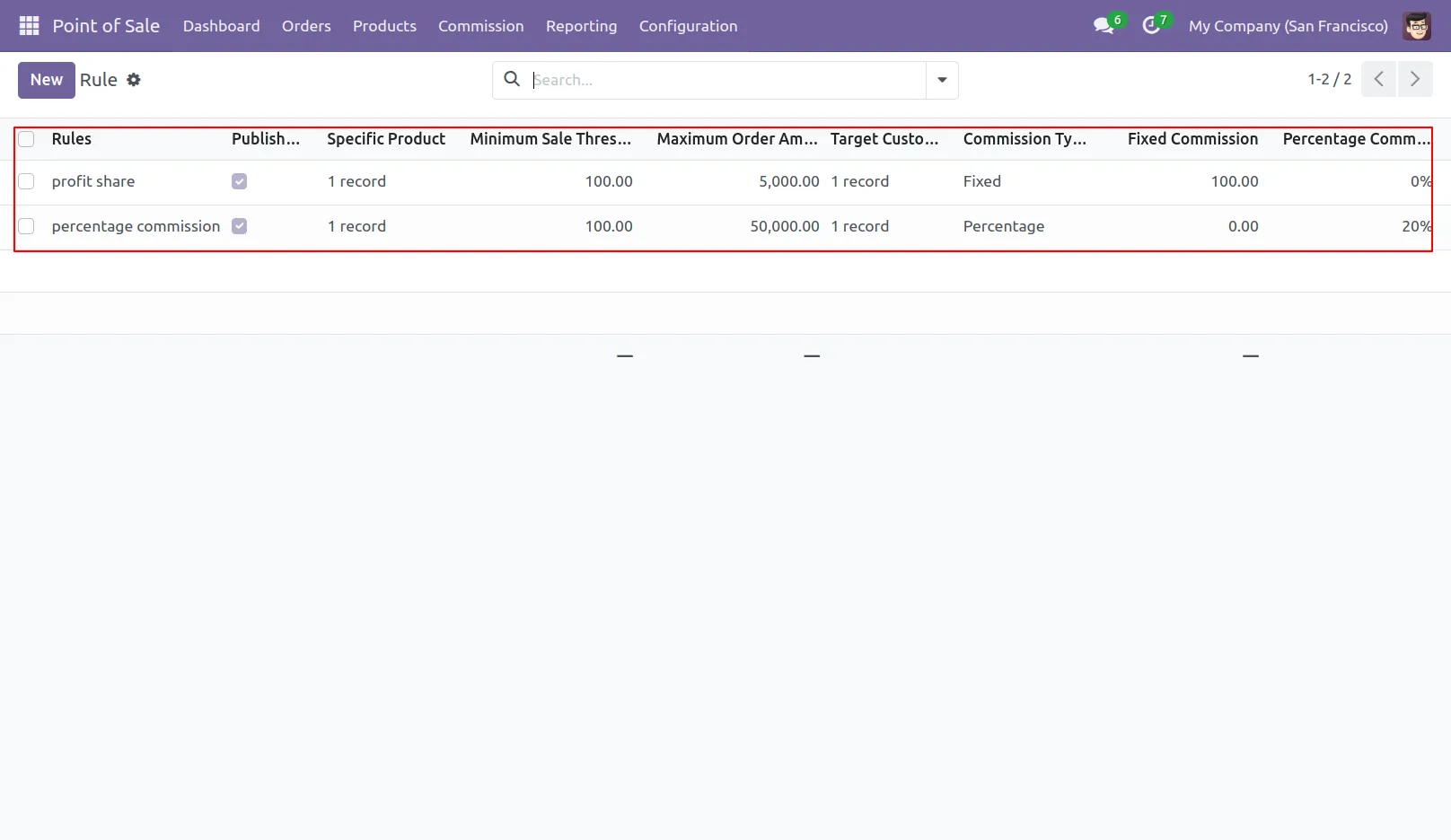
2.You can view and configure commission rules from the backend.
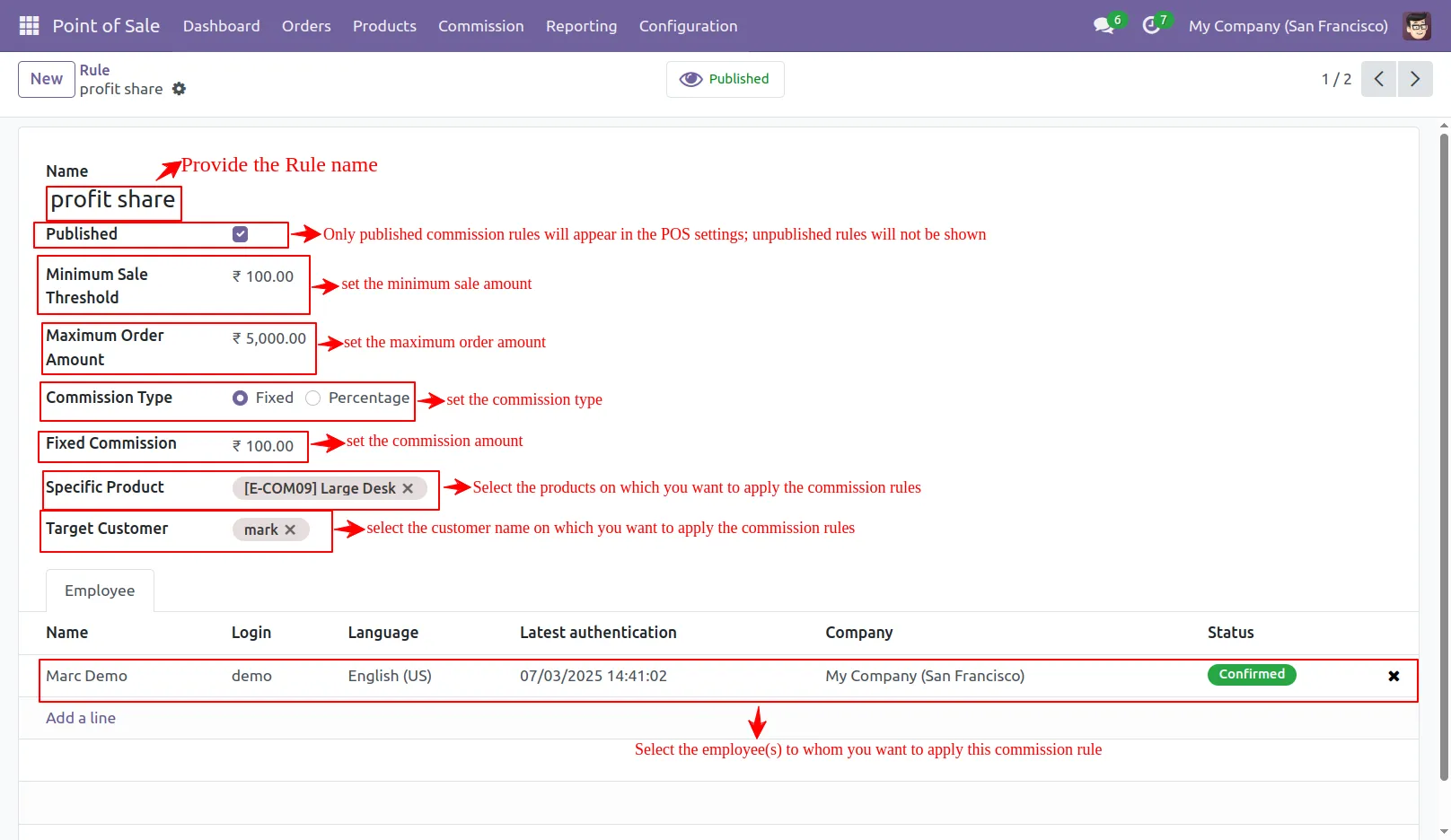
3.Create Employee Commission Rule.
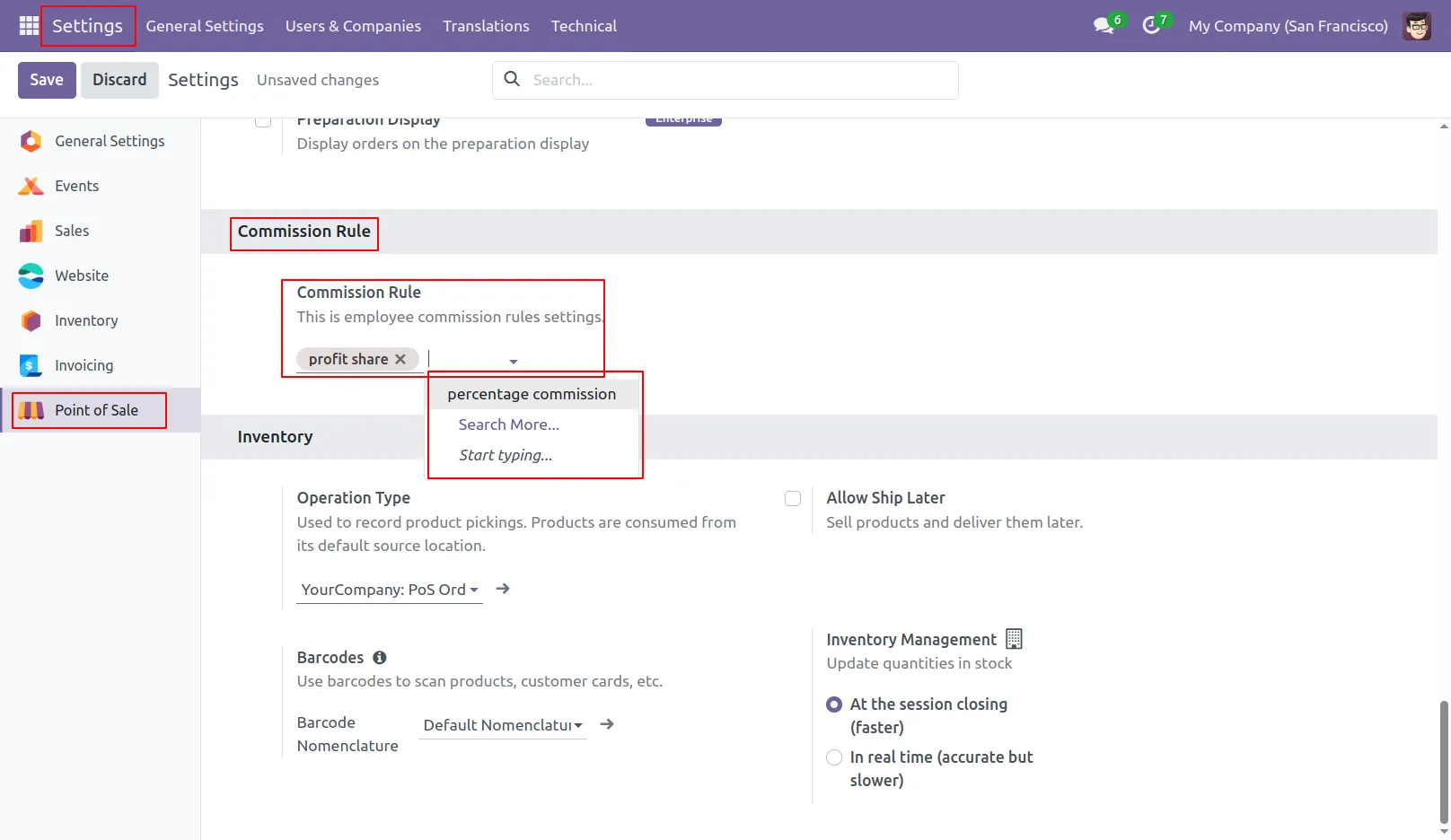
4. Go to the POS setting and select the commission Rules.
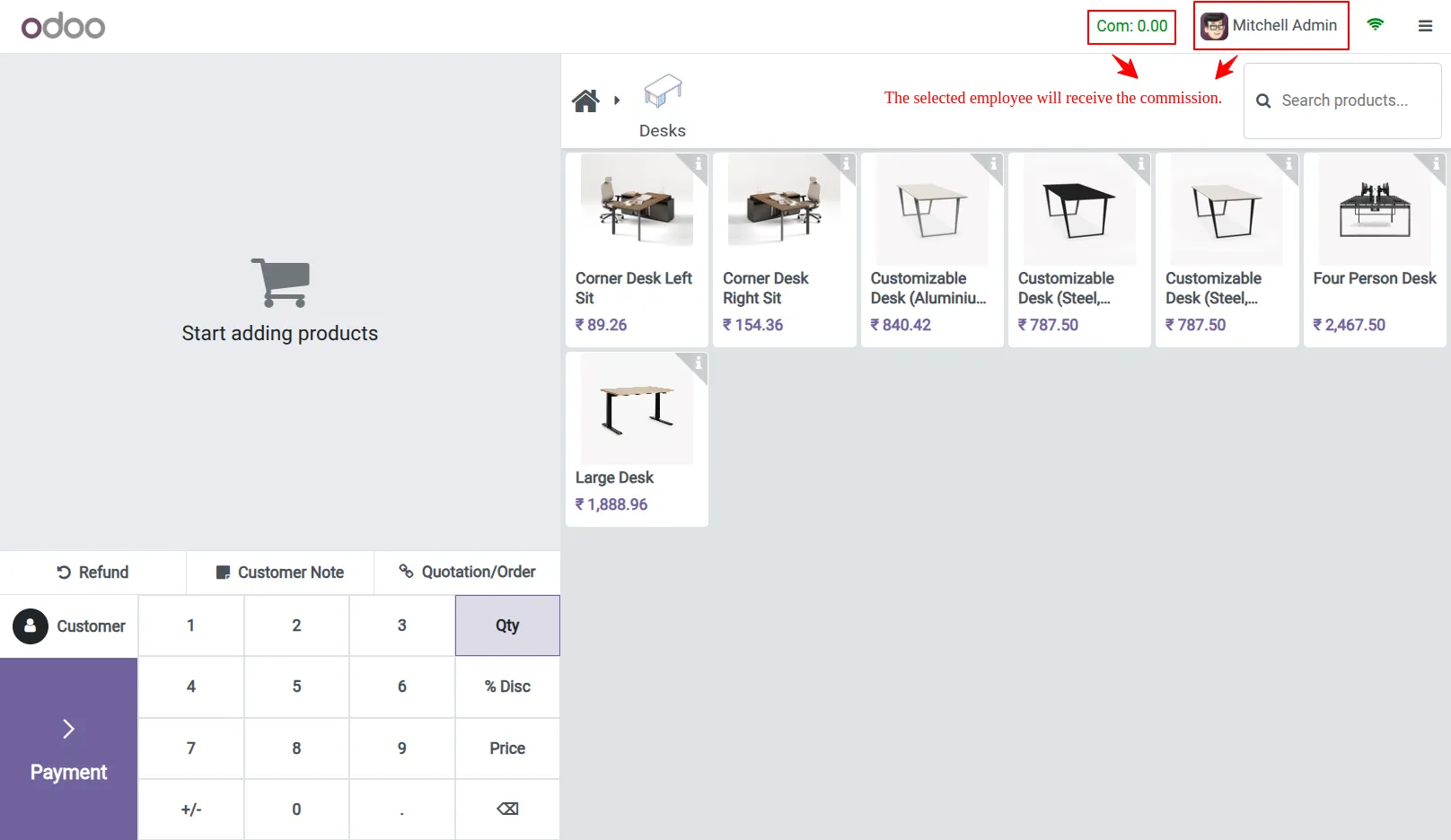
5.The commission box will show the commission for target user.
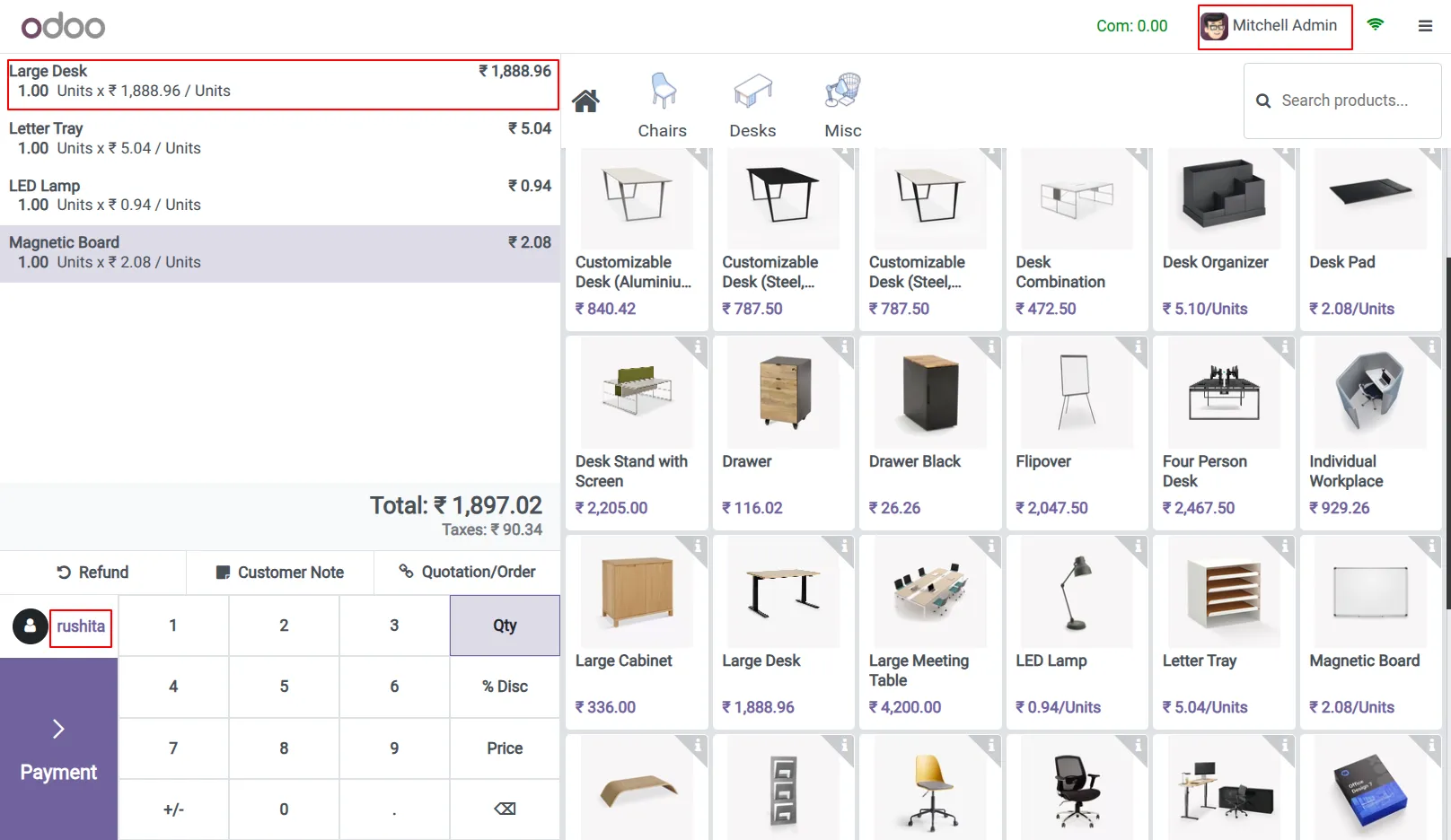
6.Select the customer and products to process the order.
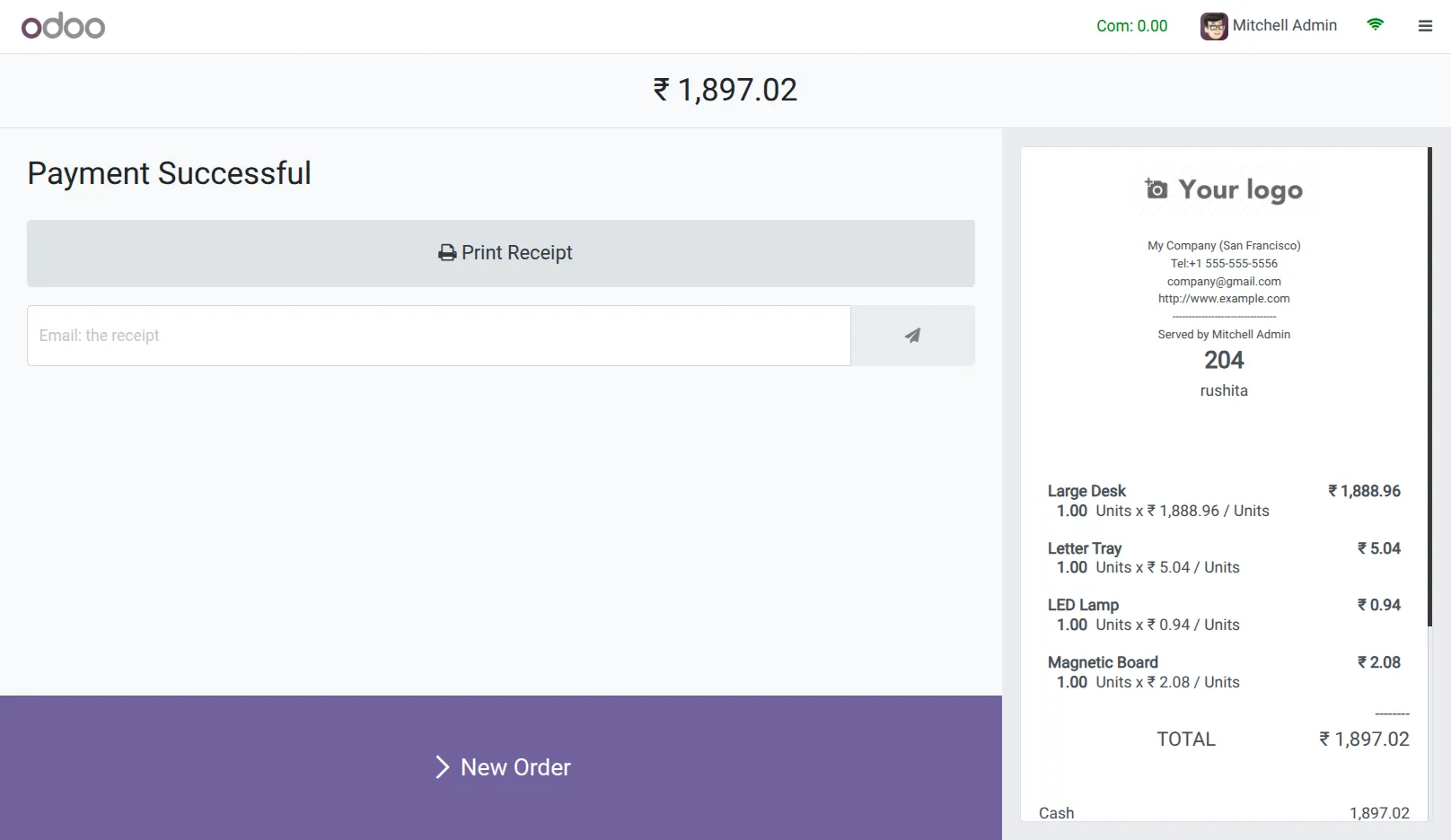
7.Validate the Order.
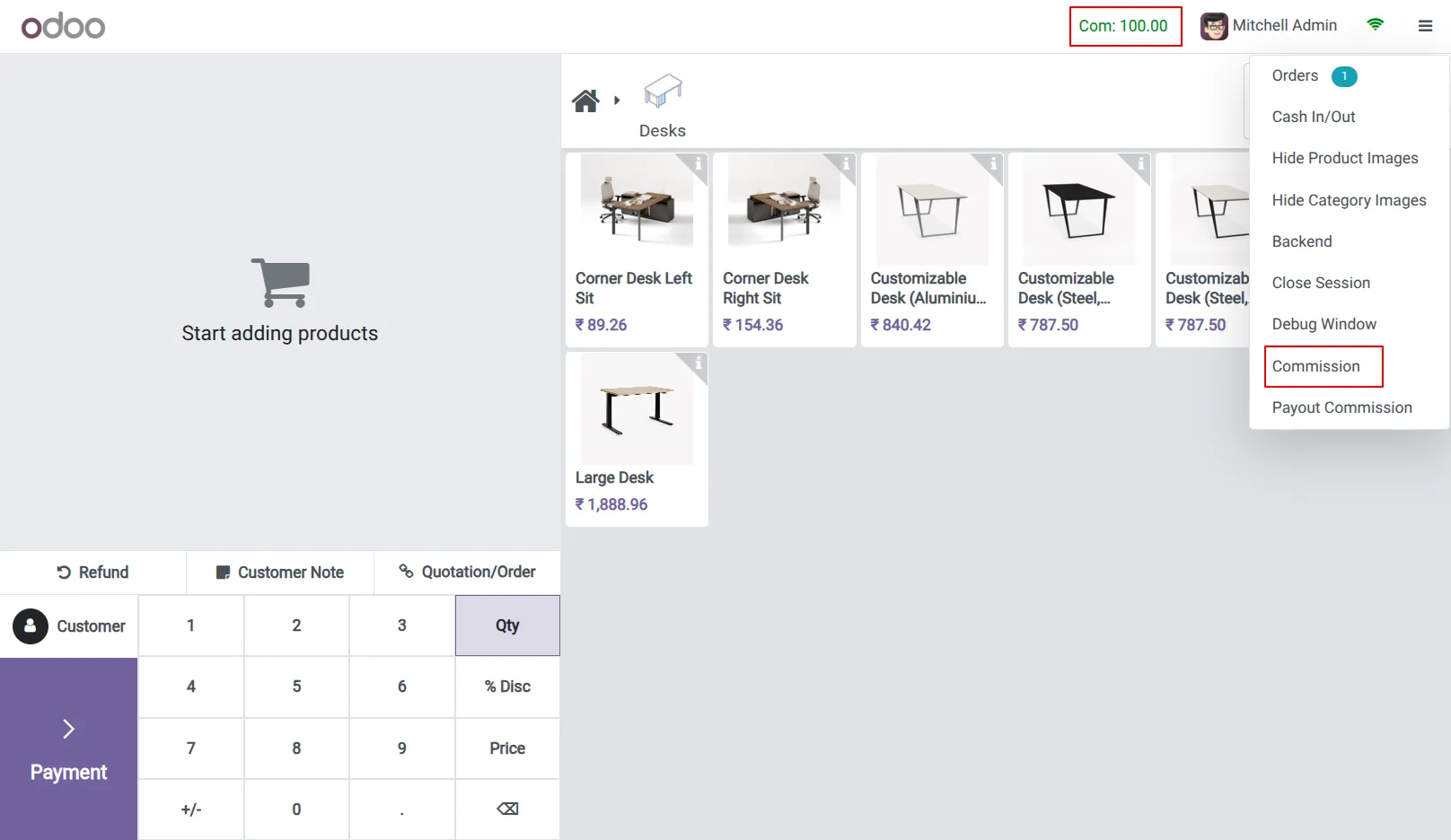
8.Employee Commission Credit on POS Screen.
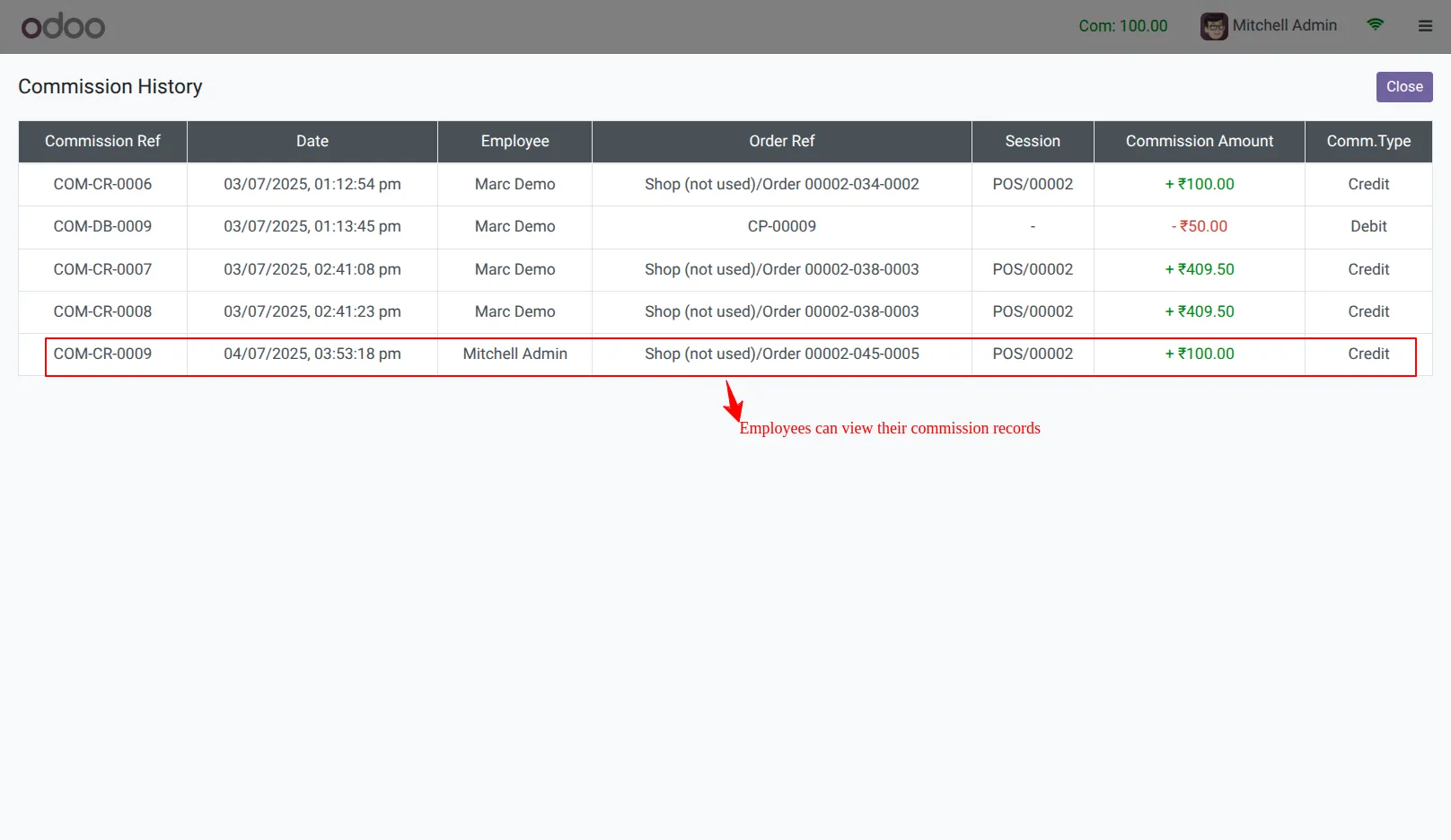
9.Employees can easily see their commission entries and track their earnings.
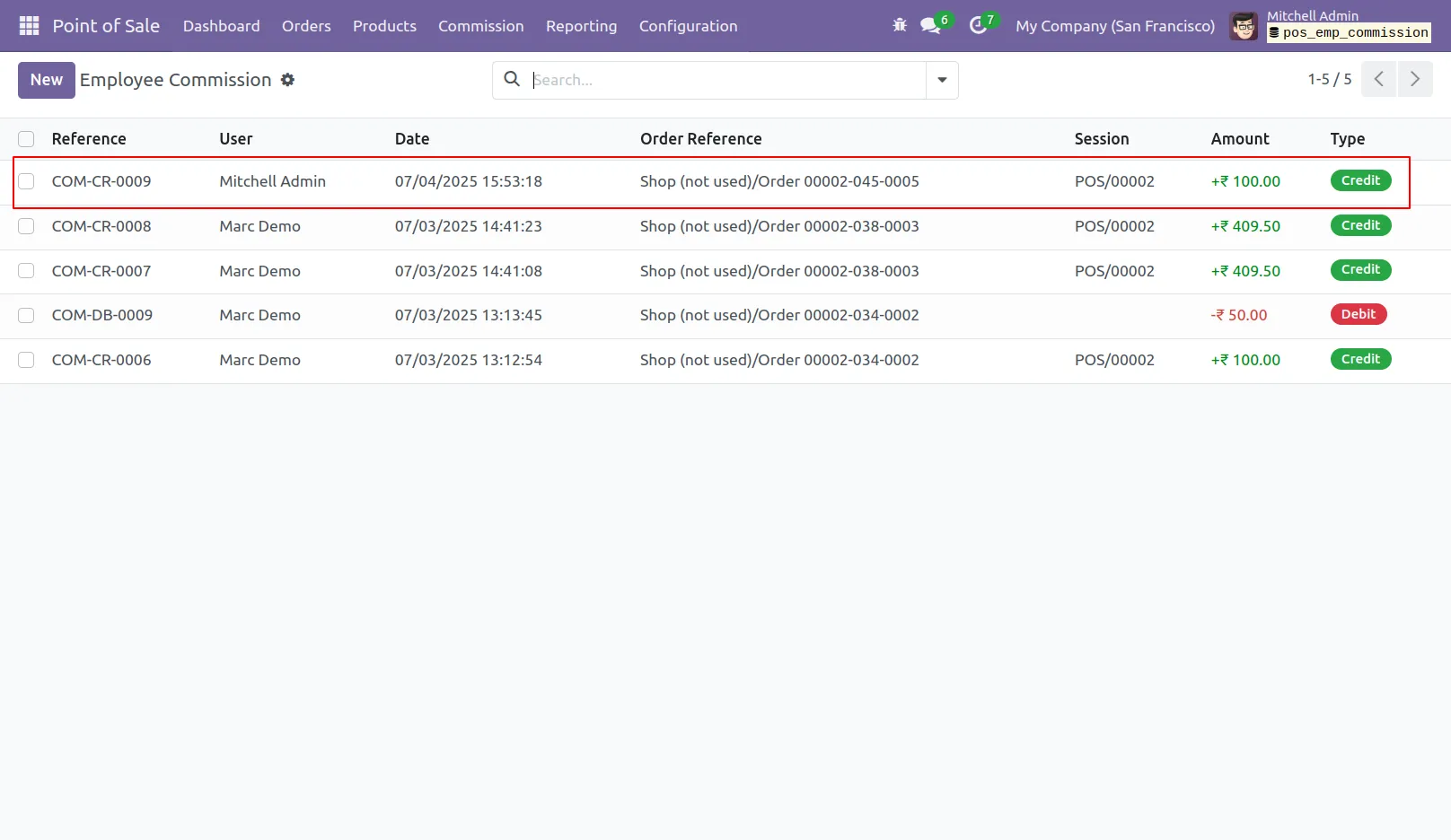
10.Employees can easily see their commission entries and track their earnings in Backend.
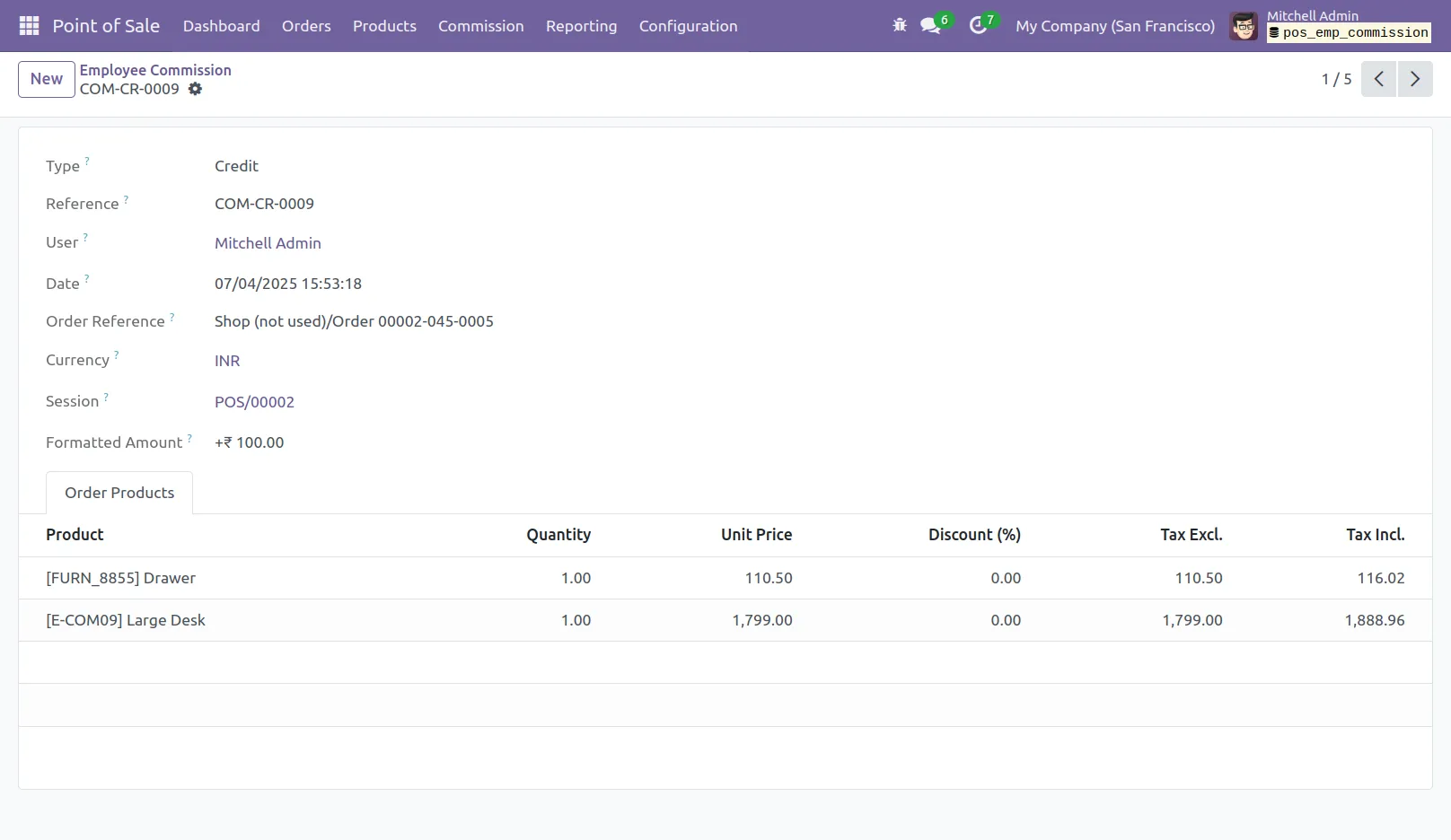
11.Commission Details On The Back-end.
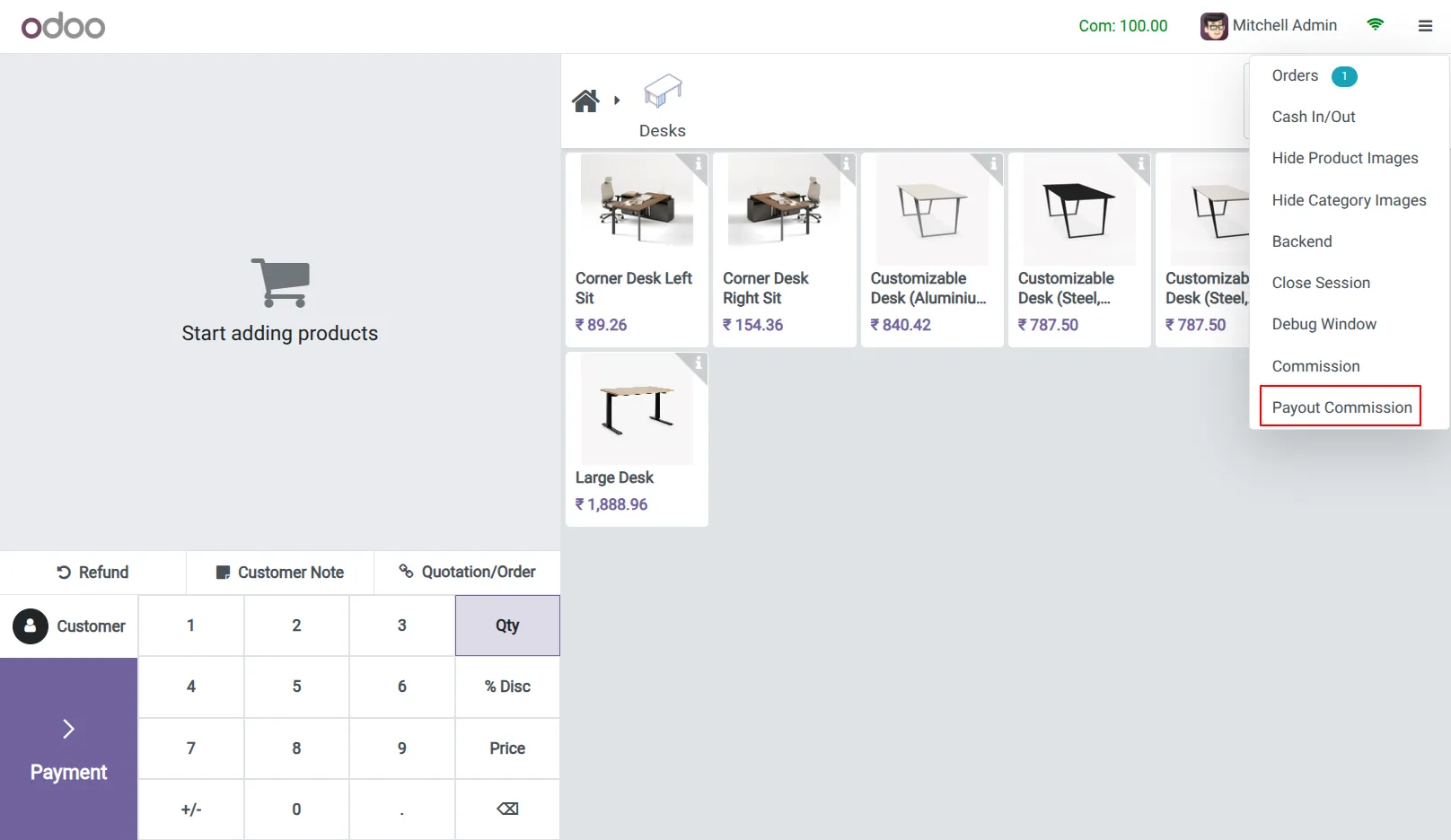
12.Payout Commission Tab.
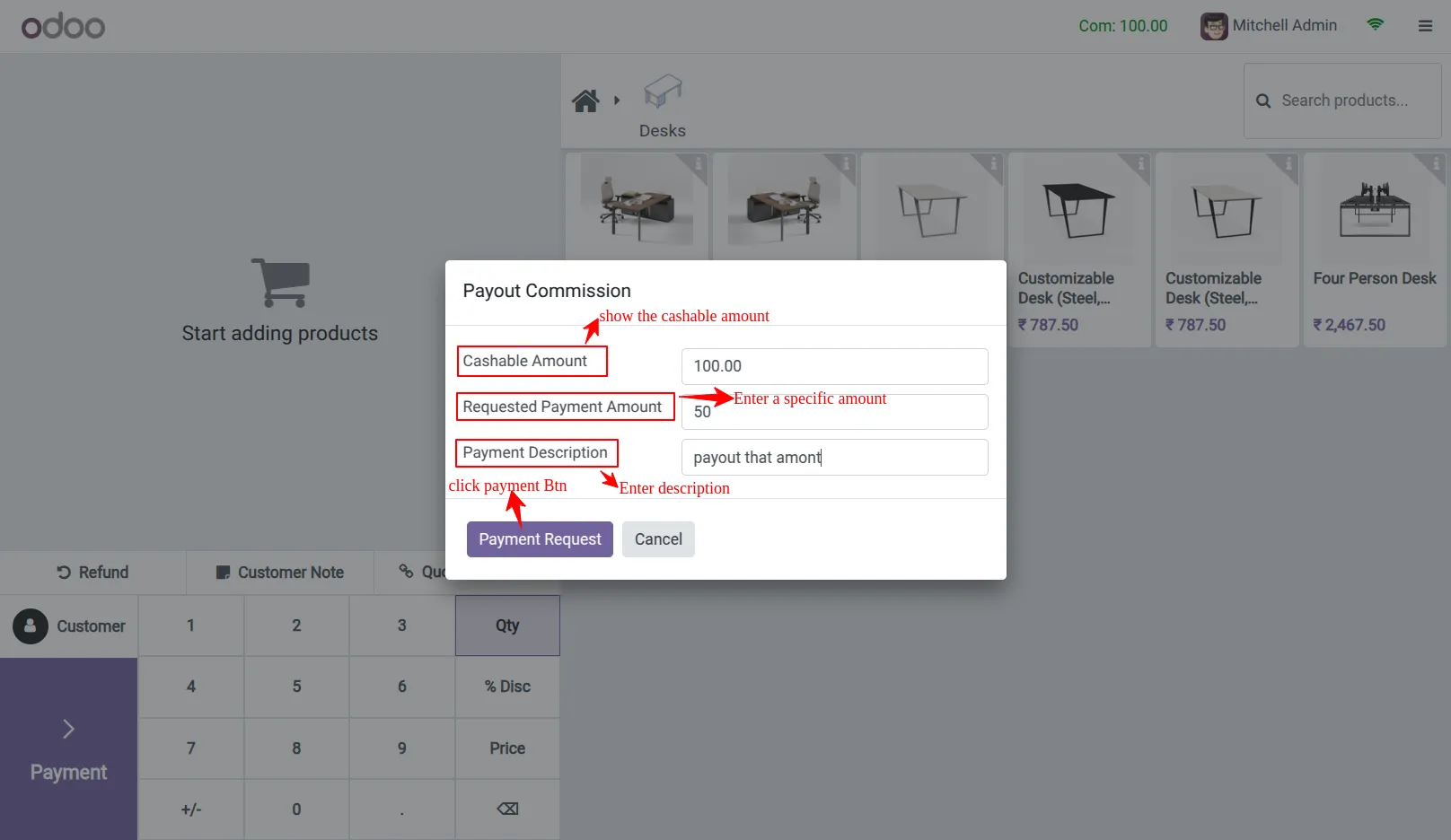
13.Payout Commission Popup.
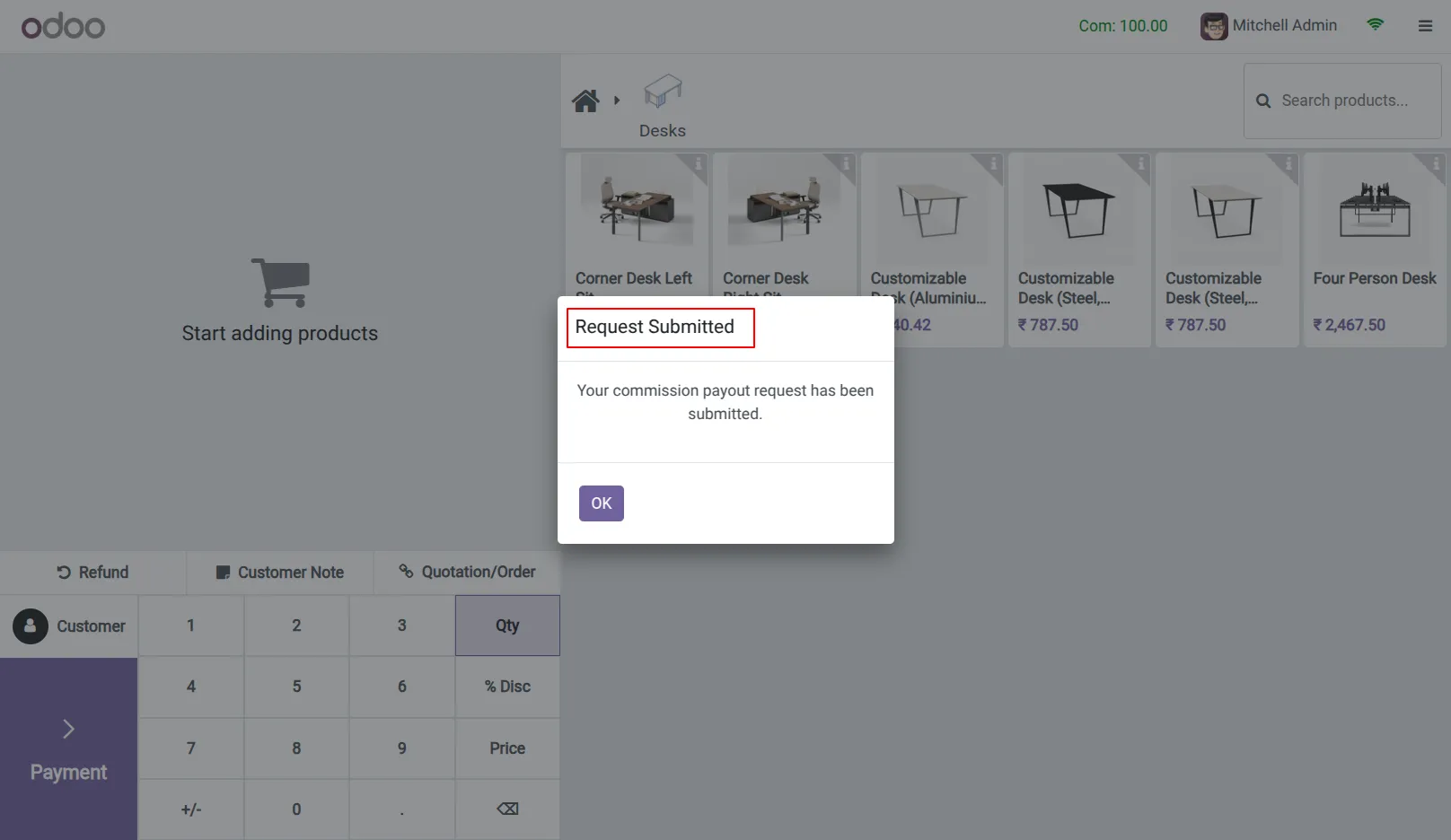
14.Request Submitted Popup.
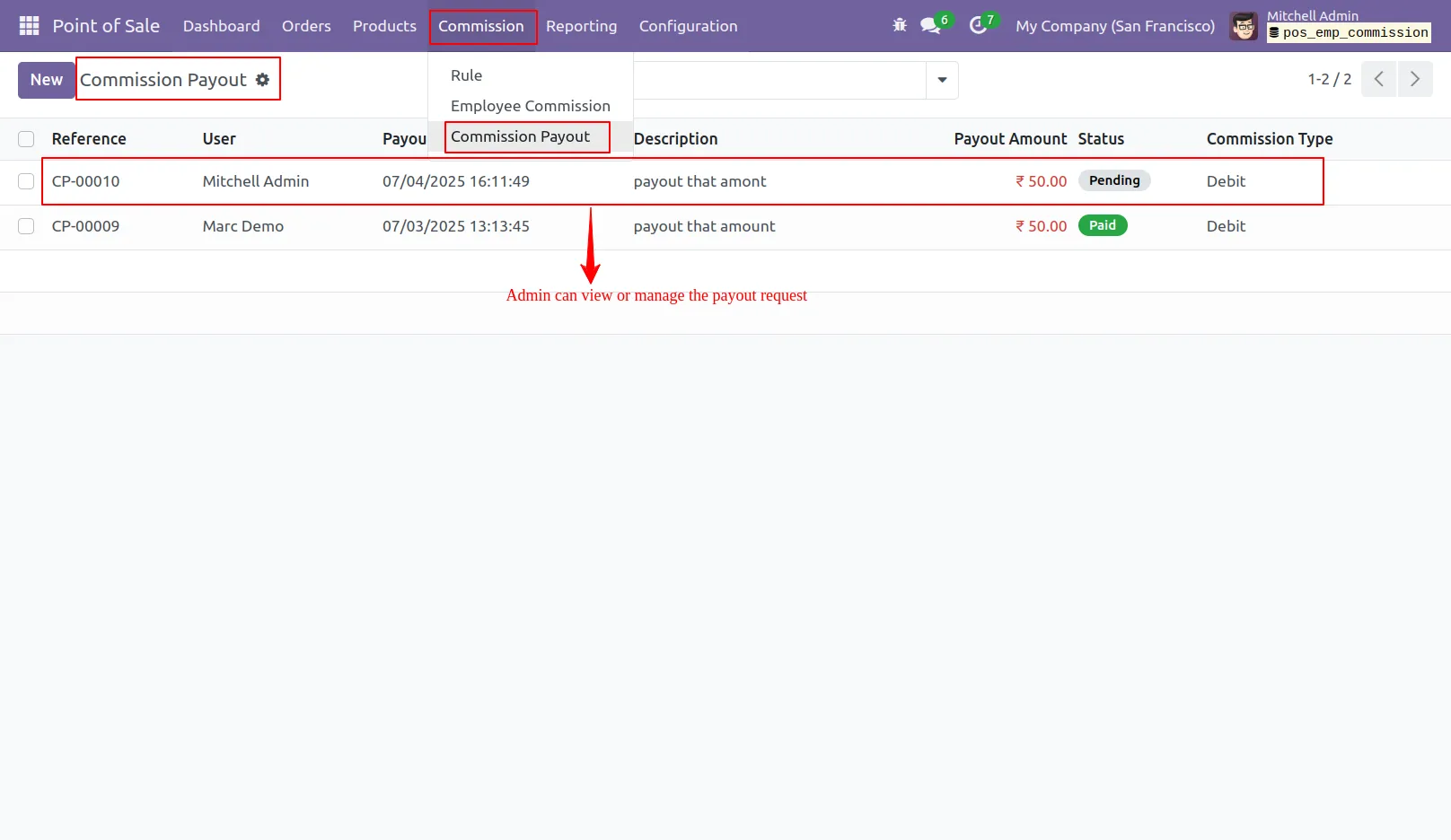
15.Go to POS > Commission > Commission Payout to view, manage, and update the status of payout requests.
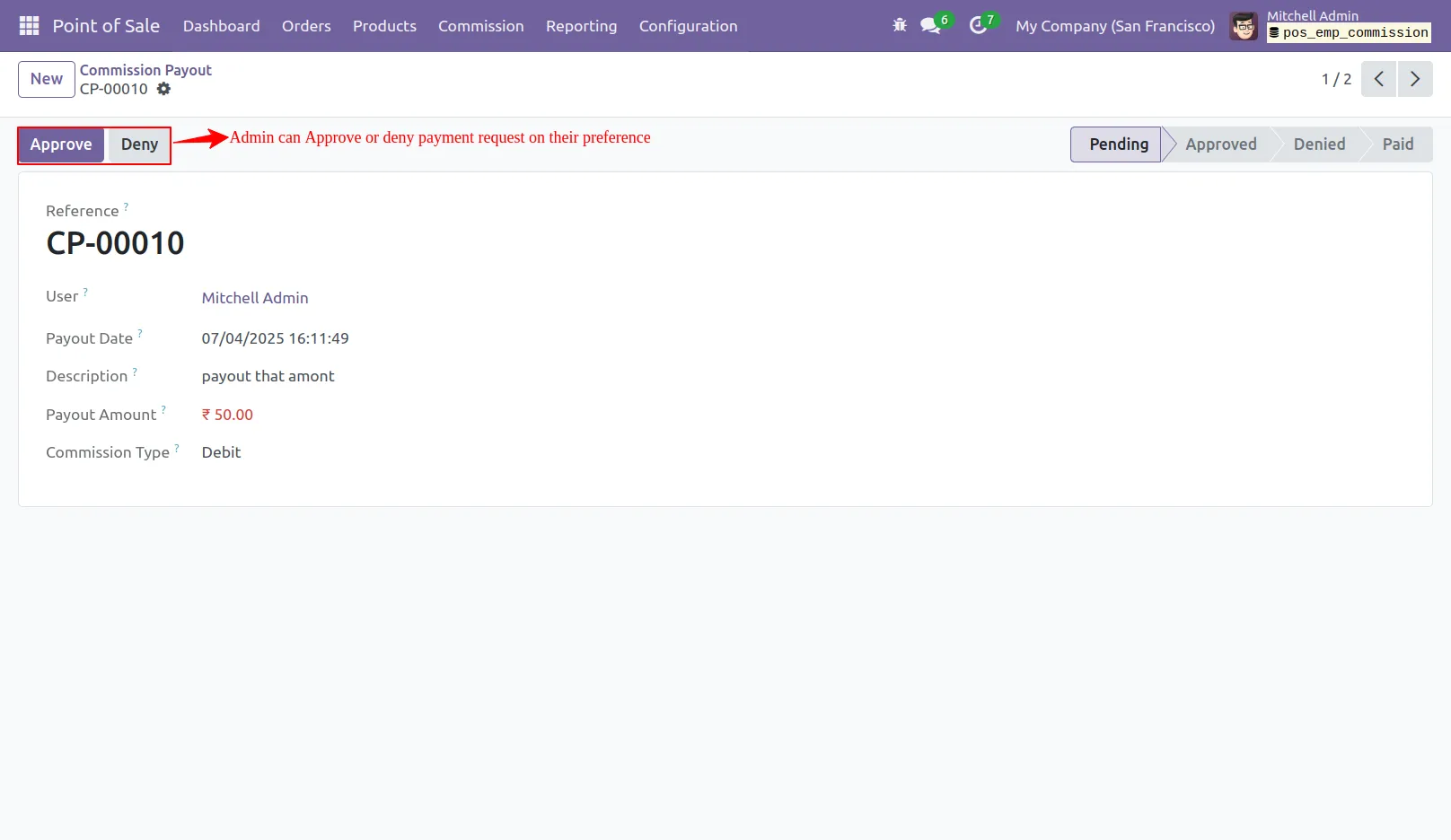
16.Commission Payout Approve.
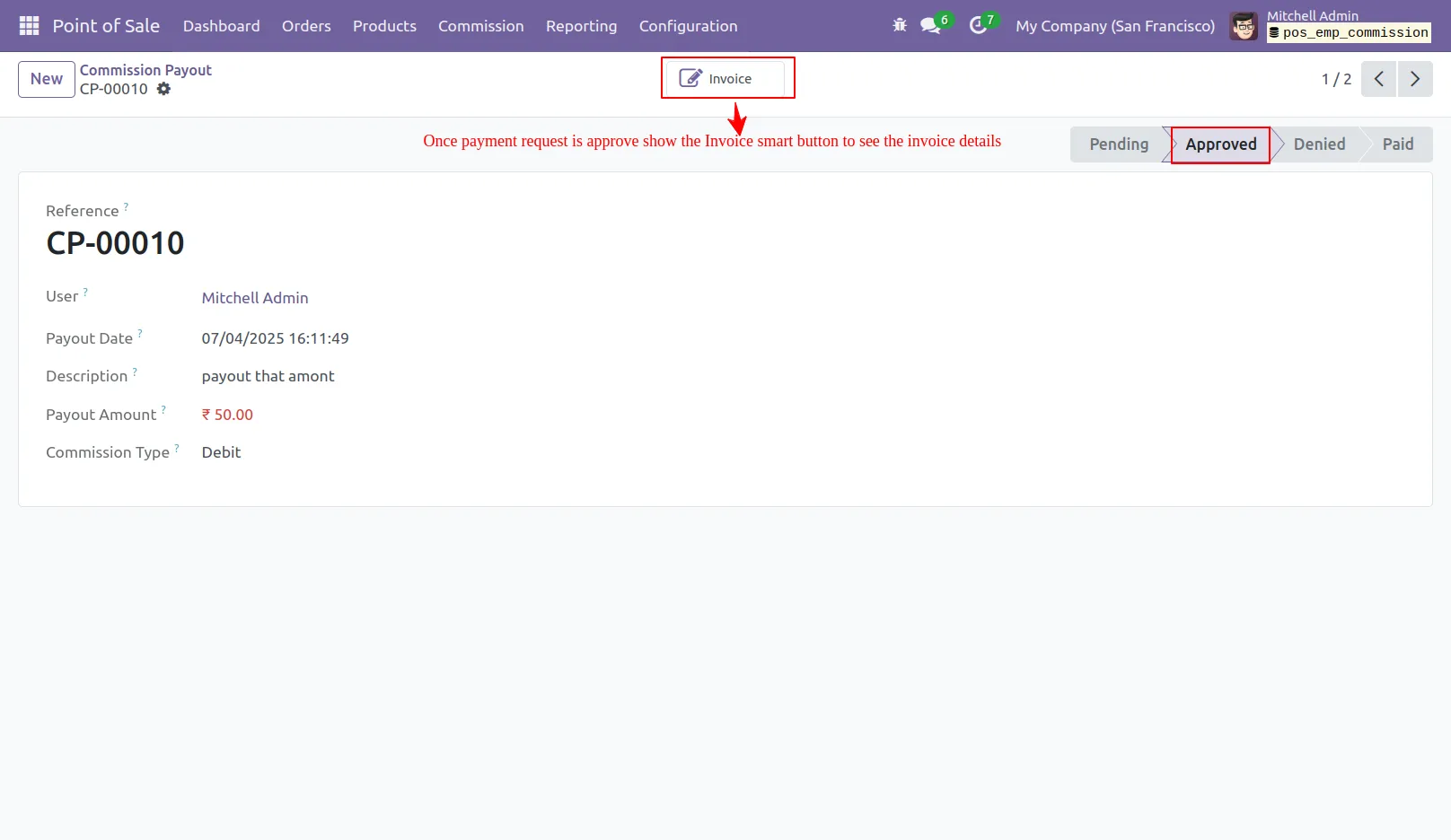
17.Once approved, use the invoice smart button to view details or make payment.
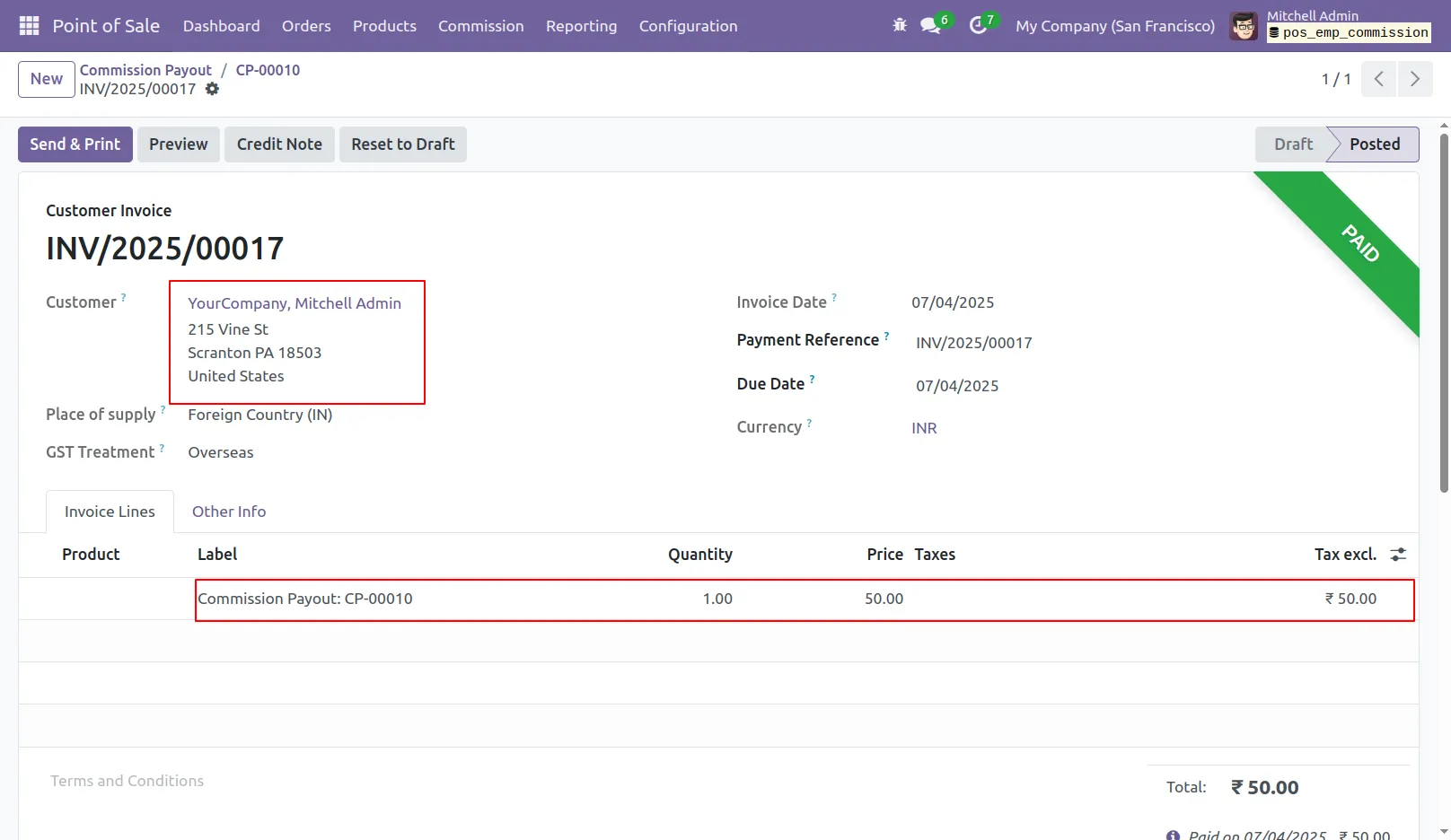
18.The admin pays the invoice and reviews payout details for clear records.
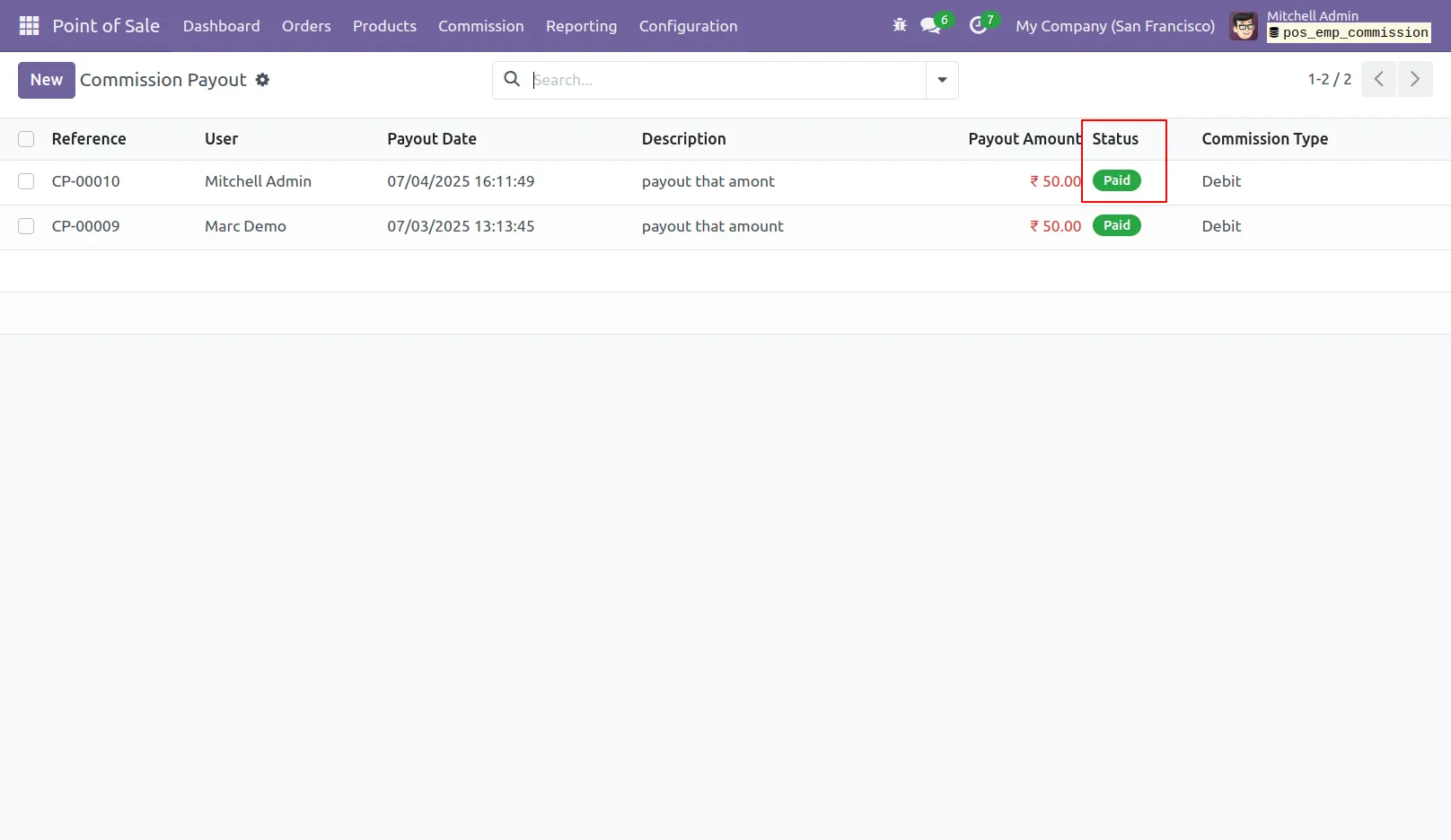
19.Once the request is approved, the system reflects the updated status.
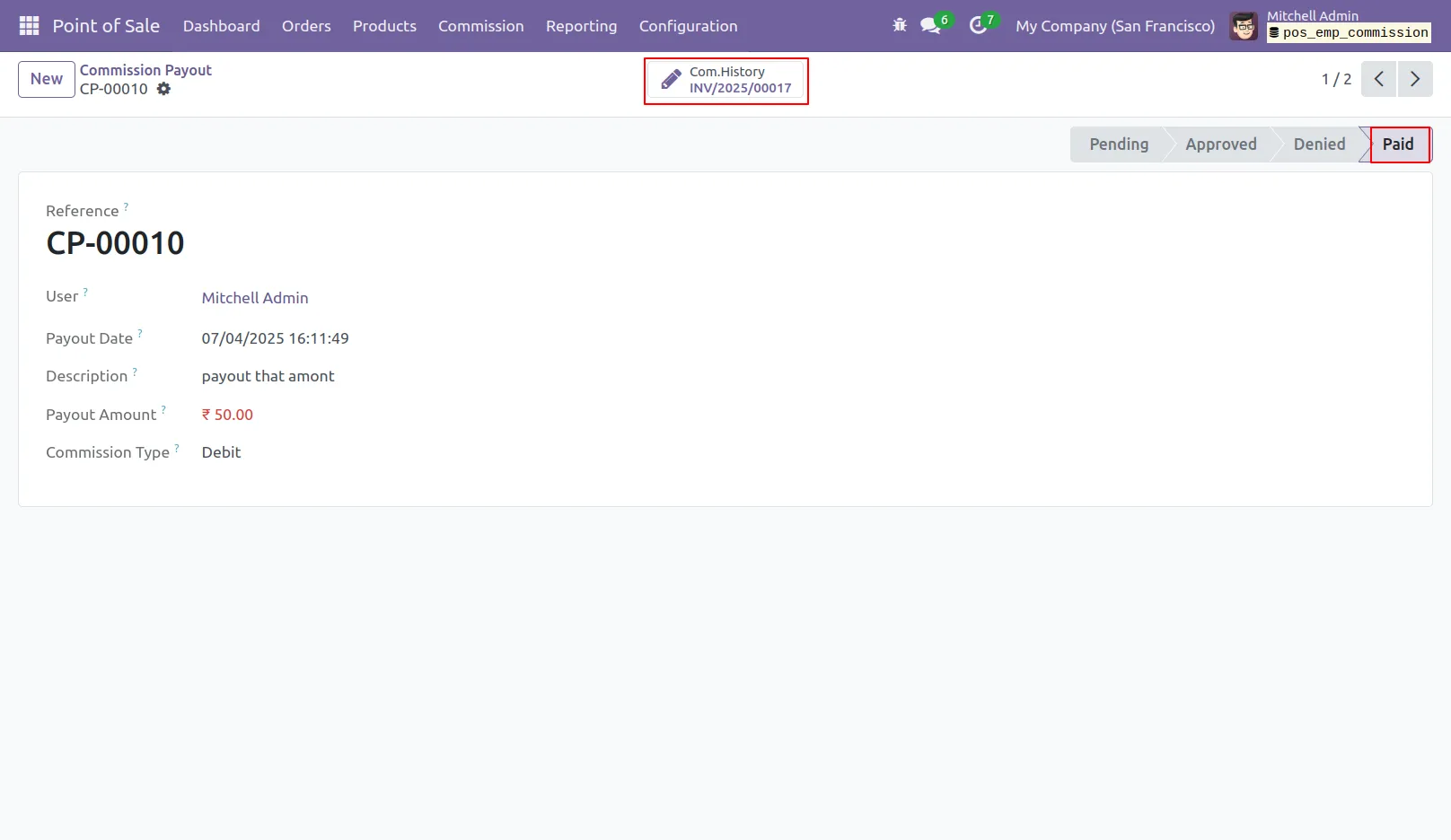
20.Completing the payout updates the smart button, confirming it’s done.
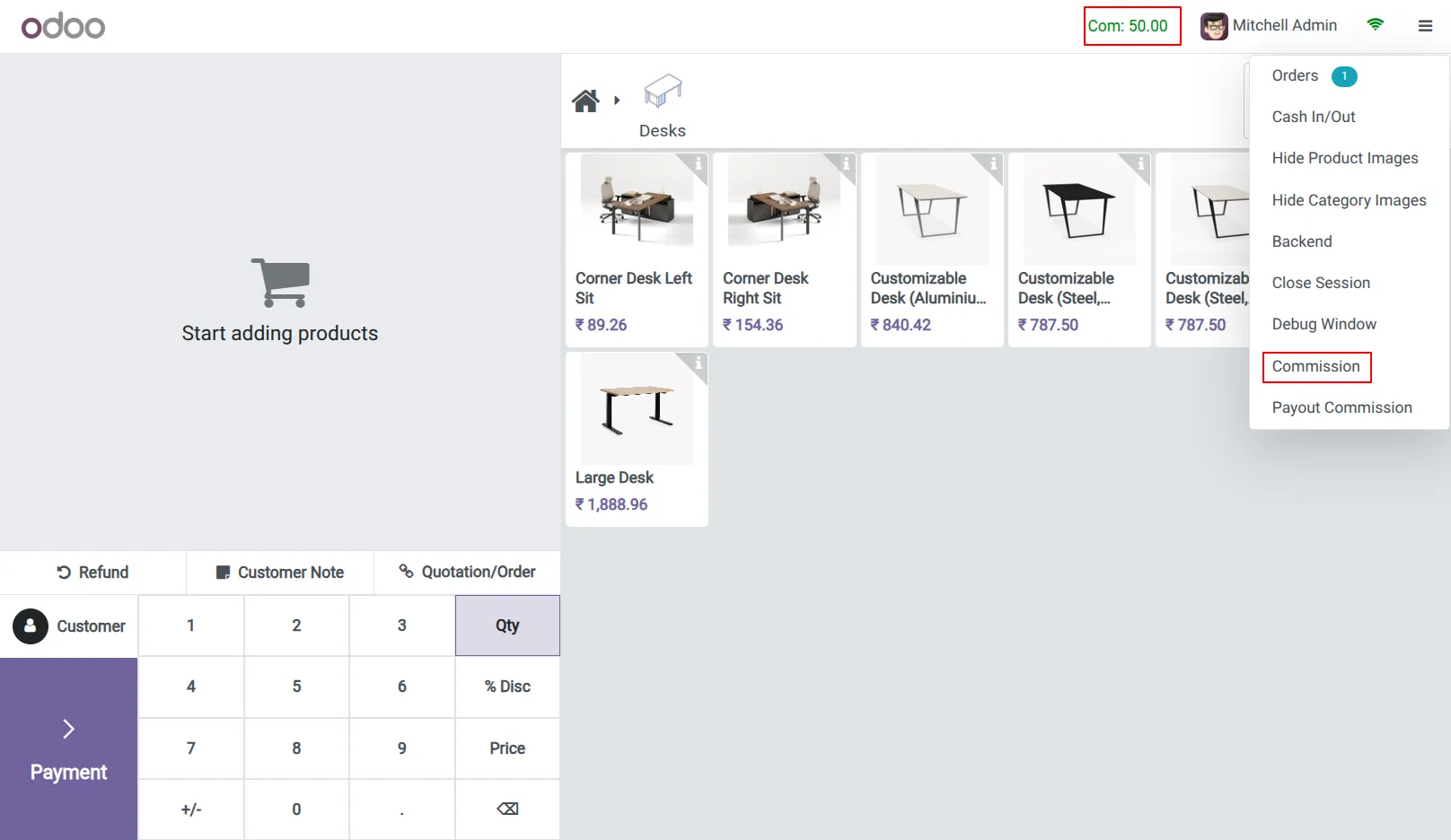
21.Commission Amount Update On POS User Employee.
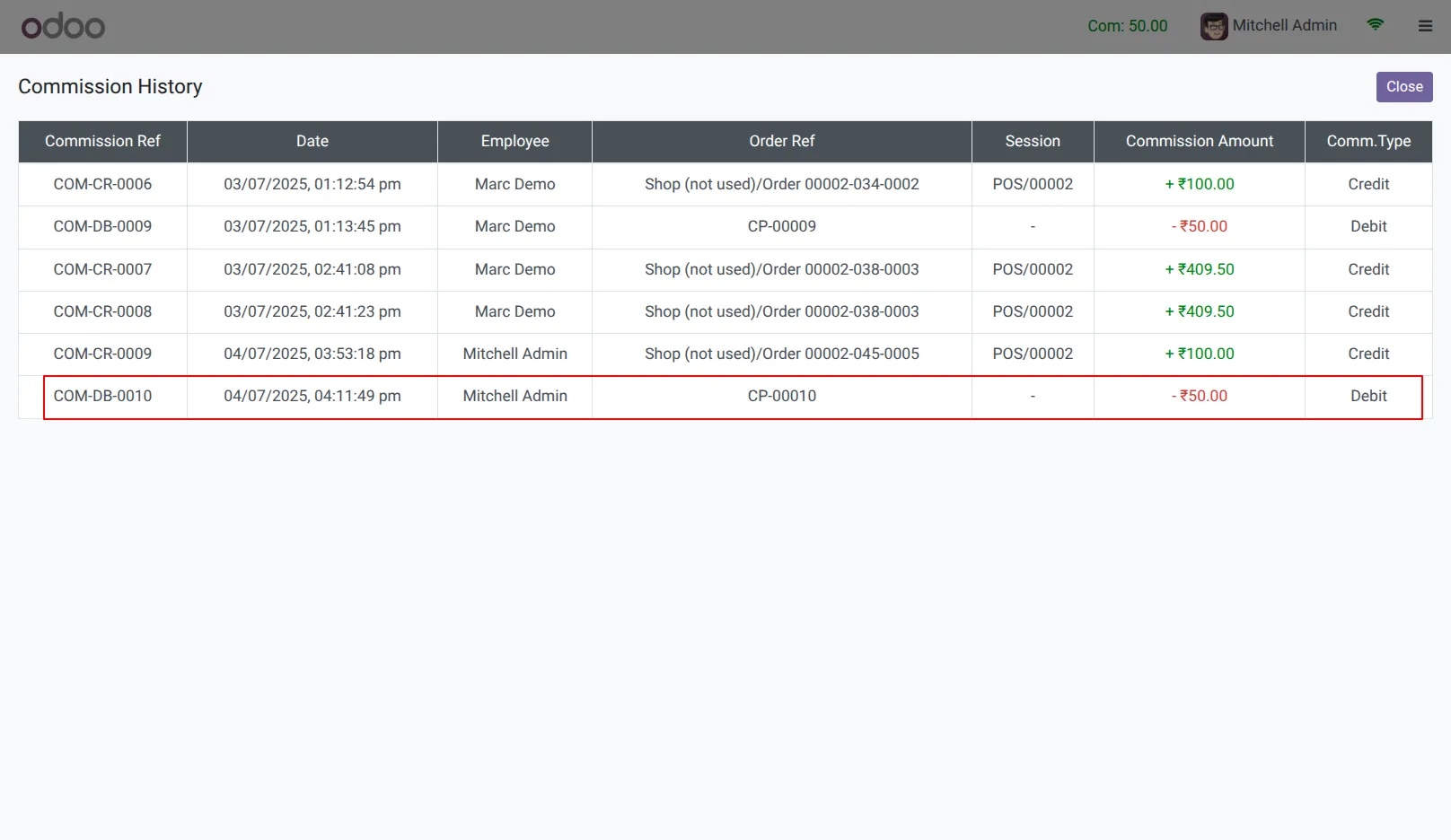
22.Commission Payout History.
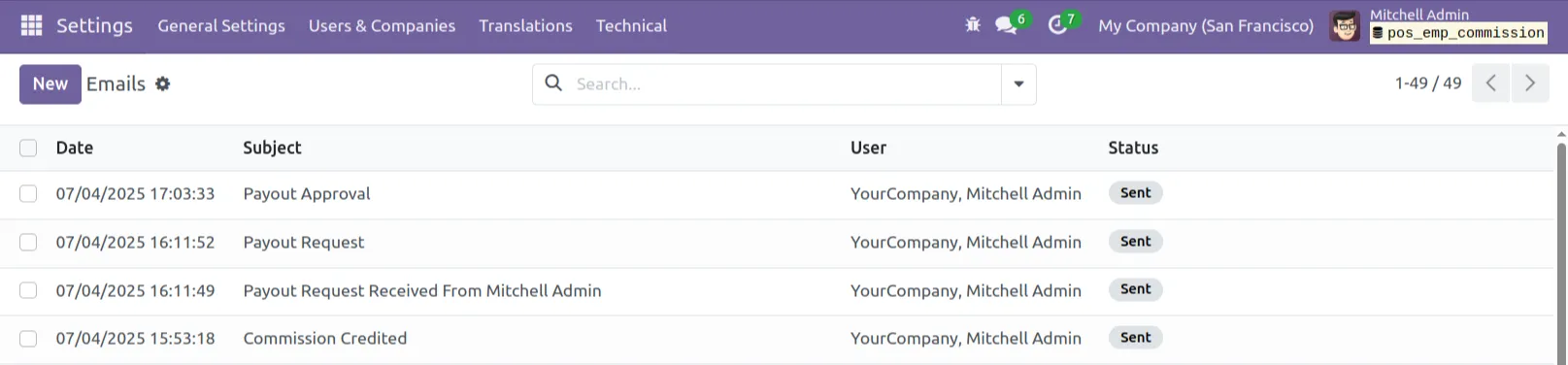
23.Emails are sent to the admin and the employee.
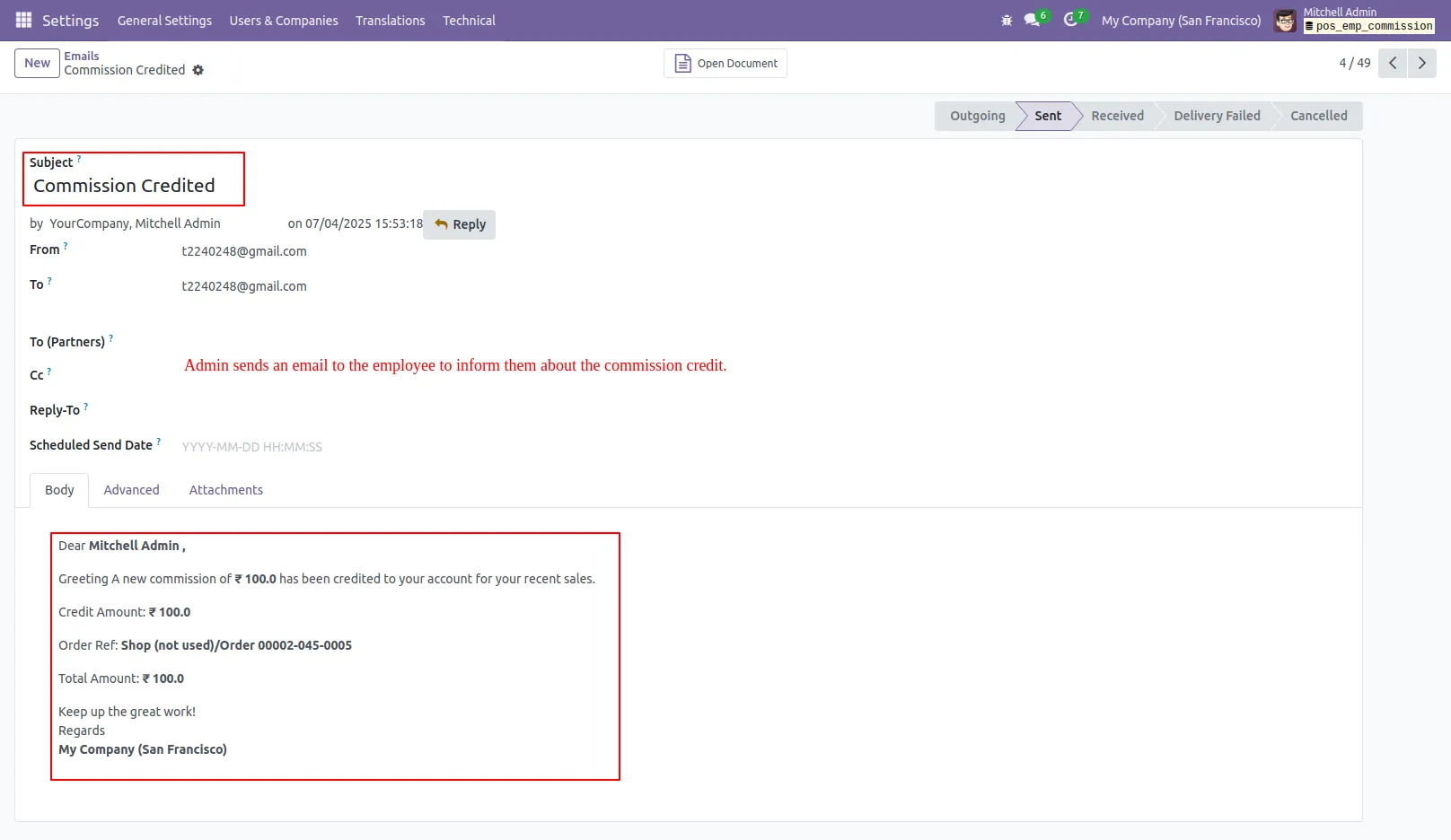
24. A commission credit notification email is automatically sent to inform the employee about the payment.
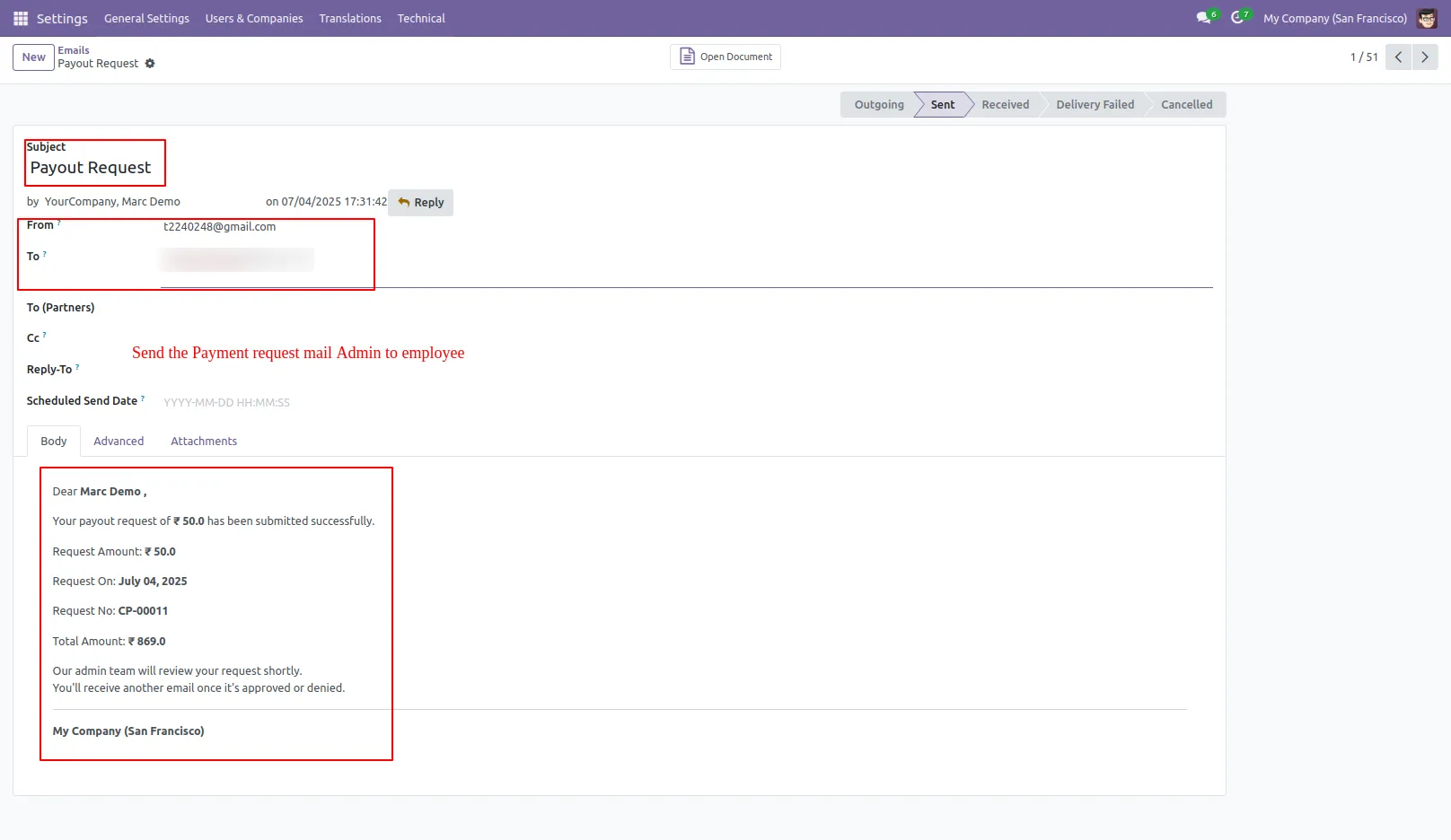
25. An automatic email notification is sent for the payout request, ensuring seamless processing and clear records.
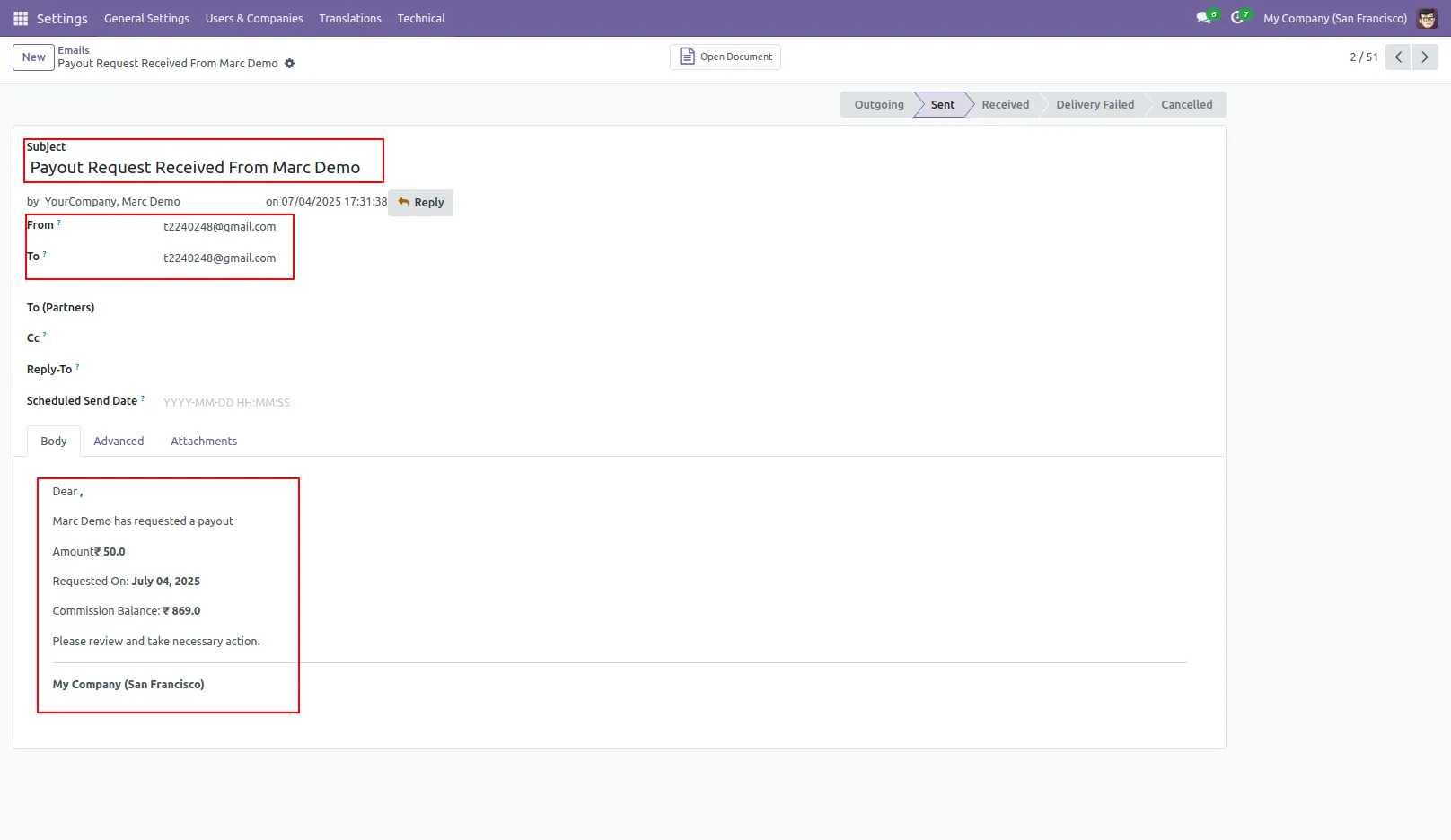
26. A confirmation email is automatically sent upon payout request submission.
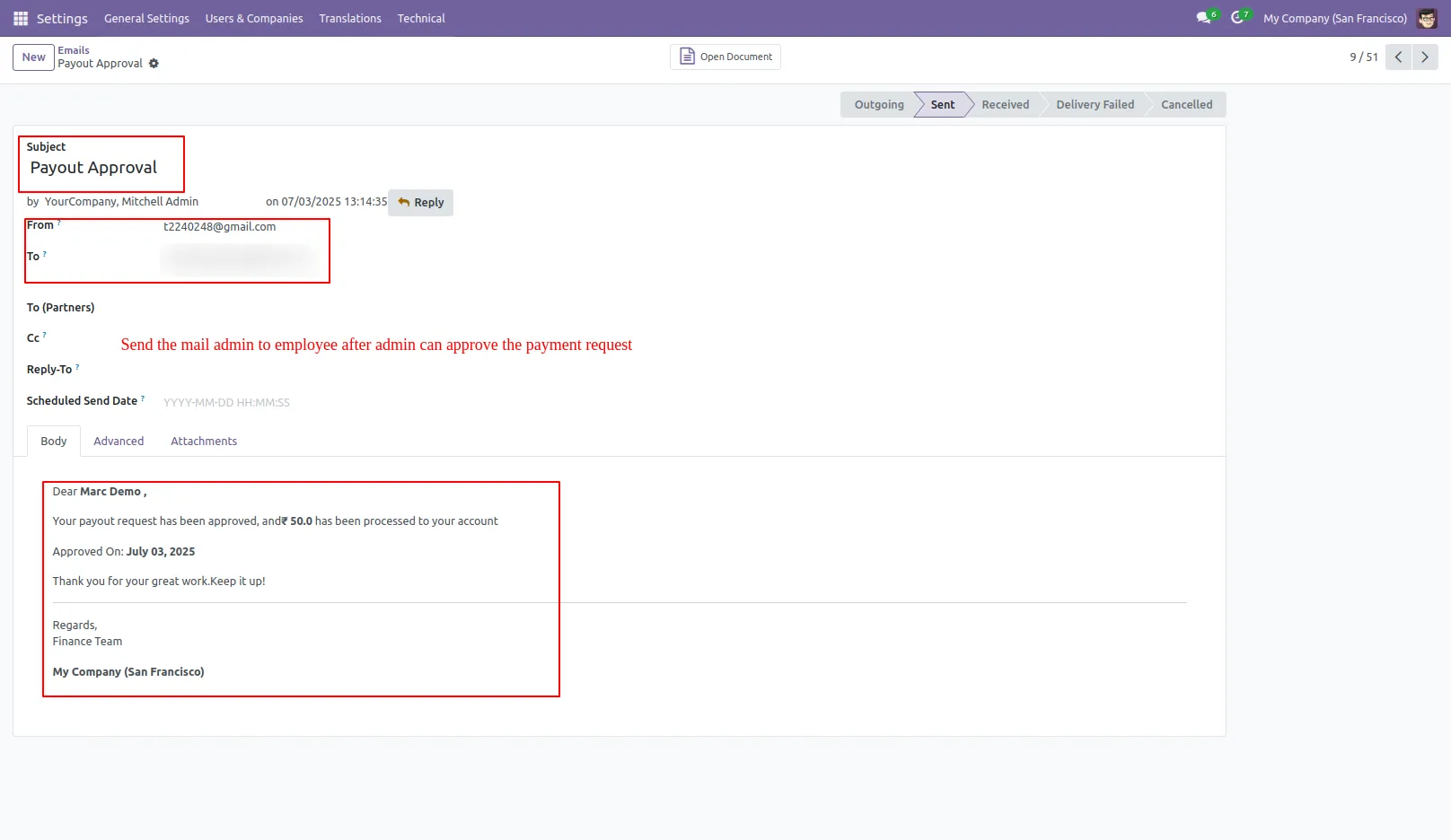
27. Once the payment is approved, an email notification is sent to confirm the transaction.
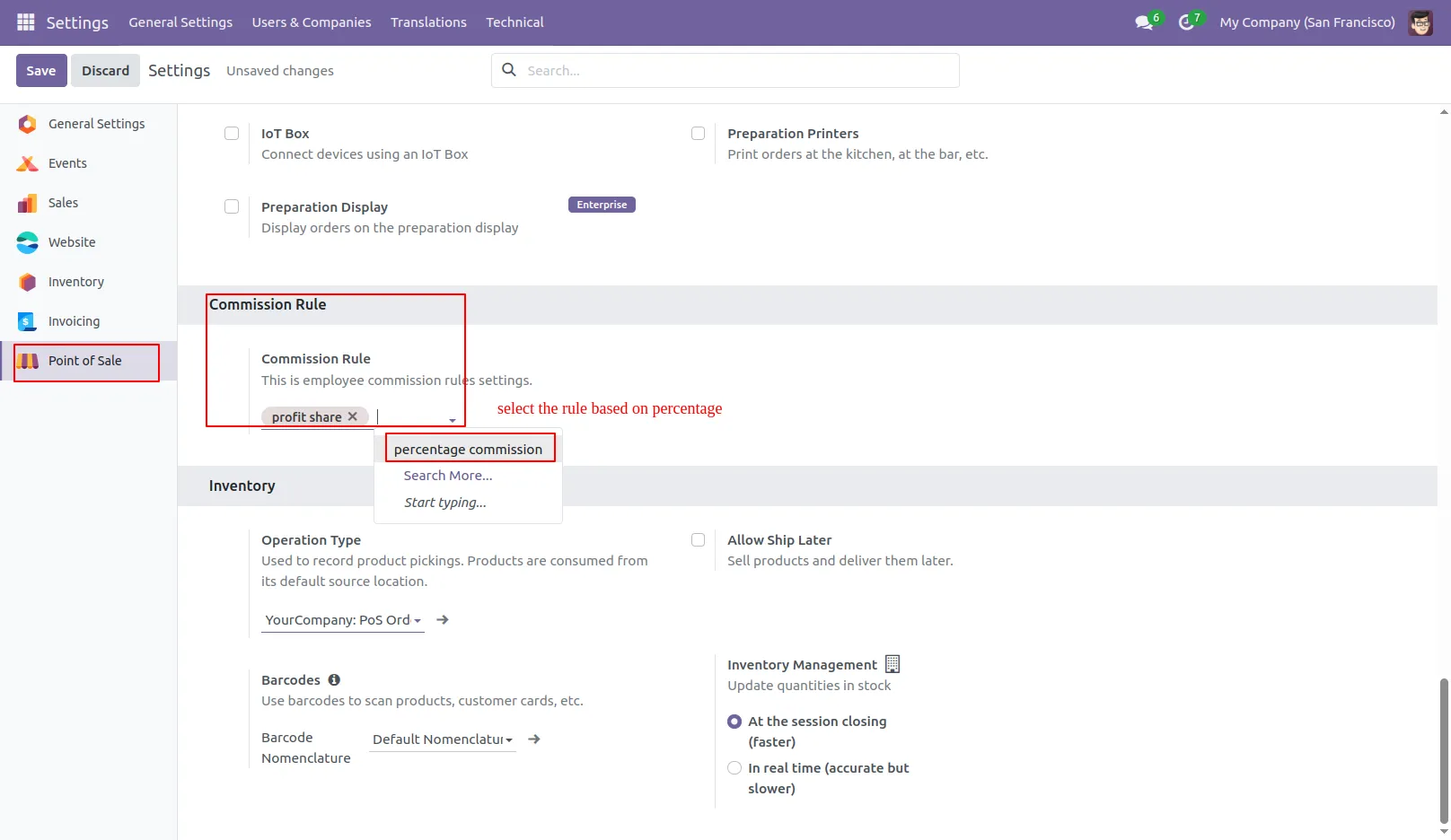
28. Go to POS settings and pick a commission rule to flexibly manage commissions.
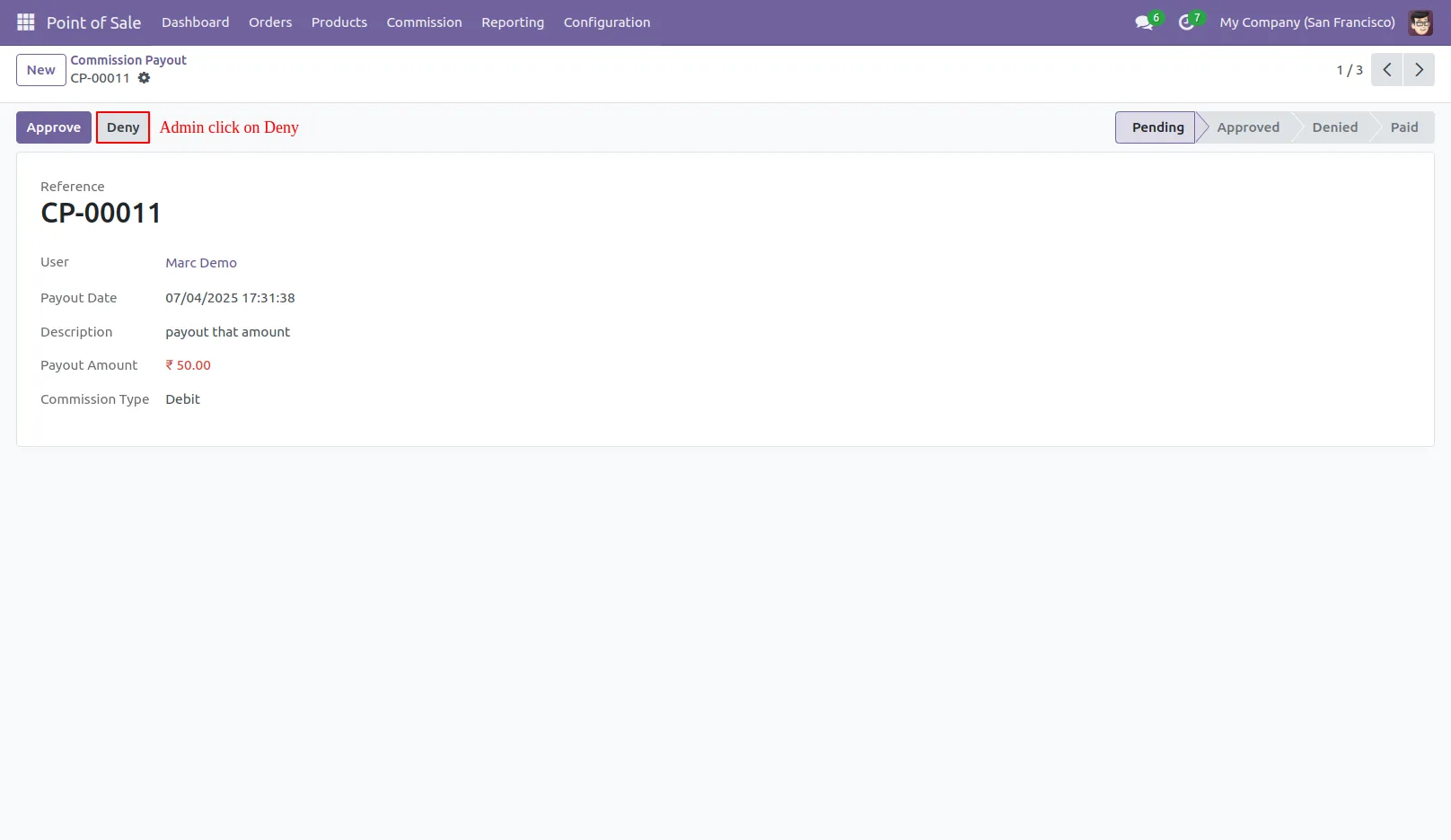
29. Admin clicks deny to reject and update the payout request status.
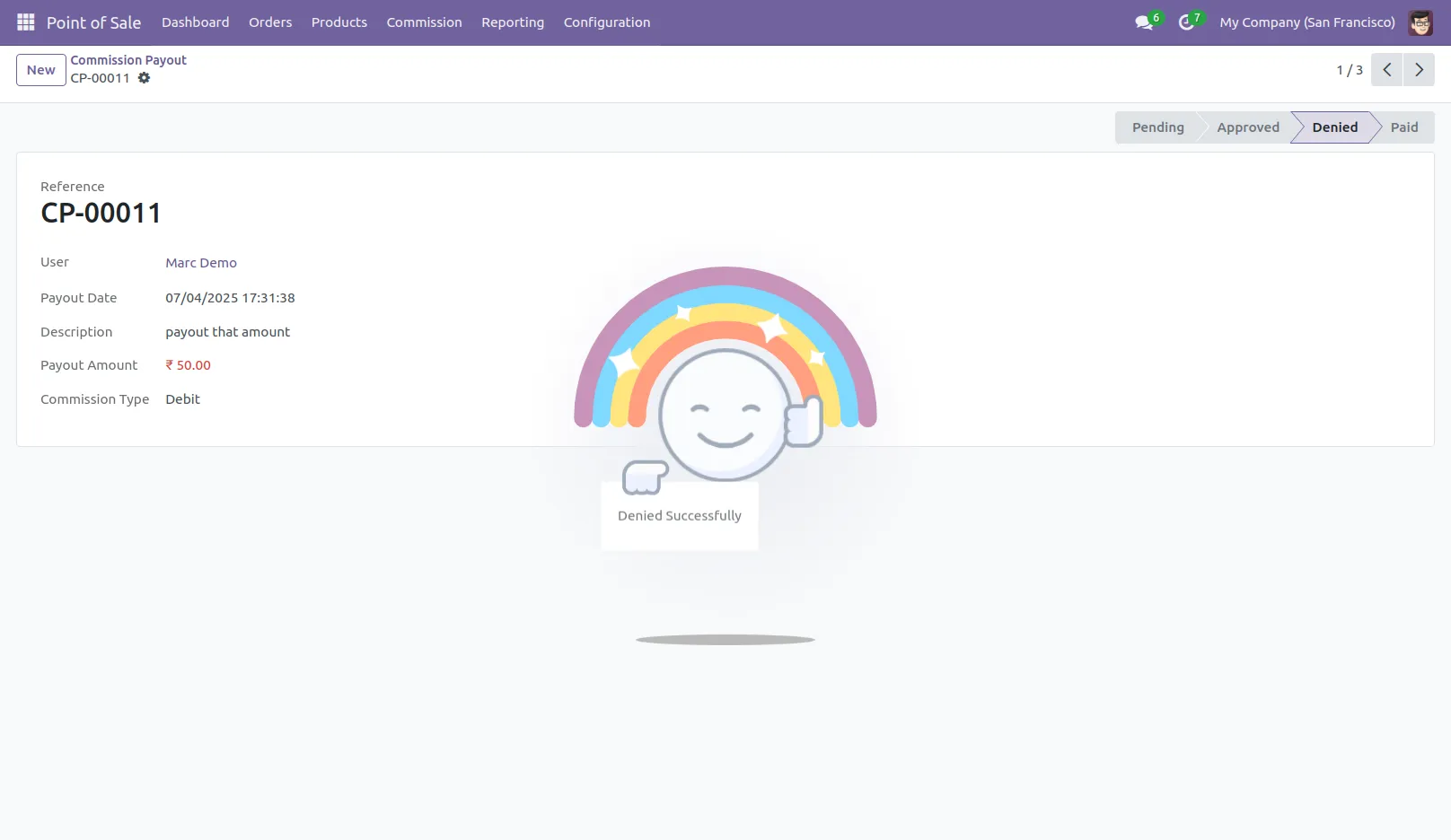
30.This pop-up are show for both when confirms payout request approval or denial.
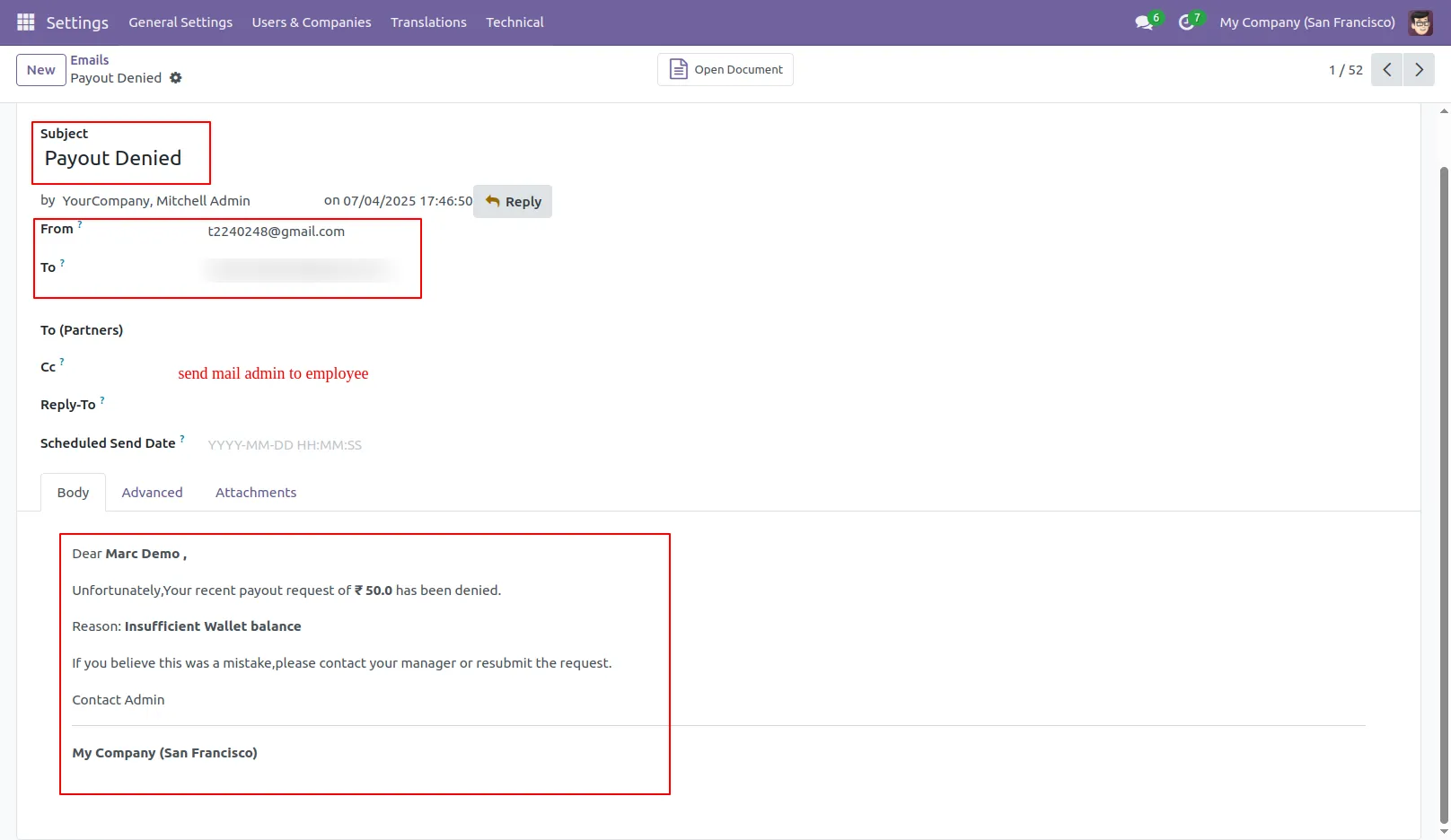
31. An email notification is sent to confirm payout request denial, ensuring clear communication and records.
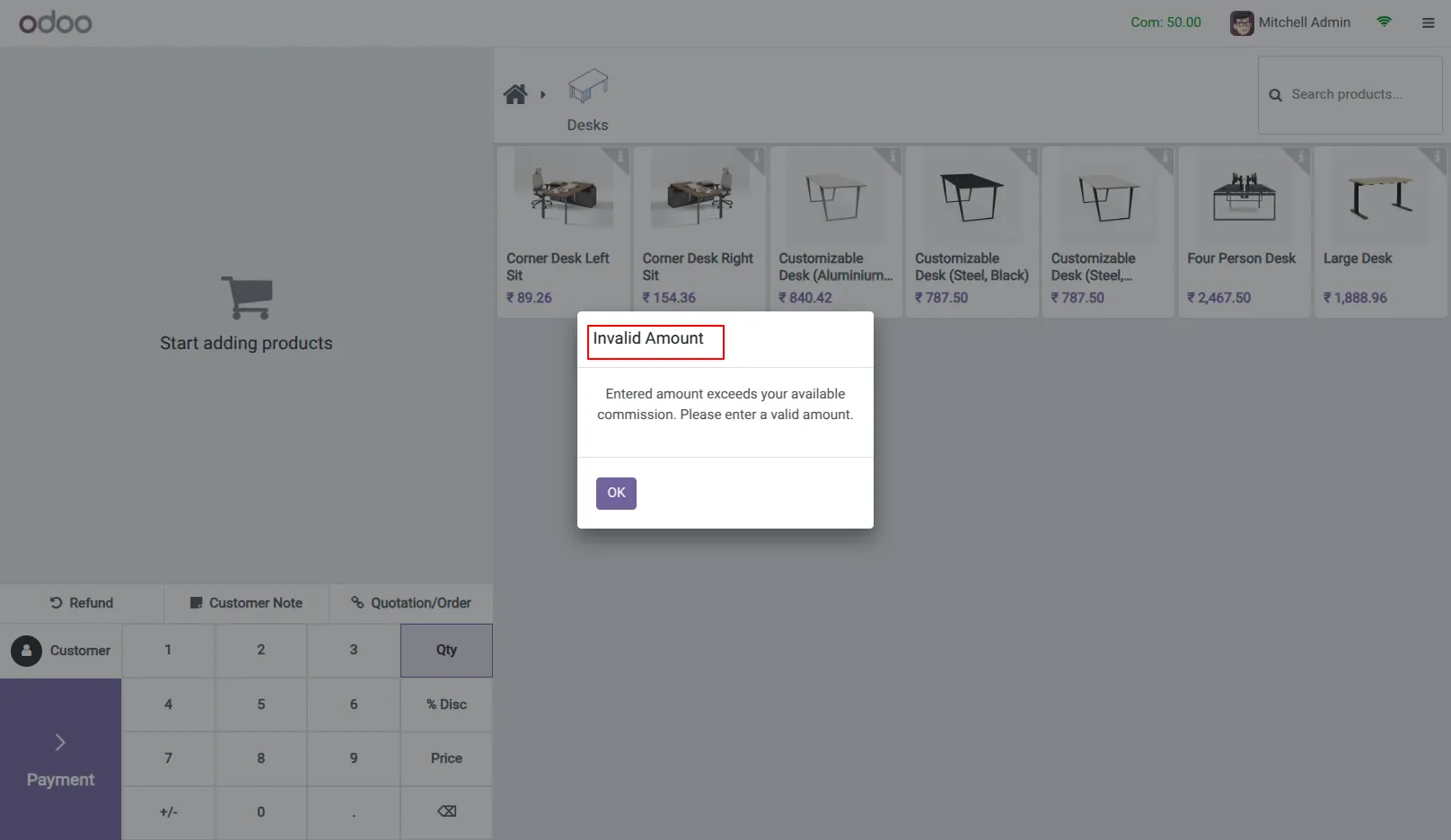
32. An invalid popup appears when a payout amount is too high; the employee to correct it.
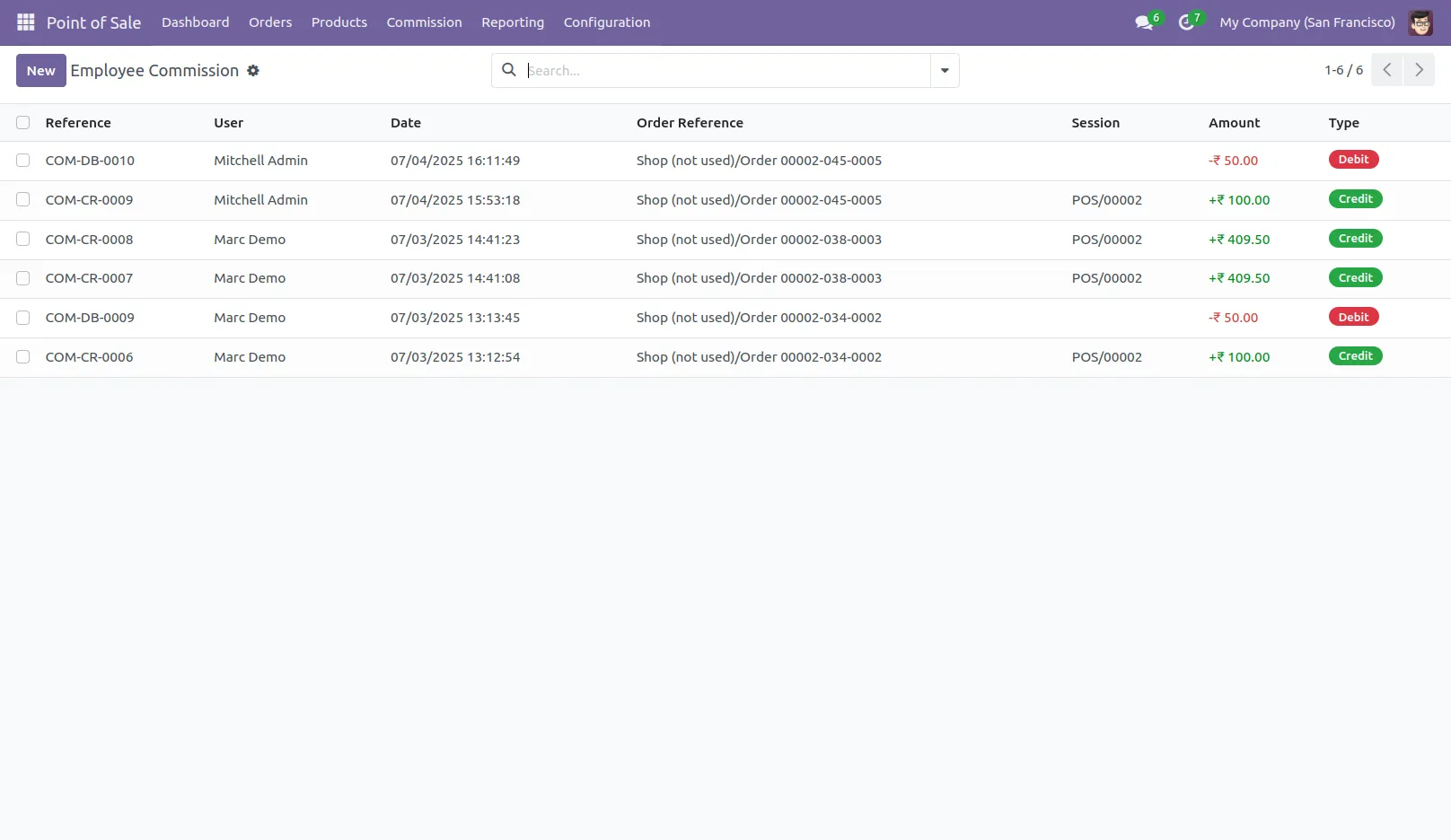
33. The admin can access all employee commission history in the backend for full tracking and analysis.
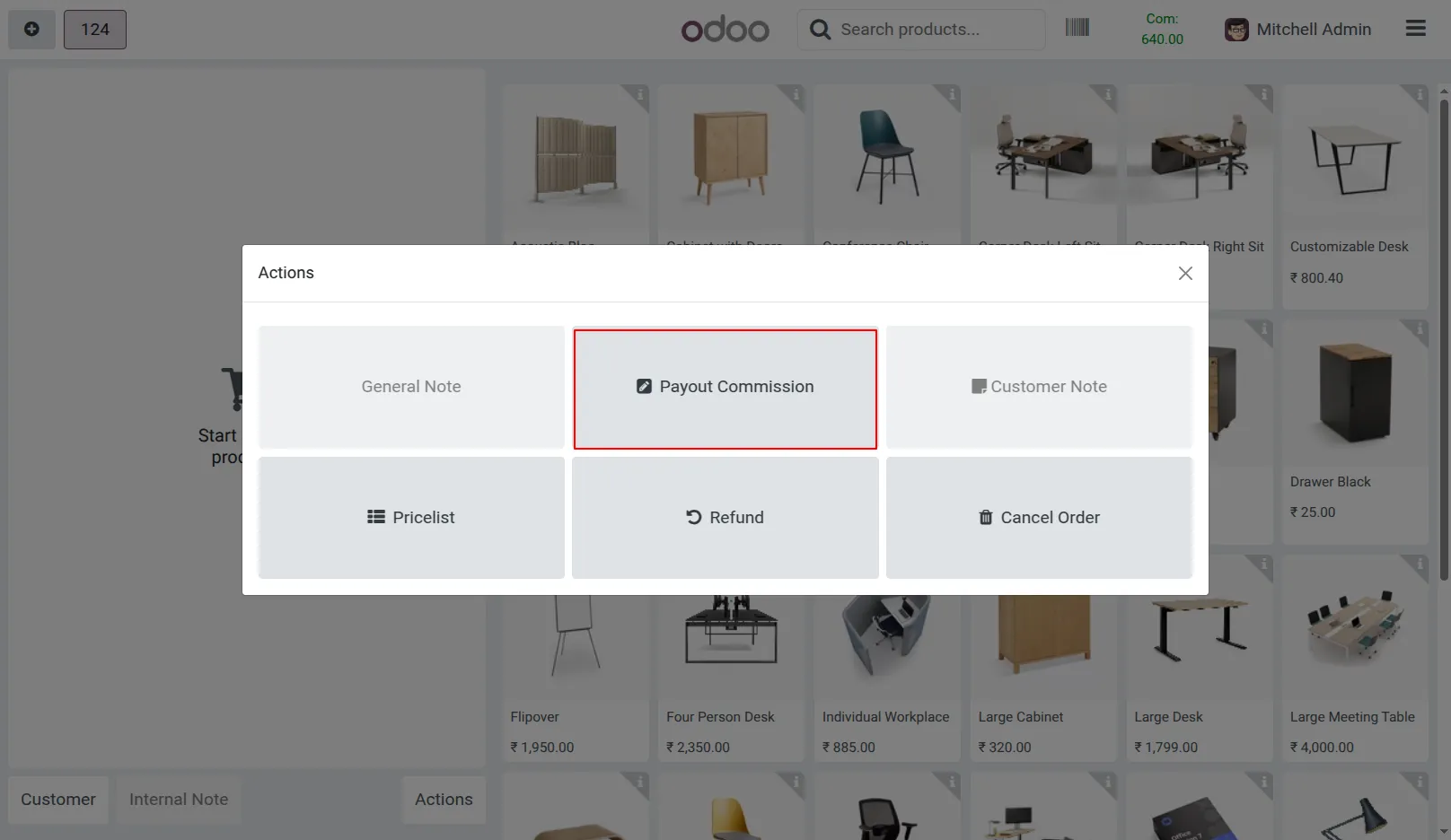
34. Odoo18 Payout Commission button.
Ans : This is a one-time payment.
Ans: Yes, the module works with both the Community & enterprise version of apps.
Ans: you can install the application directly from the Odoo Apps store or upload the application file to your Odoo instance. Once installed, you can configure the application to suit your organization's needs and begin creating branches or units.
Ans: yes, support is available for the Pos Employee Commission in Odoo App. You can access documentation, forums, and community resources for assistance with installation, configuration, and troubleshooting. Additionally, paid support plans may be available for more personalized assistance.
Our solutions focus on your problems
- Odoo Implementation
- Odoo Customization
- ERP Development and Implementation
- Odoo Ipass Cloud
- AI for Odoo
- Odoo Apps
- Aws Marketplace Products
- Business Engines
Our Pricing includes User Manual, 90 Days Support (Monday-Friday 10am to 7pm IST) and One time Setup
• Works & tested on standard installations of Odoo with no third party apps,
• Free support only for odoo installations with no third party apps,
• Paid support available for Odoo installations with third party apps.

Prefortune is a Odoo Official Partner, Odoo Development company. Our philosophy is to use Open Source tools and technologies to provide cost effective and green solutions for our customers.
Prefortune Technologies LLP is working on web development, Mobile development, and Odoo ERP.
If you need any help or want more additional features, you may contact us through:
Alternative Products
These other products might interest you
Specifications
| Version | 18.0, 17.0, 16.0, 15.0, 14.0, 13.0 |