Watch Quick Video
POS Price List On Brand Odoo App
The POS Price List On Brand Odoo App — POS Price List Brand for Point of Sale — module helps the user to
create and apply Brand Based Pricelist Rules inside Odoo Point of Sale and helps to manage flexible
brand-driven pricing. You can configure many types of pricelist rules such as discounts, fixed prices and
price formulas. This gives you the flexibility to set targeted pricing for certain product brands. Users
are able to create and manage Product Brands from Inventory Configuration and assign brand to any product
from General Information tab. They can also enable Flexible Pricelists from Point of Sale settings to
switch on brand based pricing across their stores. The system allows easy mapping of brands to pricelist,
smooth integration with standard Odoo pricelist engine and automatic price calculation at POS which makes
it easier for businesses to run brand specific promotions. Operators can also change between configured
price-lists directly from the POS screen to see updated product prices that reflect the applicable brand
rules instantly. Simple configuration and efficient pricelist management help you get the pricing right,
reduce the need for manual price changes and keep your POS operations organised, without the extra effort.
POS Price List On Brand Odoo App Features
- Enable Flexible Pricelists in your Point of Sale settings to use brand based pricing rules in the POS.
- You can select ‘Product Brand’ in Apply To option, so users can apply the pricelist rules to specific brands.
- When you set it up, the POS will automatically apply the price based on brands to matching products.
- The POS updates product prices on the fly, according to the rules defined on the selected price list.
- POS allows users to switch pricelists to see different pricing based on brands.
Complete Workflow for Manage POS Price List On Brand Odoo App
Activate the POS Price List On Brand Odoo App module and configure Product Brands under the Inventory Configuration settings. Assign the appropriate brand to each product directly from the General Information tab, and enable "Flexible Pricelists" under the Point of Sale settings for your preferred POS shop. The module automatically adds the "Product Brand" option to the pricelist rule configuration screen, allowing users to define discount, formula, or fixed price rules for each Brand Based Pricelist Rule. Operators can select the desired pricelist from the POS terminal, and the system instantly recalculates and displays updated product prices based on the assigned Pricelist Rules. This helps businesses run targeted brand promotions, simplify pricing management across multiple brands, and ensure accurate checkout pricing through automated Brand Price Computation, Pricelist Rule Management, and seamless POS Price Synchronization.
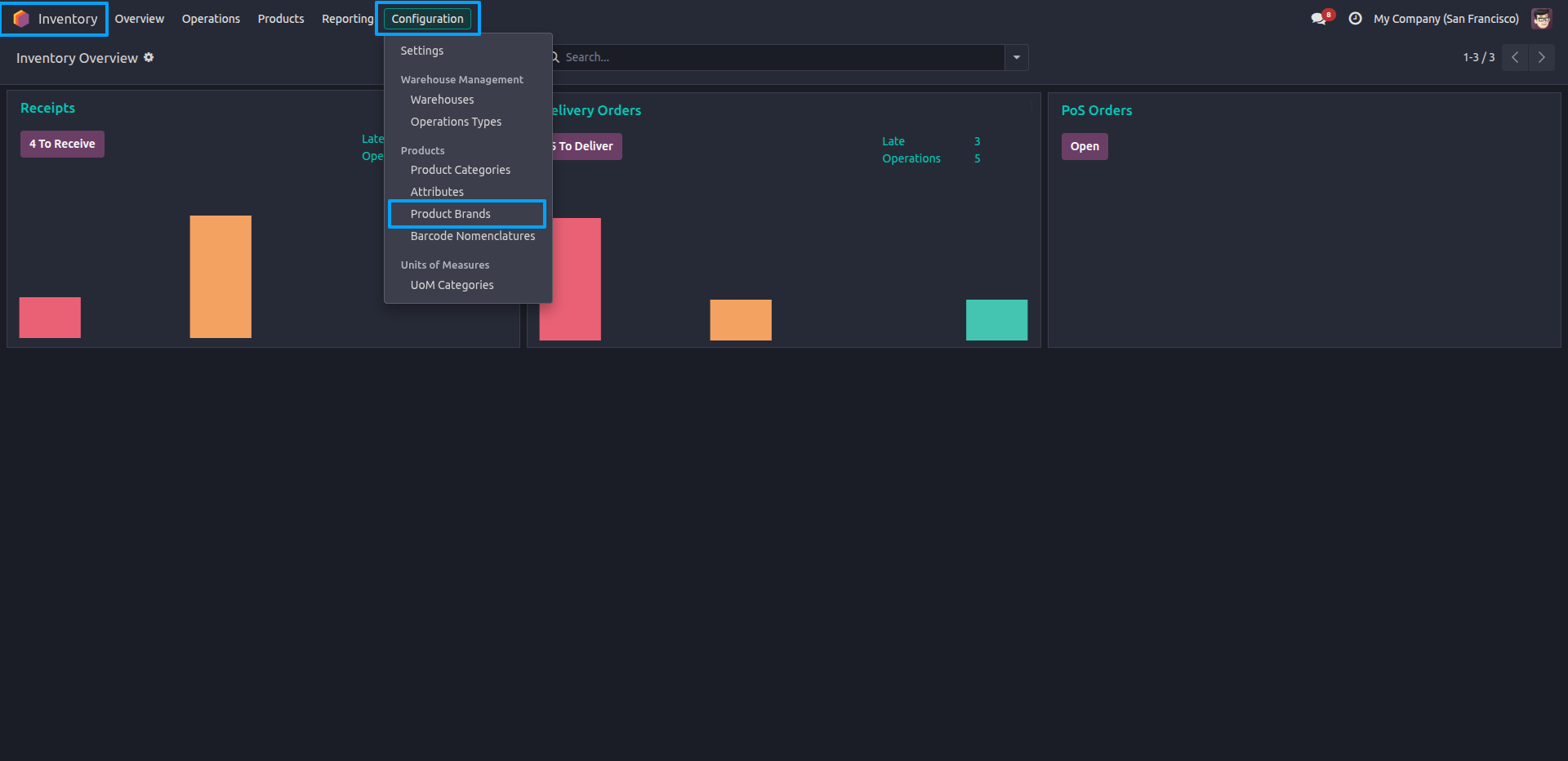
1.Go to Inventory → Configuration → Product Brands to manage product brands.
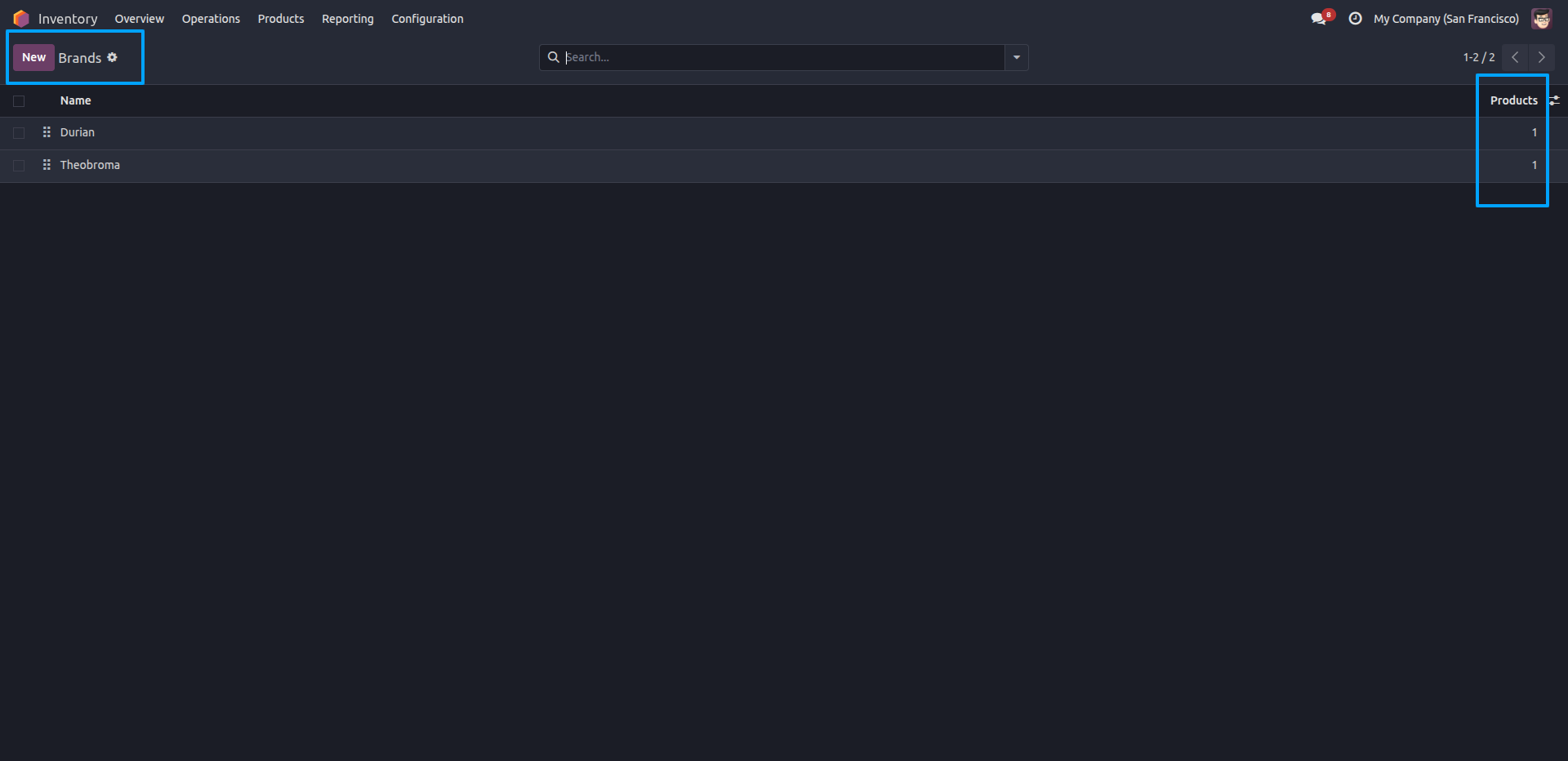
2.The Brands list appears, showing existing brands (Durian, Theobroma) along with the number of products linked to each.
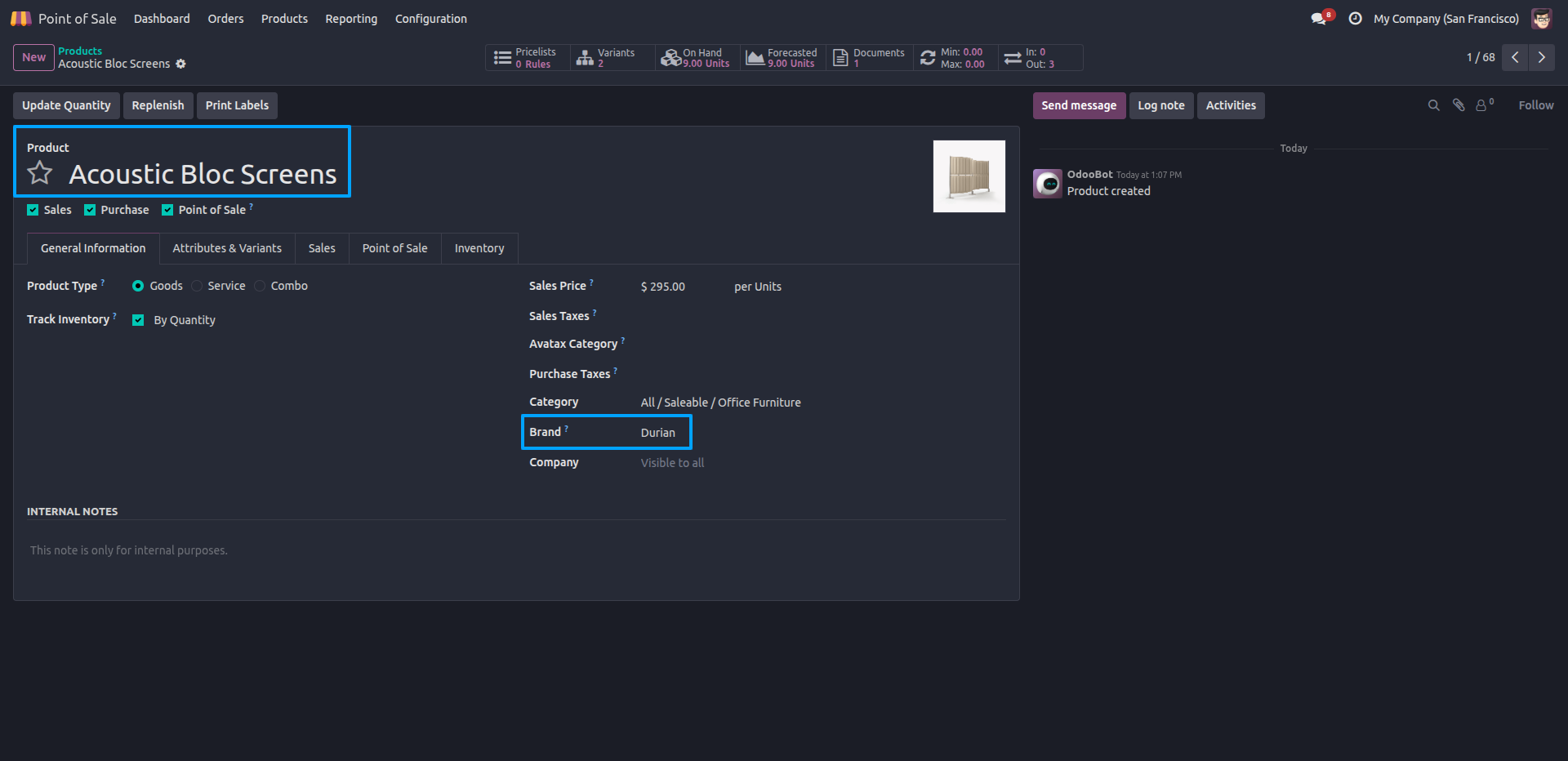
3.Open a product and set its Brand field (e.g., "Durian") under the General Information tab to associate it with a brand.
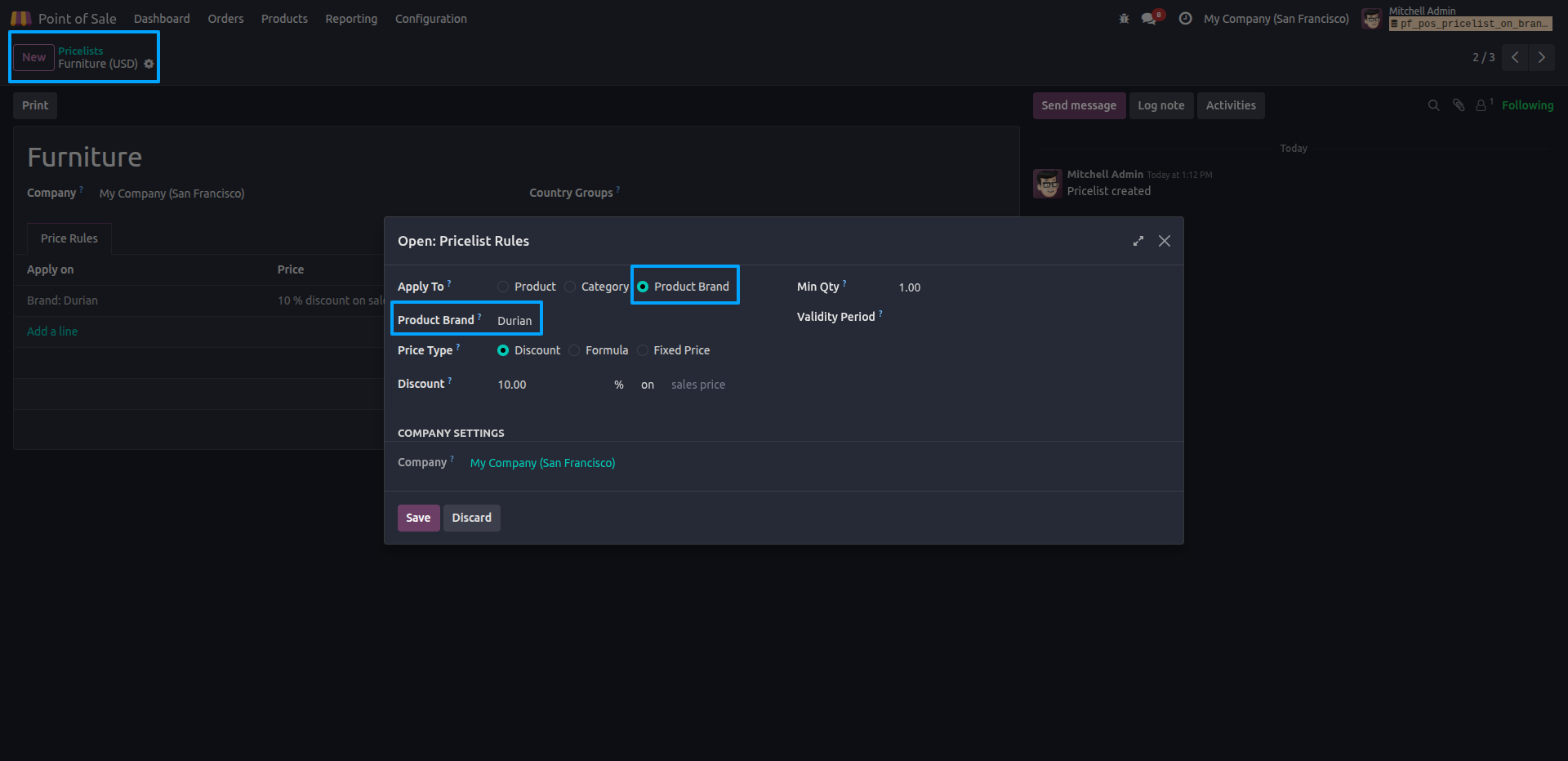
4.Go to Pricelists, open a price rule, set Apply To as Product Brand, select the brand (e.g., "Durian"), and configure the discount to apply brand-based pricing.
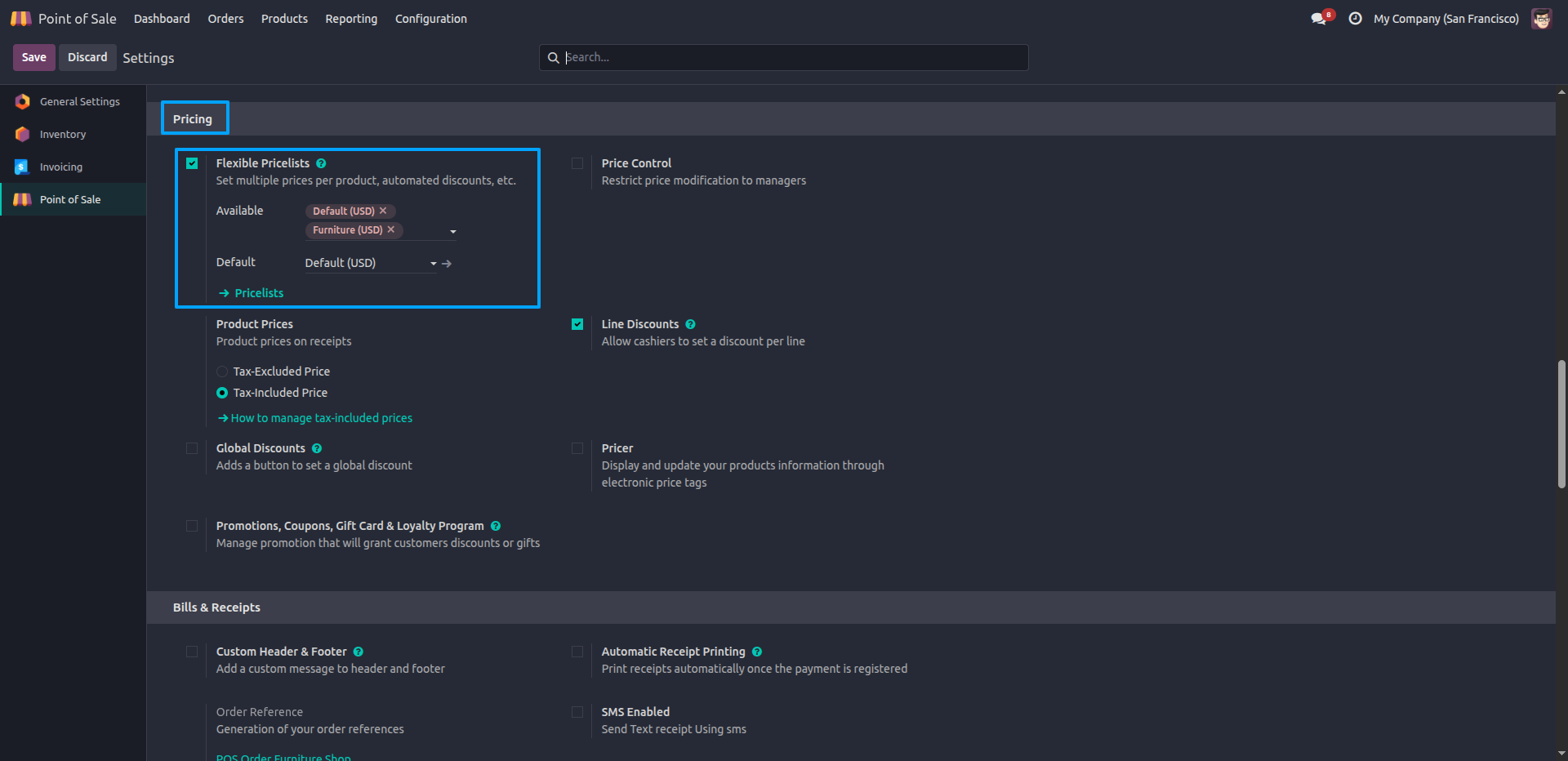
5.Go to Point of Sale → Configuration → Settings, enable Flexible Pricelists, and add the available pricelists (e.g., Default (USD), Furniture (USD)).
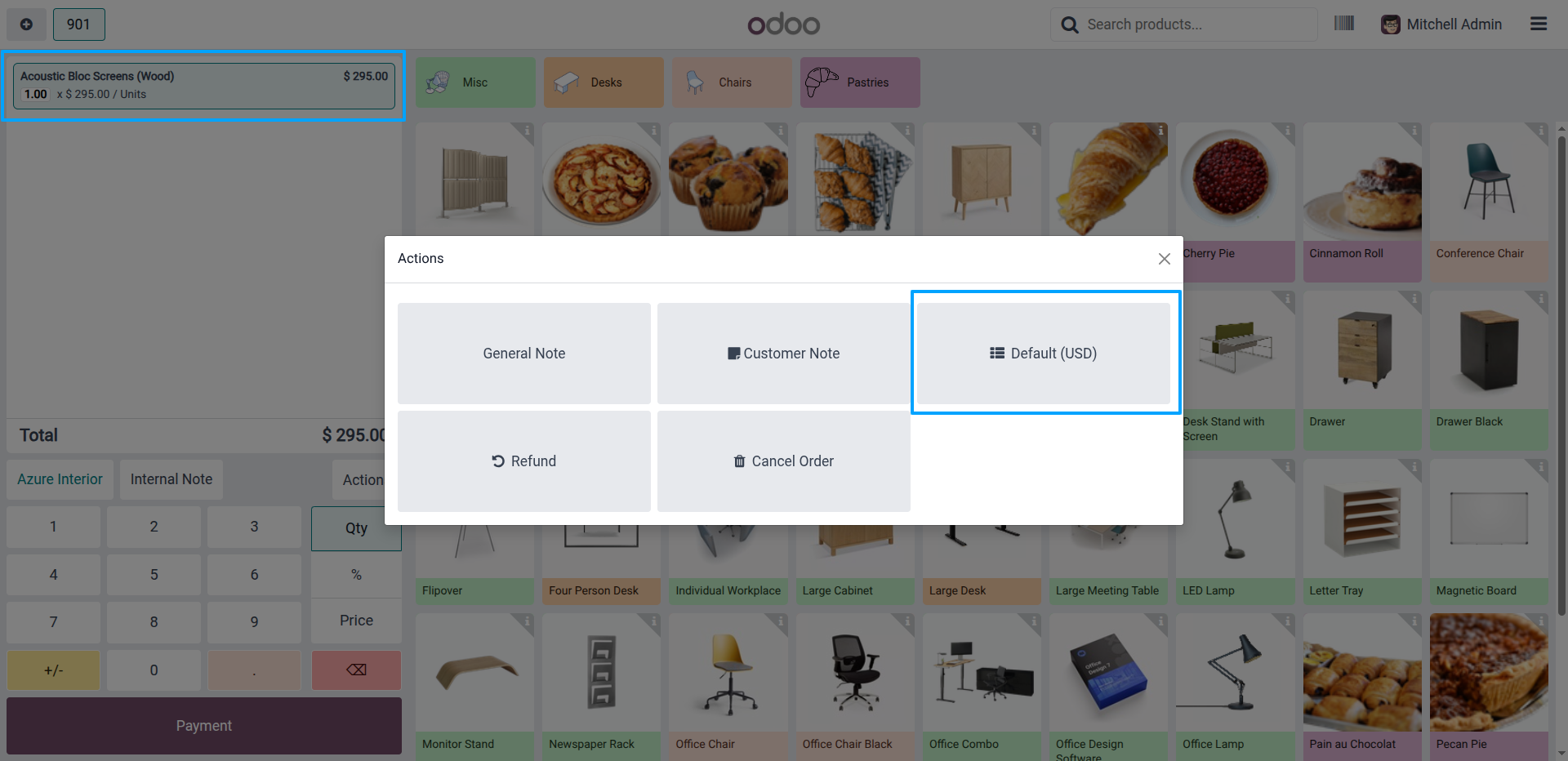
6.In the POS session, add a product (e.g., "Acoustic Bloc Screens") to the order and click Actions, then select the currently applied pricelist (Default (USD)) to change it.
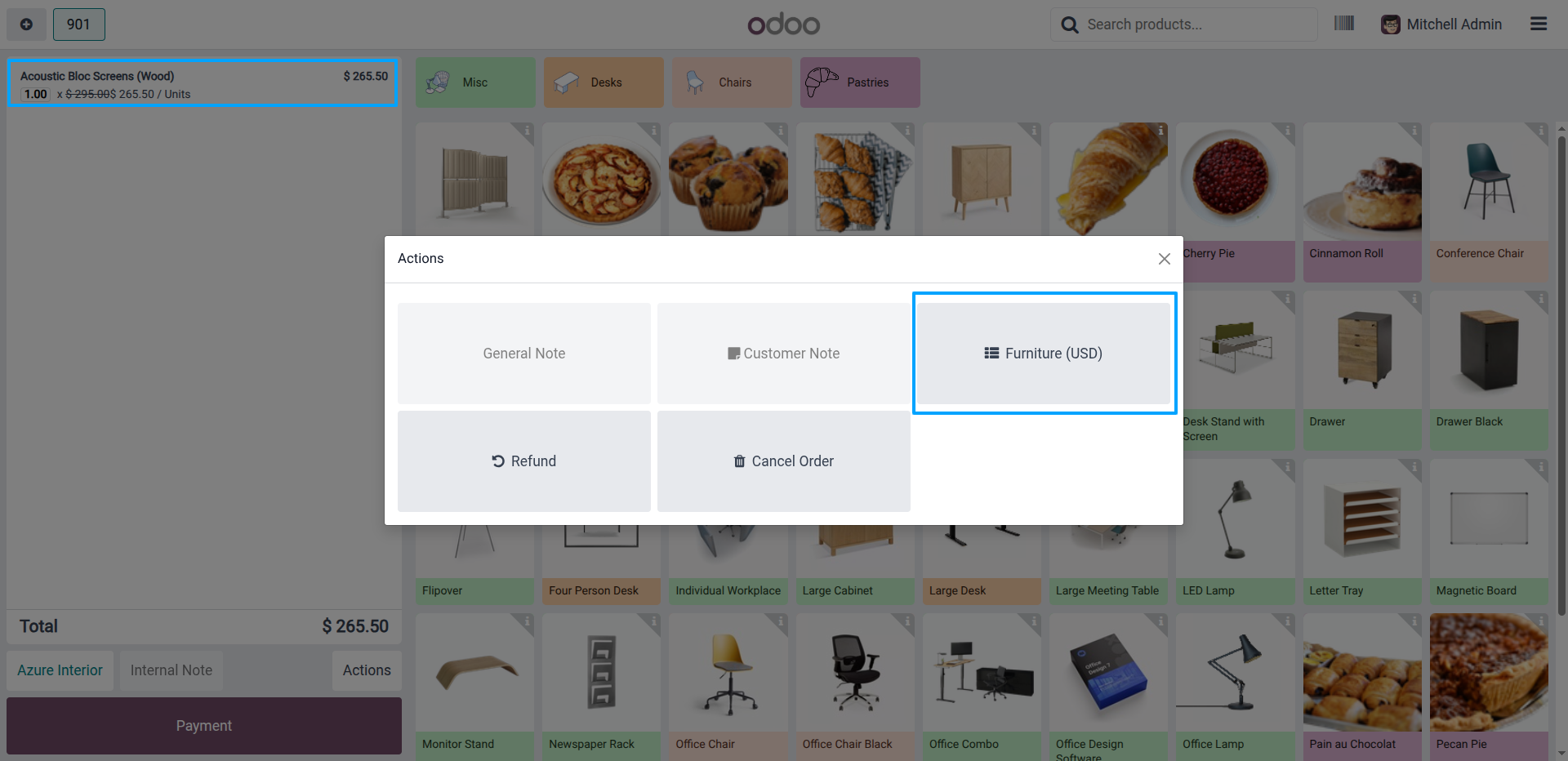
7.Selecting Furniture (USD) applies the brand-based pricelist rule, updating the product price from $295.00 to $265.50 (10% discount).
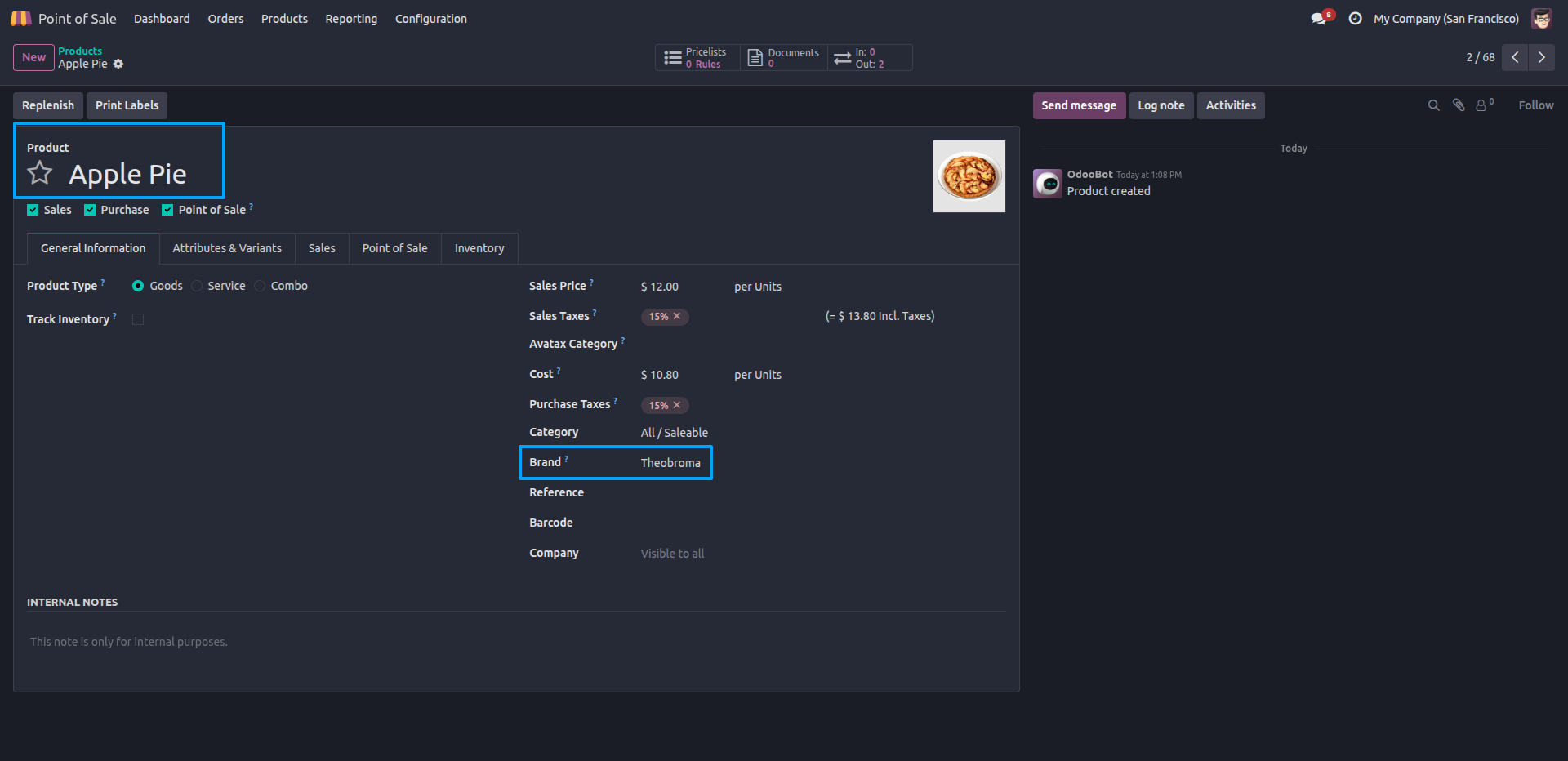
8.Open a product (e.g., "Apple Pie") in Point of Sale → Products, and set its Brand field (e.g., "Theobroma") to link it with a different brand for its own pricelist rule.
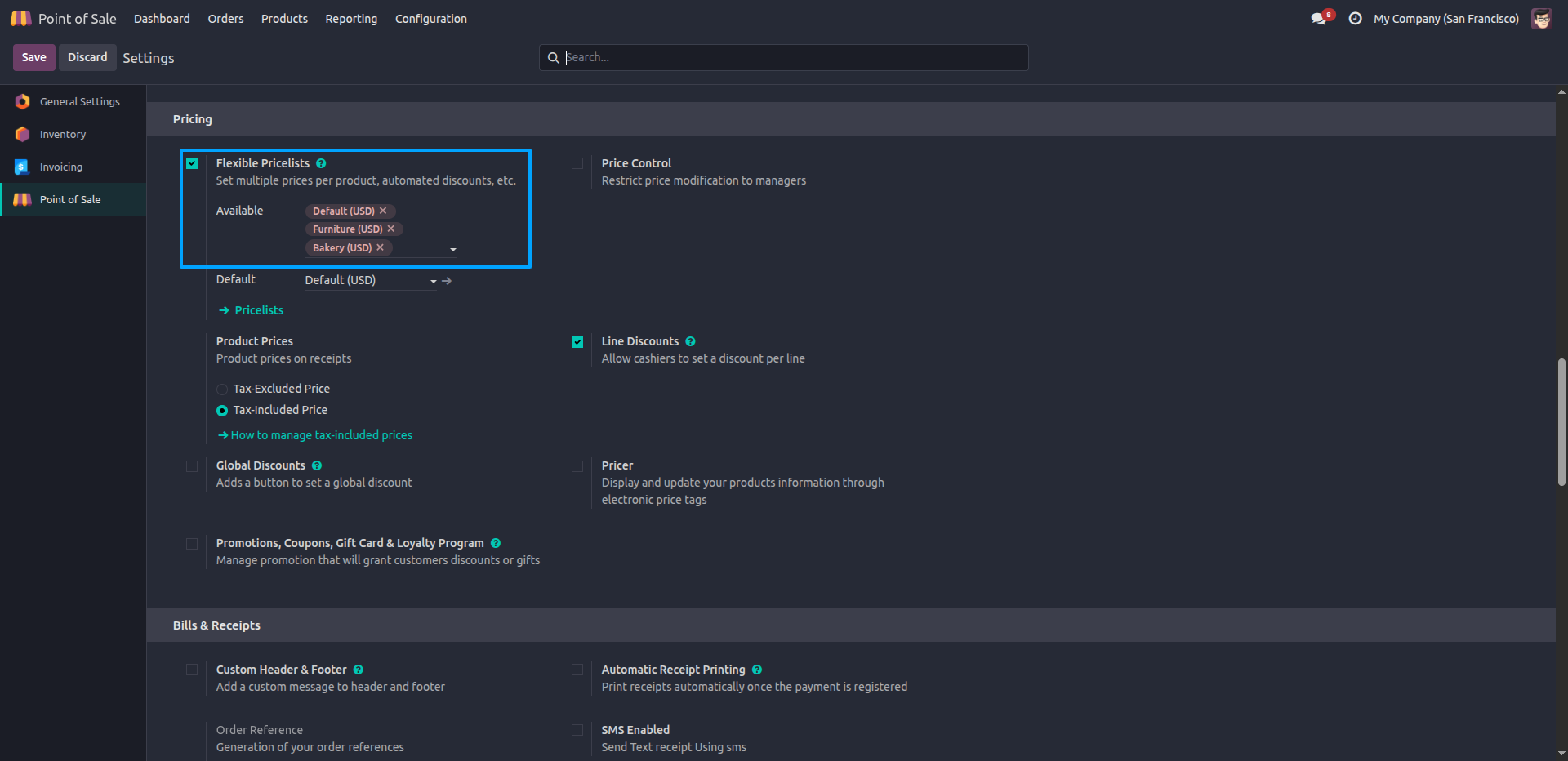
9.Go to Point of Sale → Configuration → Settings, enable Flexible Pricelists, and add Bakery (USD) to the list of available pricelists.
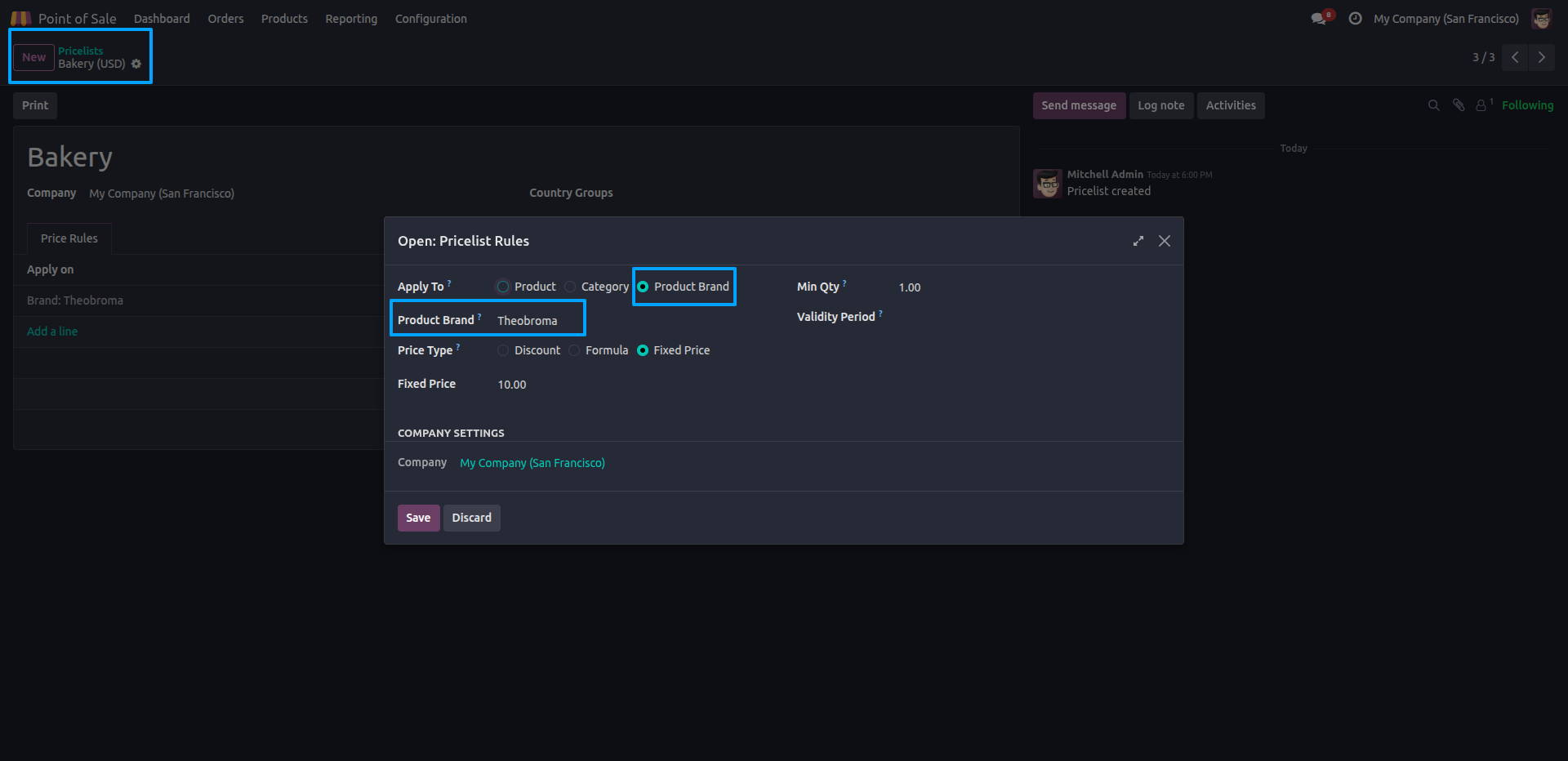
10.Open the Bakery (USD) pricelist, add a rule with Apply To set to Product Brand, select Theobroma, set Price Type to Fixed Price, and enter the fixed price (e.g., 10.00).
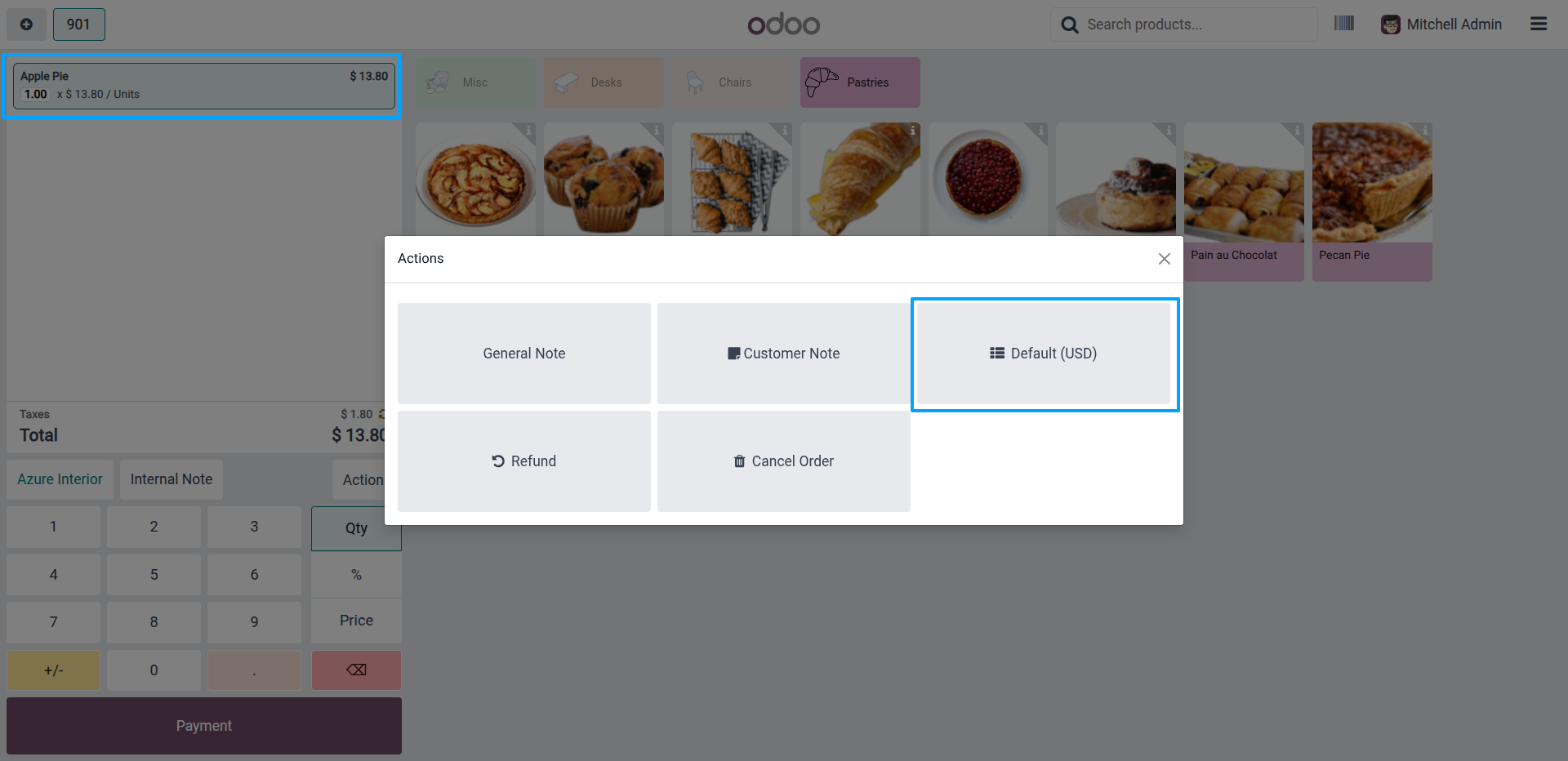
11.In the POS session, add "Apple Pie" to the order — with the Default (USD) pricelist applied, the price shows as $13.80.
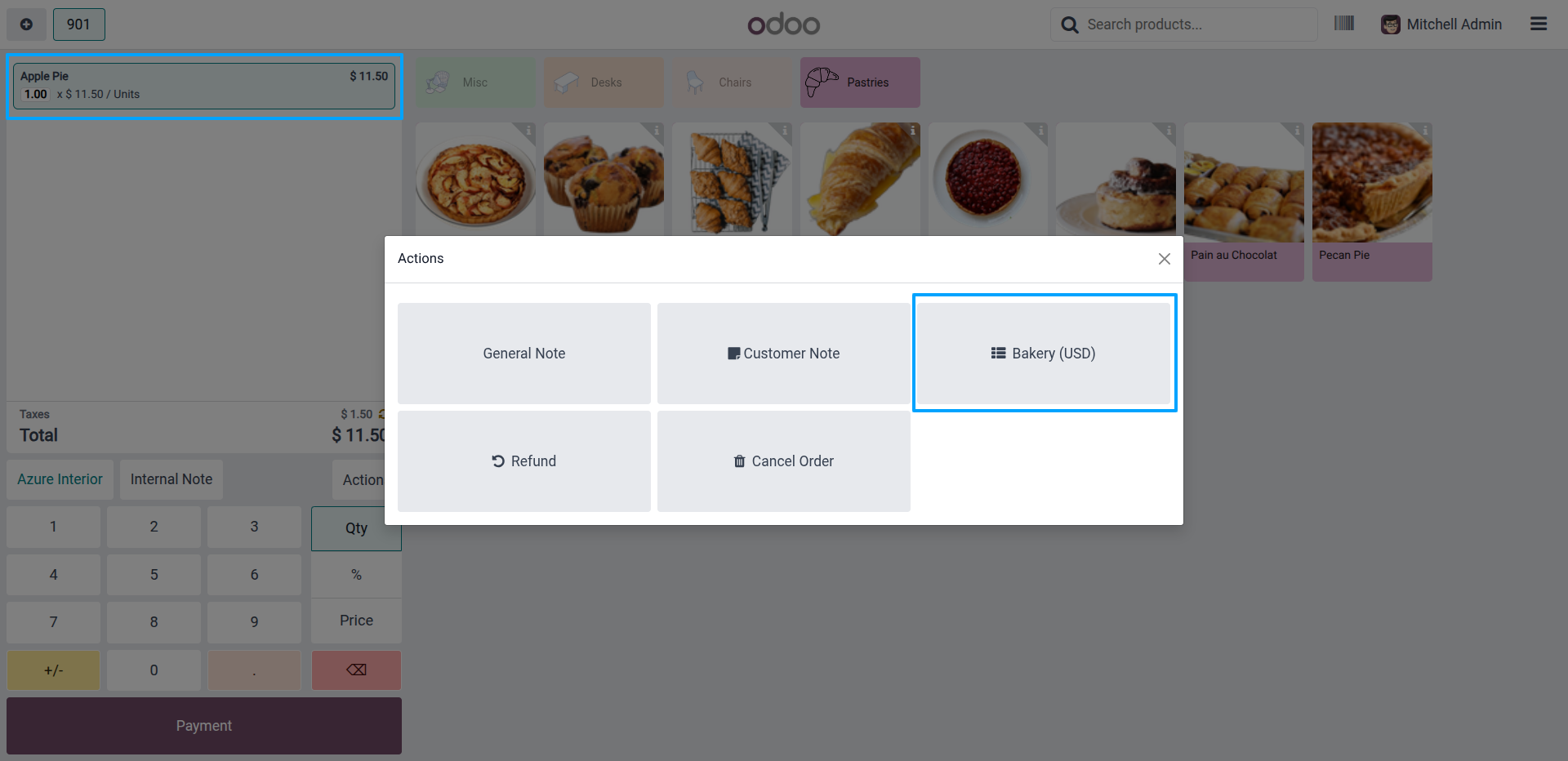
12.Click Actions and switch the pricelist to Bakery (USD) — the price updates to $11.50 based on the fixed-price brand rule.
Our solutions focus on your problems
- Odoo Implementation
- Odoo Customization
- ERP Development and Implementation
- Odoo Ipass Cloud
- AI for Odoo
- Odoo Apps
- Aws Marketplace Products
- Business Engines
Our Pricing includes User Manual, 90 Days Support (Monday-Friday 10am to 7pm IST) and One time Setup
• Works & tested on standard installations of Odoo with no third party apps,
• Free support only for odoo installations with no third party apps,
• Paid support available for Odoo installations with third party apps.

Prefortune is a Odoo Official Partner, Odoo Development company. Our philosophy is to use Open Source tools and technologies to provide cost effective and green solutions for our customers.
Prefortune Technologies LLP is working on web development, Mobile development, and Odoo ERP.
If you need any help or want more additional features, you may contact us through:
Alternative Products
These other products might interest you
Specifications
| Version | 19.0, 18.0, 17.0, 16.0, 15.0, 14.0 |