Watch Quick Video
Point Of Sale Save Quotation Odoo App
Our efficient
POS Quotation Manager Odoo App
makes it easier to handle quotations right from the Point of Sale screen.This module lets you save the
current POS cart as a quotation before the payment is done.You can create quotations with customer info,
product details, amounts, discounts, taxes, and any extra notes.Saved quotations can be found, checked,
and brought back into the POS cart when needed.The module also offers a neat quotation report that you can
print or send to customers via email.When a saved quotation becomes a completed order, the status updates
automatically and connects to the related order.This tool is great for retail shops, multi-store
businesses, wholesalers, distributors, and any company looking to manage customer quotations smoothly
through their POS system.
It offers strong tools to make managing sales quotes easier:
1. Save POS Cart as Quotation: Customers can save their current shopping cart as a quote
without paying.This lets them check the quote later and finish the purchase when they're ready.
2. Search and Manage Quotes: Users can easily look up and see saved quotes from the POS screen
using important details like customer or product info.This makes it simple to find and handle quotes
whenever needed.
3. Load Quote into POS Cart: A saved quote can be picked and added to the POS cart.All
customer details, products, amounts, discounts, and other quote information are automatically restored.
4. Manage Quotes by Store: The system lets businesses organize quotes based on their
individual POS location or setup.This helps keep things organized when a business has multiple stores.
5. Create and Share Quote Reports: Users can make a professional PDF quote that includes
customer details, product info, pricing, taxes, and total cost.The quote can also be emailed to customers
with the PDF attached.
6. Update Quote Status Automatically: When a quote is turned into a completed sale, its status
is updated automatically.The quote stays connected to the related sale, making the whole sales process
easier to follow.
POS Quotation Manager Odoo App
- Save the current POS cart as a quotation without finishing the payment.Users can also add a personal note when creating the quotation.
- You can easily search and see past quotations from the POS screen. Pick a quotation and apply it to the POS cart, including the products, customer, prices, discounts, and other details.
- Quotations can be managed based on the selected POS store or setup. This helps businesses keep quotations organized when multiple shops operate under the same company.
- Create a professional PDF quotation that includes customer info, products, taxes, pricing, and total amount. Users can also send the quotation to customers via email with the PDF attached.
- Track the progress of quotations through their process. When a quotation is turned into a completed POS order, its status is automatically updated.The quotation stays connected to the related POS order, making it easier to follow the entire sales process.
Complete Workflow for POS Quotation Manager Odoo App
The user opens the POS Interface and adds the required products to the cart before selecting the Save Quotation option. They can enter the required Customer Details and additional quotation notes before saving the quotation. The saved quotation can later be opened from the Quotation List, reviewed, and applied back to the POS cart. Once the quotation is converted into a completed order, the system updates the Quotation Status and links it with the related POS order.
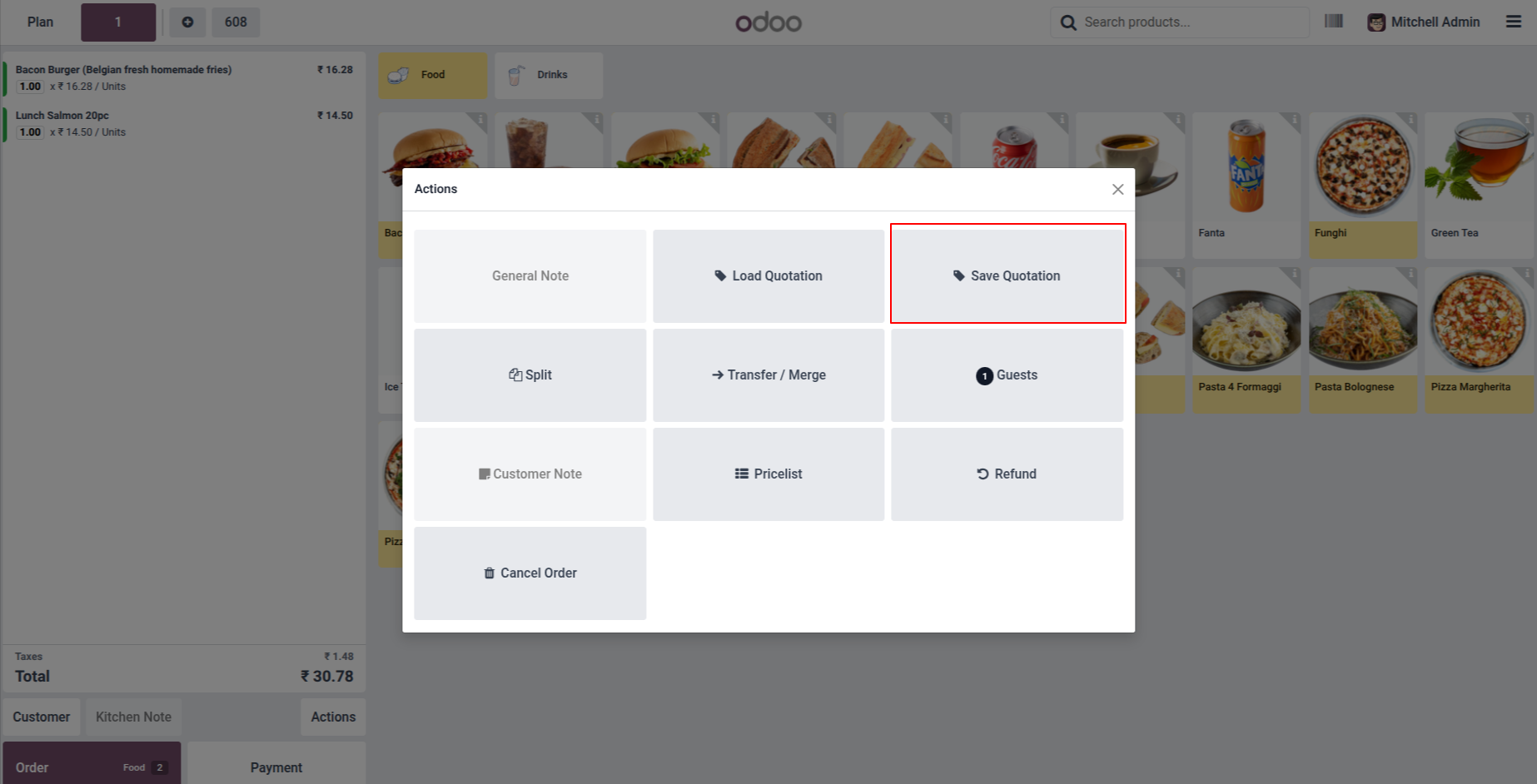
1. In the Point of Sale session, select products for the order and click on Actions, then select Save Quotation to save the current POS cart as a quotation.
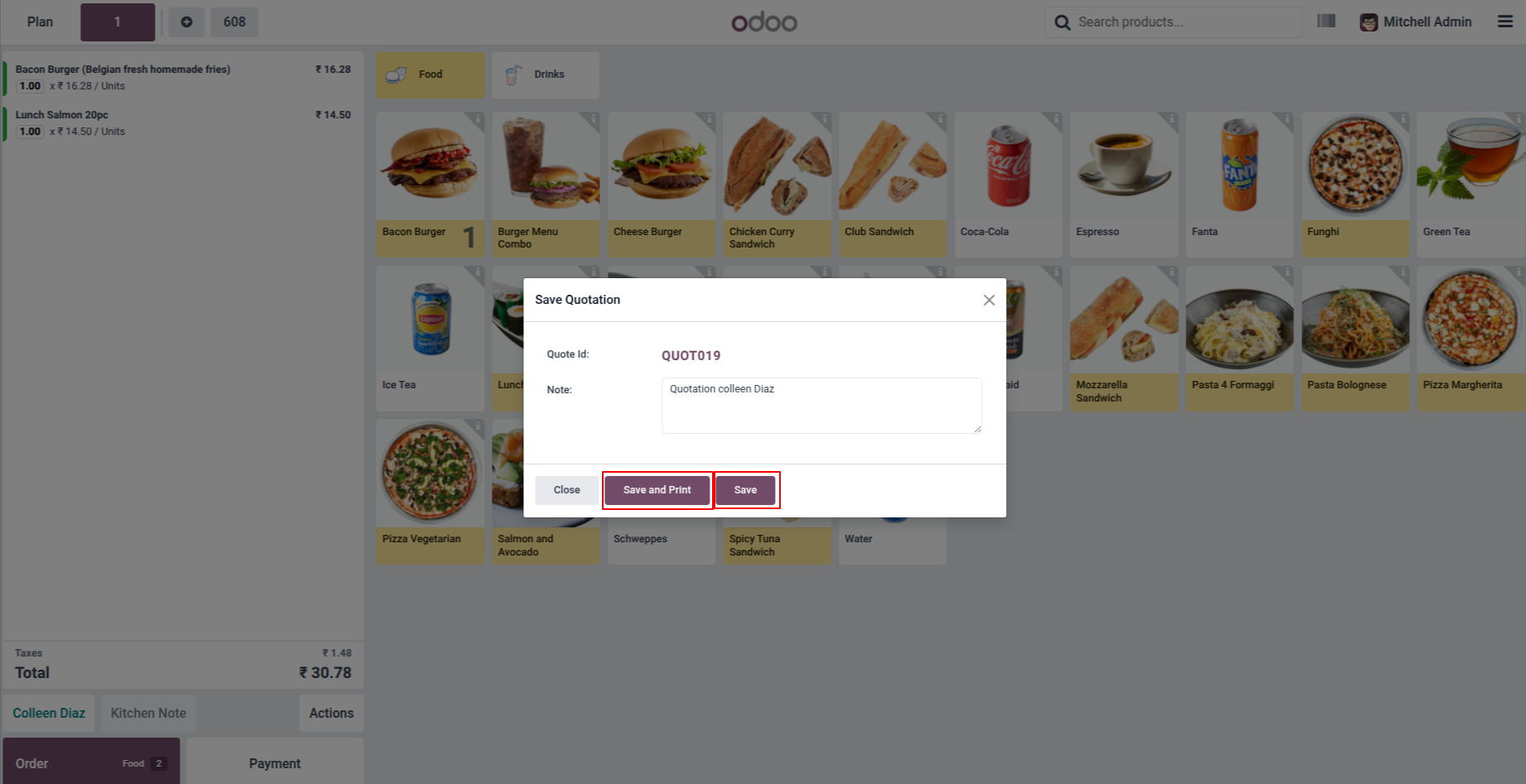
2. A Save Quotation pop-up window appears displaying the auto-generated Quote ID. You can add a custom quotation note, then click Save to store the quotation or Save and Print to save and immediately print the quotation report.
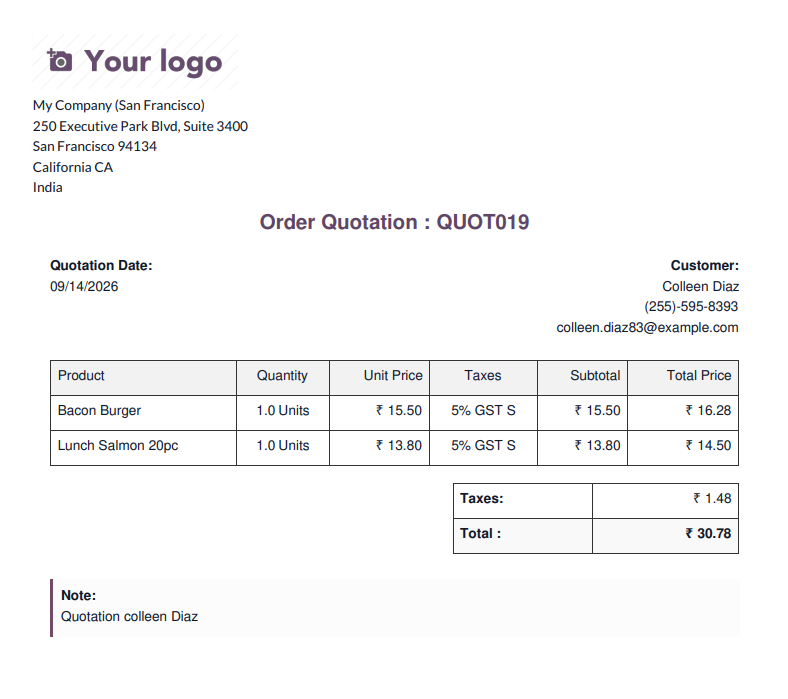
3. Clicking Save and Print generates a comprehensive Order Quotation PDF report containing quotation reference, date, customer details, product lines, taxes, total amount, and internal notes.
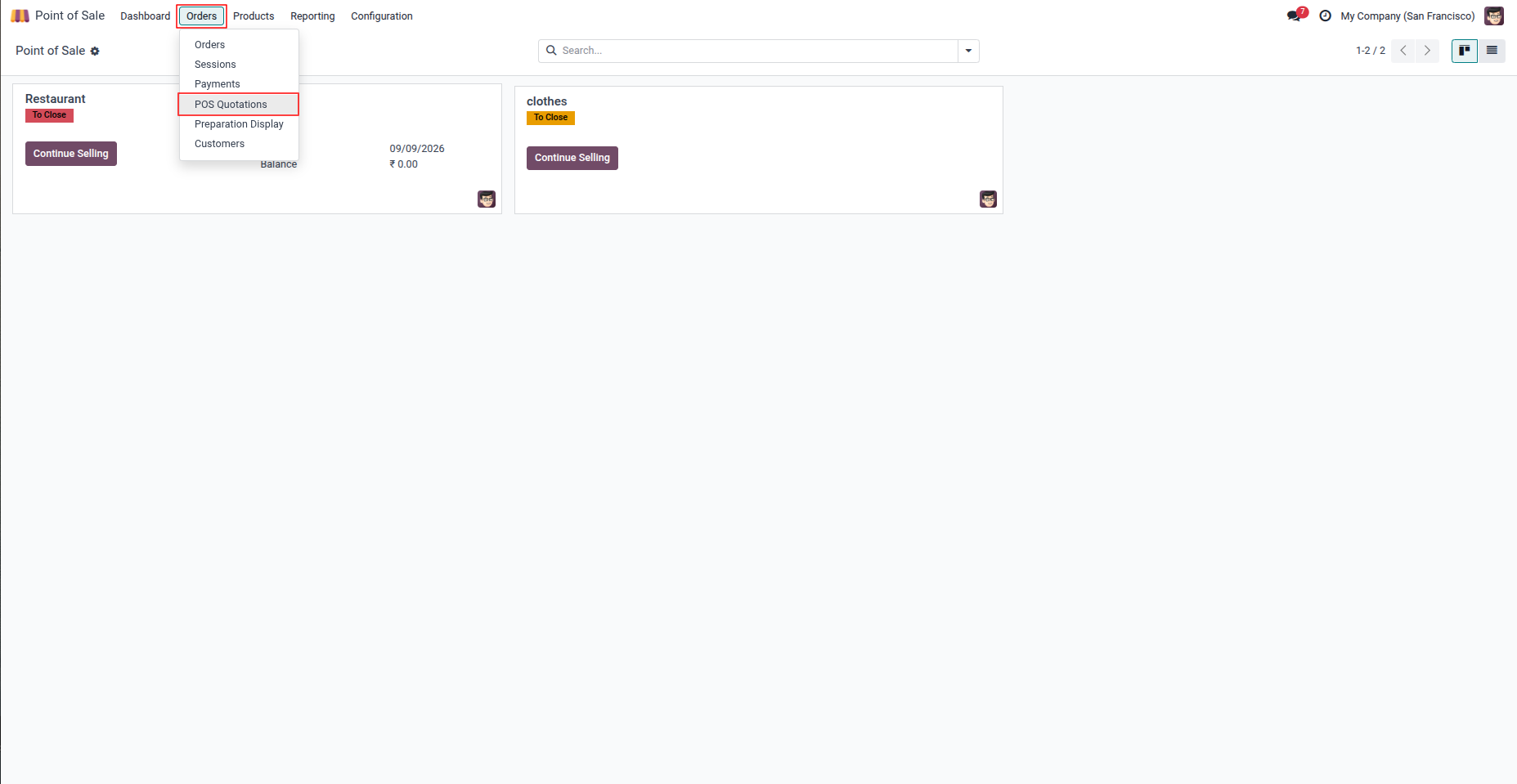
4. In the backend, navigate to Point of Sale → Orders → POS Quotations to view and manage all quotations saved from Point of Sale sessions.
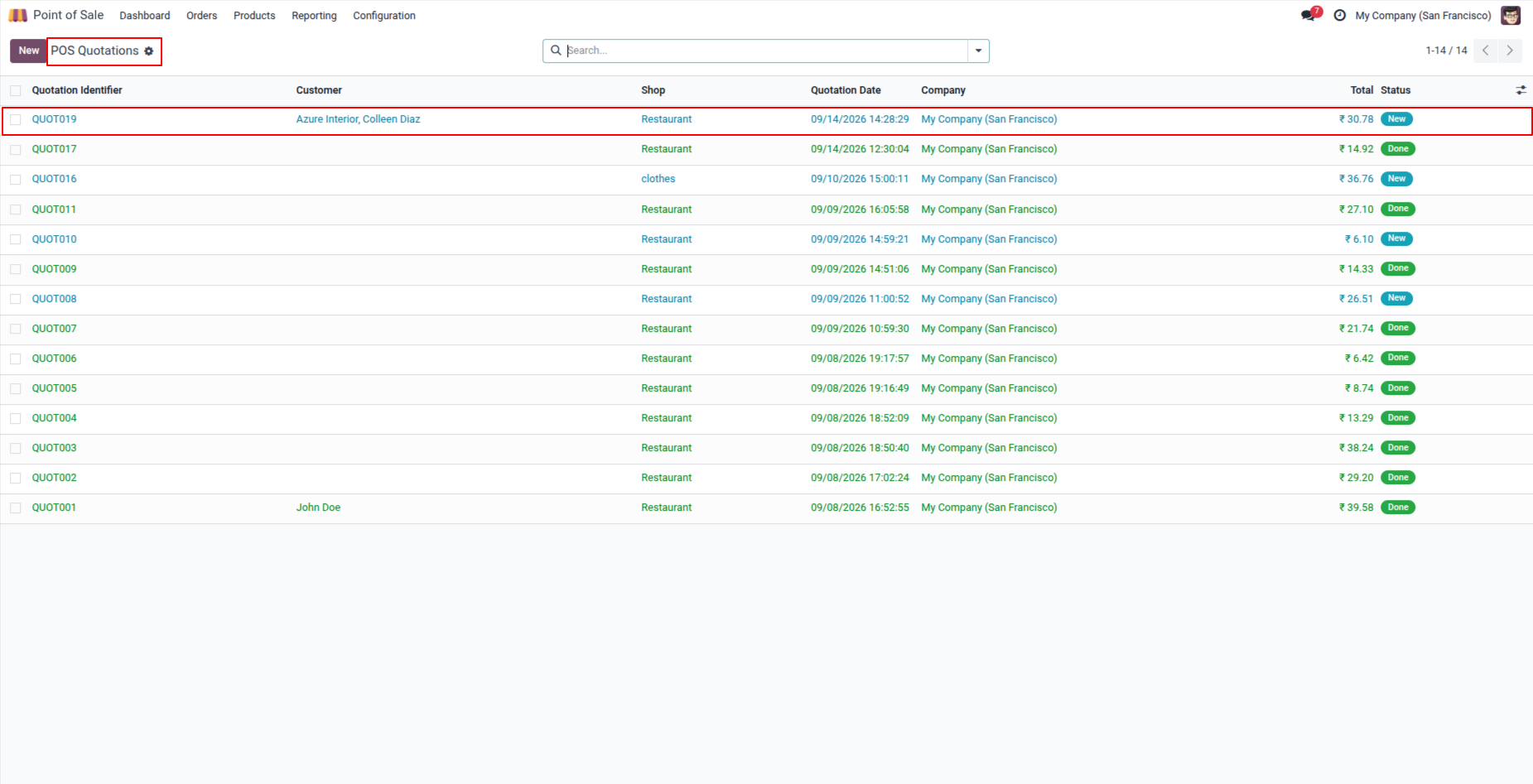
5. The POS Quotations list view displays all quotations with crucial details like Quotation Identifier, Customer, POS Shop, Quotation Date, Company, Total Amount, and Status.
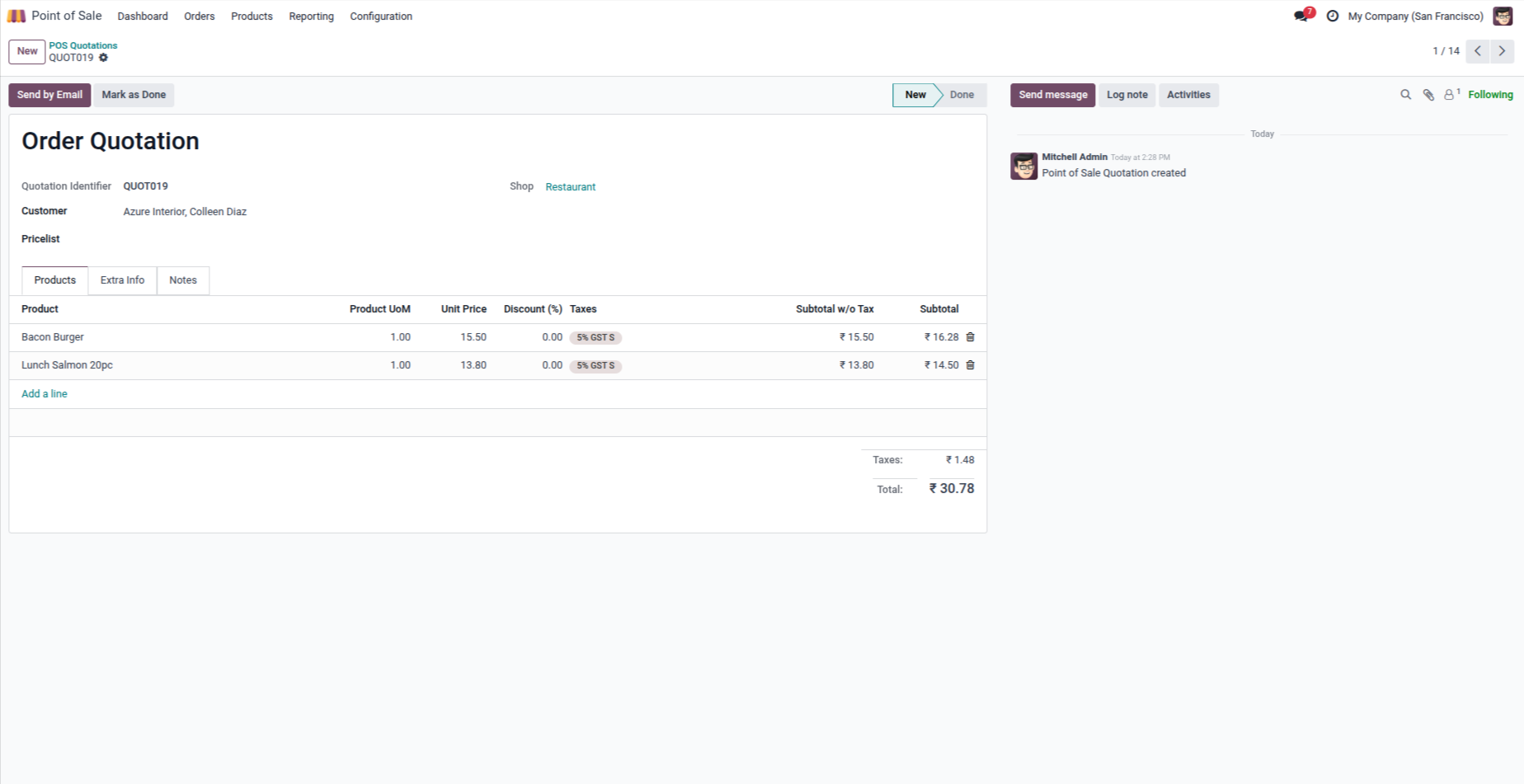
6. Open any quotation to view its detailed form view. Under the Products tab, you can view all quotation line items, unit prices, discounts, taxes, and totals, as well as use action buttons like Send by Email and Mark as Done.
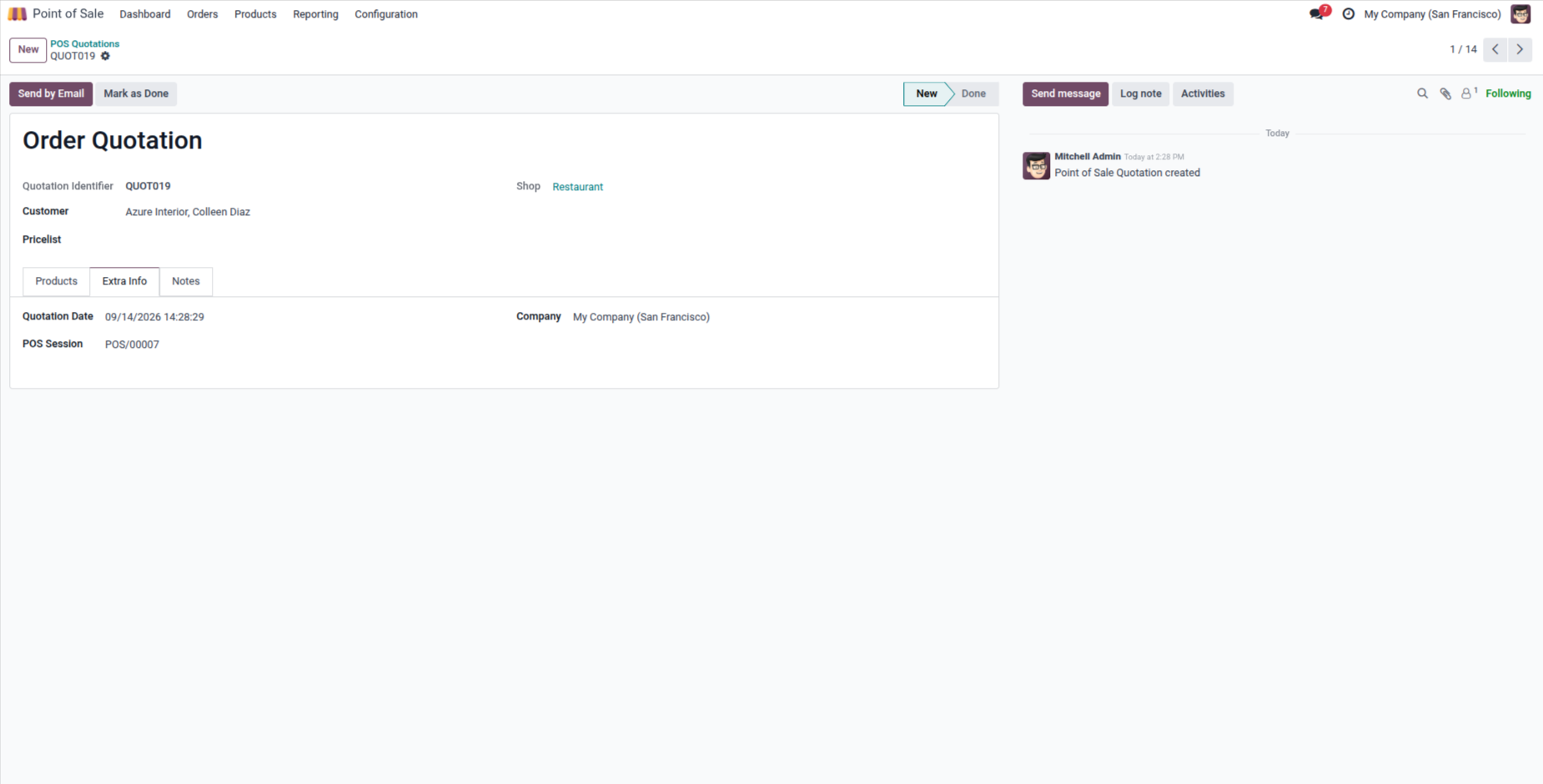
7. Under the Extra Info tab of the quotation, view additional tracking and audit information including Quotation Date, the specific POS Session in which it was created, and Company.
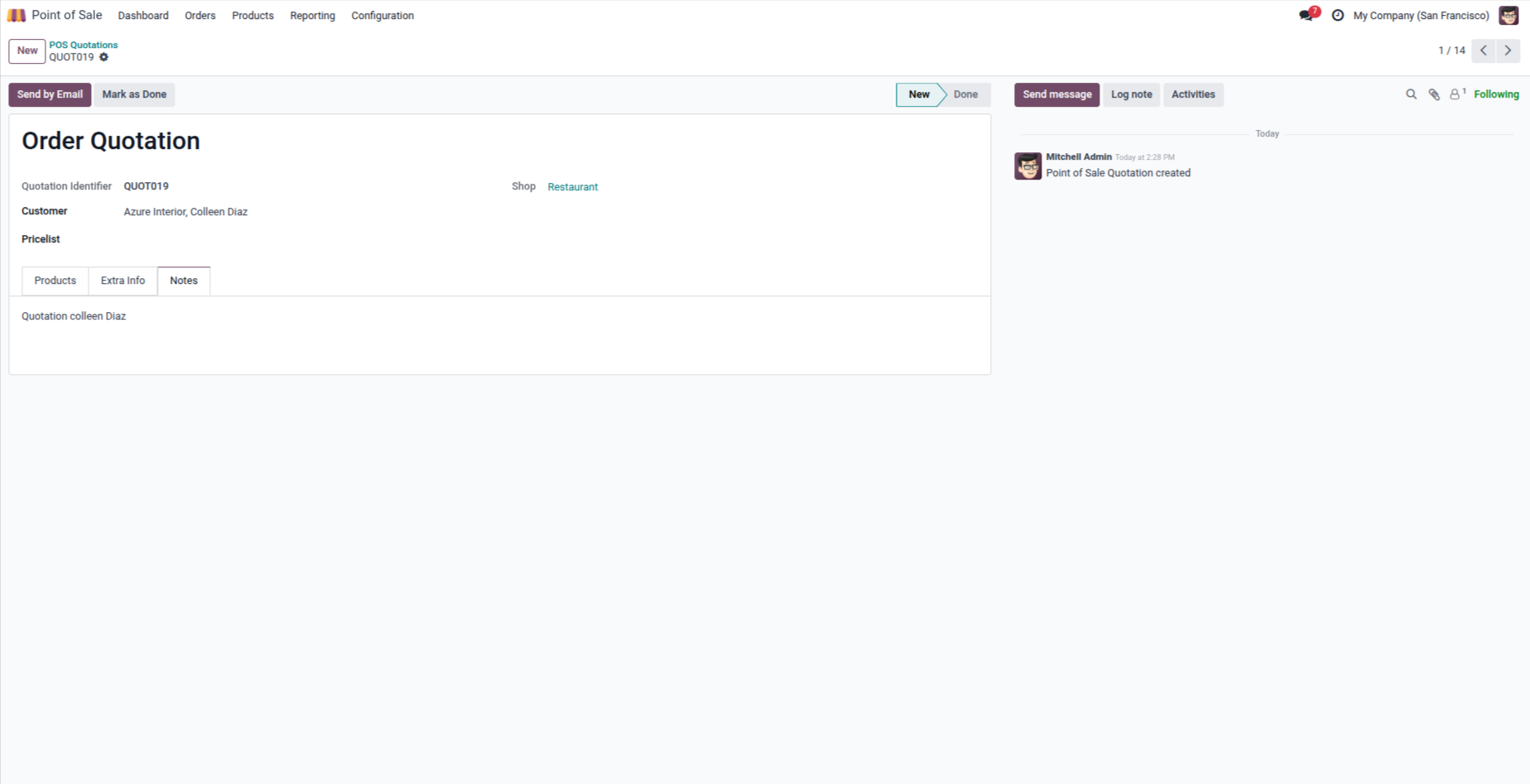
8. The Notes tab displays any custom quotation note, terms, or customer instructions that were entered from the Point of Sale screen.
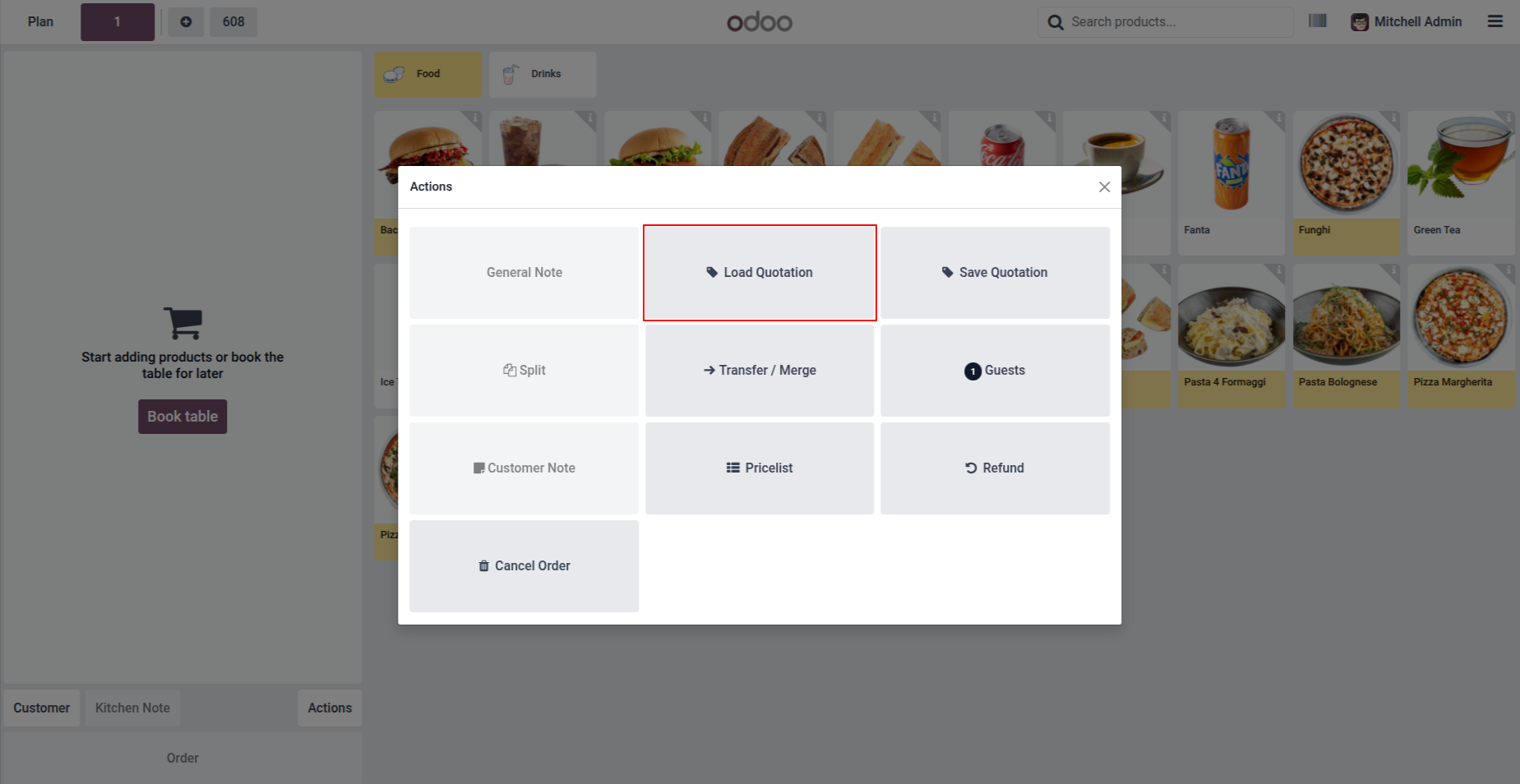
9. To resume or convert an existing quotation in Point of Sale, open the Actions menu and click on the Load Quotation button.
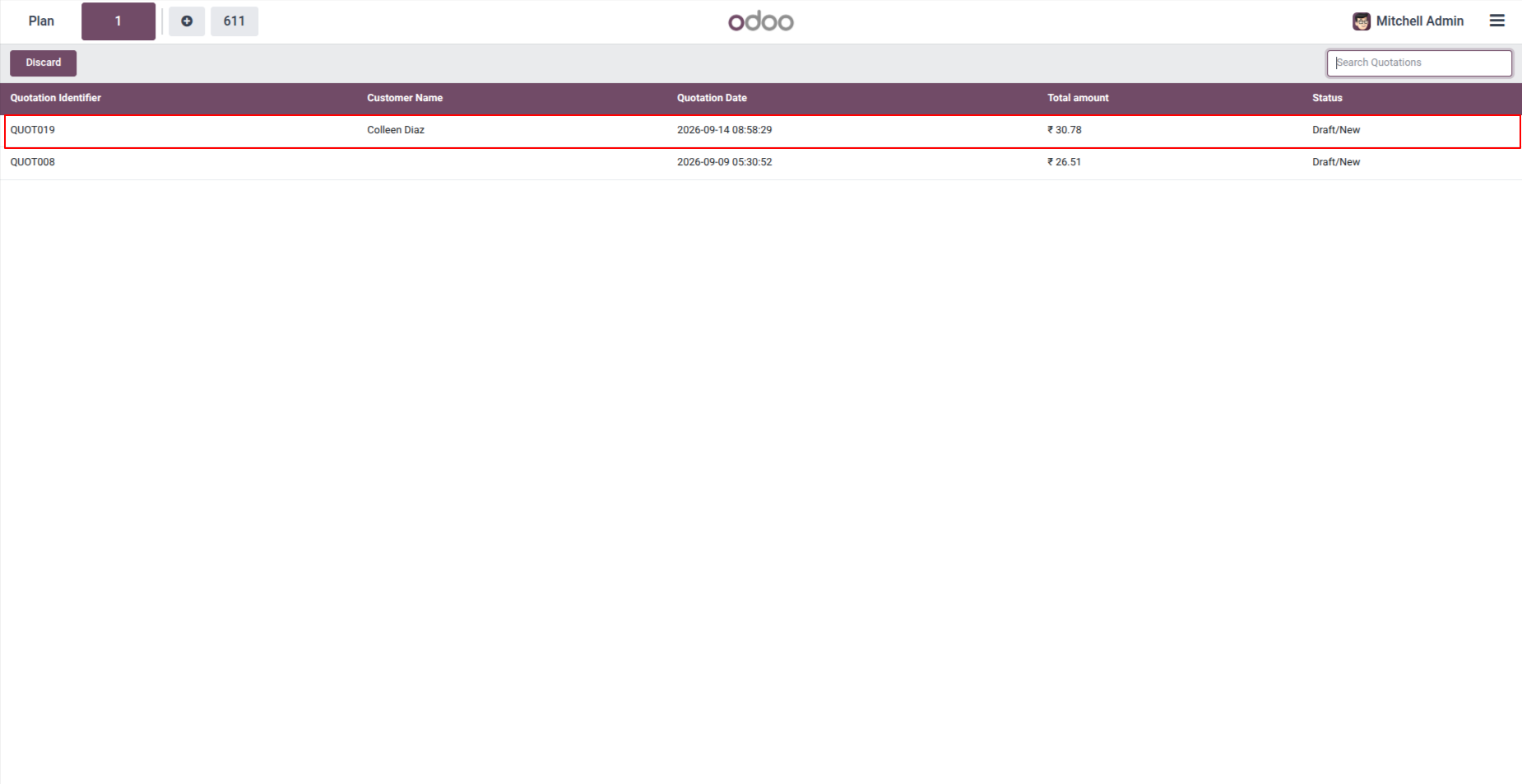
10. The Load Quotations screen displays all available quotations for the active shop. Cashiers can easily search quotations by Quote ID or customer name and select the desired quotation.
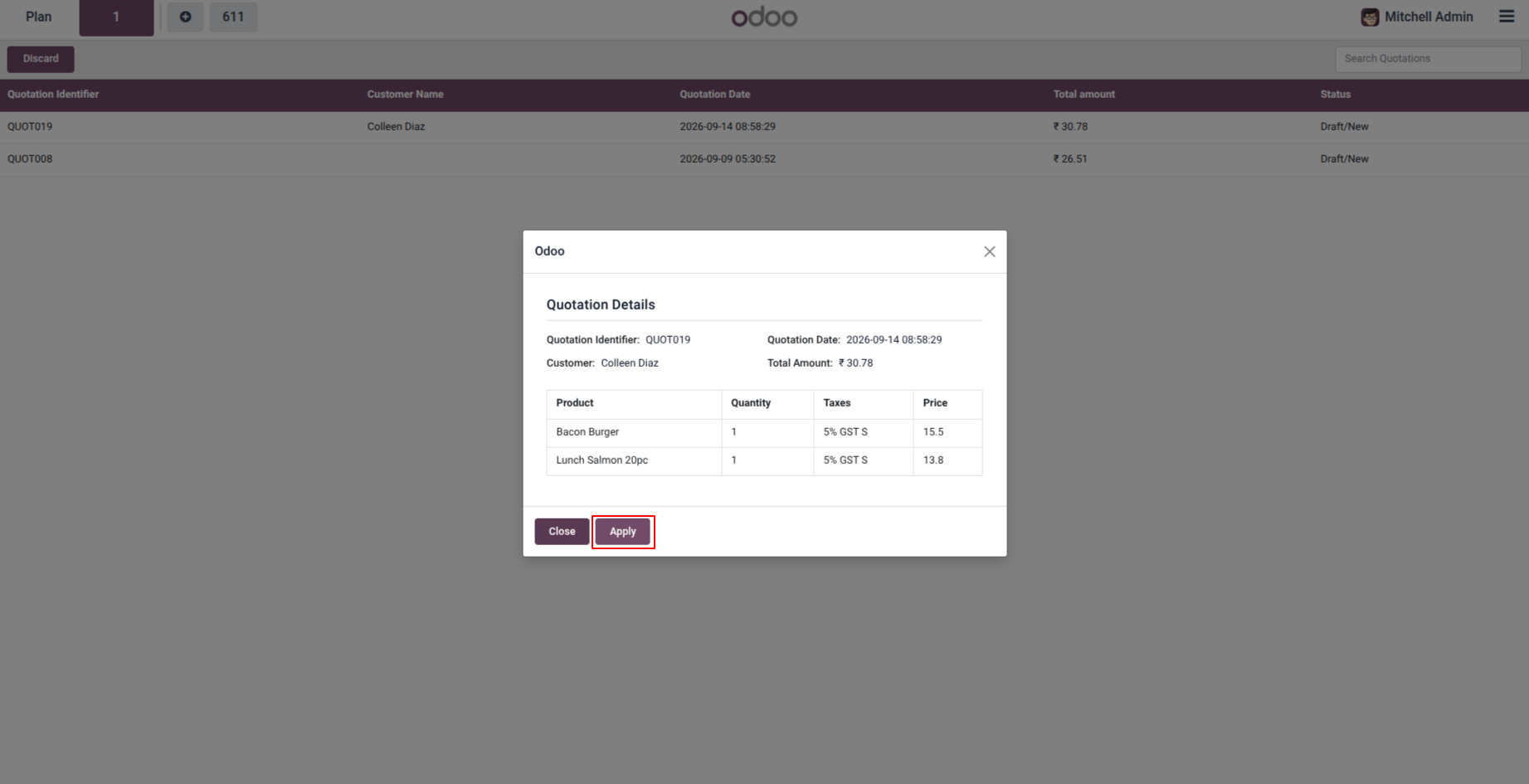
11. Selecting a quotation opens the Quotation Details preview modal displaying the quotation summary and ordered items. Click the Apply button to load the quotation into the active POS cart.
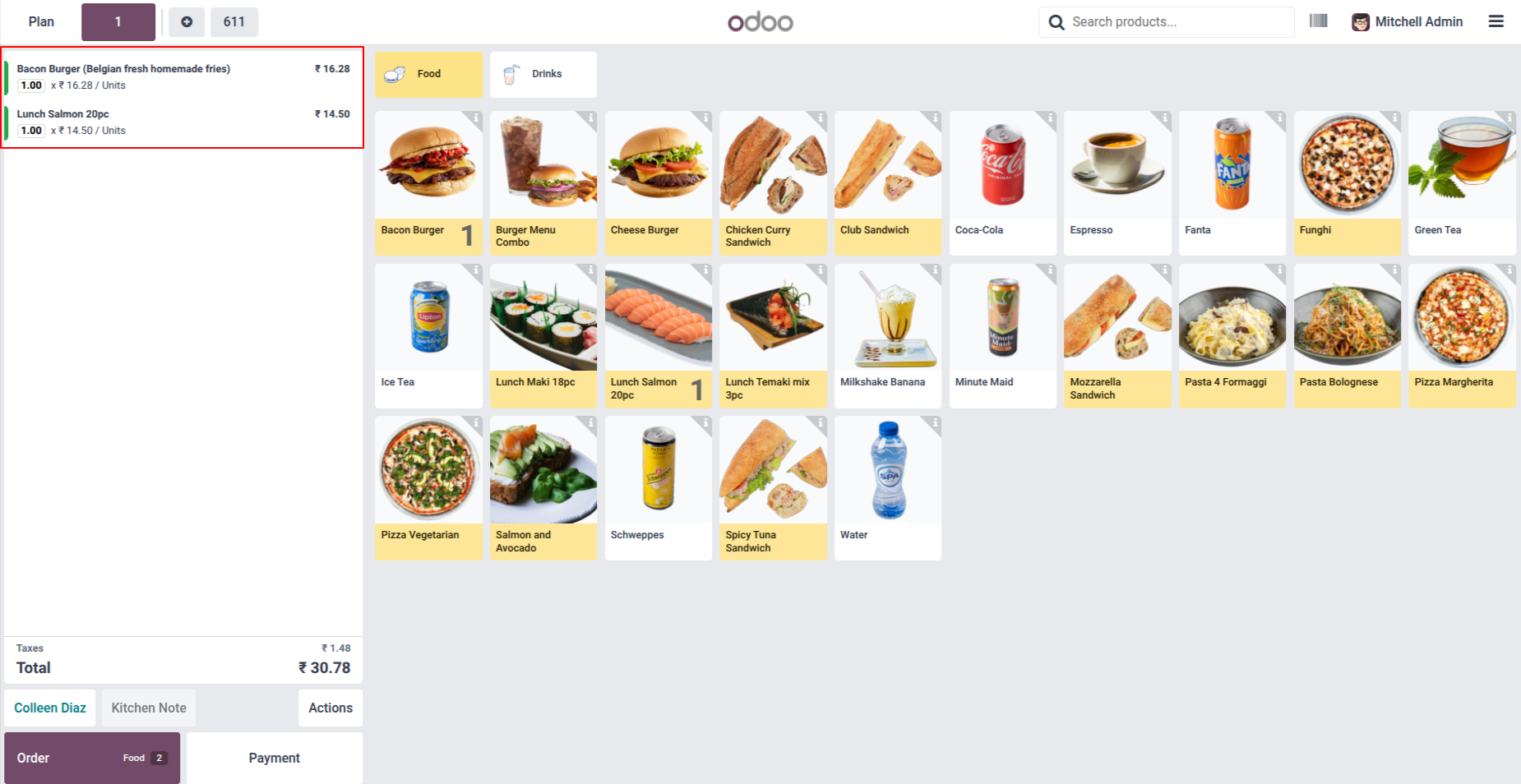
12. All products, quantities, prices, taxes, and customer details from the quotation are loaded directly into the active POS cart, ready to proceed to payment.
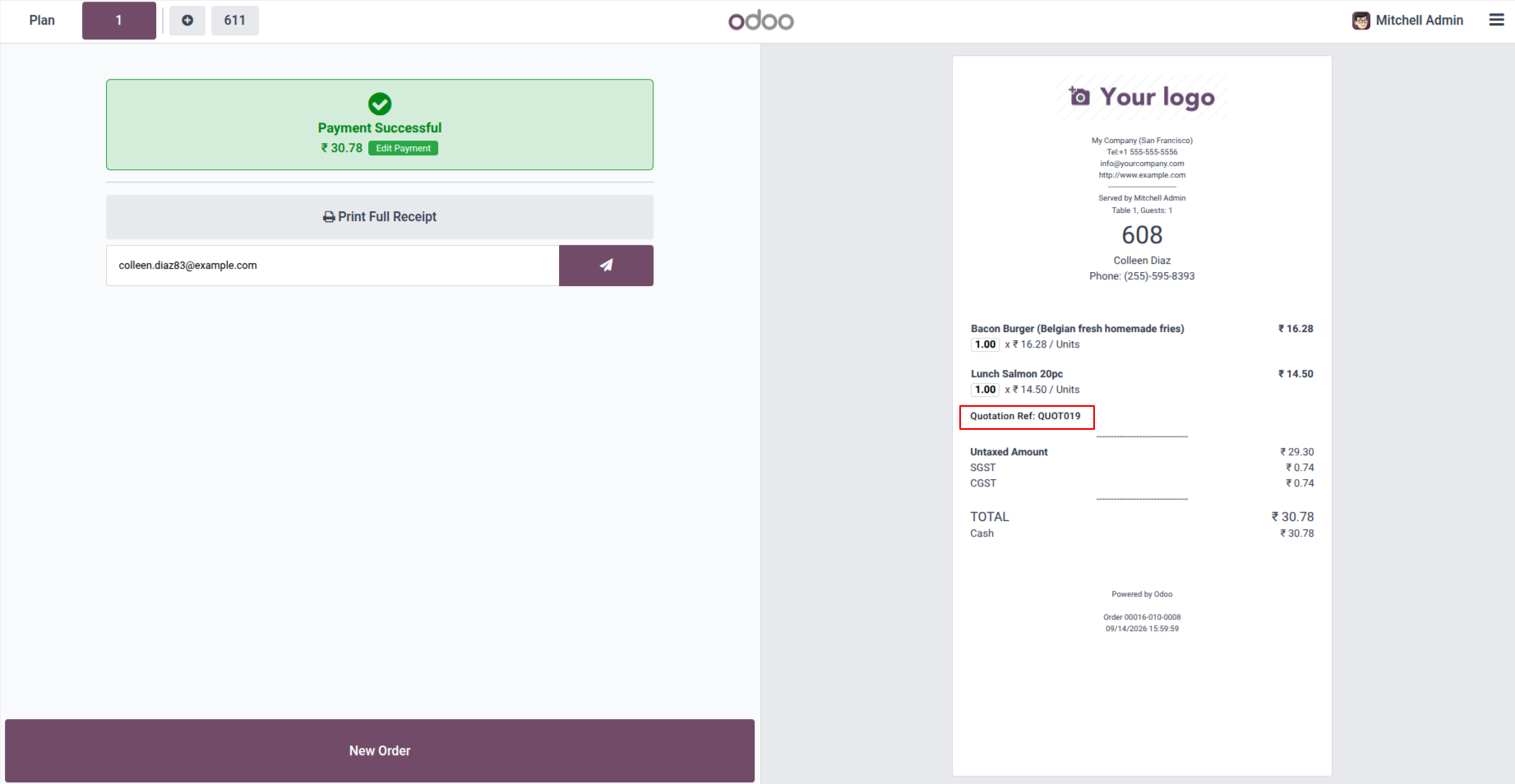
13. Once the payment is completed, the printed POS receipt includes the Quotation Ref (e.g., QUOT019) for seamless traceability between the quotation and the final POS order.
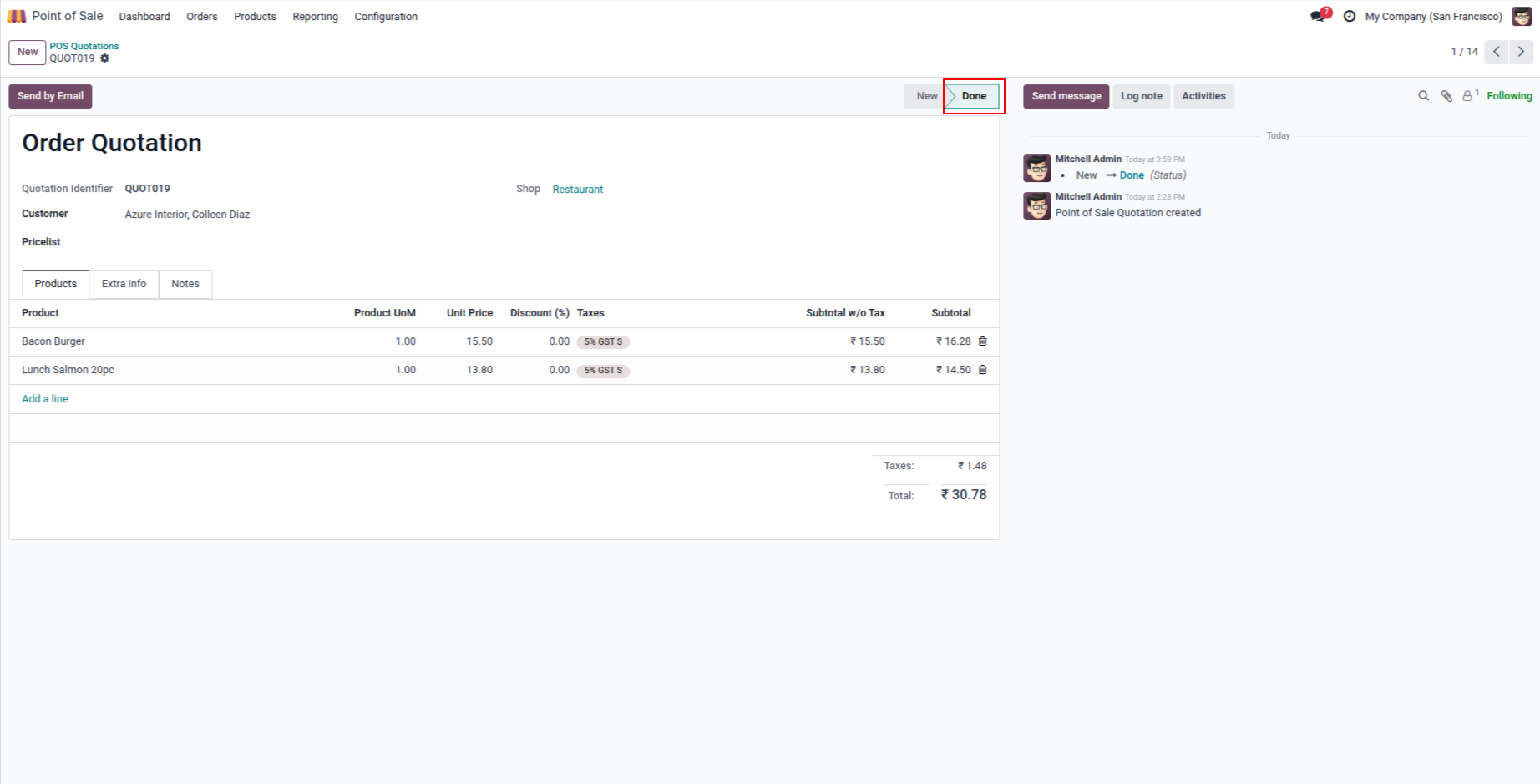
14. After the quotation order is successfully processed and paid in Point of Sale, the quotation status in the backend is automatically updated from New to Done, with status tracking logged in the chatter.
Our solutions focus on your problems
- Odoo Implementation
- Odoo Customization
- ERP Development and Implementation
- Odoo Ipass Cloud
- AI for Odoo
- Odoo Apps
- Aws Marketplace Products
- Business Engines
Our Pricing includes User Manual, 90 Days Support (Monday-Friday 10am to 7pm IST) and One time Setup
• Works & tested on standard installations of Odoo with no third party apps,
• Free support only for odoo installations with no third party apps,
• Paid support available for Odoo installations with third party apps.

Prefortune is a Odoo Official Partner, Odoo Development company. Our philosophy is to use Open Source tools and technologies to provide cost effective and green solutions for our customers.
Prefortune Technologies LLP is working on web development, Mobile development, and Odoo ERP.
If you need any help or want more additional features, you may contact us through:
Alternative Products
These other products might interest you
Specifications
| Version | 19.0, 18.0, 17.0, 16.0, 15.0, 14.0 |