
Watch Quick Video

Product Low Stock Notifier in Odoo
Our all-inclusive Odoo – Product Low Stock Notifier module is designed to help businesses proactively manage inventory by automating low stock alerts. This module enables real-time notifications via email and the Discuss module when product quantities fall below predefined thresholds, ensuring timely action to avoid stockouts. Users can configure scheduled checks, generate reports manually at any time, and customize alert preferences by company or user. With full support for multi-company environments and user-specific configurations, the module ensures that the right people receive the right information—no matter how complex your organizational structure. Businesses can also define custom rules for low stock reporting, offering flexibility and precision in inventory monitoring.
Additional Features : Product Low Stock Notifier in Odoo
- Flexible Product Stock Check Options: Choose whether to monitor stock levels for products or their individual variants with detailed control.
- Customizable Limit Application: Apply low stock thresholds globally across all products, individually per product, or based on predefined record rules.
- Accurate Stock Basis Selection: Decide whether on-hand quantity or forecasted quantity should be used for precise stock evaluations.
- Regular Checks with On-Demand Reporting: Perform scheduled stock checks with the flexibility to download reports at any time as well.
- Multi-Company Notification Support: A single user can receive low stock notifications from multiple selected companies.
- Configurable Outgoing Mail Server: Define a dedicated outgoing mail server to manage and send automated email notifications.
Complete Workflow for Product Low Stock Notifier in Odoo
Download and activate Product Low Stock Notifier from the Apps menu. To begin using the Product Low Stock Notifier, first enable the notification feature in the Company settings. Then, for each User who should receive low stock alerts, enable notify user and select the companies they wish to monitor.
Configuration for stock analysis and report generation is handled in the Inventory module’s Settings. Here, you can choose whether to monitor products or product variants, apply stock limits globally, individually per product, or based on predefined record rules, and decide whether the evaluation should be based on on-hand quantity or forecasted quantity.
Once set up, a scheduled cron job performs regular stock checks and automatically sends notifications via email and Odoo Discuss messages. Each notification includes a PDF attachment of the stock report, accessible directly from the Discuss app. If a user needs a report outside of the scheduled notifications, they can manually generate and download it anytime from the Stock Report menu under the Inventory app.
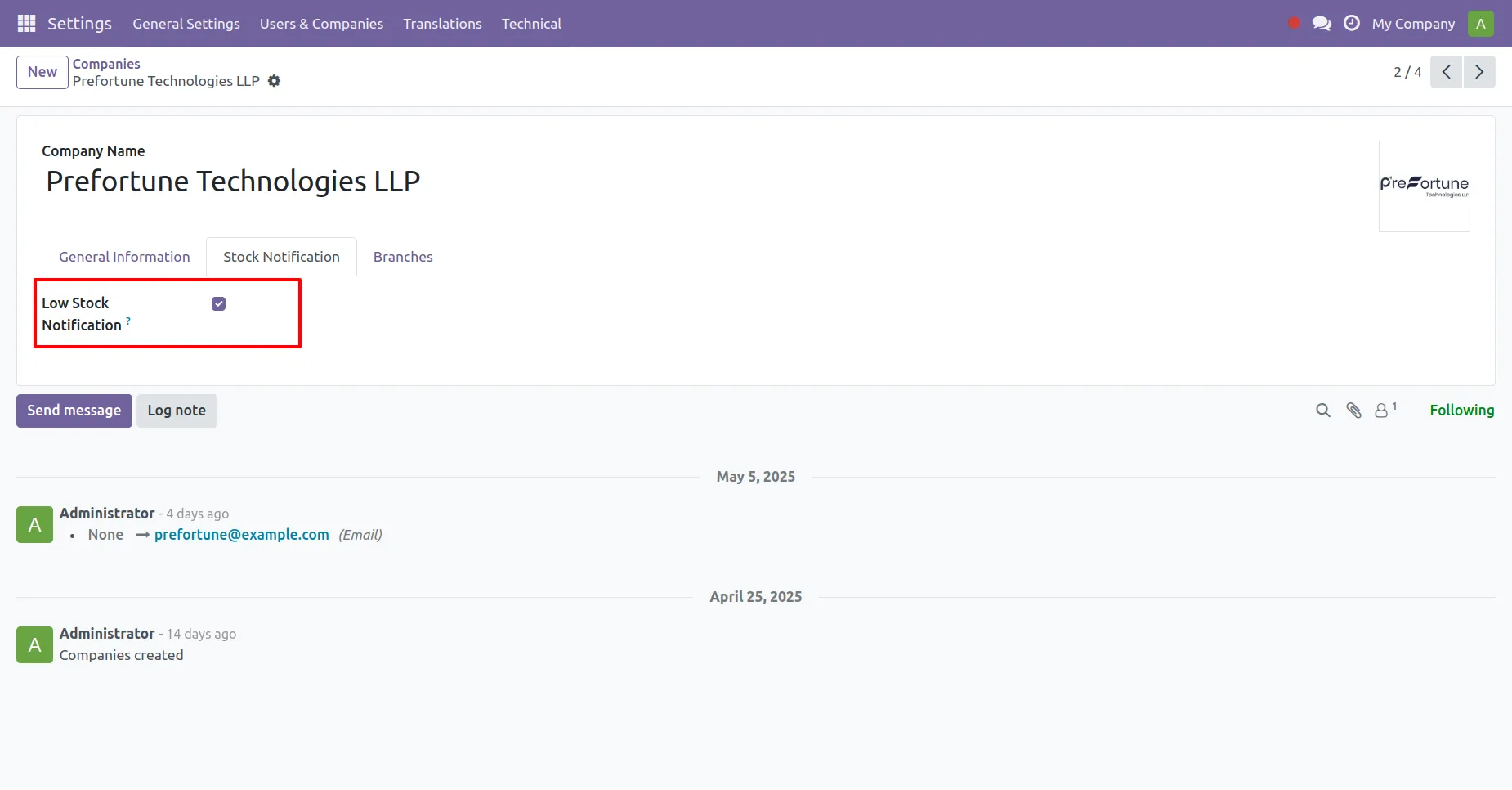
1. Enable the Low Stock Notification checkbox from the Settings Menu > User & Companies > Particular Company > Stock Notification for all the companies that need stock monitoring.
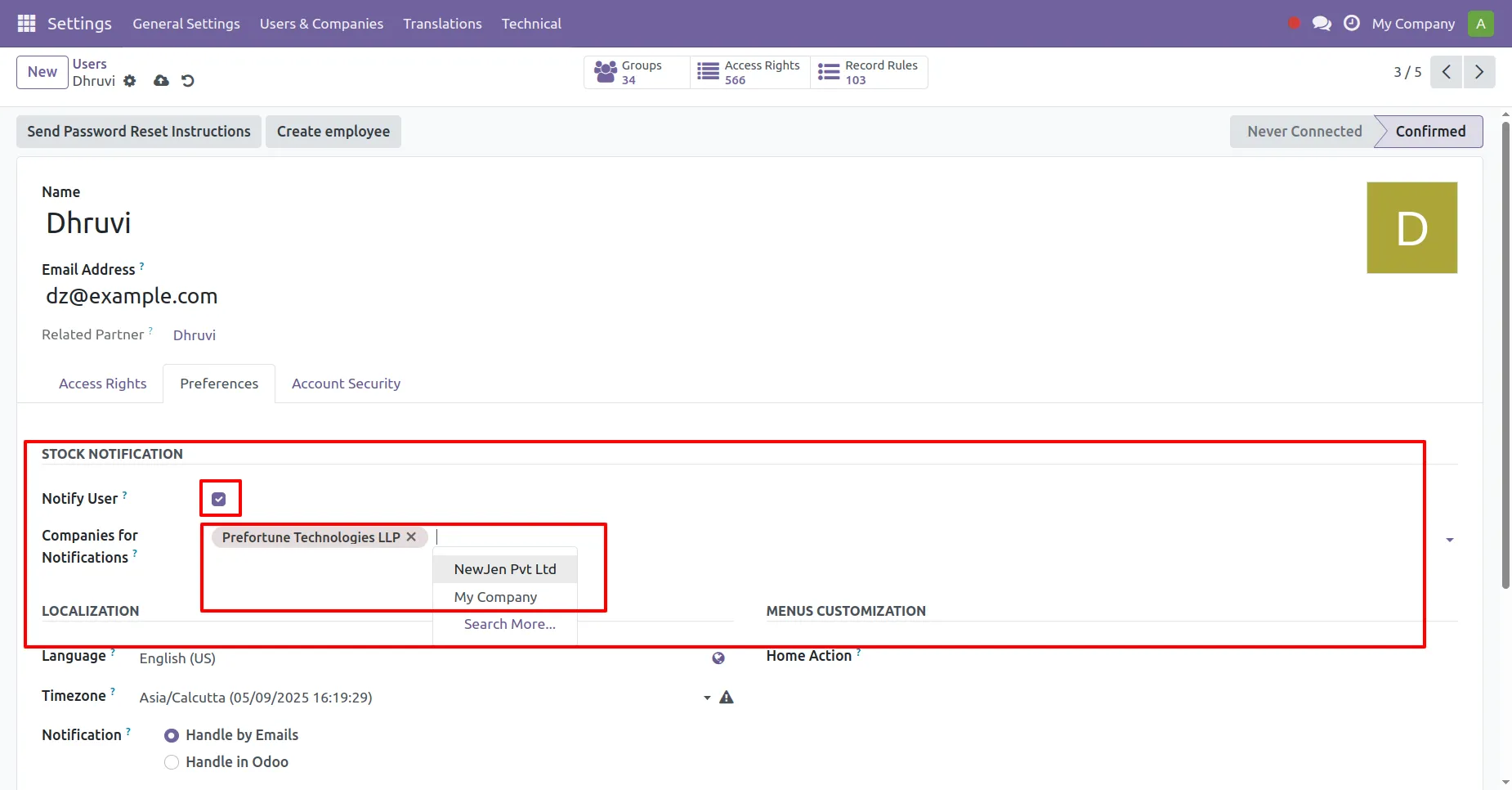
2. Navigate to the Settings Menu > User & Companies > Particular User > Preferences enable Notify User and select the companies preffered by user to get notified with its stock report.
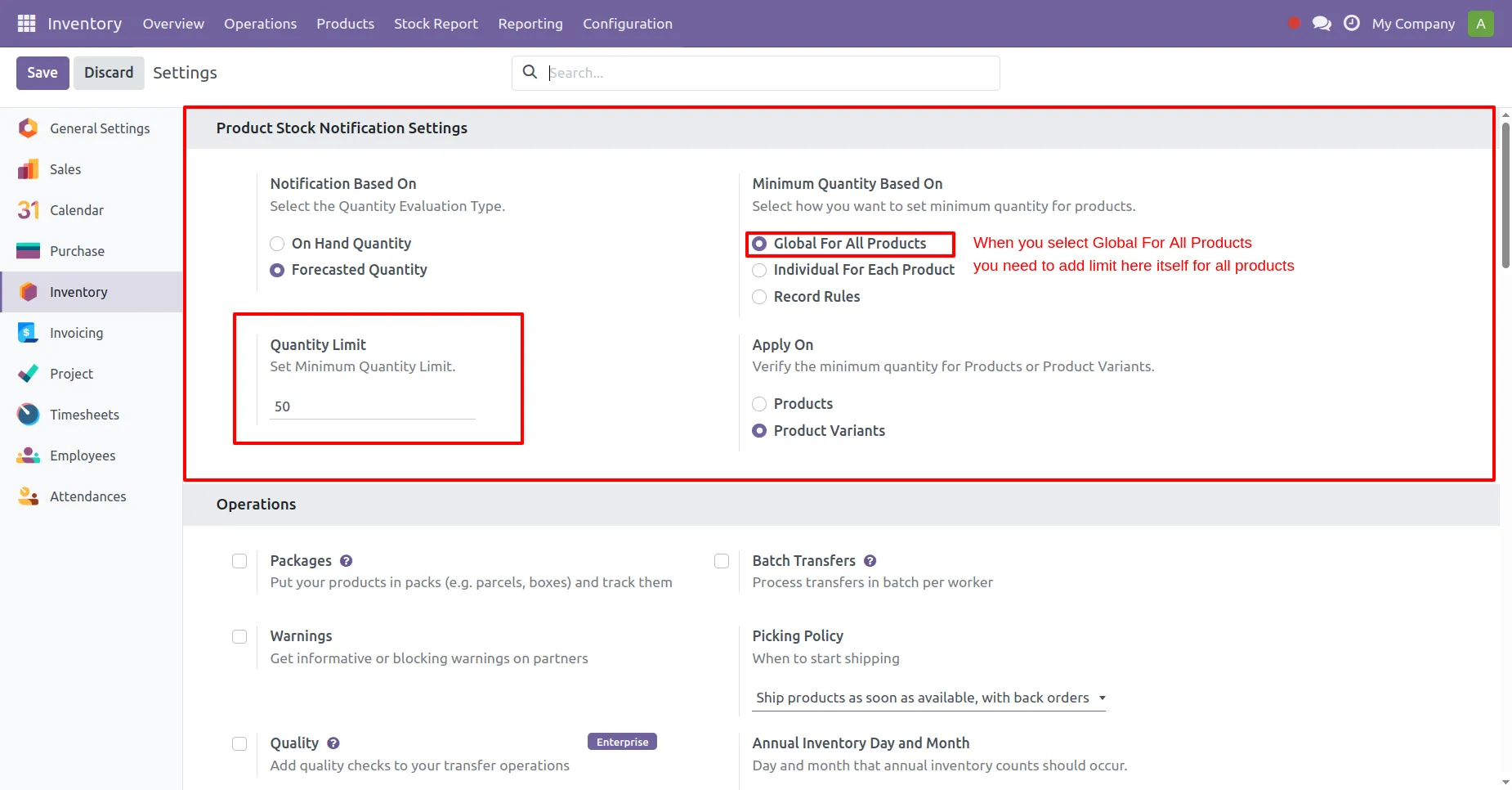
3. For Reporting setup go to Inventory > Configuration > Settings and find the block "Product Low Stock Notification Settings". There you can set various parameters, if you select limitation as Globally for all Products then you will need to provide the Quantity limit there and Stock Analysis will be as per that limit.
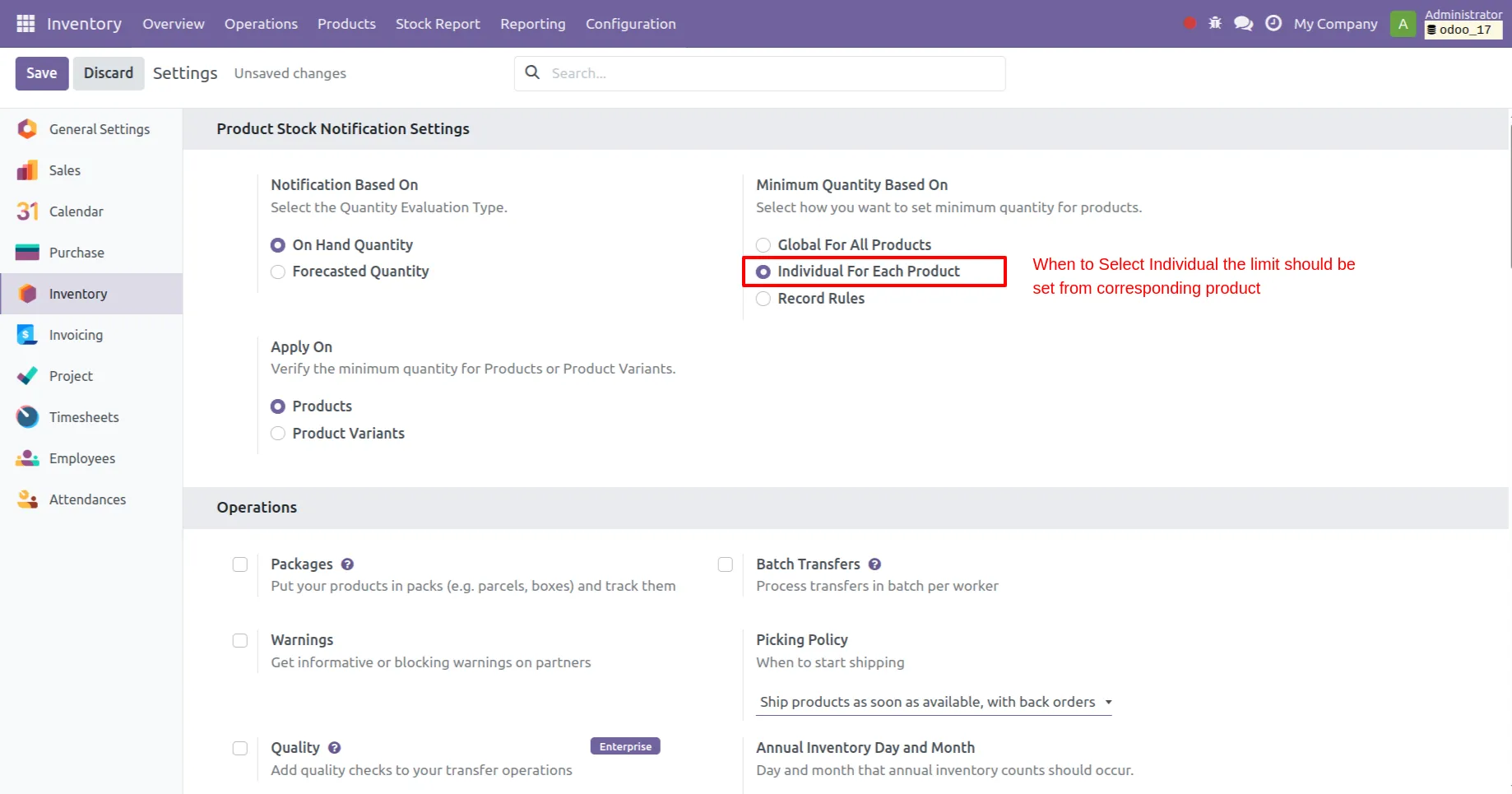
4. You can add analysis based on limit individually for each product and you can add additional functionality selection of quantity evalution i.e. either by On-Hand Quantity or by Forecasted Quantity.
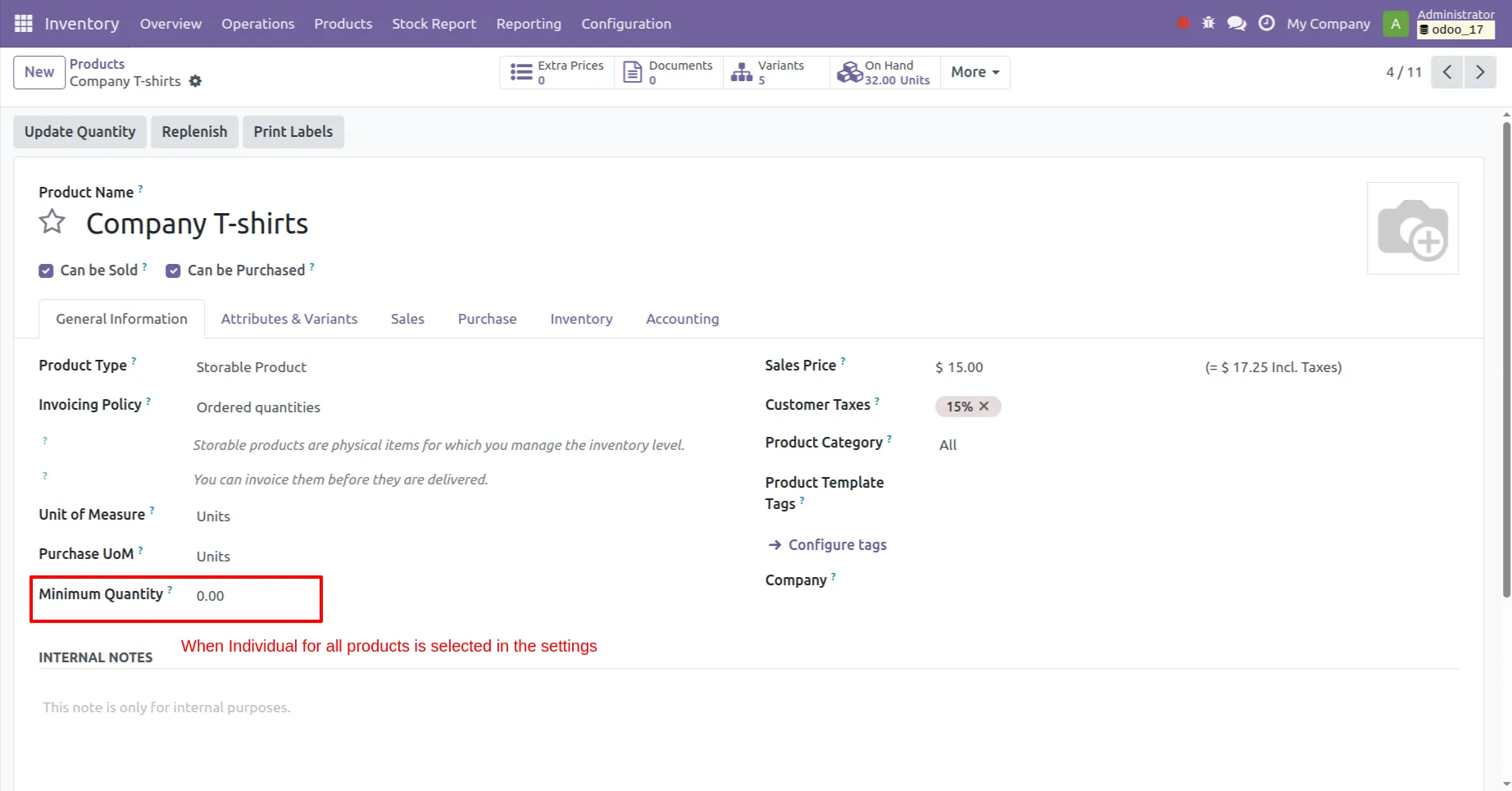
5. When the Selection is individually for each product one might need to manually add the limit in each product in Minimum Quantity field for Stock Analysis.
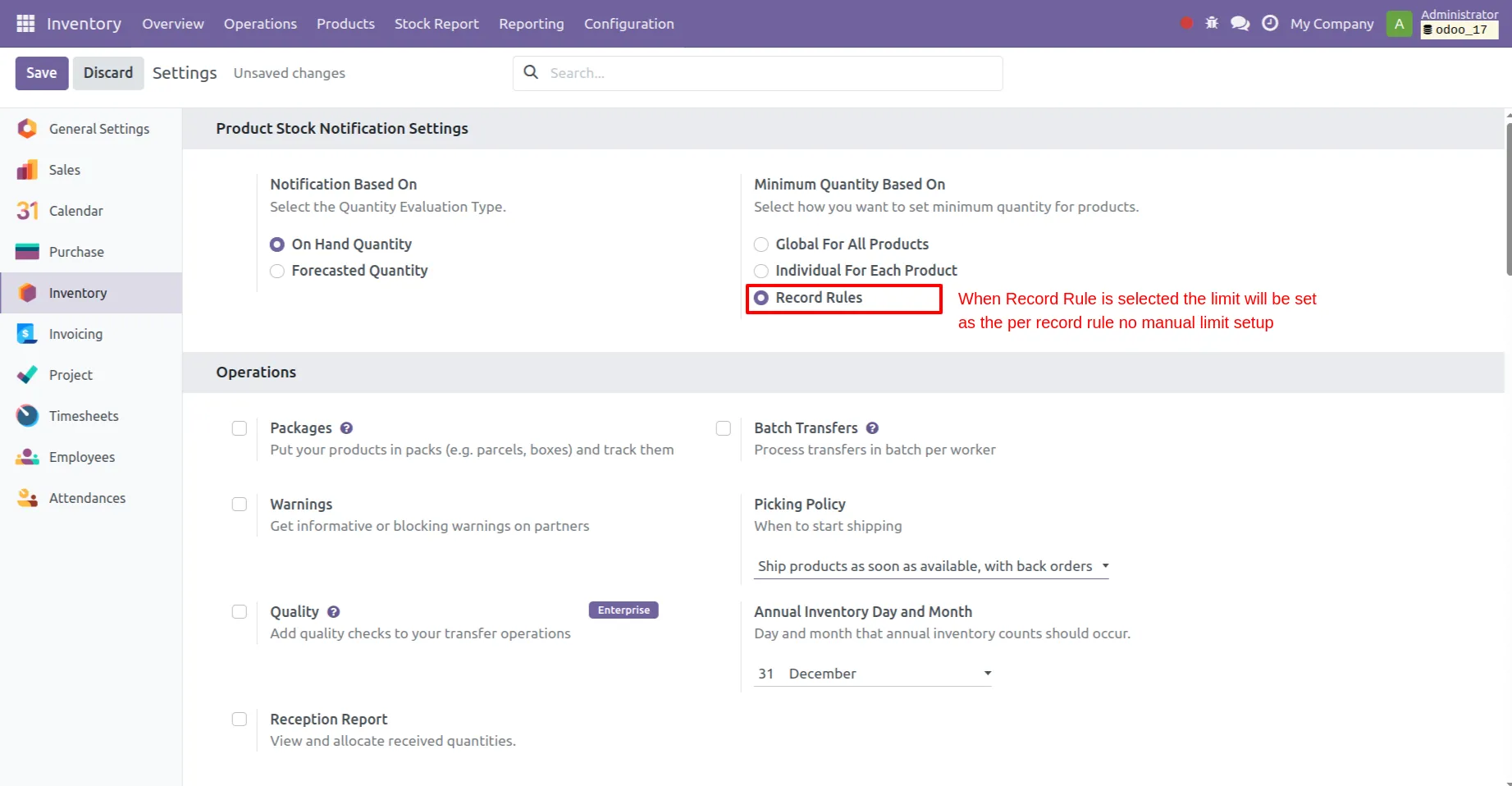
6. When the Selection is Record Rules the limit will be set as per the record rule for analysis and no manual limit setup. Also only products with record rules will be considered.
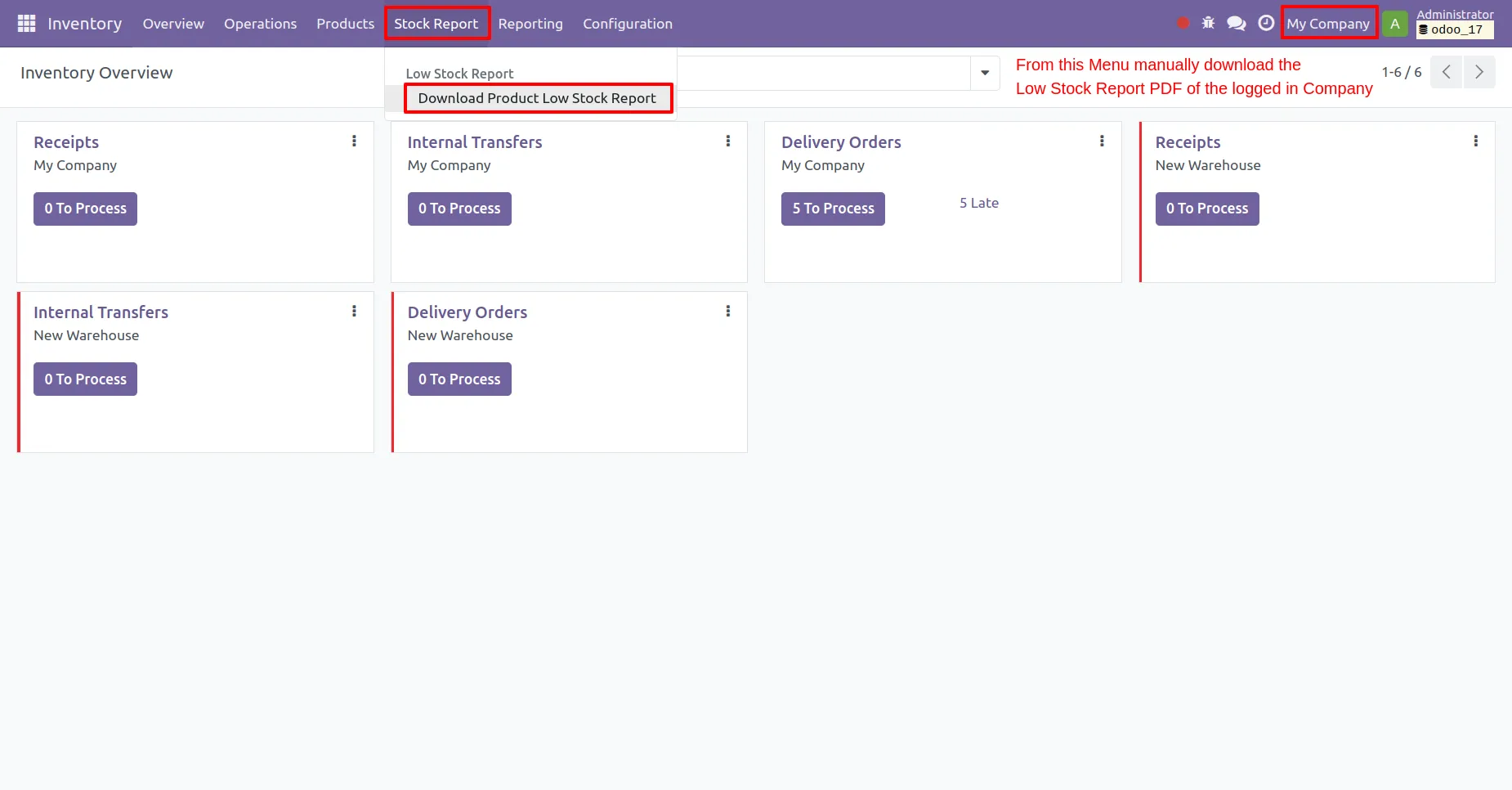
7. After everything is set you can manually generate Low Stock Report from "Stock Report" menu in Inventory of the currently functioning company as shown in image.
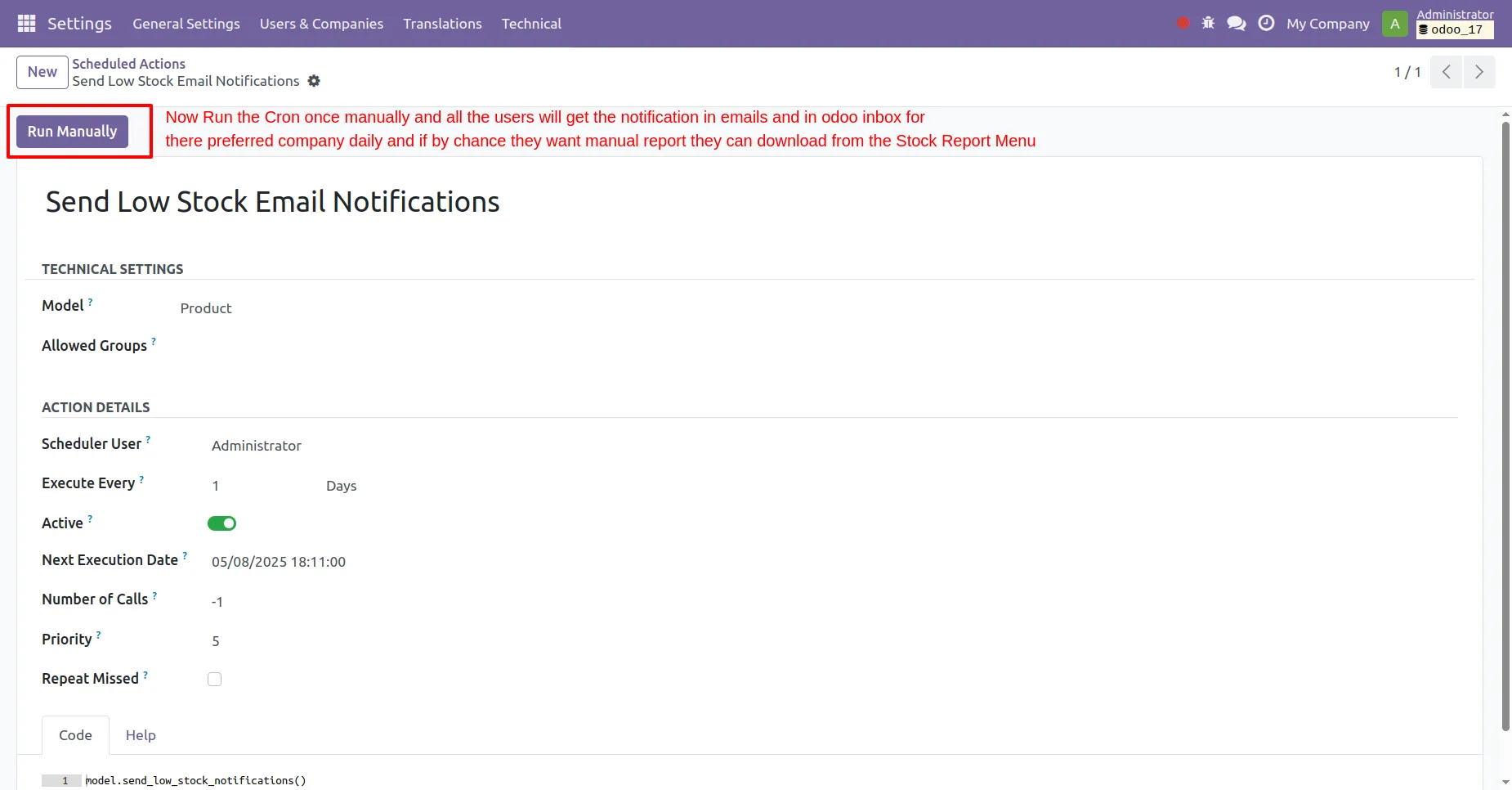
8. Find the Settings > Technical > Scheduled Actions > Send Low Stock Email Notification cron and run it manually once. Once started manually it will send email and message notification to all the users daily with stock report attachments.
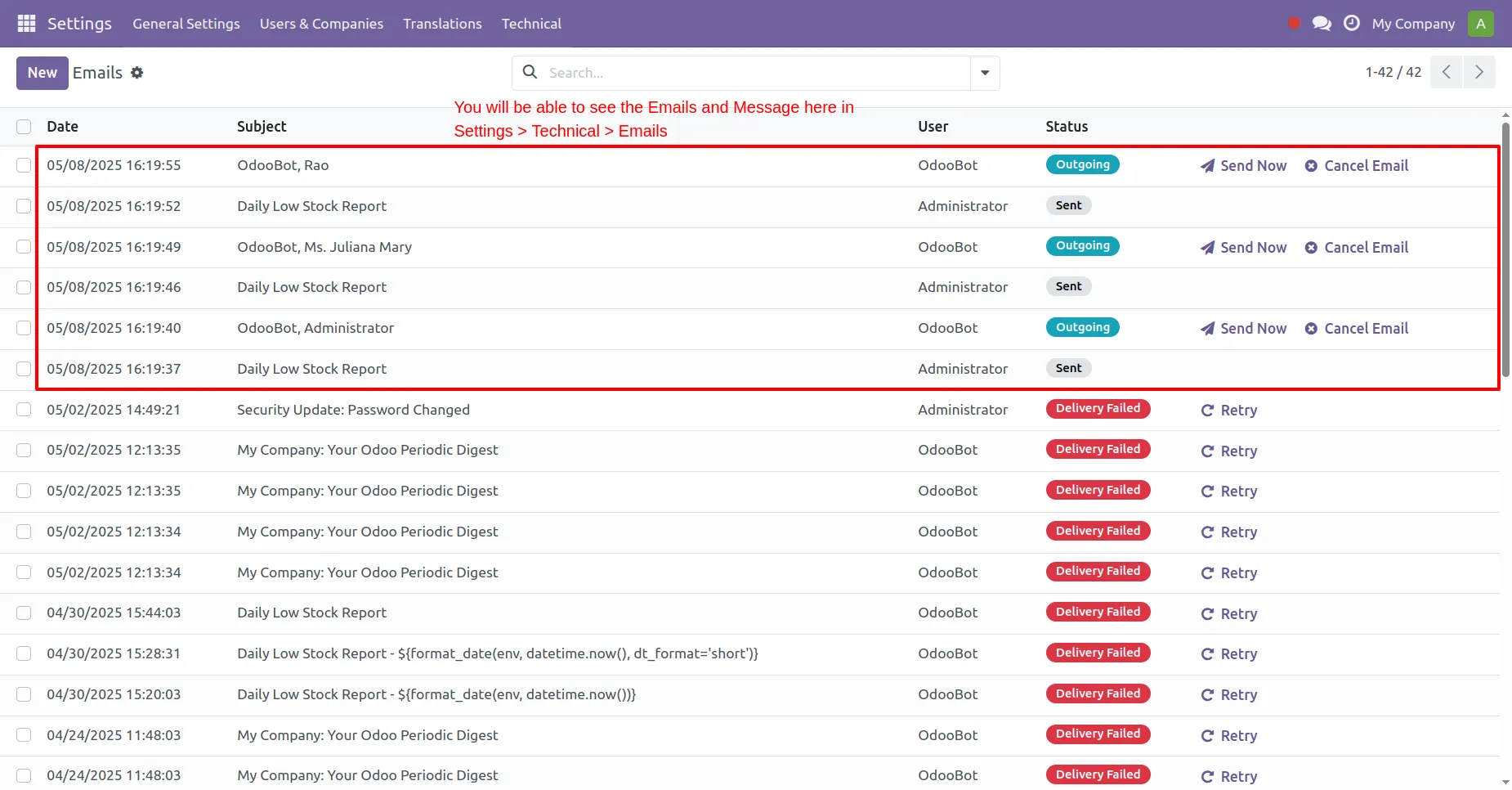
9. All the messages sent will be shown in the Emails section of settings.
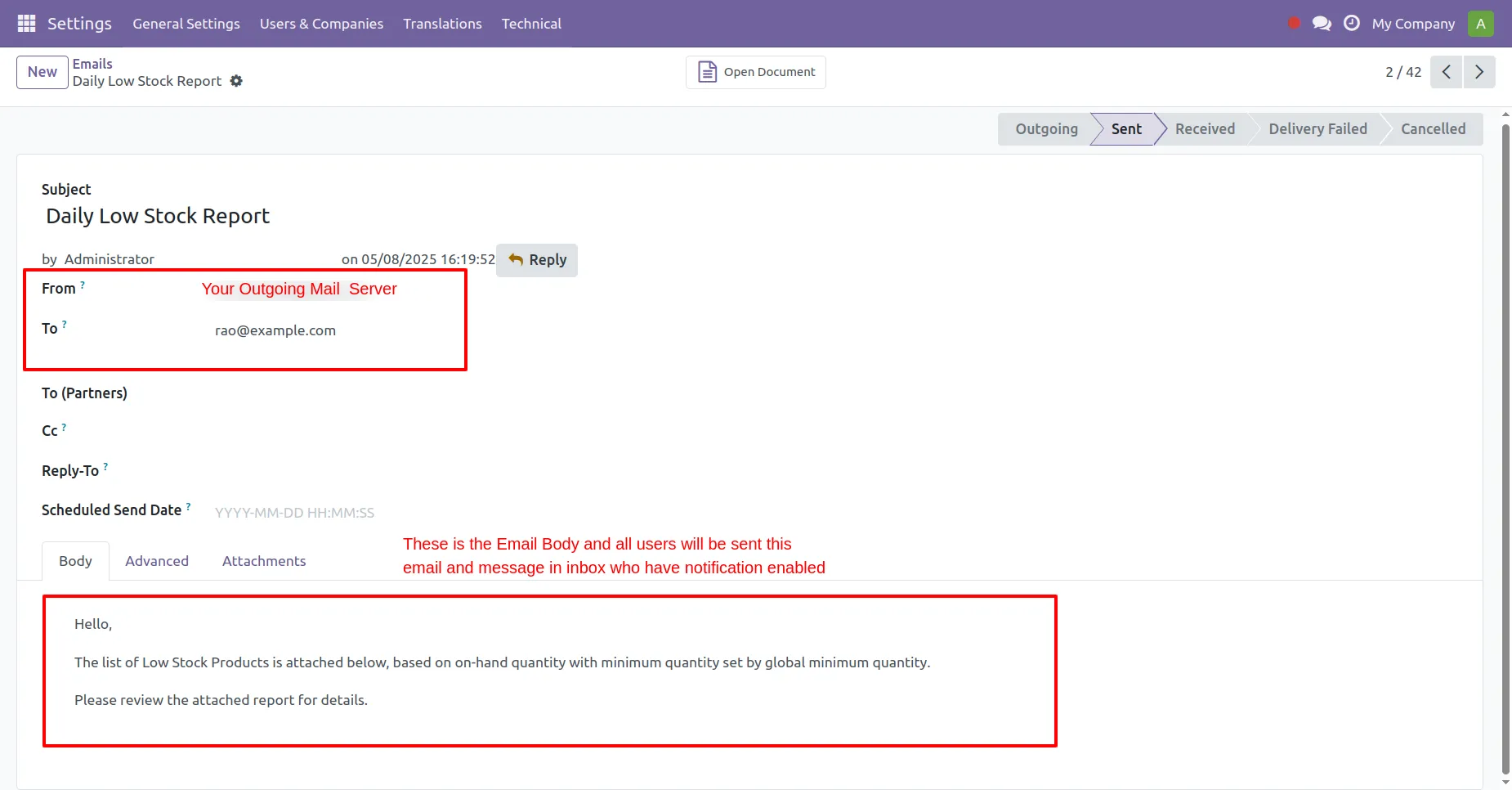
10. Emails form view will show the body of email and the users' email in "To" field also the email will be sent from the outgoing server setup in your system.
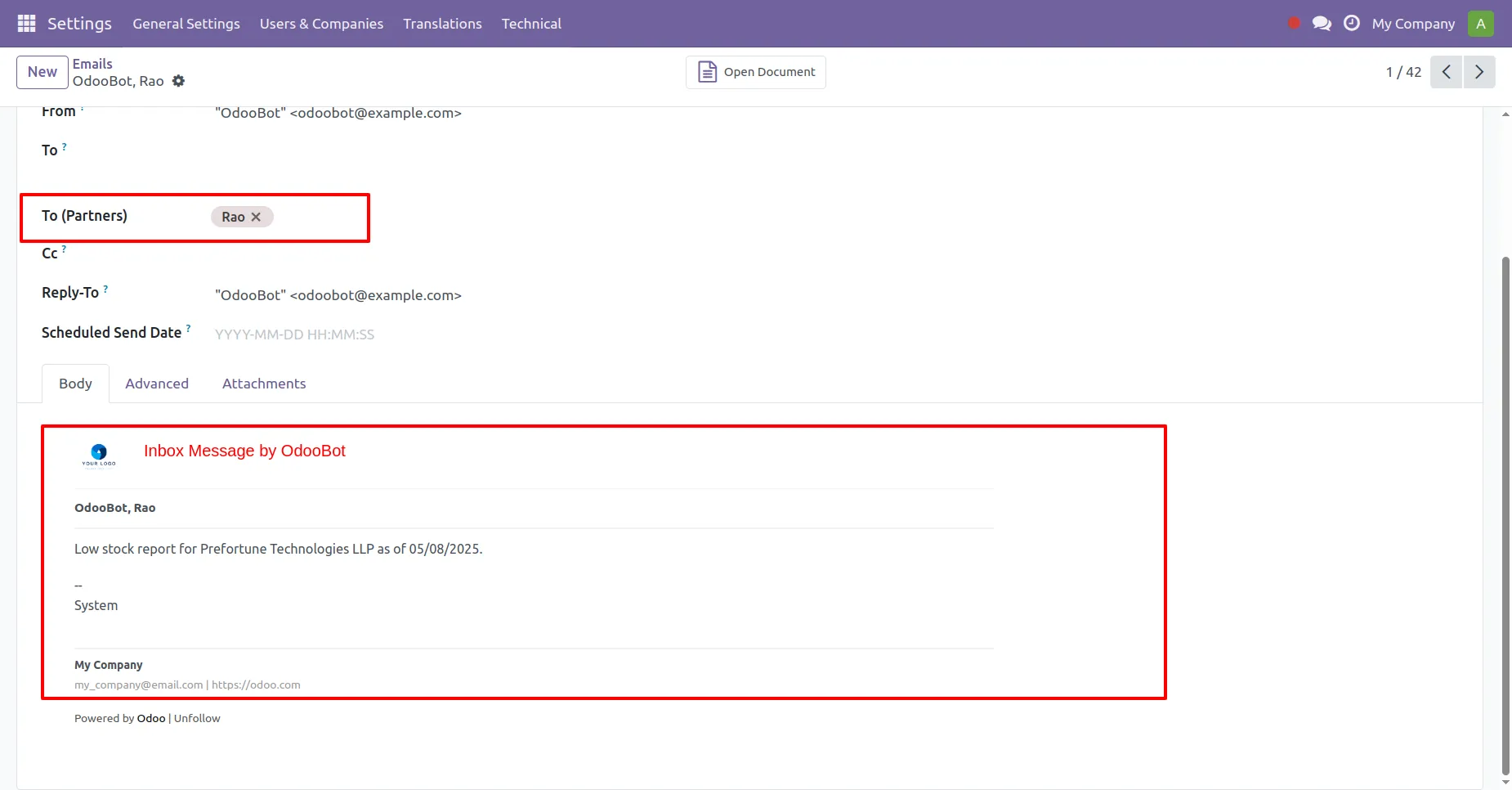
11. Not just emails the inbox messages will also be shown here.
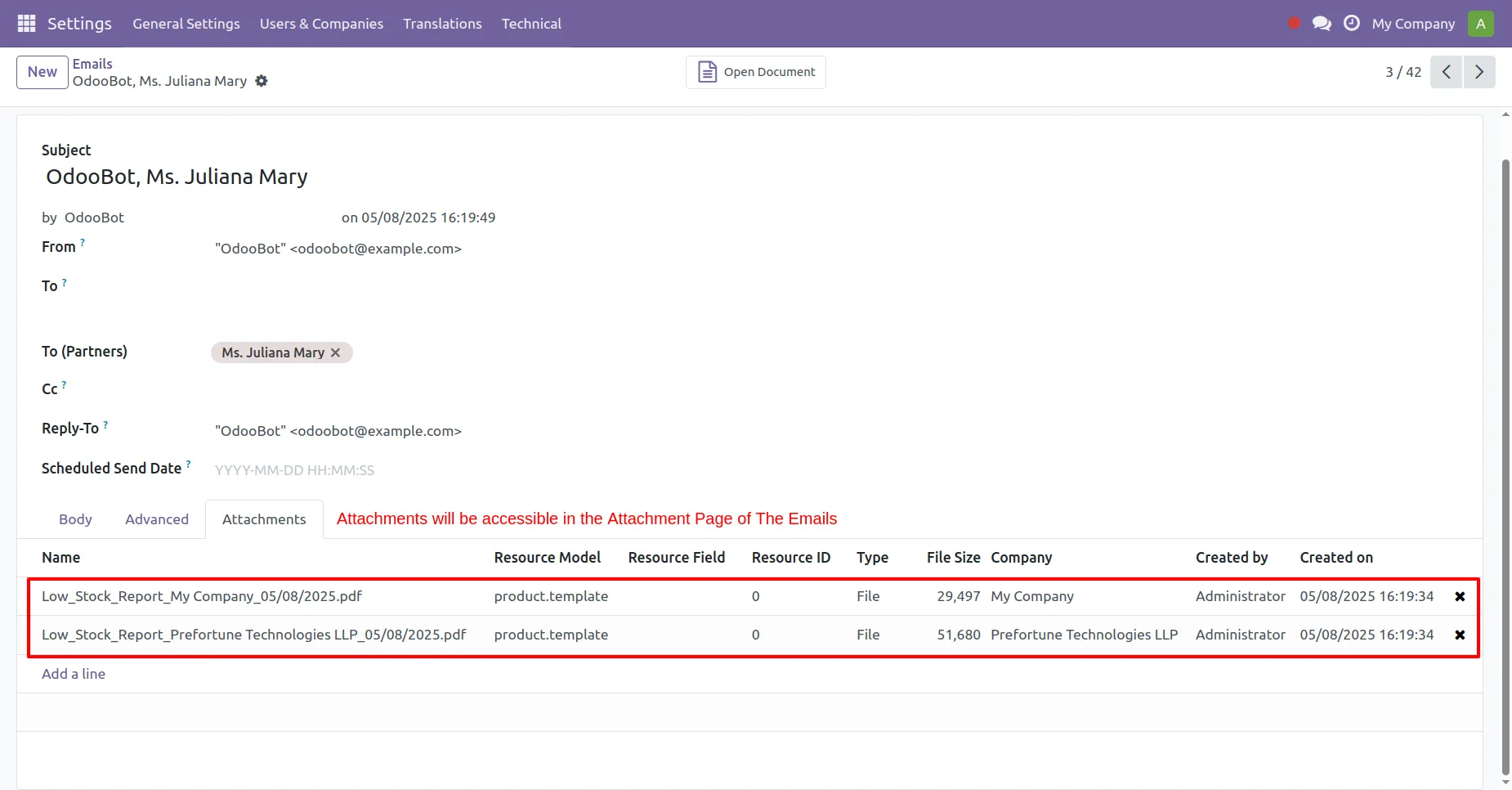
12. In the Attachment Page of Emails form view you will find the attachments send with emails as well as discuss inbox messages.
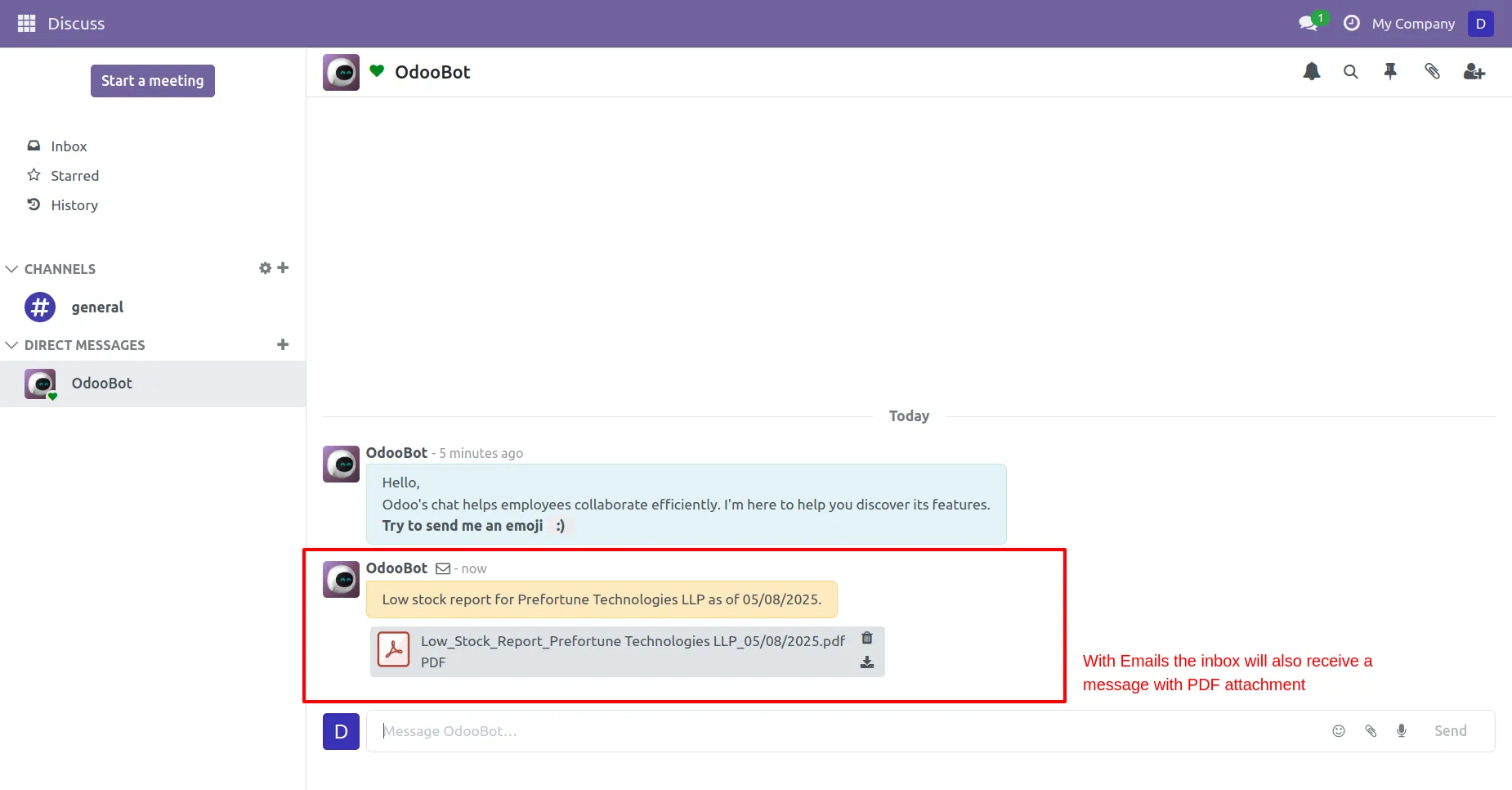
13. The messages will be sent to the Discuss module of Odoo and the users can access the messages and download the report from there on daily basis.
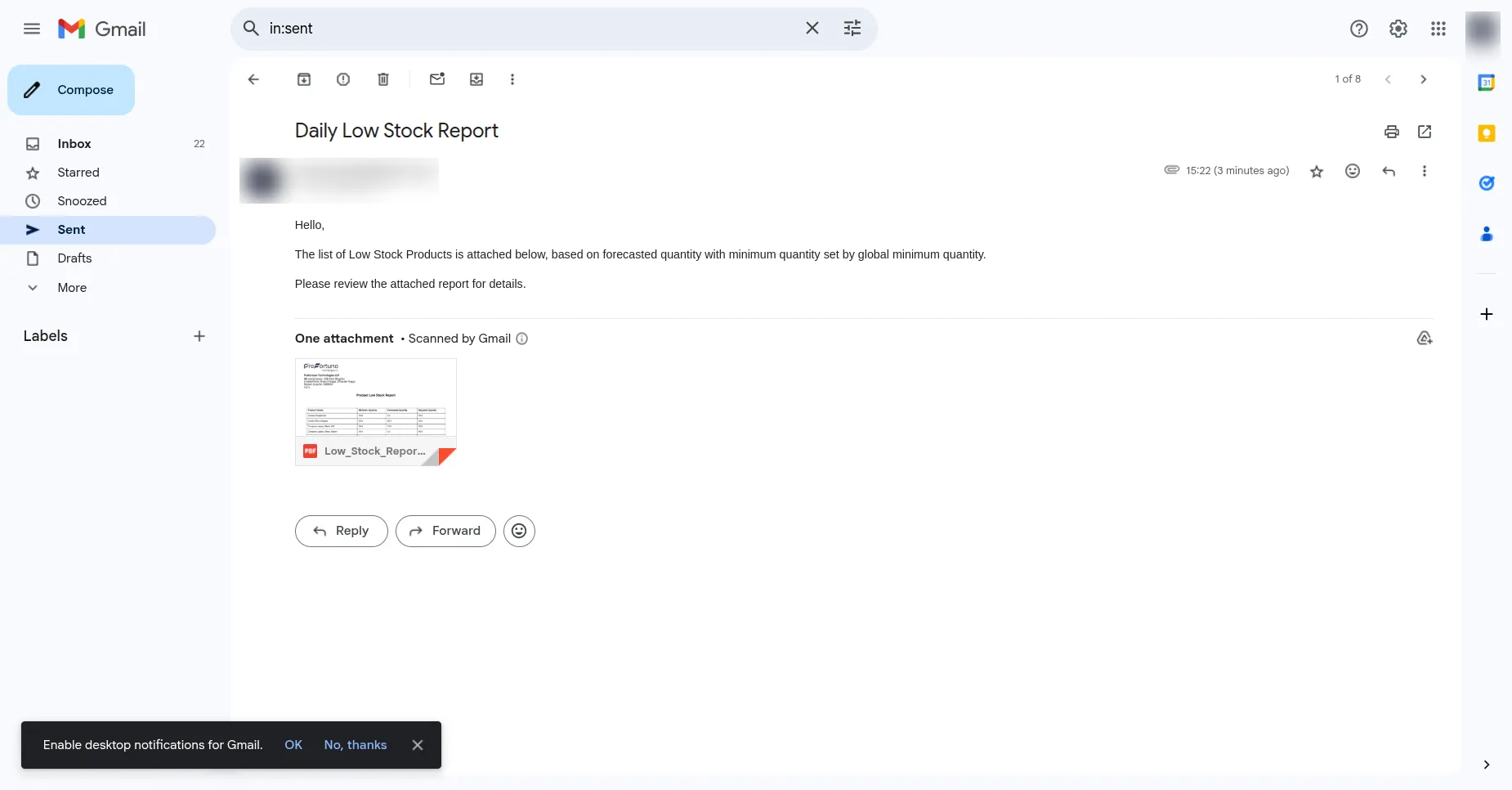
14. This is how the Email would look like.
Our solutions focus on your problems
- Odoo Implementation
- Odoo Customization
- ERP Development and Implementation
- Odoo Ipass Cloud
- AI for Odoo
- Odoo Apps
- Aws Marketplace Products
- Business Engines
Our Pricing includes User Manual, 90 Days Support (Monday-Friday 10am to 7pm IST) and One time Setup
• Works & tested on standard installations of Odoo with no third party apps,
• Free support only for odoo installations with no third party apps,
• Paid support available for Odoo installations with third party apps.

Prefortune is a Odoo Official Partner, Odoo Development company. Our philosophy is to use Open Source tools and technologies to provide cost effective and green solutions for our customers.
Prefortune Technologies LLP is working on web development, Mobile development, and Odoo ERP.
If you need any help or want more additional features, you may contact us through:
Alternative Products
These other products might interest you
Specifications
| Version | 18.0, 17.0, 16.0, 15.0, 14.0, 13.0 |