Watch Quick Video
Voice Notes in Chatter Odoo App
Our fully integrated
Odoo – Voice Notes in Chatter Odoo App allows Odoo users to record & send short voice notes directly from the chatter widget in any document like contacts, leads, opportunities and many more. Admins control the feature from General Settings. They can set a maximum recording length (MM:SS) and enable/disable the ability for users to add a caption. While recording, users are shown a live countdown timer and once the timer reaches the set limit, the recording automatically stops. Users receive a notification confirming the cutoff. You can preview the note in an inline audio player before sending it, add an optional text caption for quick context, and then either discard or send the note. When you send it , the raw recording is converted to MP3 server-side and posted as a named , downloadable attachment with playback controls in the chatter thread . That turns the chatter into a mixed-media log — voice and text together — which is useful for quick updates during calls or site visits or wherever typing is awkward.
Voice Notes in Chatter Odoo App
- mic icon in chatter starts/stops recording on any record.
- admin sets max MM:SS recording length per company.
- recording halts automatically and notifies the user at the limit.
- users can attach a short text note alongside the audio before sending.
- recording is converted and posted as a playable, downloadable file in the message thread.
Complete Workflow for Manage Voice Notes in Chatter Odoo App
Enable the Voice Notes in Chatter Odoo App Admin configures the audio recording limit and caption permission under Settings → General Settings → Discuss. User opens any record's chatter, clicks the mic icon to record (auto-stops at the limit or can be stopped manually), previews the result, optionally adds a caption, then sends — the audio converts to MP3 and posts in the chatter as a playable attachment.
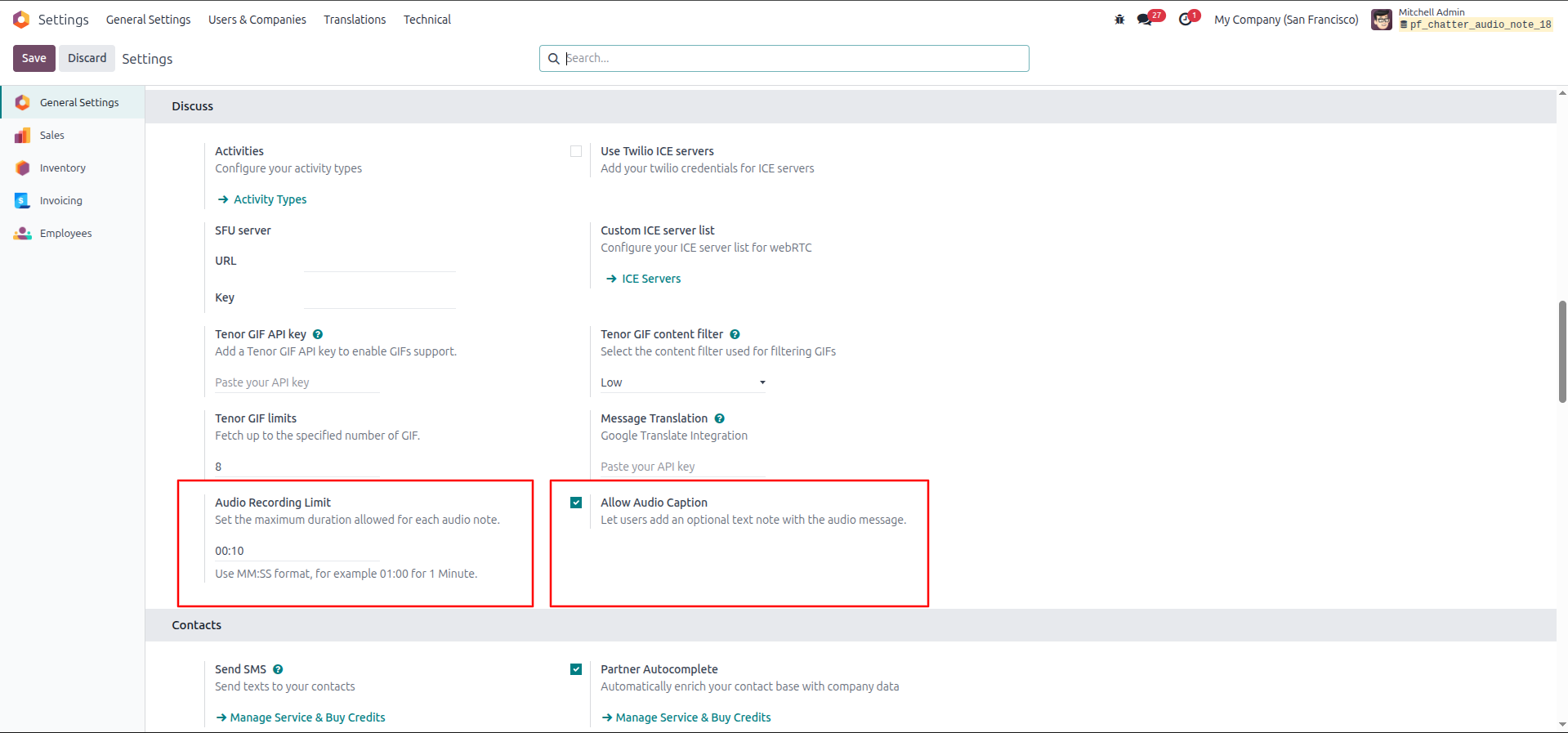
1.In Settings → General Settings → Discuss, the admin sets the Audio Recording Limit (00:10) and enables the Allow Audio Caption option.
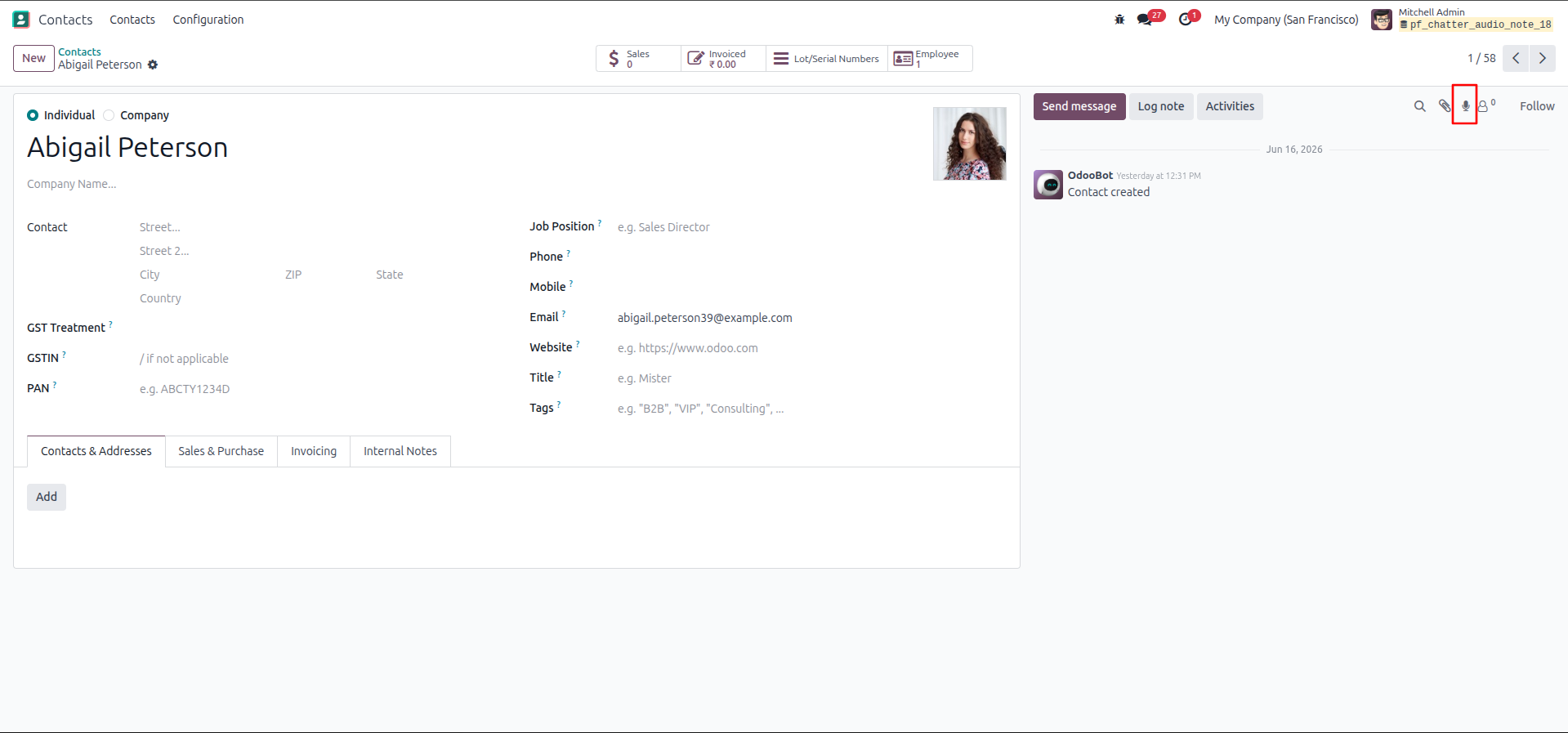
2.On a contact record (Abigail Peterson), the user clicks the microphone icon in the chatter to start recording an audio note.
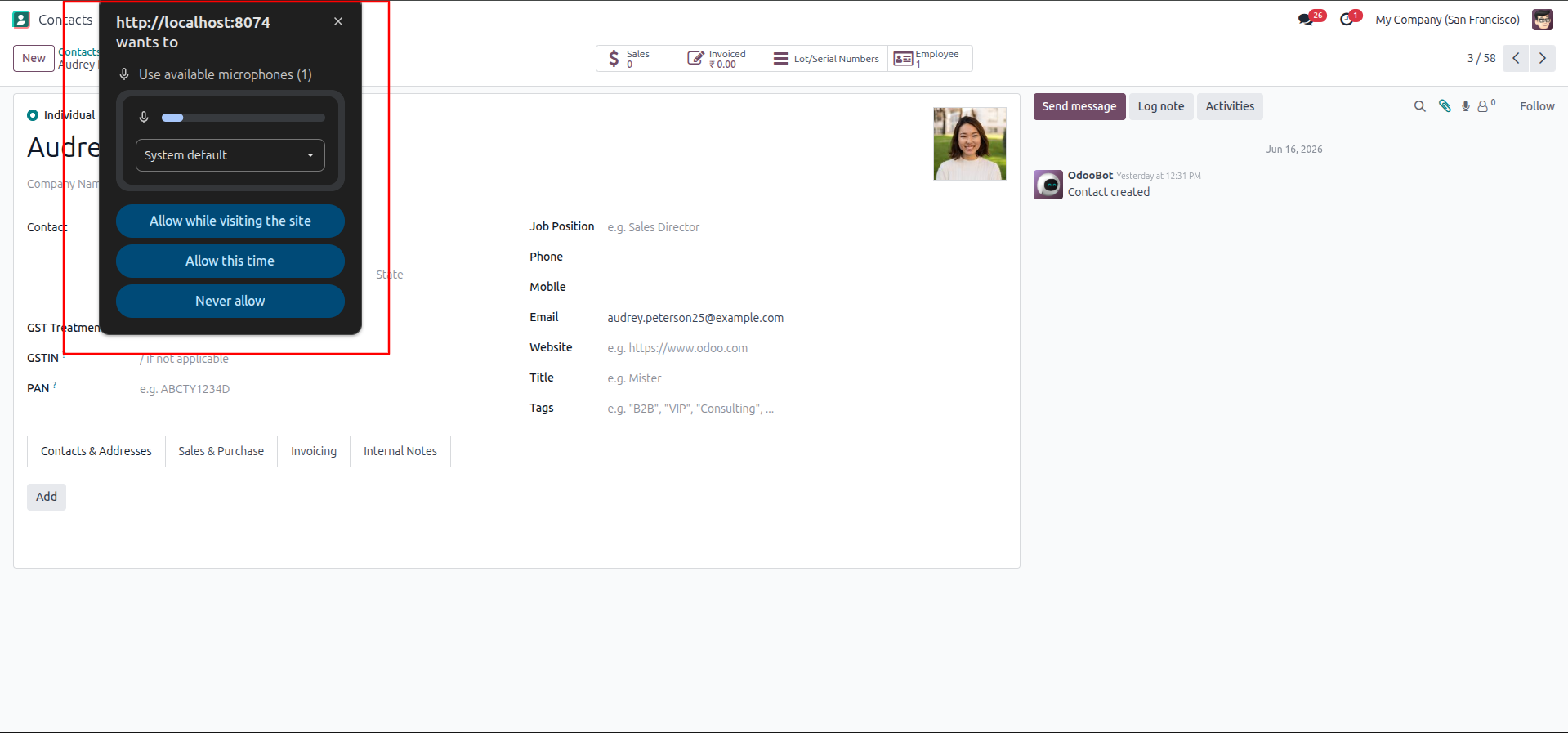
3.The browser prompts for microphone permission, and the user selects "Allow this time" or "Allow while visiting the site."
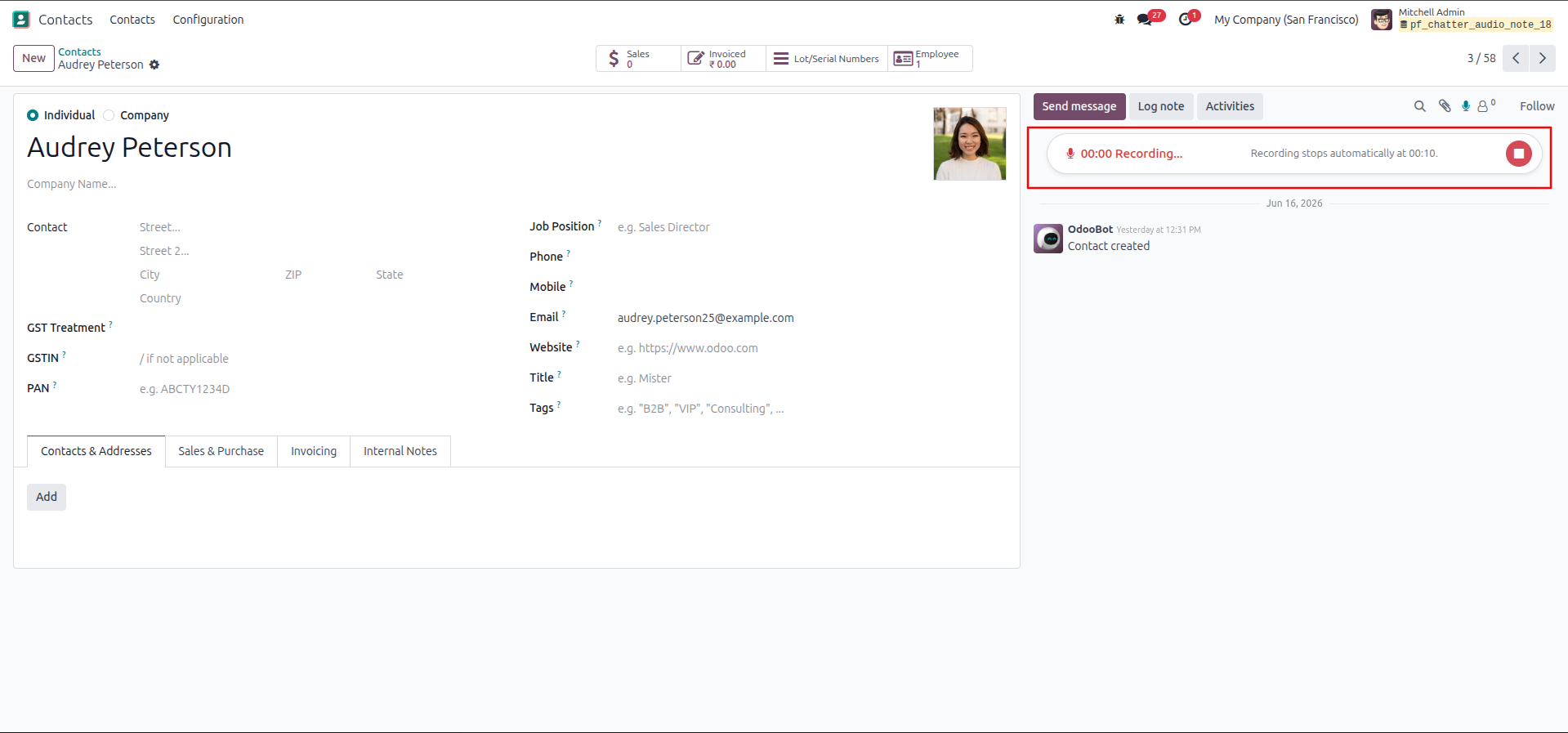
4.Recording begins on the contact's chatter, showing a live "00:00 Recording..." counter with a note that it stops automatically at 00:10.
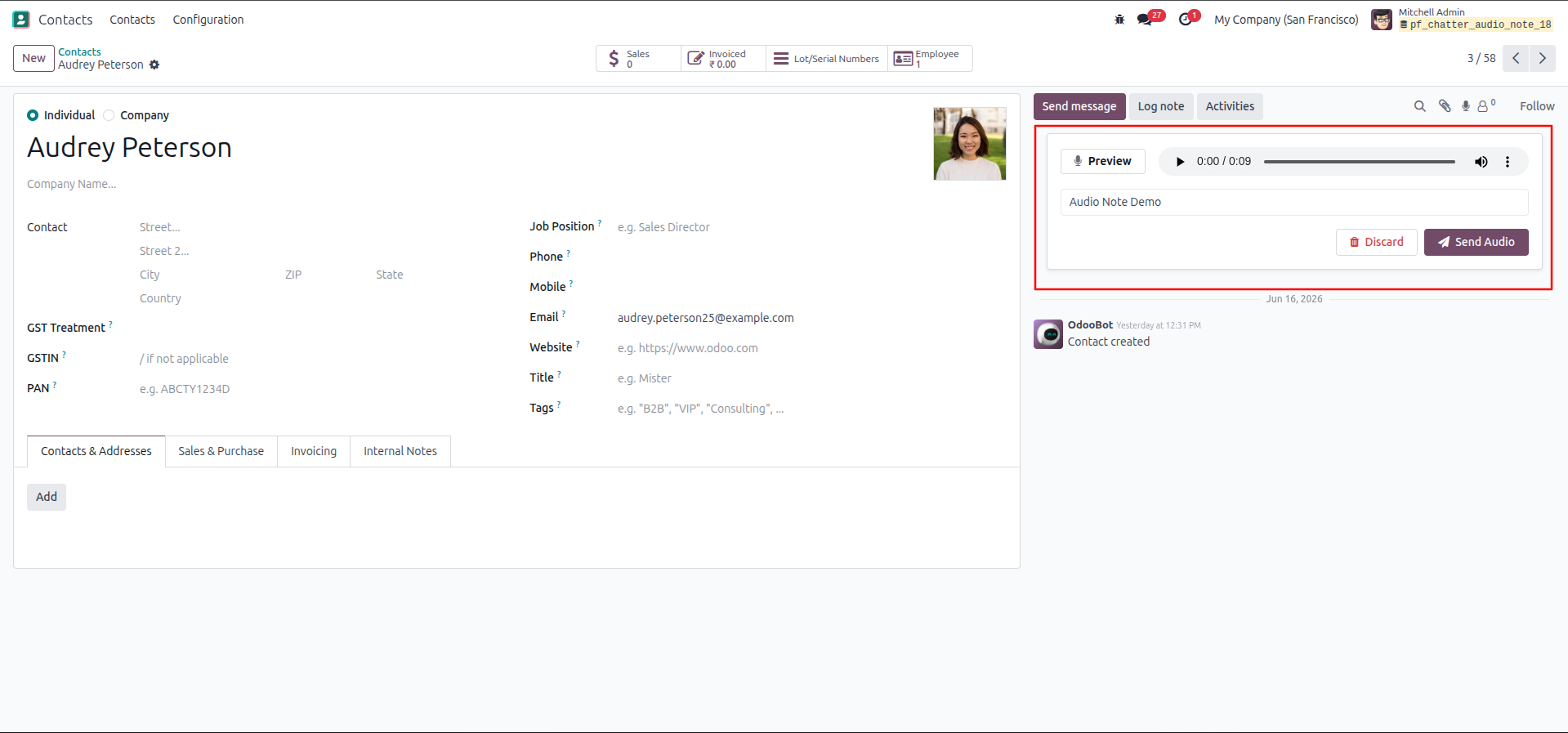
5.Once stopped, a preview player appears with the recorded audio (0:09), a caption field where the user types "Audio Note Demo," and Discard / Send Audio buttons.
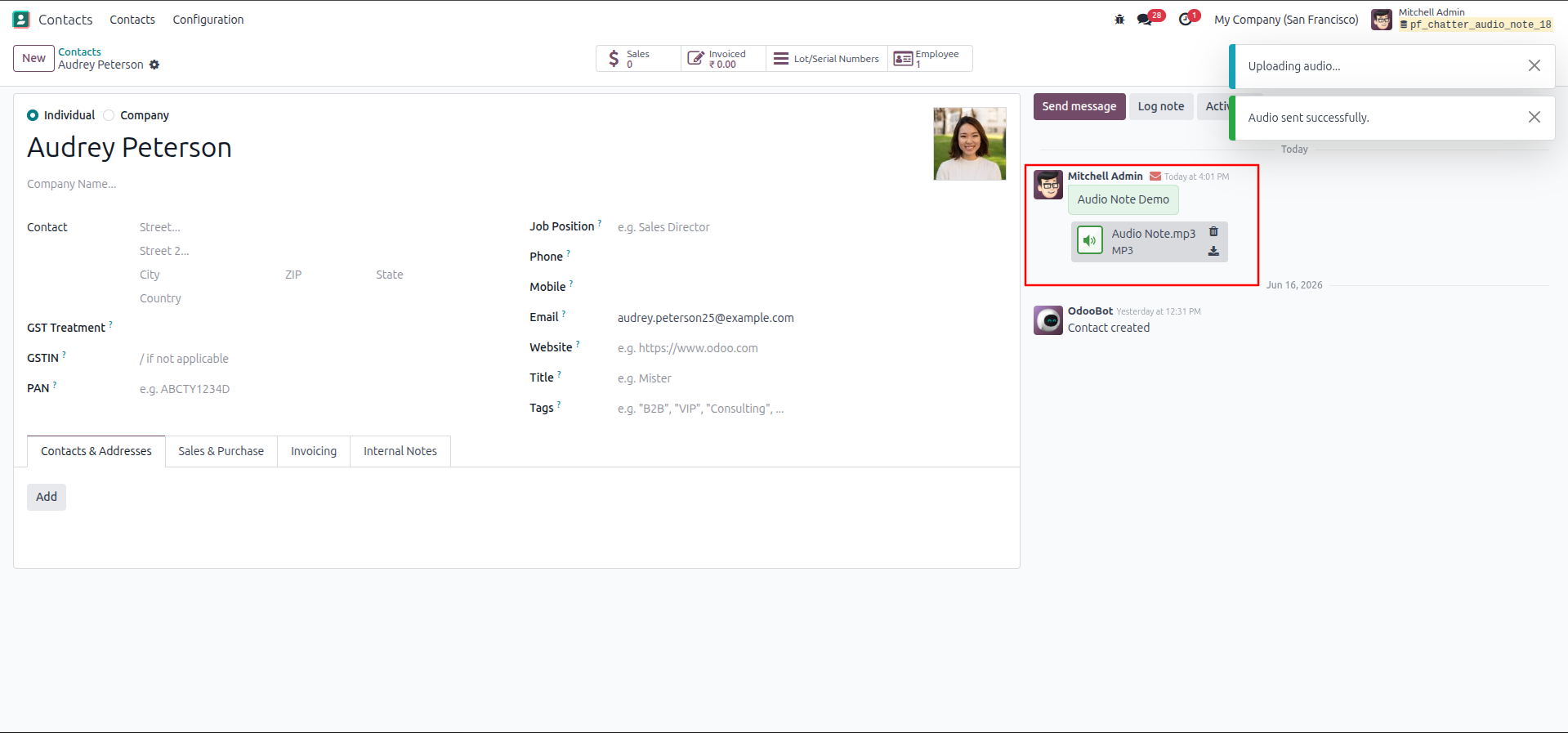
6.After clicking Send Audio, the system shows "Uploading audio..." then "Audio sent successfully," and the chatter posts the message with the caption and a playable Audio Note.mp3 attachment.
Our solutions focus on your problems
- Odoo Implementation
- Odoo Customization
- ERP Development and Implementation
- Odoo Ipass Cloud
- AI for Odoo
- Odoo Apps
- Aws Marketplace Products
- Business Engines
Our Pricing includes User Manual, 90 Days Support (Monday-Friday 10am to 7pm IST) and One time Setup
• Works & tested on standard installations of Odoo with no third party apps,
• Free support only for odoo installations with no third party apps,
• Paid support available for Odoo installations with third party apps.

Prefortune is a Odoo Official Partner, Odoo Development company. Our philosophy is to use Open Source tools and technologies to provide cost effective and green solutions for our customers.
Prefortune Technologies LLP is working on web development, Mobile development, and Odoo ERP.
If you need any help or want more additional features, you may contact us through:
Alternative Products
These other products might interest you
Specifications
| Version | 19.0, 18.0, 17.0, 16.0, 15.0, 14.0 |