Watch Quick Video

Website Quick Order Odoo App
The Website Quick Order Odoo App
module is a fast and efficient way to ease and speed up the process of ordering products directly from
your Odoo website. This module helps the customer to select and add multiple products at once without
going to the single product page. From one easy to use interface, customers can search for the products
they want, add quantities, import product lists and prepare bulk orders. The method is compatible with
different product selection methods, and is therefore suitable for both regular and bulk customers. The
module also has the ability to import files. It allows users to create orders from the existing product
lists. Customers can edit lines on their orders, flag incorrect product details and add the items they
need to their shopping cart. Support for Shopping List & Wish List Customers can save and organise
products they regularly buy to make future orders easier. The customers can also copy orders from previous
orders or templates to save repetitive work. The module is fully integrated with Odoo Website and
eCommerce for a better ordering experience and for a simpler way for businesses to buy products in bulk to
save time.
It has great features to make ordering websites fast and easy:
1. Immediate creation of on-premise orders: Customers are able to order thru a dedicated Fast
order page rather than browsing individual product pages. They can add multiple products, set quantities
and complete their order all from one easy to use user interface.
2. Various Product Search & Selection Techniques: In this module we will show different
techniques to search the product catalogue of the website for the desired product. The product information
provided assists the customer in identifying the product easily and in selecting the correct product.
3. Bulk product import & file upload: Customers can upload supported product list files to add
multiple products at once instead of adding products one by one. It has fast large orders and ready file
uploads with drag and drop upload feature.
4. Order Line & Quantity Management: Customers can add, delete or change products and
quantities prior to checkout. This gives the user full control over what they want in their fast order.
5. Product Validation & Error Handling : The system validates the product information that is
entered or imported and detects invalid or unavailable products. This helps the customers to solve their
product related problems before placing the final order in the shopping cart.
6. Shopping List & Wishlist Management: : The Shopping List and Wishlist features are useful
for saving frequently purchased products for later. To make repeat purchases and access easier, saved
Wishlist products are grouped.
7. Previous Orders & Template-Based Ordering: Customers can create new orders from old orders
or from saved order templates. Easy repeat buying, eliminates repetitive data entry and speeds up frequent
bulk ordering.
Website Quick Order Odoo App Features
- Offers a special page for customers to quickly ready their orders. It’s easier to buy in bulk without going to each individual product page.
- Customers can easily find and select products by product name or internal reference number. This allows you to easily find the products you need accurately, even with a large product catalogue.
- Users can easily search products by scanning barcode information. Adding items to the order is easy.
- File formats supported for uploading product lists. You can add more than one product together. This saves time when making large orders.
- Users can easily drag their order file in the upload area. This is an easy and comfortable way to import the product data.
- If the system fails to find a product keyed in, the customers will be informed. Such alerts help users identify incorrect product information.
- We give you sample files to assist customers in understanding the needed data format. These templates can be downloaded by the user and used to prepare the order files.
- Customers can filter the products in their saved wishlist by category. This simplifies the handling and search for products that are purchased often.
- Customers can generate new orders from old orders or saved templates. This saves a lot of repetitive work and repeat purchases are much faster.
- The module checks the data entered or imported before the order is placed. Invalid or incorrect product data creates warnings.
Complete Workflow for Website Quick Order Odoo App App
Customers visit the website and open the Fast Order Page to begin creating their order. They can Search & Select Products, specify required quantities, and add multiple items from a single interface. Customers can also Import Product Listsusing supported files or use the drag-and-drop option for bulk ordering. The system provides Product Validation & Error Alerts to identify incorrect or unavailable products before proceeding. Users can manage their Order Lines & Quantities, save products to their Wishlist or Shopping List, and reuse previous orders or templates for faster repeat purchases. Finally, selected products are added to the Shopping Cart, allowing customers to continue with the standard Odoo checkout process.
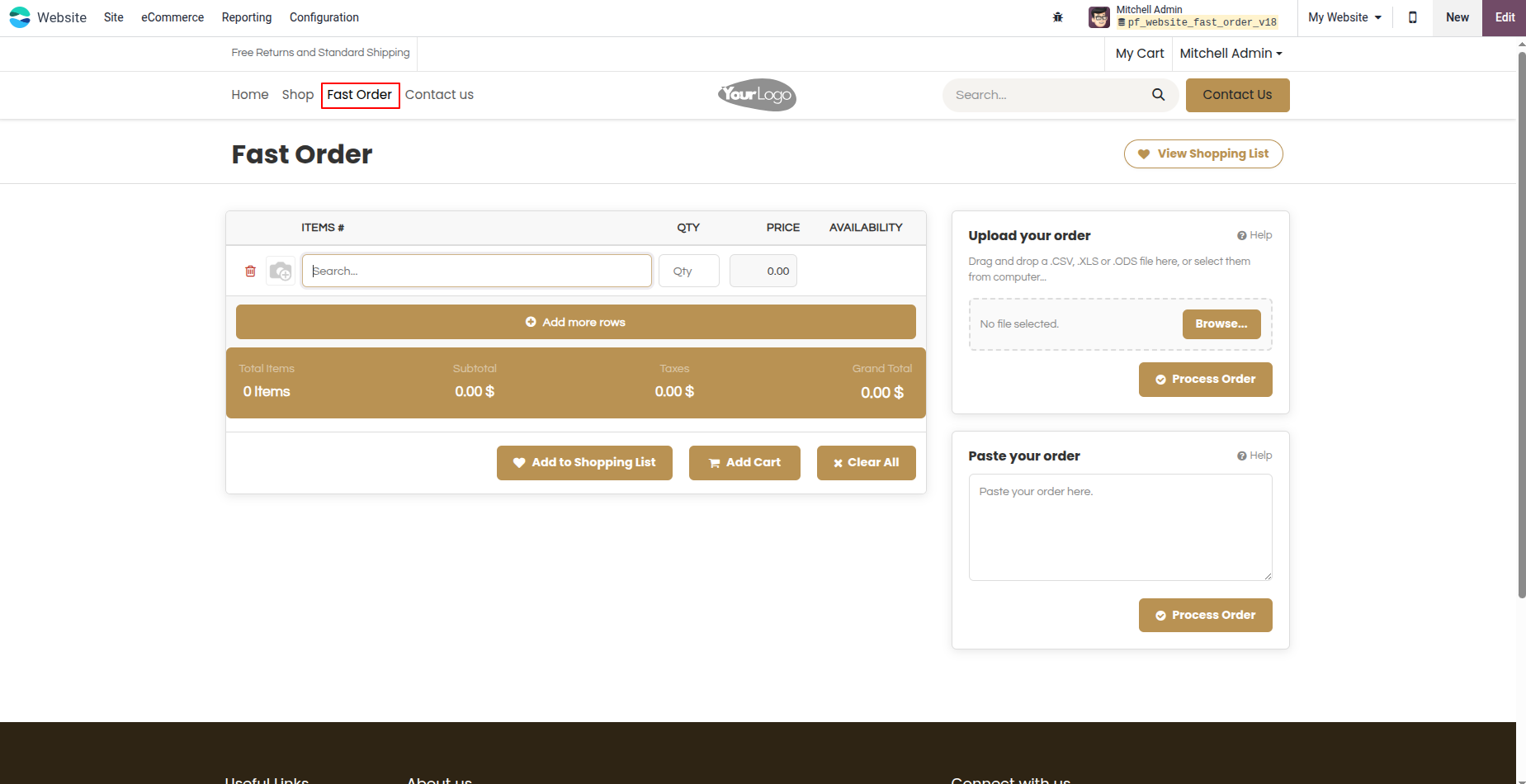
1. Convenient 'Fast Order' menu link added directly to the website navigation header for quick customer access.
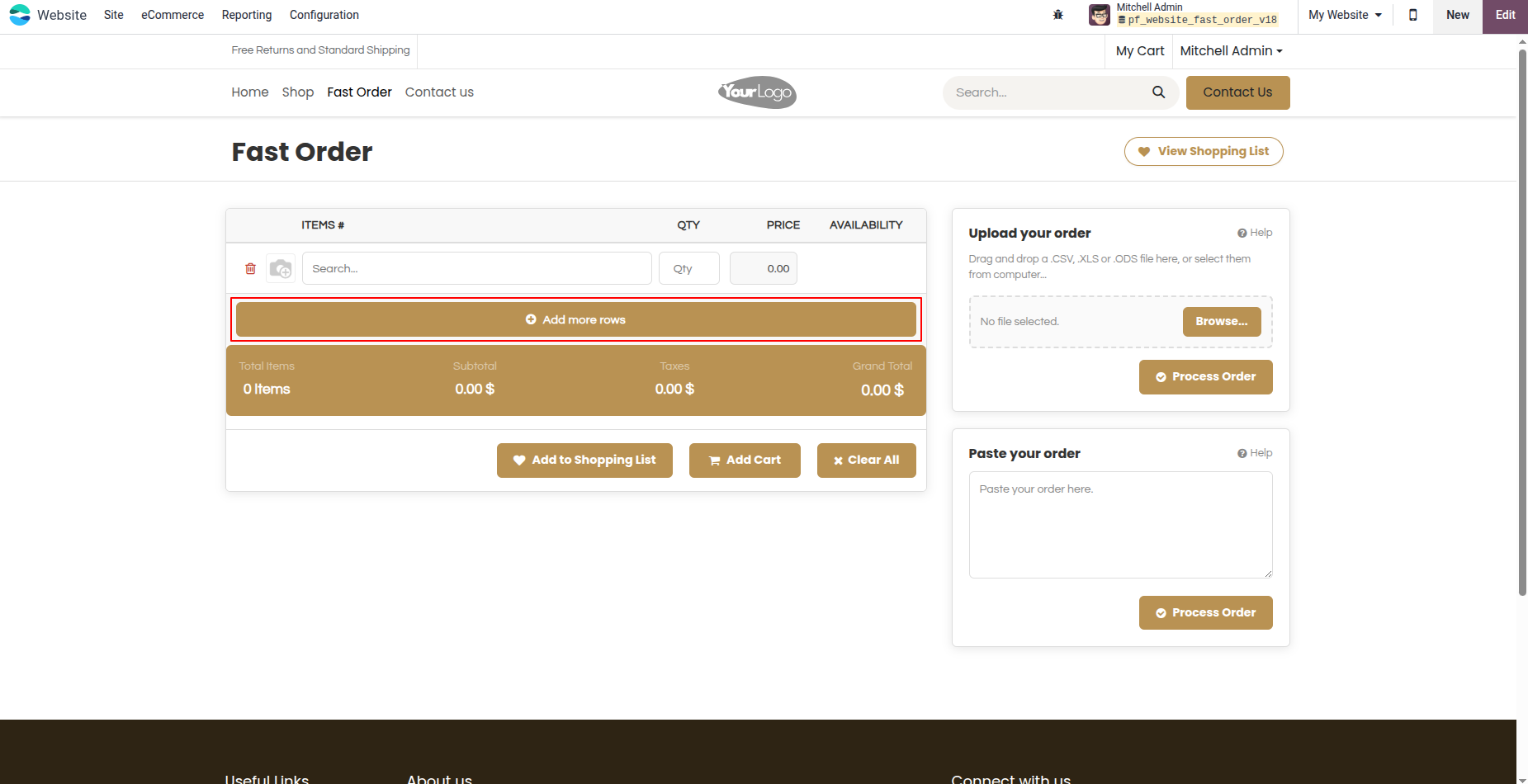
2. Easily add multiple product entry rows with a single click using the 'Add more rows' button.
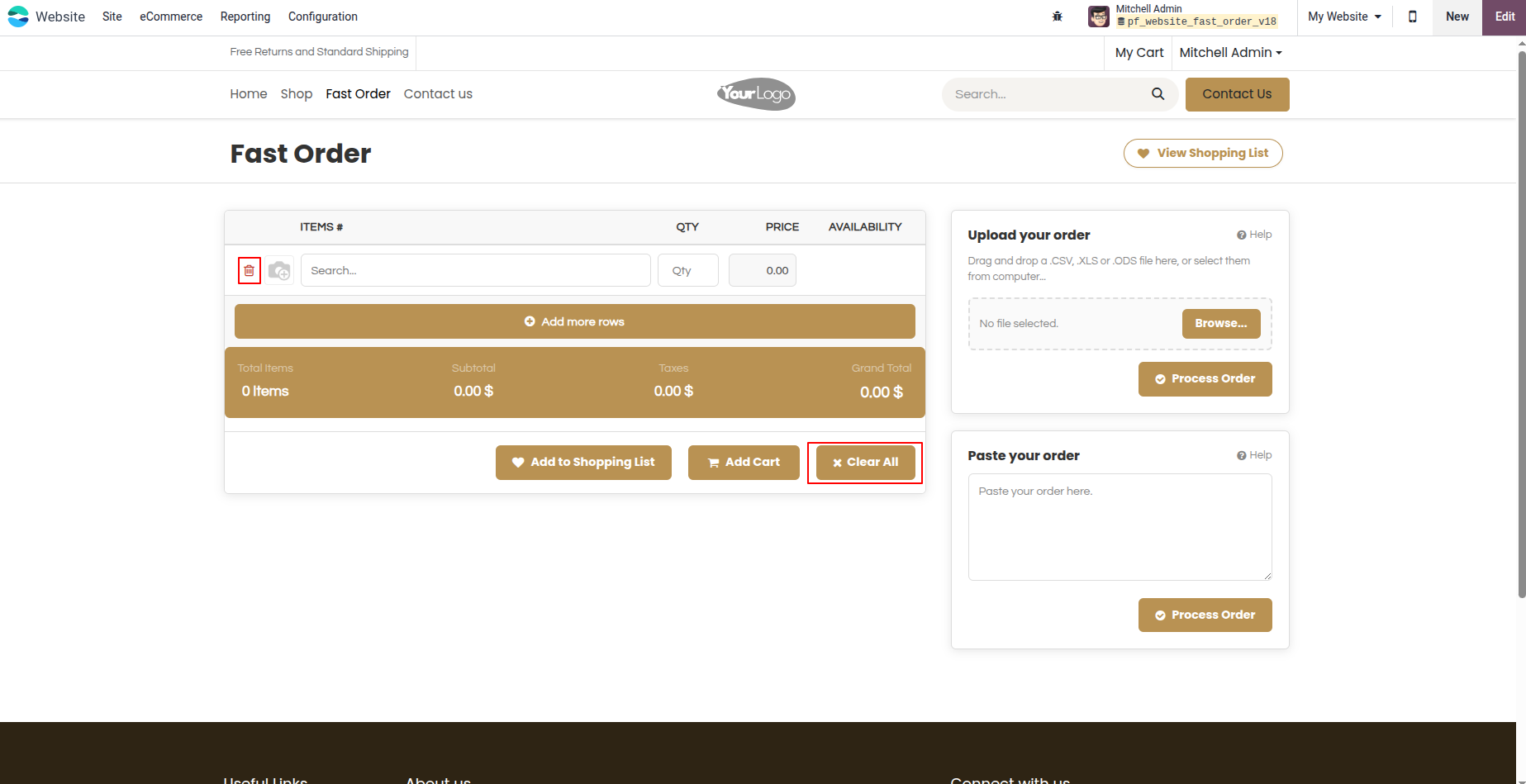
3. Instantly reset and clear all entered products from the table with the 'Clear All' button.
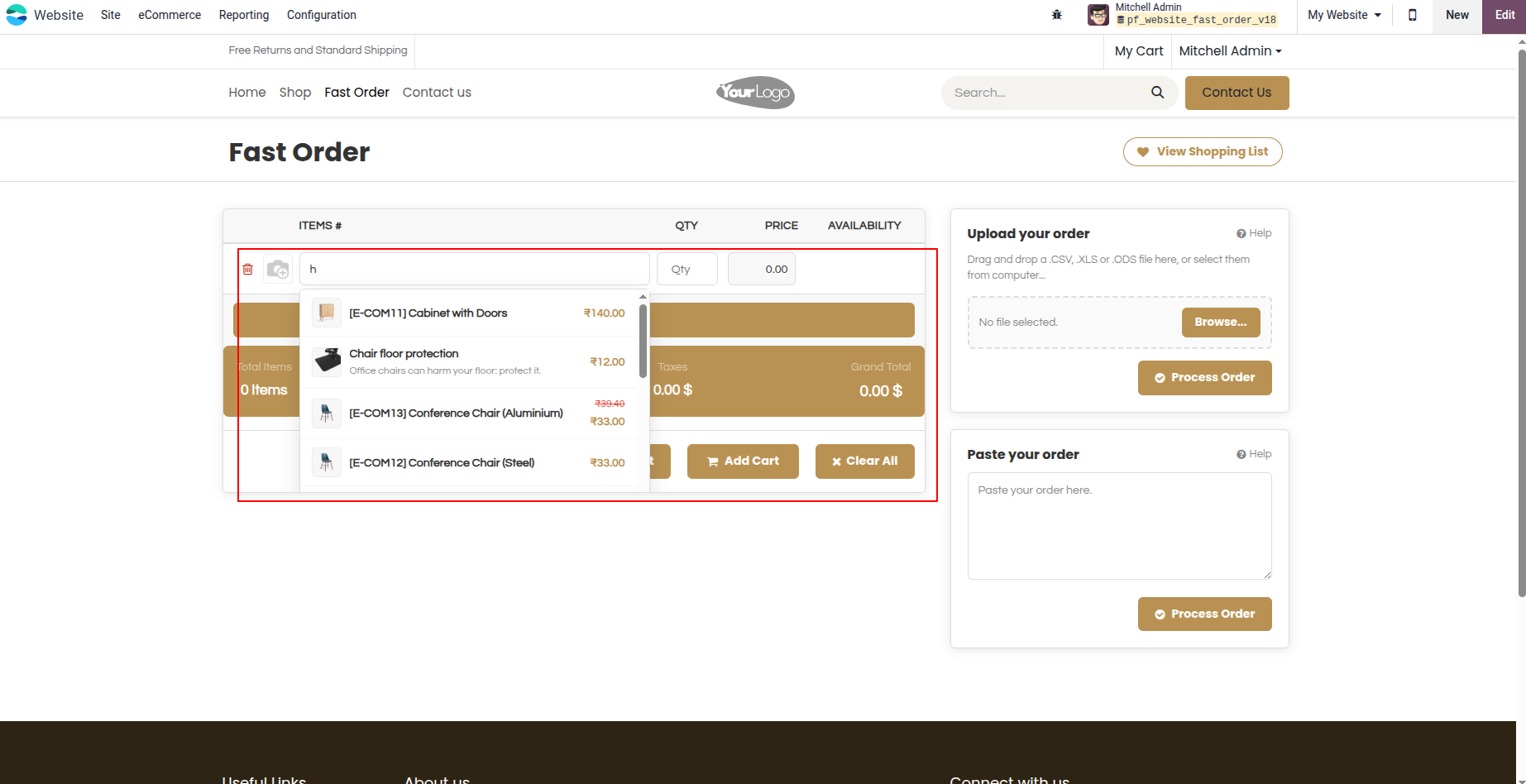
4. Smart auto-complete search box allows searching products instantly by name, barcode, or internal reference.
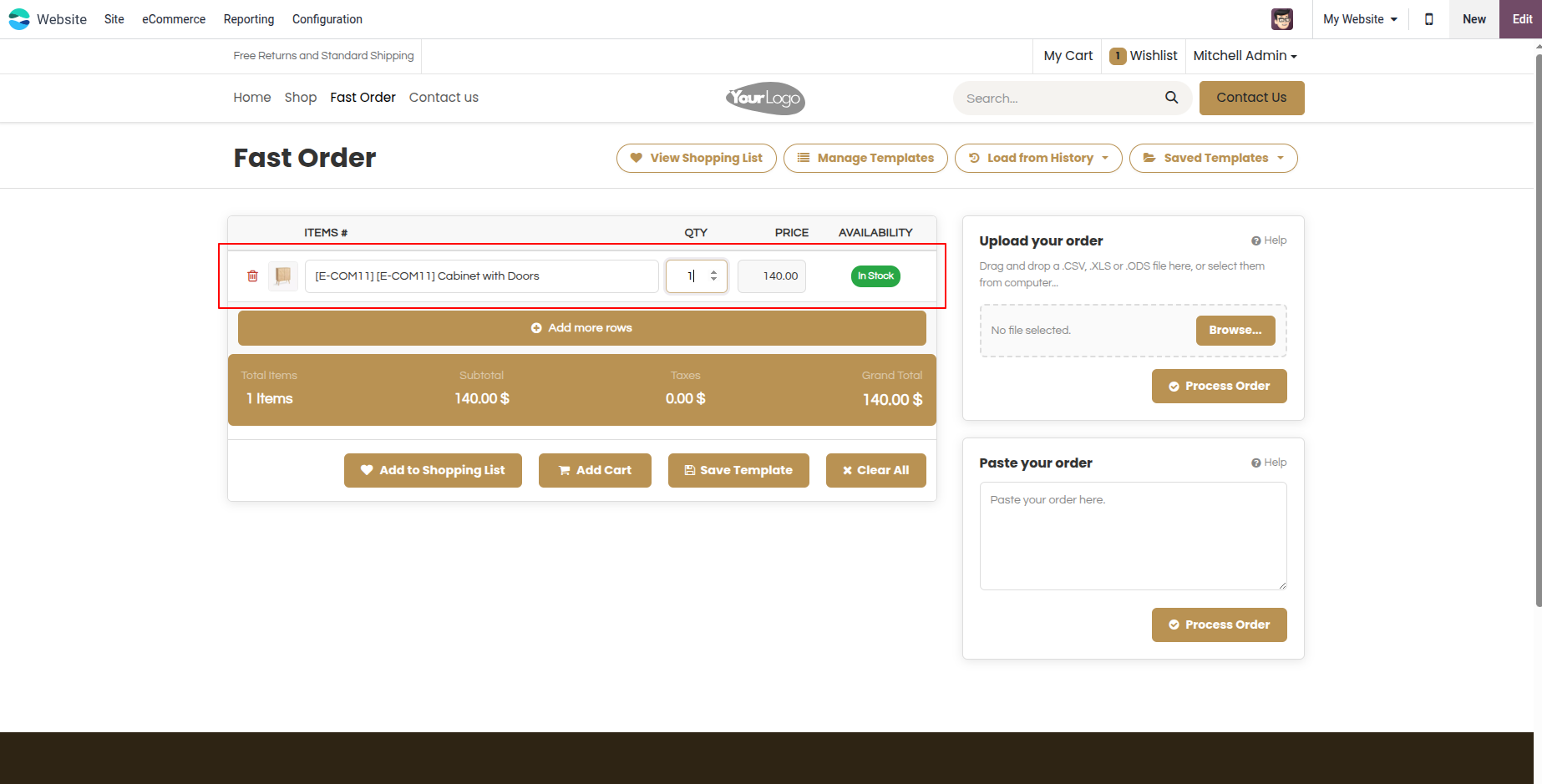
5. Real-time product details display stock availability, item prices, and dynamic subtotal calculations.
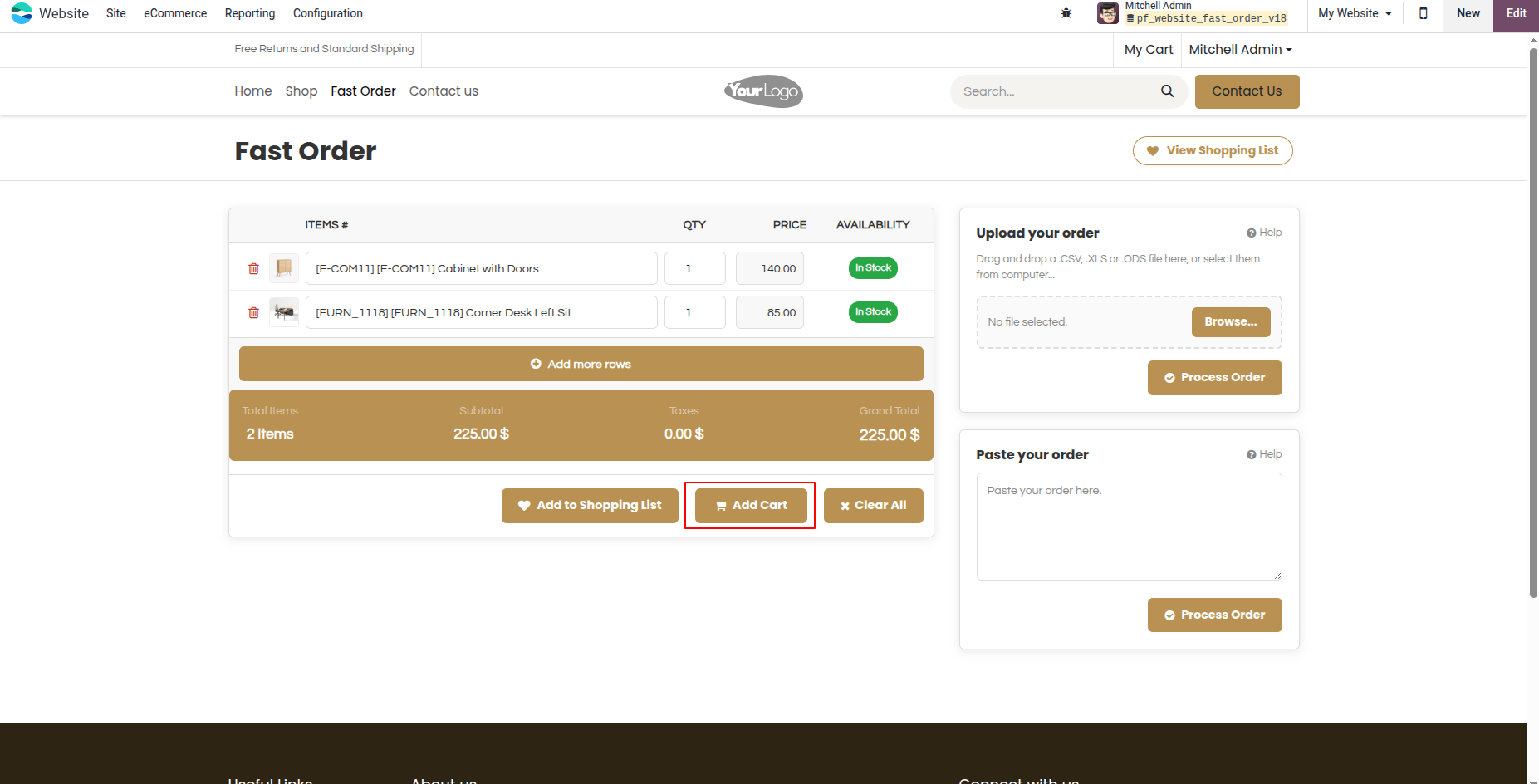
6. One-click bulk addition: add all selected products directly to the shopping cart.
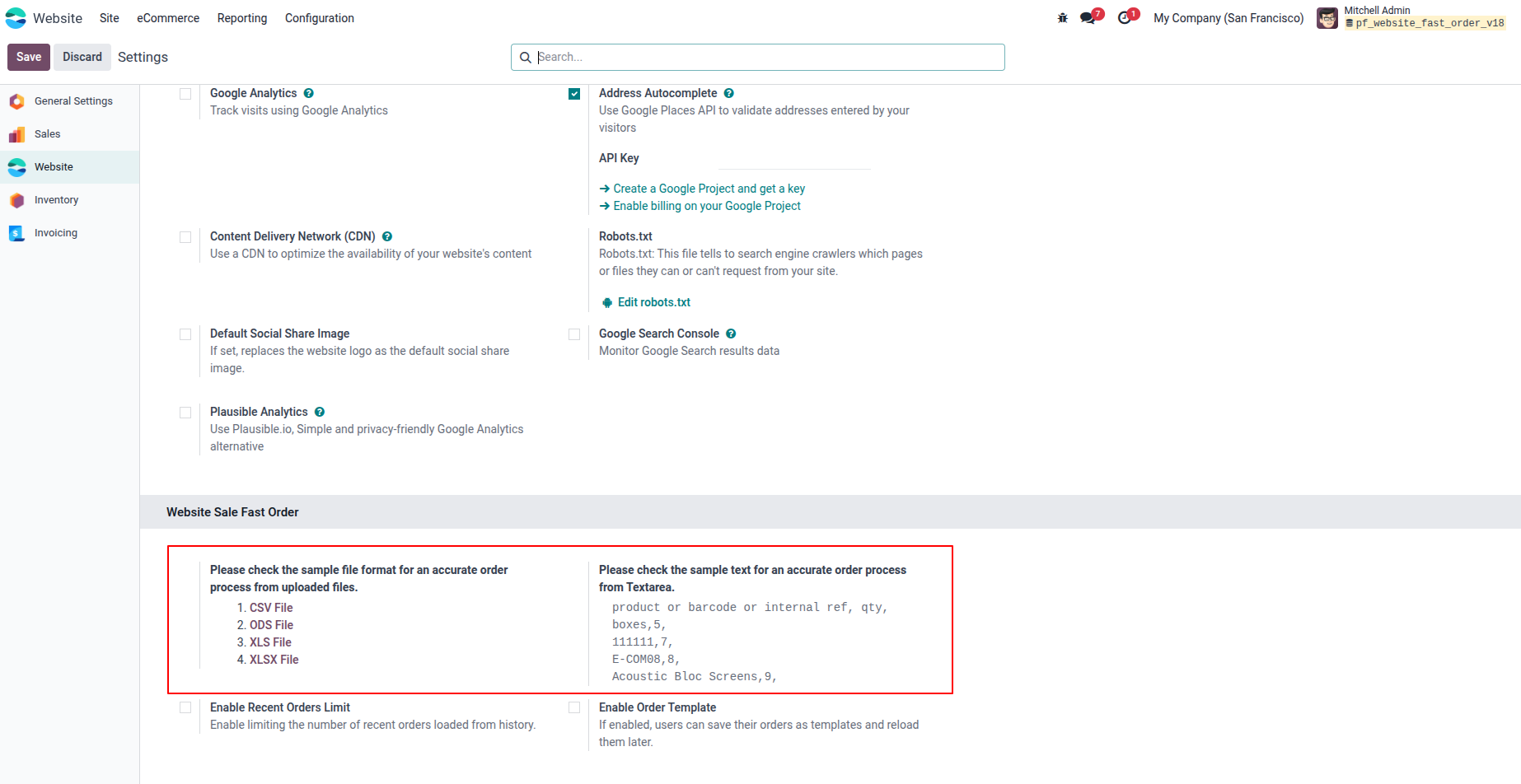
7. Backend configuration menu to view sample formats for bulk file uploads and plain text order processing.
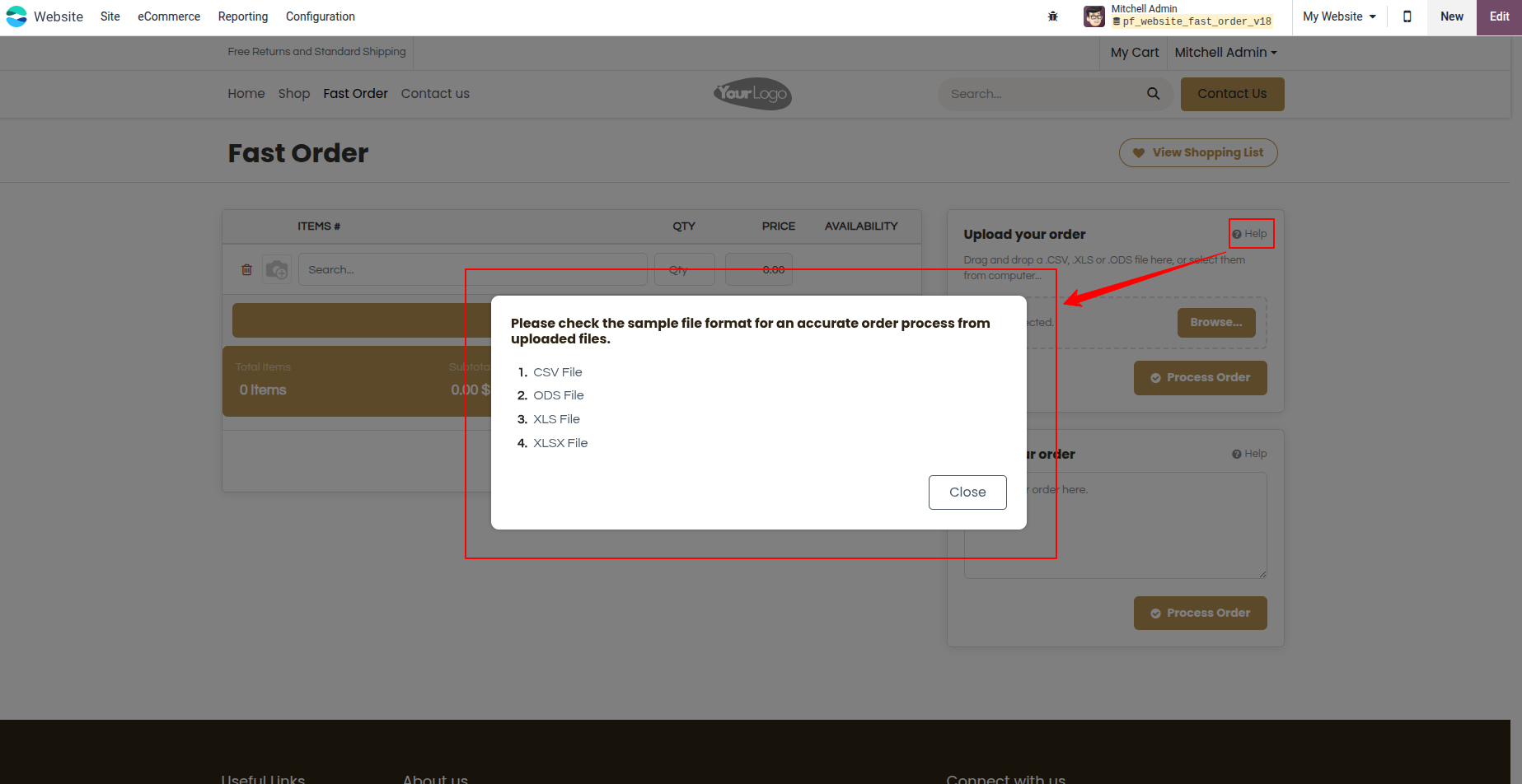
8. Interactive 'Help' button providing file format guidance (CSV, ODS, XLS, XLSX) for fast order file uploads.
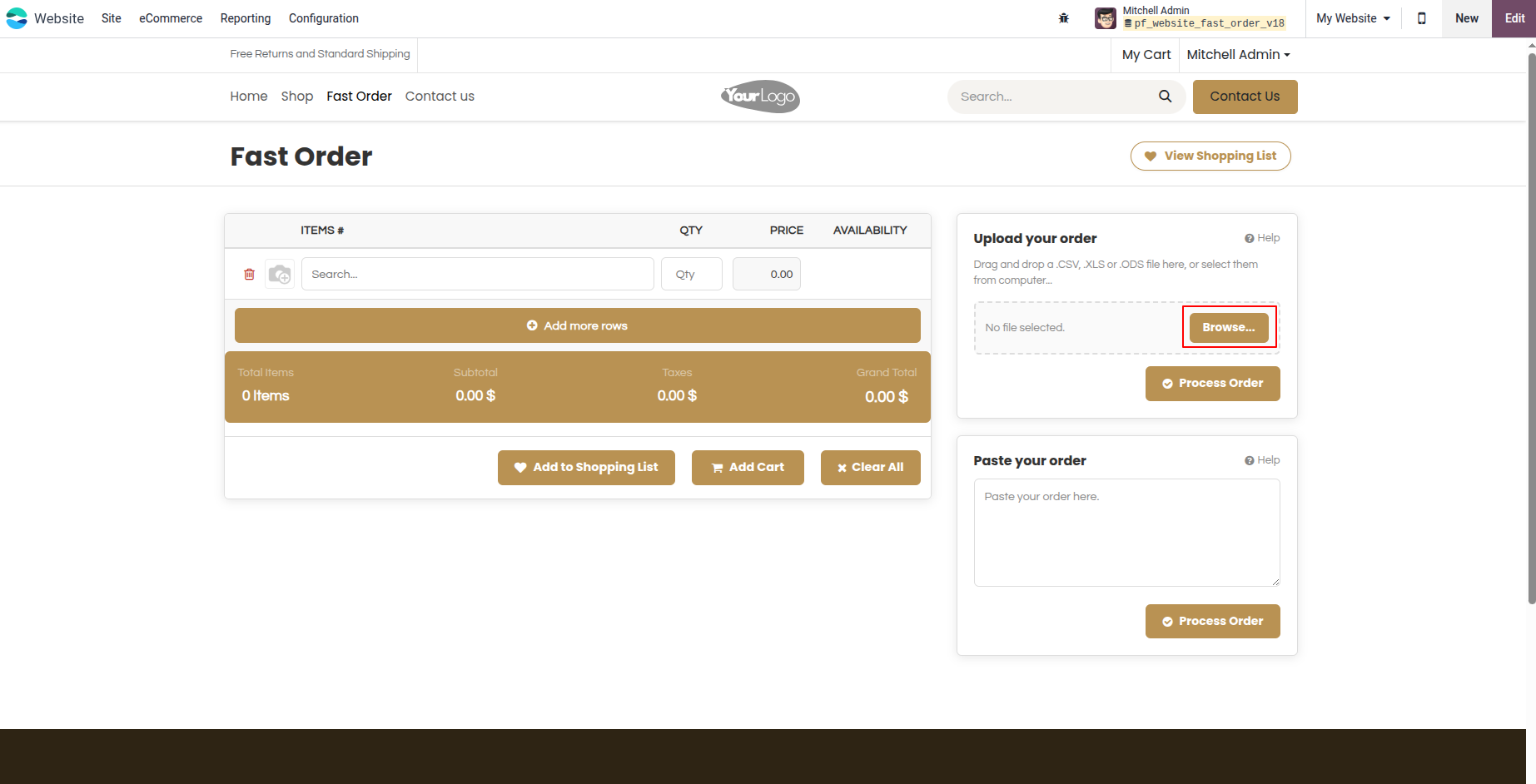
9. Upload pre-prepared order files directly from your computer using the 'Browse...' file picker.
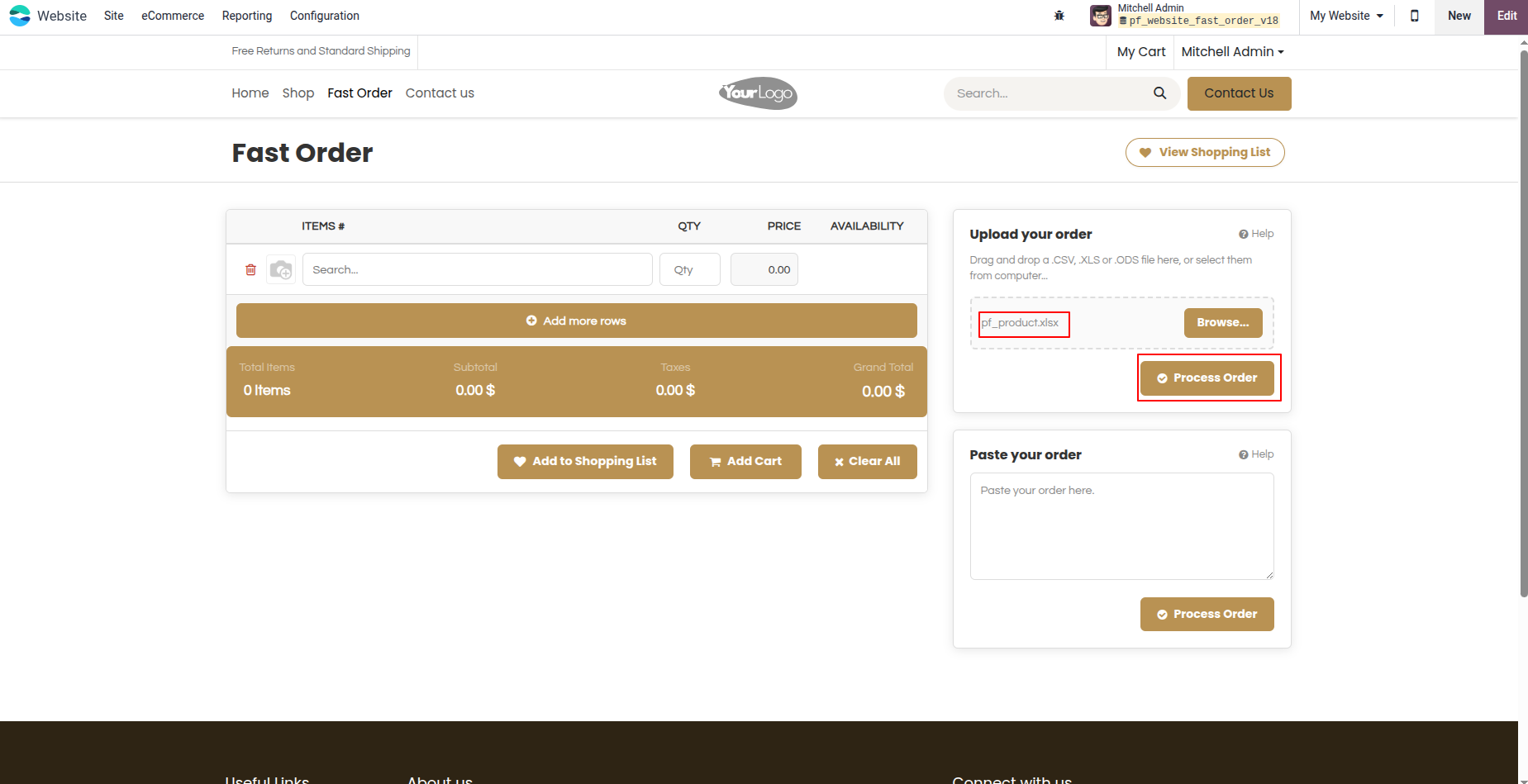
10. Select your Excel/CSV file and click 'Process Order' to import all product items automatically.
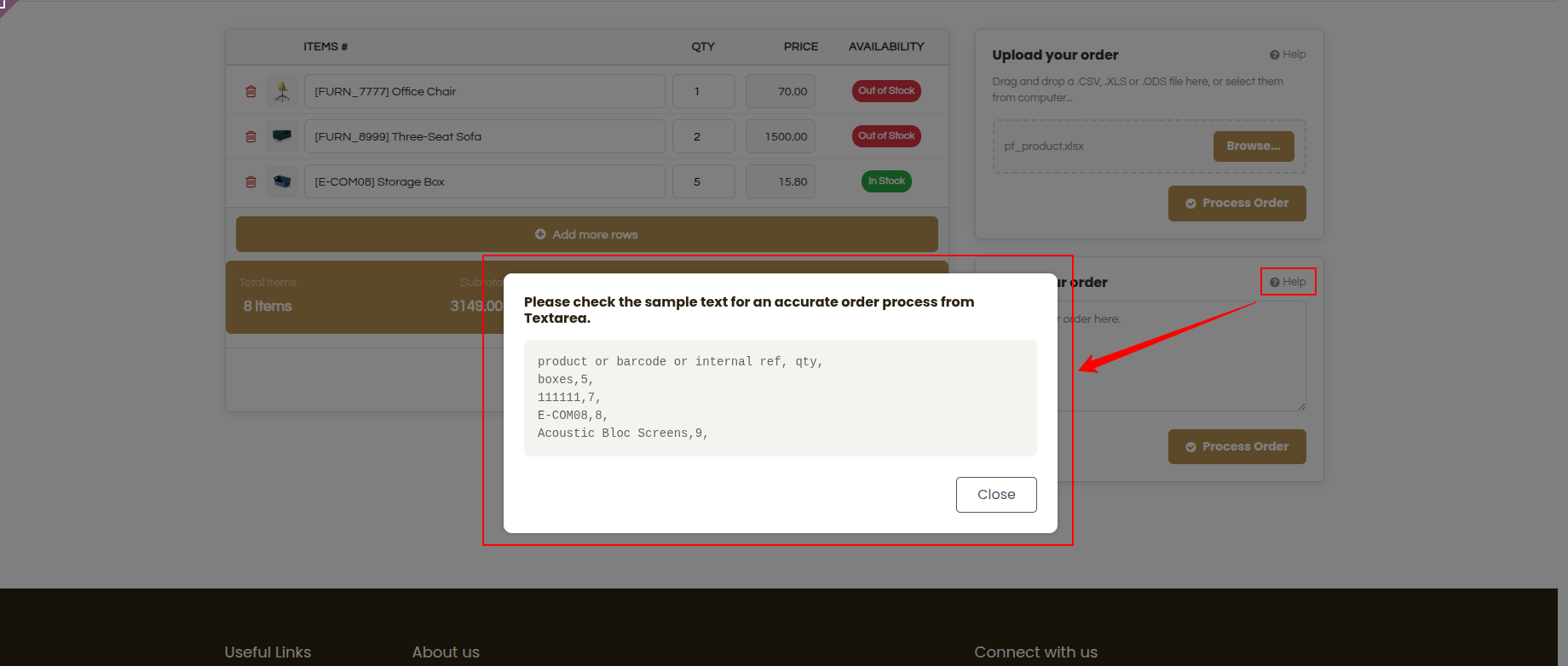
11. Quick guide for bulk pasting: view sample text formatting for pasting product codes and quantities.
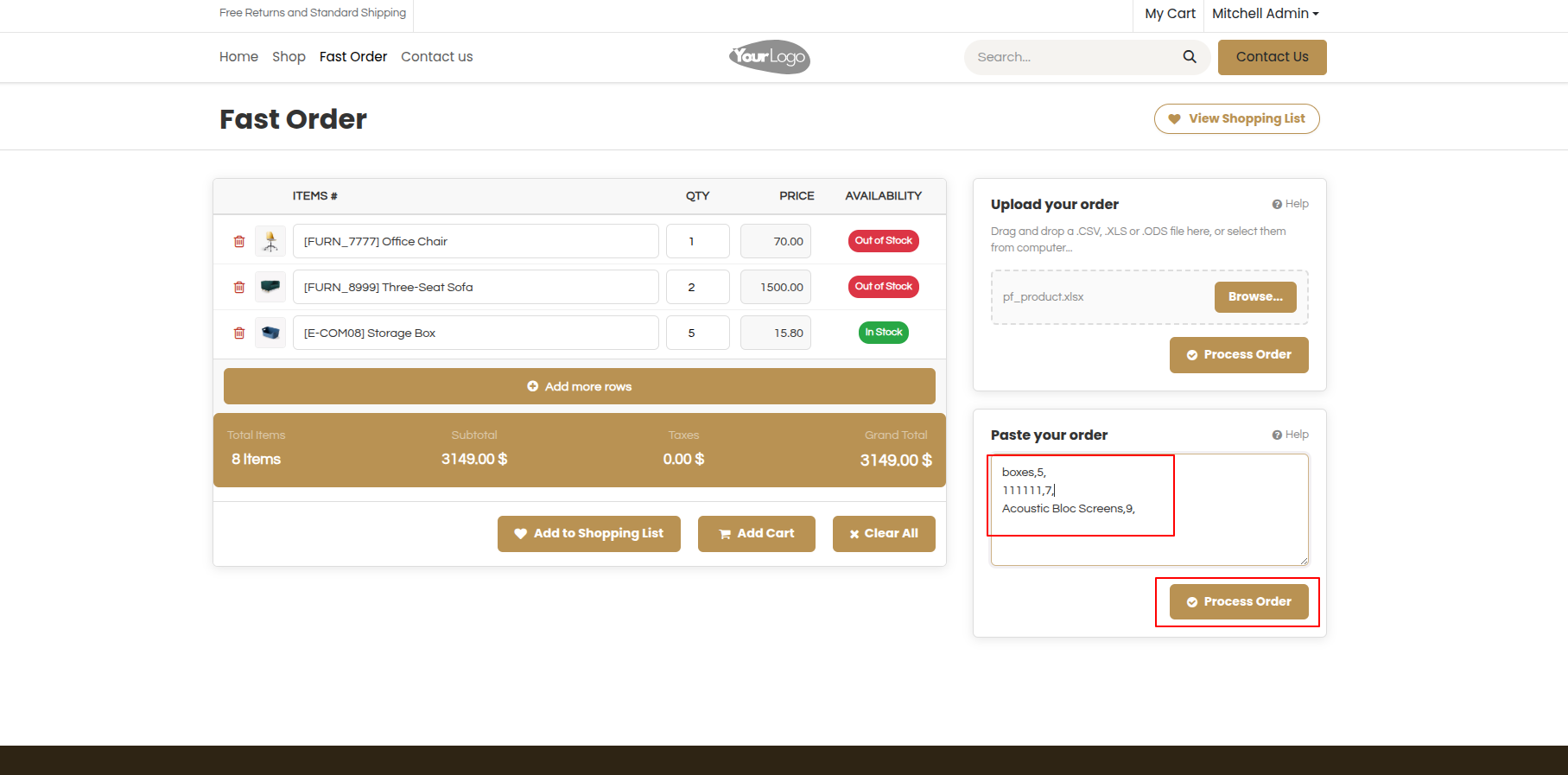
12. Paste order lines into the text box and click 'Process Order' to parse and load items instantly.
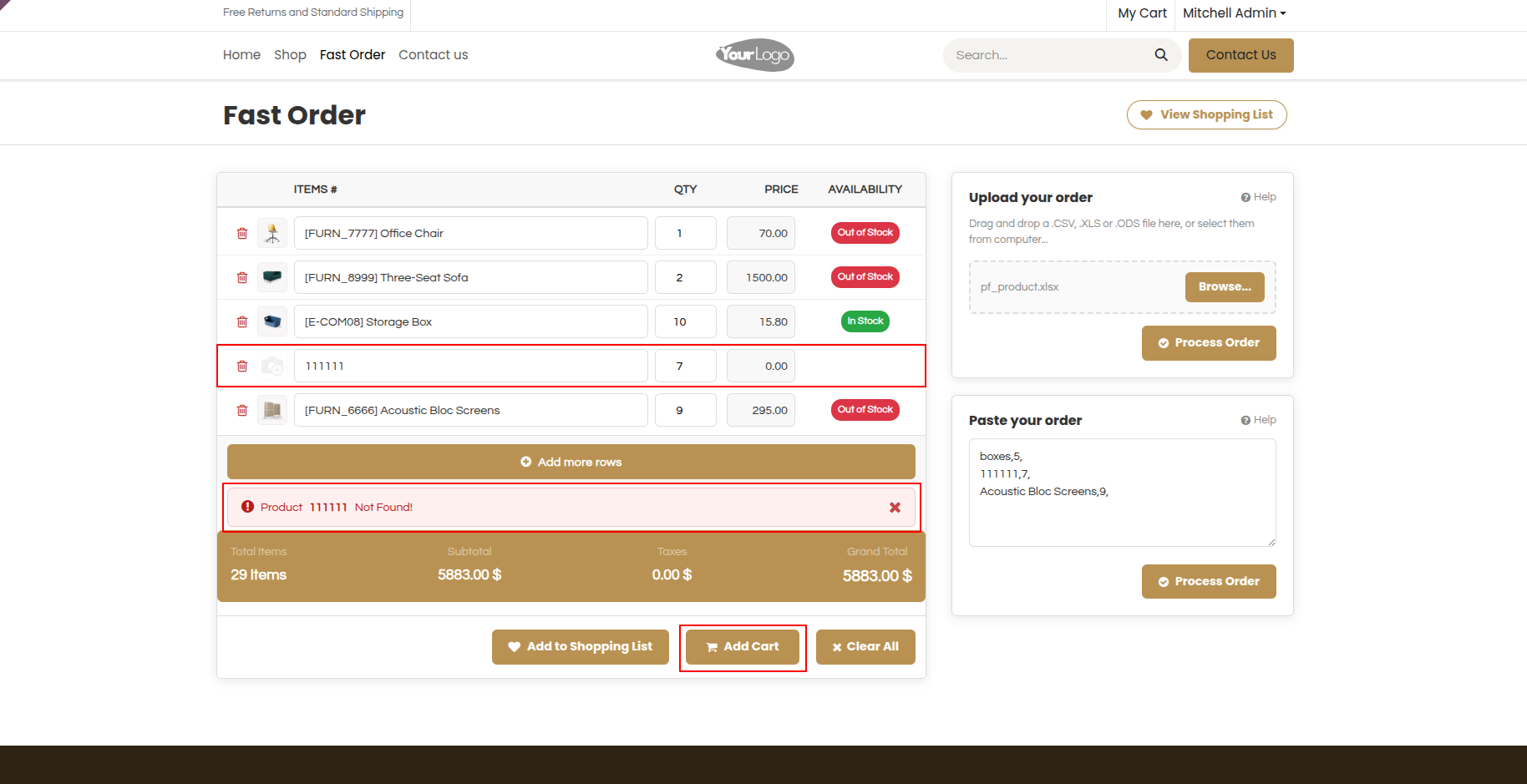
13. If any products not found then it shows a warning message.
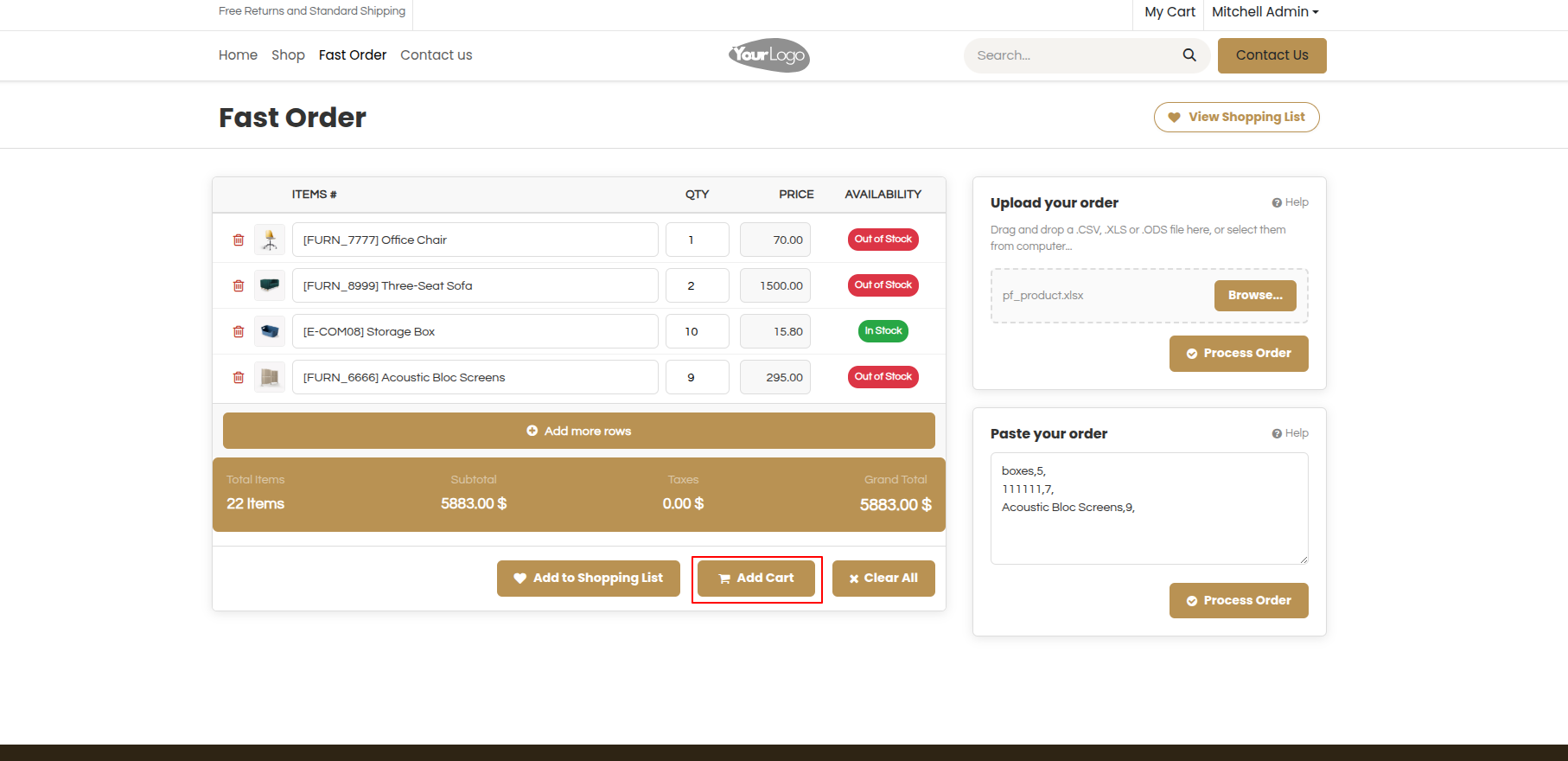
14. Easily review total item counts and grand total before pushing all items to cart.
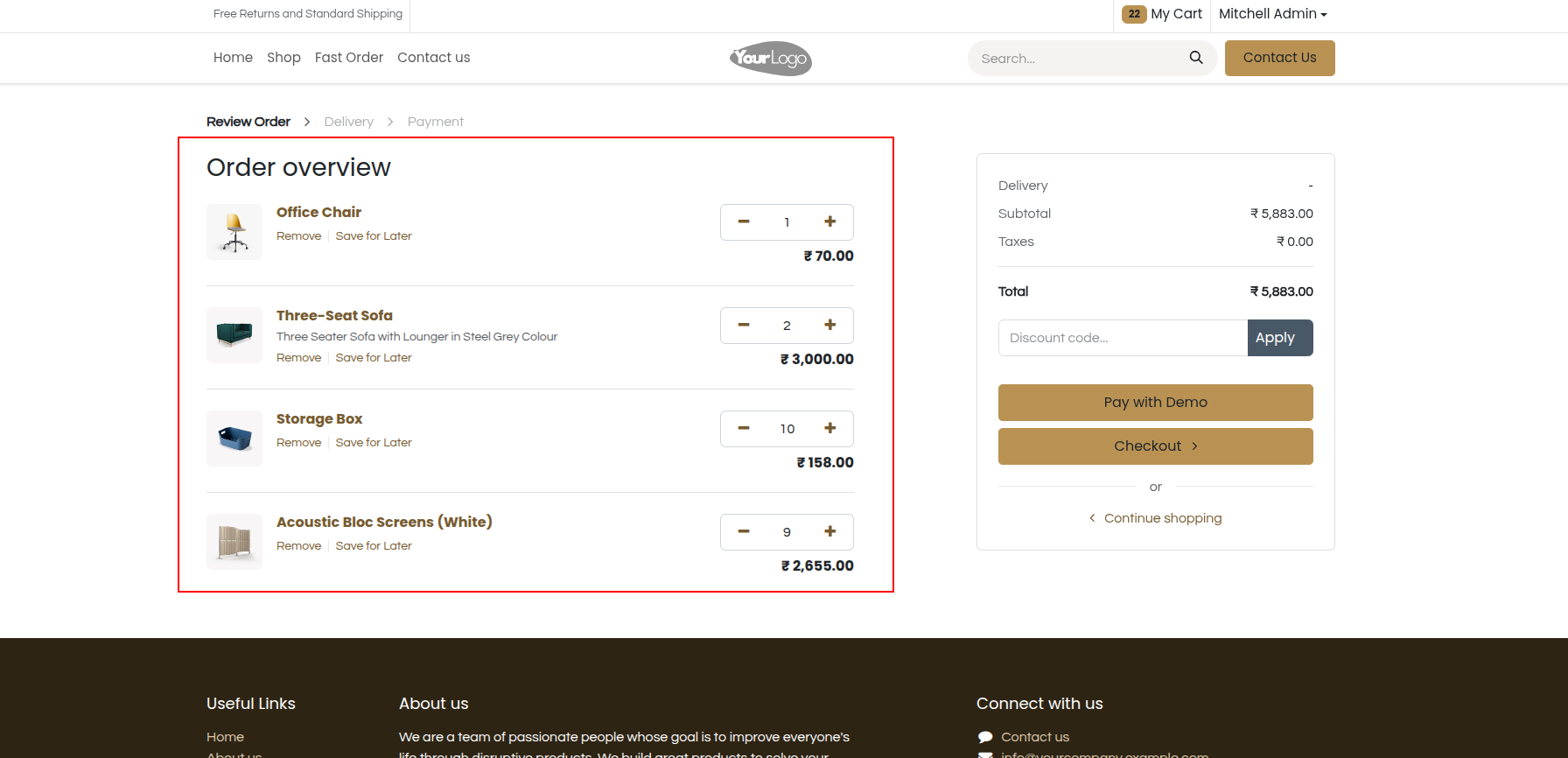
15. Seamless redirect to the standard Odoo website cart page for quick checkout and payment.
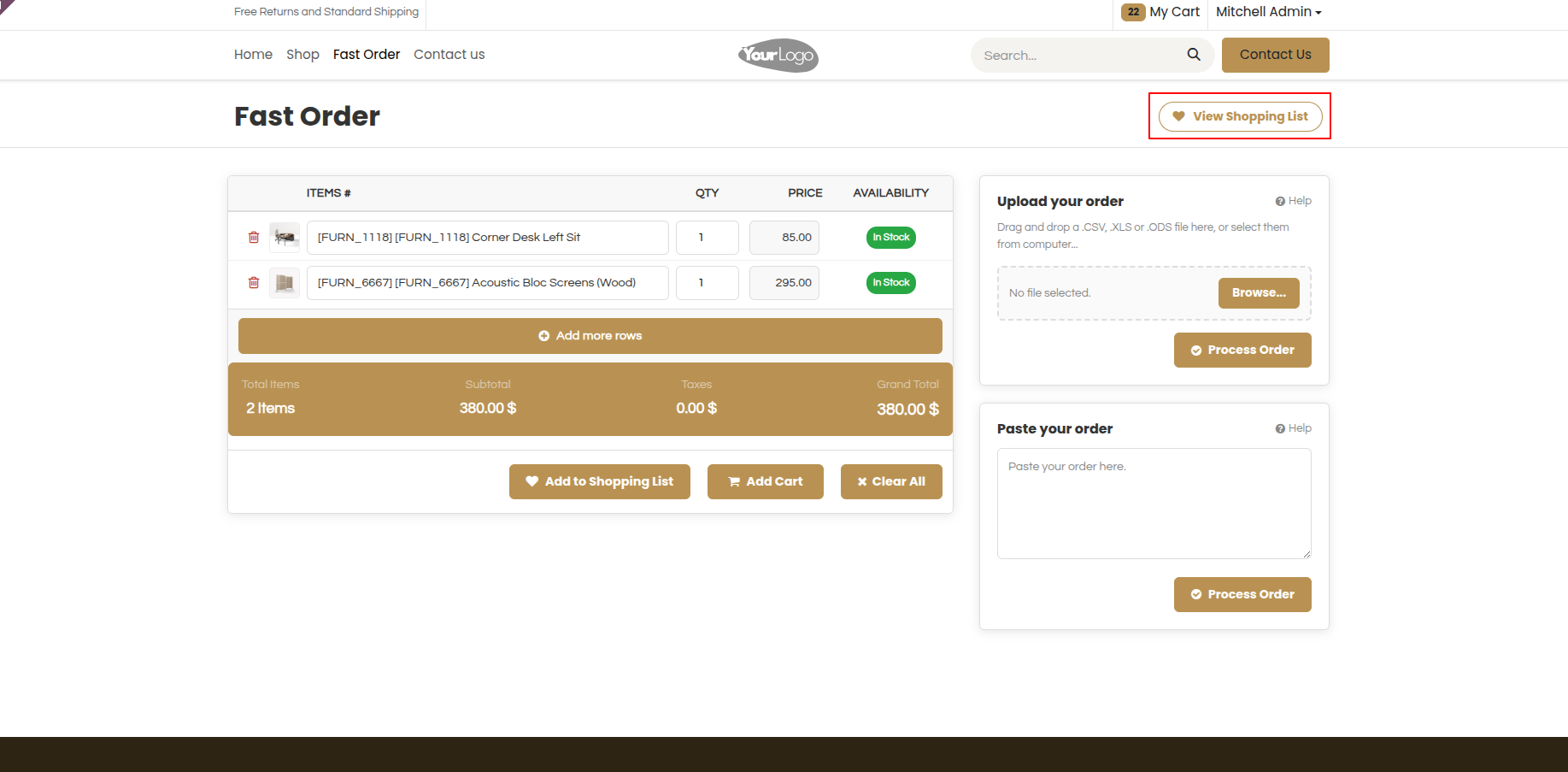
16.Fast order menu. Click on the 'View Shopping Lists'.
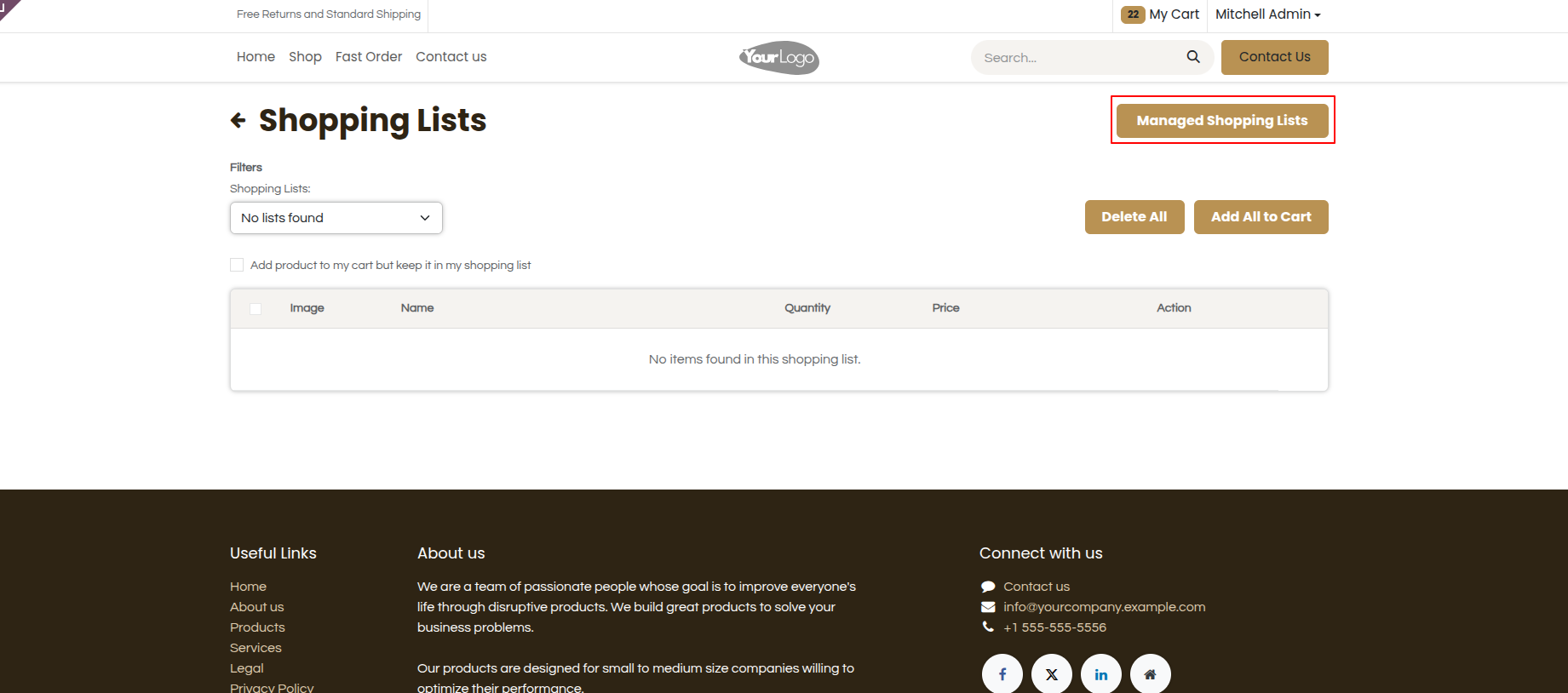
17. Shopping list hub showing current lists and quick access to 'Manage Shopping Lists'.
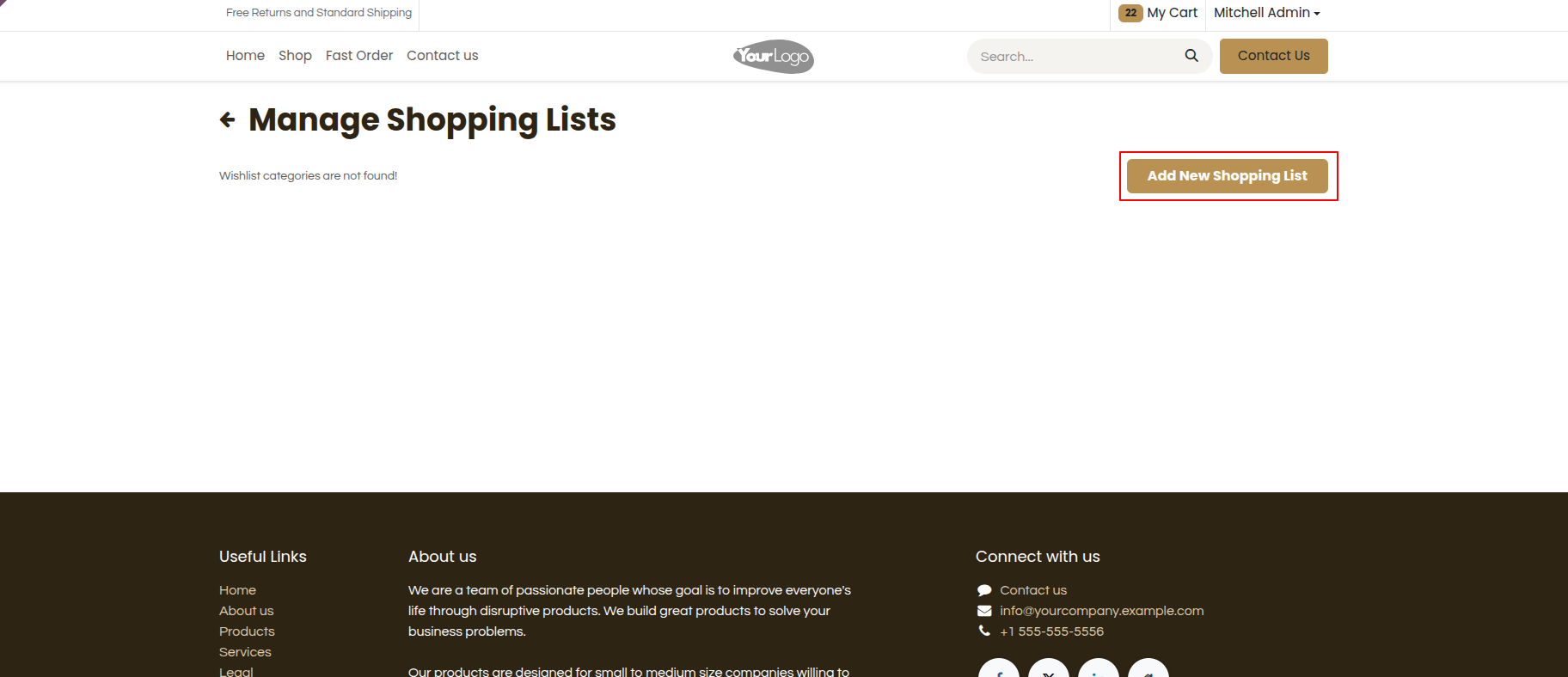
18. Create custom shopping lists easily by clicking the 'Add New Shopping List' button.
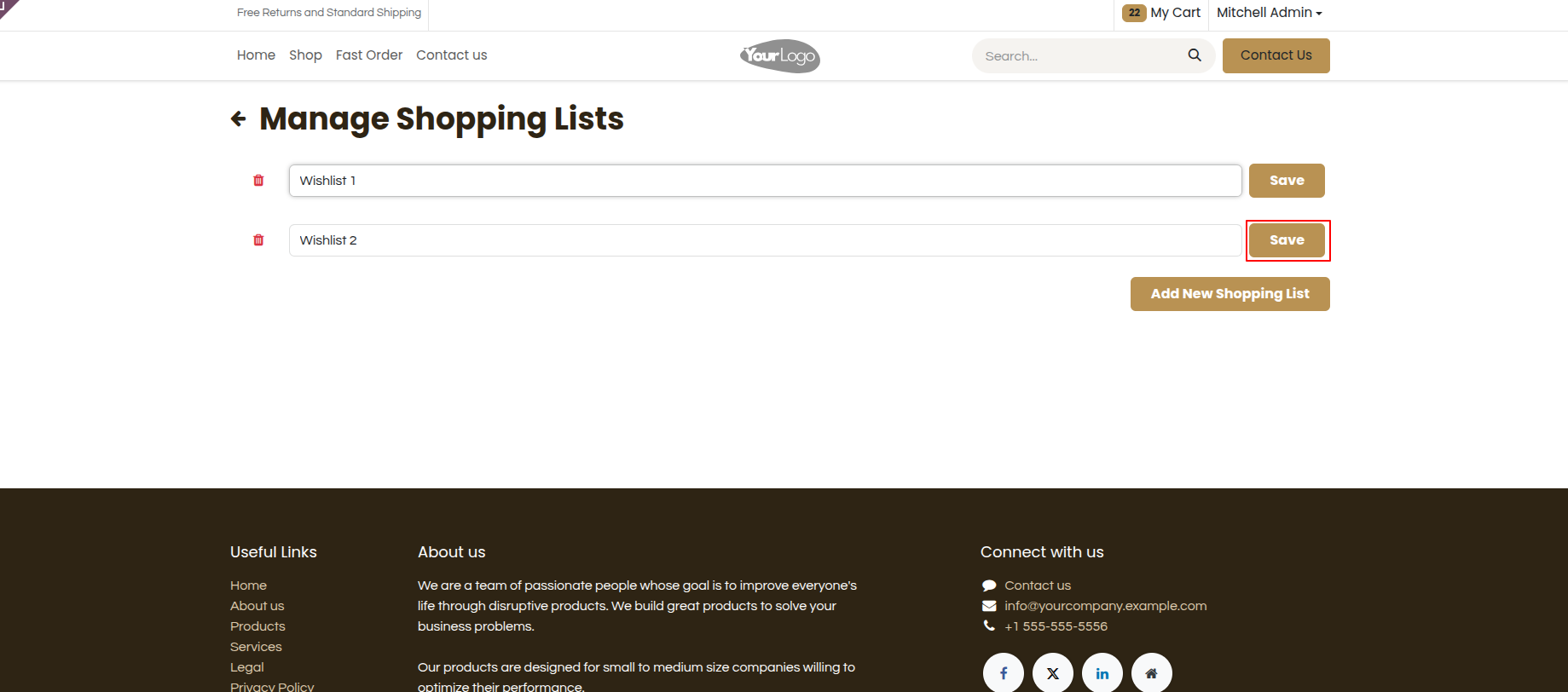
19. Rename and manage custom shopping list names with instant 'Save' actions.
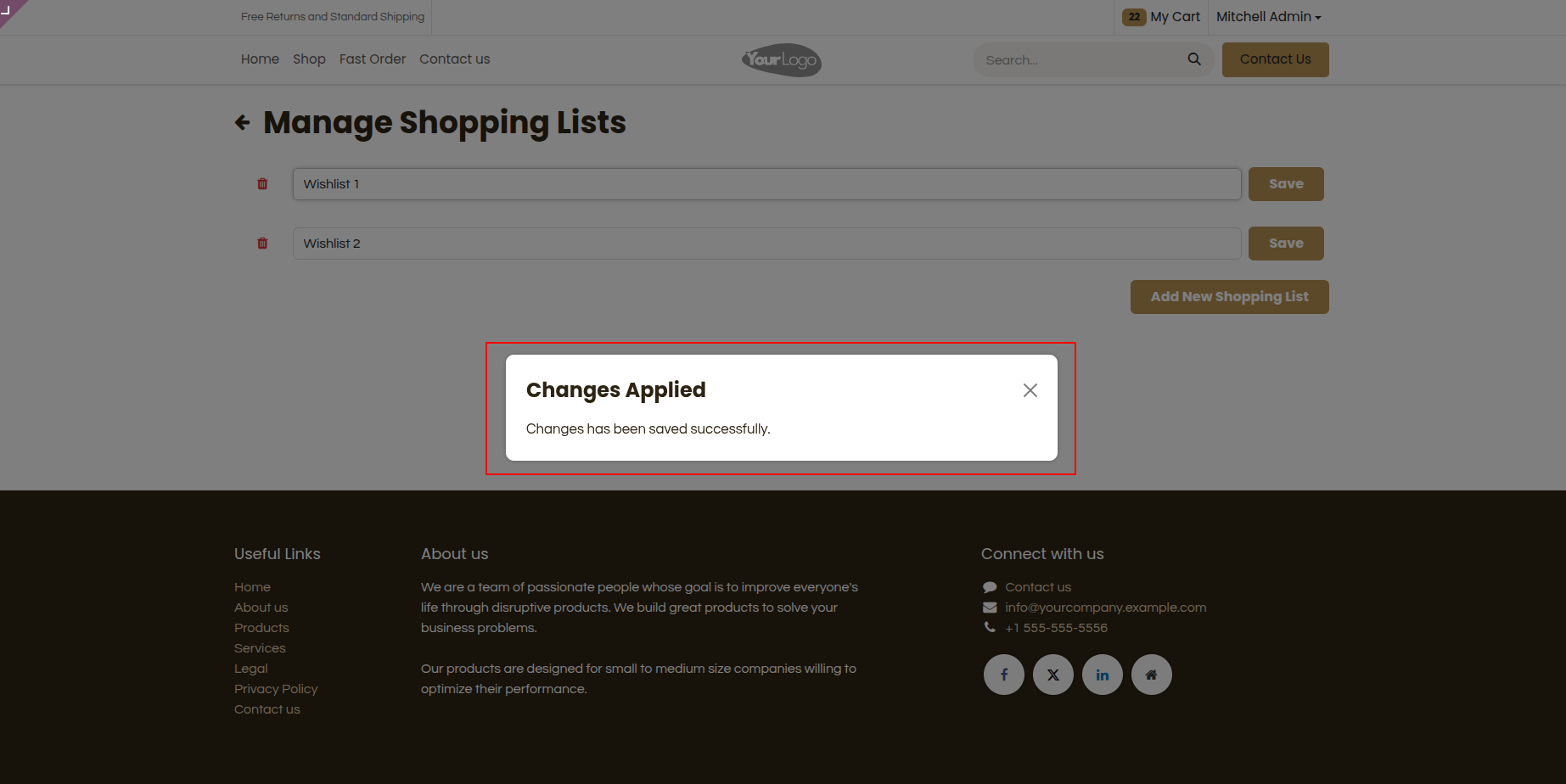
20. Confirmation popup notifying the customer when shopping list changes are saved successfully.
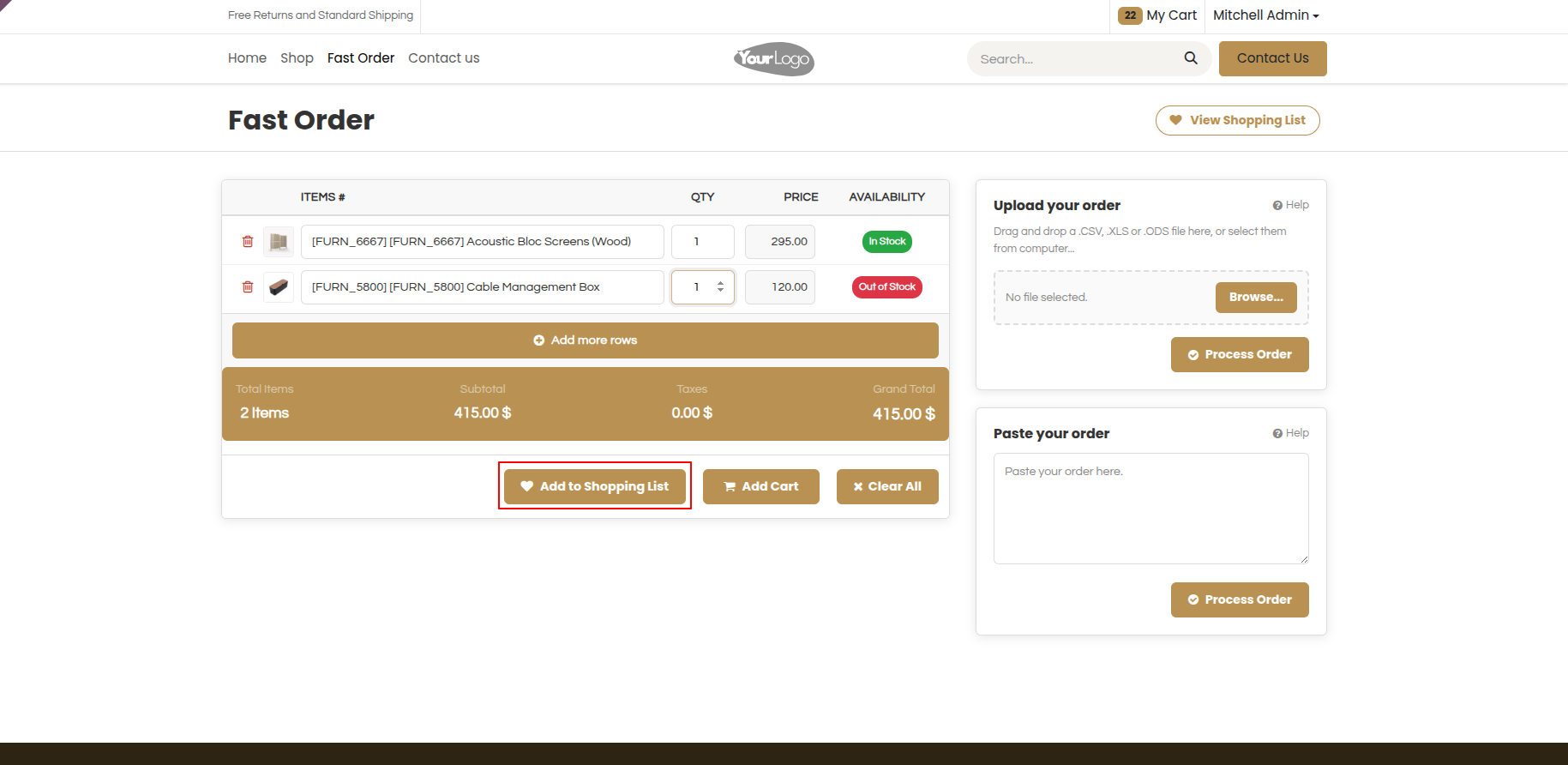
21. Save current order items to a shopping list using the 'Add to Shopping List' button.
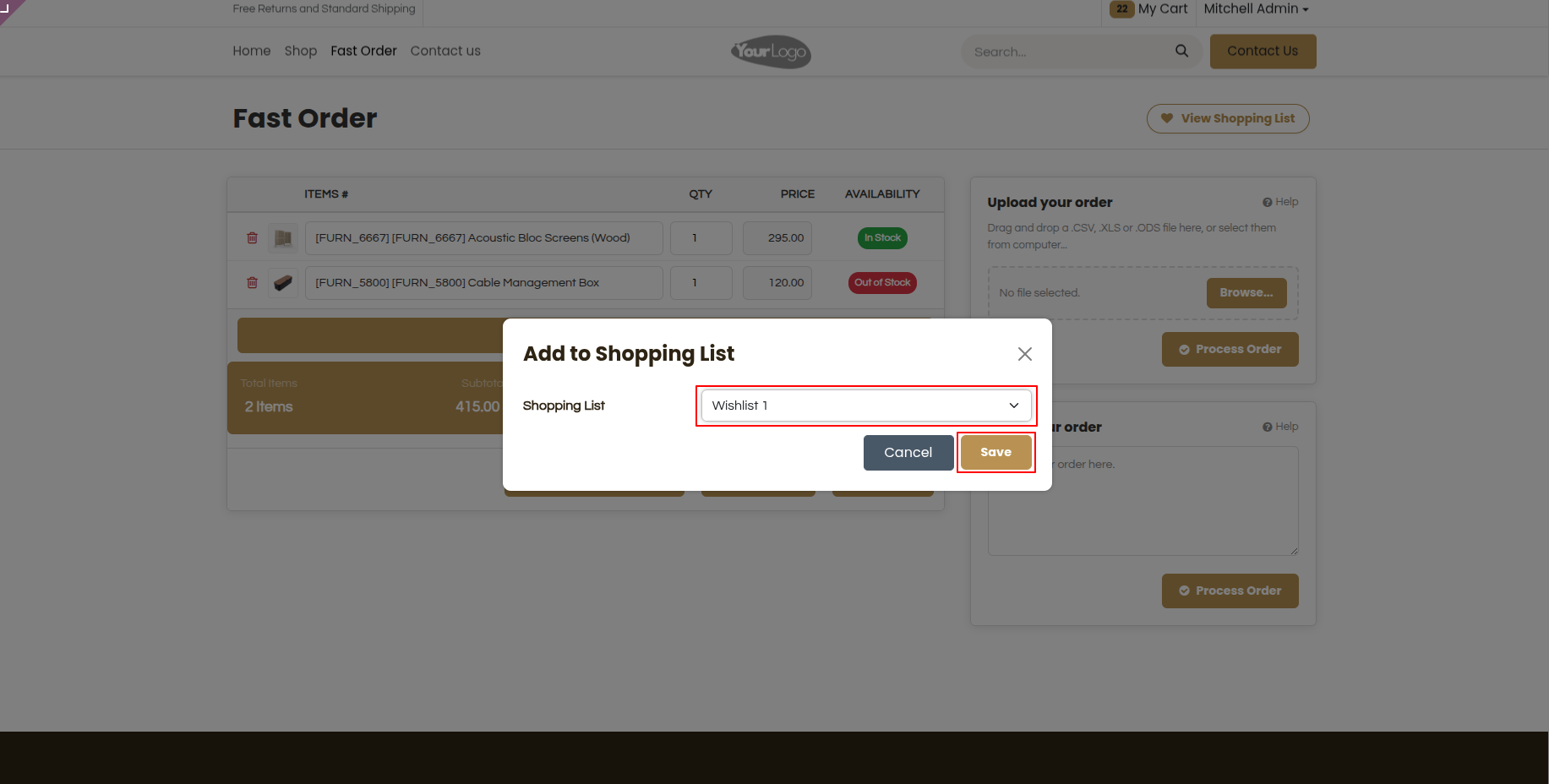
22. Select your desired shopping list category from the modal dropdown to save current items.
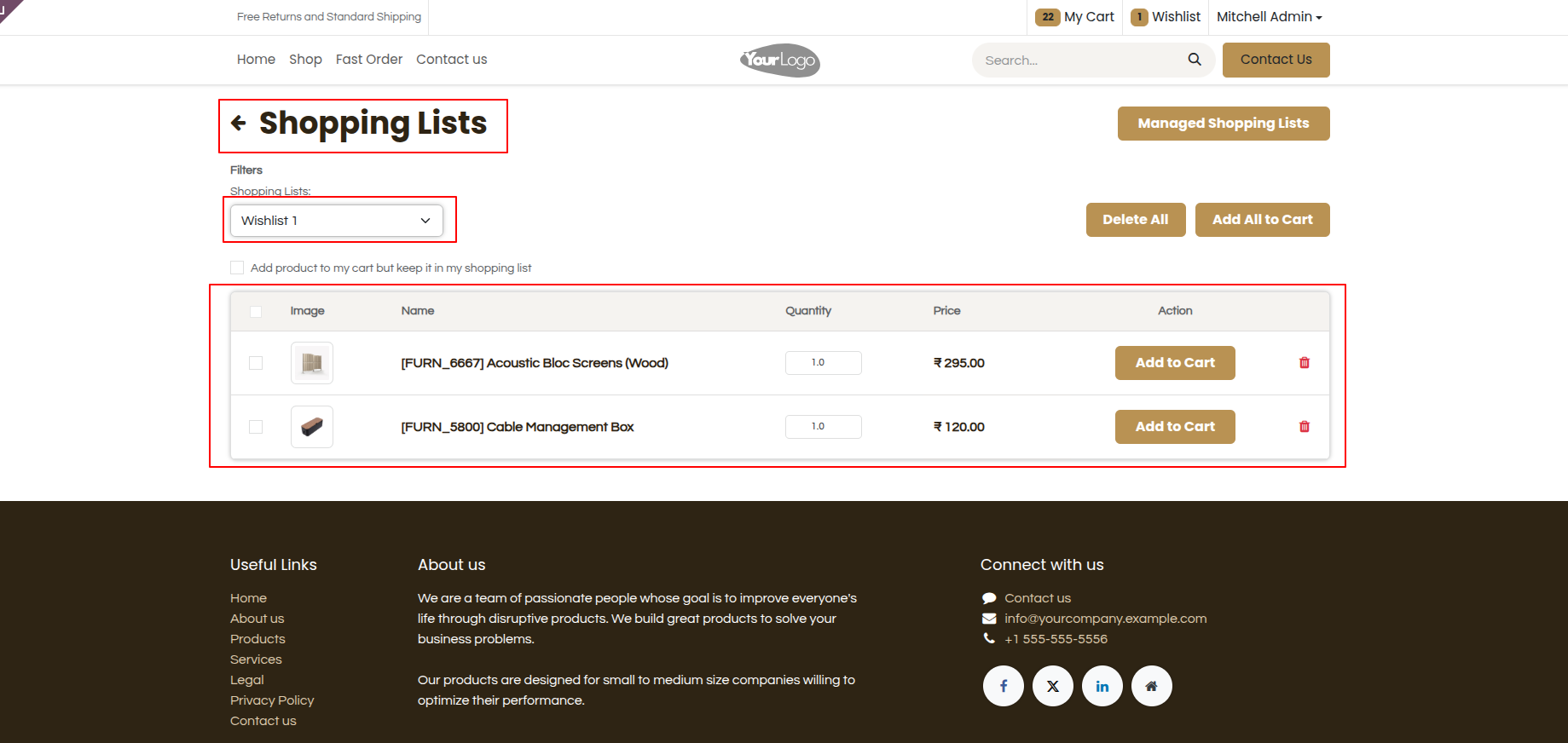
23. View items stored inside shopping lists, with options to add individual items or all items to cart.
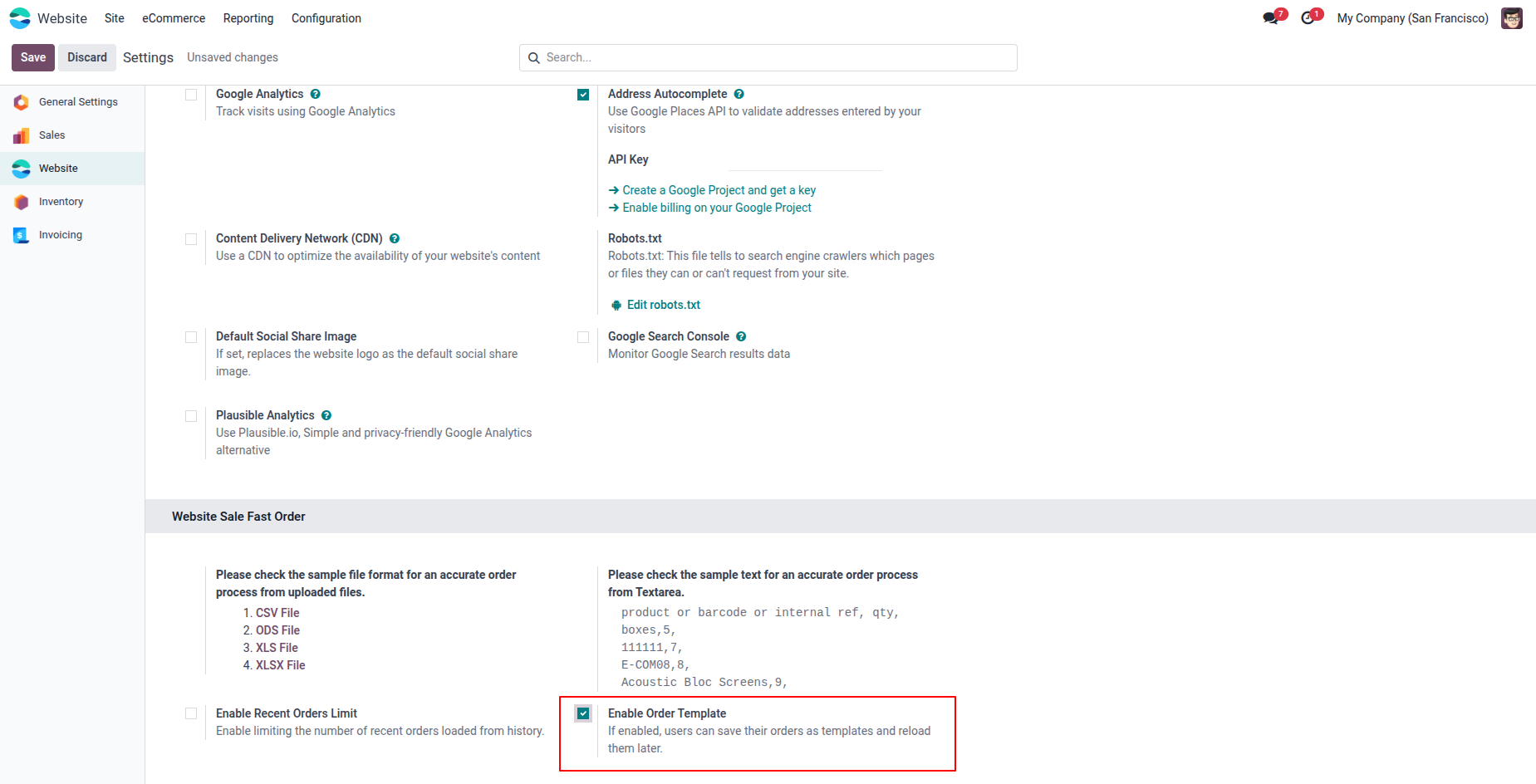
24. Backend administrator setting to enable or disable the Order Templates feature for website users.
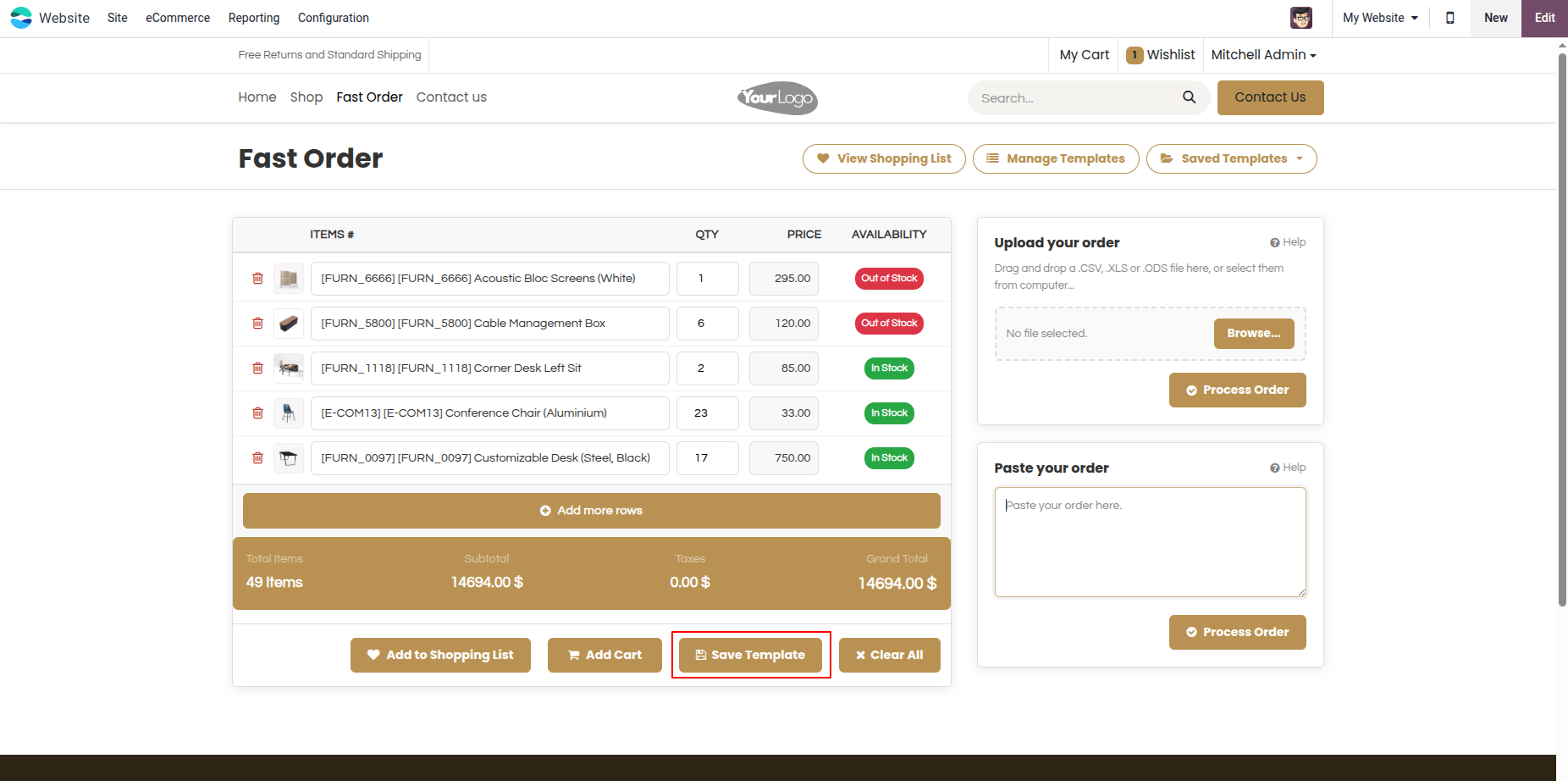
25. Save frequent orders as reusable order templates using the 'Save Template' button. If an existing template is already selected/loaded, clicking 'Save Template' automatically updates that template with new products without showing a popup modal.
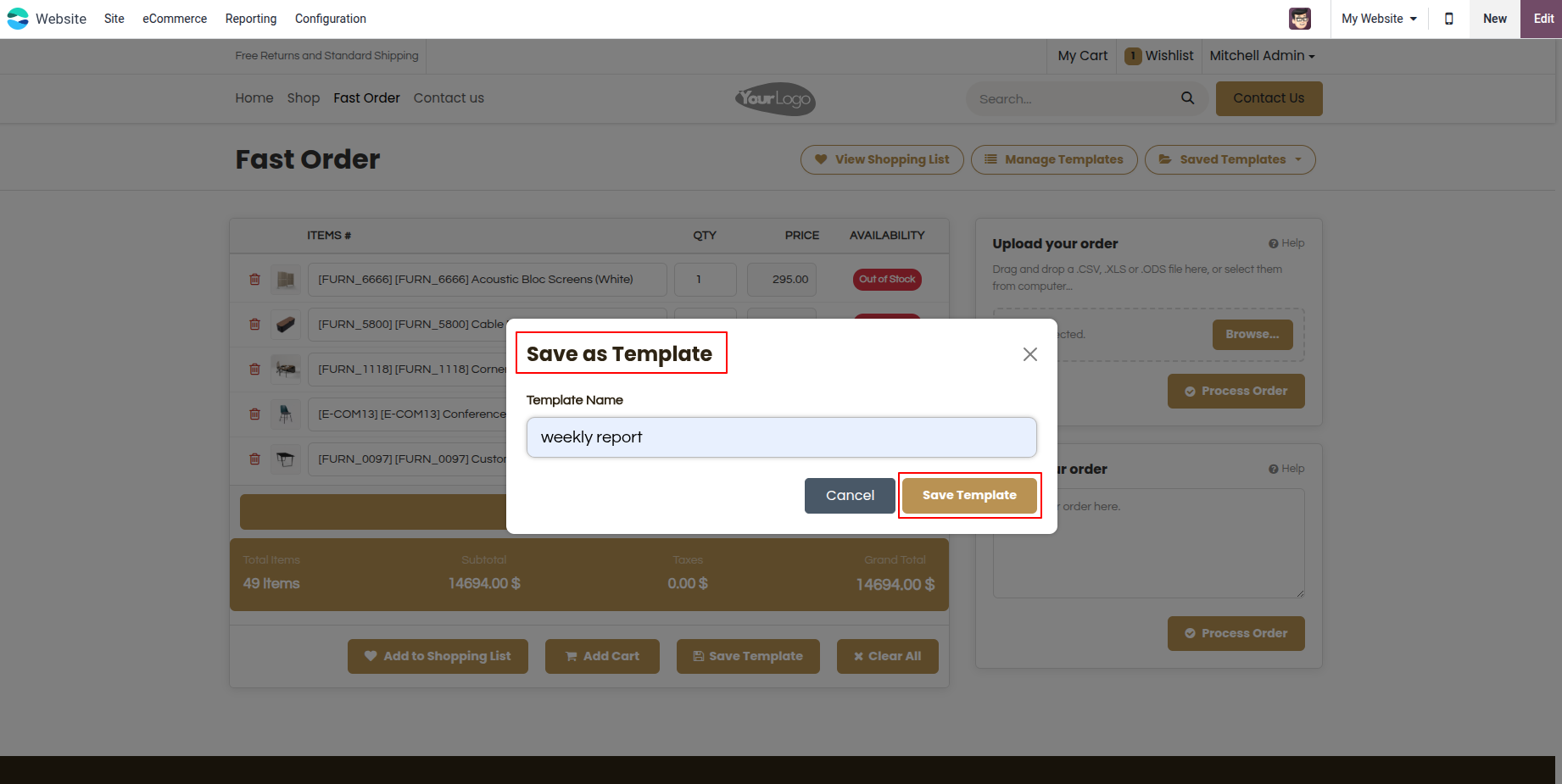
26. Name your order template (e.g., 'weekly report') and save it for future automated re-ordering. If a template with the same name already exists, a warning message will be displayed.
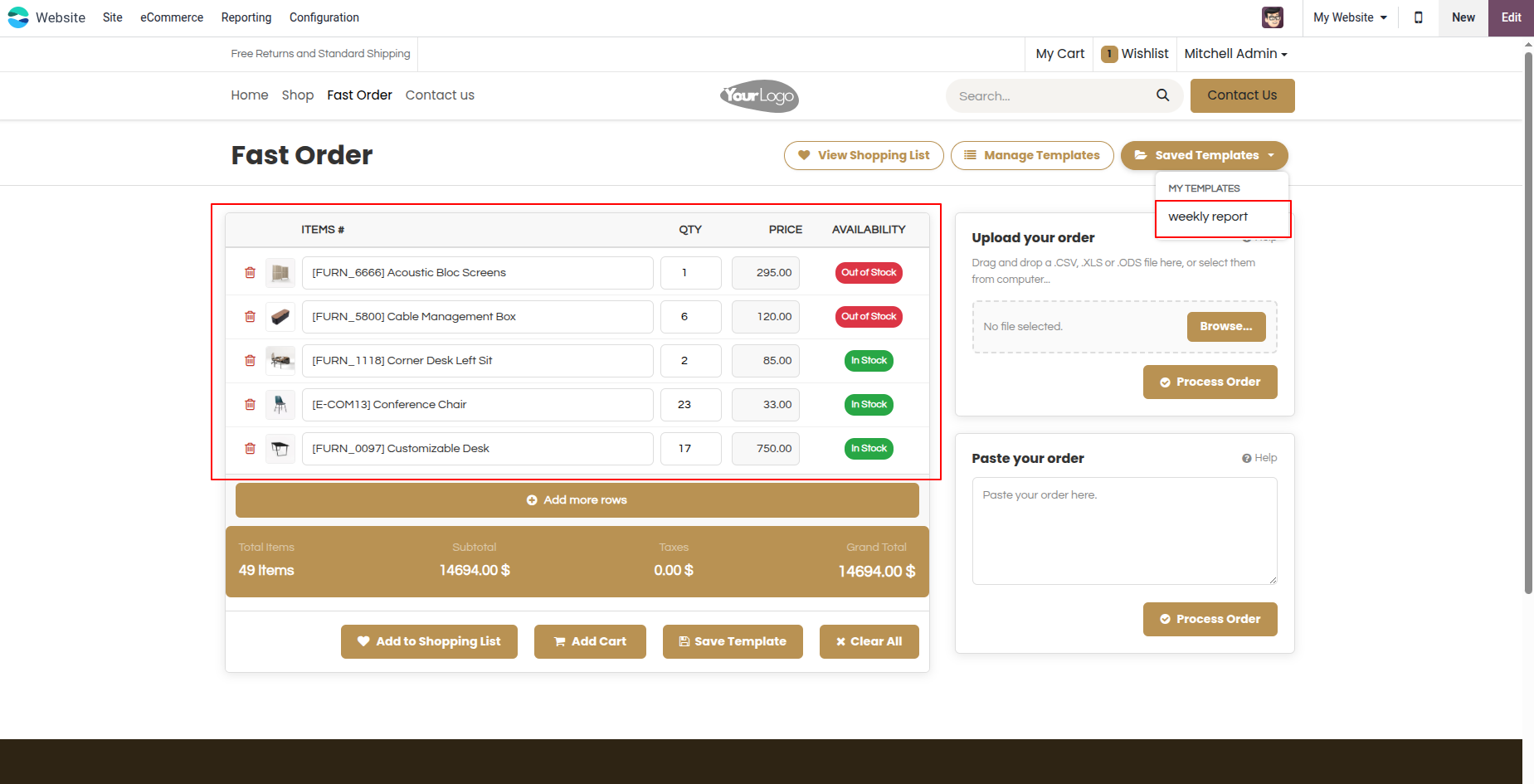
27. Select any saved template from the dropdown menu to auto-fill the order table instantly.
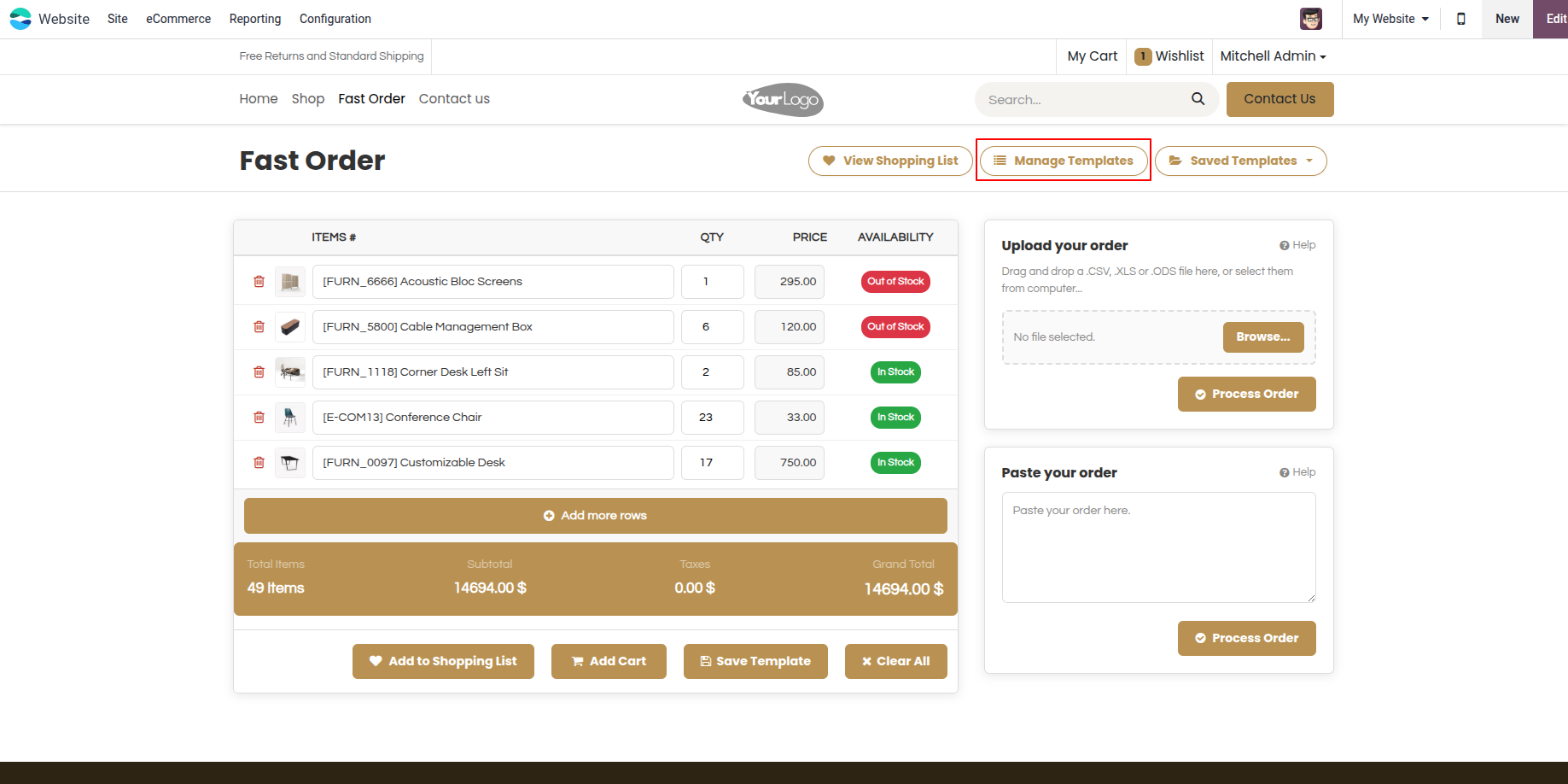
28. Quick navigation link to manage and clear existing order templates.
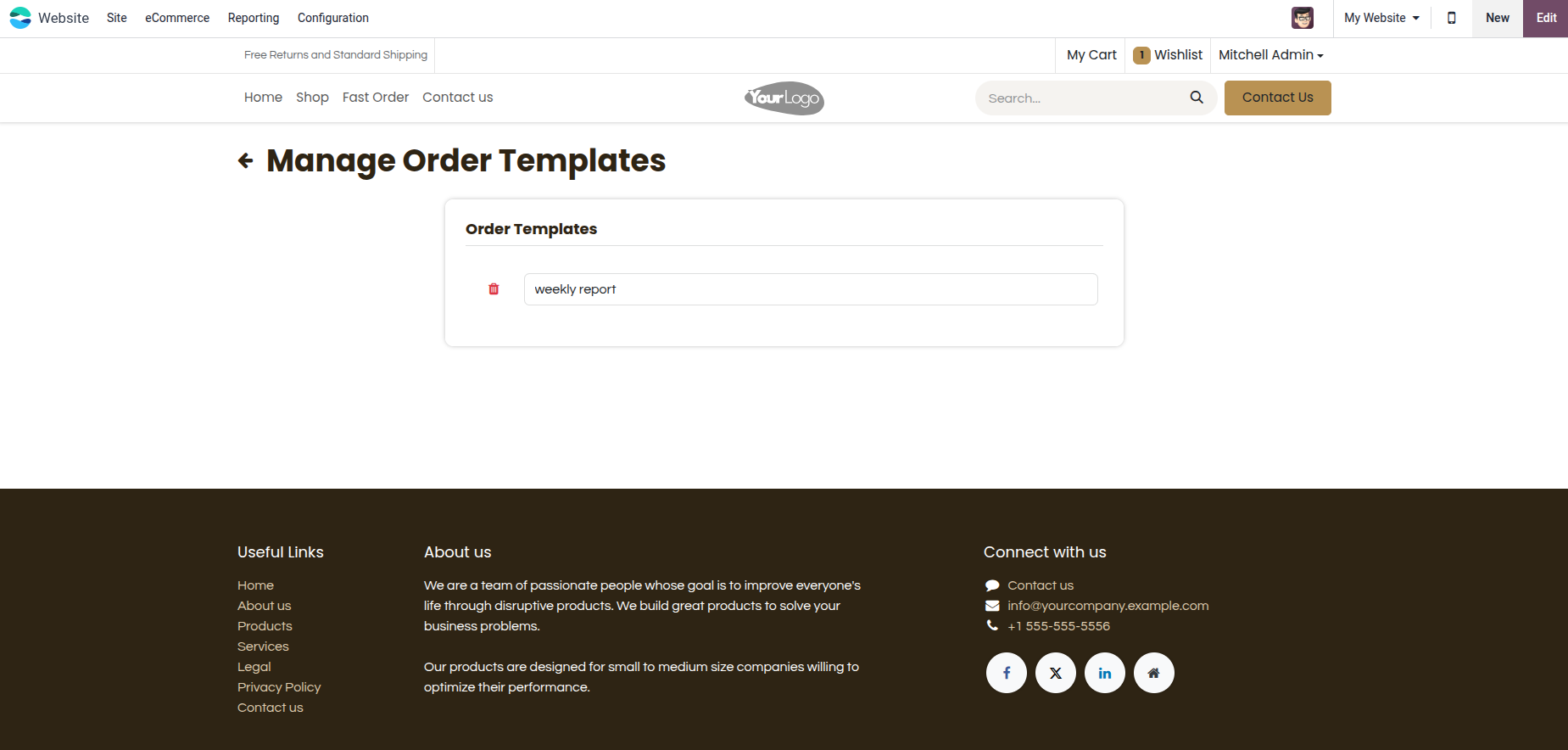
29. Dedicated template management view to review or remove obsolete order templates.
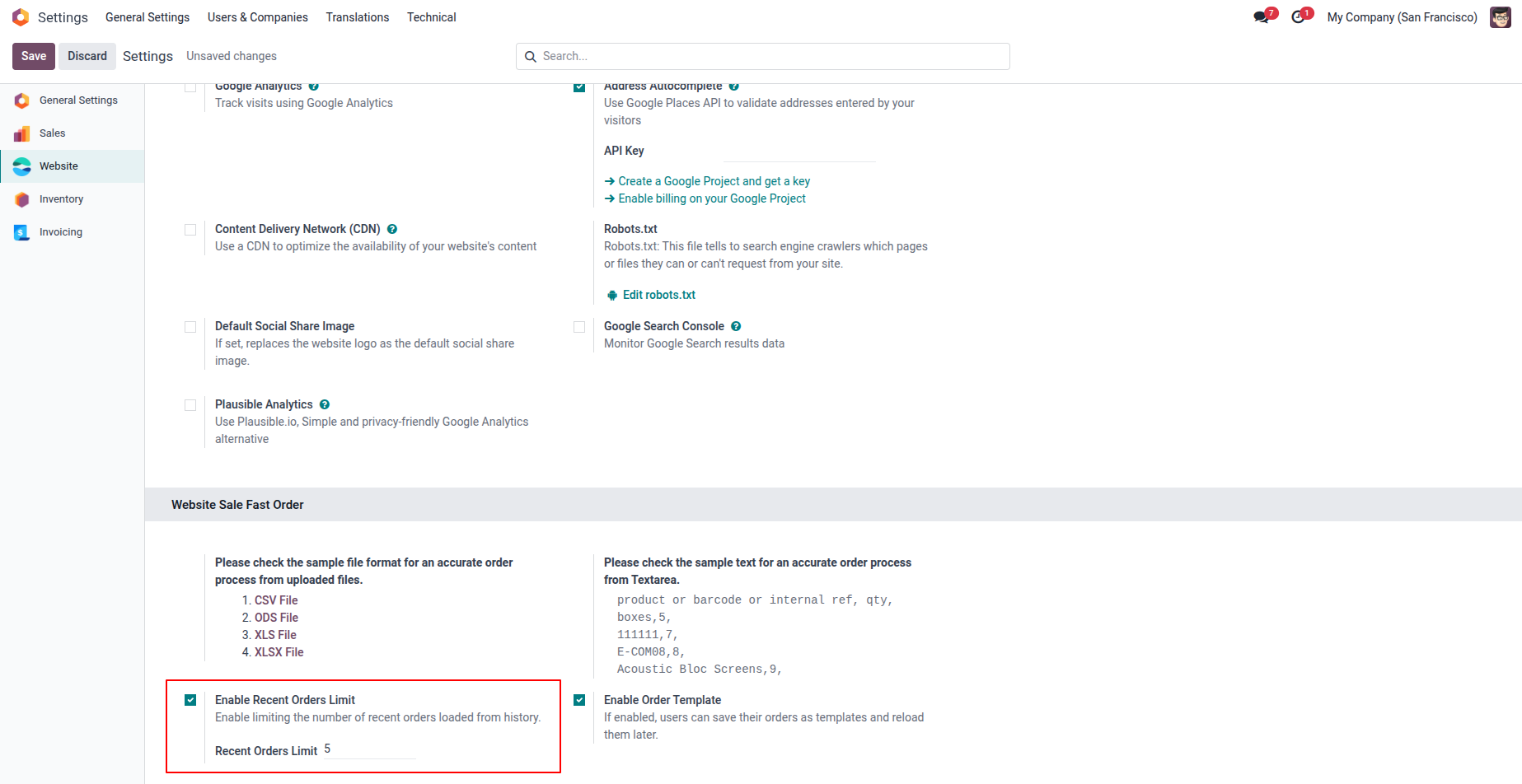
30. Backend setting to enable and configure the maximum number of recent purchase orders loaded from history.
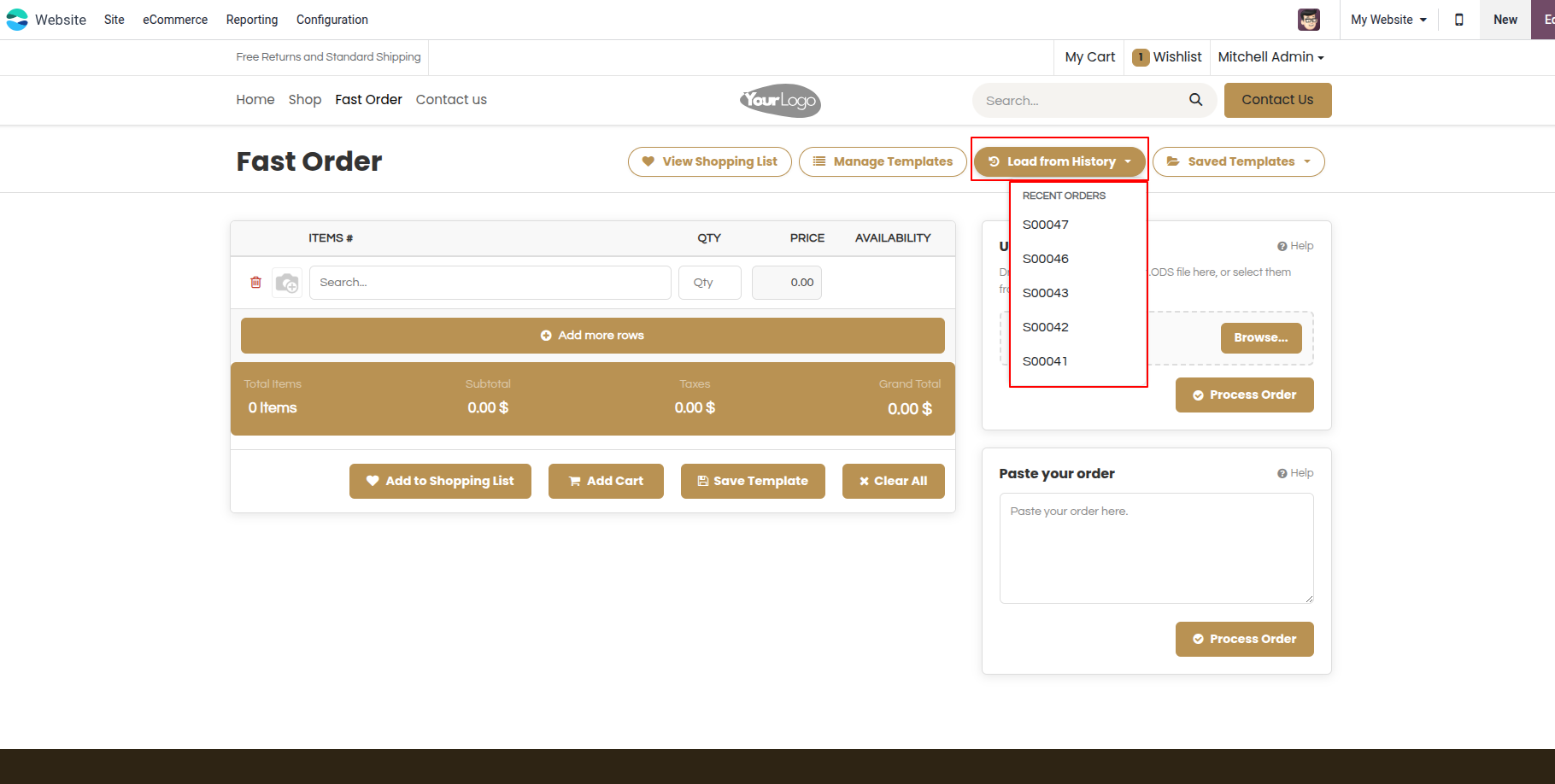
31. Click the 'Last from History' button to view recent order history. Select a record from the recent history to add the same order again.
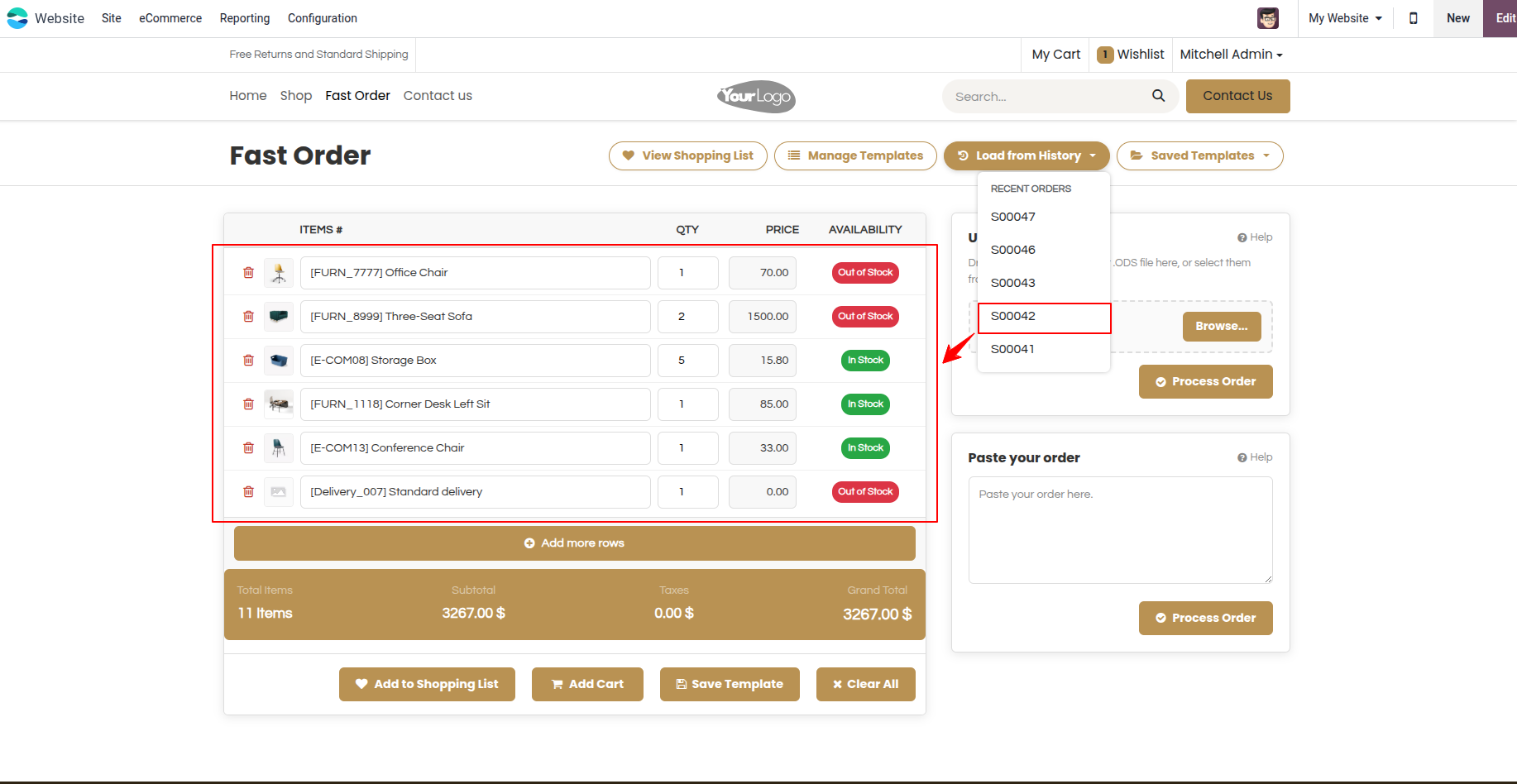
32. Products are added from the last order history by clicking the recent orders.
Our solutions focus on your problems
- Odoo Implementation
- Odoo Customization
- ERP Development and Implementation
- Odoo Ipass Cloud
- AI for Odoo
- Odoo Apps
- Aws Marketplace Products
- Business Engines
Our Pricing includes User Manual, 90 Days Support (Monday-Friday 10am to 7pm IST) and One time Setup
• Works & tested on standard installations of Odoo with no third party apps,
• Free support only for odoo installations with no third party apps,
• Paid support available for Odoo installations with third party apps.

Prefortune is a Odoo Official Partner, Odoo Development company. Our philosophy is to use Open Source tools and technologies to provide cost effective and green solutions for our customers.
Prefortune Technologies LLP is working on web development, Mobile development, and Odoo ERP.
If you need any help or want more additional features, you may contact us through:
Alternative Products
These other products might interest you
Specifications
| Version | 19.0, 18.0, 17.0, 16.0, 15.0, 14.0 |