Watch Quick Video
Advanced POS Receipt Odoo App
Advanced POS Receipt Odoo App
Extends the default Point of Sale receipt with the customizable printing options. With the POS configuration, users can turn on the customer information and choose which customer fields to include on receipts, so that only the relevant information is printed. The module also allows you to directly include the invoice number on the receipt so that you can easily identify and reference transactions. These configurable features enable businesses to print cleaner, more informative and professional receipts without the need to manually edit the receipt template.
Advanced POS Receipt Odoo App
- To print customer details on receipts when necessary, select Print customer details on receipt in the POS settings.
- Choose which customer fields are displayed on your receipts to make them unique and pertinent.
- Auto print customer details according to POS configuration.
- Print professional customizable receipts with customer and invoice information.
- Print the invoice No. on the receipts to easily identify and reference the transactions.
Advanced POS Receipt Odoo App
After installing the Advanced POS Receipt Odoo App, navigate to Point of Sale → Configuration → Settings. Under the POS Interface section, enable the Customer Details option and select the customer information you want to display on the receipt, such as Customer Name, Customer Address, Customer Mobile, Customer Phone, Customer Email, and Customer VAT. If required, enable the Invoice Number option to print the invoice number on the receipt. Save the settings, start a POS session, create a new order, and select a customer. Once the payment is completed, the receipt will automatically display the selected customer details and the invoice number based on the configuration you have defined in the POS settings.
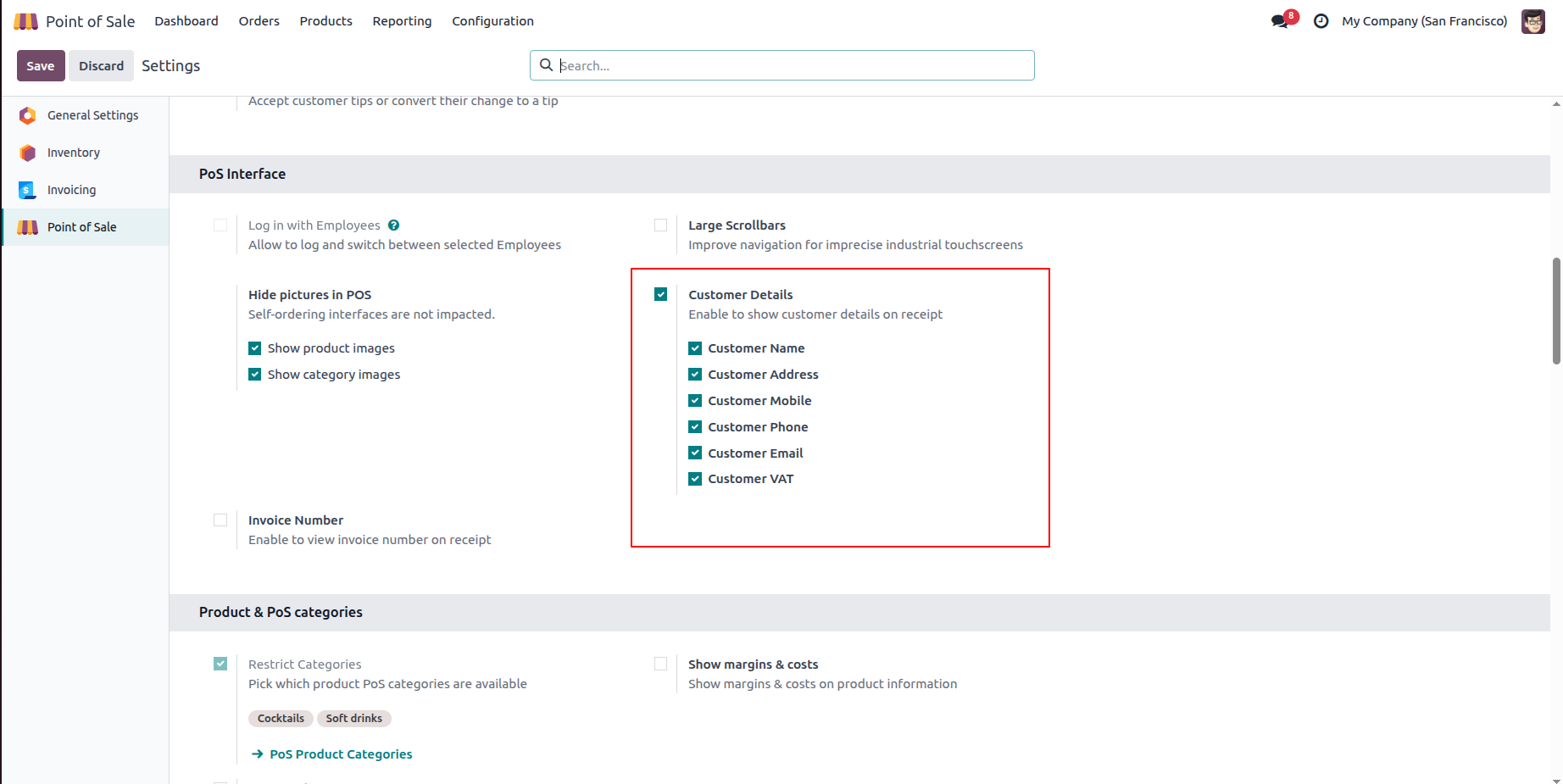
1.Navigate to Point of Sale → Configuration → Settings, enable the Customer Details option, and select the customer information (Name, Address, Mobile, Phone, Email, and VAT) that you want to display on the POS receipt.
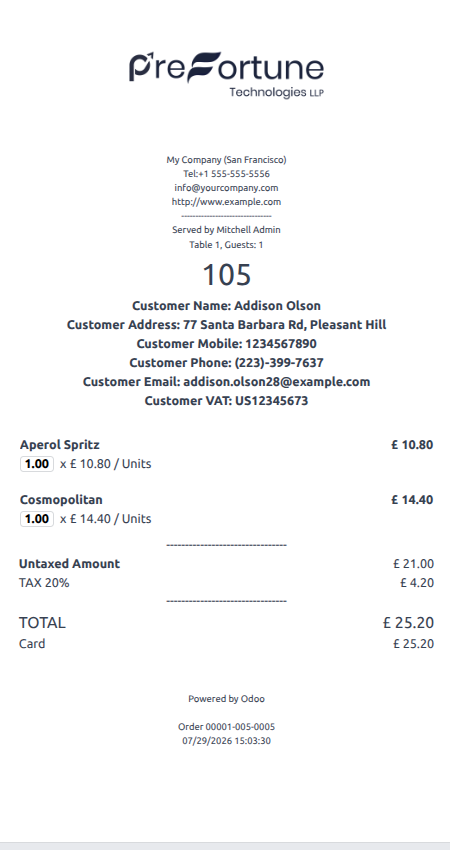
2.After completing a POS order, the receipt automatically displays the selected customer information based on the configuration defined in the POS settings.
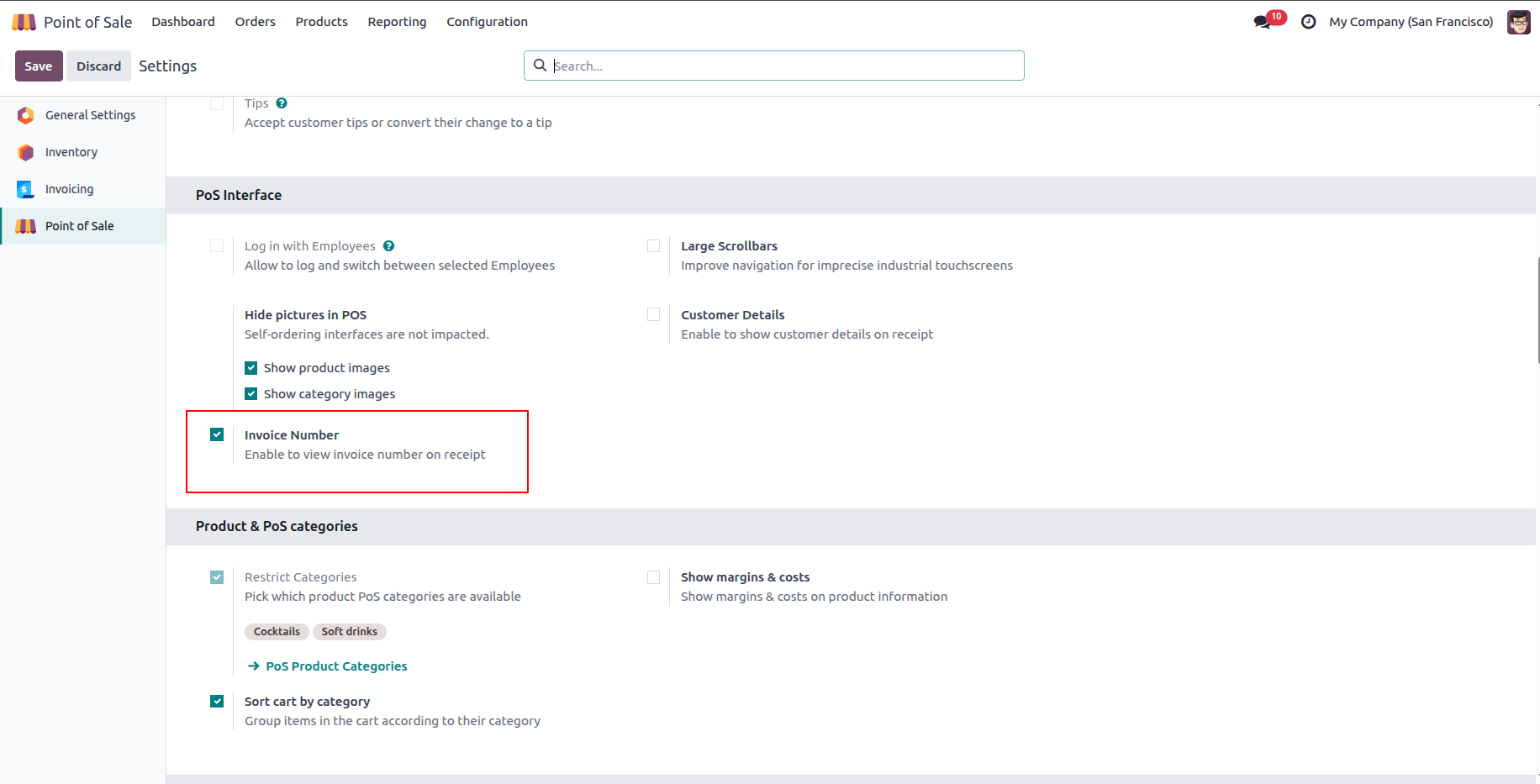
3.Enable the Invoice Number option in the POS Interface settings to print the corresponding invoice number on the receipt after the order is invoiced.
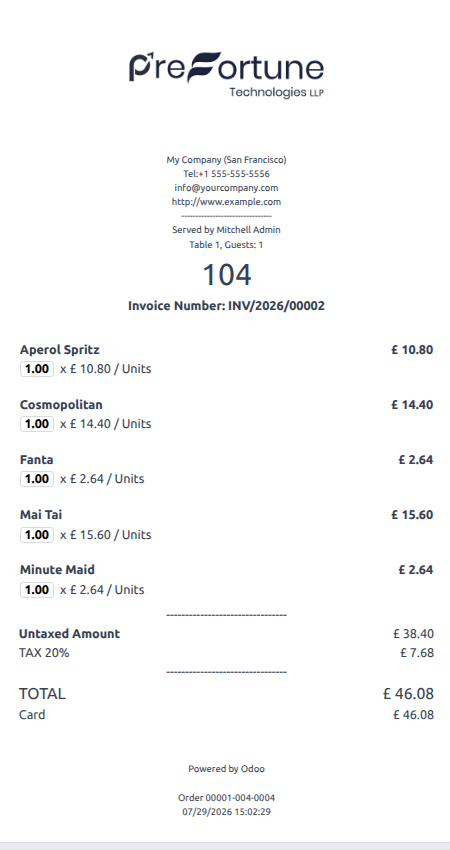
4.When the Invoice Number option is enabled, the generated invoice number is automatically printed on the POS receipt for easy transaction reference.
Our solutions focus on your problems
- Odoo Implementation
- Odoo Customization
- ERP Development and Implementation
- Odoo Ipass Cloud
- AI for Odoo
- Odoo Apps
- Aws Marketplace Products
- Business Engines
Our Pricing includes User Manual, 90 Days Support (Monday-Friday 10am to 7pm IST) and One time Setup
• Works & tested on standard installations of Odoo with no third party apps,
• Free support only for odoo installations with no third party apps,
• Paid support available for Odoo installations with third party apps.

Prefortune is a Odoo Official Partner, Odoo Development company. Our philosophy is to use Open Source tools and technologies to provide cost effective and green solutions for our customers.
Prefortune Technologies LLP is working on web development, Mobile development, and Odoo ERP.
If you need any help or want more additional features, you may contact us through:
Alternative Products
These other products might interest you
Specifications
| Version | 19.0, 18.0, 17.0, 16.0, 15.0, 14.0 |