Watch Quick Video

Sales Pro Dashboard Odoo App
Our
Sales Pro Dashboard Odoo App,
will boost your sales productivity A powerful interactive dashboard for a total view of your sales performance in one place.
The dashboard provides real-time insights into key sales metrics, including total revenue, active deals, conversion rate, monthly targets, sales pipeline, revenue trends, top-performing salespeople, product-wise sales analysis, recent activities, and active sale orders. The visually rich charts and performance indicators help users to quickly analyse business performance and make informed decisions.
Dashboard works on company-wiseThe sales info is available to the company they pick. It also respects the Sales access rightsof the user, ensuring that the data on the dashboard is displayed according to the records and information that the user is authorised to access.
It also includes convenient quick-action buttons to create Sale Orders, Opportunities, Customers and Leads directly from the dashboard, removing the need for unnecessary navigation and improving workflow efficiency. Interactive reports, detailed list views, search, filtering and pagination make it easy to manage and analyse large amounts of sales data.
Sales Pro Dashboard Odoo App is an Odoo sales compatible app that provides a modern intuitive user interface for sales teams to monitor their progress, track performance, recognise patterns, and stay focused on achieving business goals from a single central workspace.
Sales Pro Dashboard Odoo App Features
- Interactive Sales Dashboard: Have a full view of your sales performance with all your sales metrics displayed on a centralised and easy to use dashboard.
- Sales KPIs: Measure overall performance by tracking key sales metrics like revenue, active deals, conversion rate, invoices, monthly targets, etc.
- Sales Pipeline Analysis: Have a clear view of your current sales pipeline including quotations, quotations sent, sales orders and invoicing stages.
- Top Performers: View your top salespeople by revenue and quickly compare individual sales performance.
- Company Wise Data:- View sales data and performance based on the selected company. This helps to manage sales across a number of companies.
- Quick Actions: Generate Sale Orders, Opportunities, Customers and Leads from the dashboard without navigating thru multiple Odoo menus.
- List & Chart Views: Select from graphical charts and detailed list views to analyse sales information in the format that makes the most sense to you.
- Revenue Trends: Monitor current, previous, and target revenue trends by month, quarter, and year to track sales growth.
- Sales by Product: Check out the sales revenue and order performance for each product to see which are your top sales contributors.
- Sales Access Rights Based Data Display sales data based on the user’s Sales access rights so that the users see only those records they are allowed to see.
Complete Workflow for Managing Sales Pro Dashboard Odoo App
Install the Pro Sales Dashboard
module and open the dashboard from the Sales menu.
The dashboard automatically loads the sales information available to the logged-in user.
Users can select their required company
and date range to view the relevant sales data.
The displayed information is automatically filtered according to the user's
Sales access rights.
Users can use the available dashboard actions to create or open sales records,
apply filters or searches when required, and navigate to detailed Odoo views for further processing.
Any changes made to the sales records are reflected on the dashboard after refreshing the dashboard data.
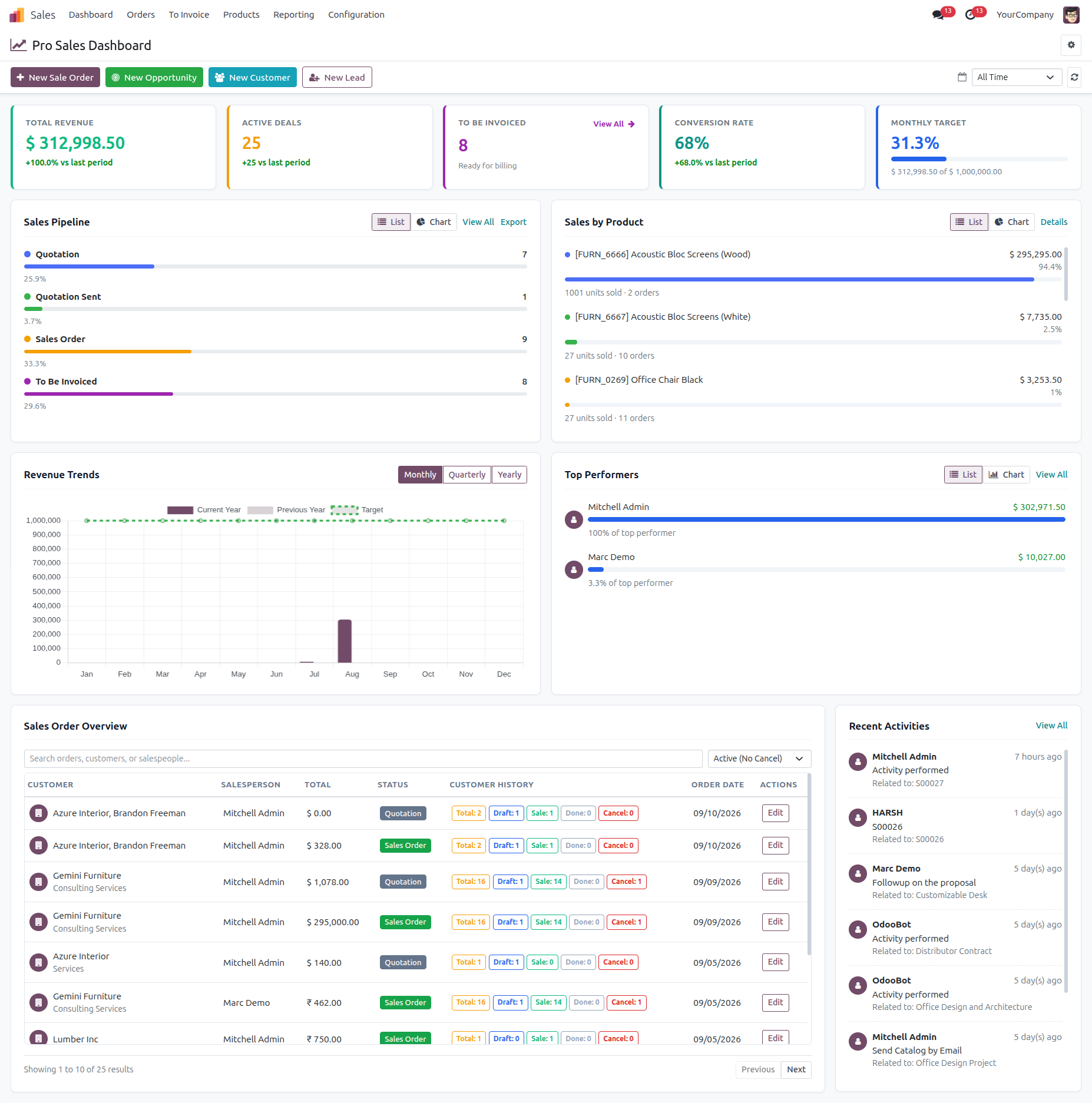
1. Go to Sales -> Dashboard View your sales performance in one place with key metrics, revenue insights, targets, and pipeline information.
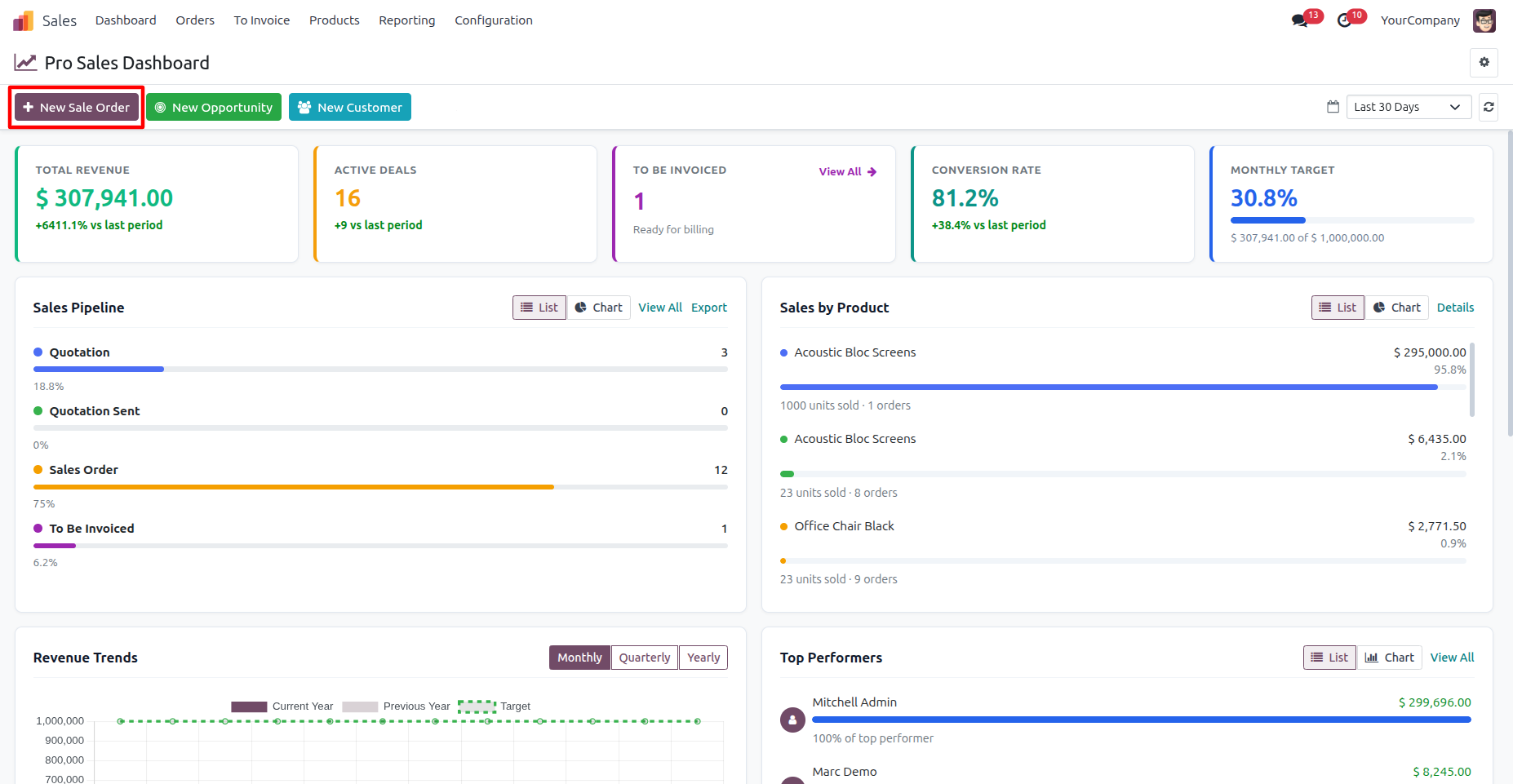
2. Click the New Sale Order button on the dashboard to quickly create a new quotation and begin the sales order process.
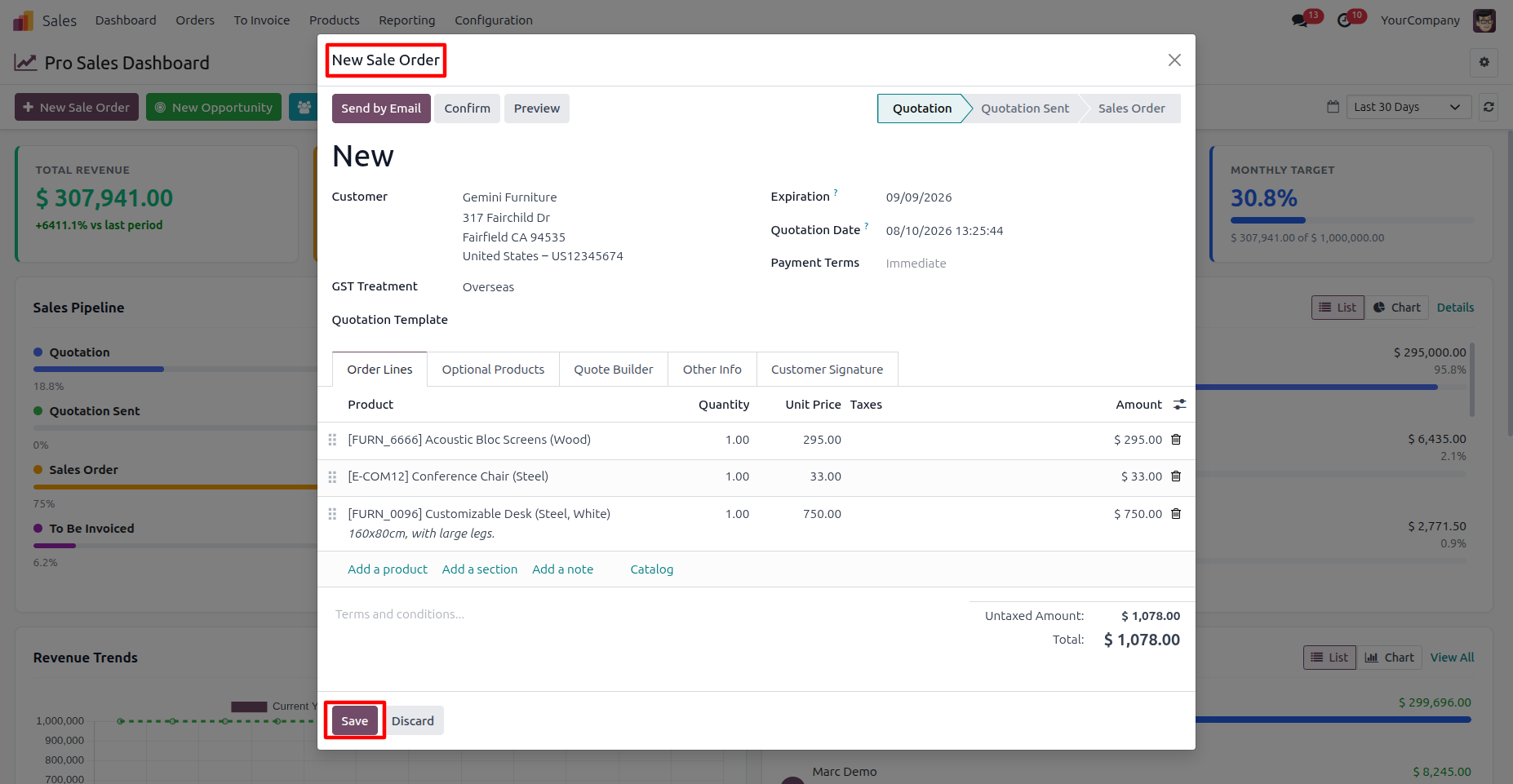
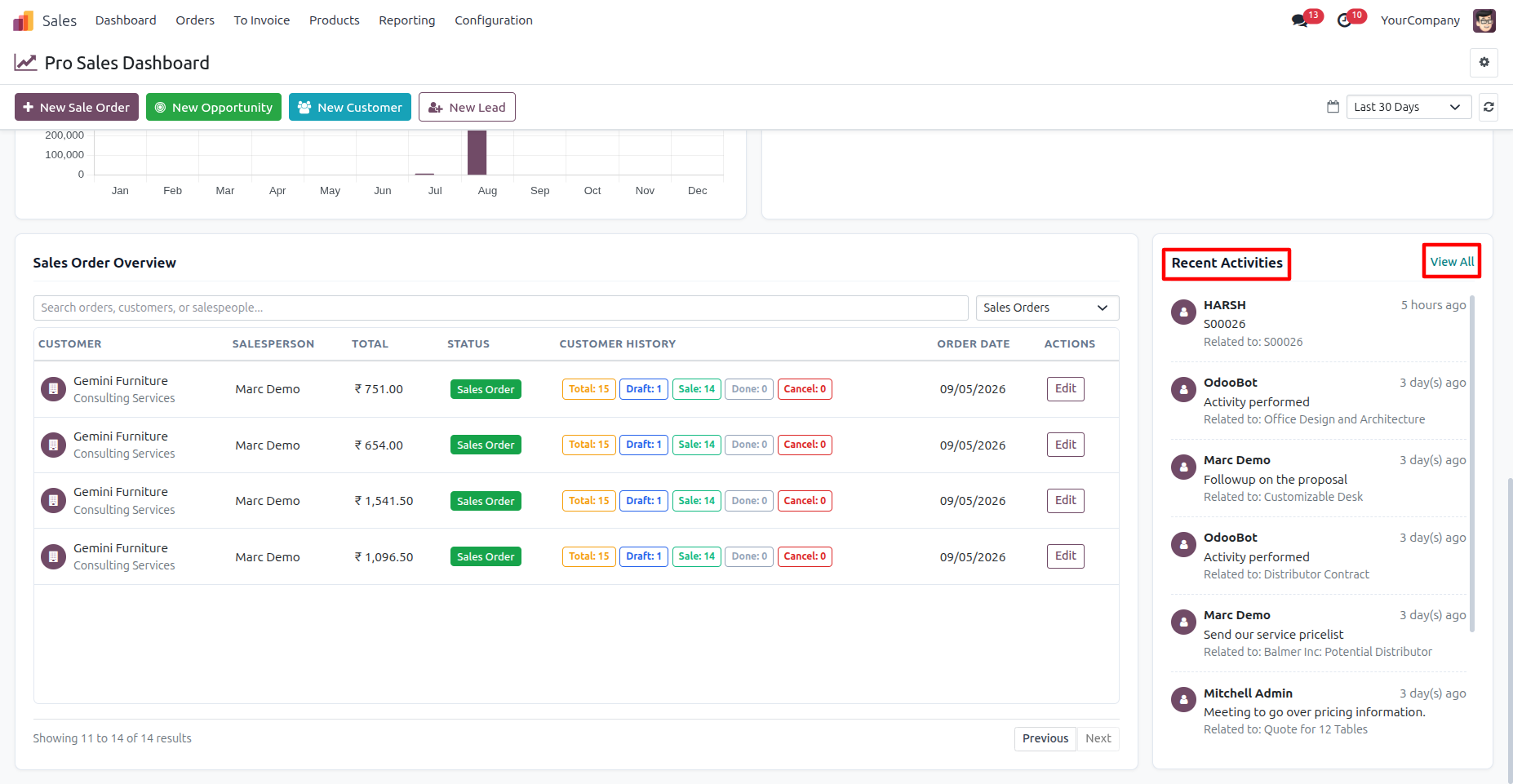
3. Enter the customer details and add the required products and quantities in the New Sale Order form, then click Save to create the quotation.
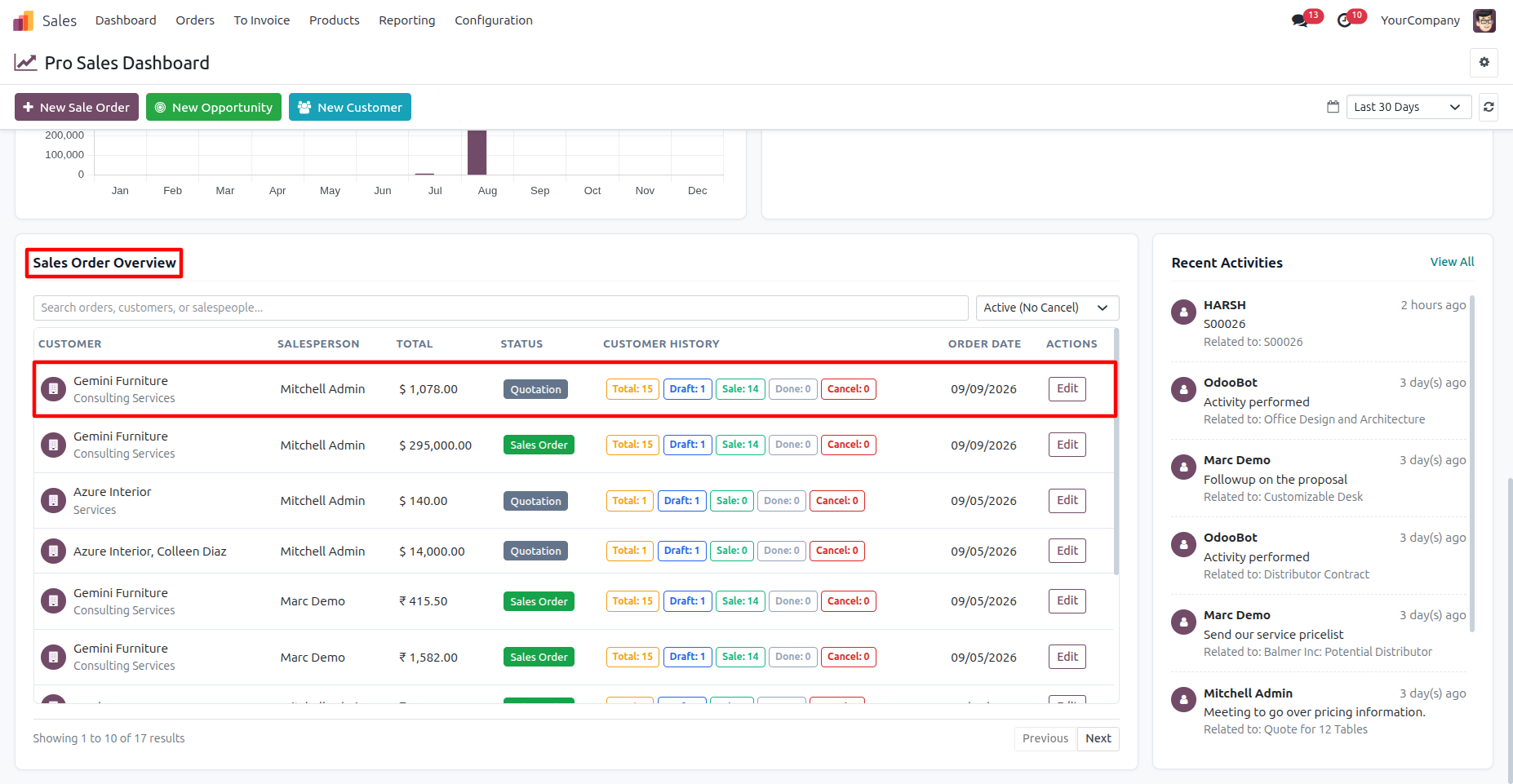
4. Review the newly created sale order in the Sales Order Overview section to verify its customer, salesperson, total amount, and current status.
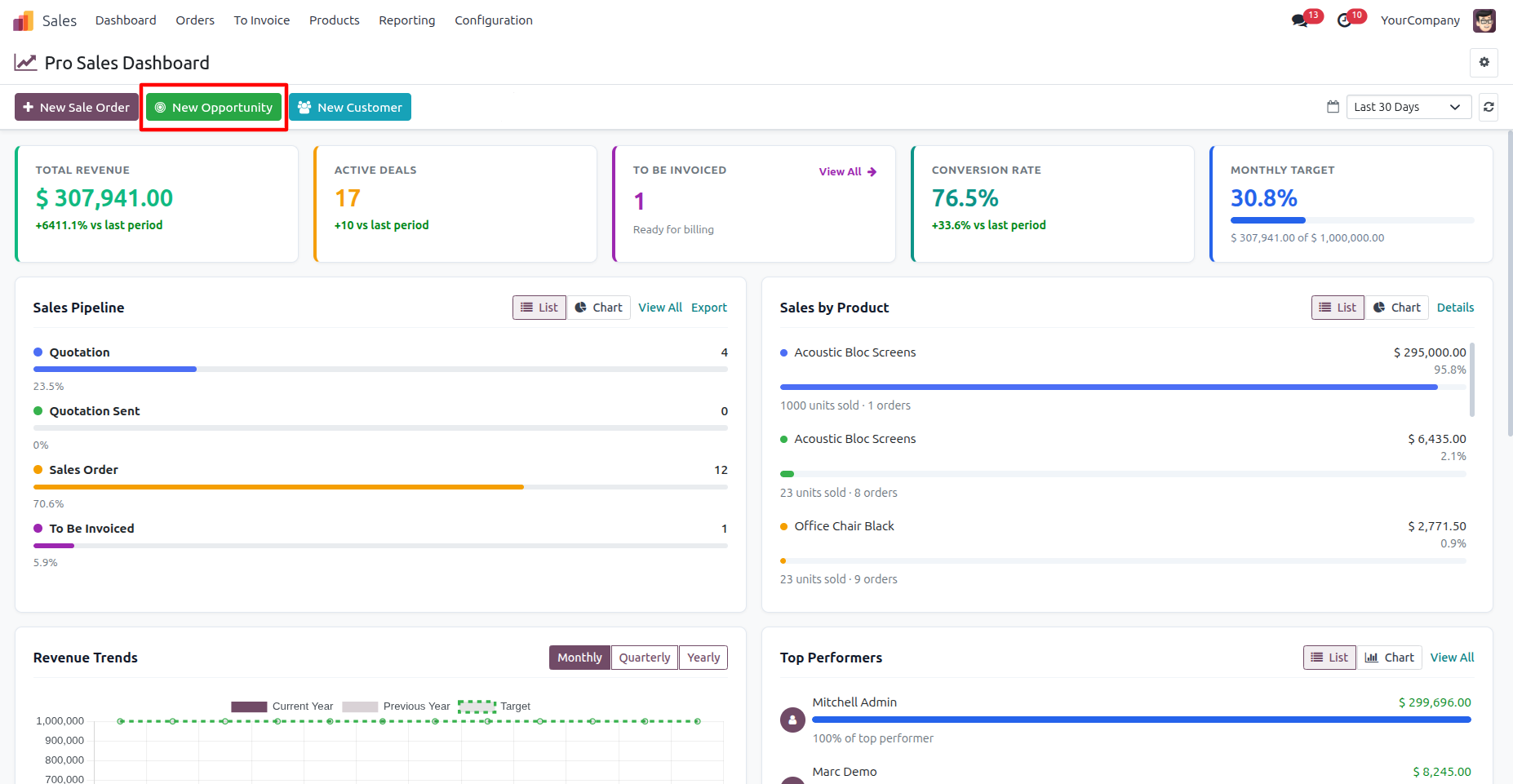
5. Click the New Opportunity button on the dashboard to create a new sales opportunity directly from the Sales Dashboard.
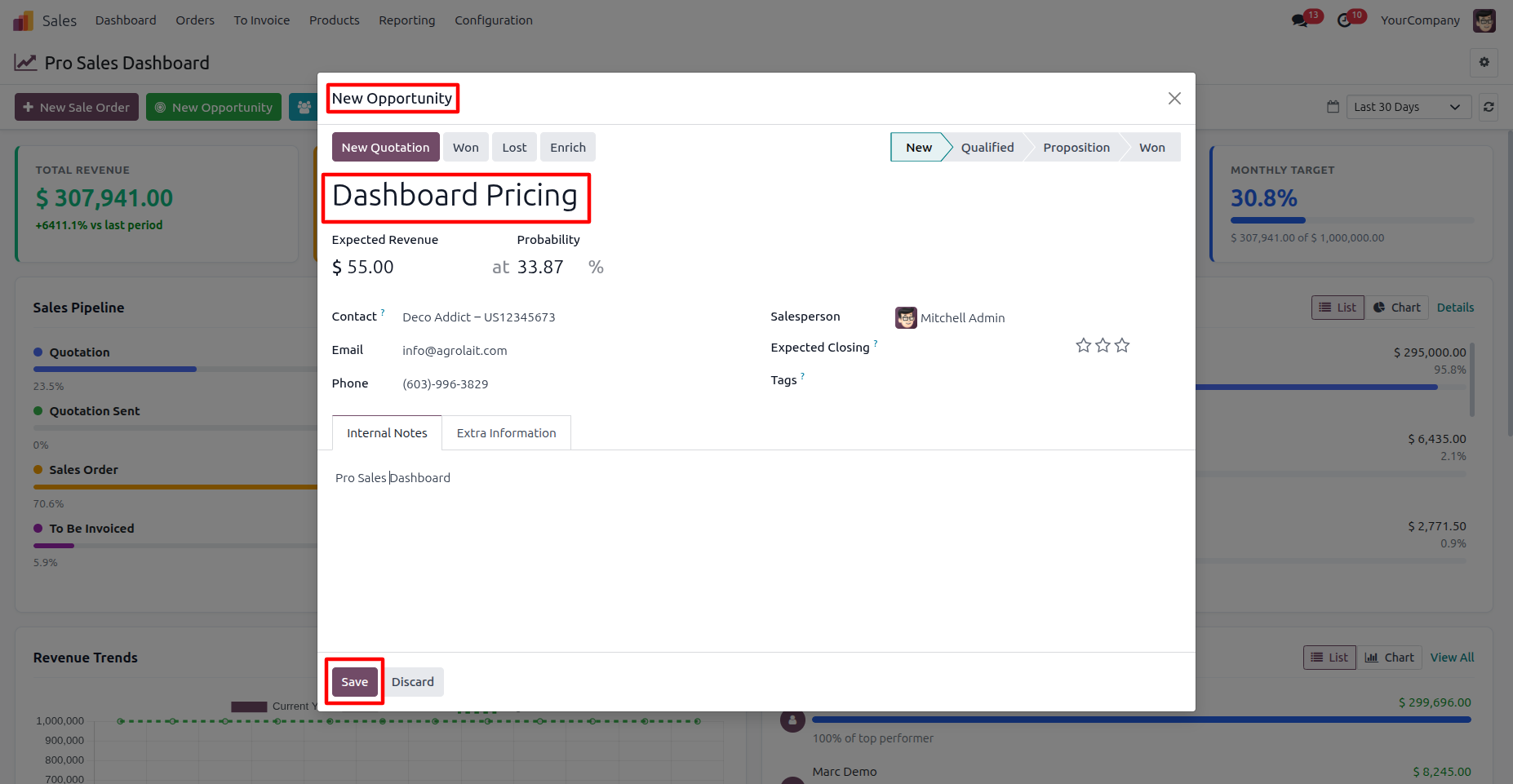
6. Enter the opportunity details, including the opportunity name, expected revenue, probability, and contact information, then click Save to create the opportunity.
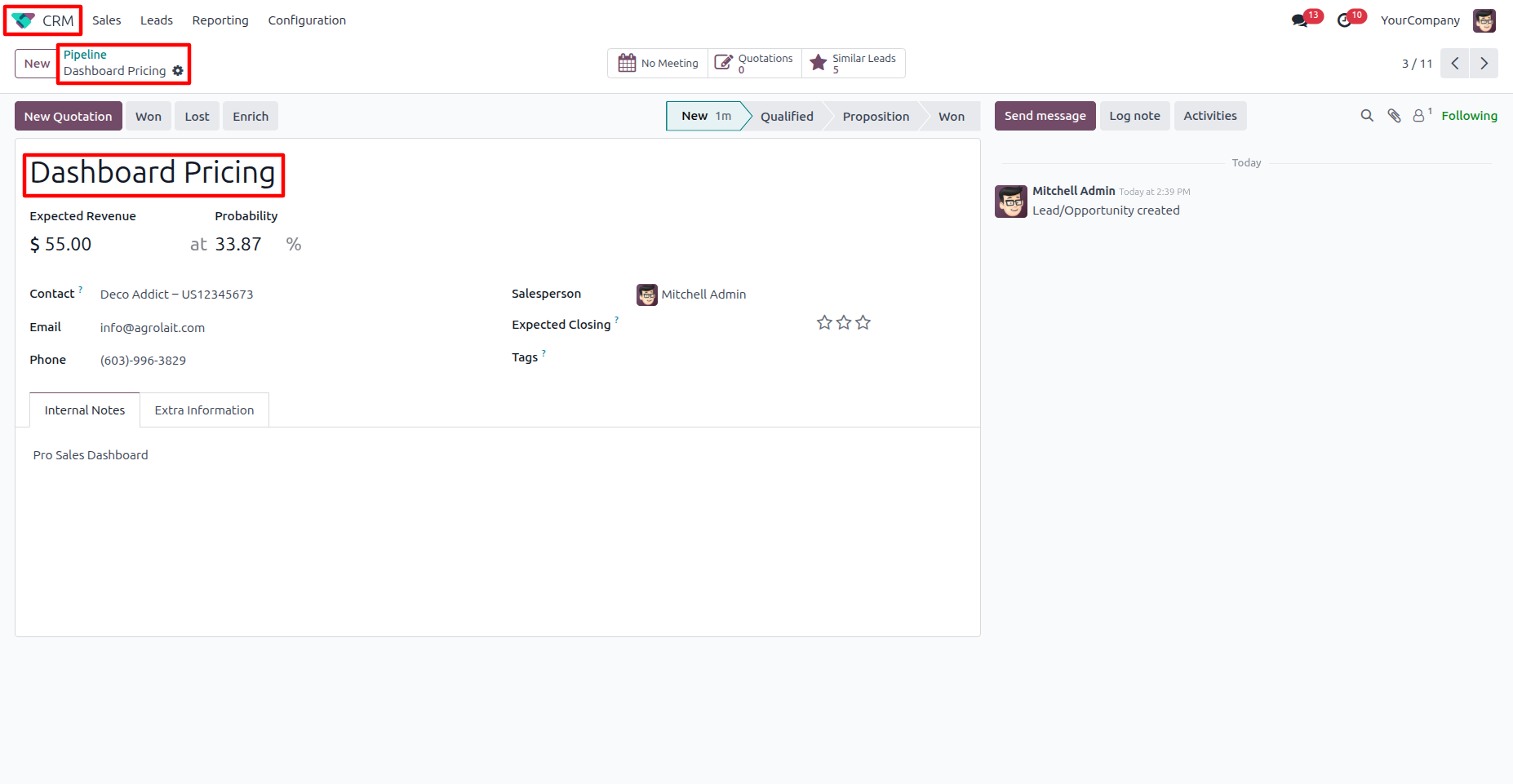
7. The saved opportunity is now available in Odoo CRM, where you can review its details, track its pipeline stage, and manage the opportunity through the standard CRM workflow.
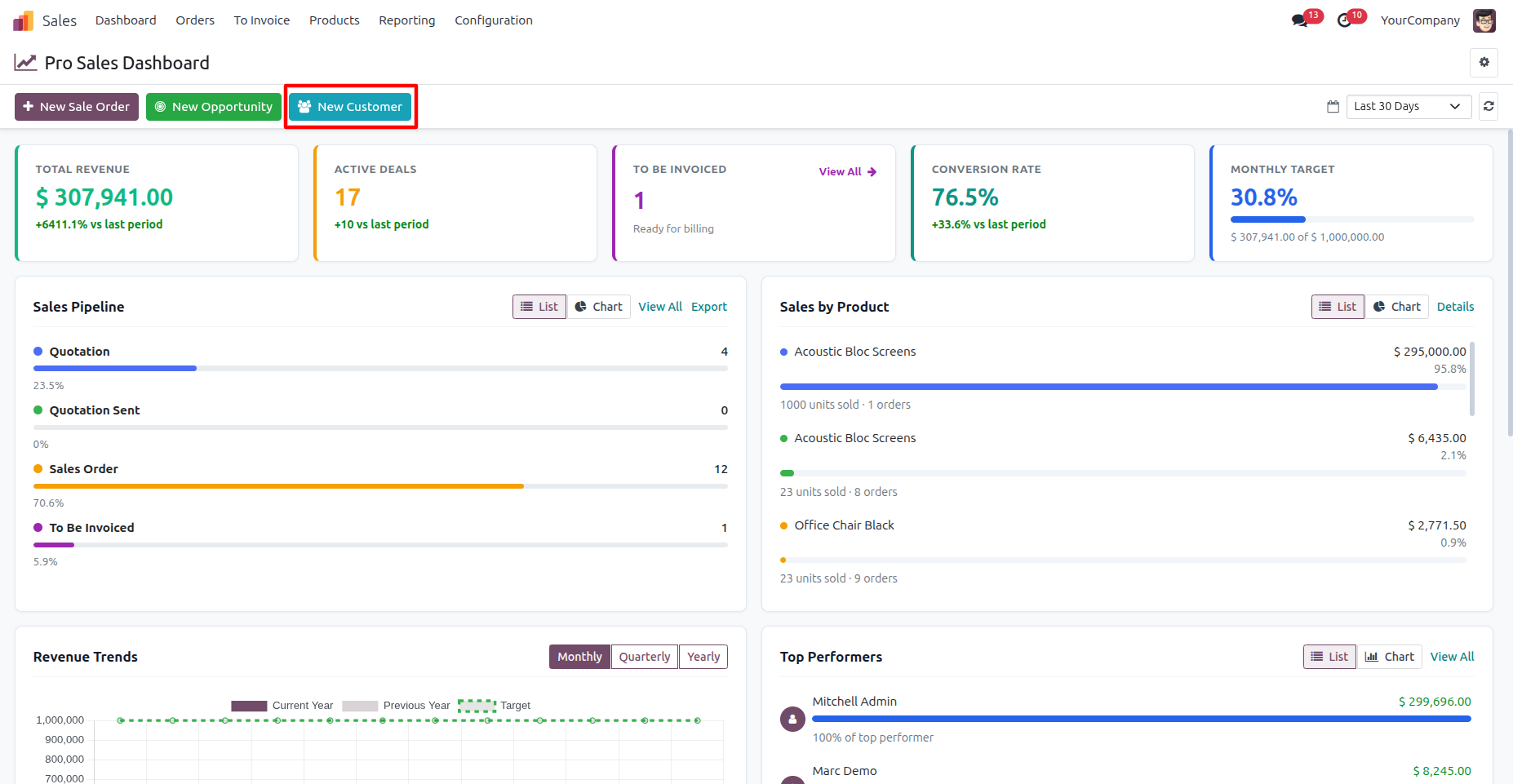
8. Click the New Customer button on the dashboard to open the customer creation form and add a new customer/company directly from the Sales Dashboard.
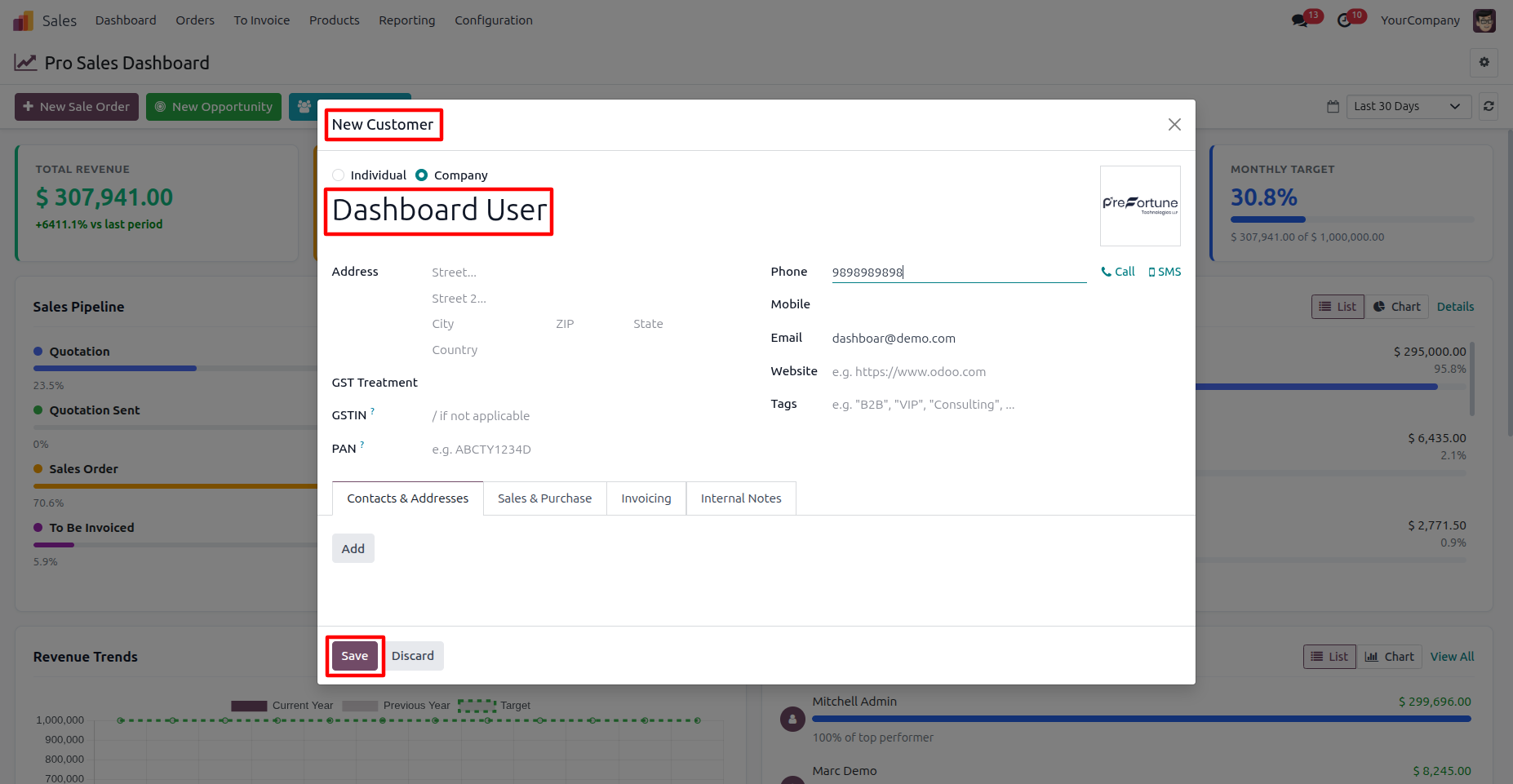
9. Enter the customer/company name and required contact details, then click Save to create the new customer/company record.
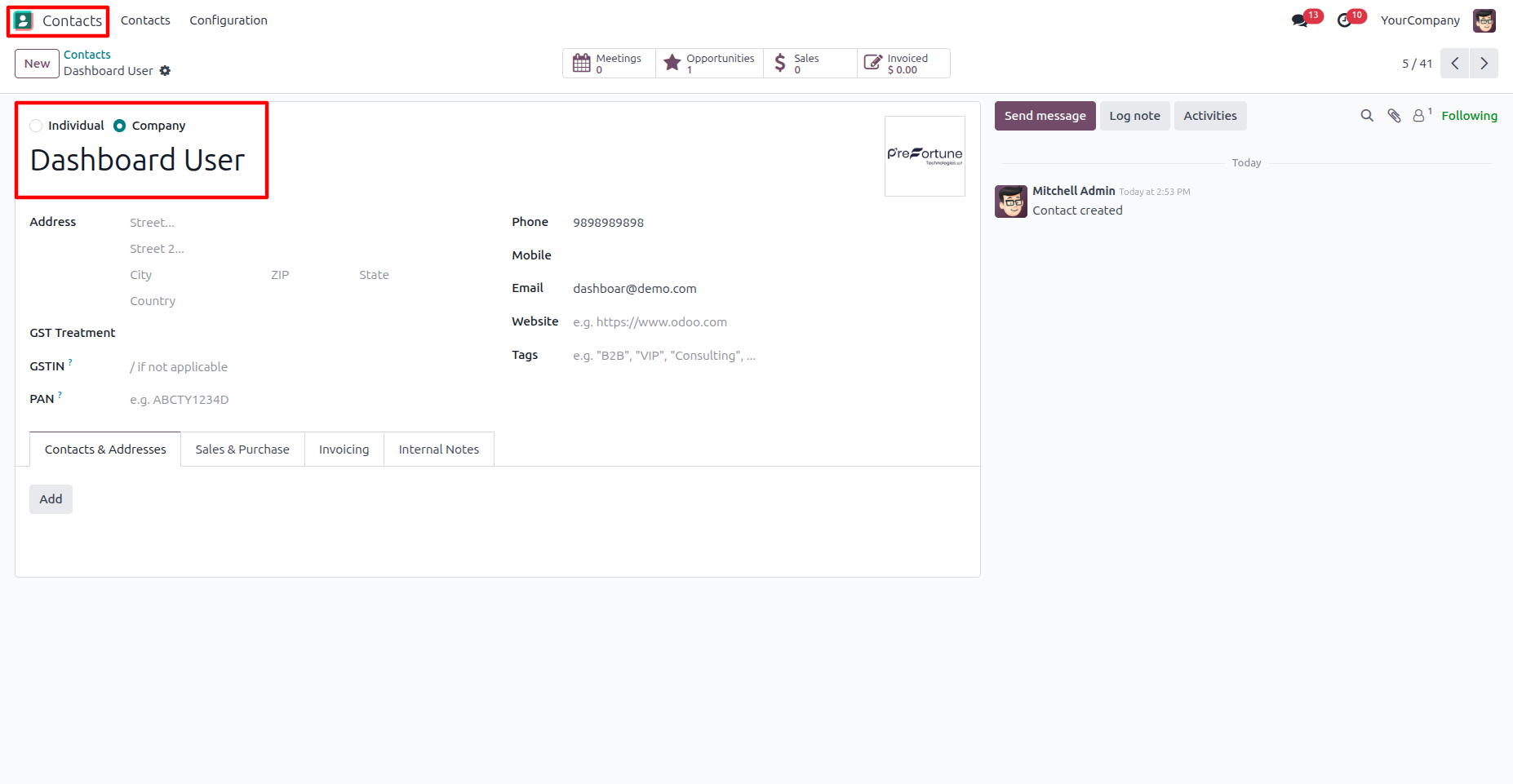
10. The new customer is successfully created and can now be viewed in the Odoo Contacts application with its saved details and sales-related information.
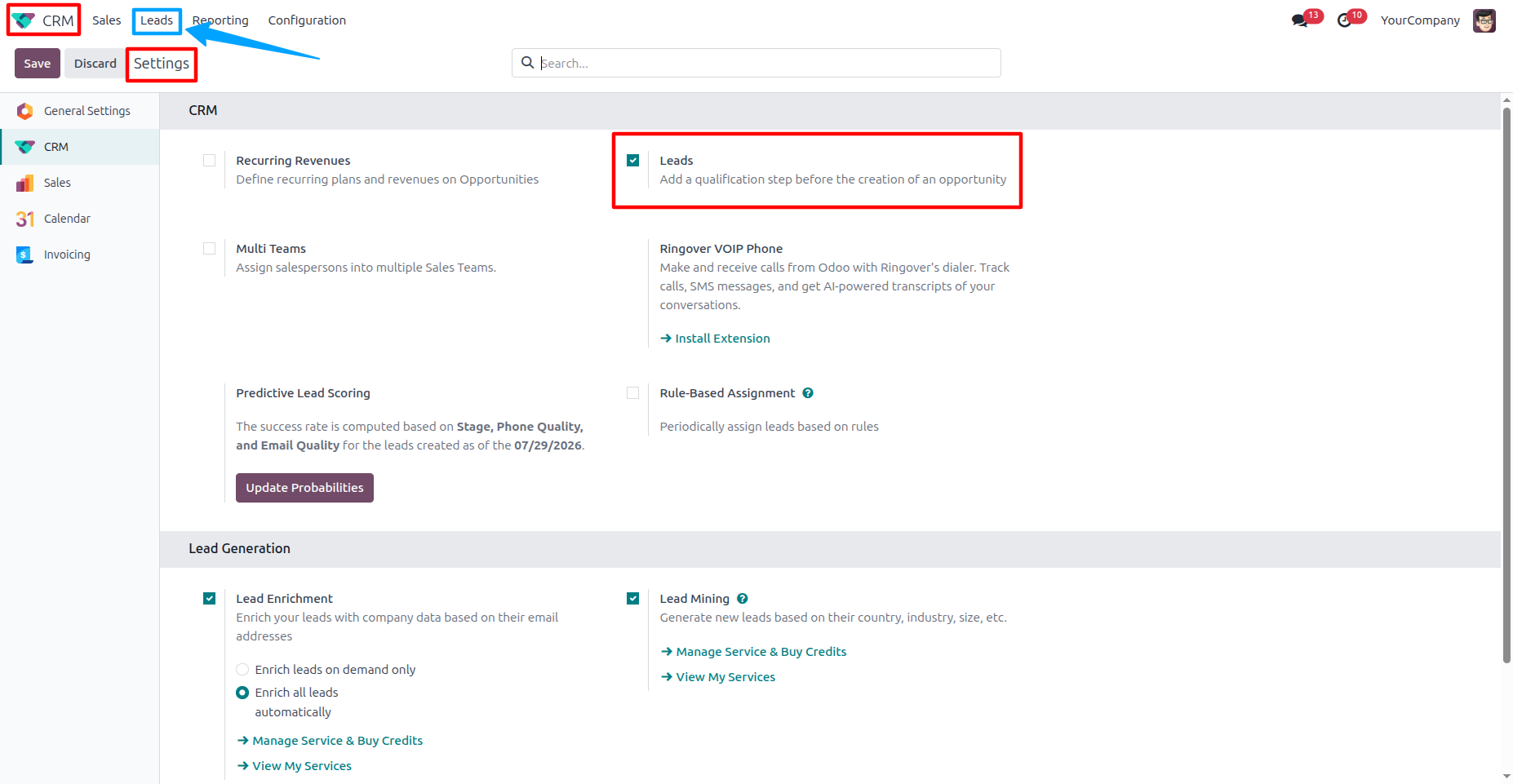
11. Go to CRM → Configuration → Settings and enable the Leads option to activate lead management in Odoo CRM and Sales Dashboard.
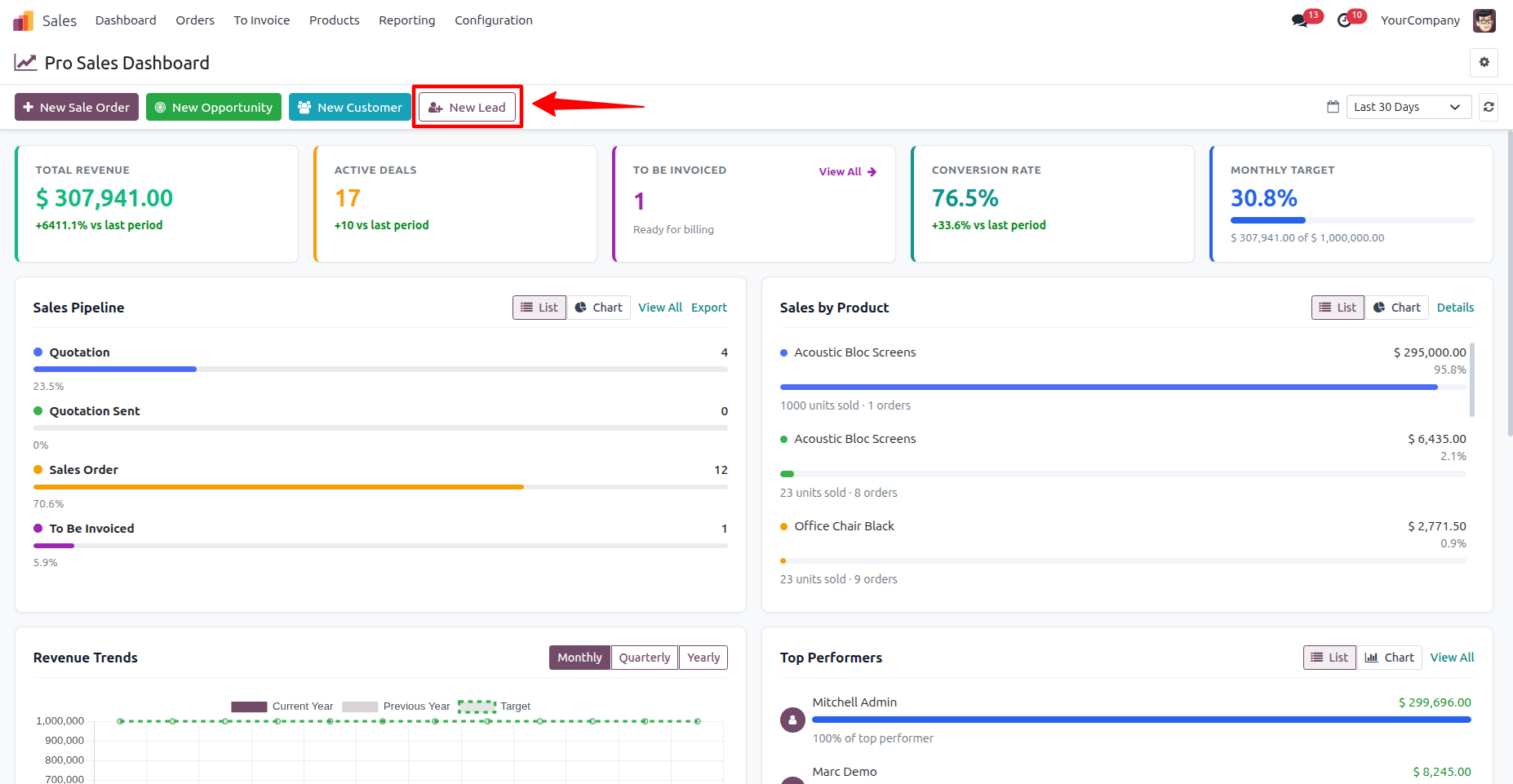
12. Once the Leads option is enabled in CRM Settings, the New Lead button becomes available on the Sales Dashboard, allowing users to create a new lead directly from the dashboard.
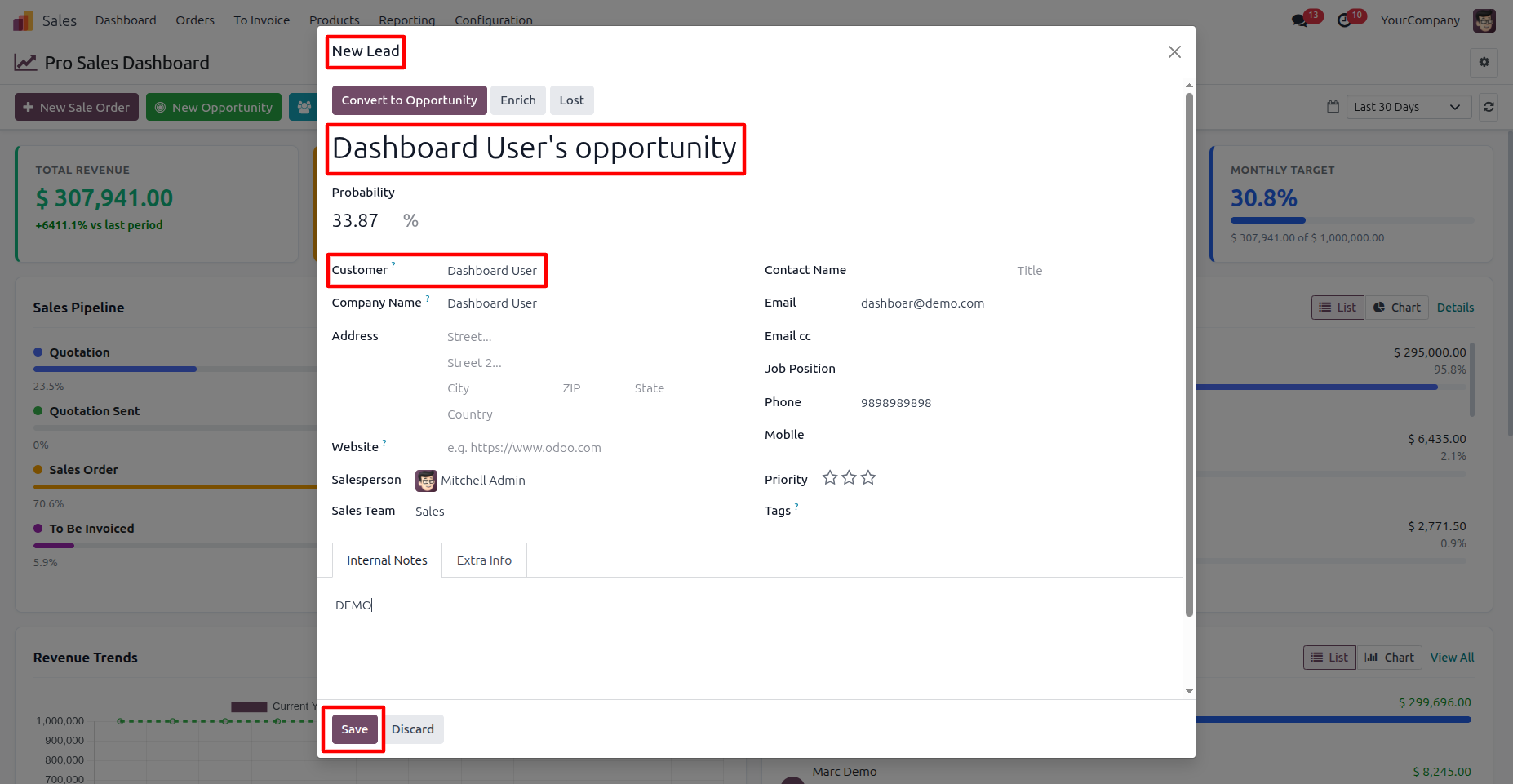
13. Enter the required lead details, including the opportunity name and customer information, then click Save to create the new lead in Odoo CRM.
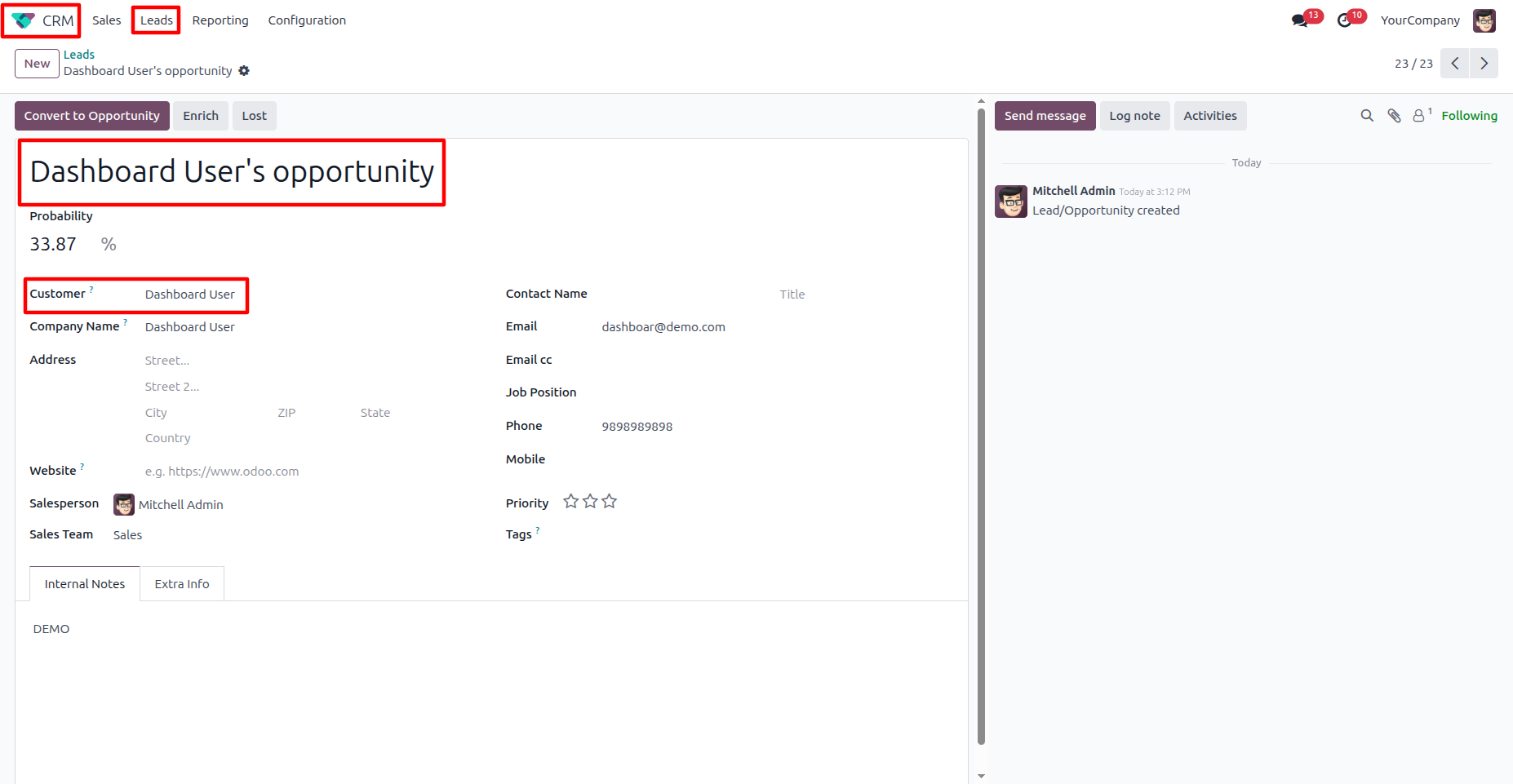
14. The newly created lead is now available in Odoo CRM, where you can review its customer details, probability, salesperson, and other lead information.
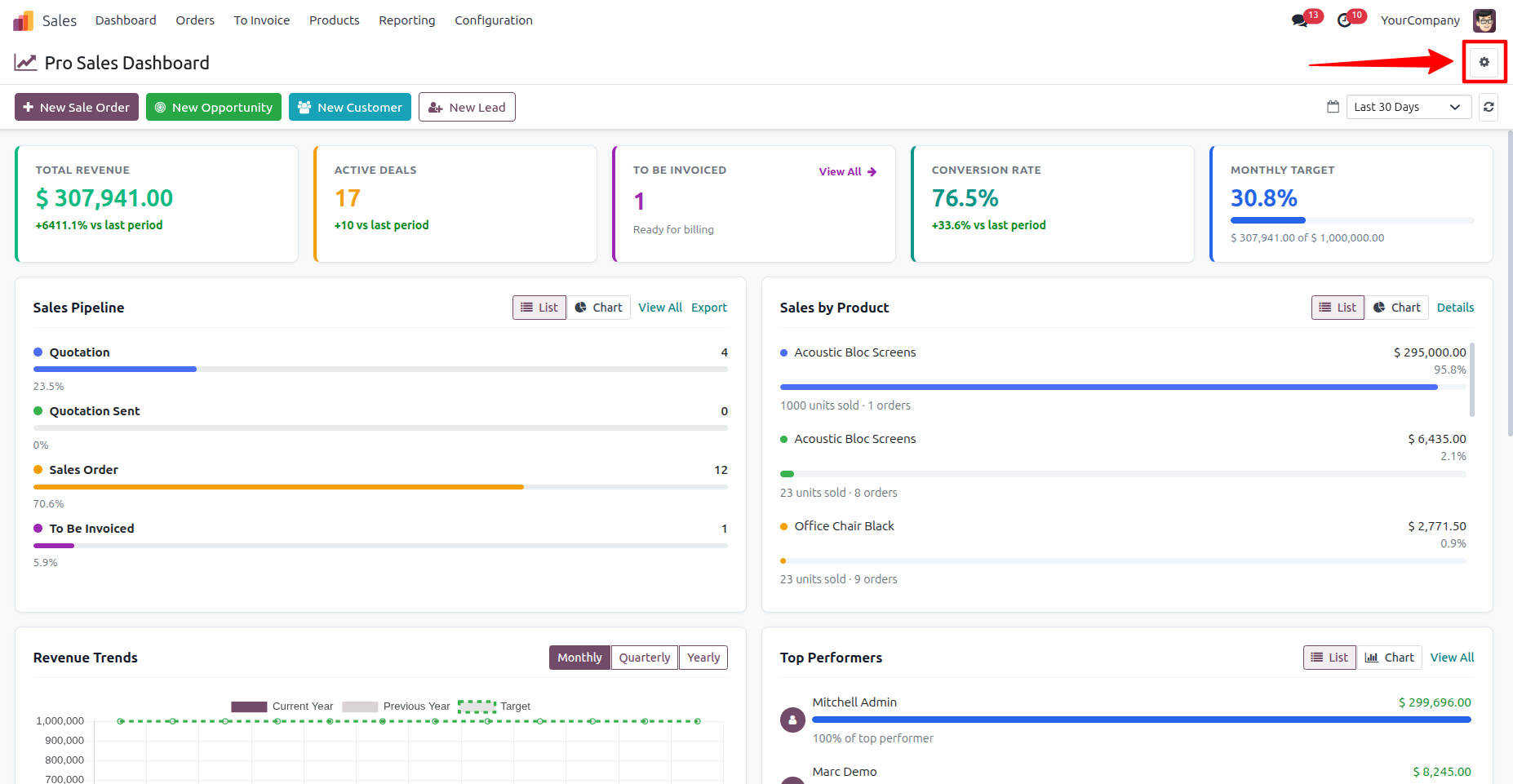
15. Click the Settings (⚙) icon on the top-right of the Sales Pro Dashboard Odoo App to open the dashboard configuration options.
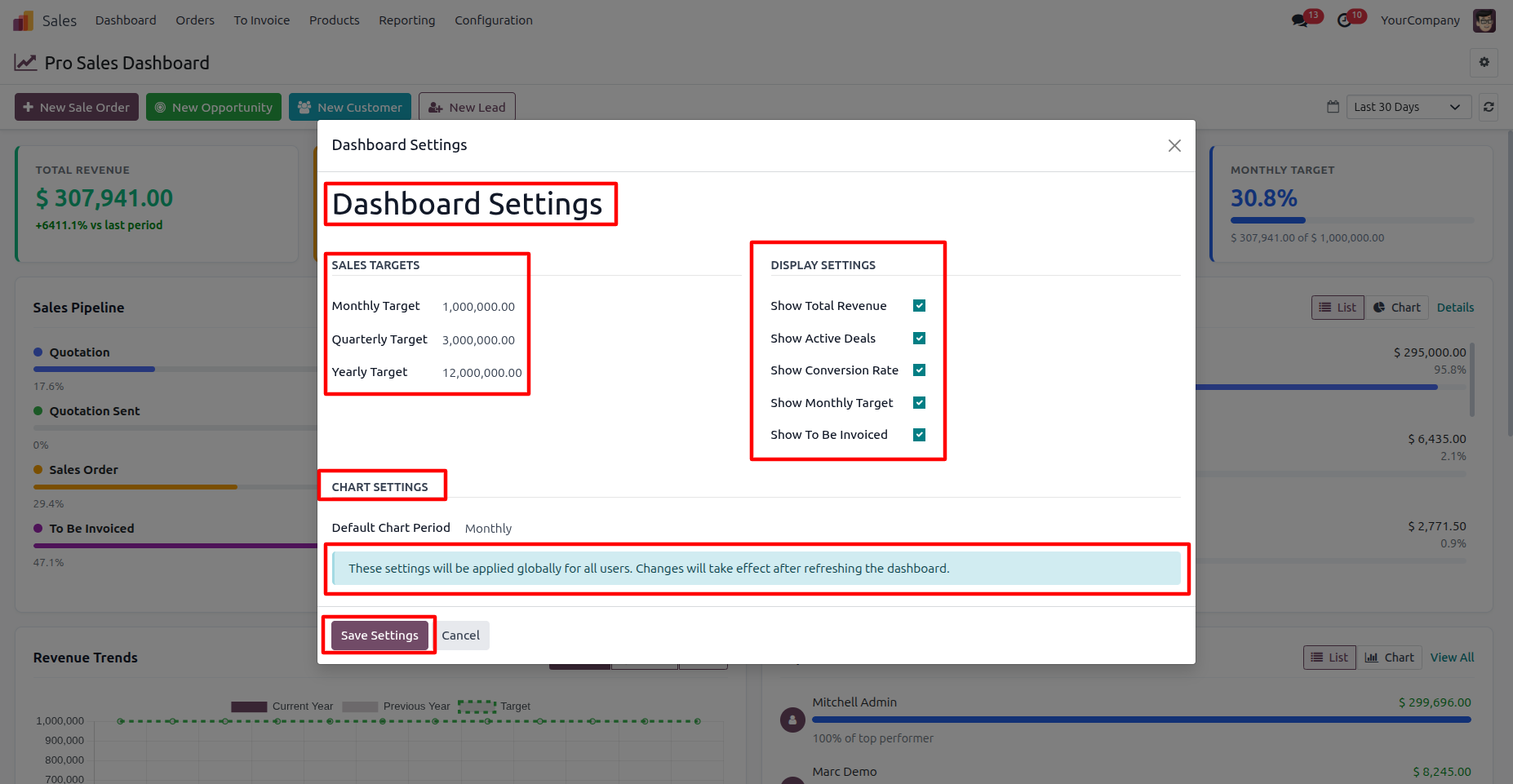
16. Configure sales targets, KPI visibility, and default chart periods according to your business requirements. These settings are applied globally across the dashboard.
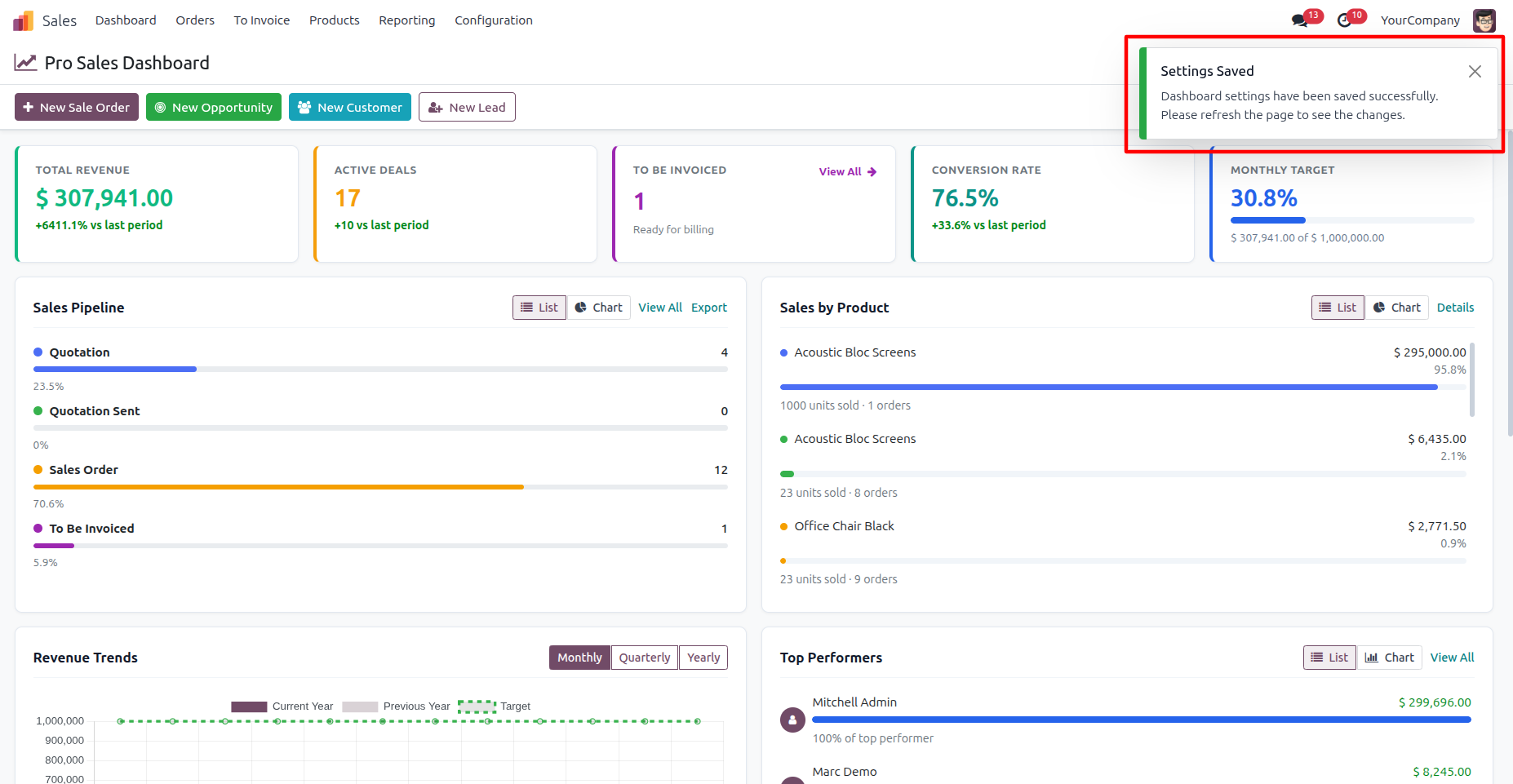
17. Save the dashboard configuration to apply the selected settings successfully. A confirmation message will appear, prompting you to refresh the dashboard to view the updated changes.
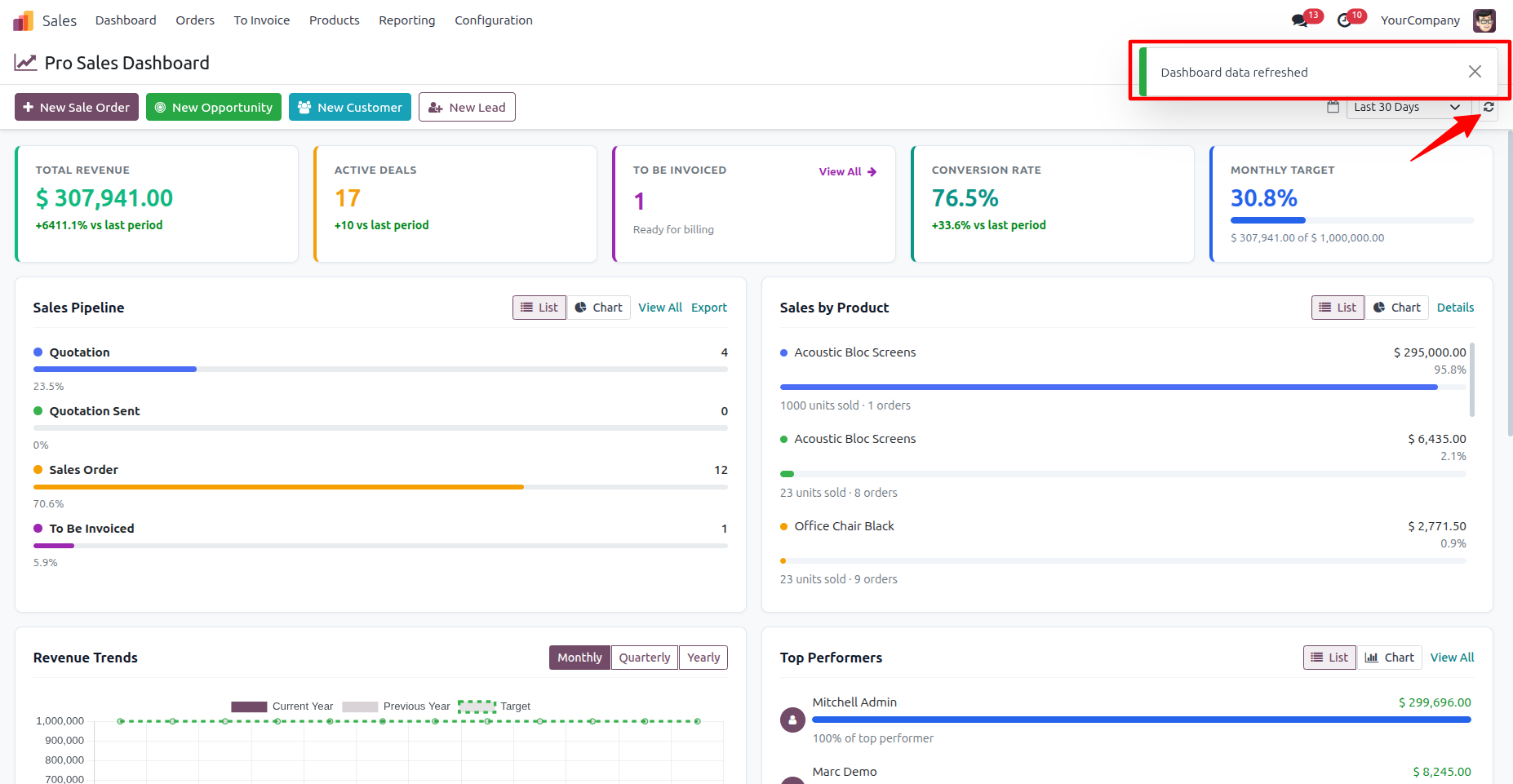
18. Click the refresh button to reload the dashboard with the latest sales data and updated performance metrics. A confirmation message will appear once the dashboard data has been refreshed successfully.
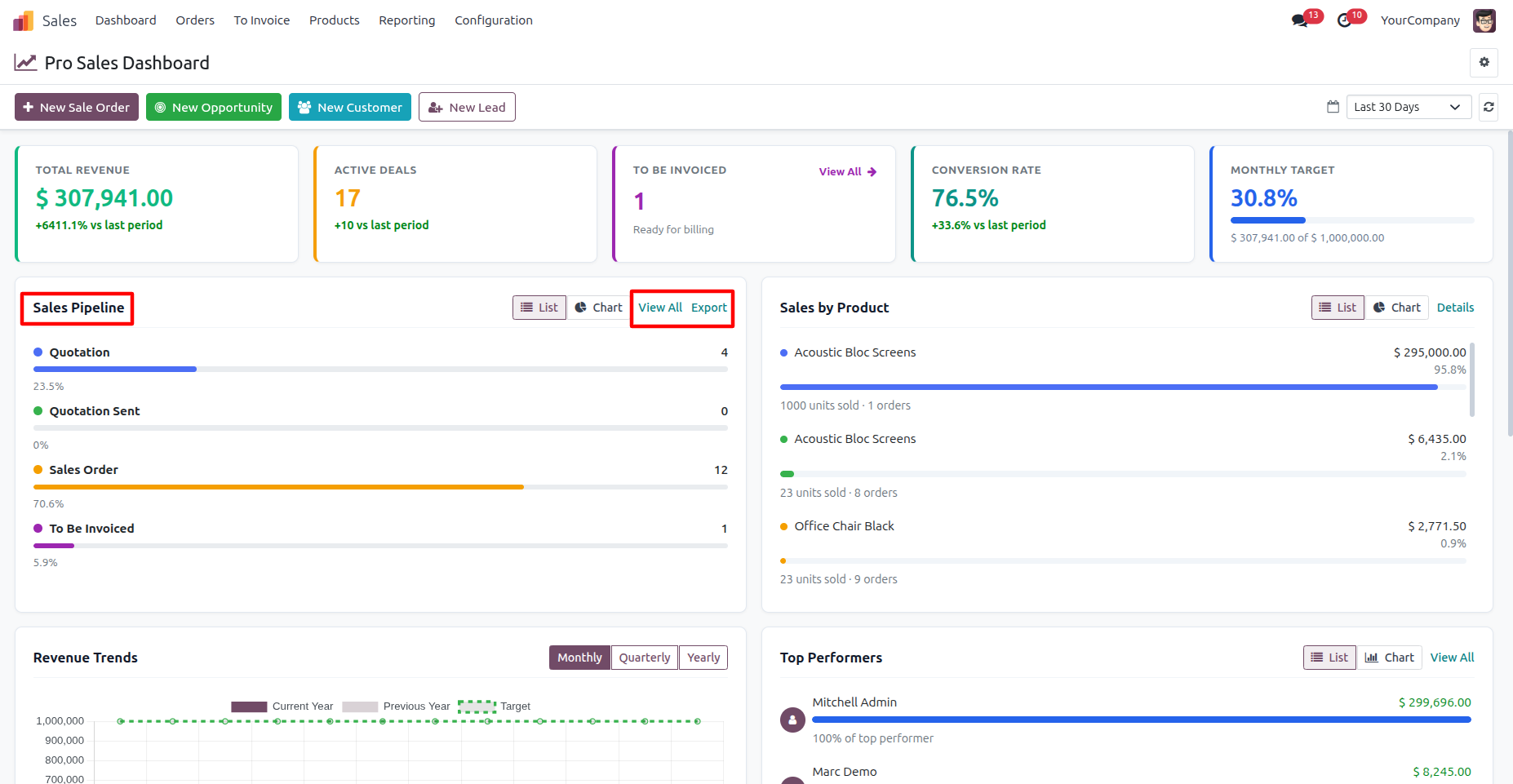
19. Use the Sales Pipeline quick actions to either open the complete pipeline details with “View All” or download the pipeline data using “Export” for further analysis.
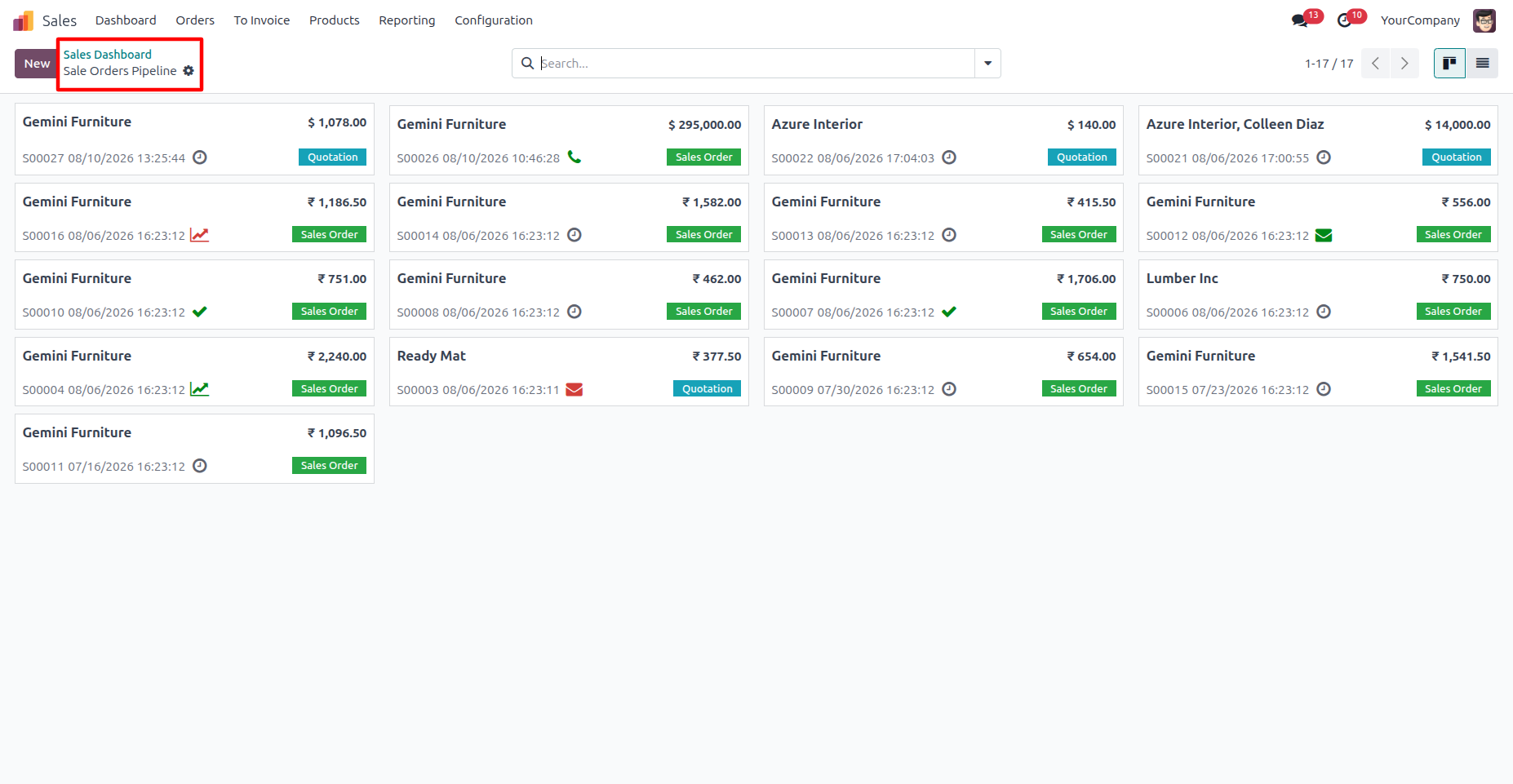
20. Click “View All” to open the corresponding Sales Order Pipeline in Odoo Sales, displaying the records based on the currently selected dashboard filters
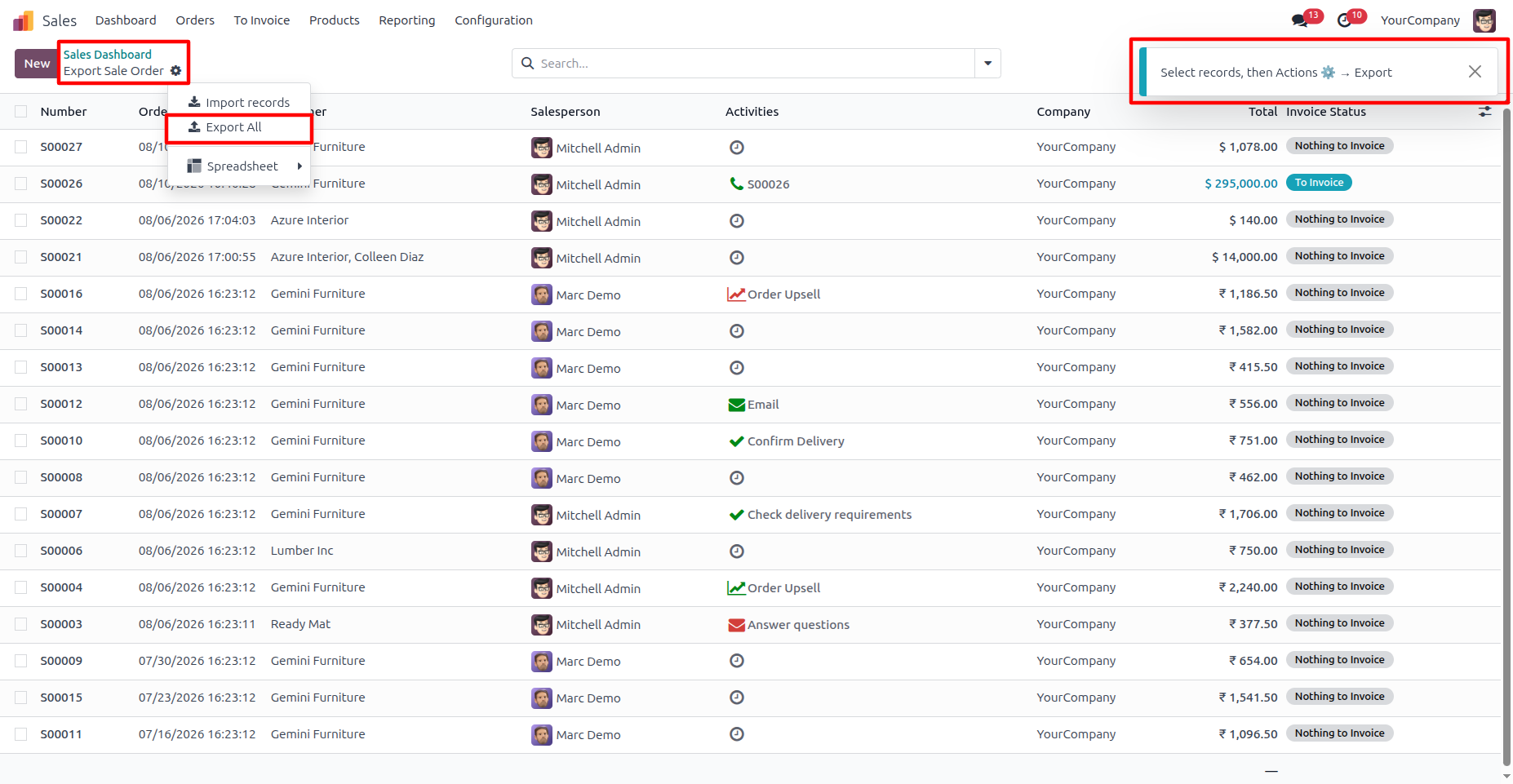
21. Click “Export” to open the Odoo Sales Order view, where you can select the required records and export the sales data for further analysis or reporting.
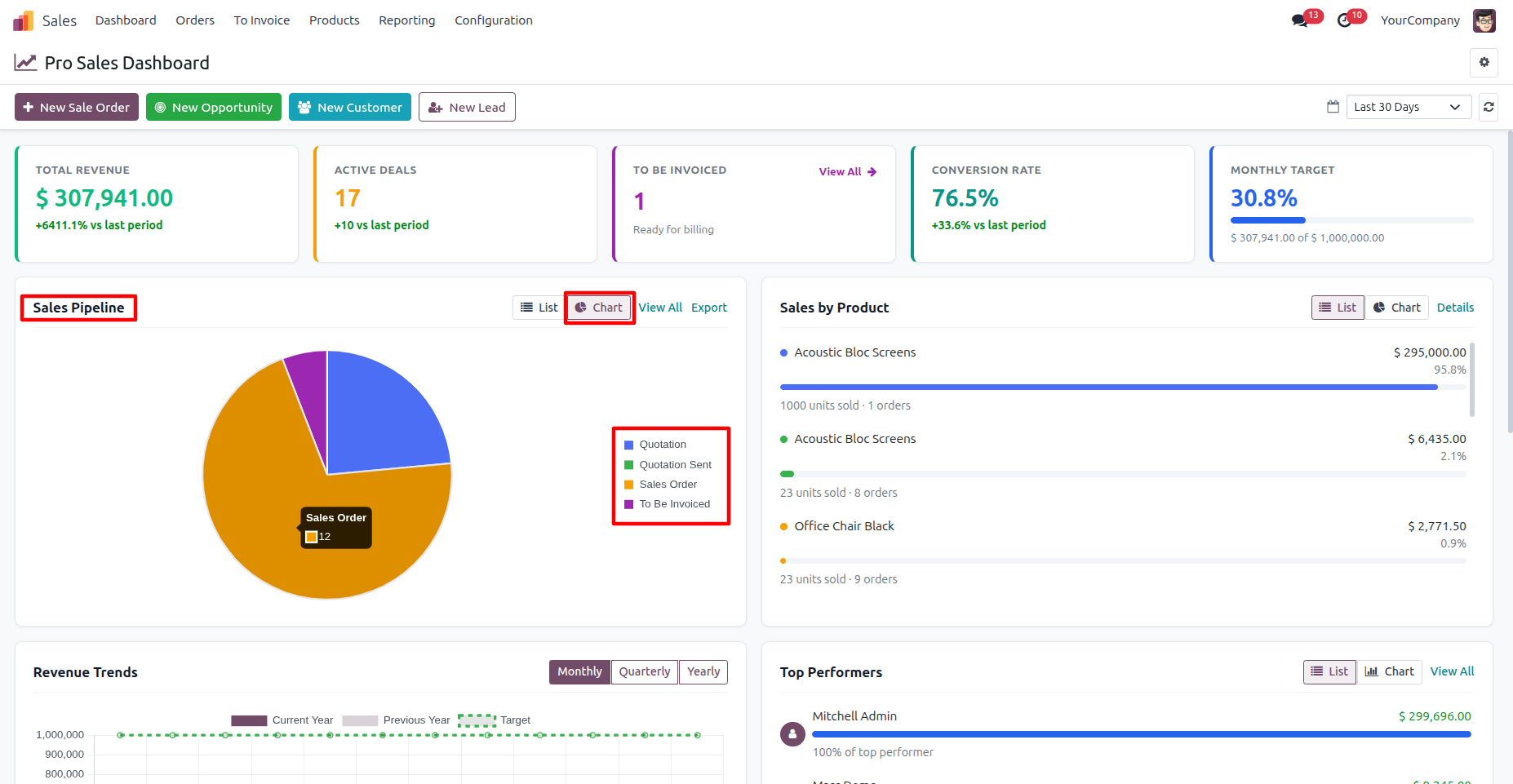
22. Click the “Chart” button to switch the Sales Pipeline to a visual chart view, making it easier to analyze the distribution of quotations, sales orders, and invoicing stages at a glance.
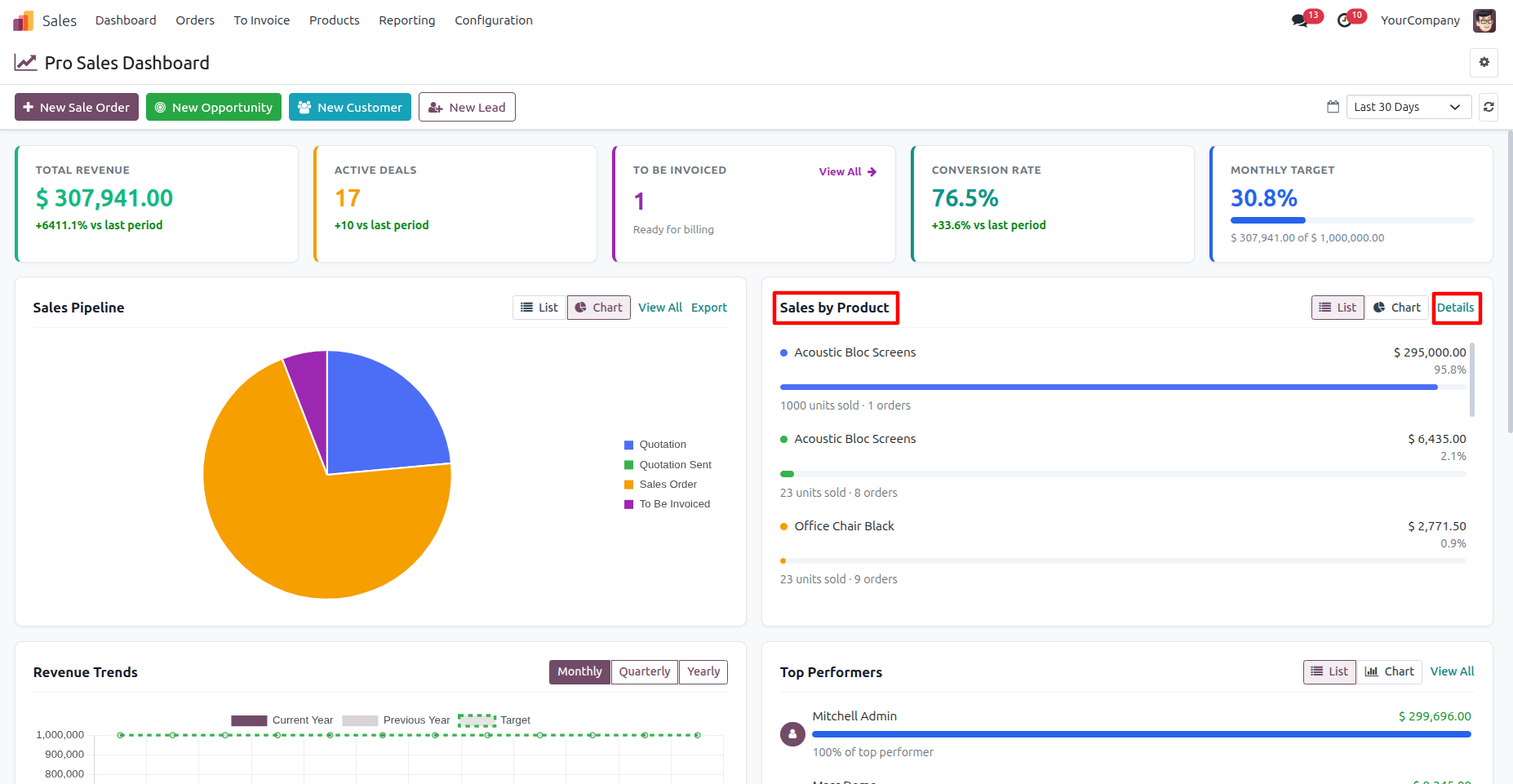
23. Clicking “Details” opens the Sales Analysis by Products report, where you can view detailed product-wise sales data using Odoo’s reporting tools and filters.
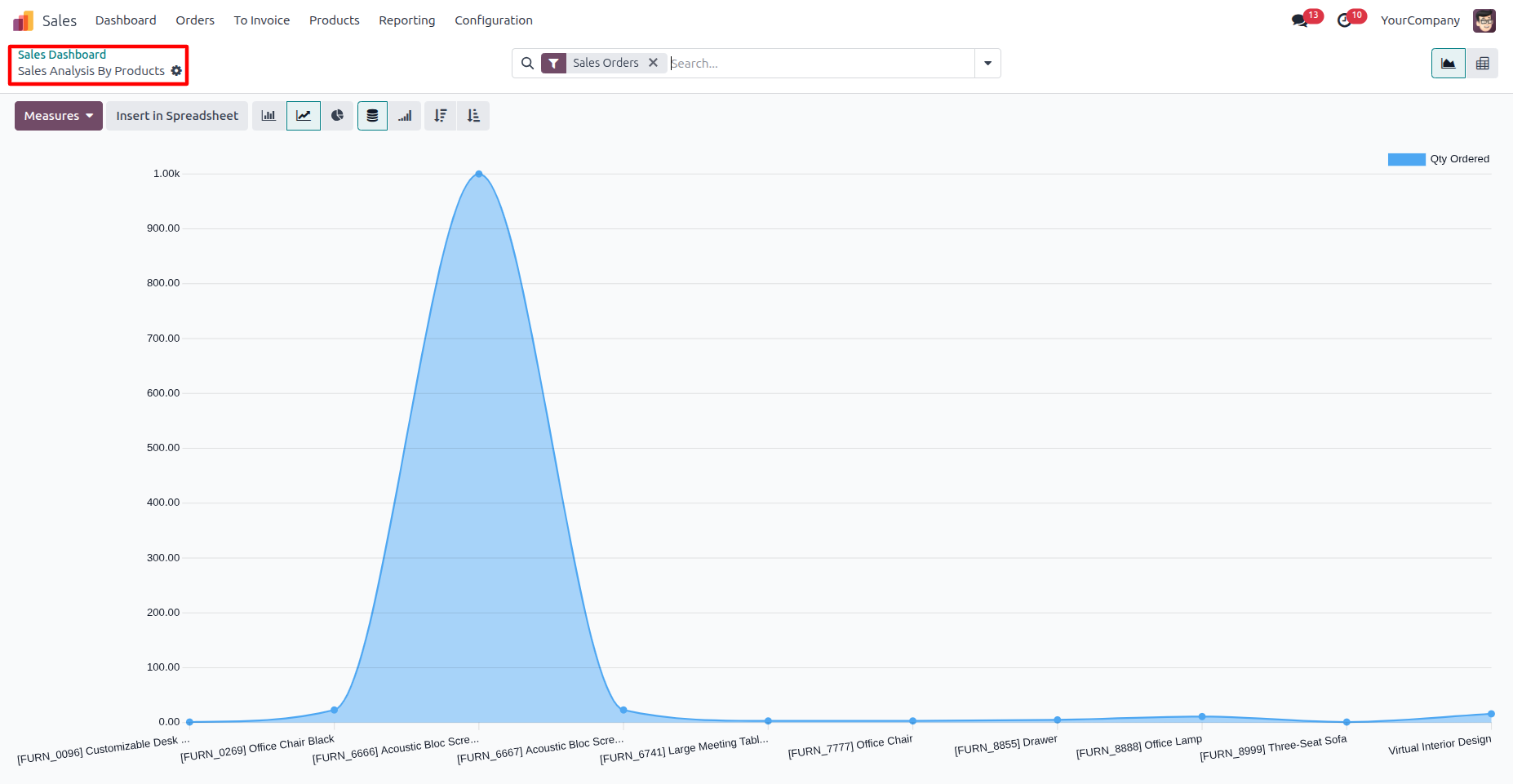
24. The Sales Analysis by Products report provides a graphical view of product-wise sales quantities, making it easy to analyze sales performance across different products.
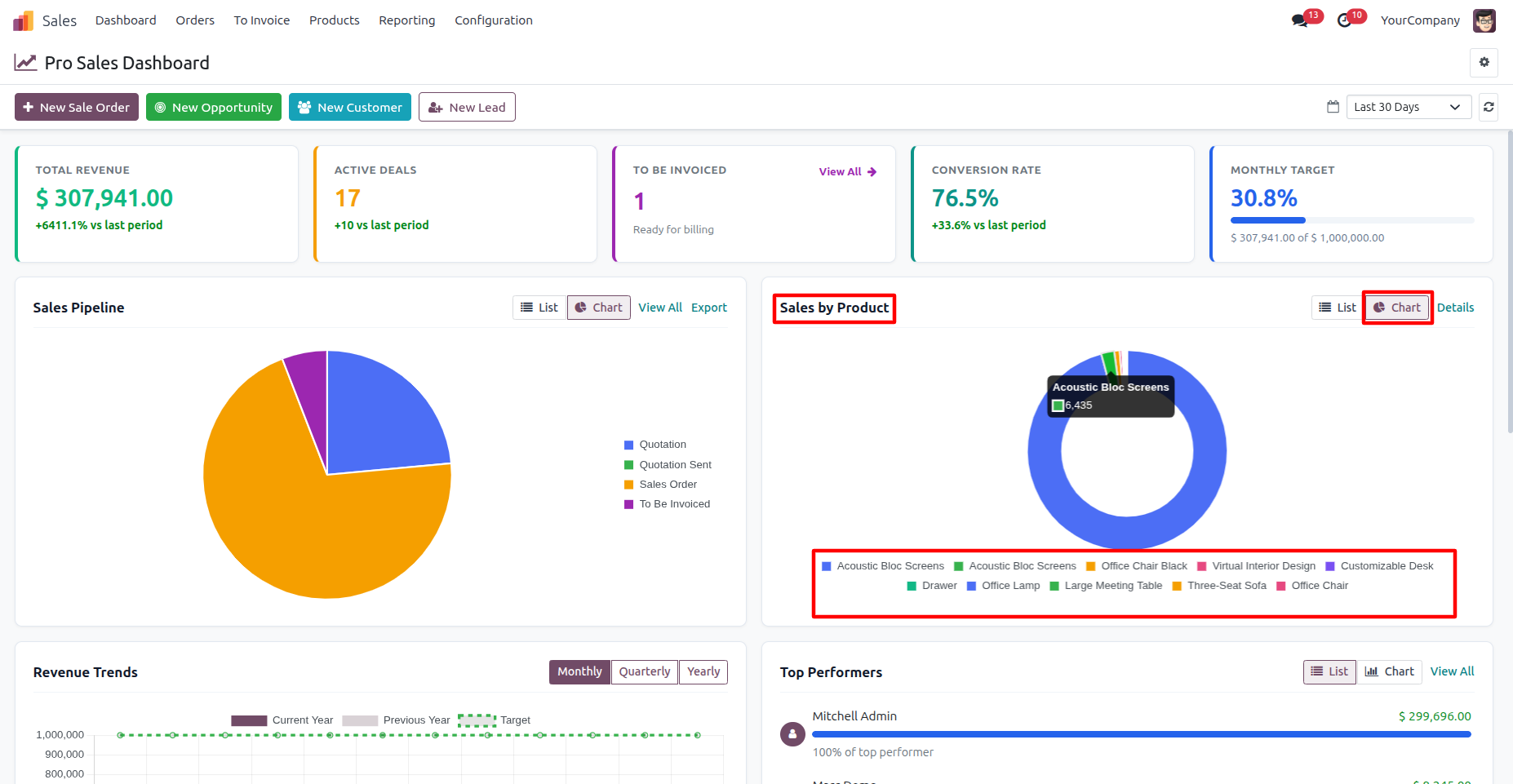
25. Click the “Chart” button in the Sales by Product section to view product-wise sales data in a visual chart, with each product represented according to its sales value.
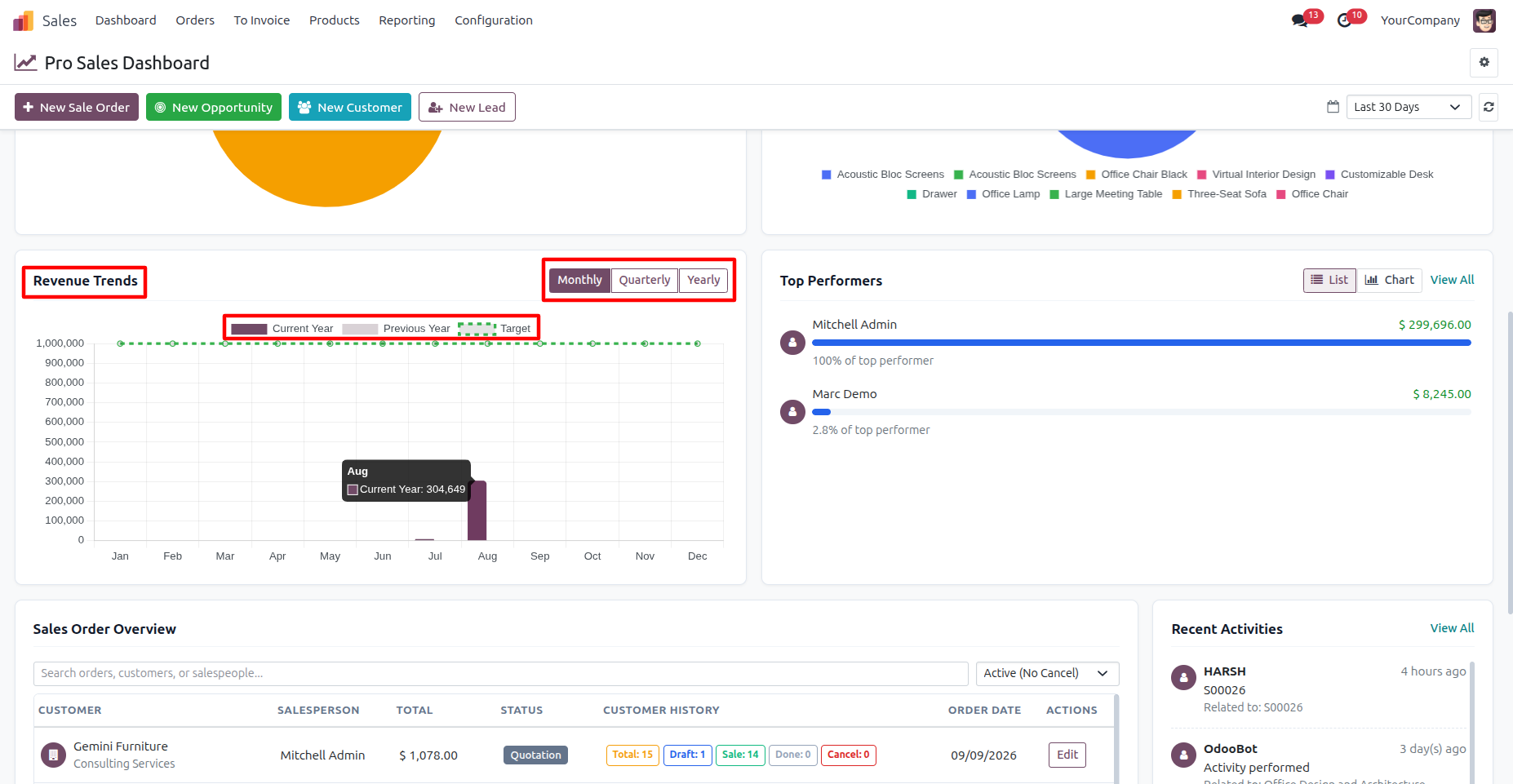
26. The Revenue Trends section displays sales performance over time. Use the Monthly, Quarterly, or Yearly options to change the reporting period and compare Current Year, Previous Year, and Target performance.
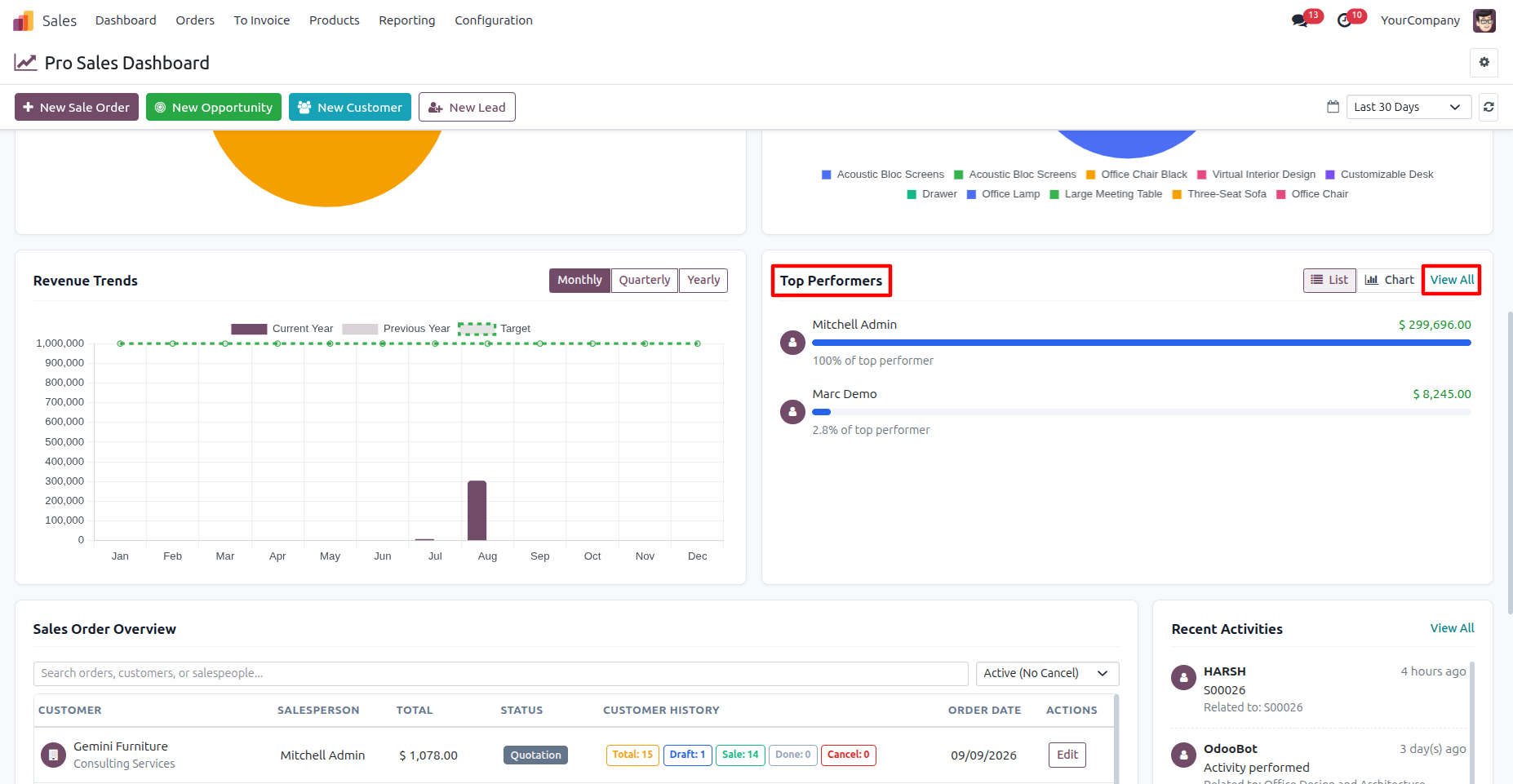
27. Clicking “View All” in the Top Performers section opens the Confirmed Sales Orders view, grouped by salesperson, allowing you to review the sales performance of each salesperson.
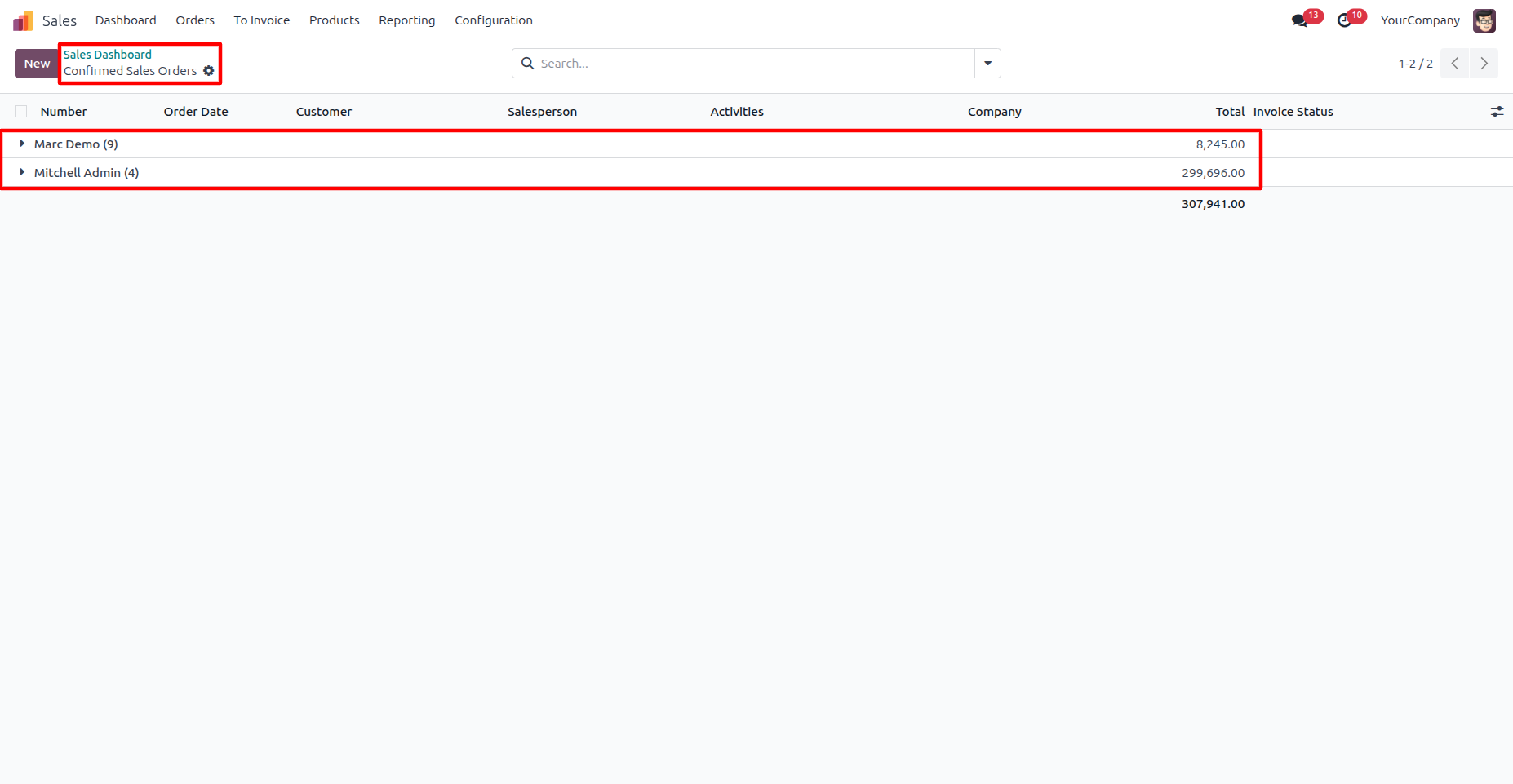
28. The Top Performers chart provides a clear visual representation of salesperson performance based on their total sales amount.
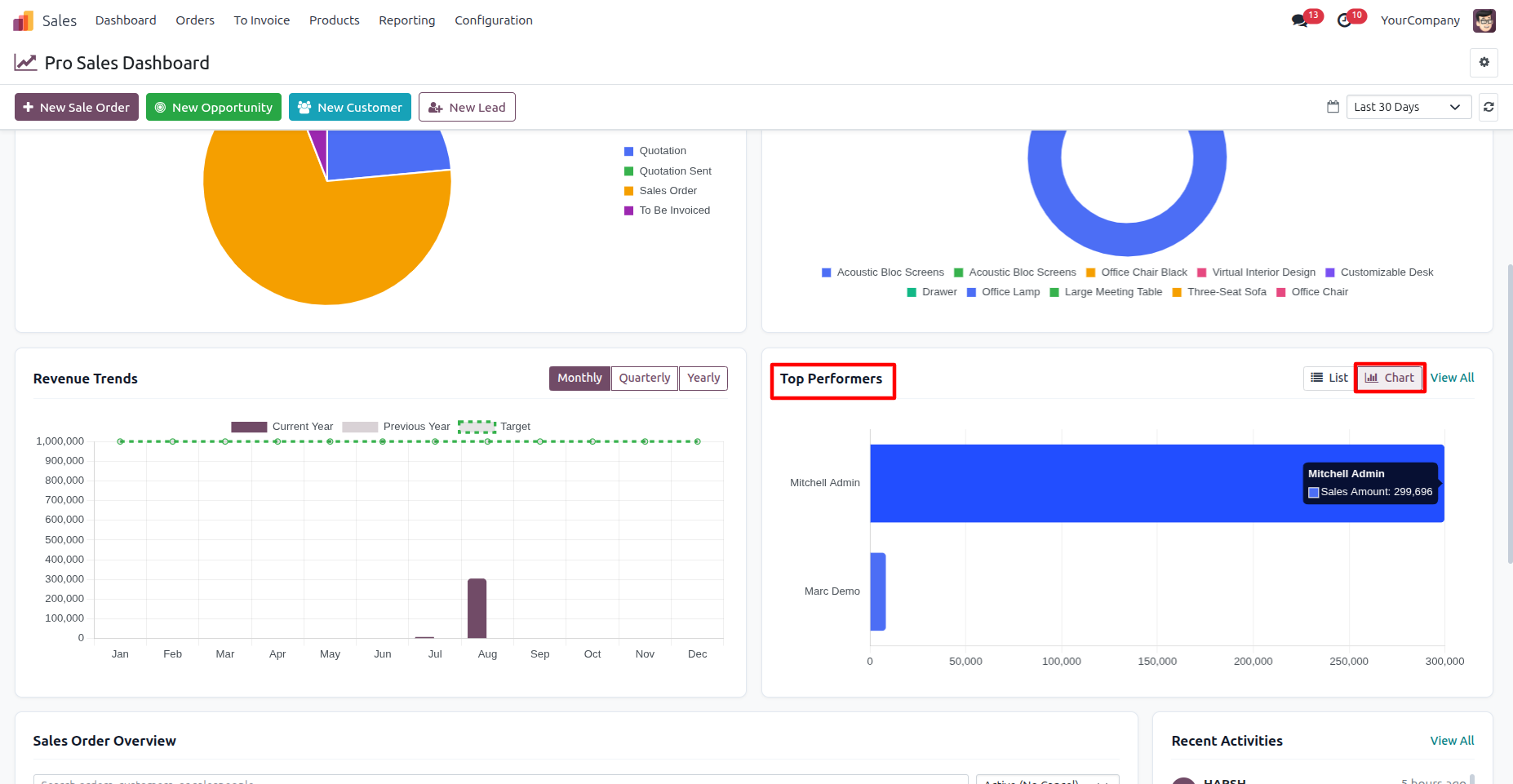
29. Clicking “Chart” in the Top Performers section displays a visual comparison of sales amounts by salesperson, making it easy to identify the highest-performing salespeople.
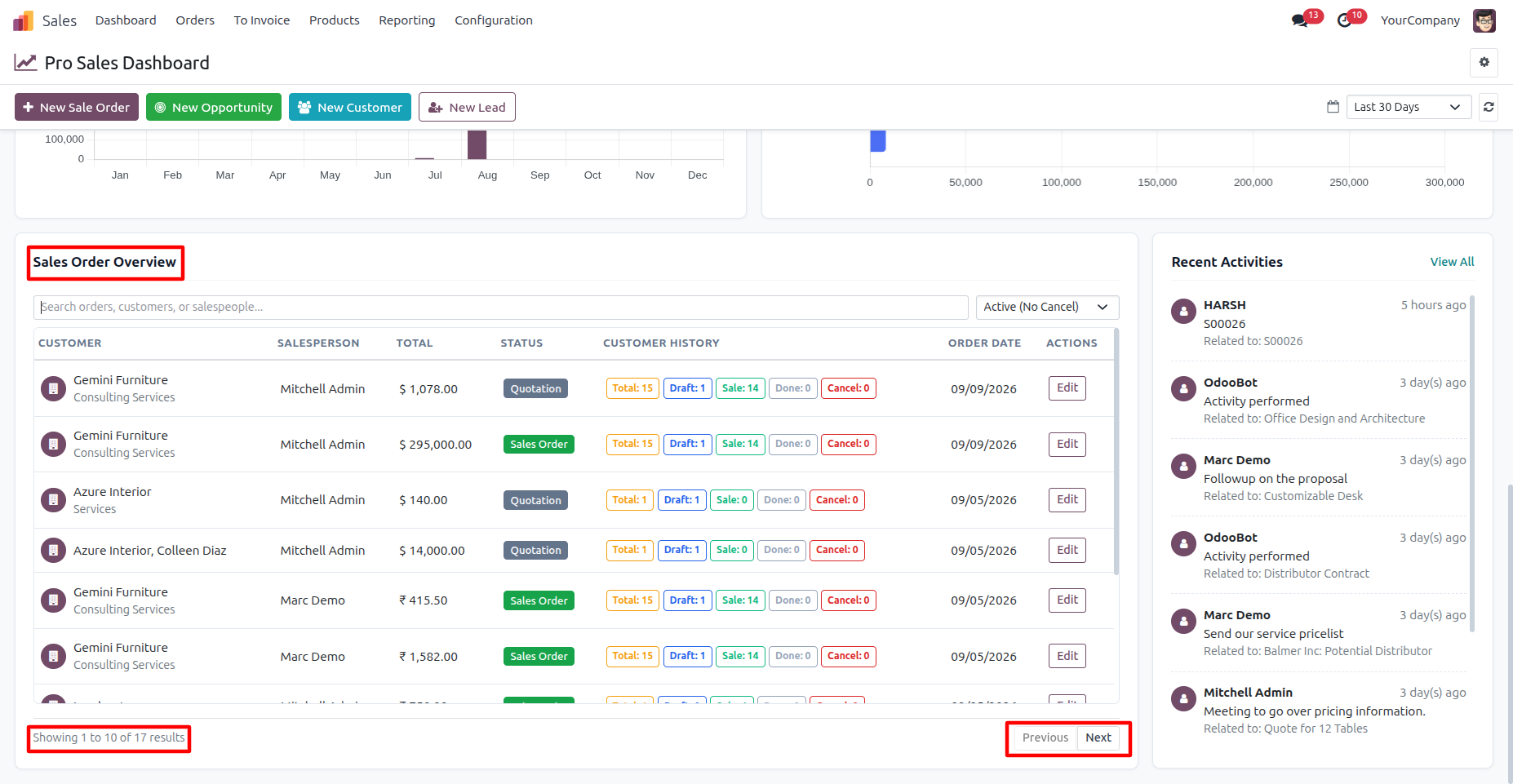
30. The Sales Order Overview section provides a detailed view of sales orders, including customers, salespersons, order totals, statuses, customer history, order dates, and quick edit actions. It also supports searching, filtering, and pagination for efficiently managing sales order data.
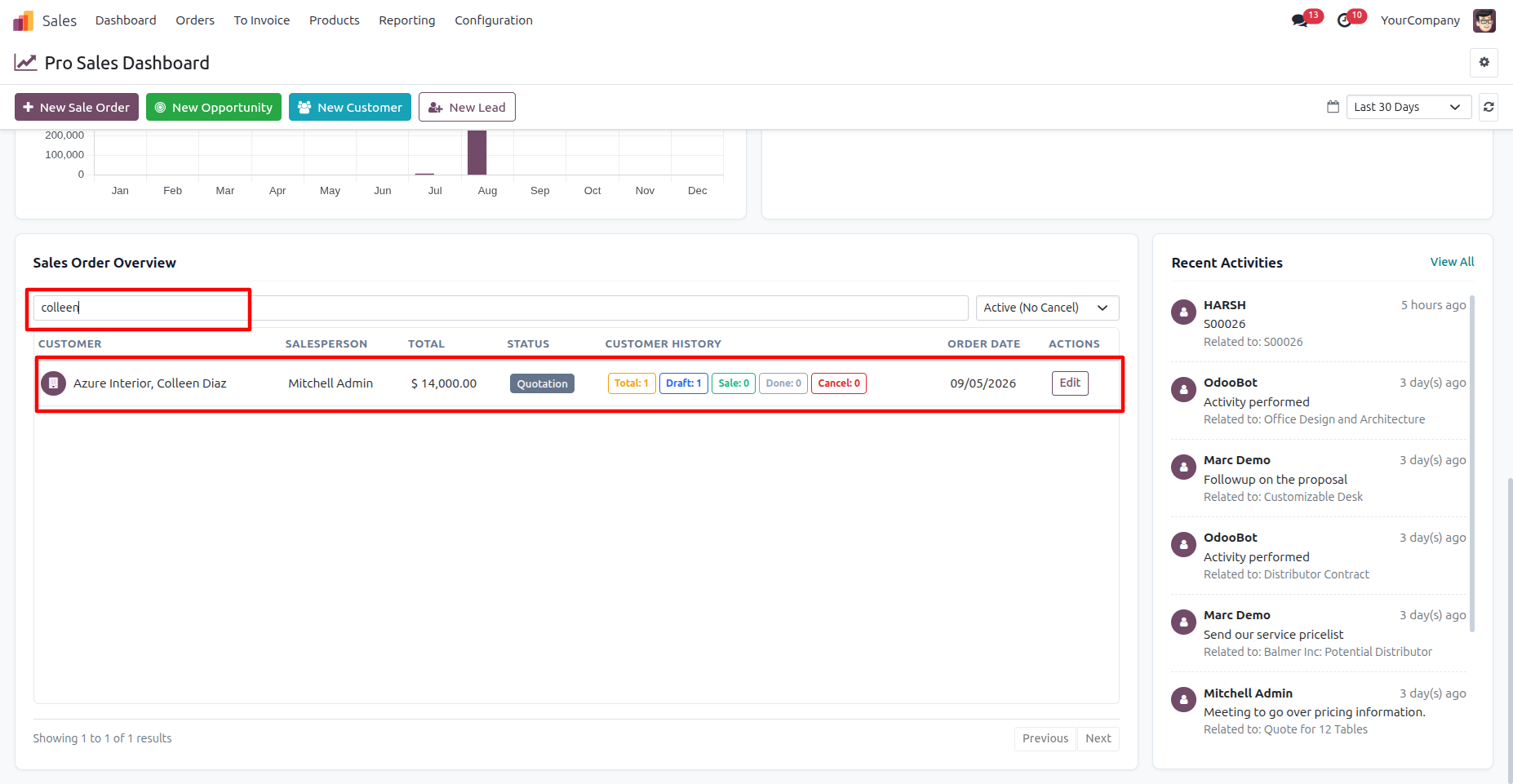
31. The Sales Order Overview search allows you to quickly find specific orders, customers, or salespeople and displays the matching sales records along with their order details.
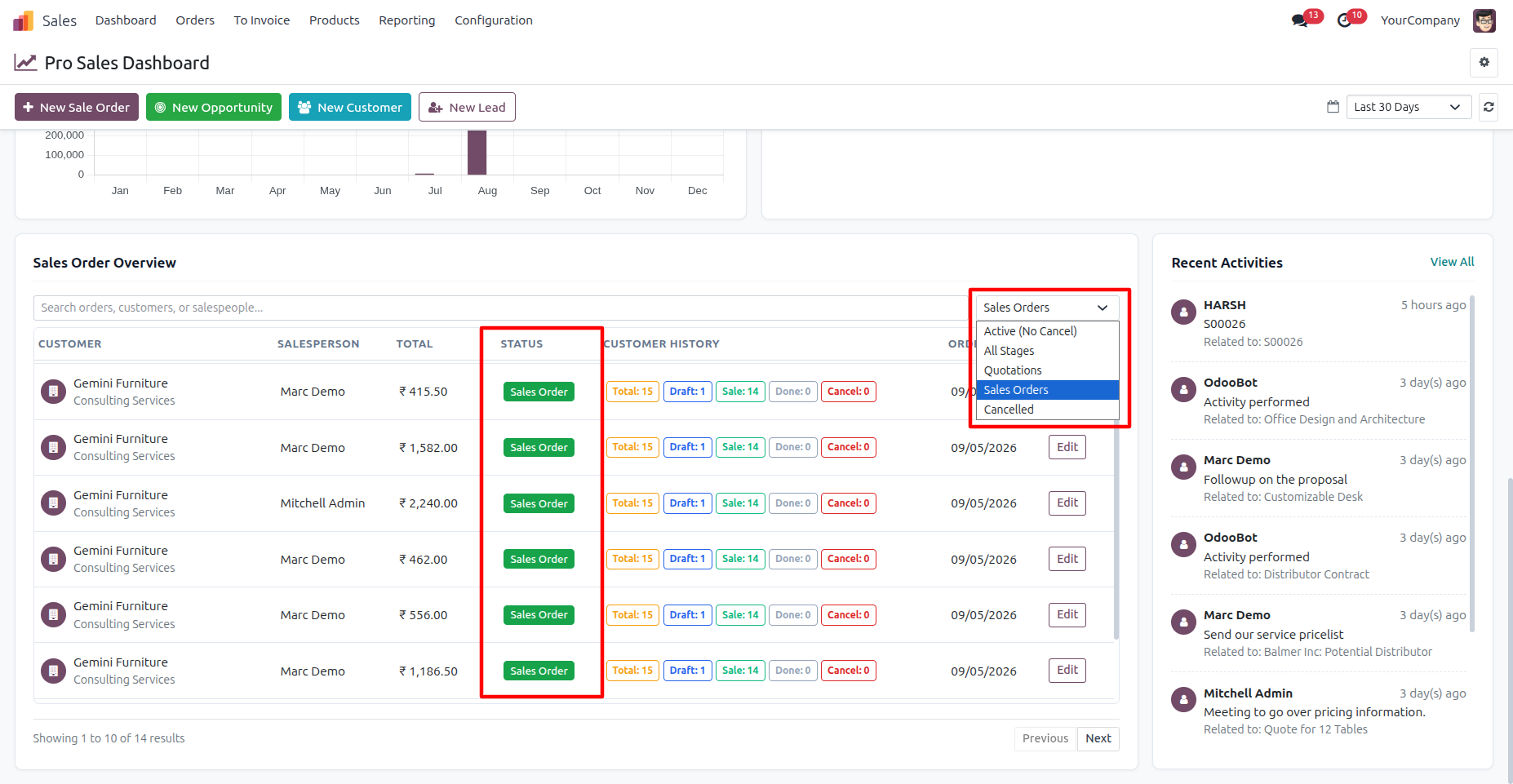
32. The status filter allows you to view sales records by specific stages, including Active, All Stages, Quotations, Sales Orders, and Cancelled orders.
33. The Recent Activities section displays the latest sales-related activities, including the activity description, related record, user, and activity time. Clicking “View All” opens the complete Activities view for detailed activity management.
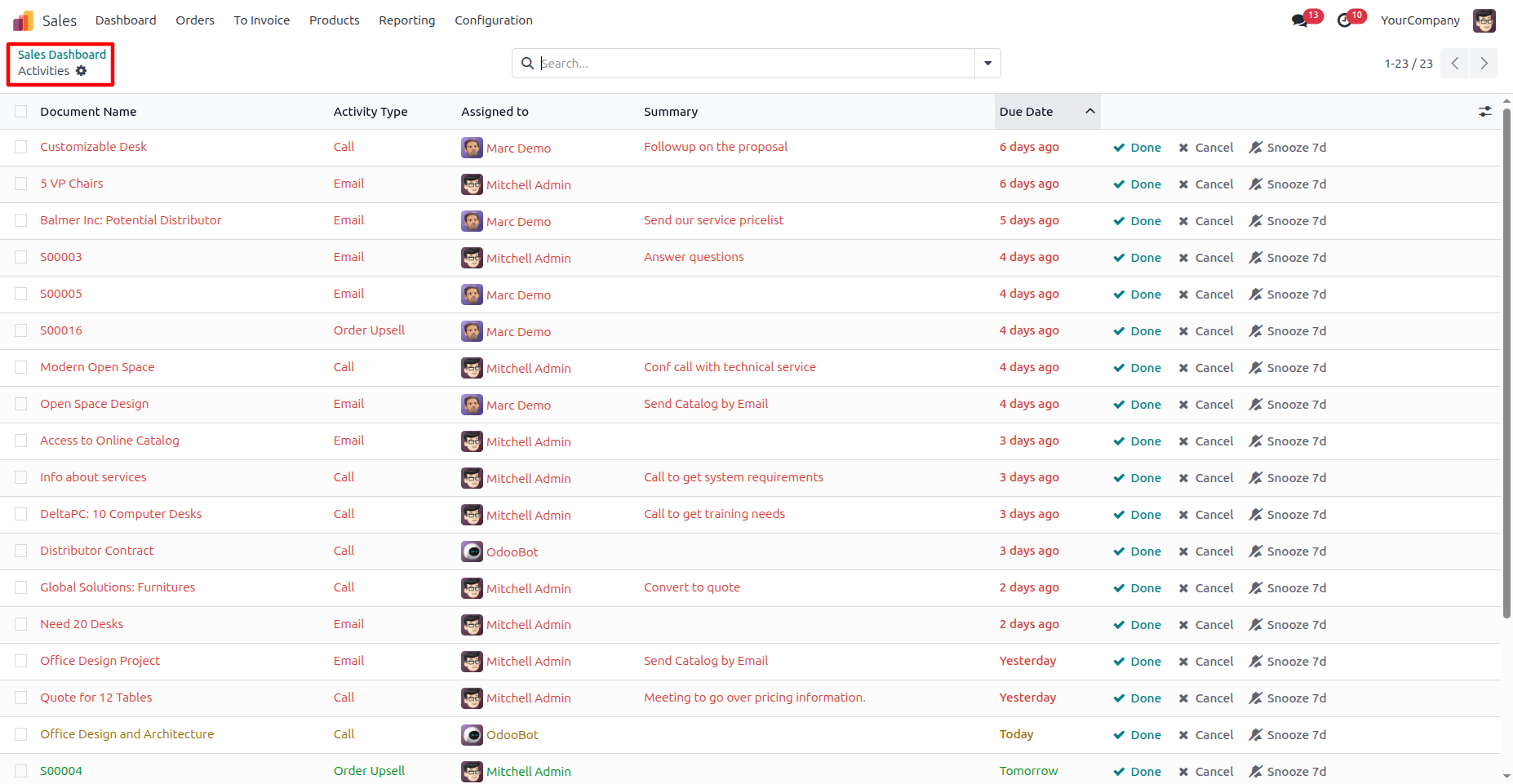
34. The Activities view provides a complete list of scheduled activities with details.
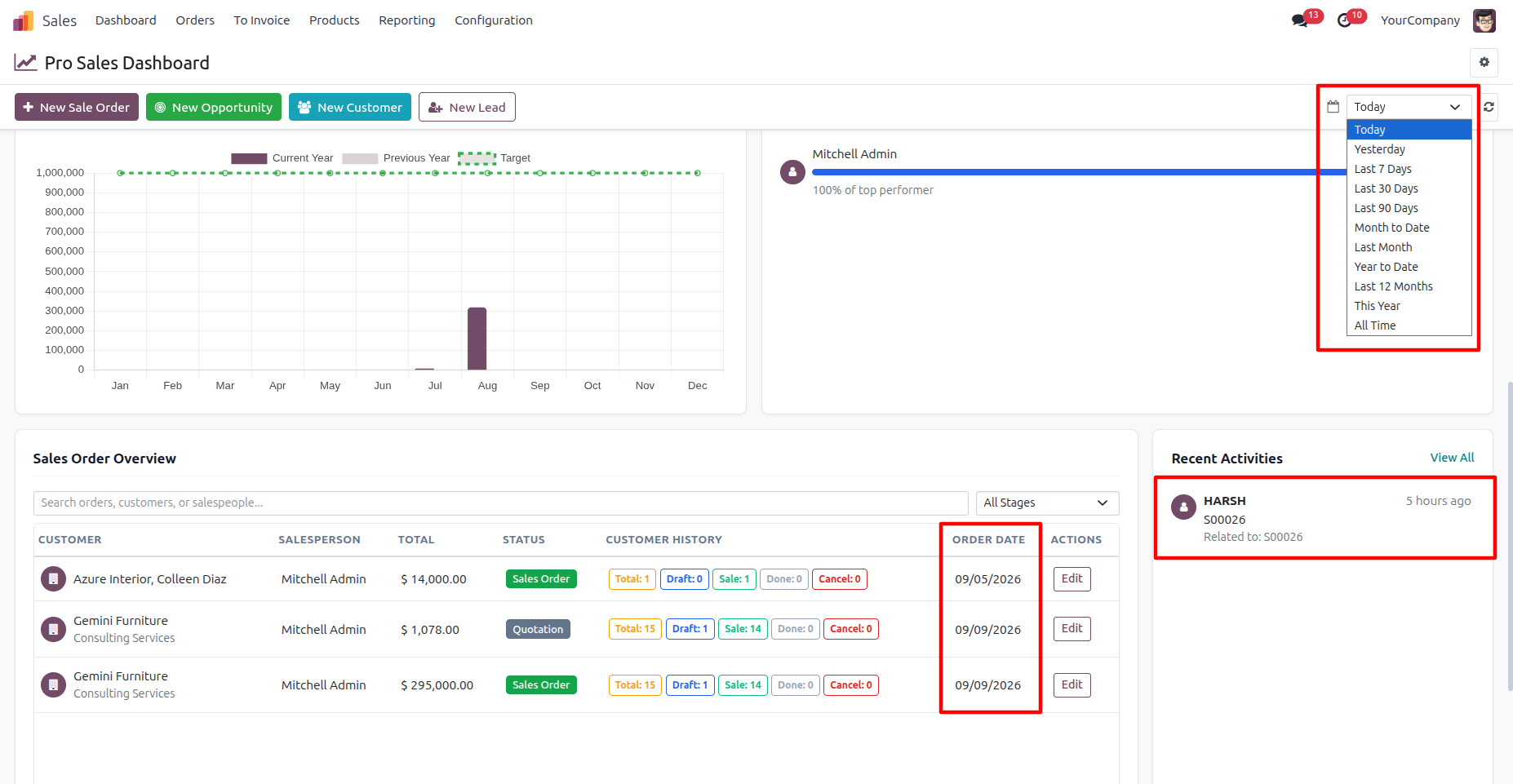
35. Use the date filter to view dashboard data for a specific period, such as Today, Yesterday, Last 7 Days, Last 30 Days, Month to Date, Year to Date, Last 12 Months, This Year, or All Time. The selected period updates the dashboard metrics and related sales data accordingly.
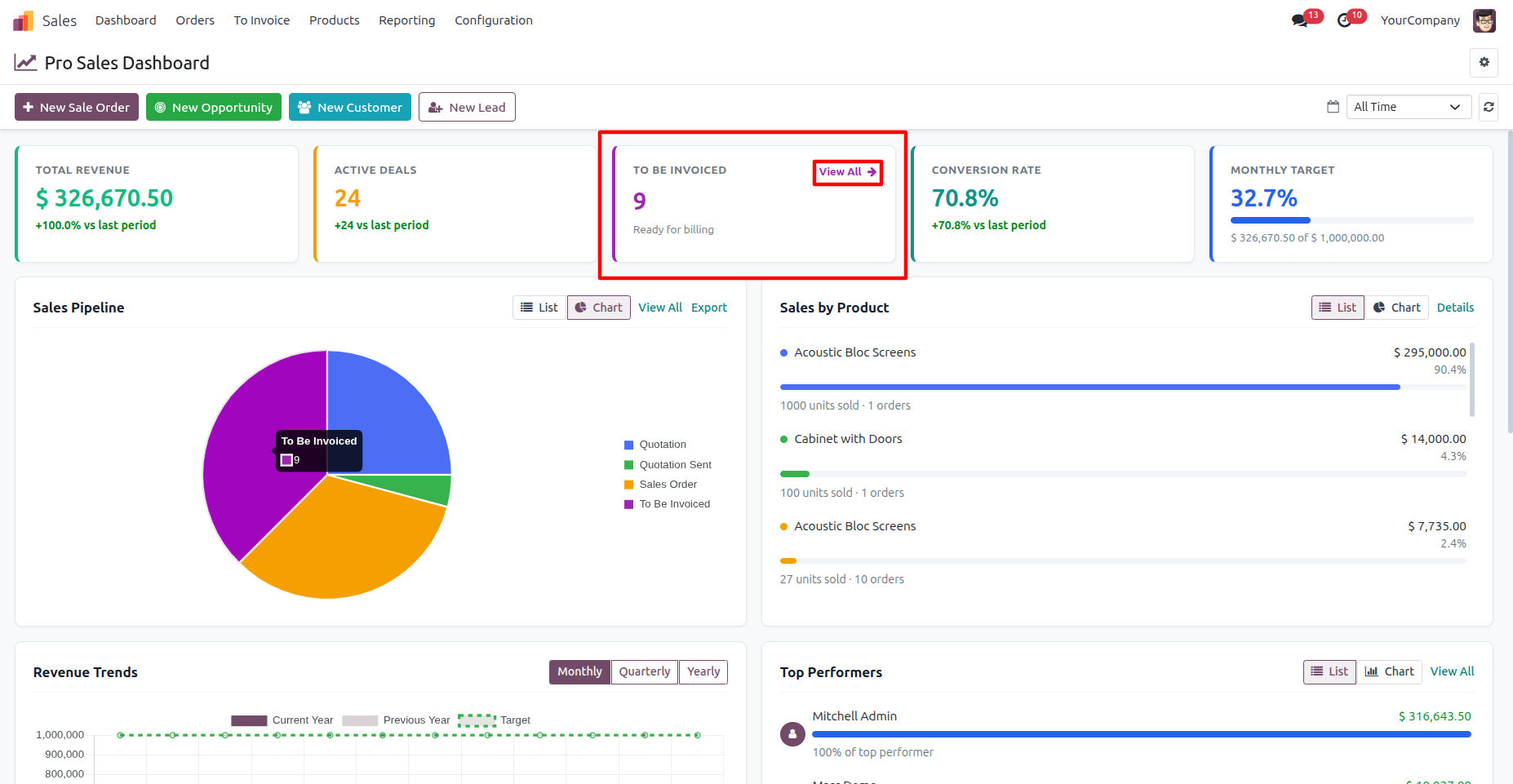
36. Clicking “View All” in the To Be Invoiced section opens the Orders to Invoice view, displaying all sales orders that are ready to be invoiced.
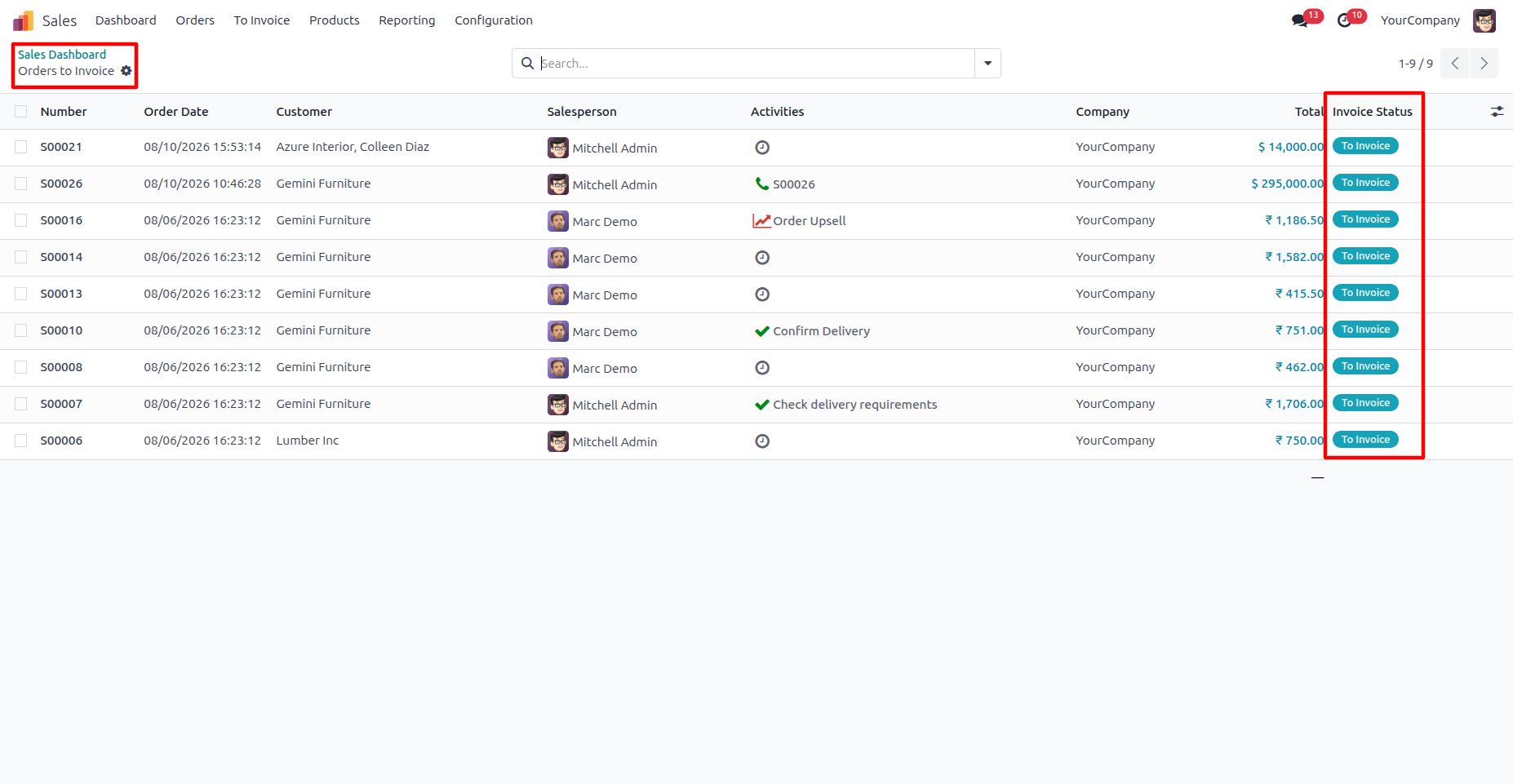
37. The Orders to Invoice view displays the relevant sales orders along with their invoice status, allowing you to easily identify orders that are ready for invoicing.
Our solutions focus on your problems
- Odoo Implementation
- Odoo Customization
- ERP Development and Implementation
- Odoo Ipass Cloud
- AI for Odoo
- Odoo Apps
- Aws Marketplace Products
- Business Engines
Our Pricing includes User Manual, 90 Days Support (Monday-Friday 10am to 7pm IST) and One time Setup
• Works & tested on standard installations of Odoo with no third party apps,
• Free support only for odoo installations with no third party apps,
• Paid support available for Odoo installations with third party apps.

Prefortune is a Odoo Official Partner, Odoo Development company. Our philosophy is to use Open Source tools and technologies to provide cost effective and green solutions for our customers.
Prefortune Technologies LLP is working on web development, Mobile development, and Odoo ERP.
If you need any help or want more additional features, you may contact us through:
Alternative Products
These other products might interest you
Specifications
| Version | 19.0, 18.0, 17.0 |