Watch Quick Video
Vendor RFQ & PO Portal Odoo App
Vendor RFQ & PO Portal Odoo App
enables vendors to manage Requests for Quotation (RFQs) and Purchase Orders through the Odoo portal,
eliminating the need for backend access. From a single portal interface, vendors can review procurement
documents, edit quantities, unit prices, discounts, taxes, delete existing order lines and keep purchasing
information up to date.
The Allow Portal Editing option controls portal editing individually for every RFQ and Purchase Order.
Vendors can update the document from the portal if it is enabled. If disabled, the document will still be
available in the portal in read-only format.
Vendors can also upload quotations, specifications, invoices and other supporting documents directly into
purchase order chatter. Any changes made via the portal are automatically updated on the related RFQ or
Purchase Order in Odoo, improving collaboration and reducing manual communication.
Vendor RFQ & PO Portal Odoo App
- Allow vendors to handle Requests for Quotation (RFQs) and Purchase Orders right from the portal.
- Edit quantities, unit prices, discounts, taxes and remove existing order lines without backend access.
- You can enable portal editing for each RFQ or Purchase Order individually with the option Allow Portal Editing.
- Upload quotes and supporting documents directly to the purchase order chatter from the portal.
- Give vendors permission to only update documents that are enabled for portal editing and keep all others in read only mode.
Complete Workflow for Manage Vendor RFQ & PO Portal Odoo App
Install the Vendor RFQ & PO Portal Odoo App module and create a Request for Quotation (RFQ) or Purchase Order. Enable the Allow Portal Editing option on the document if you want the vendor to modify it from the portal. Send the RFQ or Purchase Order to the vendor. The vendor can log in to the portal, open the document, edit quantities, unit prices, discounts, taxes, remove existing order lines, and upload supporting documents directly to the purchase order chatter when portal editing is enabled. If the Allow Portal Editing option is disabled, the vendor can still view the document but cannot make any changes. All permitted updates are automatically reflected on the corresponding RFQ or Purchase Order in Odoo, ensuring secure and efficient collaboration between vendors and procurement teams.
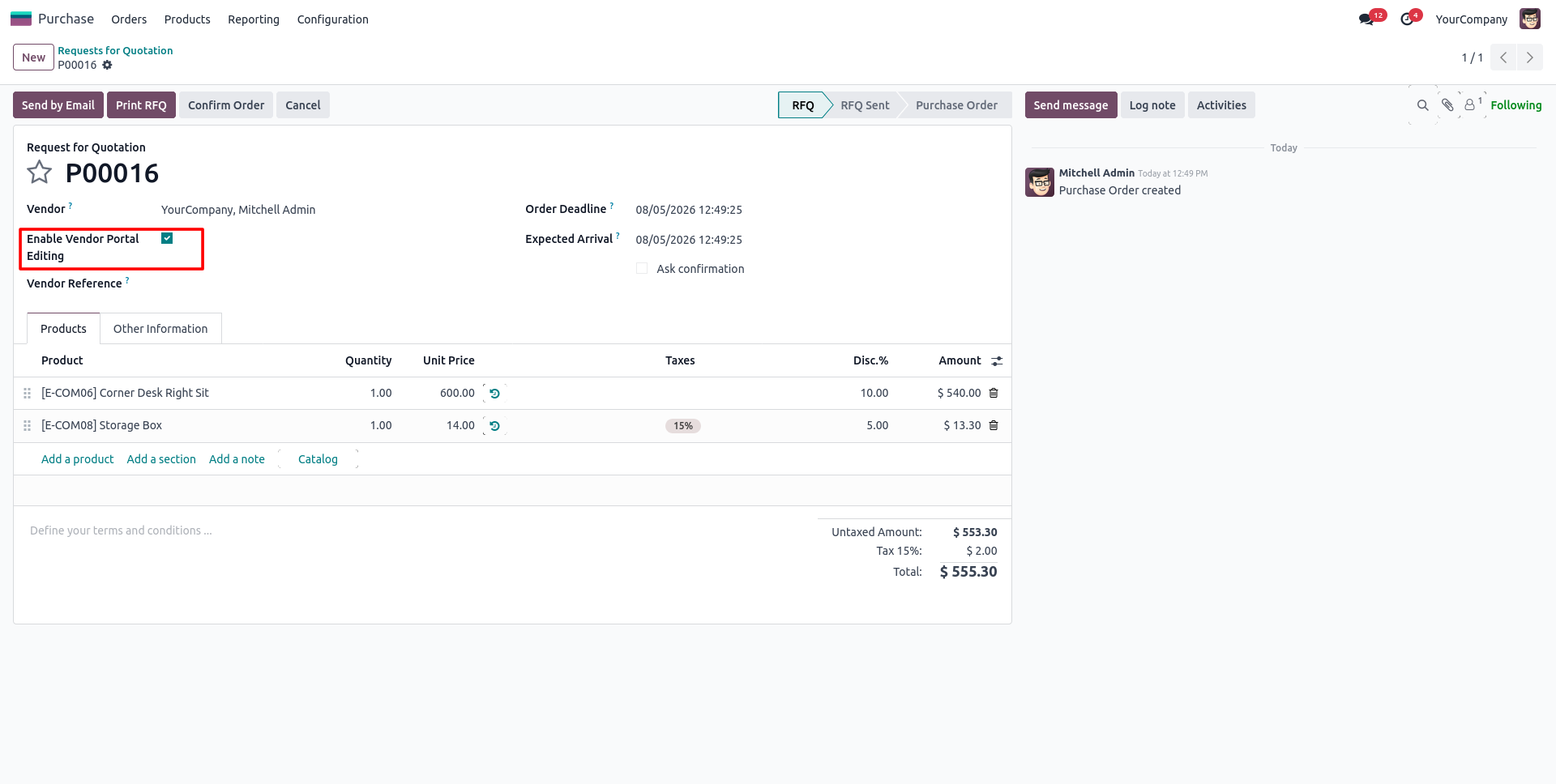
1. Enable Vendor Portal Editing on the Request for Quotation (RFQ) or Purchase Order to allow vendors to modify that specific document from the portal.
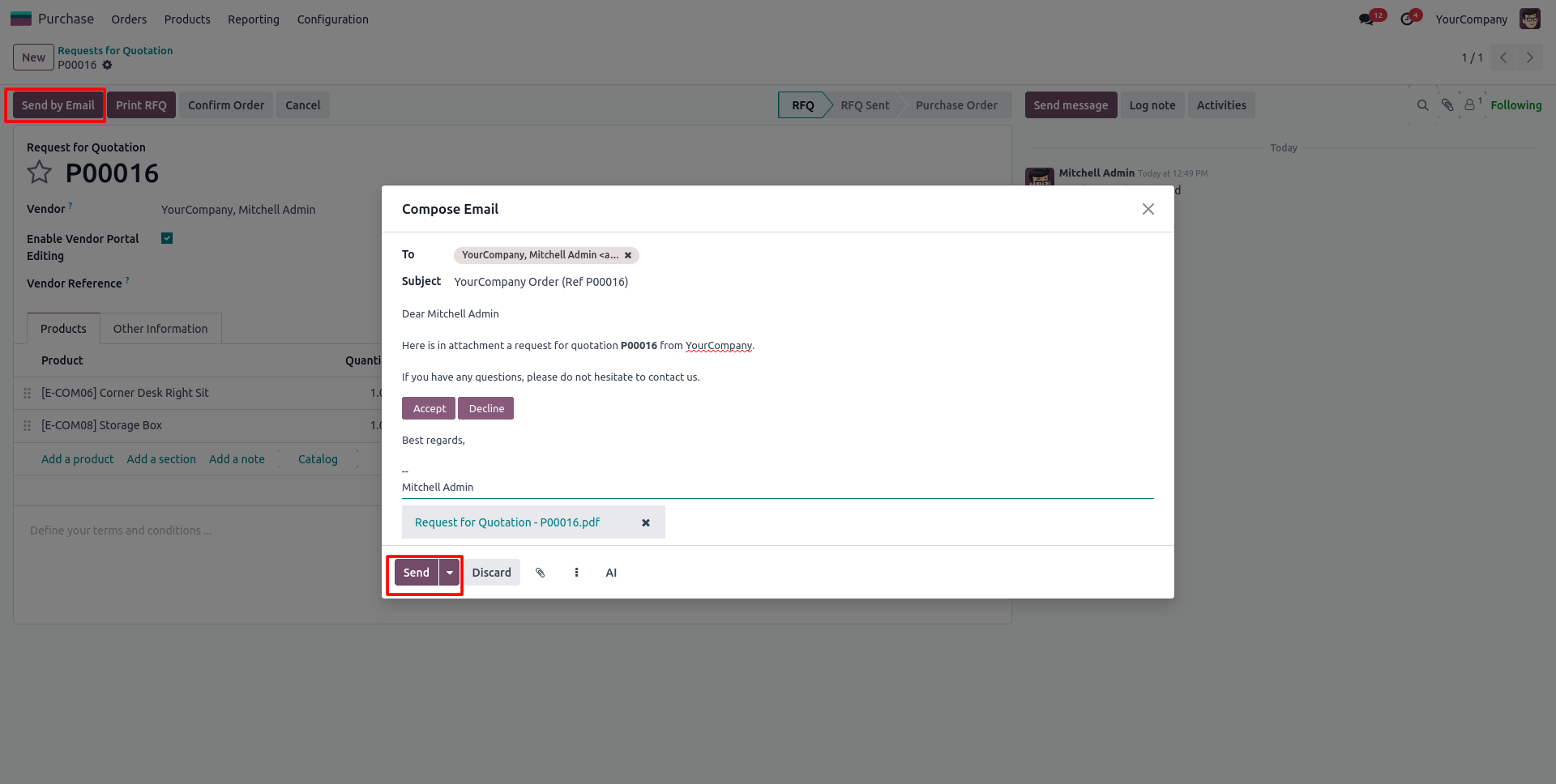
2. Send the Request for Quotation (RFQ) to the vendor using the Send by Email button.
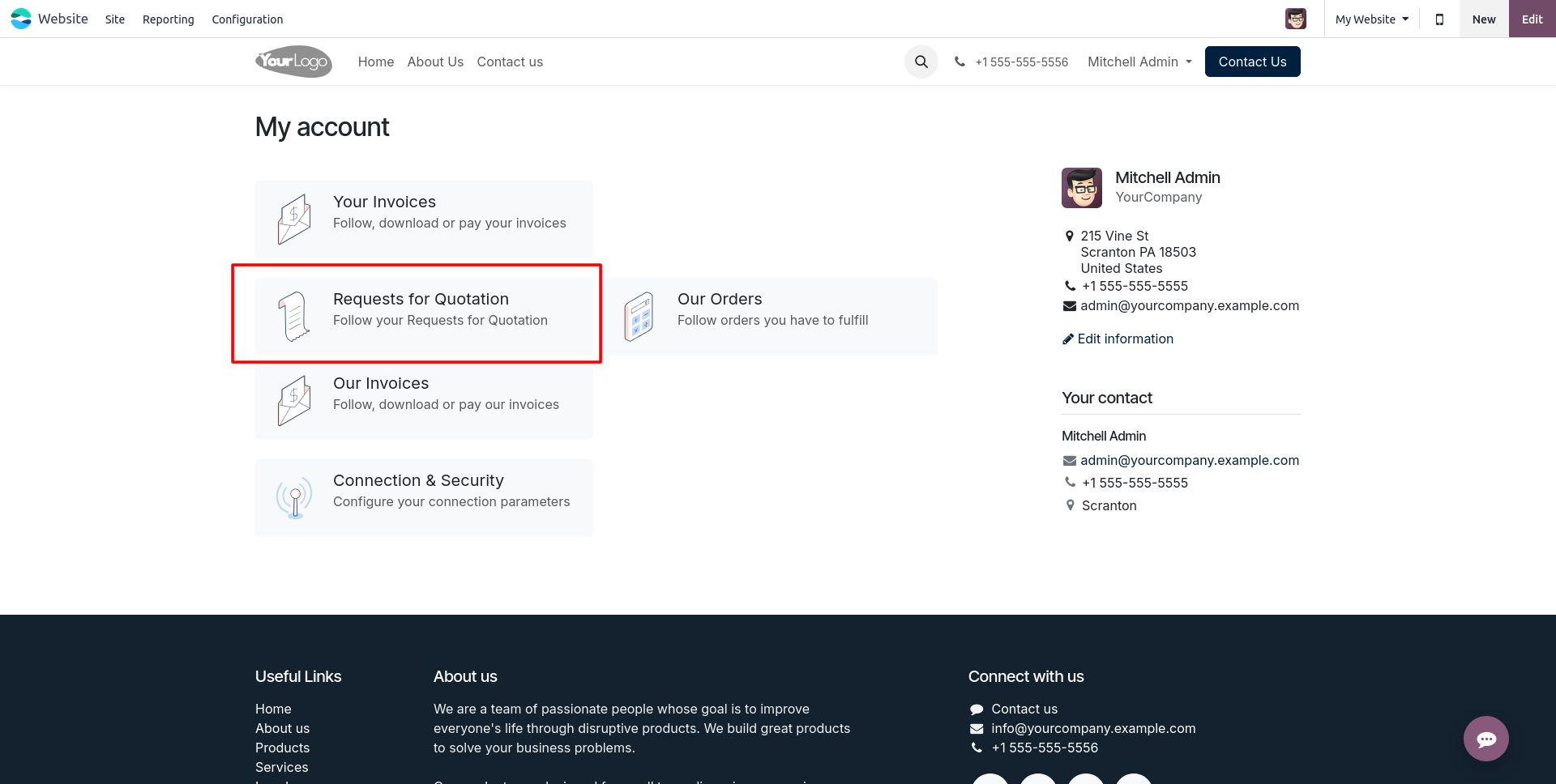
3. The vendor can access the Requests for Quotation section from the portal to view available RFQs.
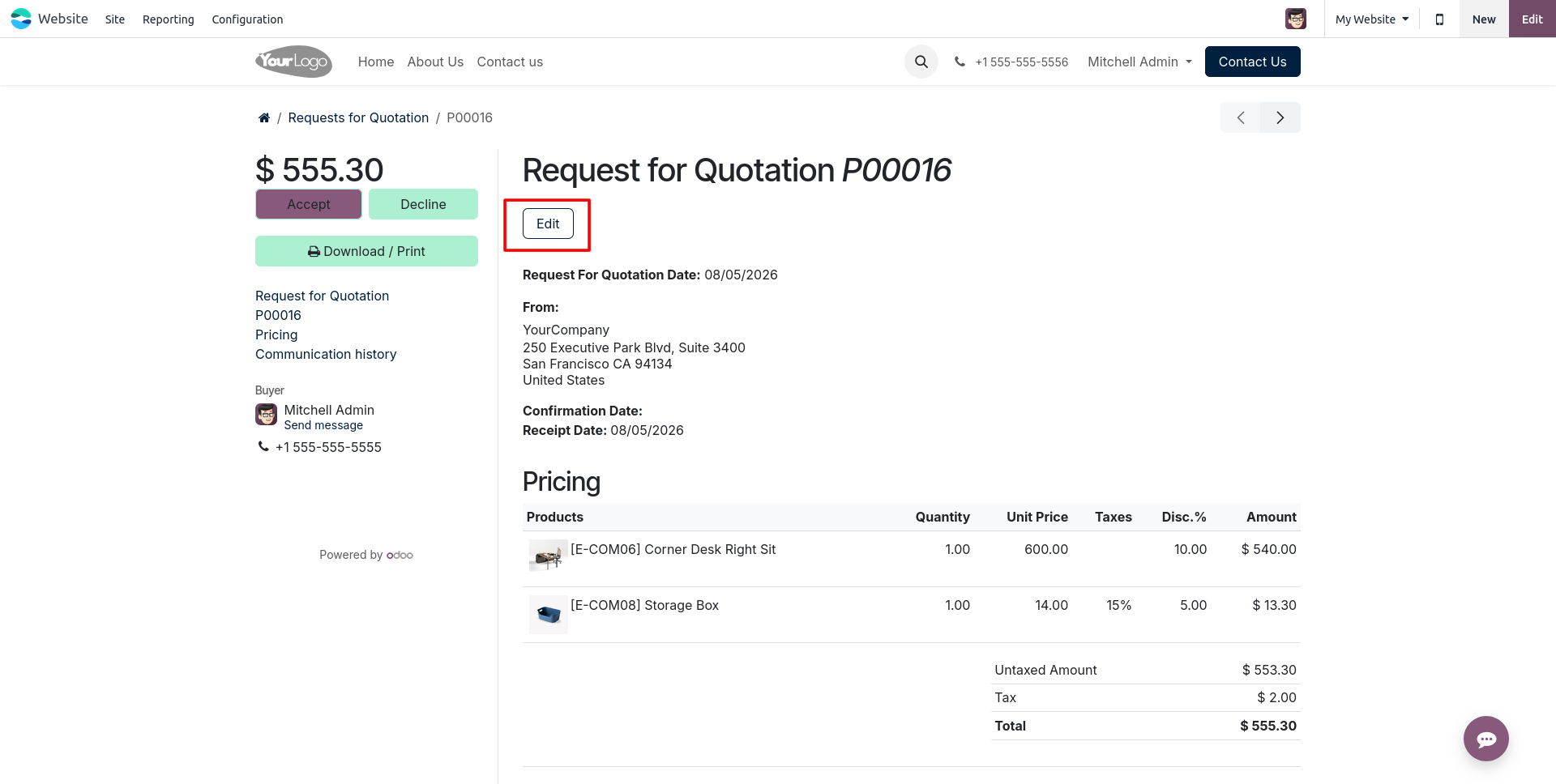
4. Open the RFQ and click the Edit button to update the quotation from the portal.
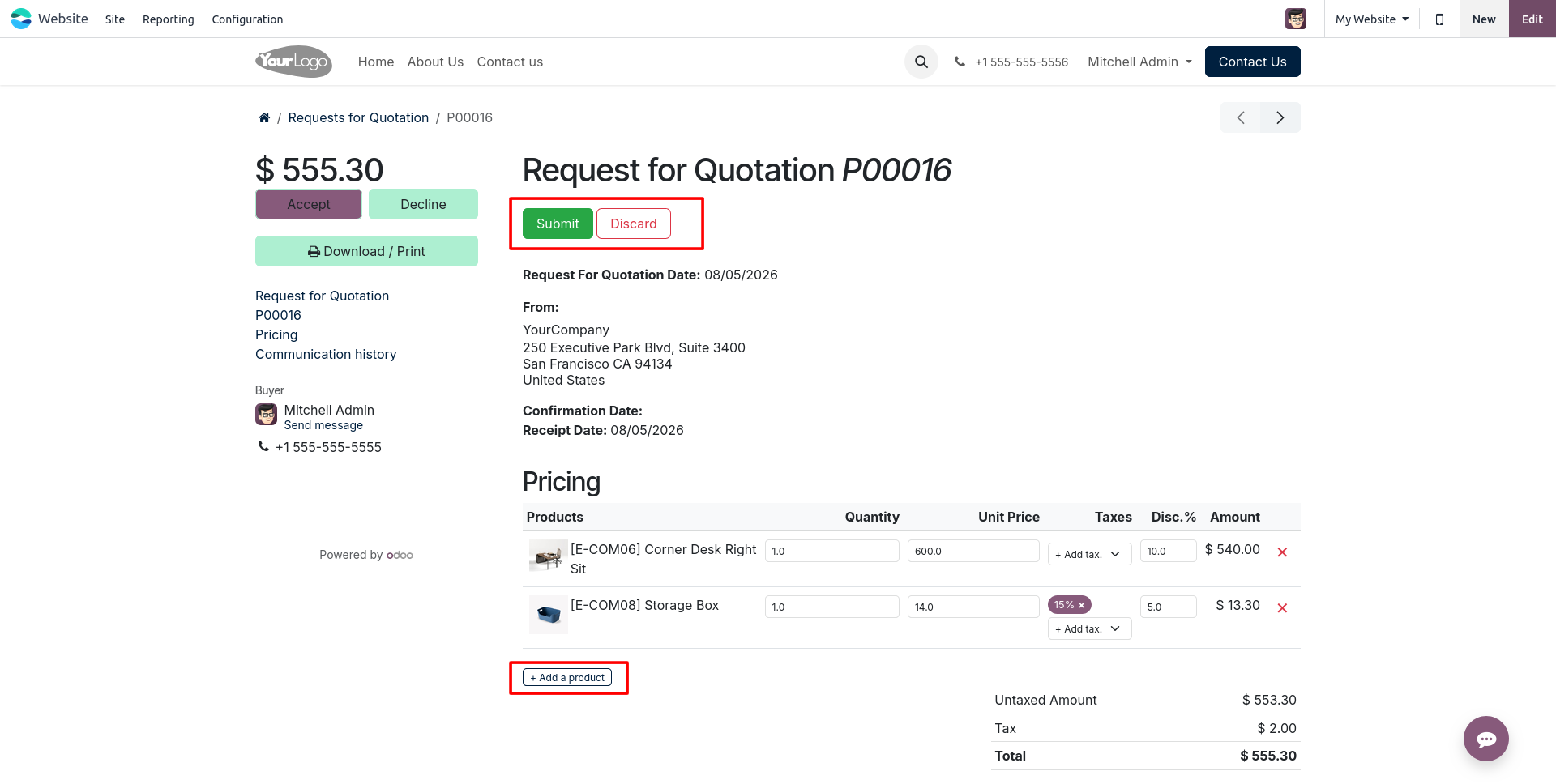
5. Edit quantities, unit prices, discounts, taxes, remove order lines, or add new products using the Add Product button.
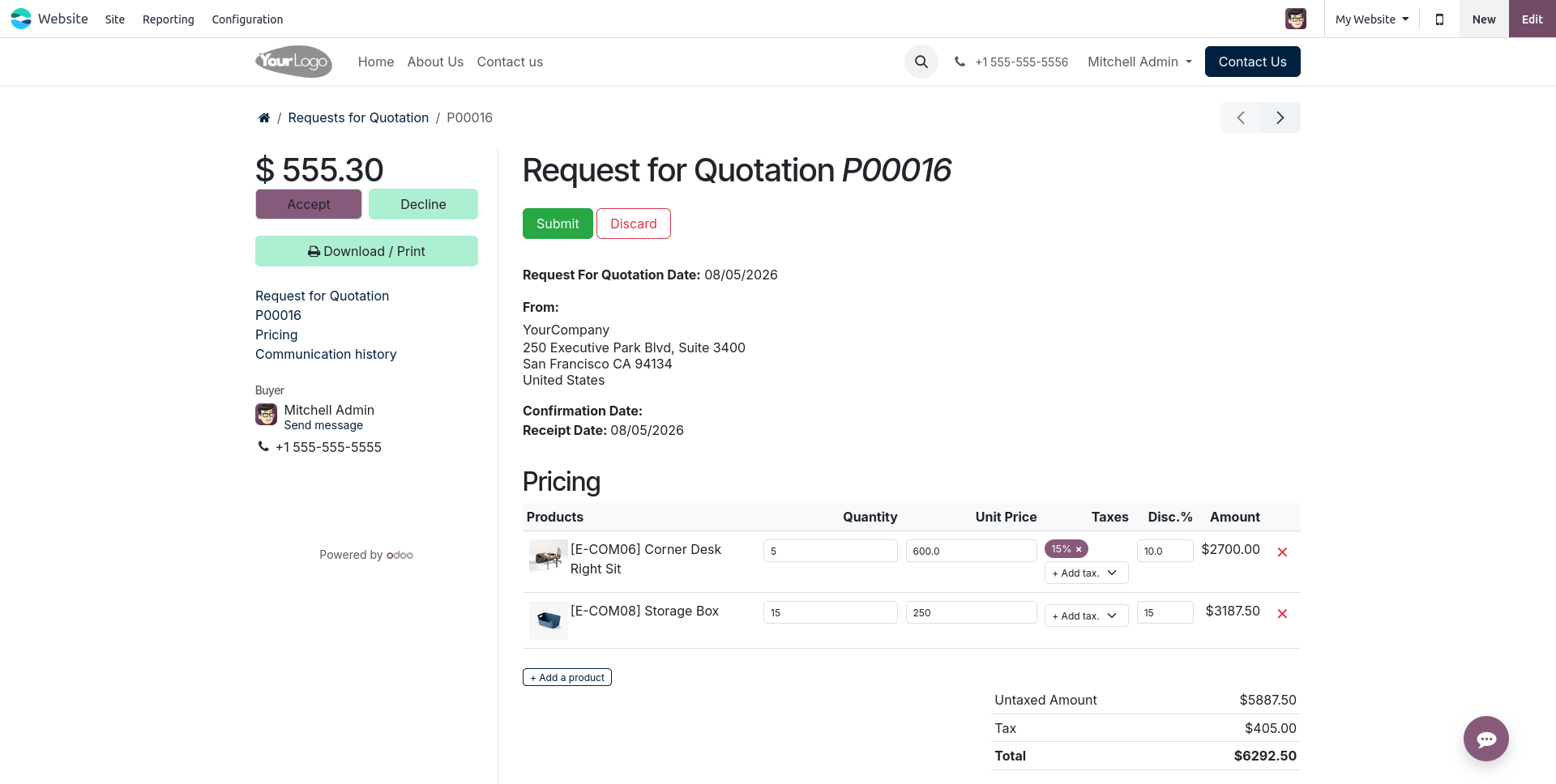
6. Modify the existing order values directly from the portal before submitting the updated quotation.
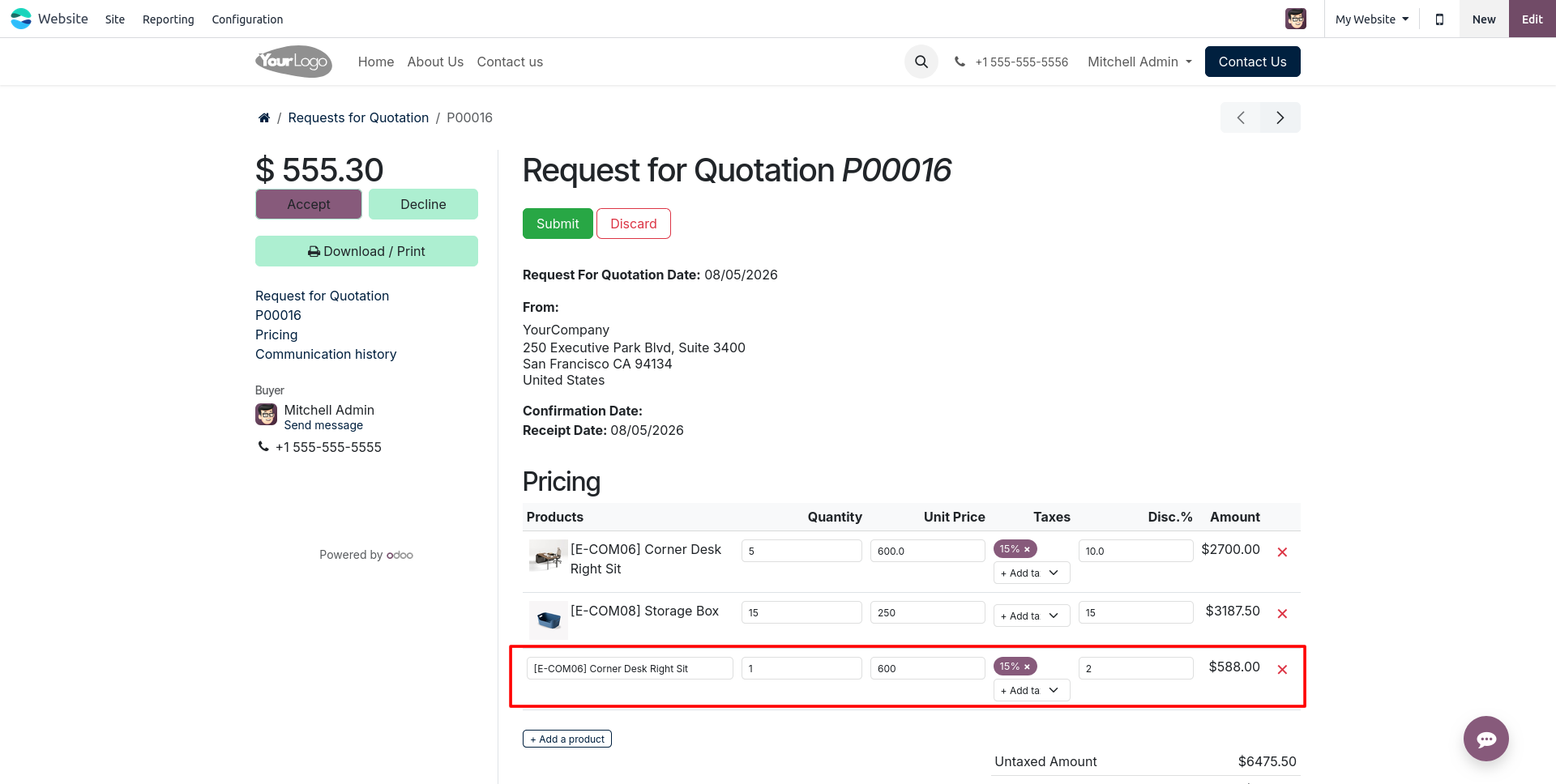
7. Click Add Product to insert additional products into the RFQ directly from the vendor portal.
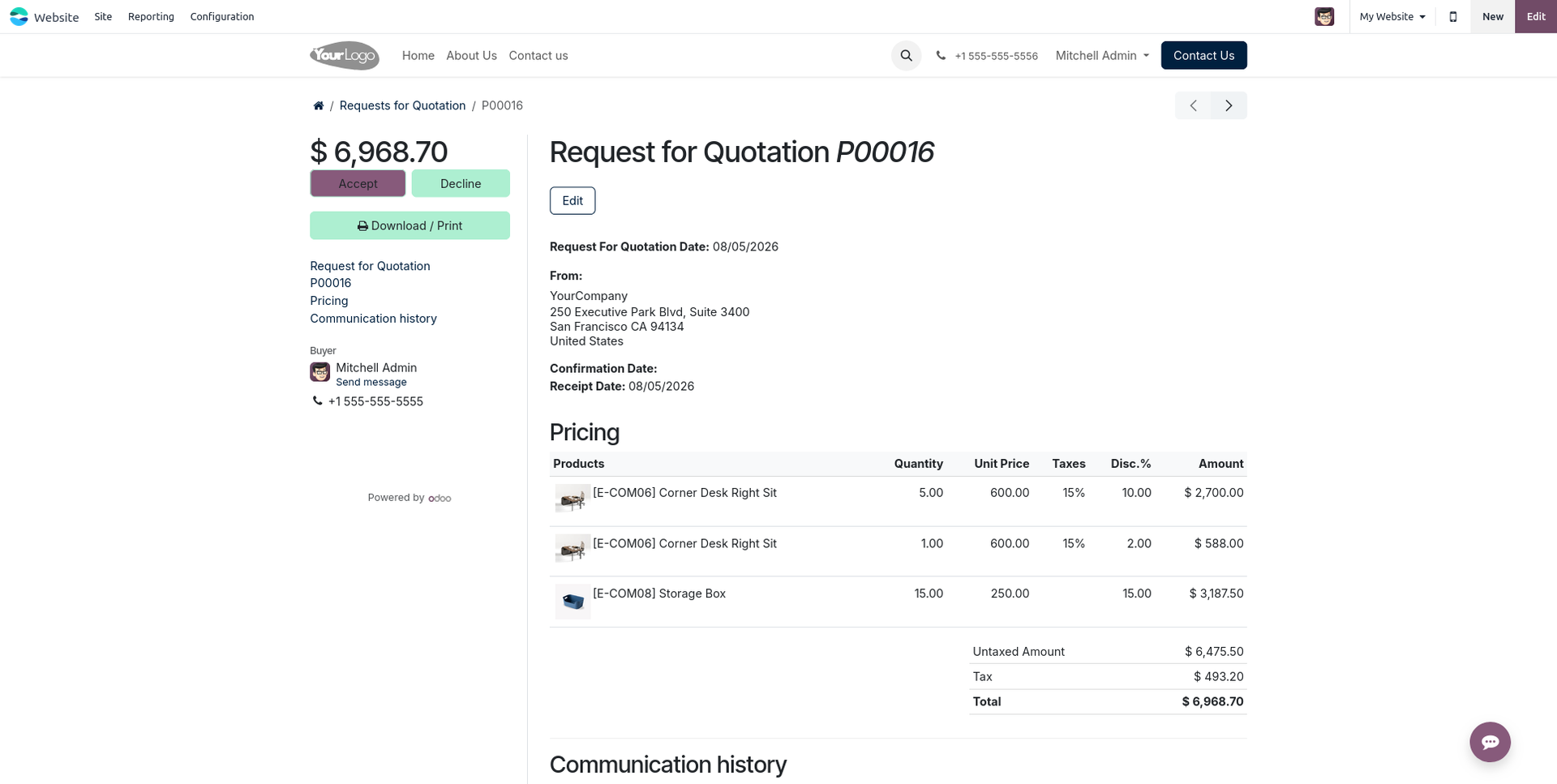
8. Submit the quotation to save all changes, recalculate totals, and display the updated order lines.
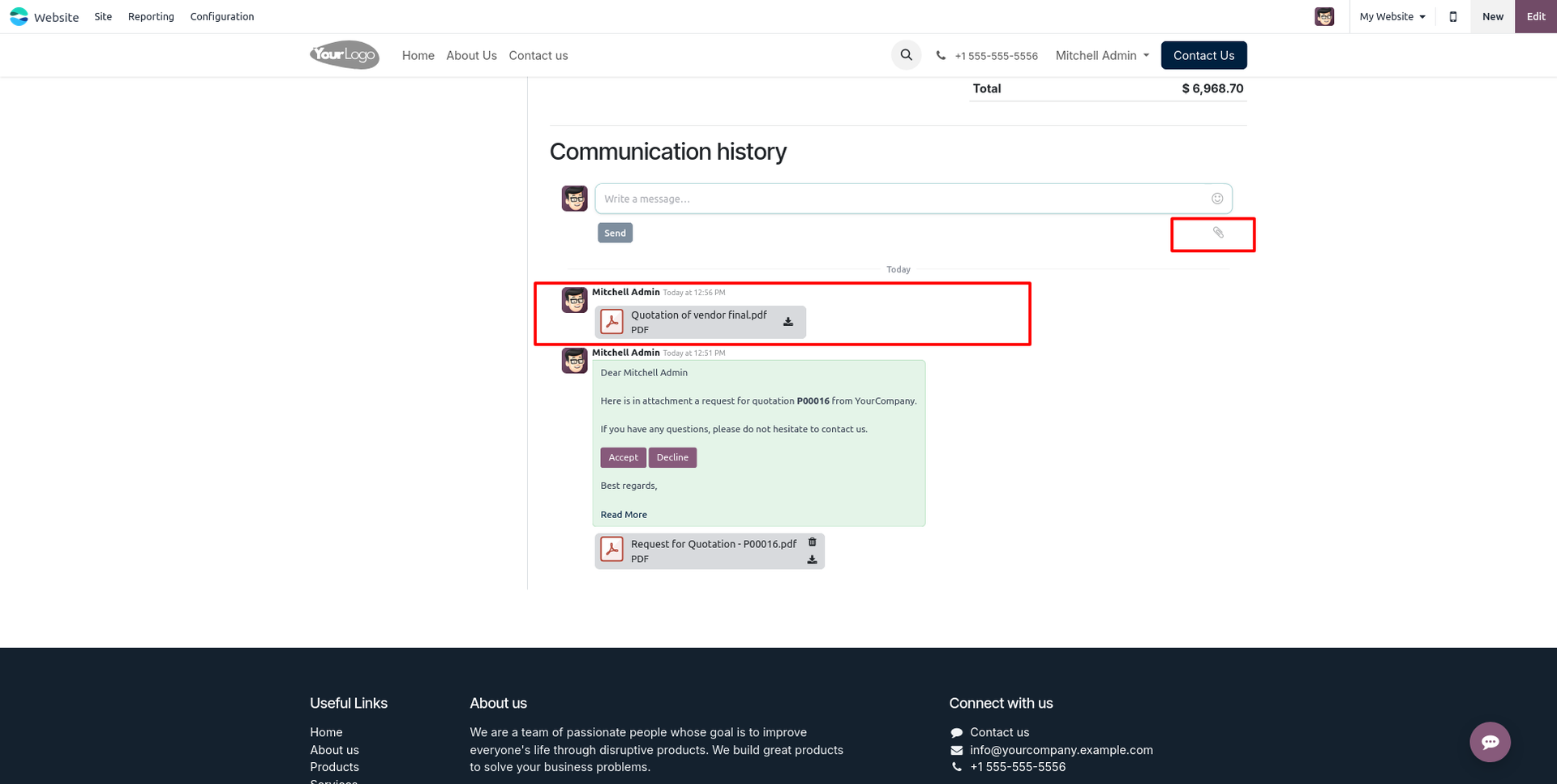
9. Upload quotations, invoices, or supporting PDF documents directly to the purchase order chatter from the portal.
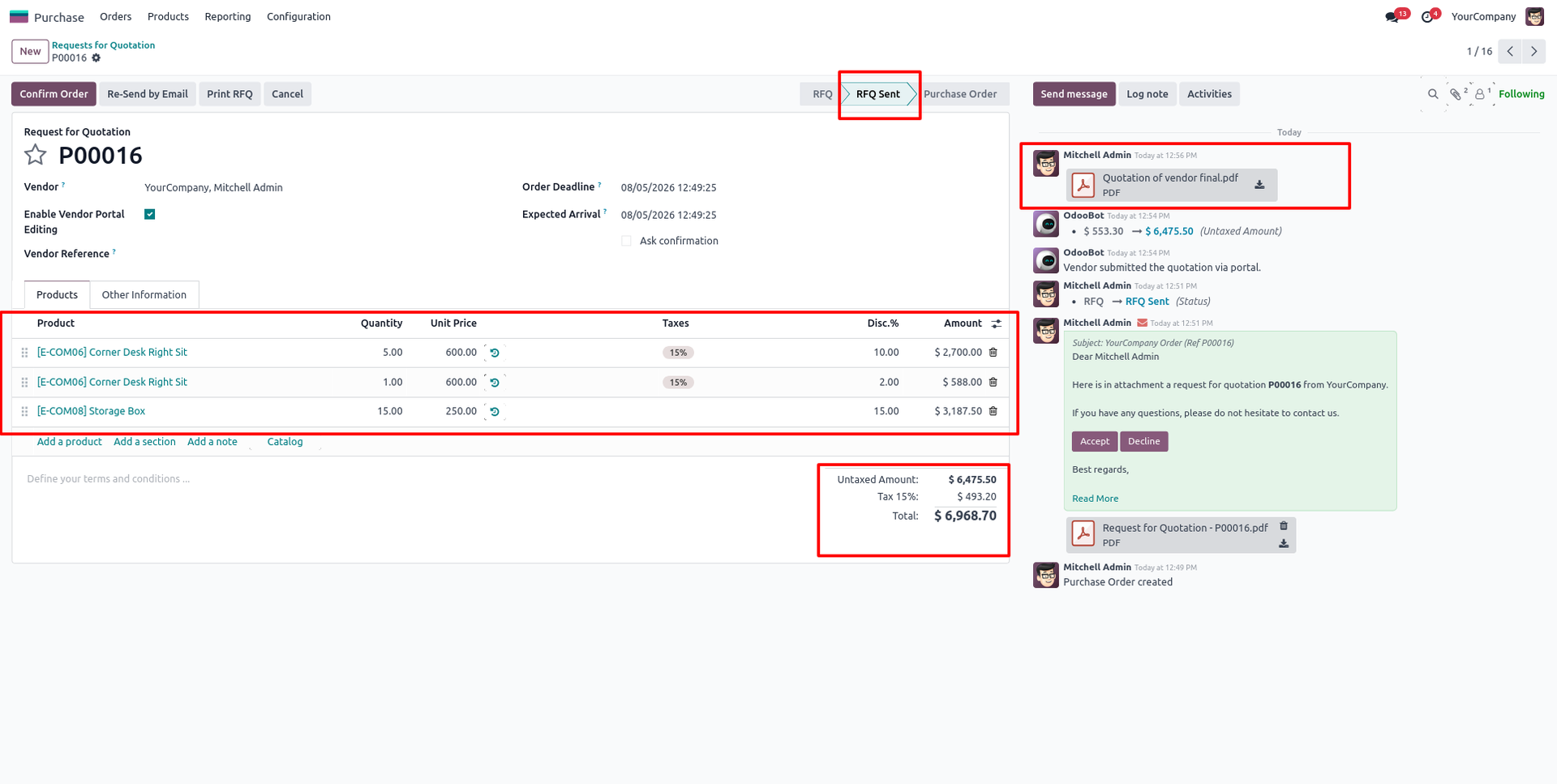
10. All vendor changes, newly added products, updated values, and uploaded attachments are automatically synchronized with the backend Purchase Order.
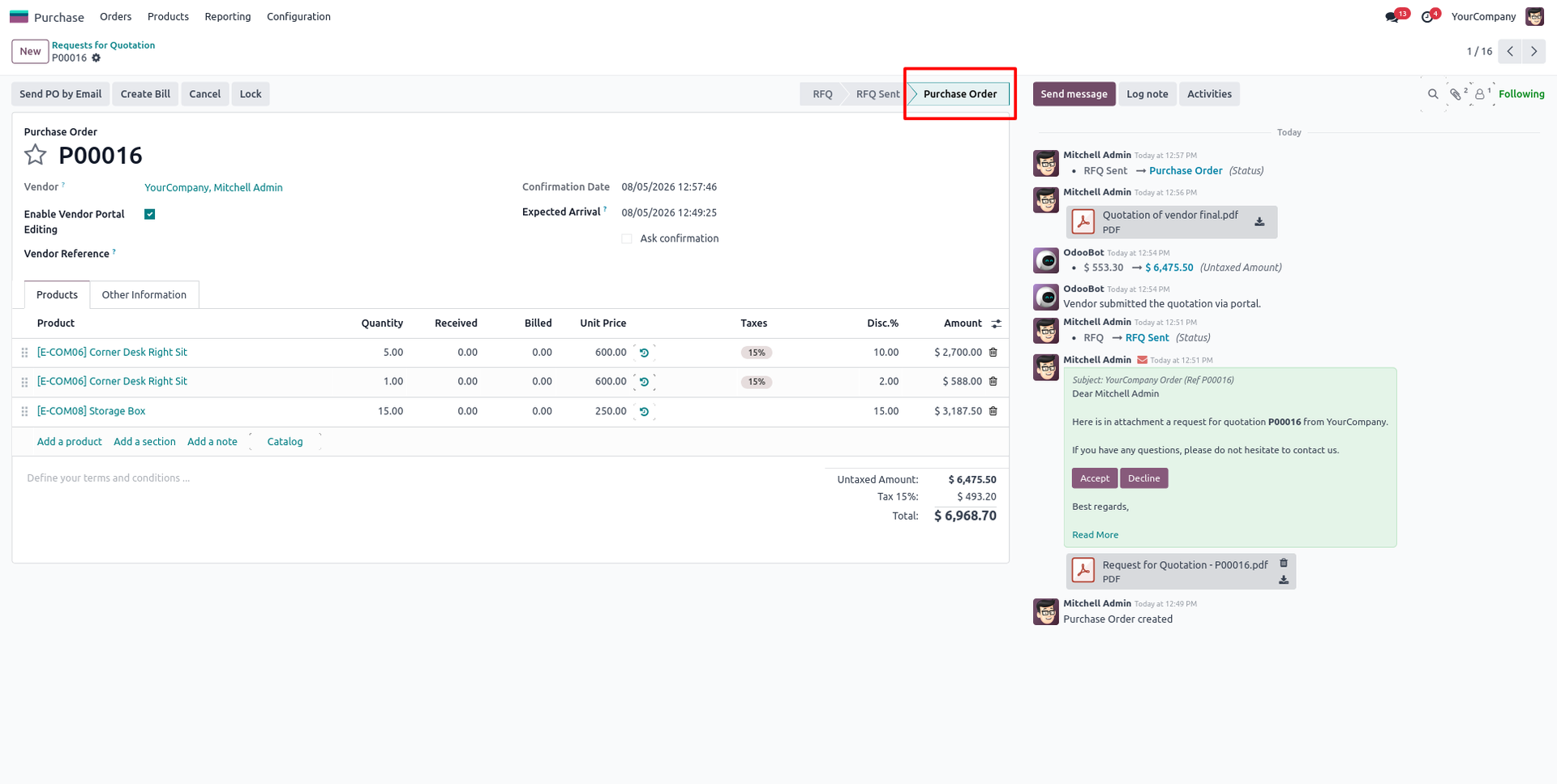
11. Confirm the Request for Quotation to create a Purchase Order while keeping portal editing available for that document.
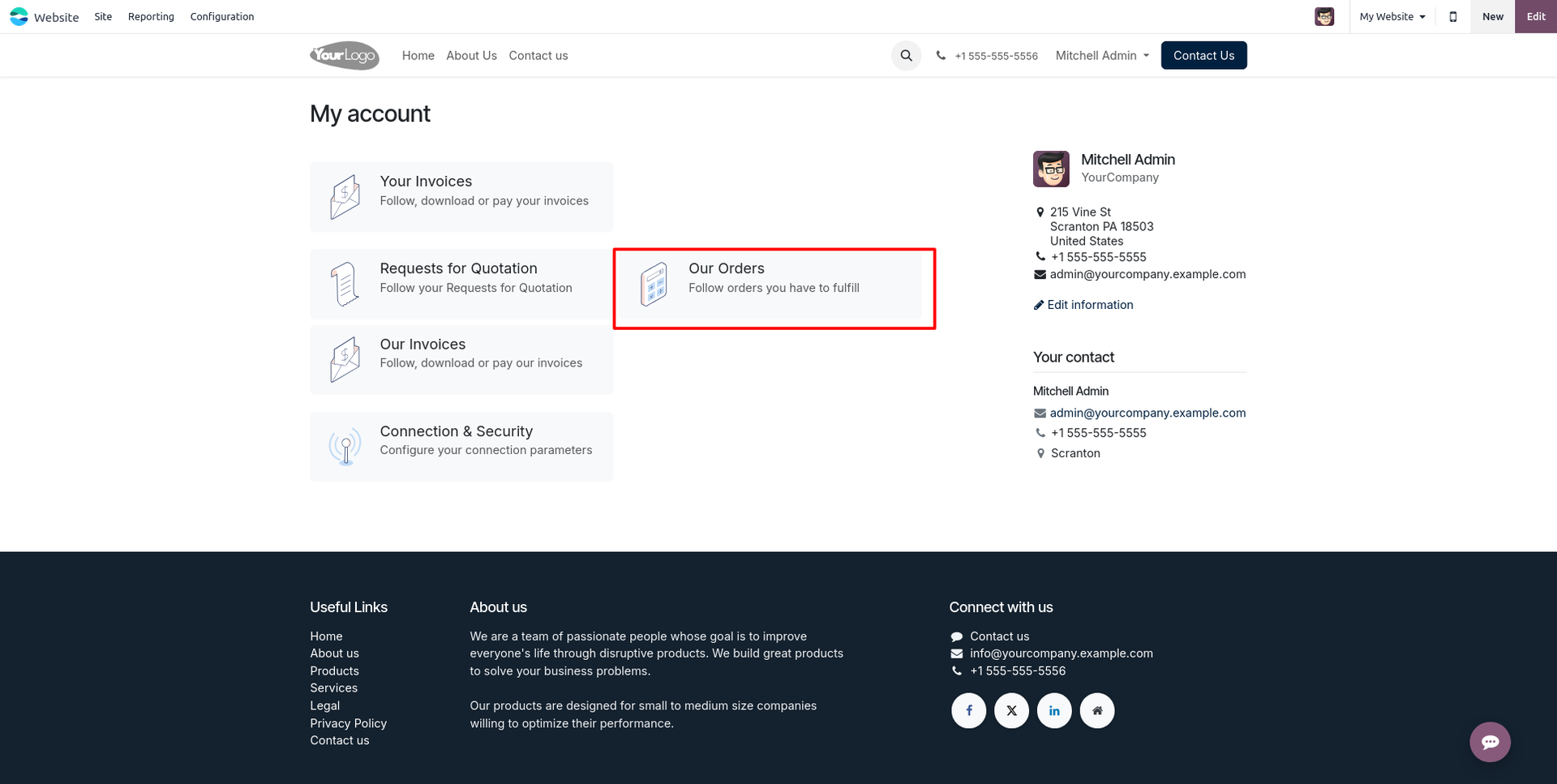
12. Vendors can open the My Orders section from the portal to access confirmed Purchase Orders.
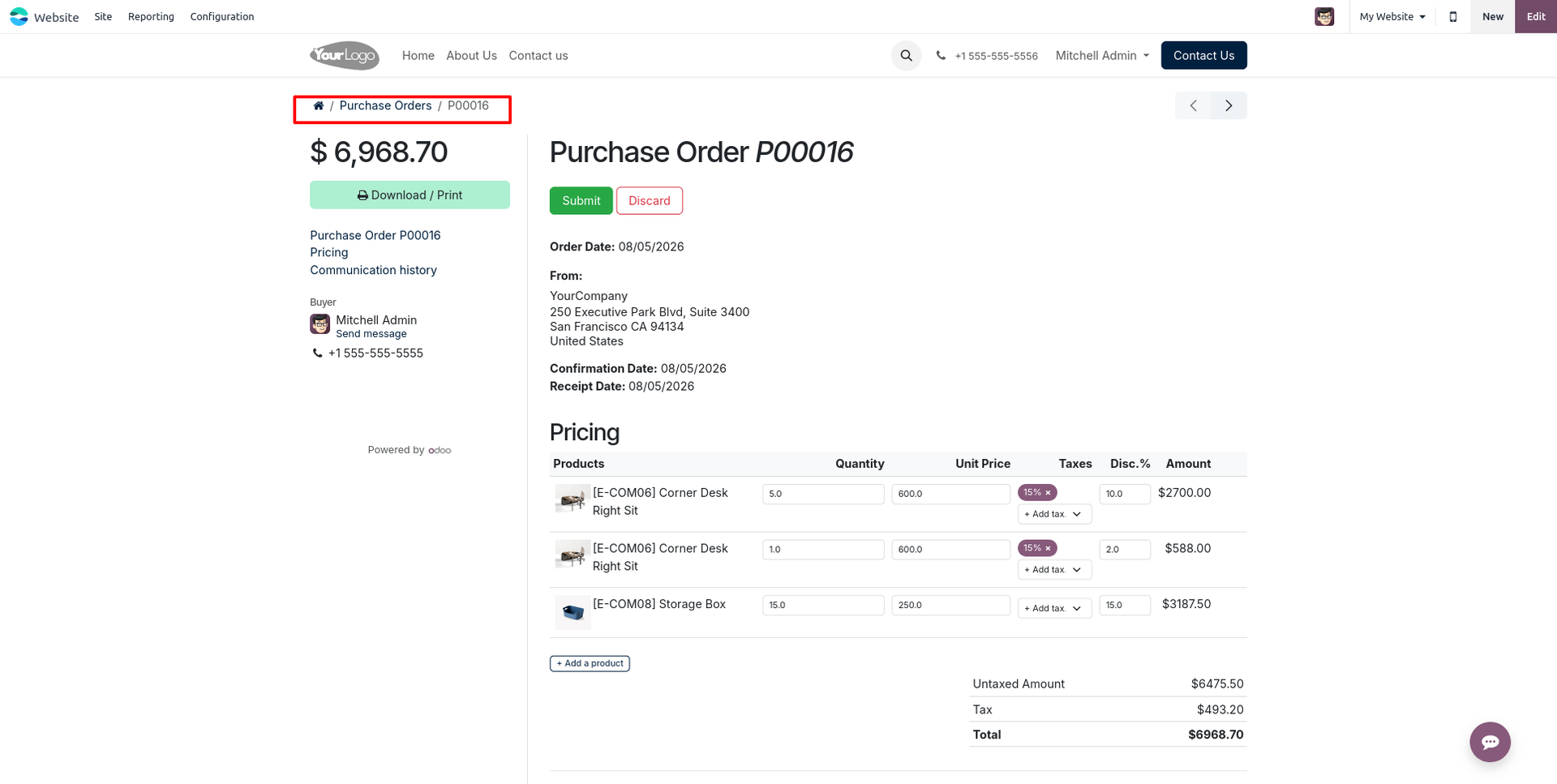
13. Edit the Purchase Order, add products, update values, and upload supporting documents directly from the portal, just like an RFQ.
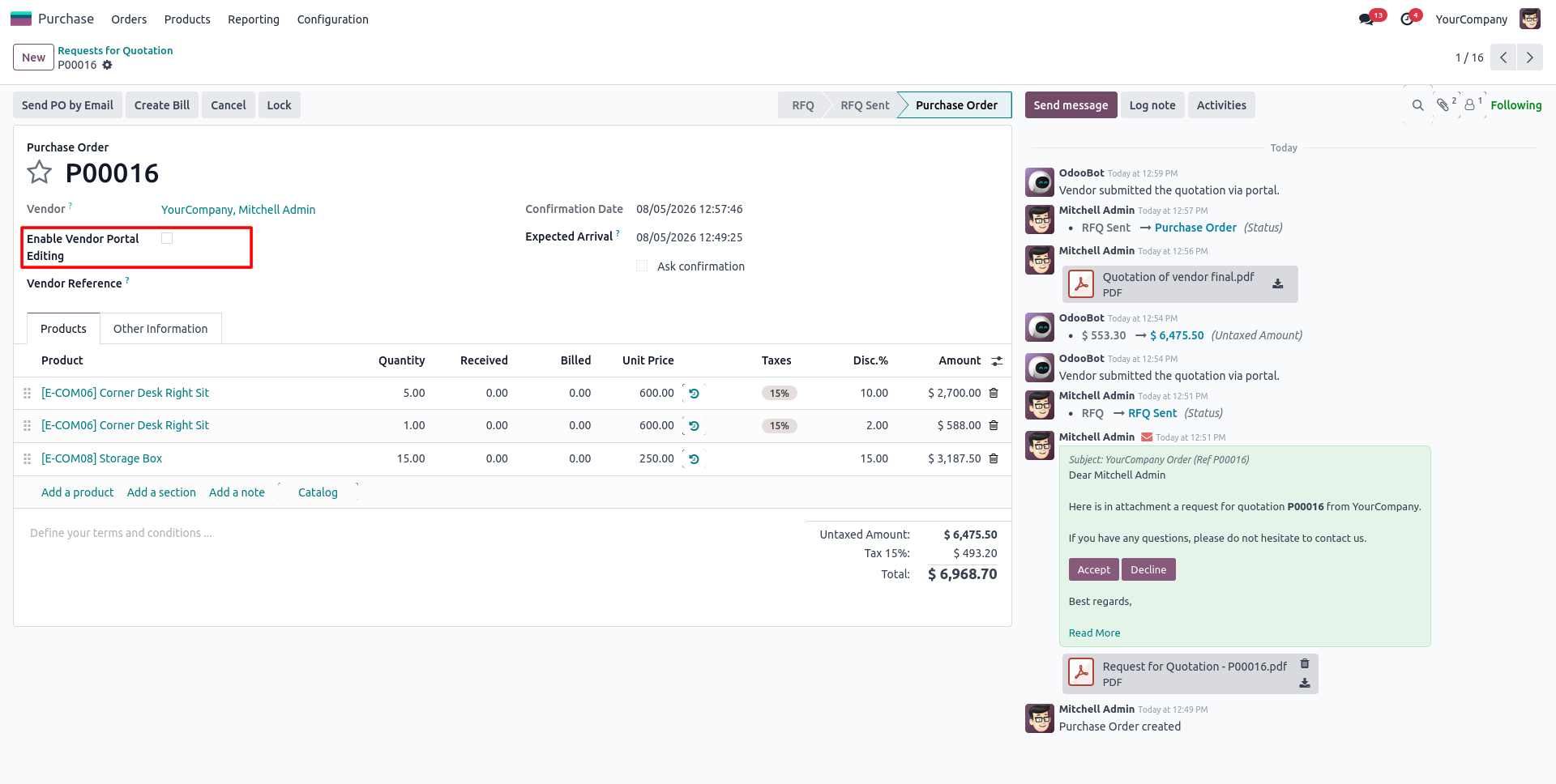
14. Disable the Vendor Portal Editing option on a Purchase Order to prevent further modifications from the portal.
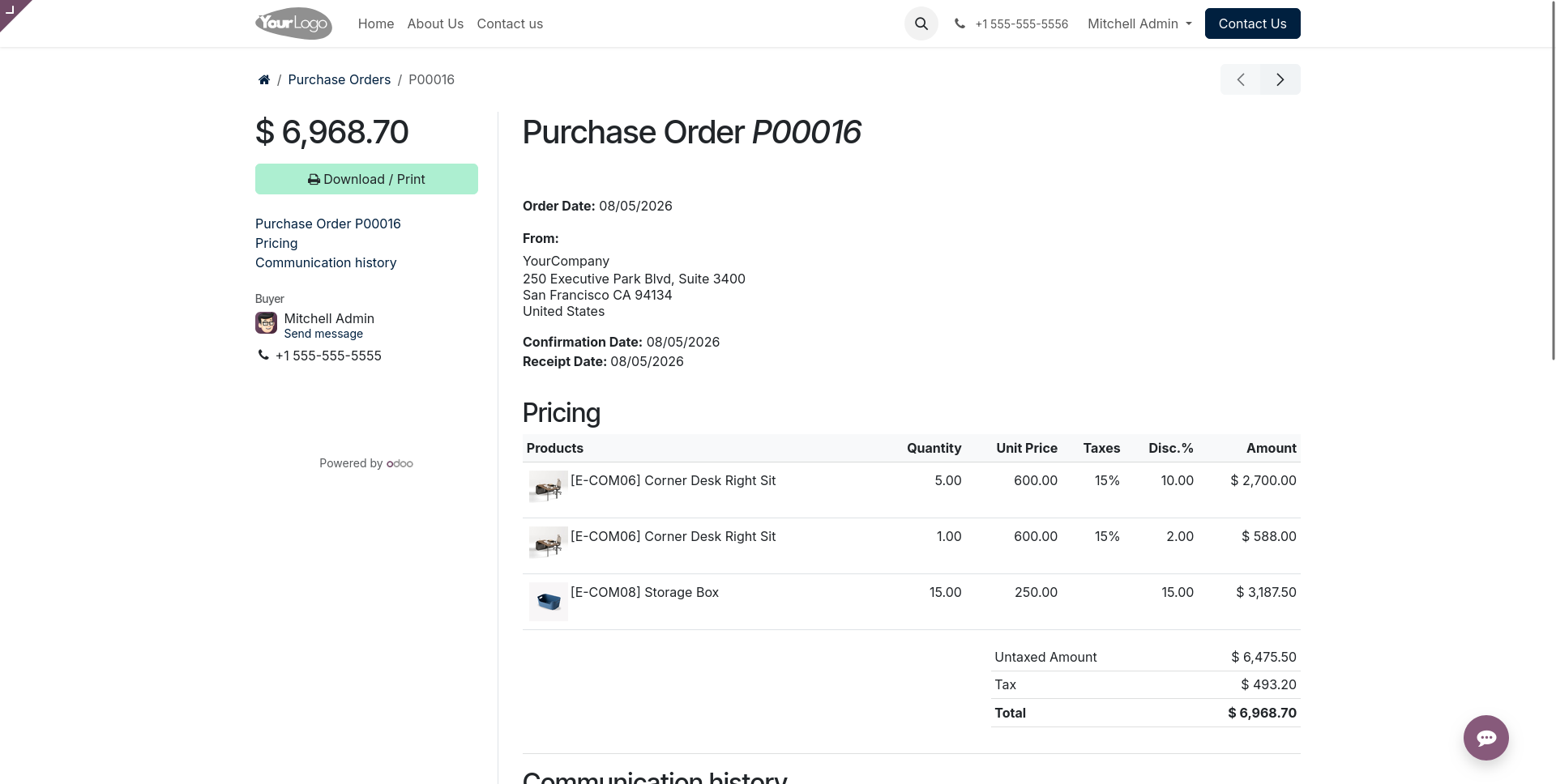
15. Once portal editing is disabled, the Edit button is no longer displayed for that Purchase Order, making it available in read-only mode.
Our solutions focus on your problems
- Odoo Implementation
- Odoo Customization
- ERP Development and Implementation
- Odoo Ipass Cloud
- AI for Odoo
- Odoo Apps
- Aws Marketplace Products
- Business Engines
Our Pricing includes User Manual, 90 Days Support (Monday-Friday 10am to 7pm IST) and One time Setup
• Works & tested on standard installations of Odoo with no third party apps,
• Free support only for odoo installations with no third party apps,
• Paid support available for Odoo installations with third party apps.

Prefortune is a Odoo Official Partner, Odoo Development company. Our philosophy is to use Open Source tools and technologies to provide cost effective and green solutions for our customers.
Prefortune Technologies LLP is working on web development, Mobile development, and Odoo ERP.
If you need any help or want more additional features, you may contact us through:
Alternative Products
These other products might interest you
Specifications
| Version | 19.0, 18.0, 17.0, 16.0, 15.0, 14.0 |