
Watch Quick Video

Website Price Negotiation App for Odoo
The all-in-one
Website Price Negotiation App for Odoo, includes robust global configuration options that are available in the Website configuration menu to make sure negotiations are successful and managed. Here store owners can set hard boundaries such as the maximum number of offer attempts a single customer can make. Admins can also set a “Offer Auto-Decline” threshold to automatically decline pending offers after a certain number of hours, saving manual labour. There is a “Offer Payment Validity” setting, which means that offers accepted have to be paid within a strict period of time. In the negotiation process, both users and administrators are aware of the bargaining history by keeping track of all the counter-offers sent and received. If the customer reaches the maximum number of attempts without making a deal, the system will automatically block further bids and ask the customer to buy at the standard "Buy It Now" price. Once the offer is accepted and the consensus is finally reached, Odoo bridges the gap between negotiation and fulfilment. It automatically generates the corresponding Sales Order based on the negotiated price and quantity, making the final checkout process simple.
Website Price Negotiation App for Odoo
- A simple checkbox, “Can be offer”, allows administrators to activate the bargaining feature for individual products.
- The owner can limit the number of offers a customer can make to prevent never ending negotiations.
- There is a dedicated wizard for administrators and customers to easily make counter-offers, tracking the whole negotiation history.
- You can set timeframes for automatically rejecting offers and for the validity of payments to ensure transactions happen on time.
- When you accept an offer, a sales order is automatically created with the final negotiated terms.
Complete Workflow for Manage Website Price Negotiation App for Odoo
Enable the Website Price Negotiation App for Odoo The workflow begins when a customer submits an offer via the product page, which the administrator then reviews in the backend to either accept, decline, or issue a counter-offer. Both parties can negotiate back and forth within the configured attempt limits until an agreement is reached or the offer is definitively rejected. Once the administrator accepts a finalized offer, the system automatically converts it into a confirmed Sales Order for the customer to complete payment.
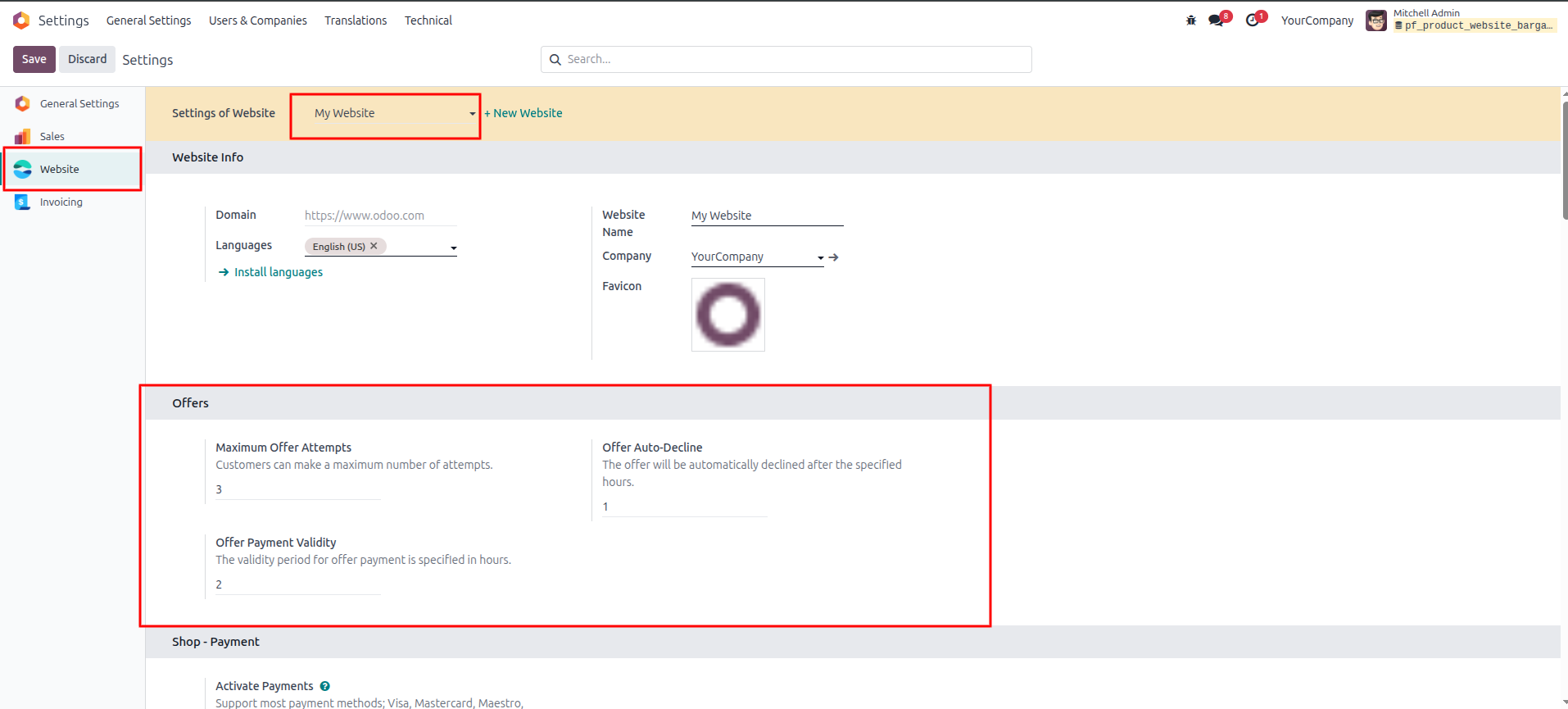
1.Navigate to the Website Settings and locate the Offers section. Configure your global bargaining rules, including Maximum Offer Attempts, Offer Auto-Decline (in hours), and Offer Payment Validity (in hours).
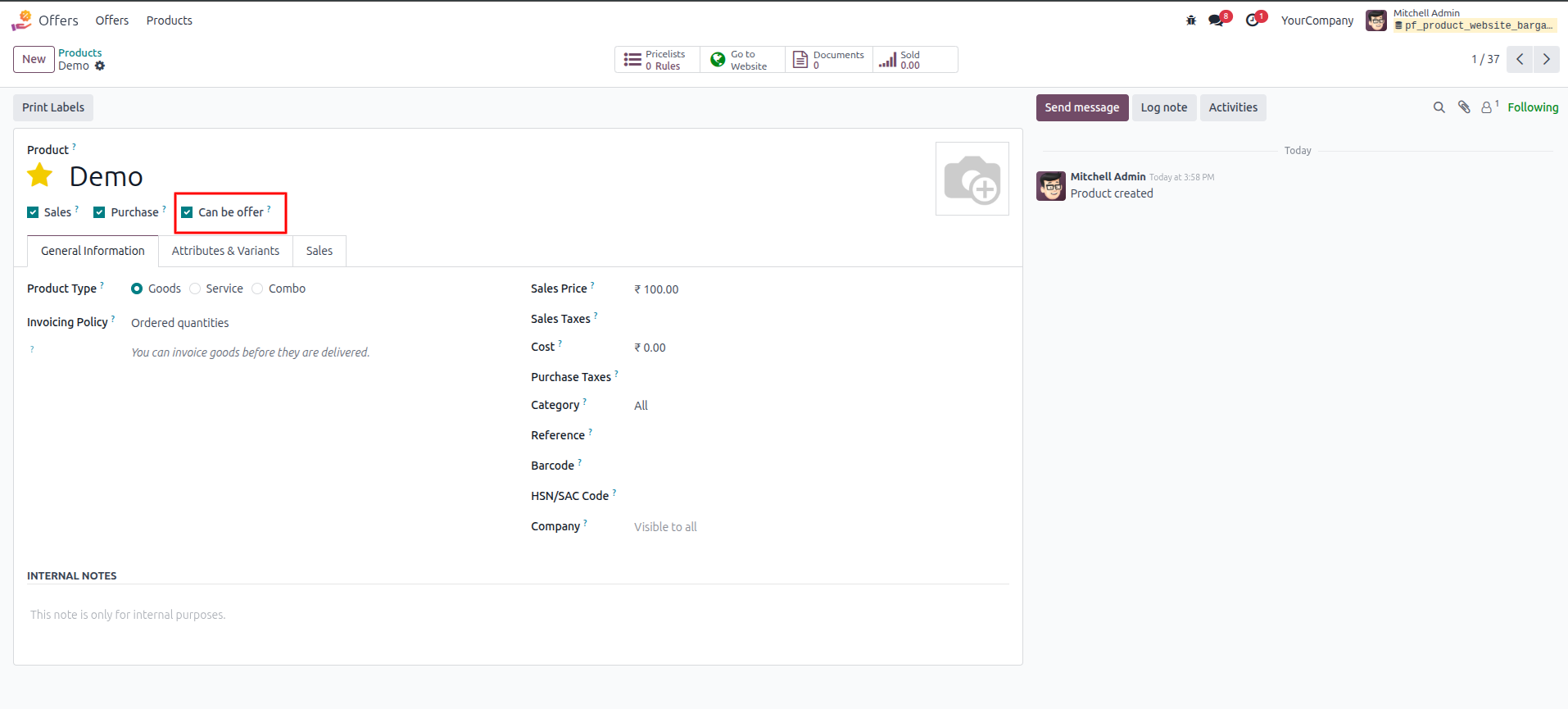
2.Open a product record (e.g., "Demo") in the backend and check the Can be offer box to allow customers to negotiate the price for this specific item.
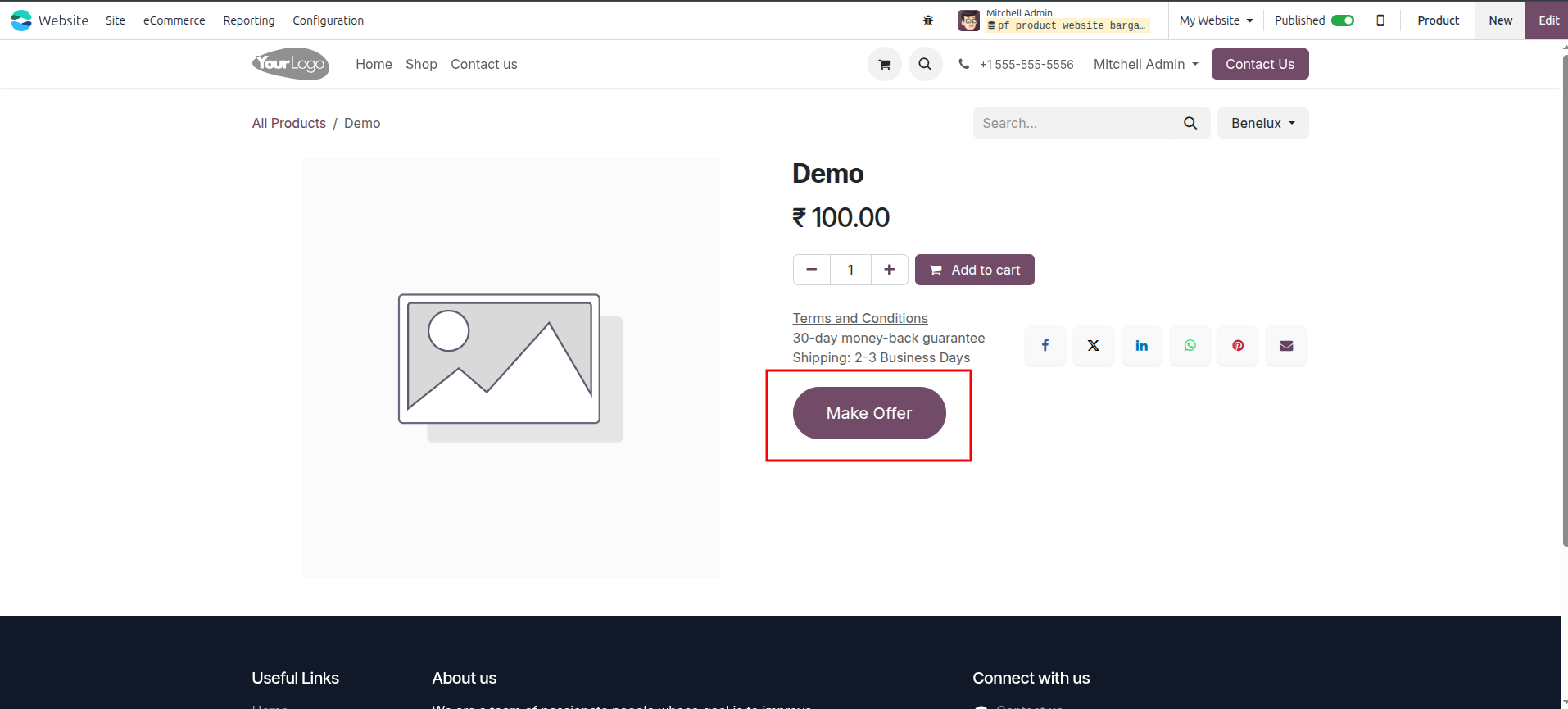
3.On the e-commerce storefront, navigate to the eligible product's page. A Make Offer button will now be visible to customers. Click it to initiate a bid.
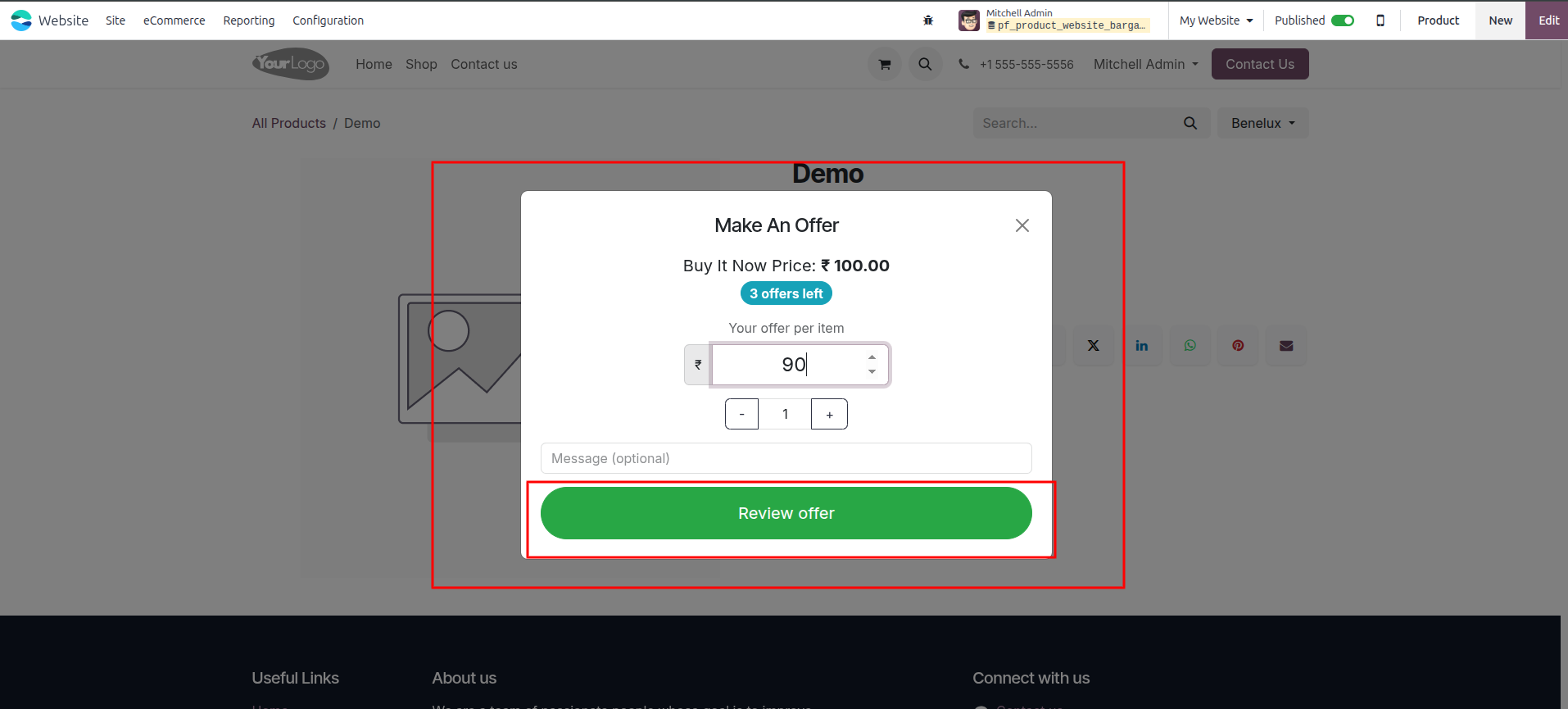
4.In the Make An Offer popup window, enter the proposed price (e.g., ₹90) into the input field and click the Review offer button.
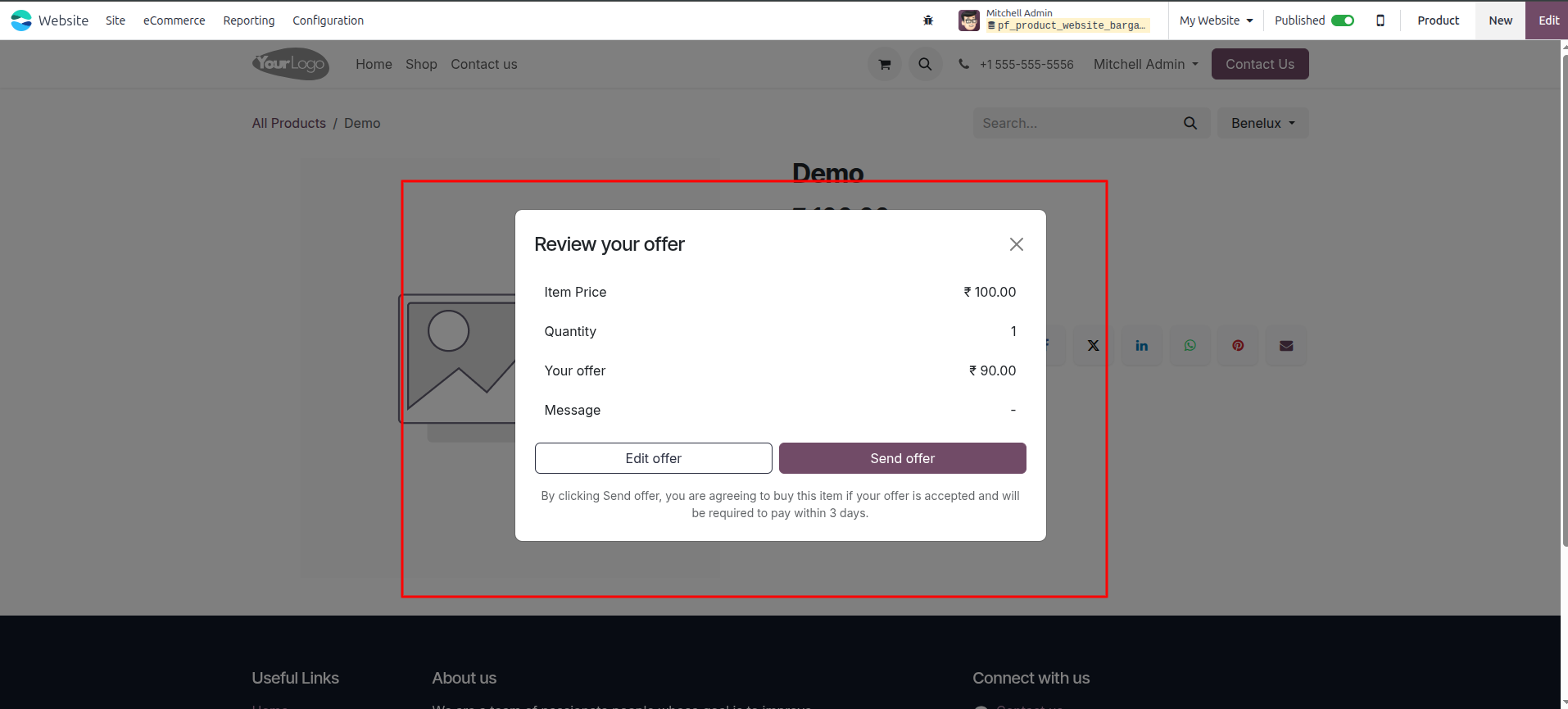
5.A Review your offer modal will appear summarizing the item price, quantity, and the proposed offer. Click Send offer to finalize the submission.
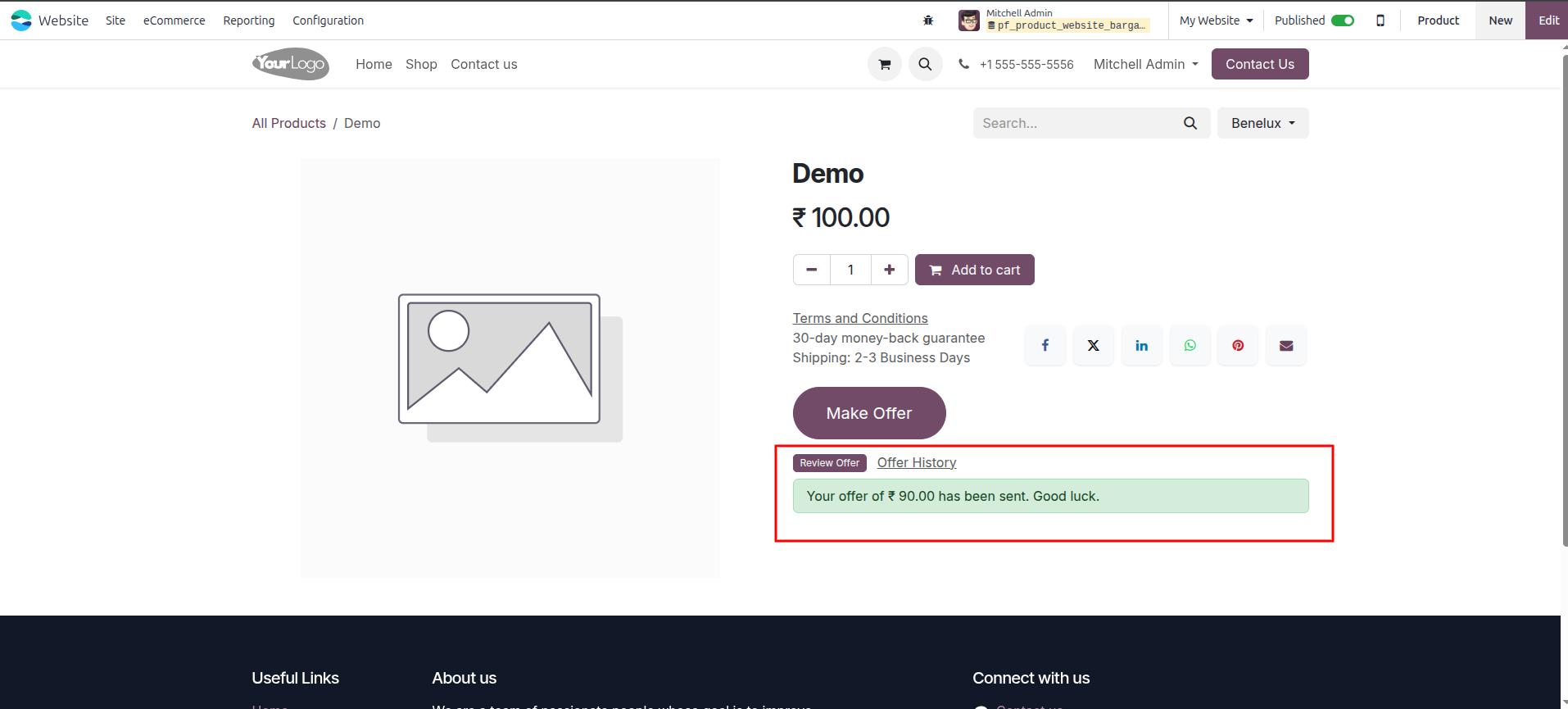
6.A green success banner will appear on the product page stating, "Your offer of ₹ 90.00 has been sent. Good luck," confirming the action was successful on the customer's end.
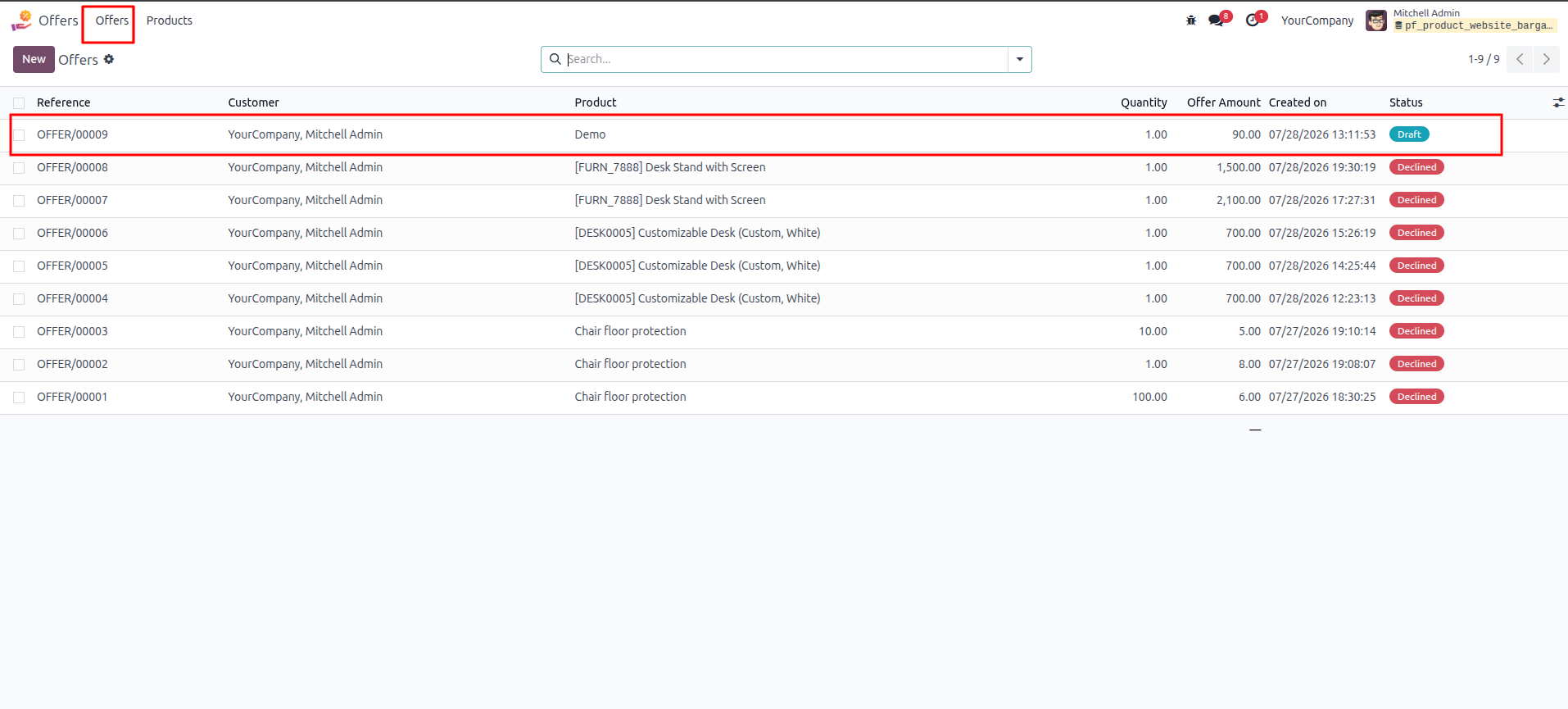
7.In the backend, navigate to the Offers menu. Locate the newly submitted offer in the list (e.g., OFFER/00009) which will be in a "Draft" status, and click on it to view the details.
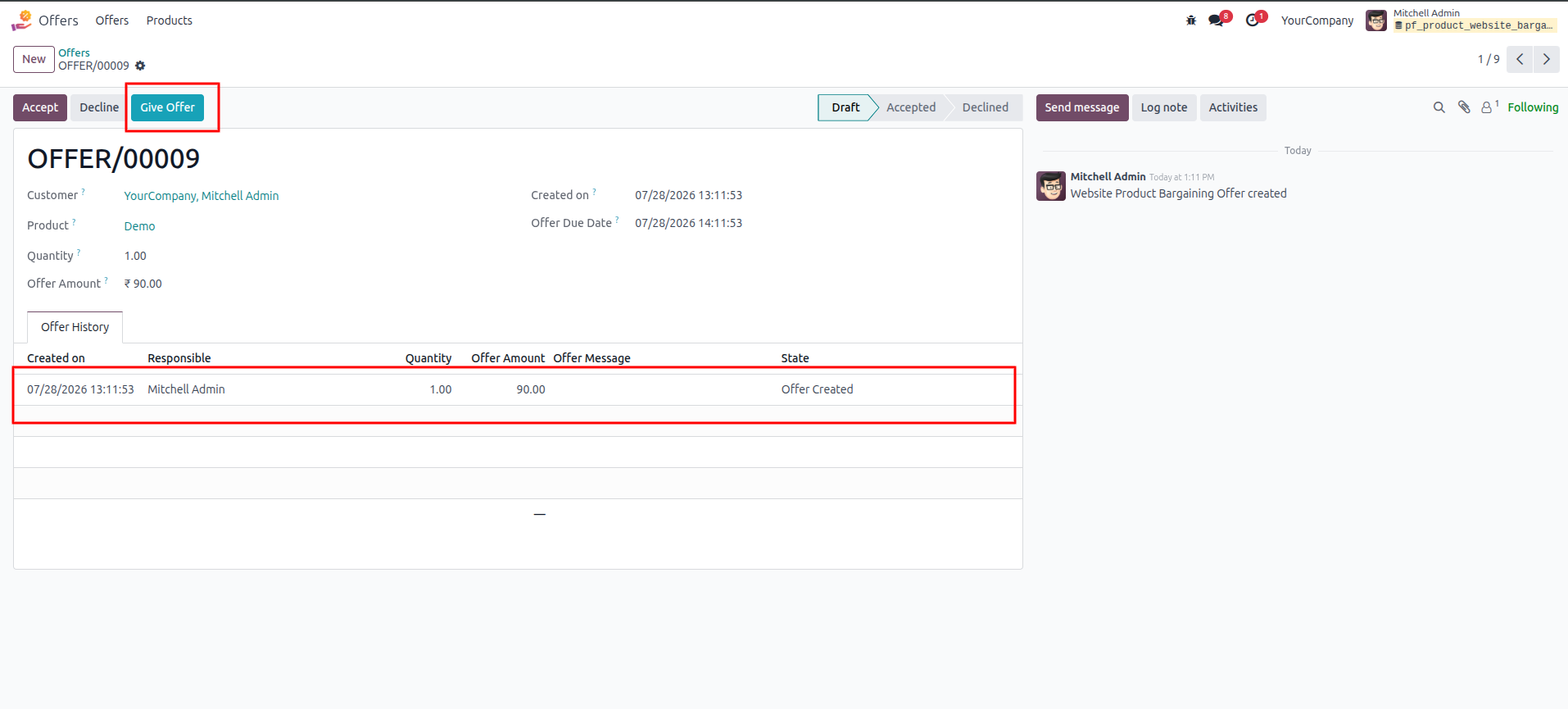
8.Inside the offer record, review the details and the Offer History. Click the Give Offer button at the top left to respond to the customer's bid.
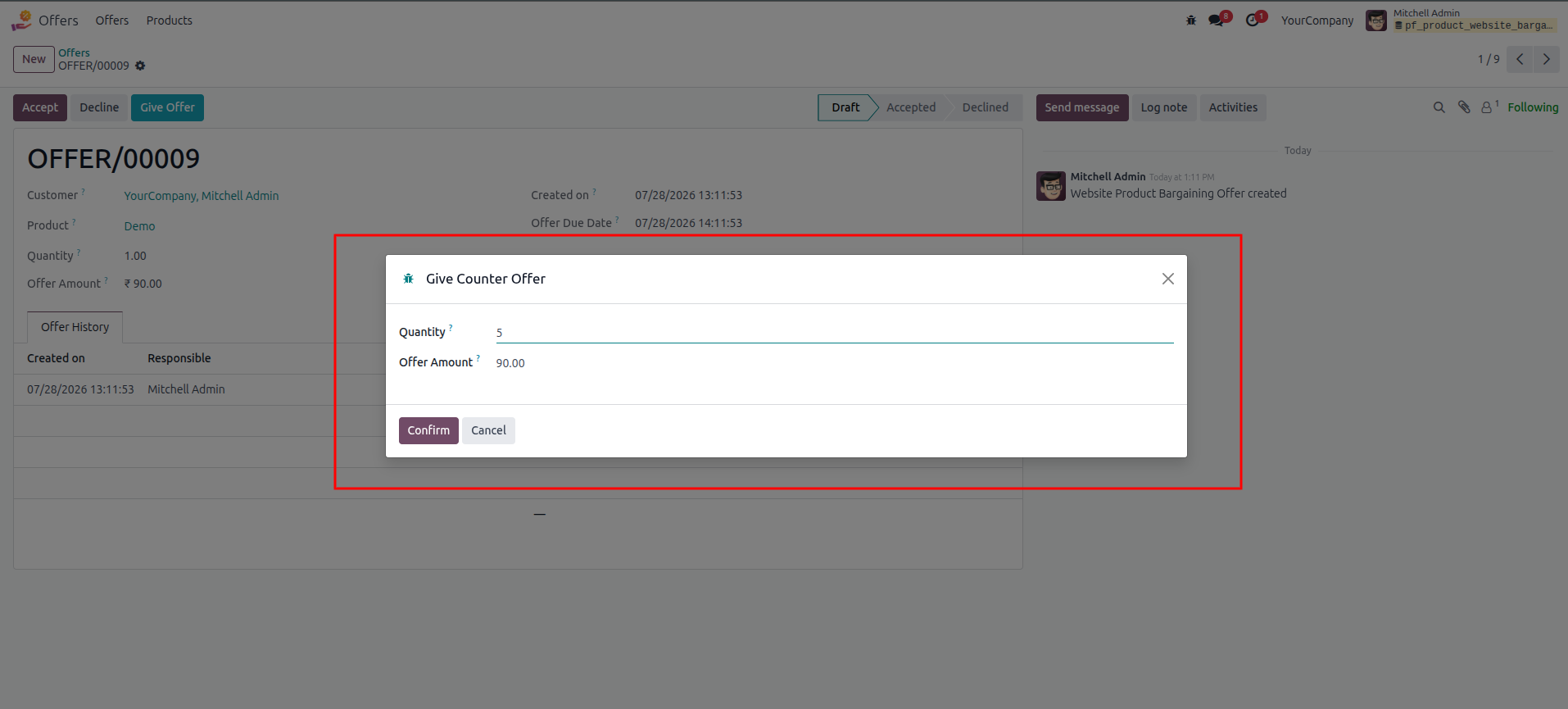
9.In the Give Counter Offer popup, adjust the parameters such as Quantity or Offer Amount if you wish to negotiate, and click Confirm to process the counter-offer.
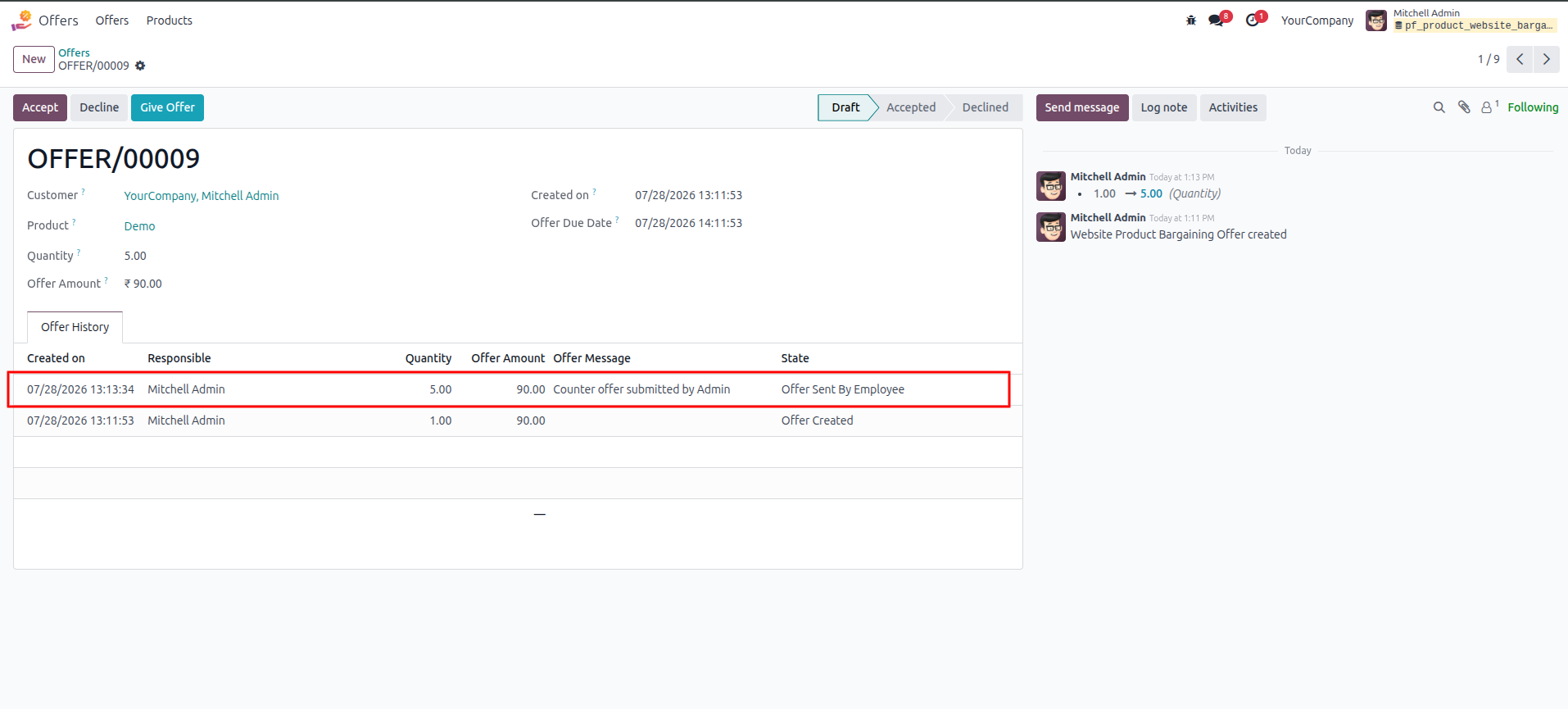
10.In the Odoo backend, the offer's history log immediately updates to show that a "Counter offer submitted by Admin" has been recorded, and the state changes to "Offer Sent By Employee" reflecting the adjusted quantity and price.
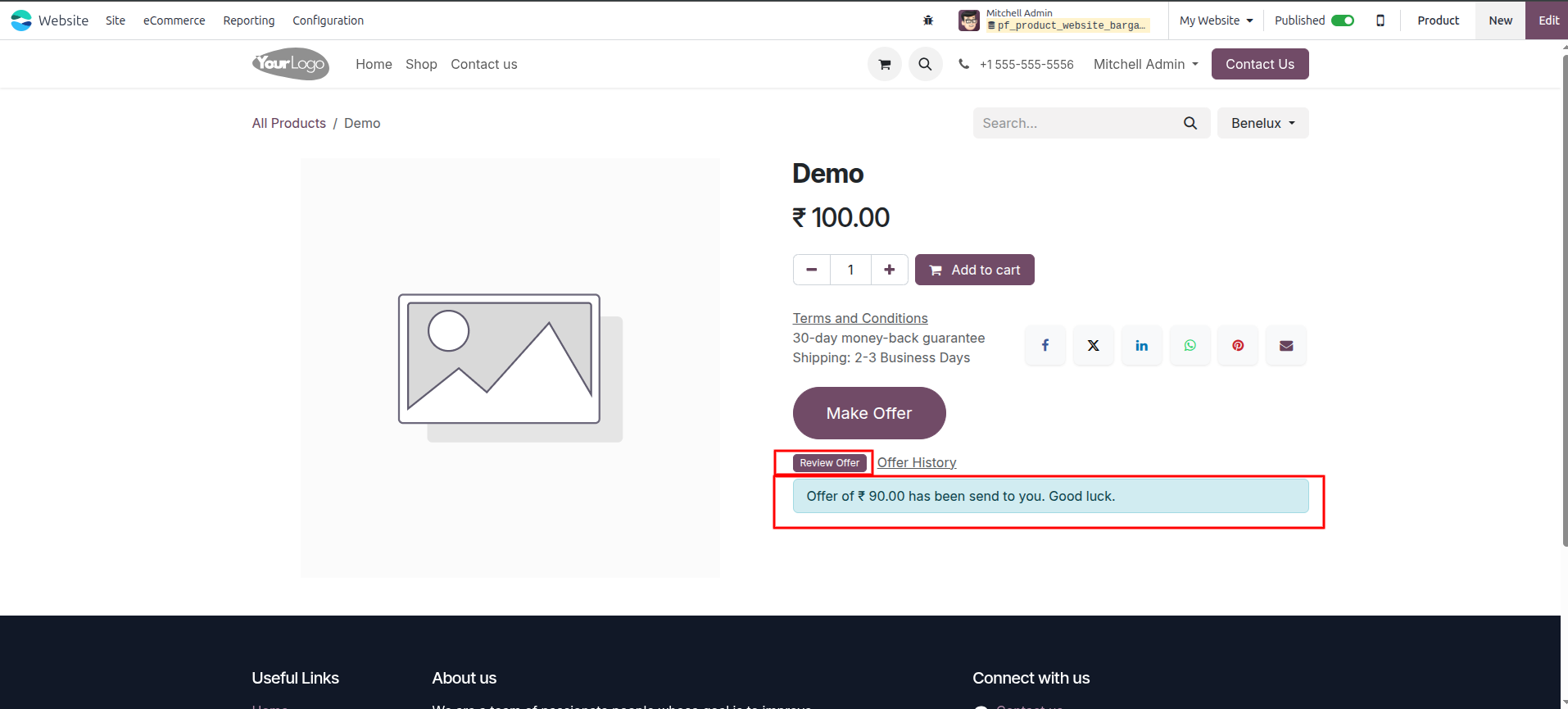
11.On the customer's end, a blue notification banner will appear on the product page stating, "Offer of ₹ 90.00 has been send to you. Good luck." The customer must click the Review Offer button to see the details of the counter-offer.
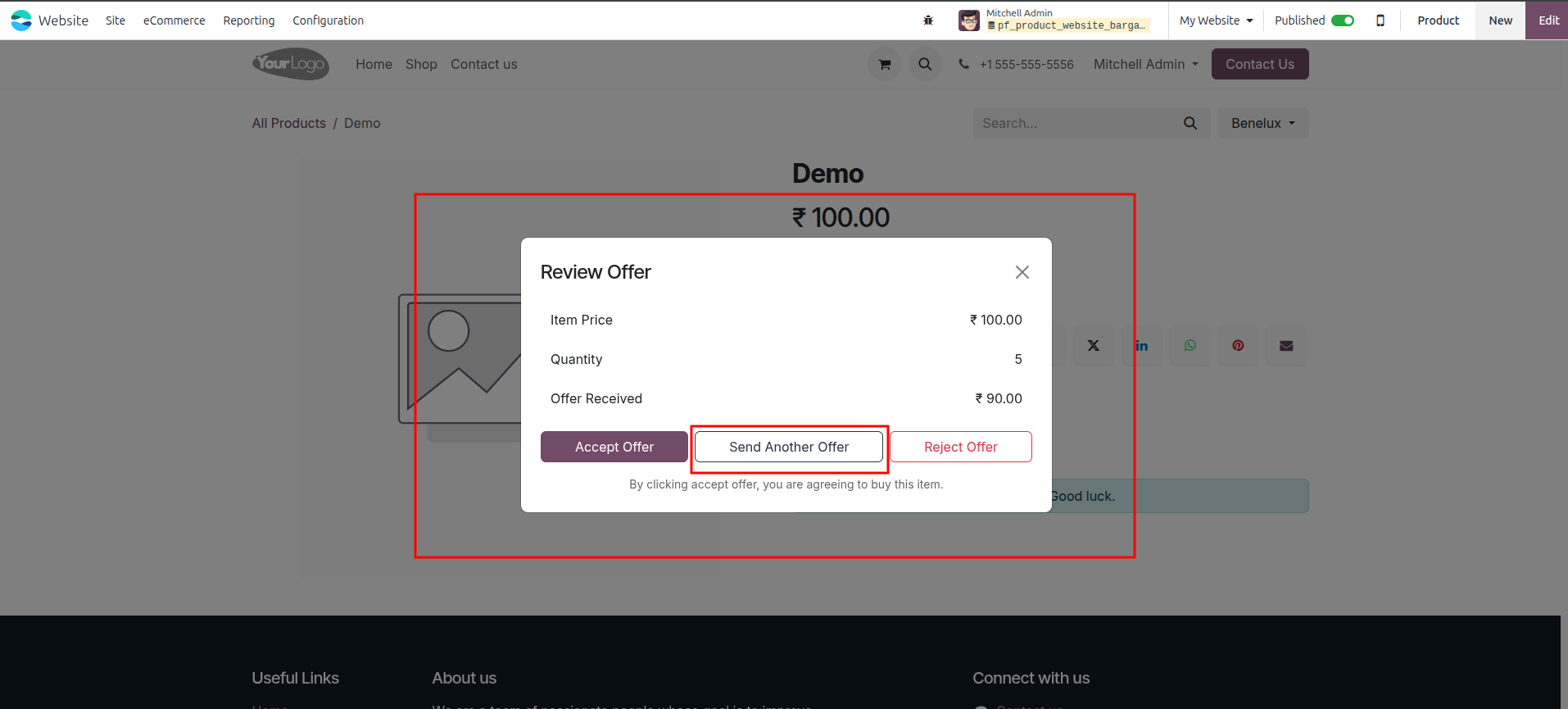
12.A Review Offer modal displays the seller's new terms (e.g., increased quantity and adjusted price). To continue negotiating instead of accepting or rejecting, the customer can click the Send Another Offer button.
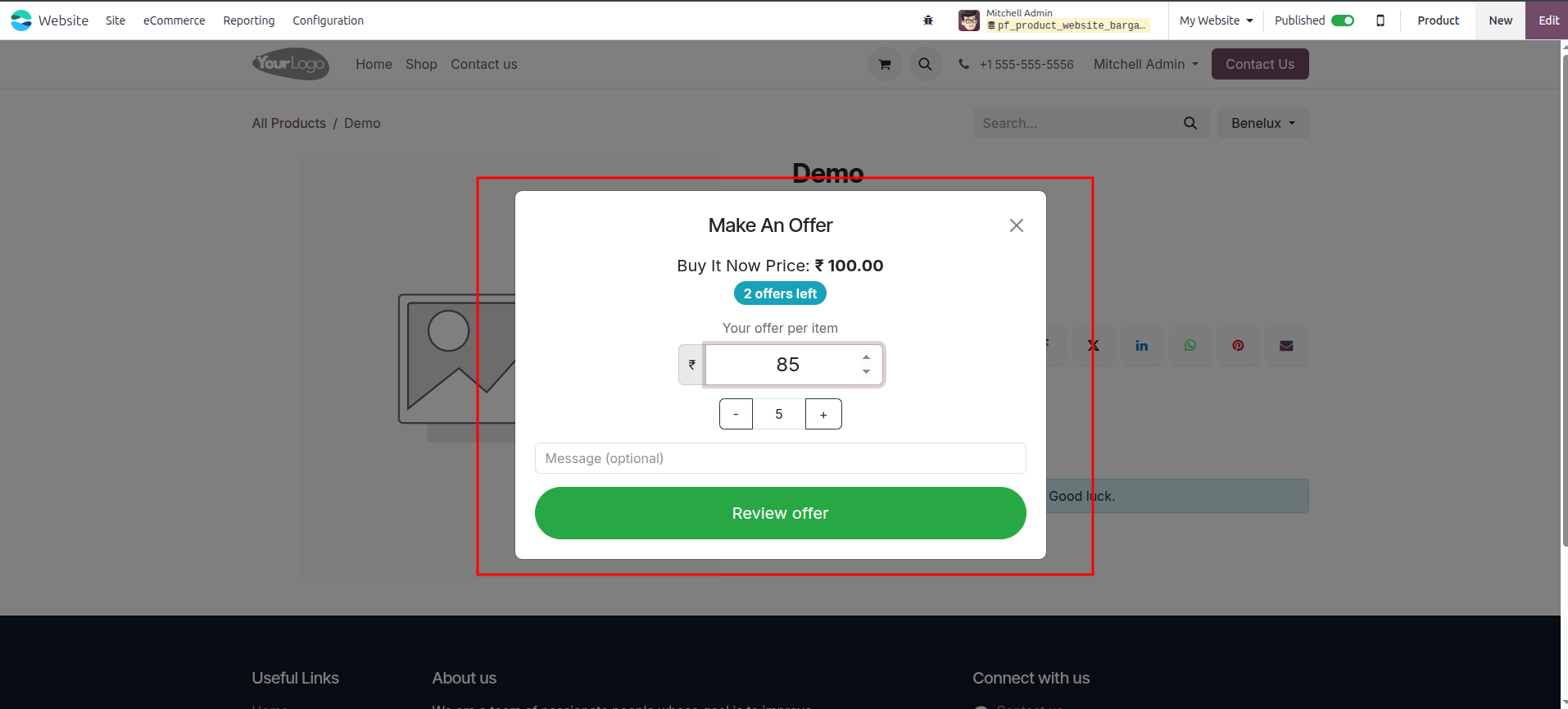
13.The Make An Offer modal reappears, displaying how many offer attempts the customer has left. The customer can enter a new counter-bid (e.g., ₹ 85) and click Review offer to submit it back to the seller.
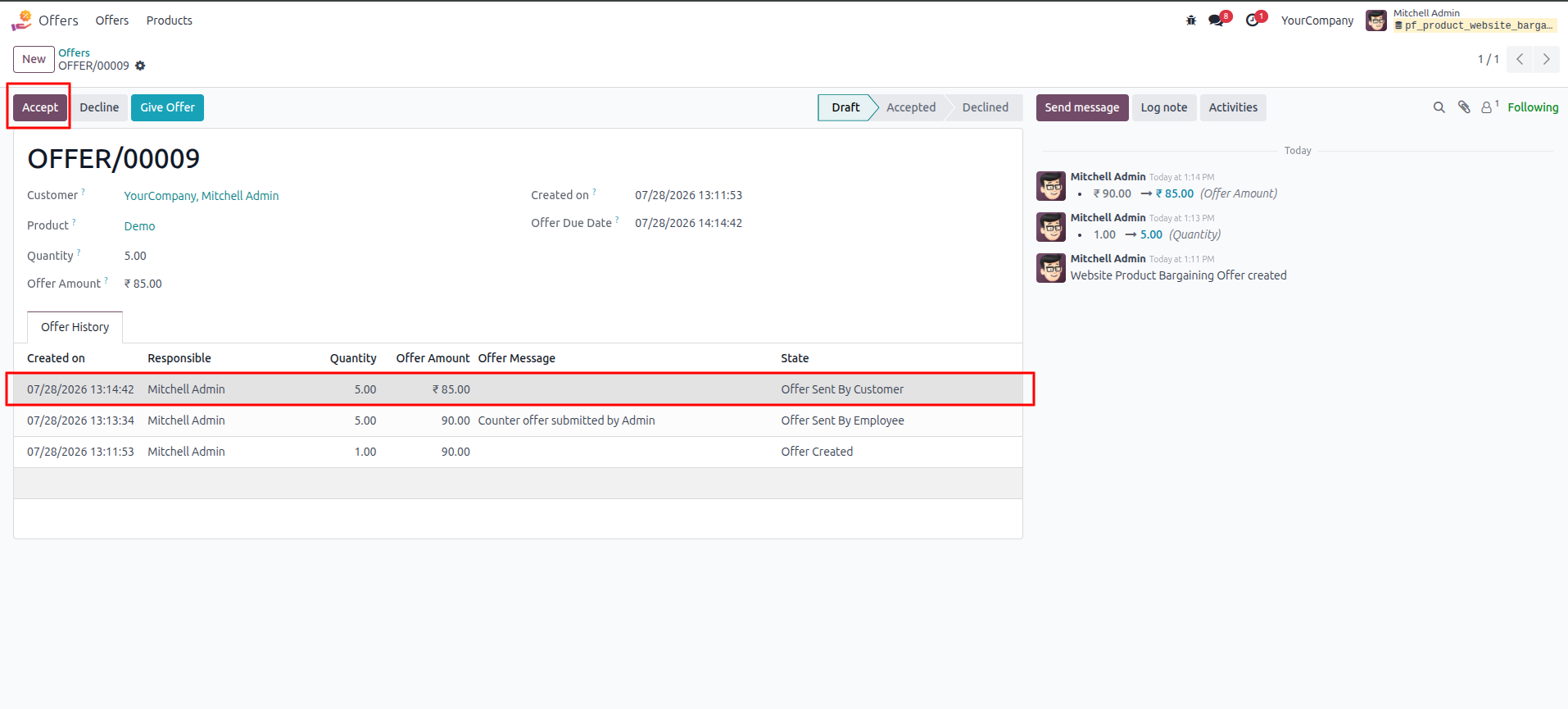
14.Back in the Odoo backend, the administrator reviews the customer's latest counter-offer in the Offer History. To agree to these terms and close the negotiation, click the Accept button at the top left of the screen.
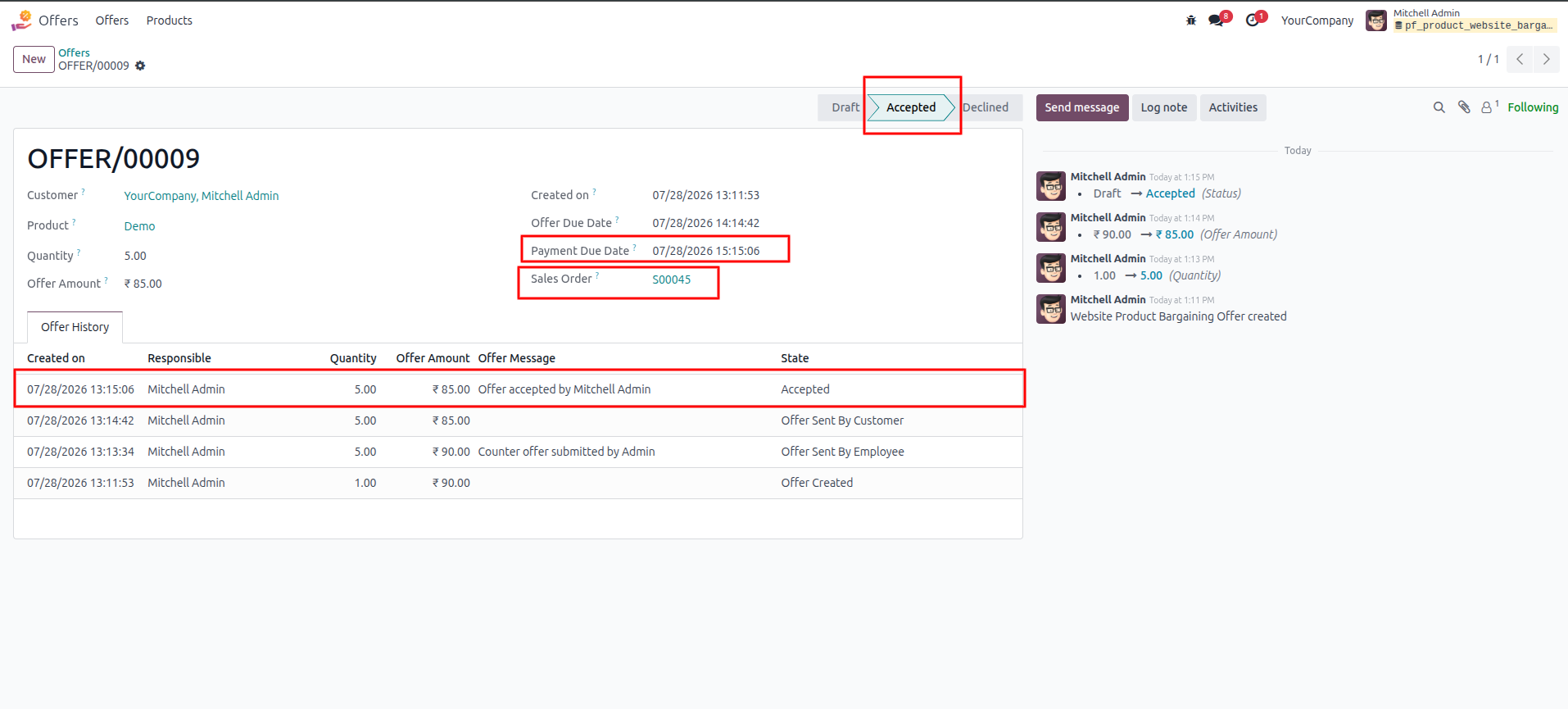
15.Once accepted, the workflow advances to the Accepted stage. The system will automatically generate a Payment Due Date and link a new Sales Order (e.g., S00045) directly to the offer record for fulfillment.
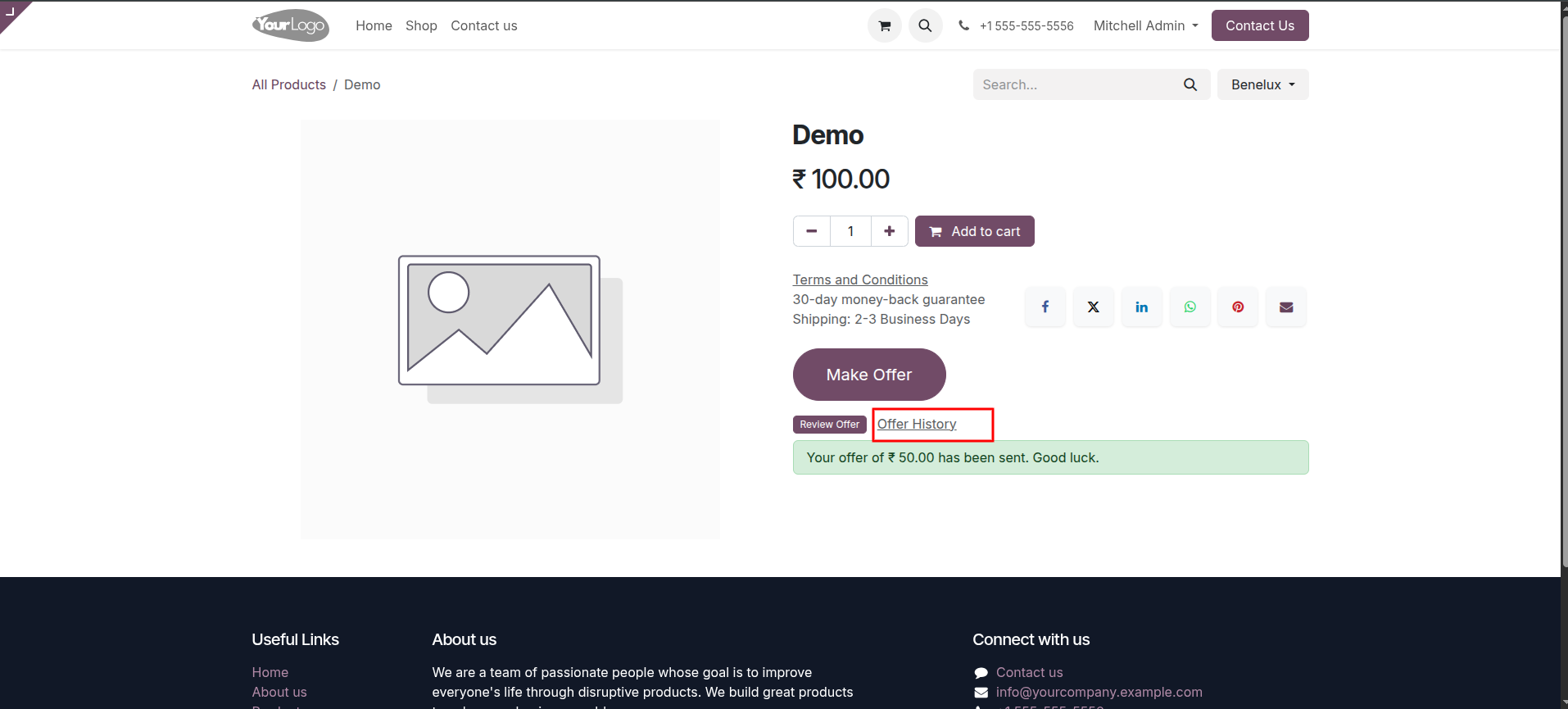
16.At any point, customers can track their ongoing or past bids directly from the product page by clicking the Offer History text link located just above the status banner.
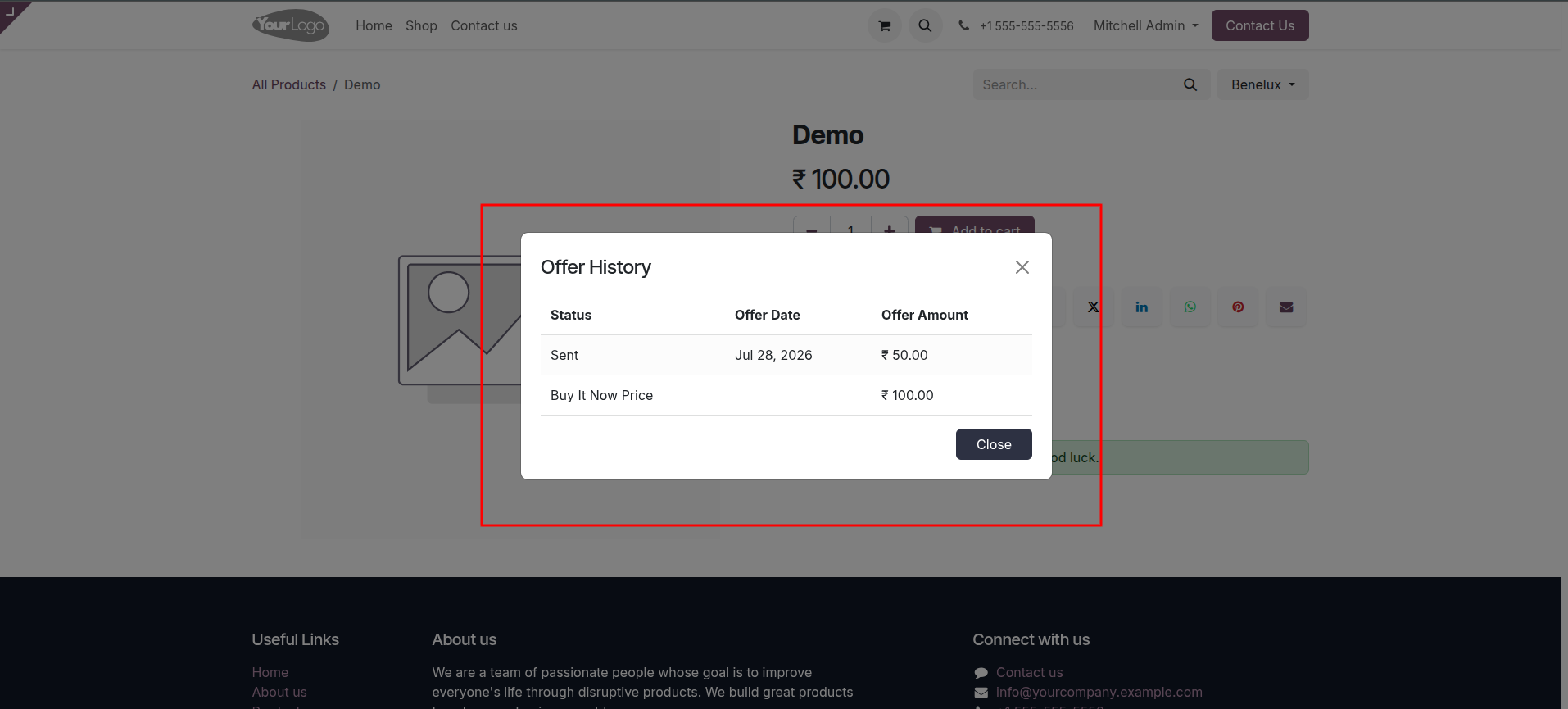
17.Clicking that link opens an Offer History popup window, which provides the customer with a clear log of their bid statuses, dates, and amounts compared to the original "Buy It Now" price.
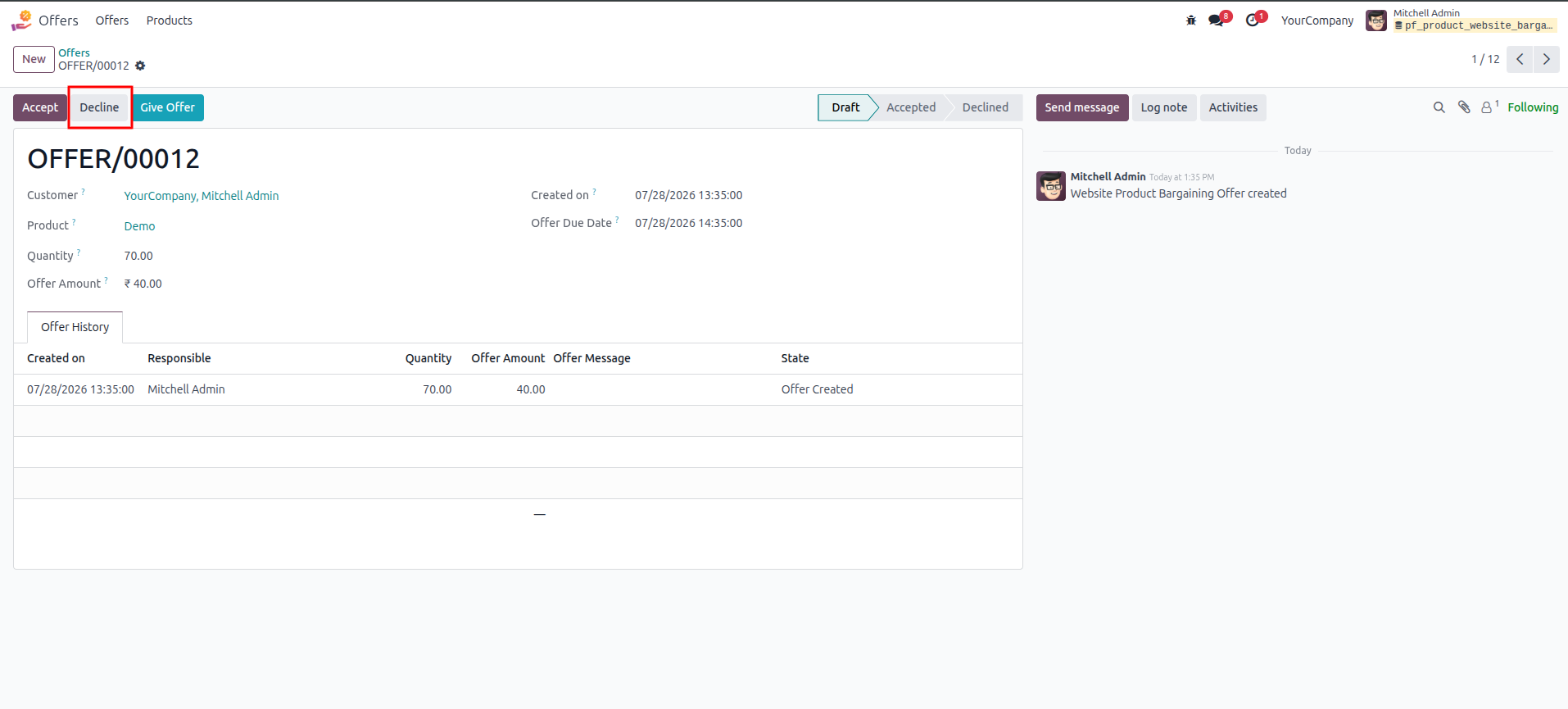
18.If a customer submits an unviable bid (for instance, a heavily discounted offer on a large quantity, as shown in a new draft record), the administrator can reject it entirely by clicking the Decline button at the top left of the backend offer record.
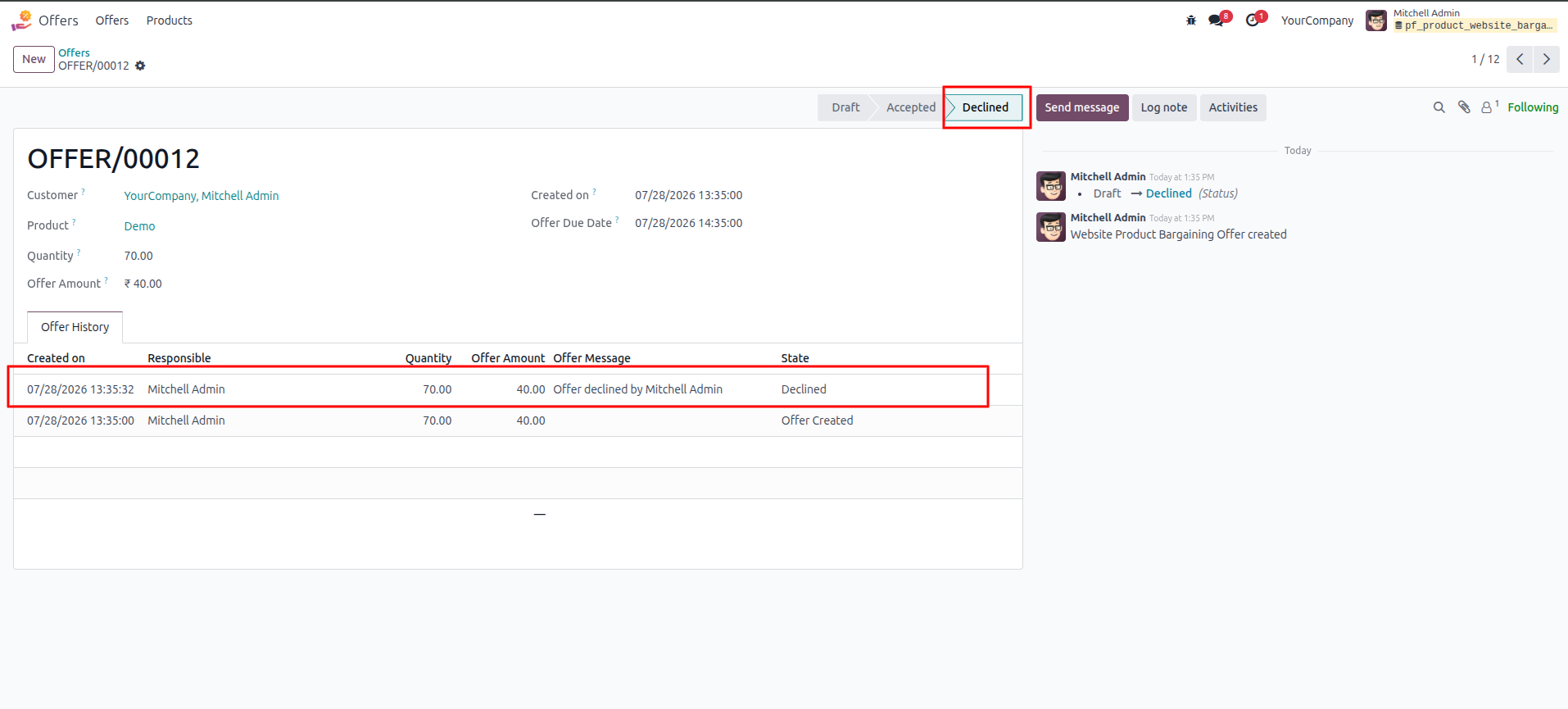
19.In the Odoo backend, once an administrator rejects an offer, the workflow stage changes to Declined, and the Offer History log updates to record that the offer was declined by the administrator.
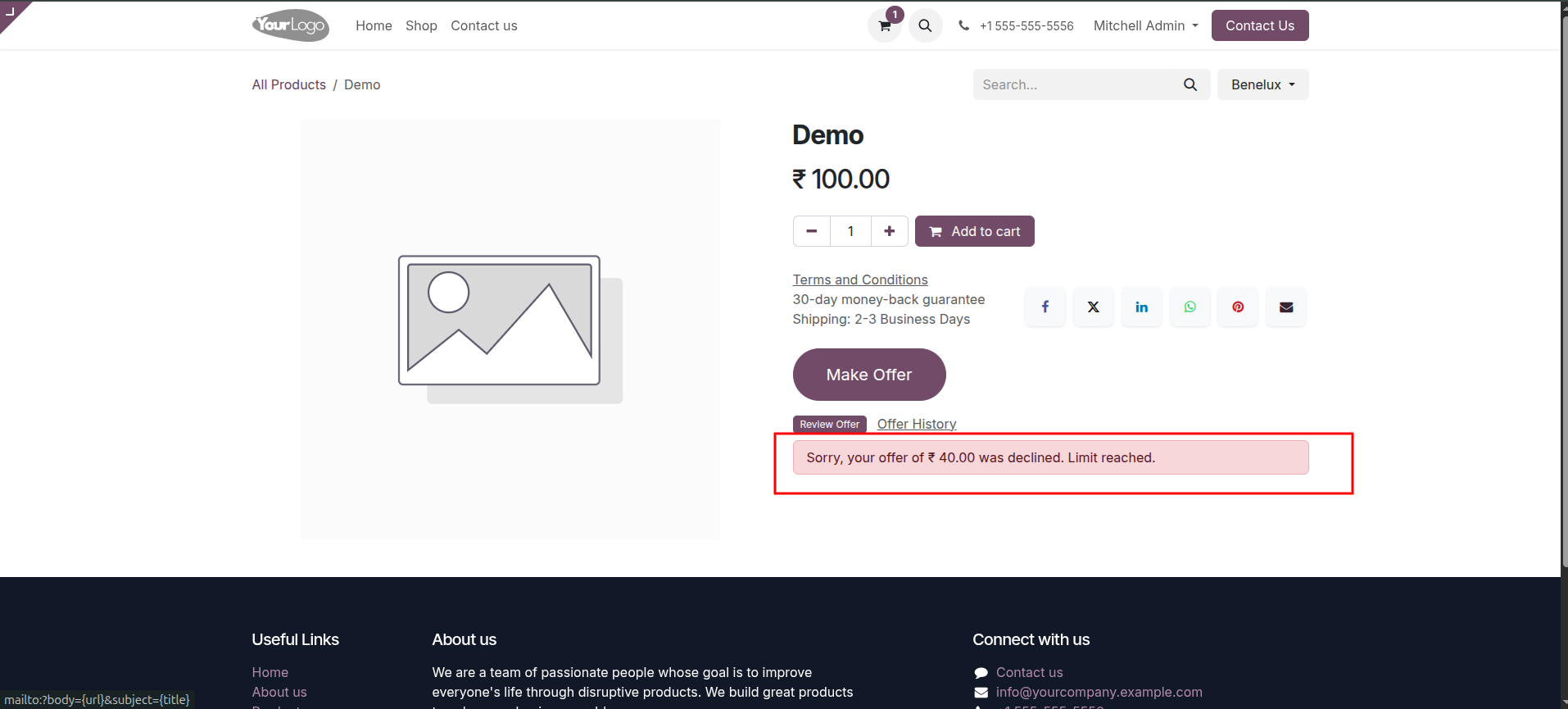
20.On the website, the customer will see a red notification banner on the product page stating that their specific offer was declined. If the customer has exhausted their maximum allowed attempts, the banner will also display "Limit reached.".
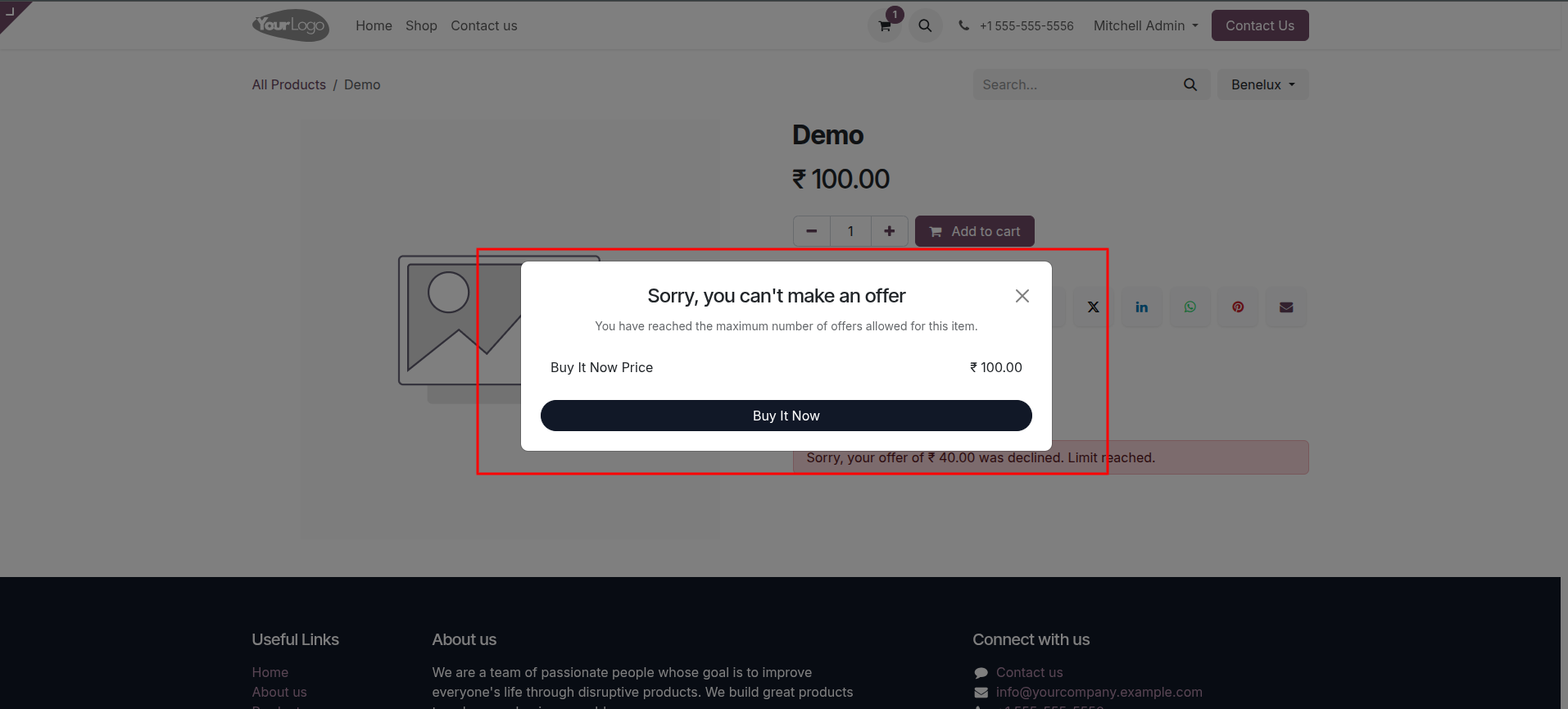
21.If the customer attempts to make another bid after reaching their limit, a popup modal will appear stating, "Sorry, you can't make an offer" due to reaching the maximum number of offers allowed. At this point, the customer is only presented with a Buy It Now button to purchase the item at its standard price.
Our solutions focus on your problems
- Odoo Implementation
- Odoo Customization
- ERP Development and Implementation
- Odoo Ipass Cloud
- AI for Odoo
- Odoo Apps
- Aws Marketplace Products
- Business Engines
Our Pricing includes User Manual, 90 Days Support (Monday-Friday 10am to 7pm IST) and One time Setup
• Works & tested on standard installations of Odoo with no third party apps,
• Free support only for odoo installations with no third party apps,
• Paid support available for Odoo installations with third party apps.

Prefortune is a Odoo Official Partner, Odoo Development company. Our philosophy is to use Open Source tools and technologies to provide cost effective and green solutions for our customers.
Prefortune Technologies LLP is working on web development, Mobile development, and Odoo ERP.
If you need any help or want more additional features, you may contact us through:
Alternative Products
These other products might interest you
Specifications
| Version | 19.0, 18.0, 17.0, 16.0, 15.0, 14.0 |