Watch Quick Video
UAE Peppol E-Invoicing | FTA Compliance for Odoo
UAE Peppol E-Invoicing | FTA Compliance for Odoo
connects your Odoo invoices and credit notes directly to the UAE Federal Tax Authority via the Flick
Network Peppol Access Point. You can submit all posted customer invoices or credit notes with one click
and the live reporting and delivery status can be seen directly on the invoice.
The user can post an invoice as usual and click Submit Document To FTA to transmit it, or turn on
Auto-Send so invoices are automatically sent upon posting or payment received. You can also perform a
similar Bulk Submit action directly from the Invoices list to submit multiple documents at once.
If a submission fails due to a transient connection problem, the document is automatically resubmitted by
a scheduled action until successful or retry limit is reached. All documents submitted are registered
under E-Invoicing Documents and a QR code and tax category mapping is automatically generated to ensure
all invoices are fully compliant with FTA requirements.
UAE Peppol E-Invoicing | FTA Compliance for Odoo Features
- Credit notes and customer invoices are submitted to the FTA directly from the invoice form.
- Post or after payment automatically send invoices to Flick.
- View live FTA reporting status and Peppol exchange status for each invoice.
- Accounting > E-Invoicing All documents of invoices and credit notes submitted .
- Auto re-submission for failed submissions and a QR code on every invoice. No XML uploads manually.
Complete Workflow for Manage UAE Peppol E-Invoicing | FTA Compliance for Odoo
Install the UAE Peppol E-Invoicing | FTA Compliance for Odoo module, then go to Accounting > Configuration > UAE E-Invoicing > Configuration, enter your Flick Auth Key, click Fetch Participants to pull in your registered participant, and click Test Connection to activate the connection. On each customer's contact form, open the UAE E-Invoicing tab and fill in their Peppol ID and Emirate. On each sales tax, set the UAE E-Invoicing Category so invoice lines are mapped to the correct FTA tax type. Post a customer invoice as usual, then click Submit Document To FTA to send it to Flick, or enable Auto-Send Invoice in the configuration so invoices are submitted automatically on posting or on payment. Multiple invoices can also be sent at once using Bulk Submit Document (FTA) from the Invoices list. Every submitted document is logged under Accounting > Reporting > E-Invoicing Documents, showing its FTA reporting status and Peppol exchange status. Failed submissions are retried automatically when retryable, and a scannable QR code is added to the invoice PDF once the document is accepted.
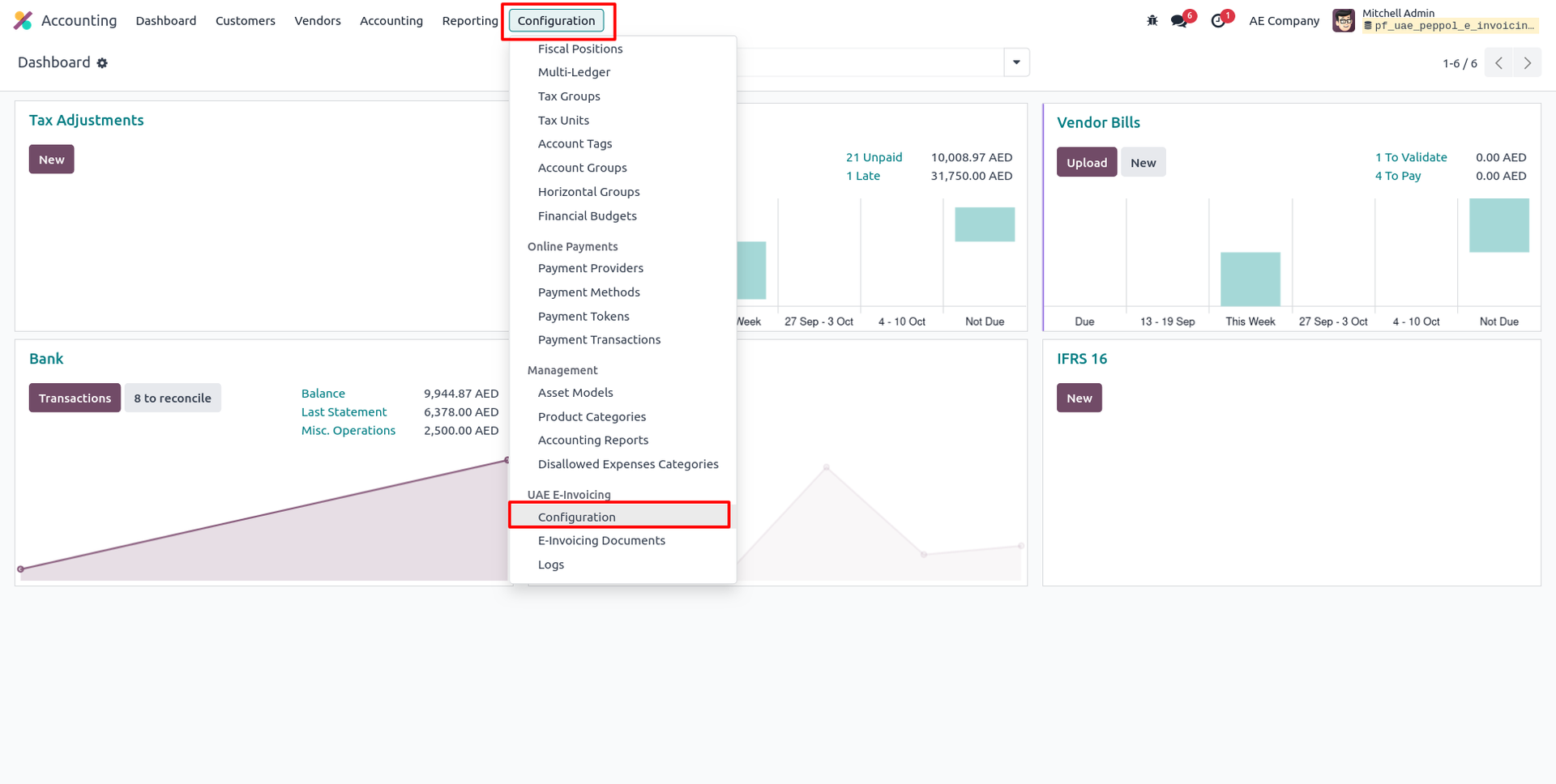
1. Go to Accounting > Configuration > UAE E-Invoicing, click Configuration to set up your Flick connection.
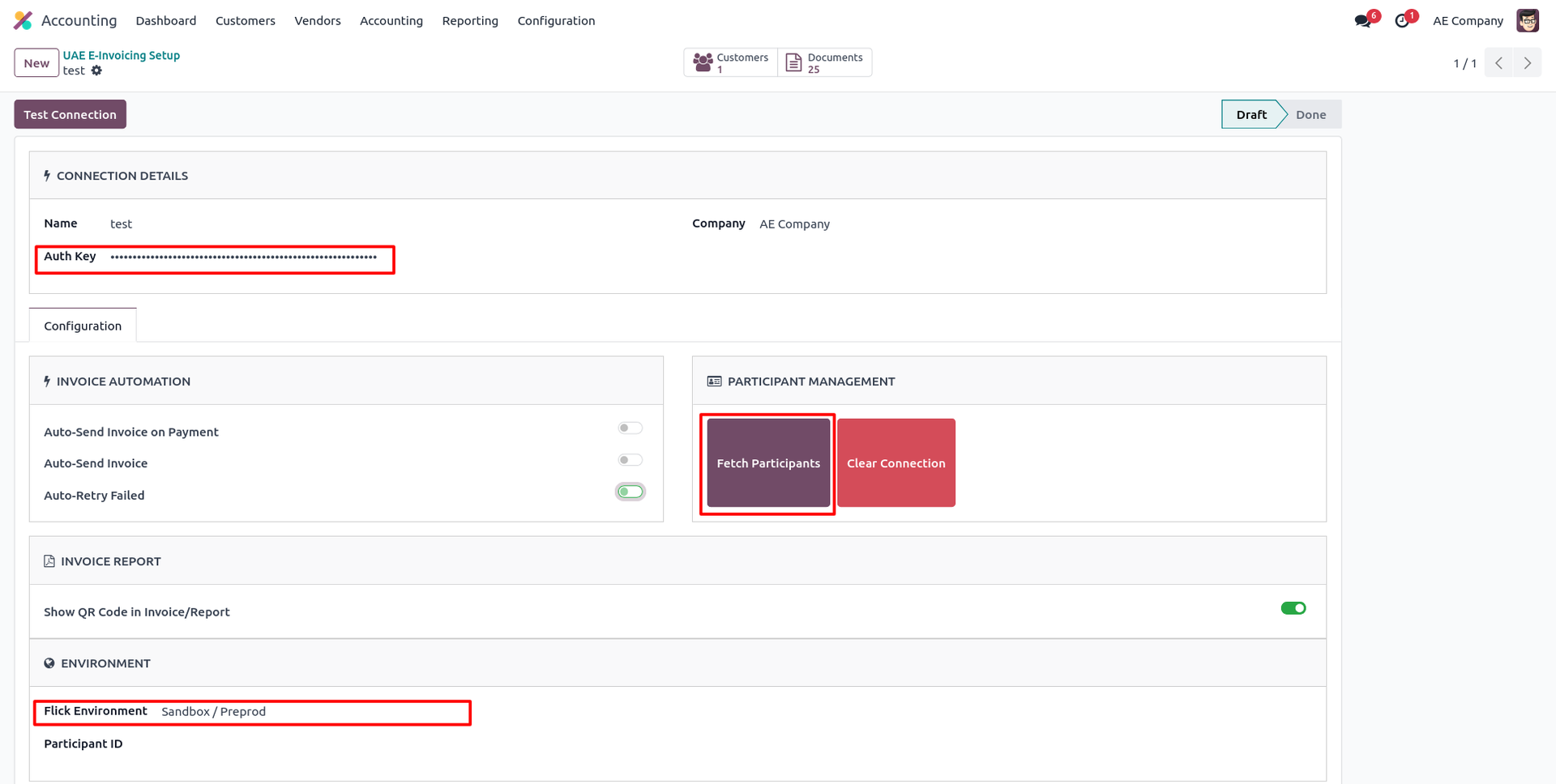
2. On the new setup form, enter a Name, paste your Auth Key, select the Flick Environment, then click Fetch Participants.
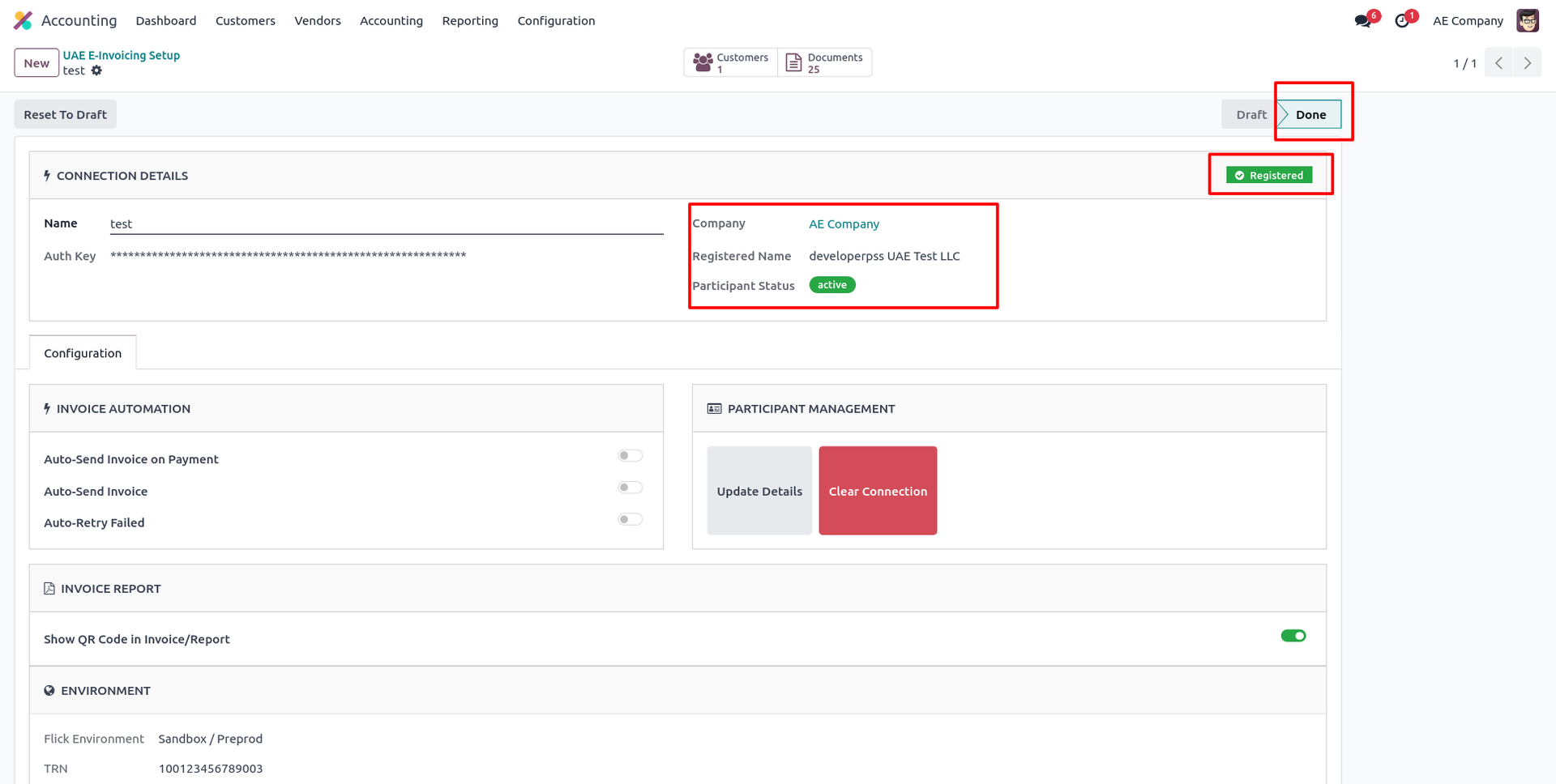
3. Click Test Connection to confirm setup — status turns Registered with your Registered Name and Participant Status pulled from Flick.
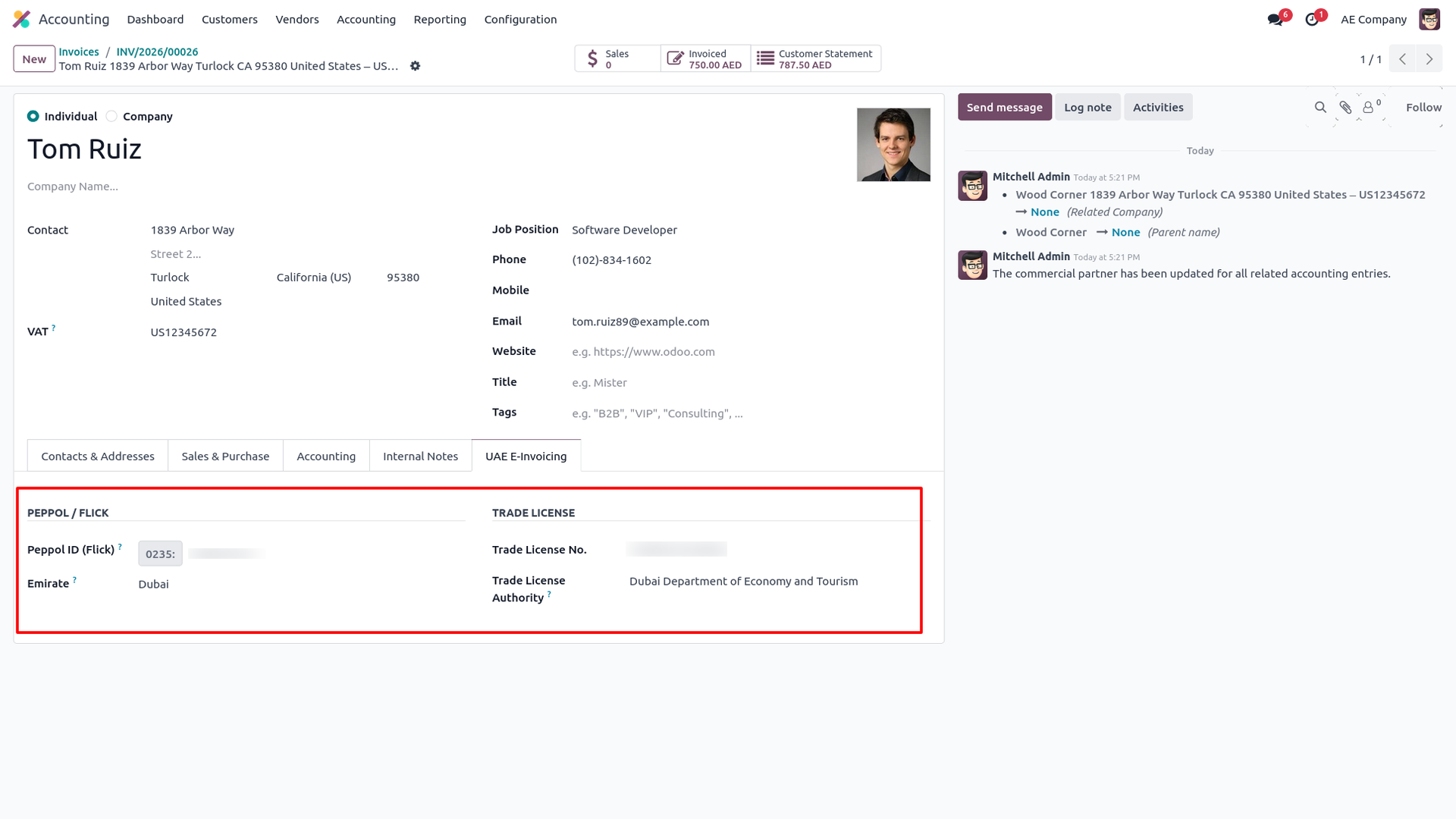
4. On each customer's UAE E-Invoicing tab, fill in the Peppol ID, Emirate, and Trade License details required for FTA submission.
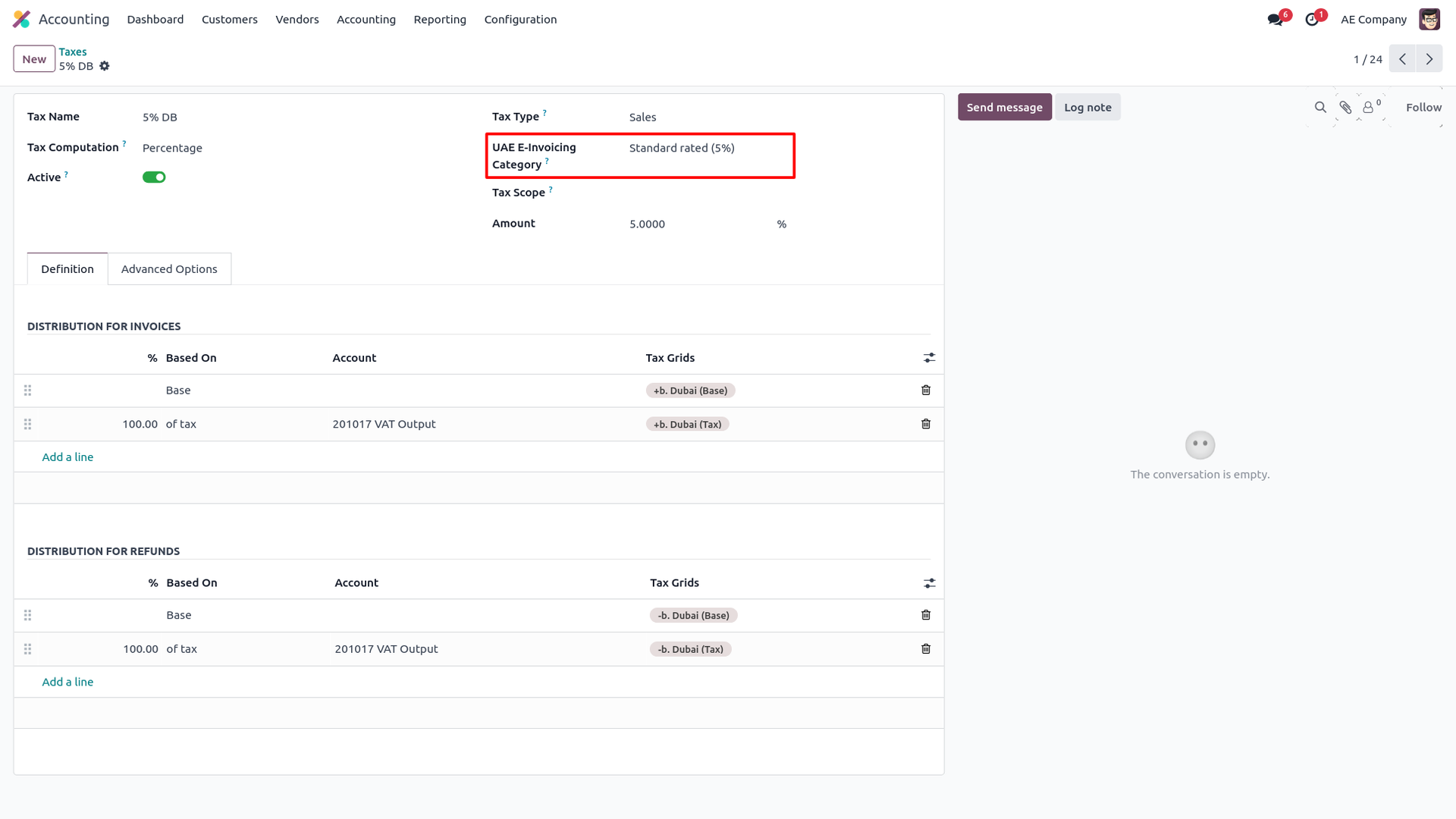
5. On each sales Tax, set the UAE E-Invoicing Category (e.g. Standard rated 5%) so invoice lines map correctly to FTA tax codes.
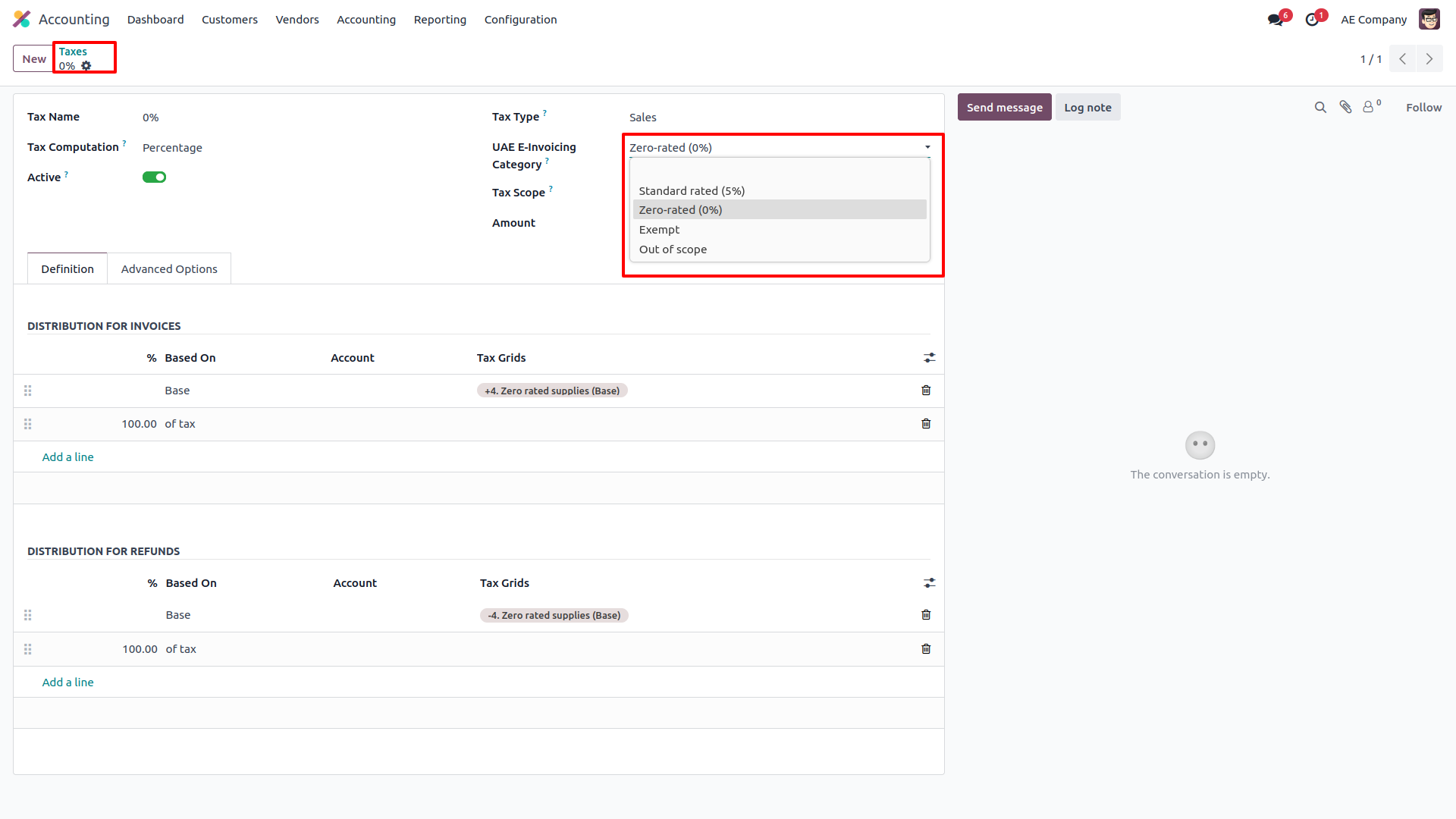
6. Choose the UAE E-Invoicing Category per tax — Standard rated, Zero-rated, Exempt, or Out of scope — matching how the FTA classifies that VAT rate.
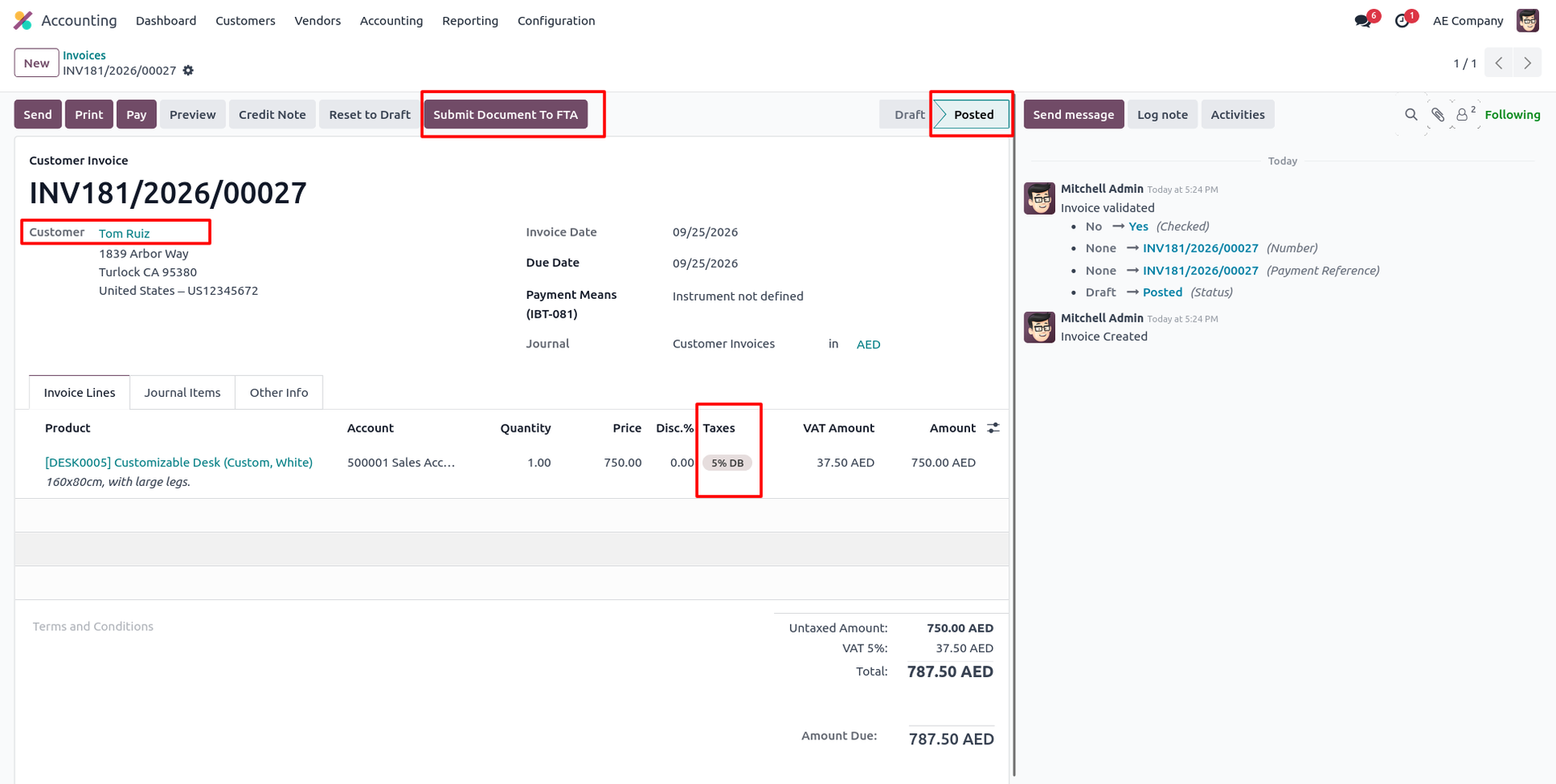
7. On a posted customer invoice, click Submit Document To FTA to send it to Flick for e-invoicing.
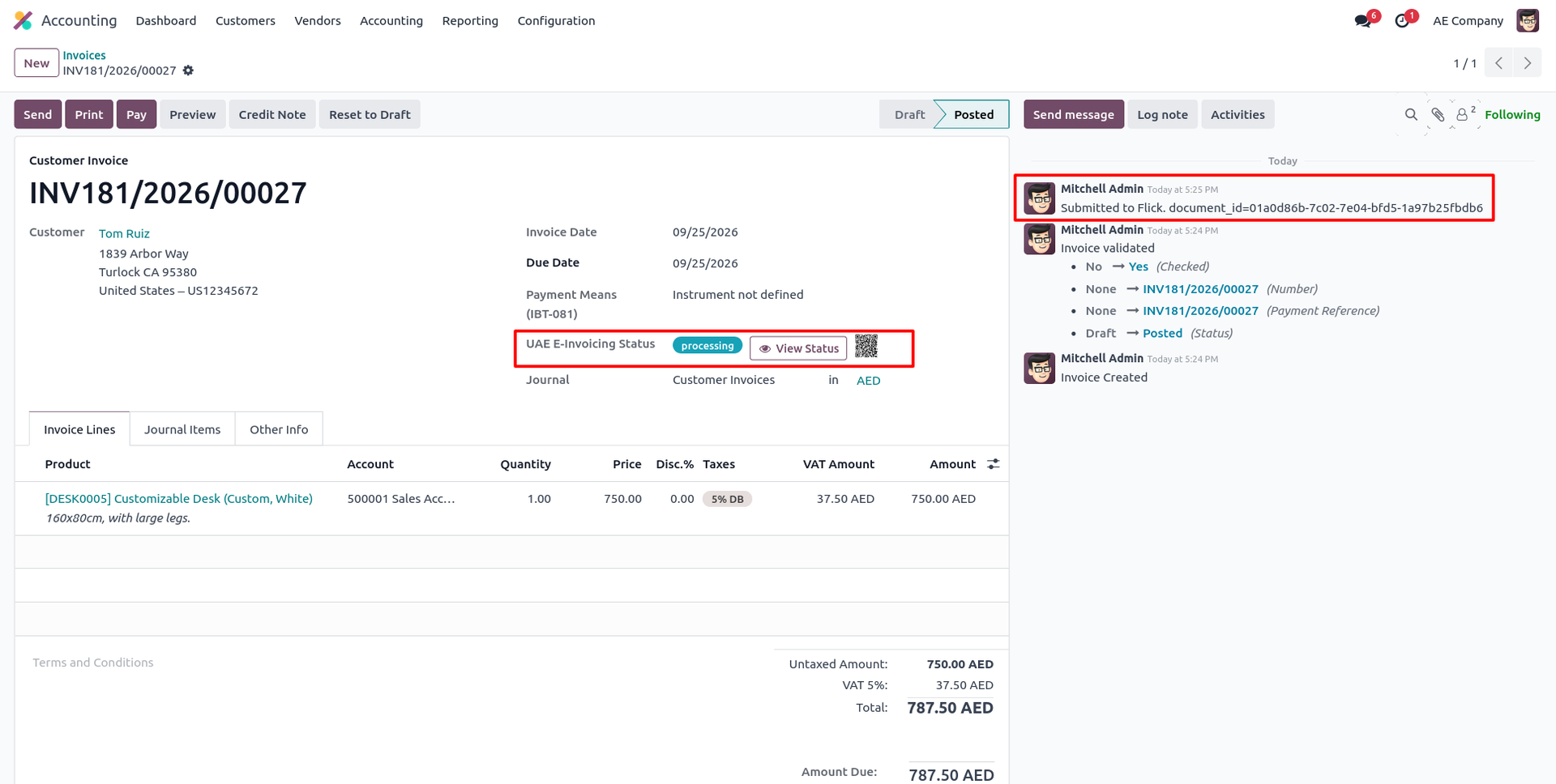
8. The UAE E-Invoicing Status turns Processing, with a chatter log confirming it was Submitted to Flick along with the document ID.
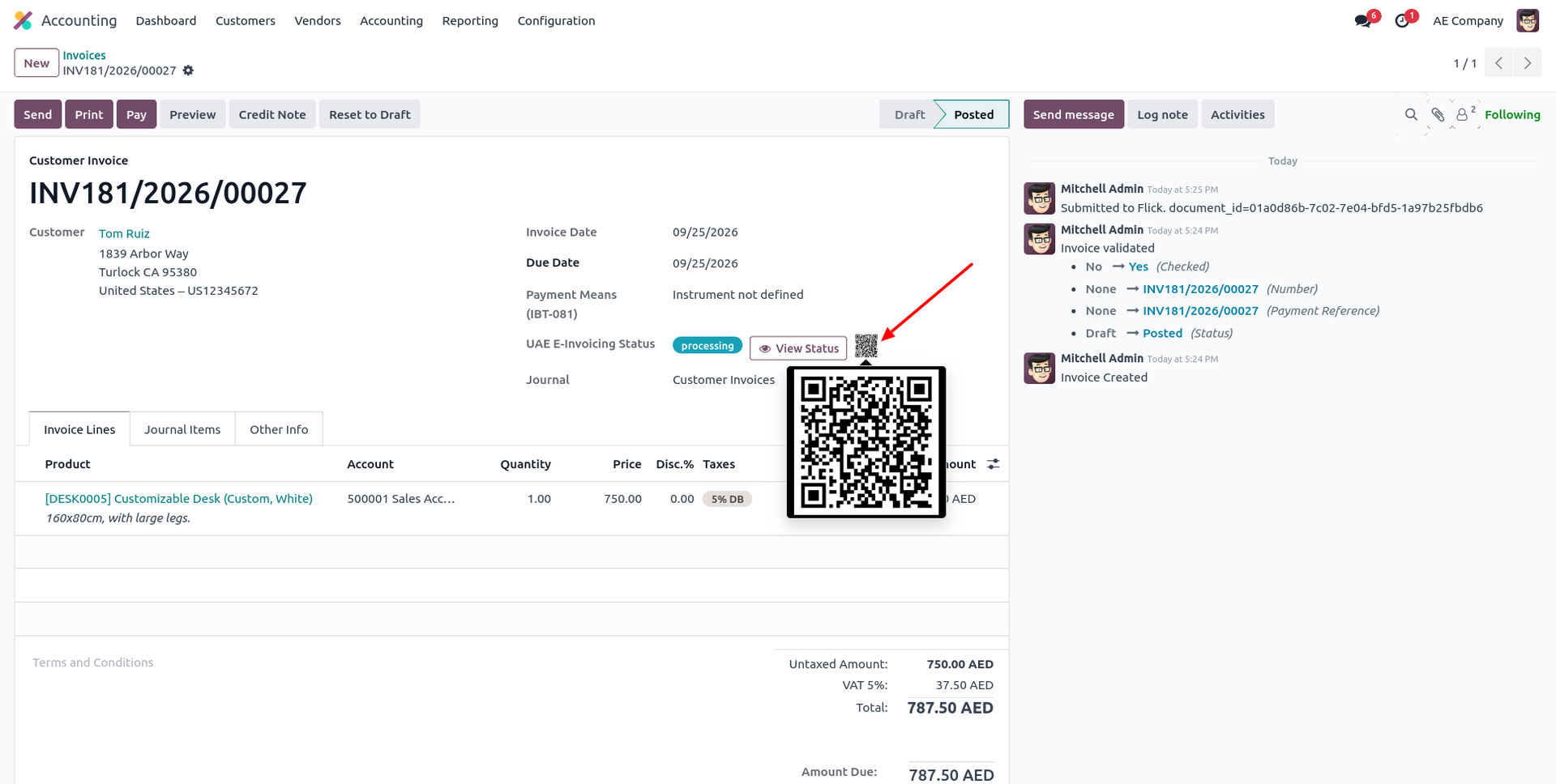
9. A QR Code is generated automatically next to the status, letting anyone scan and verify the e-invoice status instantly.
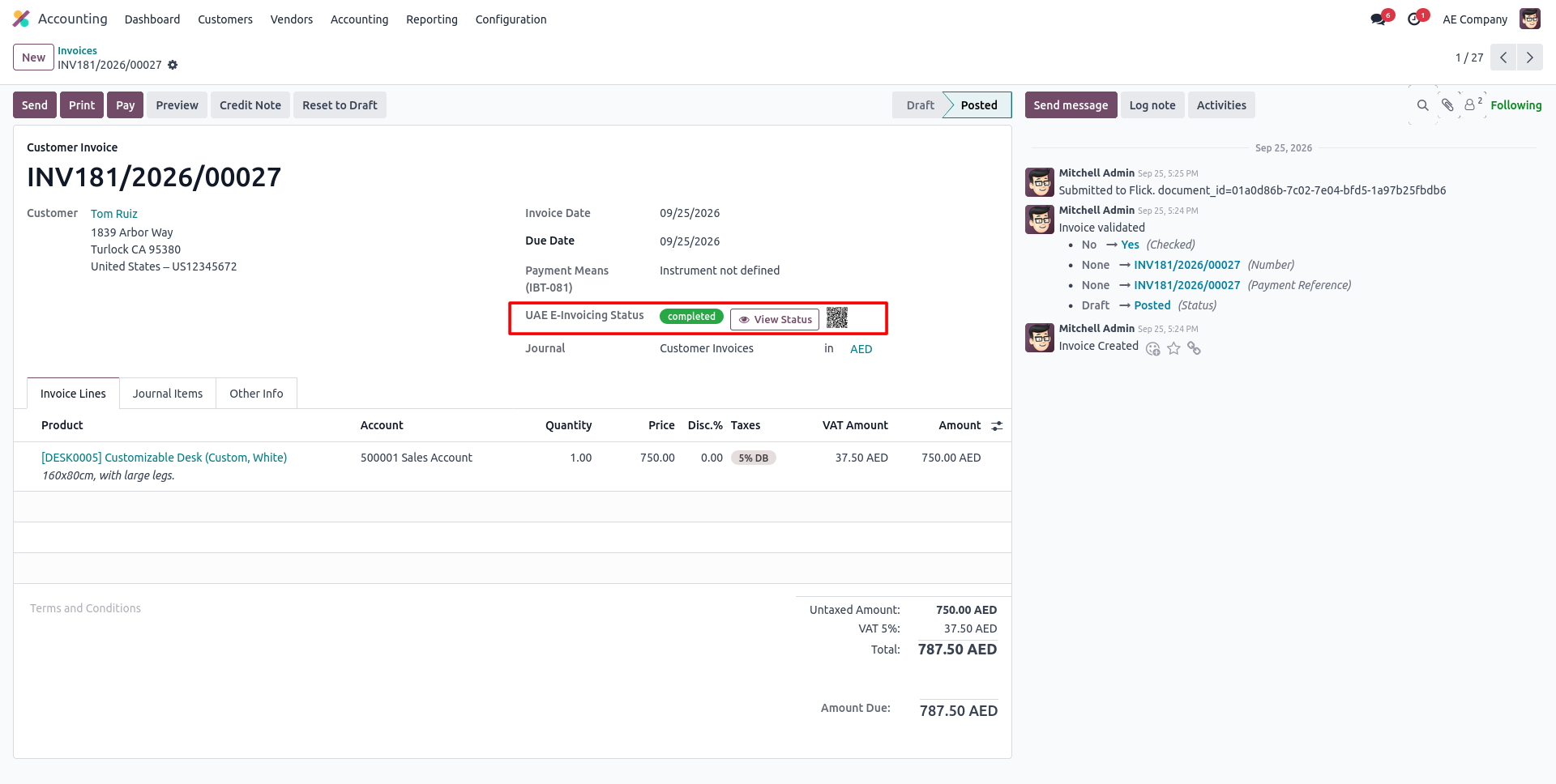
10. Once the FTA accepts it, the status updates to Completed — confirming successful, compliant e-invoice delivery.
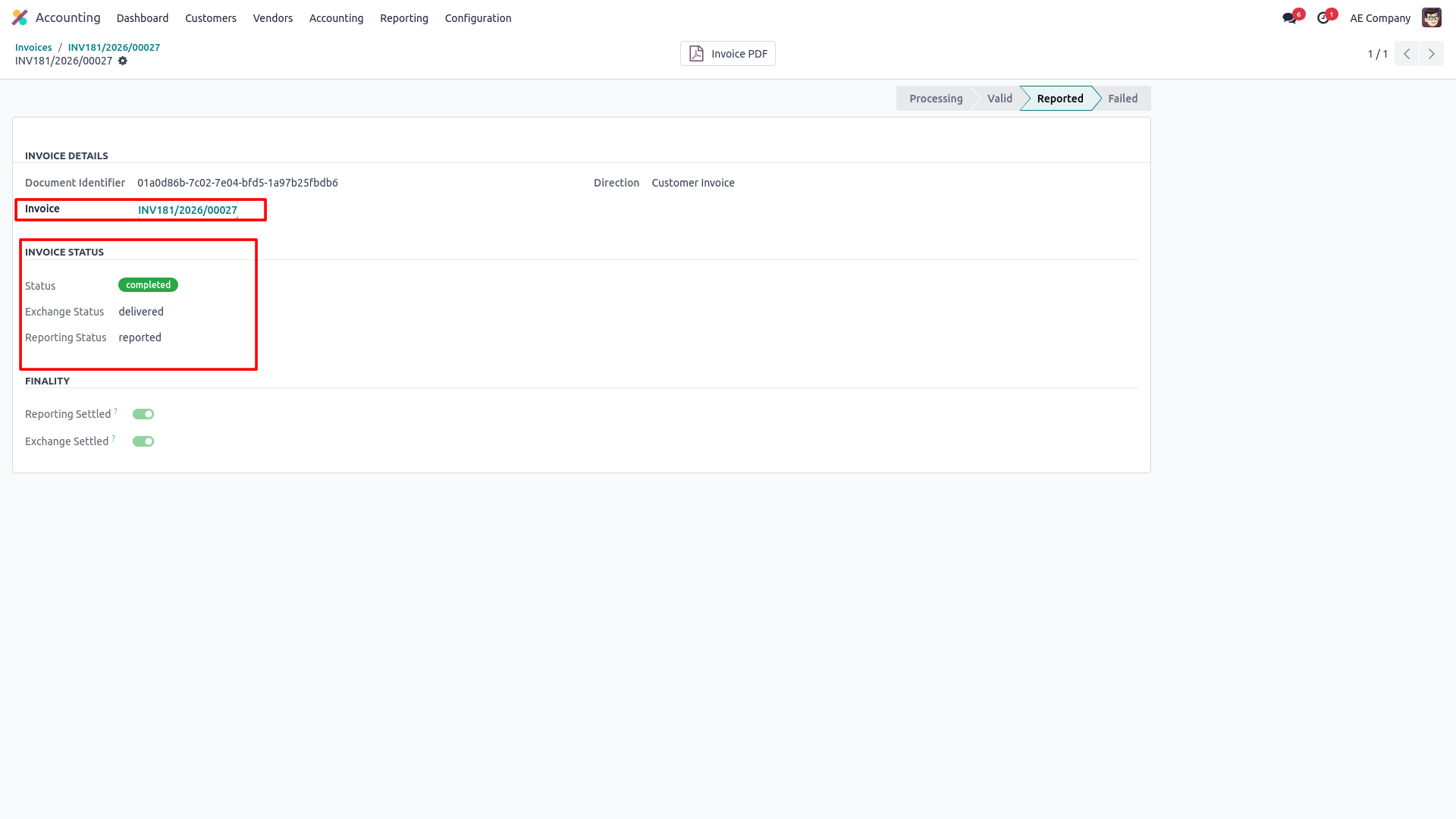
11. Click View Status for the full detail — stage stepper, Exchange Status, Reporting Status, and Finality flags once settled.
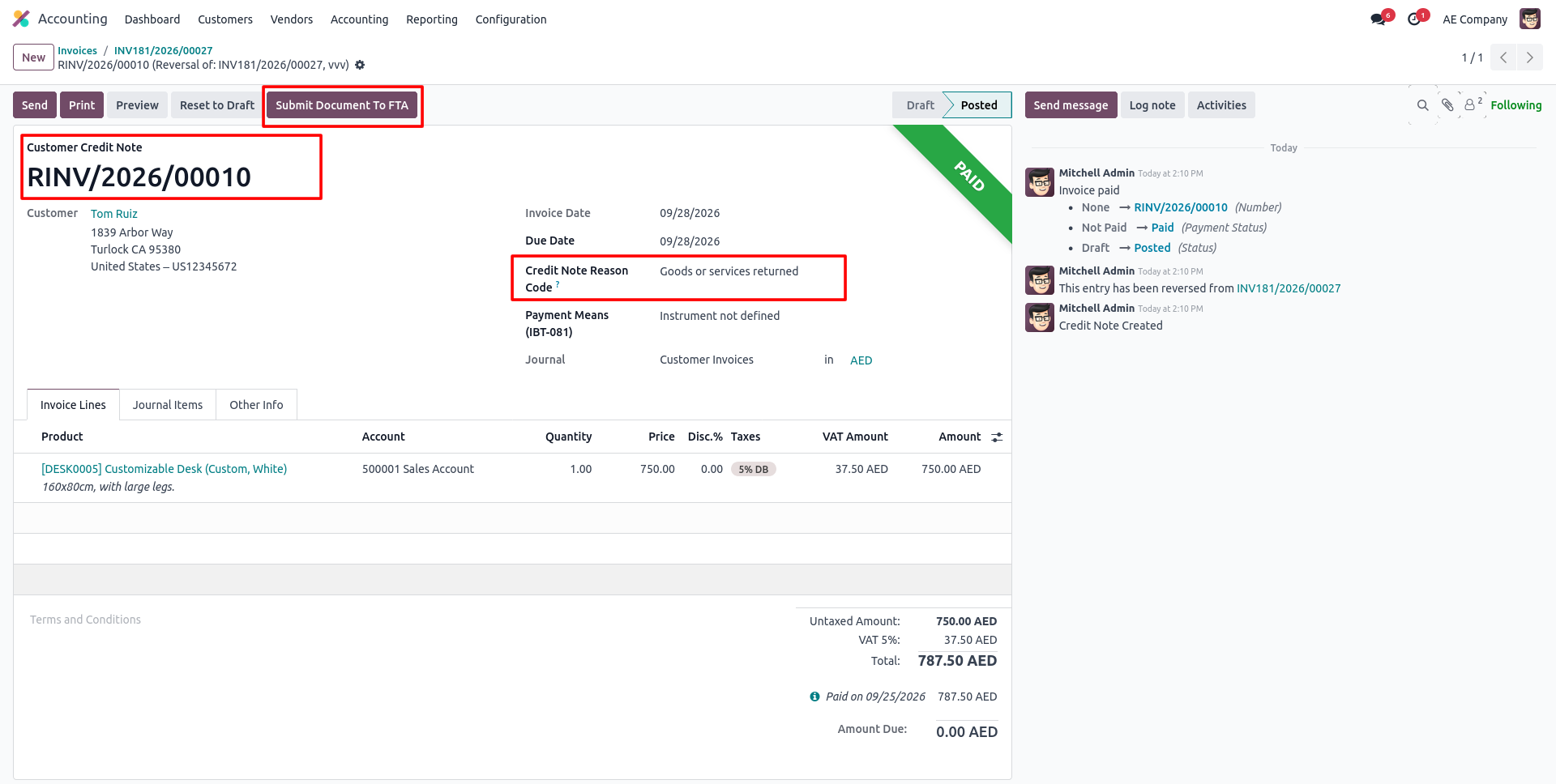
12. On a Credit Note, set the Credit Note Reason Code and click Submit Document To FTA to send it linked back to the original invoice.
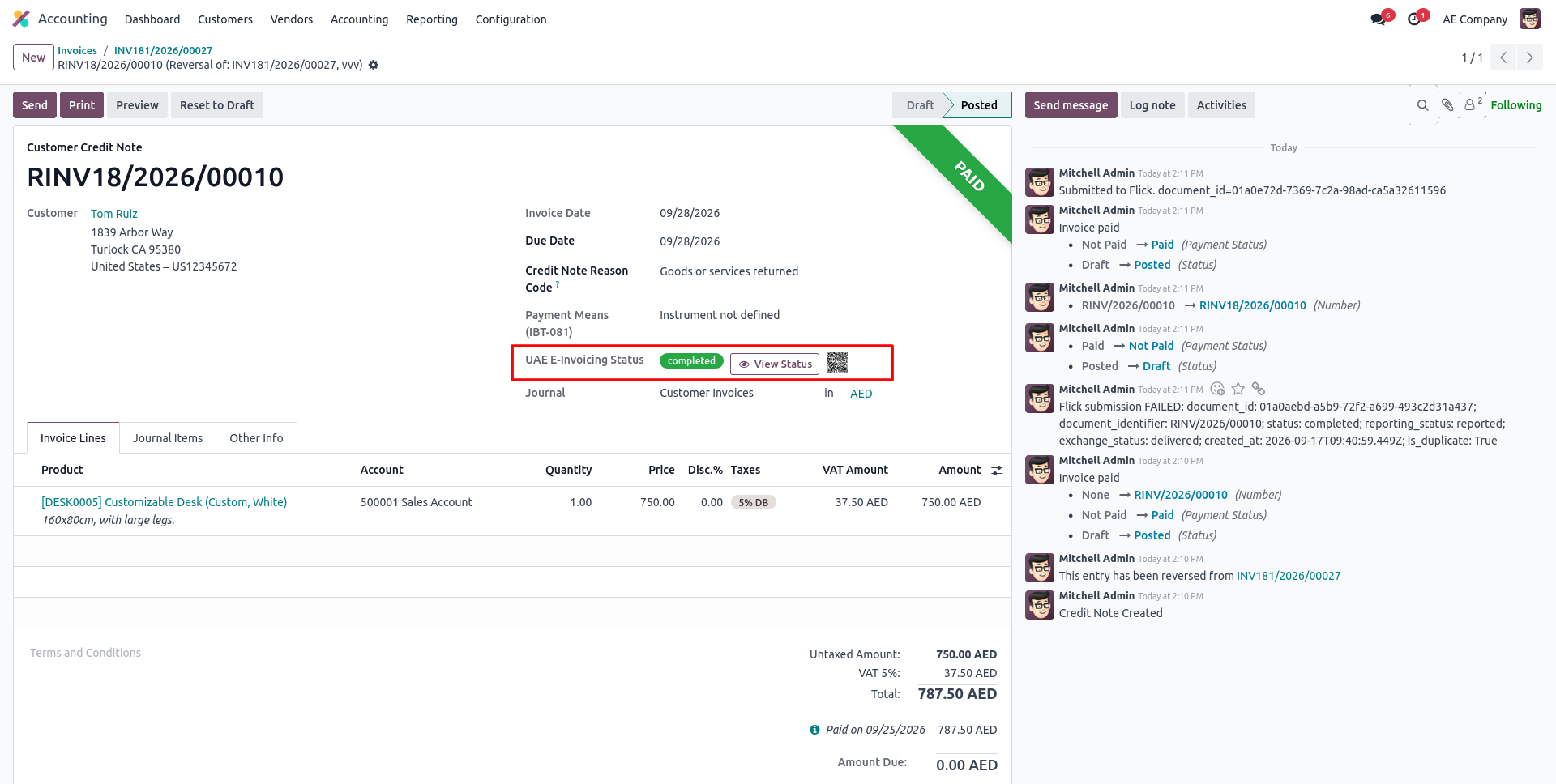
13. The credit note's UAE E-Invoicing Status turns Completed, with the full submission confirmed in the chatter log.
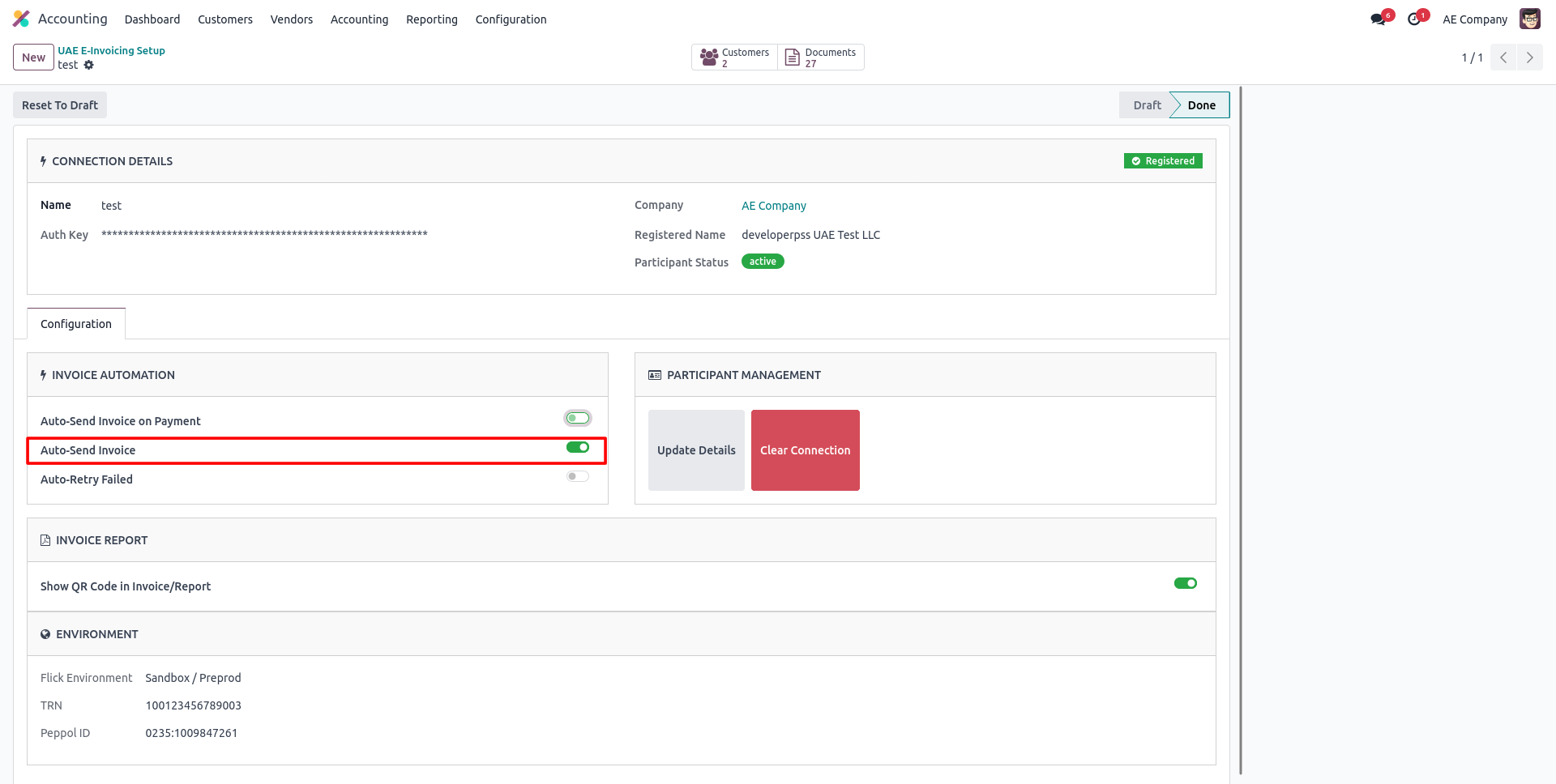
14. Enable Auto-Send Invoice in your connection's Invoice Automation settings to submit every posted invoice automatically.
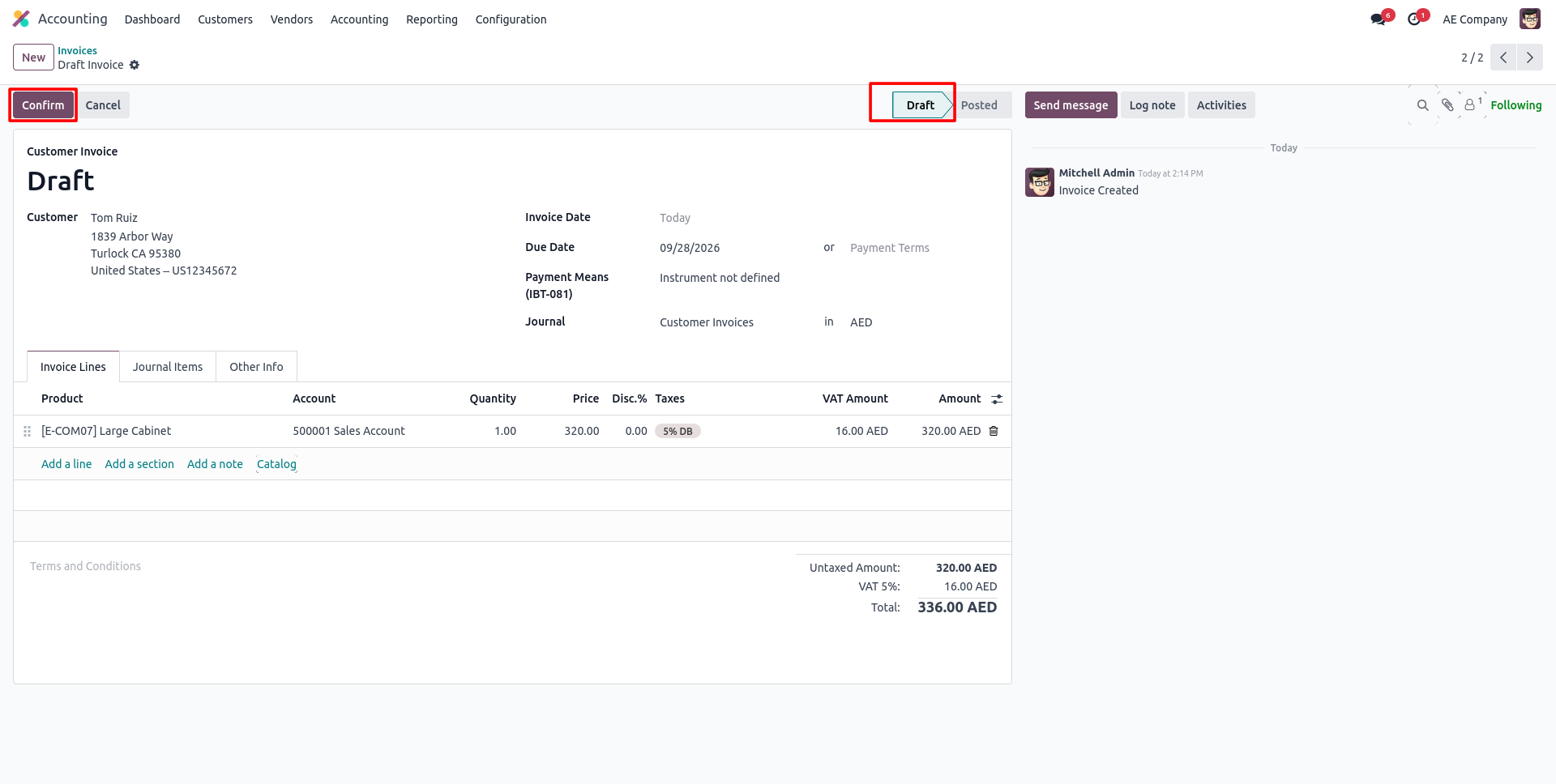
15. Simply click Confirm on a draft invoice — with Auto-Send enabled, it's submitted to the FTA the moment it posts.
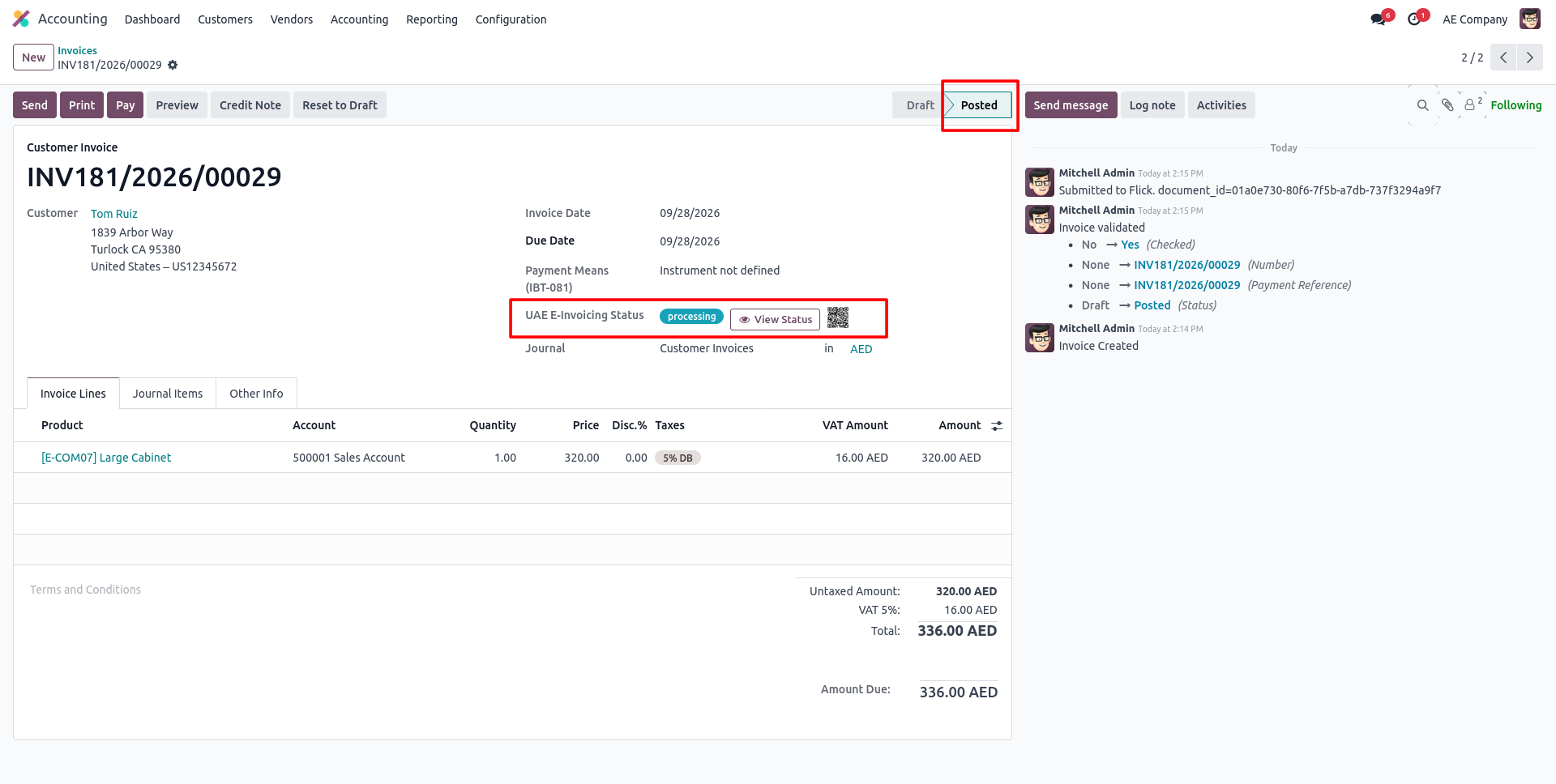
16. Since Auto-Send Invoice is on, confirming the invoice submits it right away — status shows Processing without touching any button.
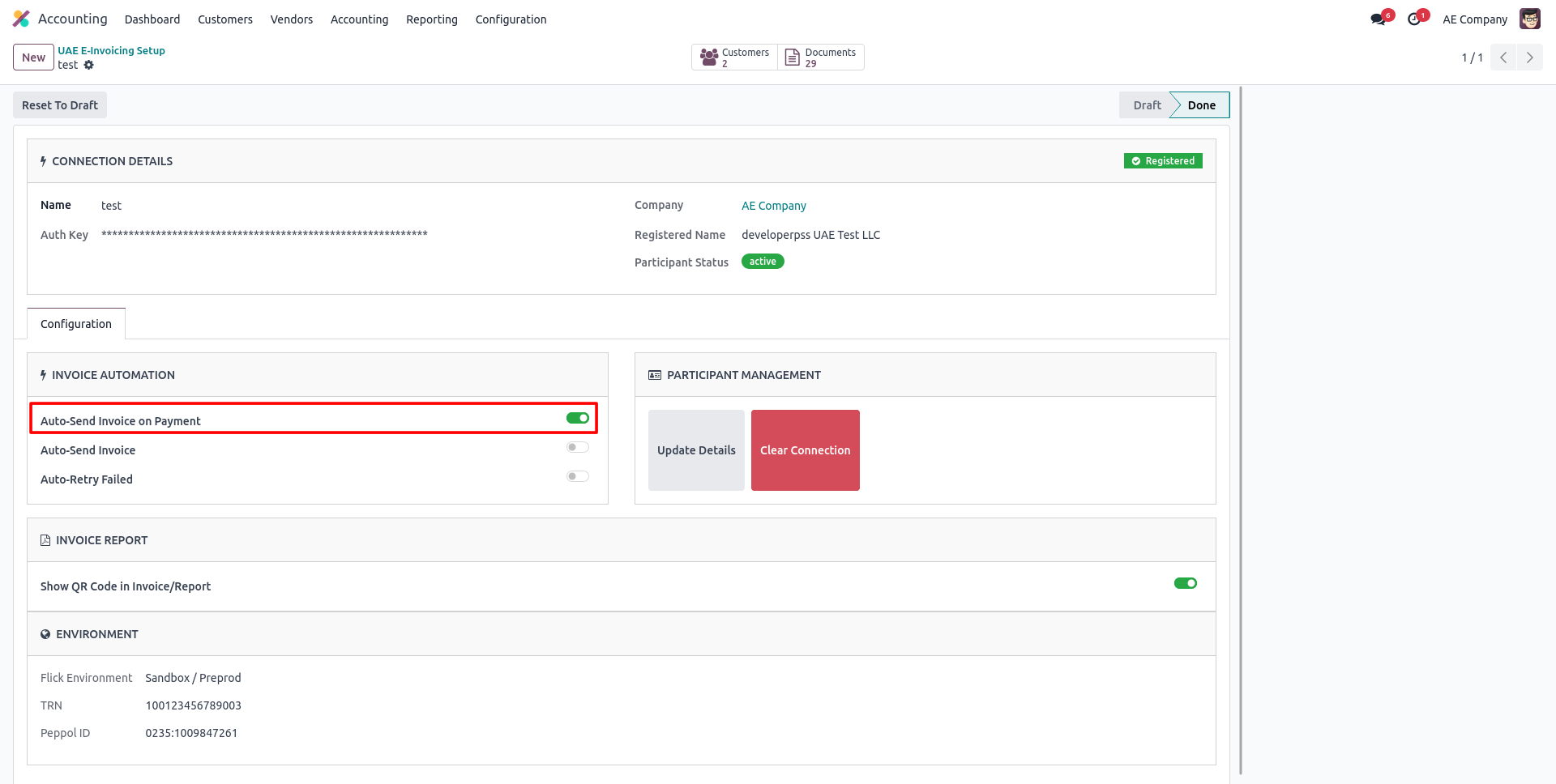
17. Prefer to send on payment instead? Enable Auto-Send Invoice on Payment so invoices submit only once they're settled.
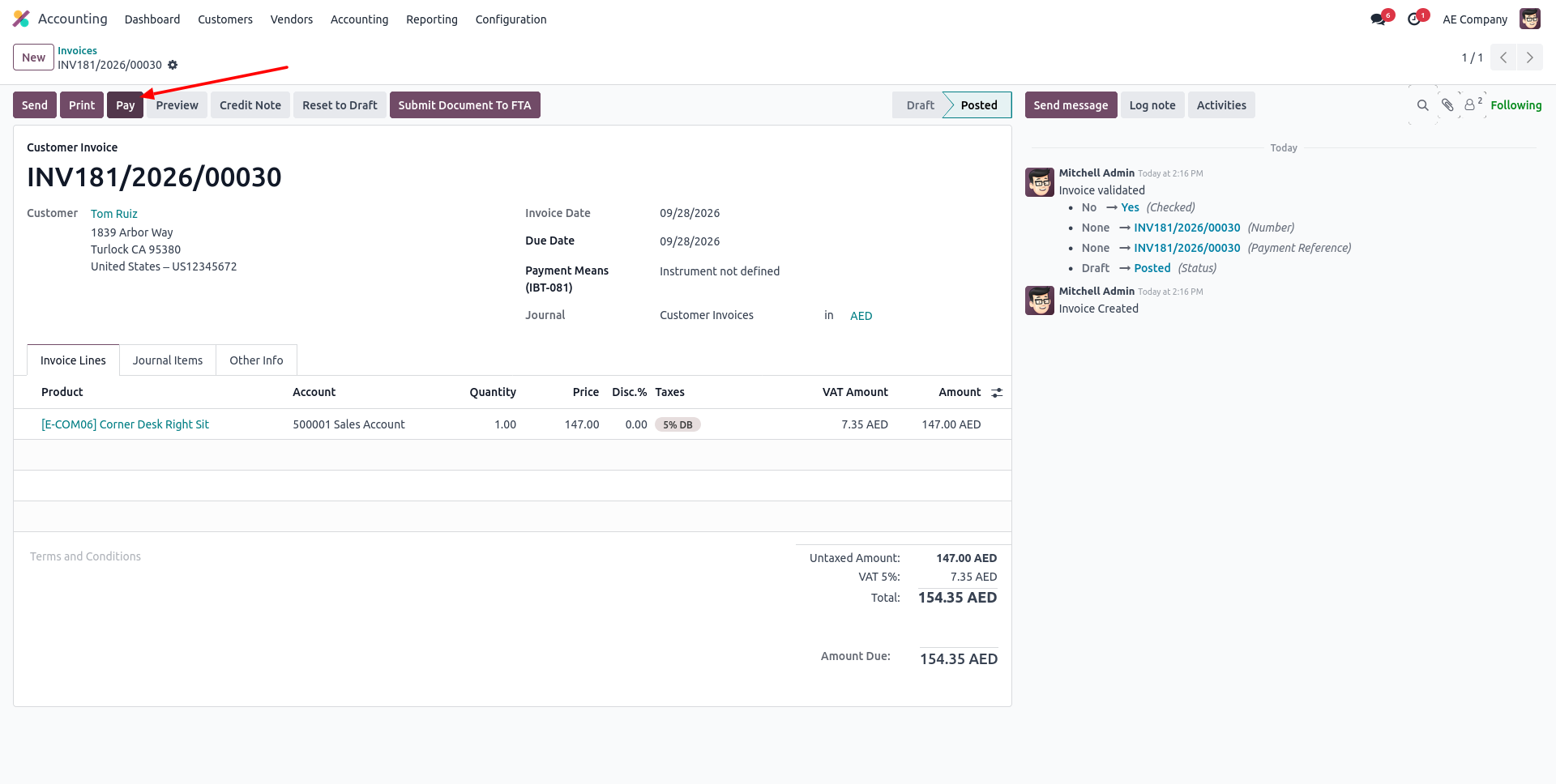
18. Post the invoice as usual, then click Pay to register the customer's payment.
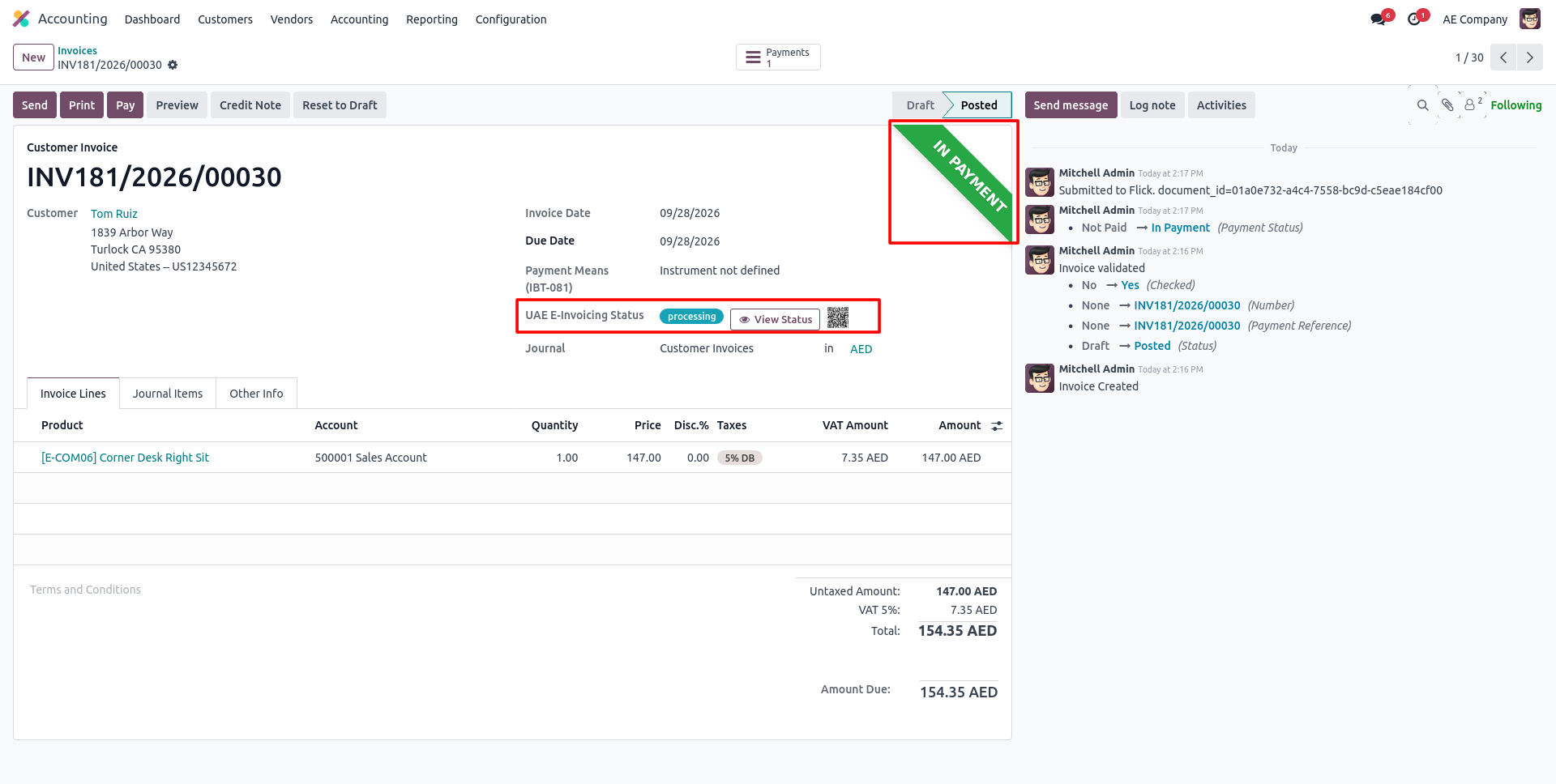
19. The moment it's marked In Payment, the invoice is automatically submitted — UAE E-Invoicing Status switches to Processing.
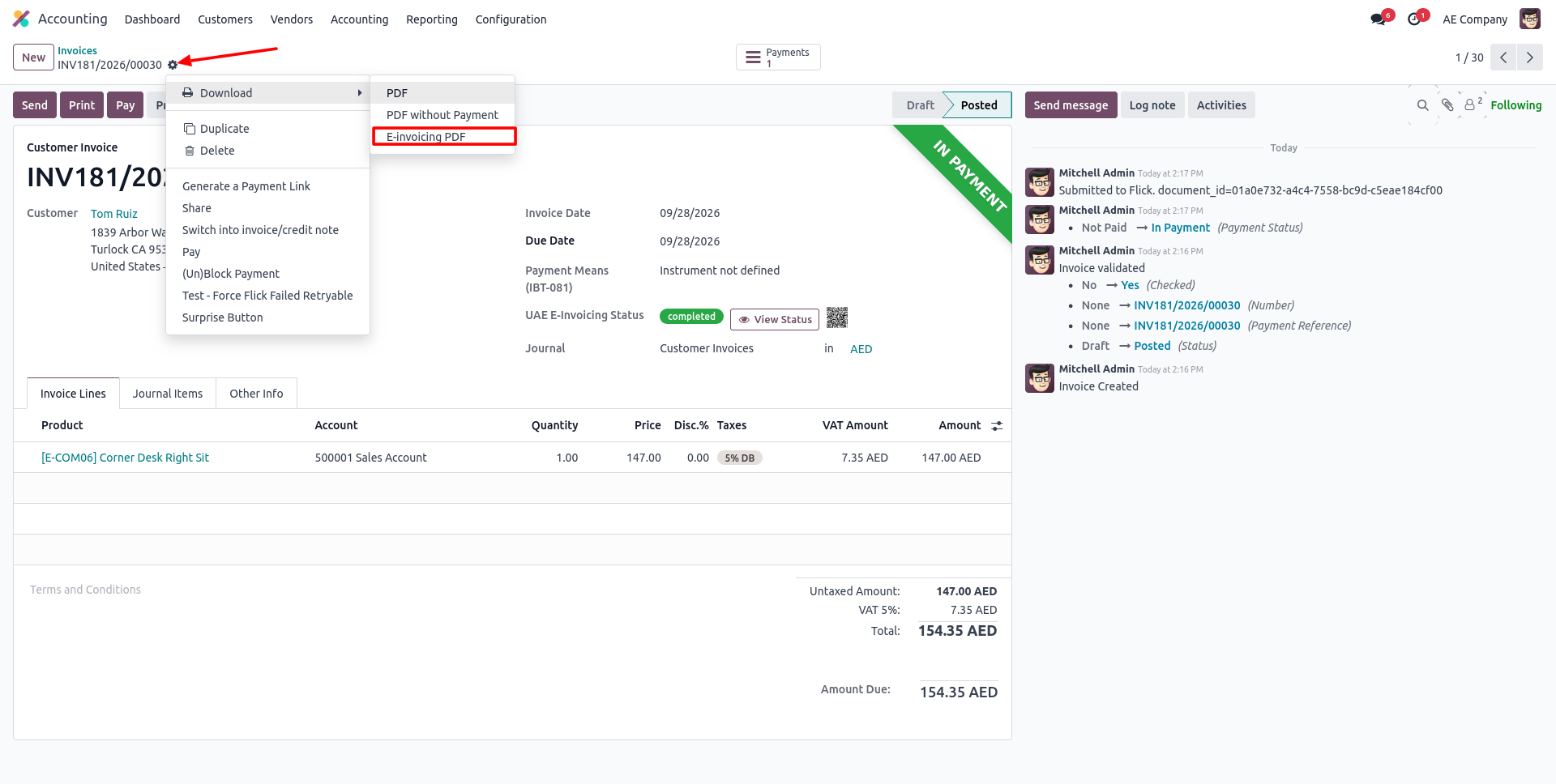
20. Once Completed, open the gear menu and pick Download > E-invoicing PDF to get the FTA-compliant invoice copy.
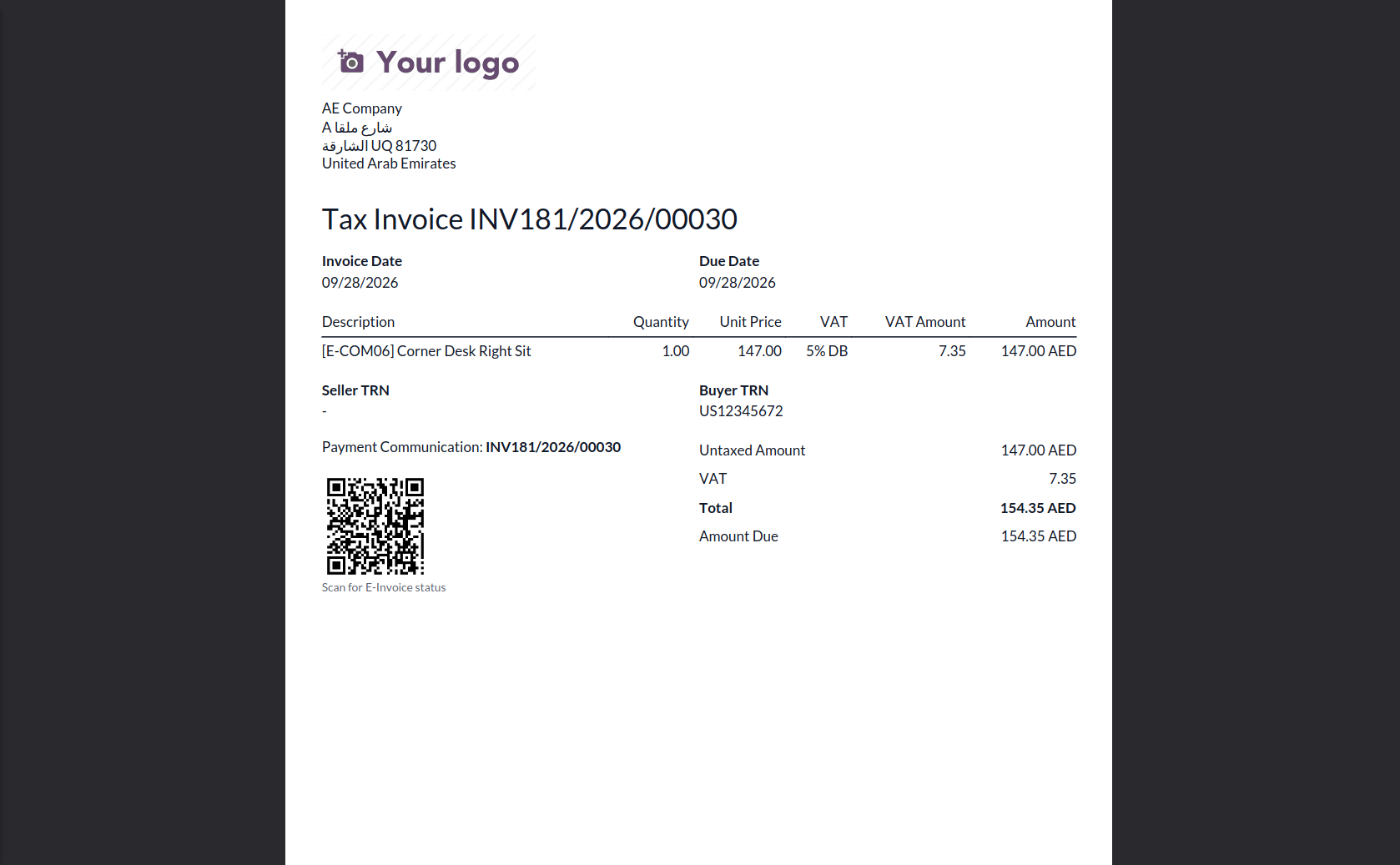
21. The downloaded E-Invoicing PDF shows a proper Tax Invoice layout with Buyer TRN and a QR Code to scan for live E-Invoice status.
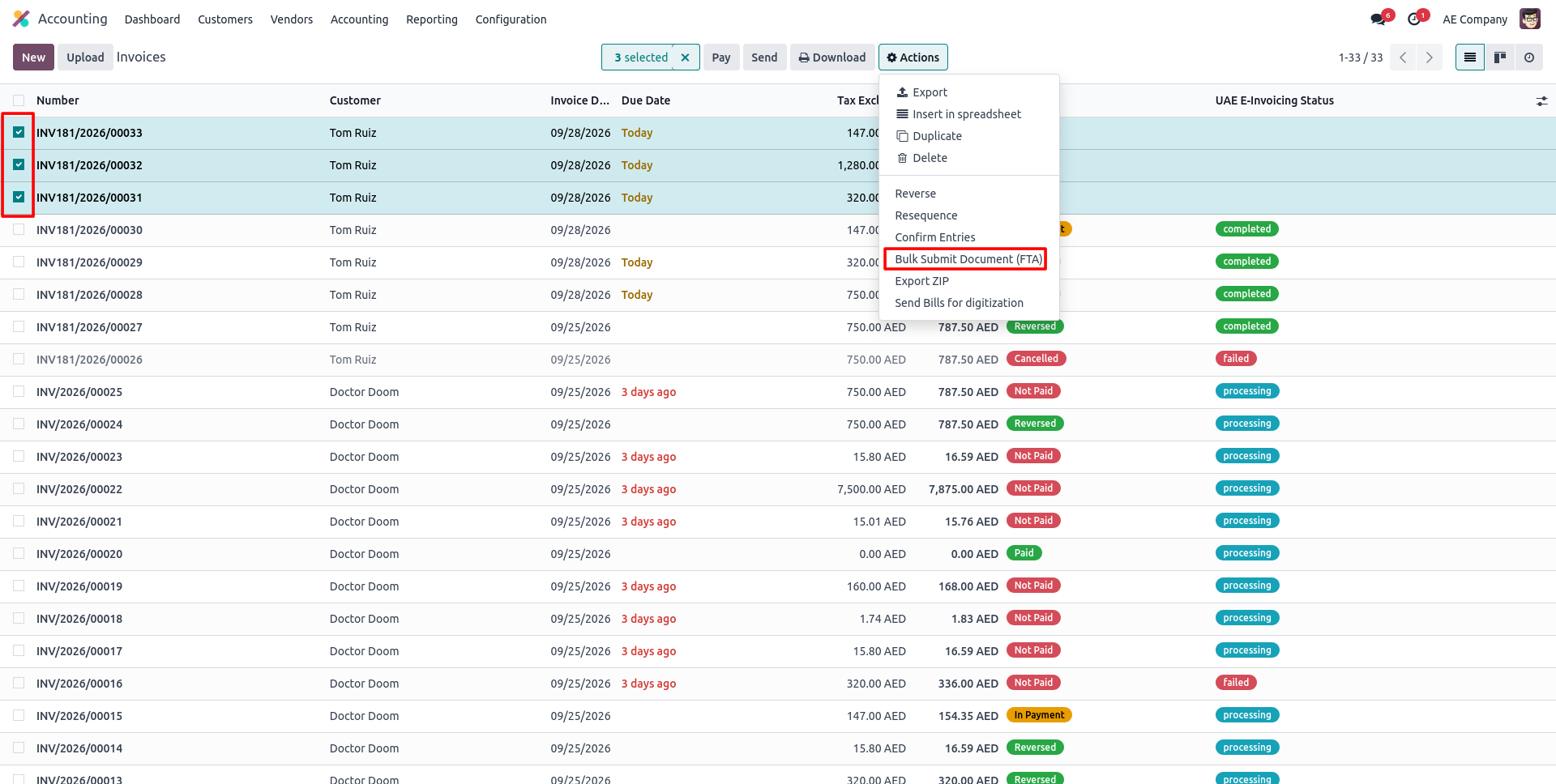
22. Select multiple invoices in the list, open Actions, and click Bulk Submit Document (FTA) to send them all at once.
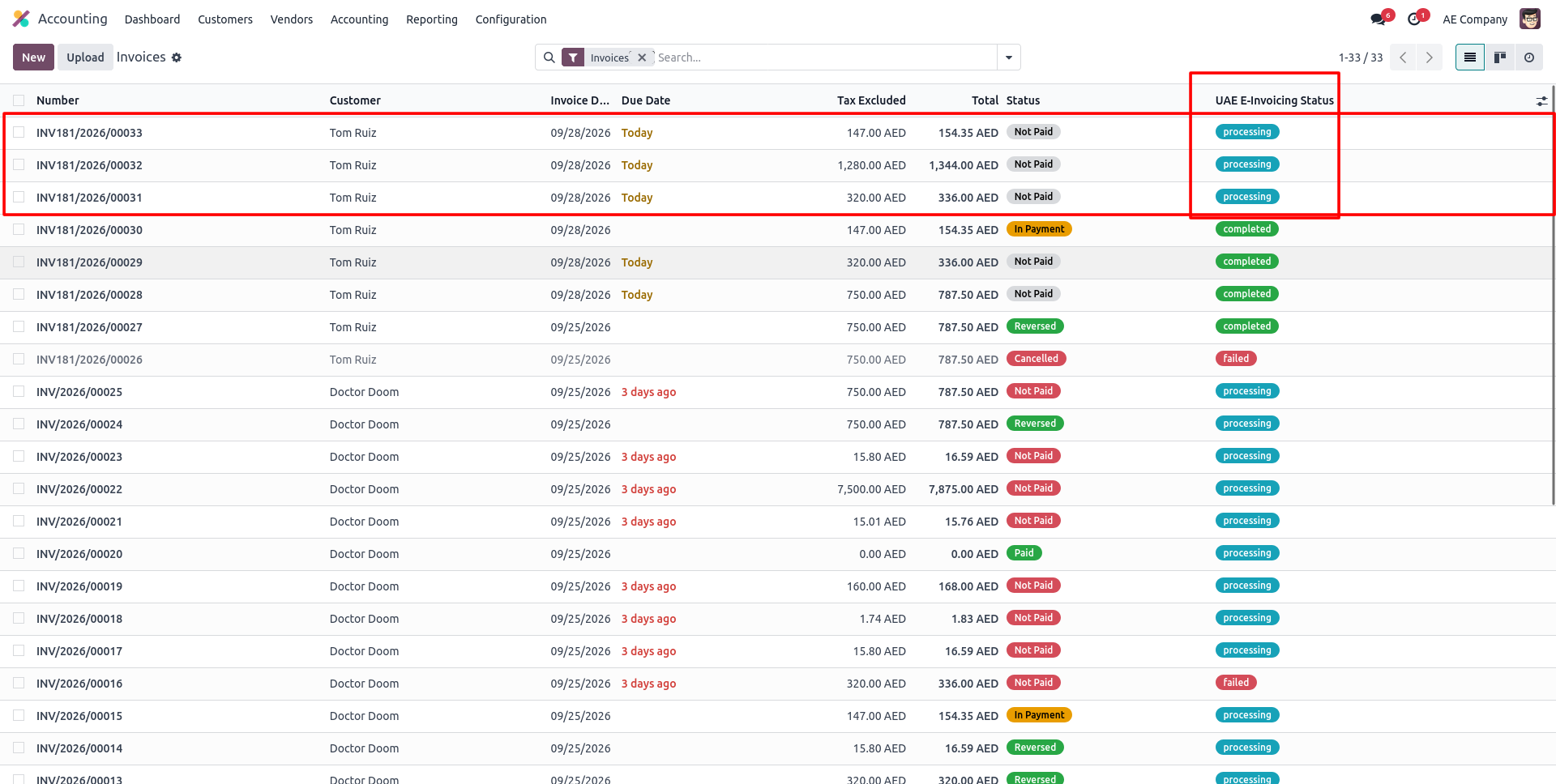
23. A dedicated UAE E-Invoicing Status column keeps every invoice's submission state visible right from the list view.
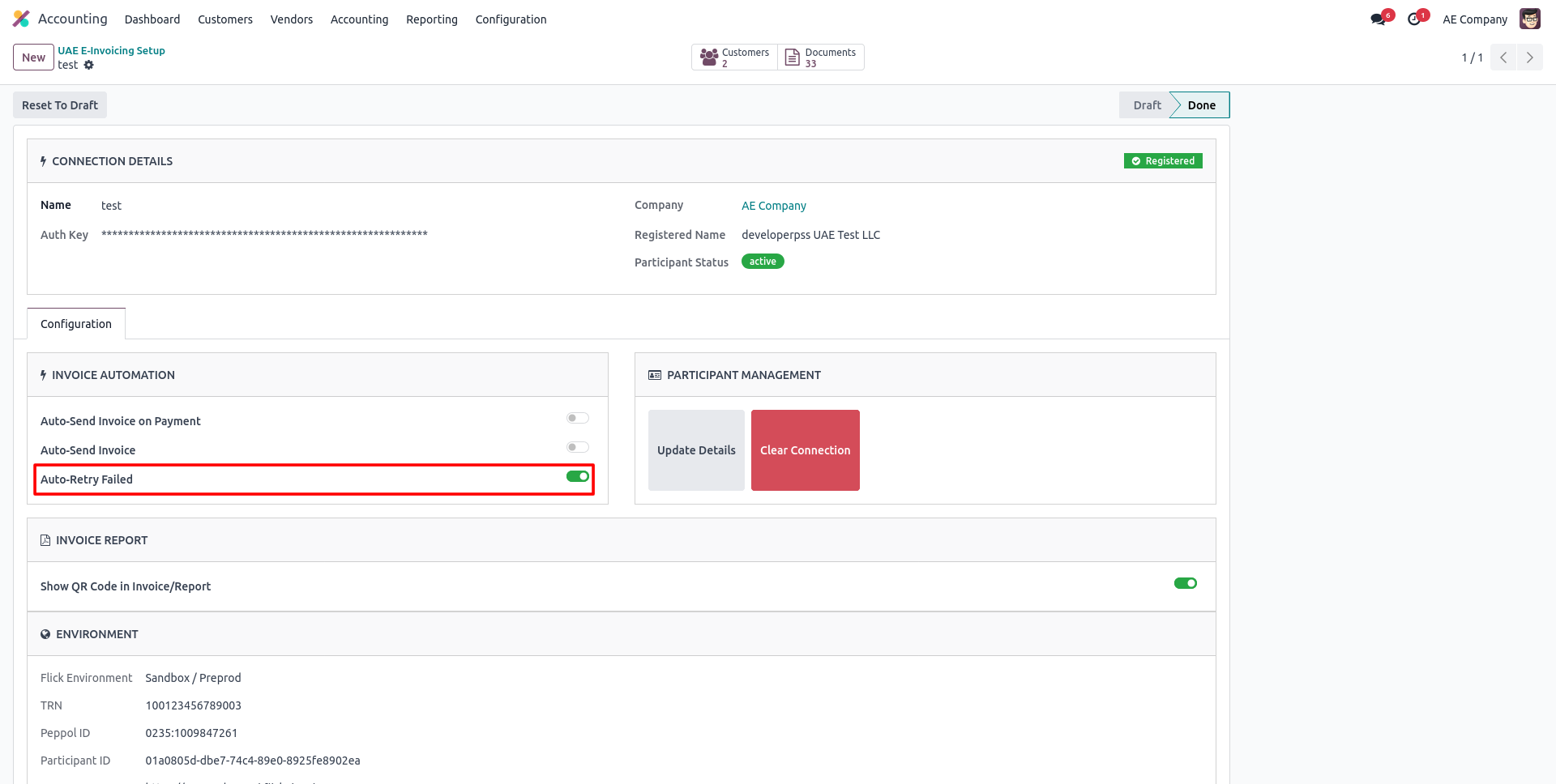
24. Enable Auto-Retry Failed so any invoice that fails submission is automatically resubmitted on the next scheduled run.
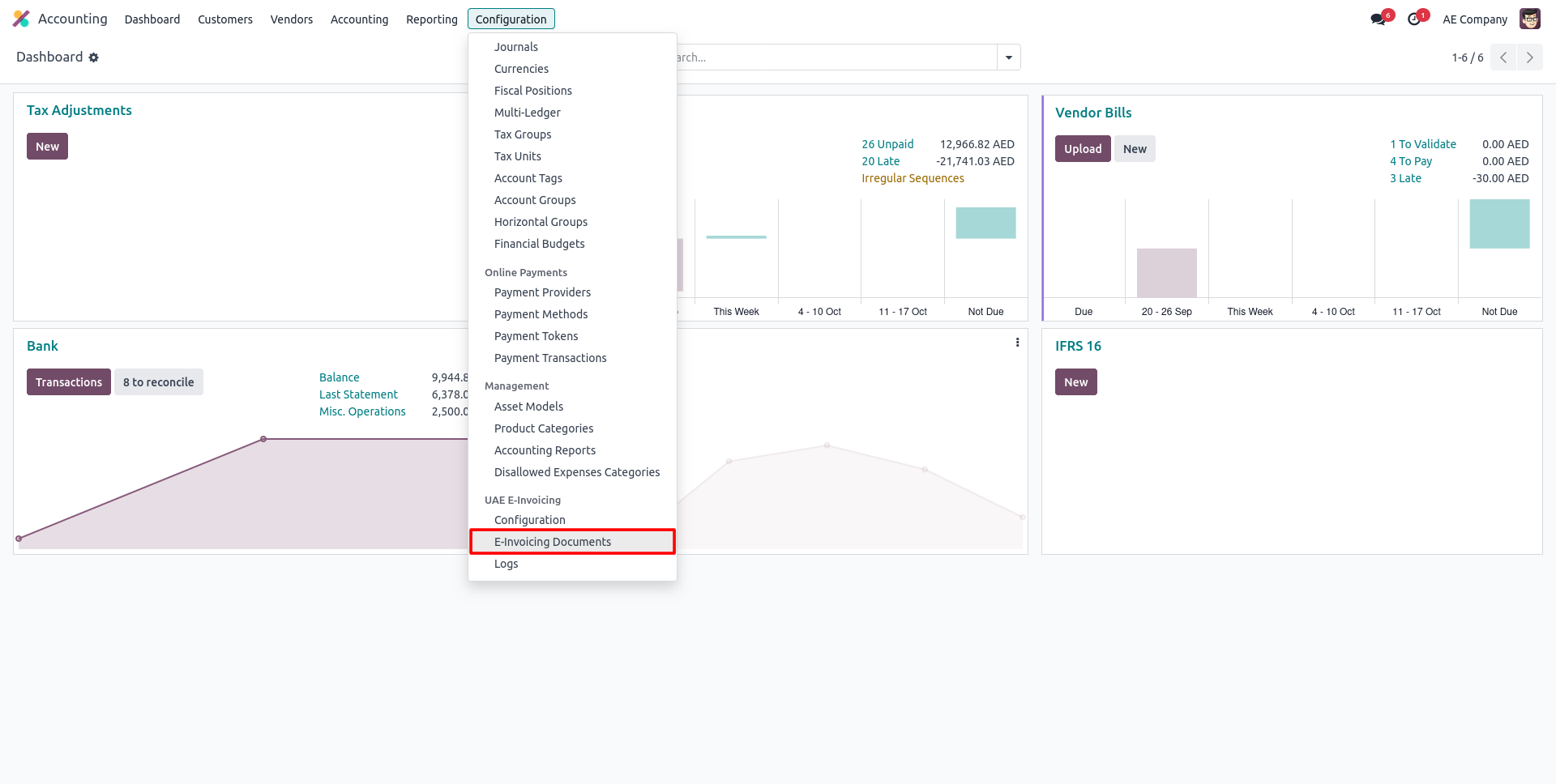
25. Go to Configuration > UAE E-Invoicing > E-Invoicing Documents to view every submitted document in one place.
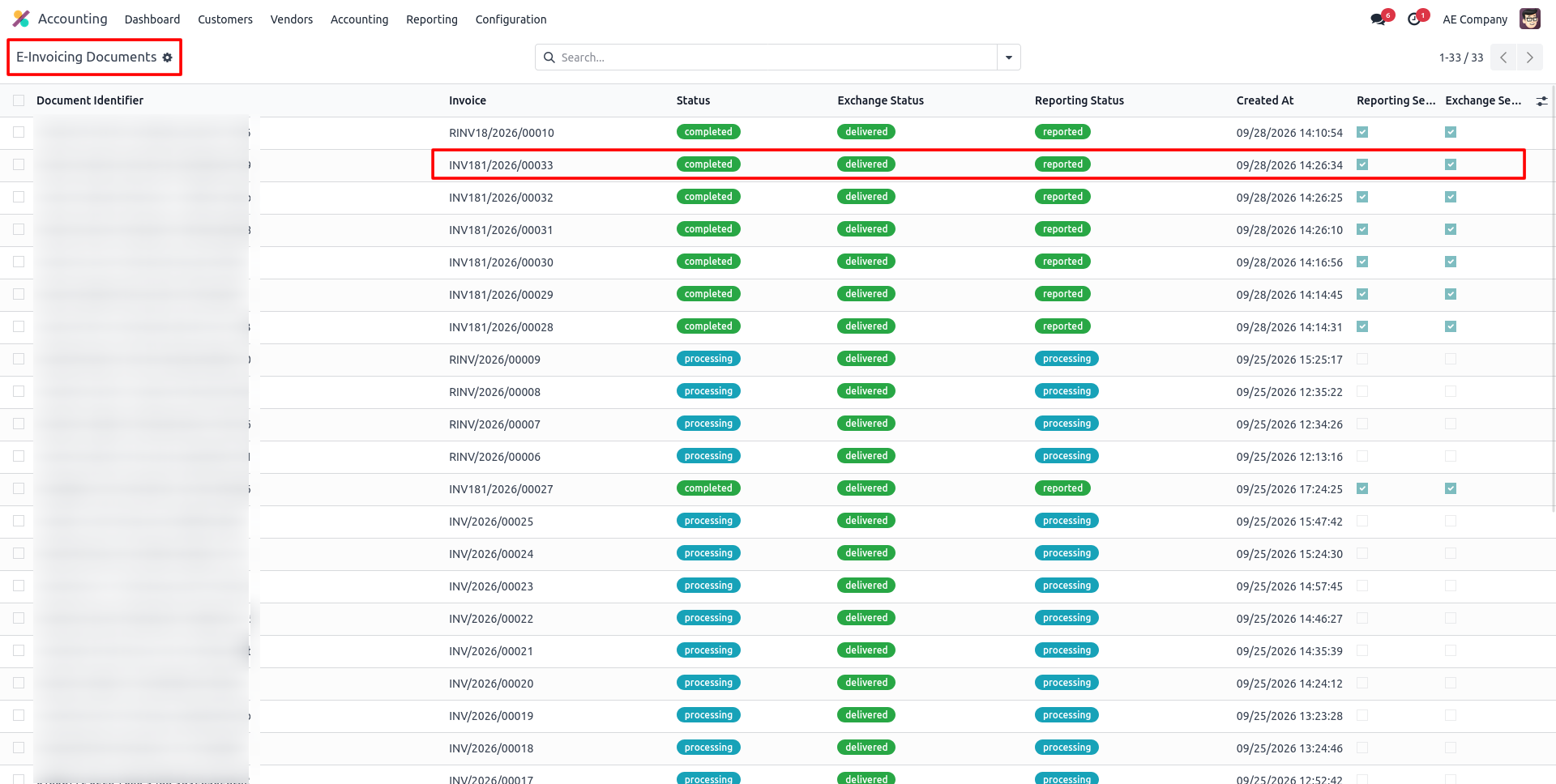
26. Open Configuration > UAE E-Invoicing > E-Invoicing Documents to see every submission with its Status, Exchange and Reporting state at a glance.
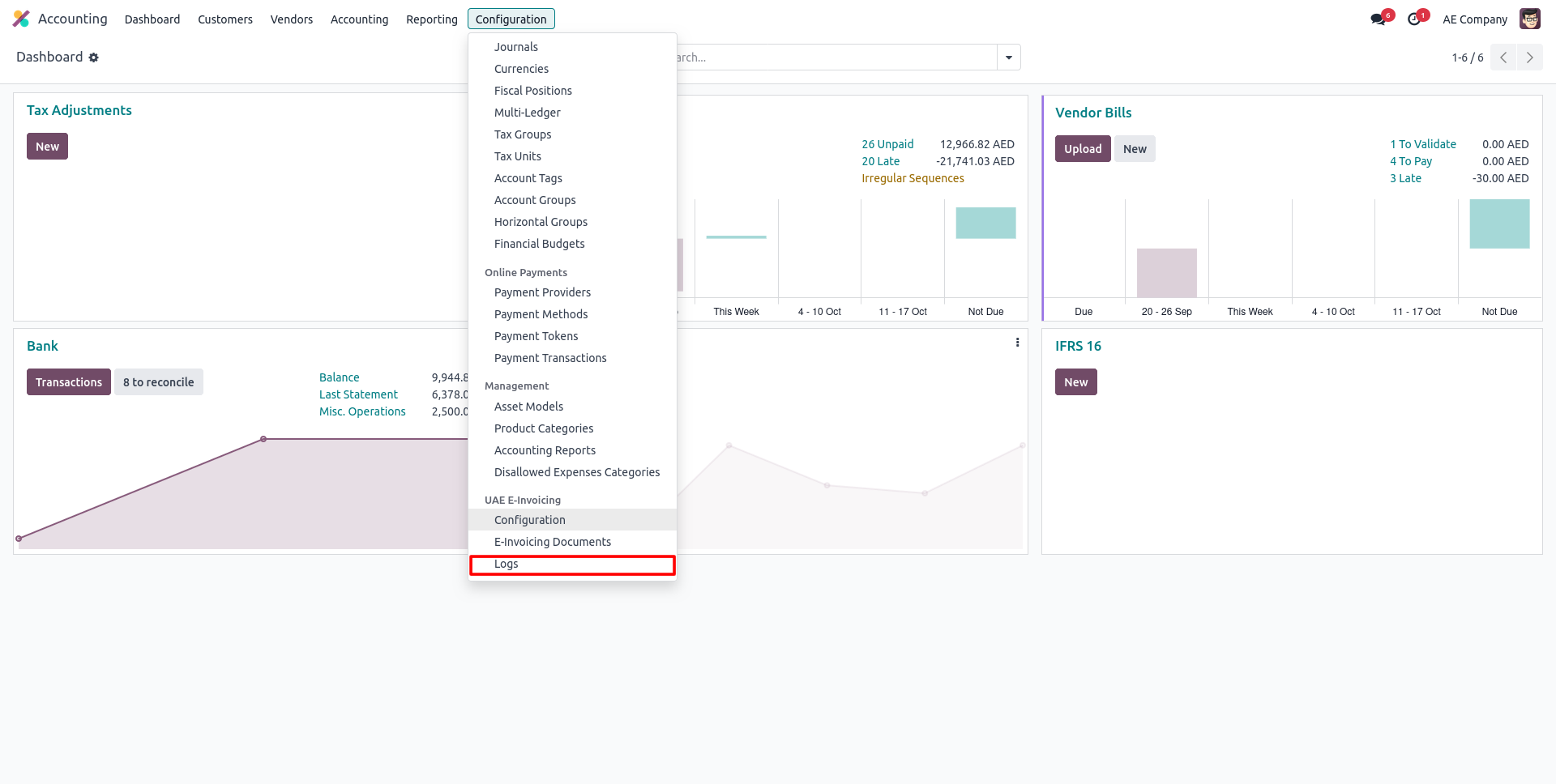
27. Go to Configuration > UAE E-Invoicing > Logs to review any submission history and troubleshoot as needed.
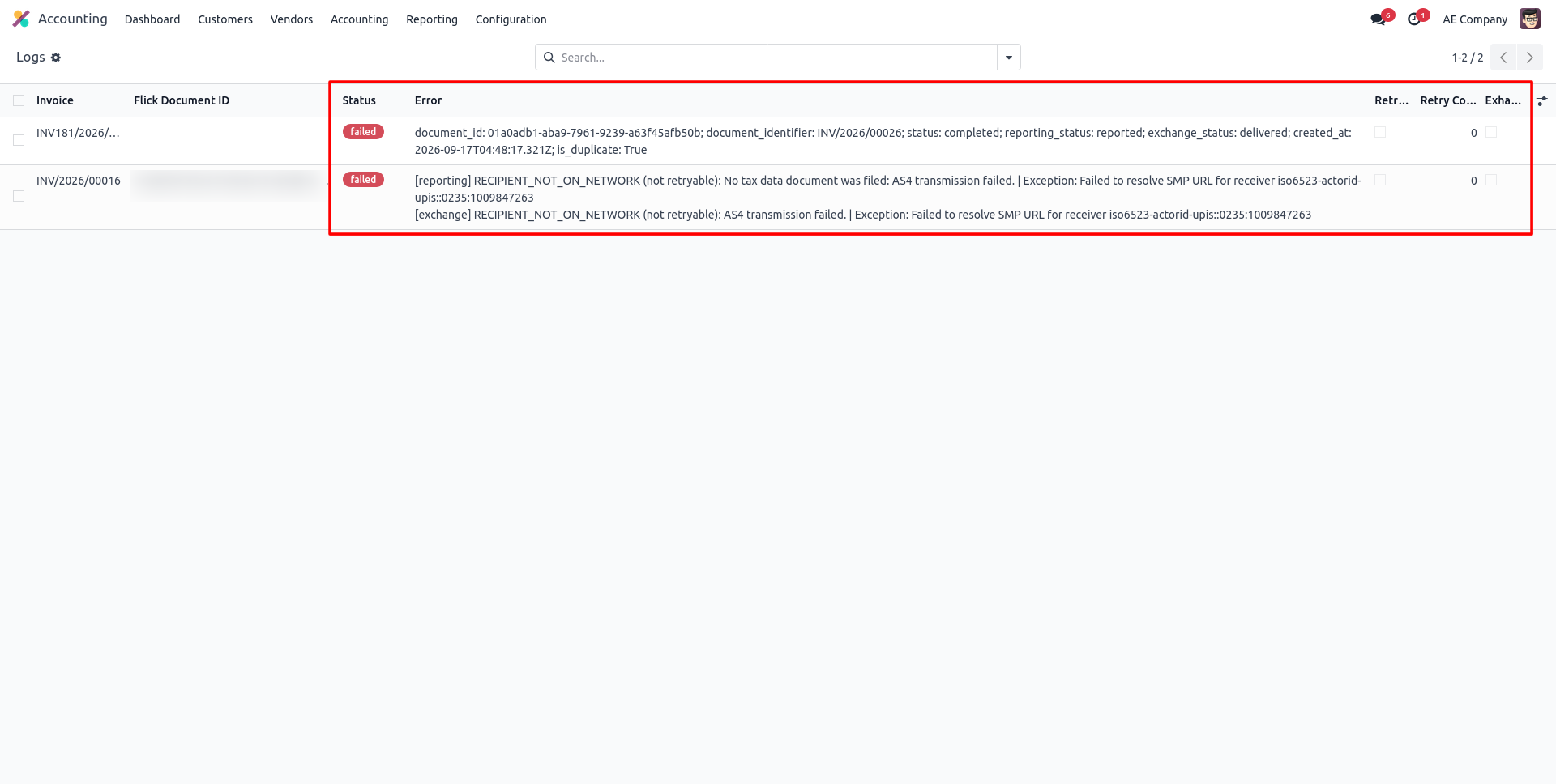
28. The Logs view lists every Failed submission with its full FTA Error message and Retry Count, so nothing gets missed.
Our solutions focus on your problems
- Odoo Implementation
- Odoo Customization
- ERP Development and Implementation
- Odoo Ipass Cloud
- AI for Odoo
- Odoo Apps
- Aws Marketplace Products
- Business Engines
Our Pricing includes User Manual, 90 Days Support (Monday-Friday 10am to 7pm IST) and One time Setup
• Works & tested on standard installations of Odoo with no third party apps,
• Free support only for odoo installations with no third party apps,
• Paid support available for Odoo installations with third party apps.

Prefortune is a Odoo Official Partner, Odoo Development company. Our philosophy is to use Open Source tools and technologies to provide cost effective and green solutions for our customers.
Prefortune Technologies LLP is working on web development, Mobile development, and Odoo ERP.
If you need any help or want more additional features, you may contact us through:
Alternative Products
These other products might interest you
Specifications
| Version | 20.0, 19.0, 18.0, 17.0, 16.0, 15.0, 14.0 |